Ruby Gem for Jamf Pro API
JamfReports is a ruby gem that uses the Jamf Pro API for hosted instances. Currently, it only reports on Applications. Pulling from the /api/v1/computers-inventory?section=APPLICATIONS endpoint.
For gem install instructions see here
*Future reports may be added.
Usage
In order to run JamfReports, you are required to add these two lines to the top of your file, under the require JamfReports line
#!/usr/bin/ruby
require "JamfReports"

## UPDATE THESE VARIABLES -------------------------------
$jamfpro_url = "https://company.jamfcloud.com"
$api_pw = "Your API KEY HERE"
If you don’t have your api key for the $api_pw variable, run this command to create it and paste it into the variable.
printf "jamfUserName:JamfPassword" | iconv -t ISO-8859-1 | base64 -i -
And these 3 lines to generate the api token and pull the data from Jamf so you can run the report commands.
JamfReports.getToken
JamfReports.checkTokenExpiration
JamfReports.getAllApplicationInventory
A full working file might look like this.
#!/usr/bin/ruby
require "JamfReports"

## UPDATE THESE VARIABLES ----------------------------------------
$jamfpro_url = "https://company.jamfcloud.com"
$api_pw = "Your API KEY HERE"

## COMMANDS ------------------------------------------------------
JamfReports.getToken
JamfReports.checkTokenExpiration
JamfReports.getAllApplicationInventory

## REPORTS -------------------------------------------------------
JamfReports.listAllInstalledApps
# JamfReports.webBrowserReport
# JamfReports.totalNumberOfOneInstalledApps
# JamfReports.listofOneInstallApps

## After reporting, revoke current token
JamfReports.invalidateToken
Examples
listAllInstalledApps

Returns a sorted list of all apps installed across your fleet of computers in Jamf. Sorted from most installed app, to least.
webBrowserReport

- Google Chrome.app
- Google Chrome Canary.app
- Firefox.app
- Firefox Developer Edition.app
- Safari.app
- Safari Technology Preview.app
- Microsoft Edge.app
- Brave Browser.app
- Arc.app
- Opera.app
- LinCastor Browser.app
- LockDown Browser.app
- Tor Browser.app
- Vivaldi.app
- DuckDuckGo.app
totalNumberOfOneInstalledApps
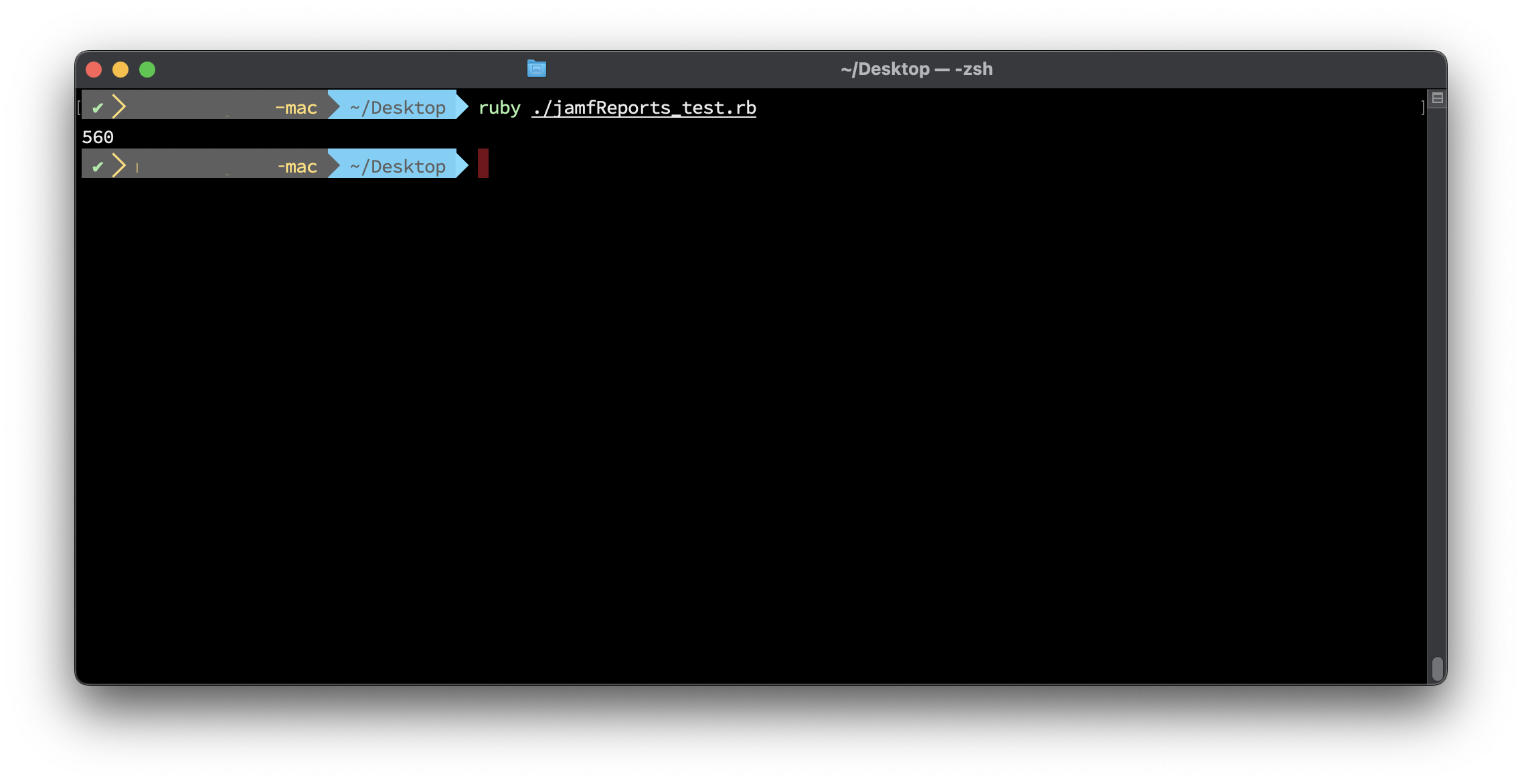
Returns a single metric to show the number of “One-off” or single installed apps across your fleet.
listofOneInstallApps
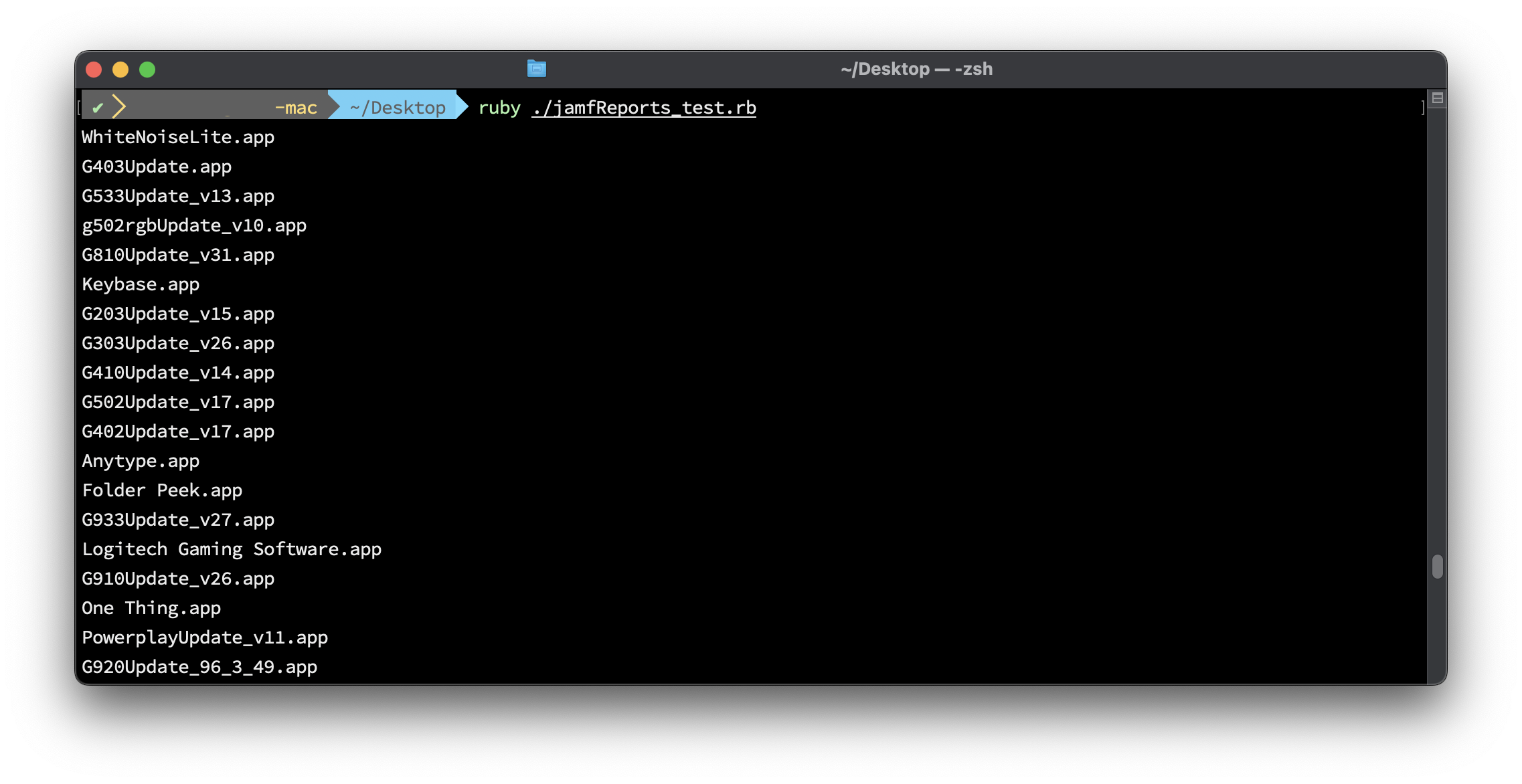
Returns a list of all the “One-off” or single installed apps across your fleet. This can be helpful in scoping in Jamf uninstall policies.