My son is supper big into Minecraft, and it always comes up whenever there is a new update … How do I backup my Minecraft folder?
I finally got tired of navigating to the Minecraft folder in the User/Library/Application Support folder. So I made a simpe script that can be run just by double clicking an executable shell script.
Using the Command Line to make the Backup
1. First on the desktop select “Go”, “Go to Folder” from the top menu bar
2. type in “~/Library”, click on “Go”. Navigate to the Application Support/minecraft folder
3. Now create a folder to place your Minecraft backups in. I created one called “MineCraft Backups” on my desktop, just to be easy. Then open the folder. You should have the two folders open like below.

4. Open the Terminal and run this command. Make sure you substitute your user account name in place of “USER1” in the below command.
ditto -c /Users/USER1/Library/Application\ Support/minecraft /Users/USER1/Desktop/MineCraft\ Backups/minecraft_backup.$(date +%Y%m%d-%H%M%S).zip
If successful you should see a zip file added to your backup folder. Let’s break the command down.
The command is a simple ditto -c “source” “destination” “options”
Example:
ditto -c /Users/USER1/Library/Application\ Support/minecraft /Users/USER1/Desktop/MineCraft\ Backups/minecraft_backup.$(date +%Y%m%d-%H%M%S).zip
Command = ditto
a command that copies directory hierarchies, create and extract archives
options = -c
tells ditto to make an archive
Source = Users/USER1/Library/Application\ Support/minecraft
path of the file or folder that we want to back up
destination = /Users/USER1/Desktop/MineCraft\ Backups/minecraft_backup
path to where we want to put the backup
options: .$(date +%Y%m%d-%H%M%S)
this command is totally optional. It simply appends the year, month, day, hour, minutes, and seconds onto the end of the file name. I like to be detailed and this way no matter how many times I run my script they will always have a different file name and I won’t have to worry about them overwriting each other.
file format to save as: .zip
tells ditto to save the archive as a zip file

Creating A script to run the backup
That’s was pretty easy but we don’t want to have to remember that command everytime we want to make a backup. So let’s make that command a shell script.
1. In Terminal type:
cd ~/desktop
vim Backup_Minecraft

This is going to create a file on your desktop call “Backup_Minecraft” that we are going to save our command into.
2. It should open a blank window. press “i” to enter insert mode, and paste your command from above into the window.

3. Then press the ‘esc’ key to exit insert mode.
4. Press :wq to save and close the vim editor.
5. you should now have a new file on your desktop named “Backup_Minecraft”
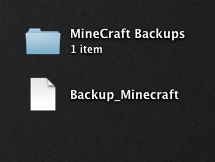
6. Now we need to make it executable so we can run the command. Back in terminal type the below command, again make sure to substitute your user account name in place of “USER1”.
chmod u+x /Users/USER1/Desktop/Backup_Minecraft

7. If it was successful you’ll notice the “Backup_Minecraft” file has changed in appearance.
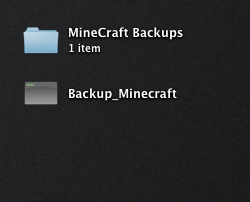
8. Now let’s verify that the script works. Double click the “Backup_Minecraft” file. You should get a Terminal window that pops up and a new .zip file added to your backup folder. If everything went well the Terminal window should say “Process Completed”

Now anytime you want to make a backup of your entire minecraft folder you can simply double click your script.
How to automate your backup script
I stopped there, but if you wanted too, you could take this a step forward by creating a launch daemon or crontab. I’ll show you the crontab here.
1. Open Terminal and type the below:
cd ~/desktop
vim backups.sh
2. When the blank terminal windows opens, press “i” to enter insert mode, and paste your command from below into the window. Make sure you substitute your user account name in place of “USER1”.
#! /bin/bash
ditto -c /Users/USER1/Library/Application\ Support/minecraft /Users/USER1/Desktop/MineCraft\ Backups/minecraft_backup.$(date +%Y%m%d-%H%M%S).zip

3. Then press the ‘esc’ key to exit insert mode.
4. Press :wq to save and close the vim editor.
5. you should now have a new file on your desktop named “backups.sh
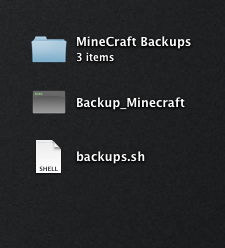
6. Let’s verify the script is working. Open Terminal and type:
cd ~/desktop
./backups.sh
It should create a new backup in your backup folder.

7. Time to create a crontab which is just a scheduled task. I’m going to set this example up to backup every 2minutes. So we can quickly see if it’s working. Open Terminal and type:
crontabe -e
This will open a blank window so we can create our task.
8. Press “i” to enter insert mode, and paste the command from below into the window. Make sure you substitute your user account name in place of “USER1”
*/2 * * * * /Users/USER1/Desktop/backups.sh
With out going to deep into crontabs, this command tells your computer to run the script backups.sh every two minutes. For more info on crobtabs go here.
9. Then press the ‘esc’ key to exit insert mode.
10. Press :wq to save and close.
11. To check to see if your crontab was saved run this command or wait 2 minutes to see if a new backup is added.
crontab -l

12. To remove the crontab run this command. Then you can create a new one and adjust the schedule to run every 24 hours, or what every you prefer.
crontab -r

