Description:
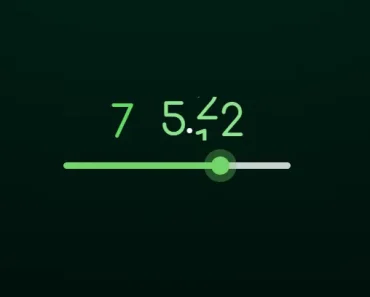
@rn-nui/slider is a React Native component that brings Material Design 3 system sliders to your mobile apps.
The component provides full control over slider appearance and functionality, including track colors, thumb styling, icon integration, and tick mark visibility.
Unlike basic slider implementations, @rn-nui/slider offers preset sizing options and supports complex use cases such as centered sliders for audio panning controls.
Features
- 🎨 Material 3 design system compliance with comprehensive theming support.
- 📏 Preset size configurations (xs, sm, md, lg, xl) for consistent component scaling.
- 🎯 Precise step-based value control with customizable snap points.
- 🔄 Centered slider mode for bidirectional controls like audio panning.
- 🏷️ Floating label behavior with always-visible and never-visible options.
- 🎪 Track icon integration for start, end, and thumb-adjacent positions.
- ⭕ Configurable tick mark visibility with auto-limiting and auto-hiding modes.
- 🎭 Complete visual customization including colors, borders, and elevations.
- 📱 Native Android implementation with proper Material 3 theme inheritance.
- 🔧 Event callbacks for value changes, sliding start, and sliding stop actions.
Preview

Use Cases
- Audio and video player controls with precise volume and progress tracking.
- Settings panels requiring numeric input with visual feedback and constraints.
- Gaming interfaces for character stats, difficulty levels, and configuration options.
- Data visualization tools with interactive filtering and range selection capabilities.
- Form components requiring numeric input with visual validation and step constraints.
How to Use It
1. Install the package using npm or yarn:
npm install @rn-nui/slider
# or
yarn add @rn-nui/slider
2. For Android applications, update your app theme in /android/app/src/main/res/values/styles.xml to inherit from Material3Expressive:
<resources>
    <style name="AppTheme" parent="Theme.Material3Expressive.DayNight.NoActionBar">
        <!-- Your theme customizations -->
    </style>
</resources>
3. Import and implement a basic slider with value control:
import React, { useState } from 'react';
import { View } from 'react-native';
import { Slider } from '@rn-nui/slider';
export default function BasicSliderExample() {
  const [volume, setVolume] = useState(50);
  return (
    <View style={{ padding: 20 }}>
      <Slider
        value={volume}
        onValueChange={setVolume}
        minValue={0}
        maxValue={100}
      />
    </View>
  );
}
4. Configure slider appearance with preset sizes and custom styling:
import React, { useState } from 'react';
import { Slider } from '@rn-nui/slider';
export default function CustomSliderExample() {
  const [brightness, setBrightness] = useState(75);
  return (
    <Slider
      size="lg"
      value={brightness}
      onValueChange={setBrightness}
      minValue={0}
      maxValue={100}
      stepSize={5}
      activeTrackColor="#4CAF50"
      inactiveTrackColor="#E0E0E0"
      thumbColor="#2E7D32"
      labelBehavior="floating"
      tickVisibilityMode="auto-limit"
    />
  );
}
5. Implement bidirectional sliders for audio panning or balance controls:
import React, { useState } from 'react';
import { Slider } from '@rn-nui/slider';
export default function PanningSliderExample() {
  const [panPosition, setPanPosition] = useState(0);
  return (
    <Slider
      value={panPosition}
      onValueChange={setPanPosition}
      minValue={-100}
      maxValue={100}
      stepSize={10}
      centered={true}
      labelBehavior="always-visible"
      activeTrackColor="#FF5722"
      thumbColor="#D84315"
    />
  );
}
6. Add track icons and configure tick mark behavior:
import React, { useState } from 'react';
import { Slider } from '@rn-nui/slider';
export default function IconSliderExample() {
  const [rating, setRating] = useState(3);
  return (
    <Slider
      value={rating}
      onValueChange={setRating}
      minValue={1}
      maxValue={5}
      stepSize={1}
      trackIconActiveStart="star"
      trackIconActiveEnd="star_outline"
      trackIconActiveColor="#FFD700"trackIconInactiveColor="#CCCCCC"
      tickVisibilityMode="auto-limit"
      activeTickColor="#FFD700"
      inactiveTickColor="#E0E0E0"
    />
  );
}
7. Handle slider events for complex interactions:
import React, { useState } from 'react';
import { Text, View } from 'react-native';
import { Slider } from '@rn-nui/slider';
export default function EventSliderExample() {
  const [seekPosition, setSeekPosition] = useState(30);
  const [isSliding, setIsSliding] = useState(false);
  const handleSlidingStart = (value: number) => {
    setIsSliding(true);
    console.log('Started sliding at:', value);
  };
  const handleSlidingStop = (value: number) => {
    setIsSliding(false);
    console.log('Stopped sliding at:', value);
  };
  const handleValueChange = (value: number) => {
    setSeekPosition(value);
    if (isSliding) {
      // Update UI during sliding
      console.log('Sliding to:', value);
    }
  };
  return (
    <View>
      <Text>Position: {seekPosition}%</Text>
      <Text>Status: {isSliding ? 'Sliding' : 'Idle'}</Text>
      <Slider
        value={seekPosition}
        onValueChange={handleValueChange}
        onSlidingStart={handleSlidingStart}
        onSlidingStop={handleSlidingStop}
        minValue={0}
        maxValue={100}
        size="md"
        labelBehavior="floating"
      />
    </View>
  );
}
8. Configure component dimensions using preset sizes or custom values:
import React, { useState } from 'react';
import { View } from 'react-native';
import { Slider } from '@rn-nui/slider';
export default function SizedSliderExample() {
  const [smallValue, setSmallValue] = useState(25);
  const [largeValue, setLargeValue] = useState(75);
  return (
    <View>
      <Slider
        size="sm"
        value={smallValue}
        onValueChange={setSmallValue}
        minValue={0}
        maxValue={100}
        thumbColor="#3F51B5"
      />
      <Slider
        size="xl"
        value={largeValue}
        onValueChange={setLargeValue}
        minValue={0}
        maxValue={100}
        height={12}
        thumbHeight={28}
        thumbWidth={28}
        trackCornerSize={6}
        thumbElevation={4}
      />
    </View>
  );
}
9. All possible slider props.
/**
 *  Preset sizes controlling track height, thumb height and border radius
 *  Options are 'xs', 'sm', 'md', 'lg', 'xl'
 */
size?: SliderSize | undefined | null;

minValue?: number | undefined;
maxValue?: number | undefined;

/** Determines the snap points */
stepSize?: number | undefined | null;

/** Controlled value */
value?: number | undefined | null;

/** Height of the track */
height?: number | undefined | null;

trackColor?: ColorValue | undefined | null;

/** Color of the track to left of the thumb */
activeTrackColor?: ColorValue | undefined | null;

/** Color of the track to right of the thumb */
inactiveTrackColor?: ColorValue | undefined | null;

/** Border radius of the track */
trackCornerSize?: number | undefined | null;

/** Border radius between track and thumb */
trackInsideCornerSize?: number | undefined | null;

/** Icon displayed in active section at start of track */
trackIconActiveStart?: string | undefined | null;

/** Icon displayed in active section next to thumb */
trackIconActiveEnd?: string | undefined | null;

/** Icon display in inactive section next to thumb */
trackIconInactiveStart?: string | undefined | null;

/** Icon displayed in inactive section at end of track */
trackIconInactiveEnd?: string | undefined | null;

/** Color of icons in active section */
trackIconActiveColor?: ColorValue | undefined | null;

/** Color of icons in inactive section */
trackIconInactiveColor?: ColorValue | undefined | null;

/** Size of icons */
trackIconSize?: number | undefined | null;

/** Size of the stop circle at the end of track */
trackStopIndicatorSize?: number | undefined | null;

/** Thumb props */
thumbColor?: ColorValue | undefined | null;
thumbWidth?: number | undefined | null;
thumbHeight?: number | undefined | null;
thumbElevation?: number | undefined | null;
thumbBorderColor?: ColorValue | undefined | null;
thumbBorderWidth?: number | undefined | null;

/** Space between thumb and track on both sides of thumb */
thumbTrackGapSize?: number | undefined | null;

/**
 * Behavior of label displaying current value
 * Options are:
 * - 'always-visible': The label is always visible
 * - 'floating': The label floats above the thumb when sliding
 * - 'never-visible': The label is never visible, even when sliding
 * */
labelBehavior?: SliderLabelBehavior | undefined | null;

/** Tick props */

/** Color of ticks, regardless of active or inactive */
tickColor?: ColorValue | undefined | null;
activeTickColor?: ColorValue | undefined | null;
inactiveTickColor?: ColorValue | undefined | null;

/** Border radius of ticks in active section */
activeTickRadius?: number | undefined | null;

/** Border radius of ticks in inactive section */
inactiveTickRadius?: number | undefined | null;

/**
 * Determines how the ticks are visible
 * Options are:
 * - 'auto-limit': Ticks are drawn. If there are too many, the maximum allowed number will be drawn
 * - 'auto-hide': Ticks are drawn. If there are too many, they are all hidden
 * - 'hidden': Ticks are always hidden (allows for snapping to points without showing ticks)
 */
tickVisibilityMode?: SliderTickVisibility | undefined | null;

disabled?: boolean | undefined | null;

/**
 * Controls if the active section is tied to the center of track
 * Example: Panning audio from left to right speakers
 * */
centered?: boolean | undefined | null;

onChange?: ((event: SliderValueChangeEvent) => void) | undefined | null;
onValueChange?: ((value: number) => void) | undefined | null;
onSlidingStart?: ((value: number) => void) | undefined | null;
onSlidingStop?: ((value: number) => void) | undefined | null;
FAQs
Q: Why does the slider require Material3Expressive theme inheritance on Android?
A: The component relies on Material 3 design tokens and theme attributes that are only available when your app inherits from the Material3Expressive theme. This ensures proper styling and behavior consistency across different Android versions and device configurations.
Q: Can I use this slider component on iOS devices?
A: Currently, @rn-nui/slider only supports Android platforms. iOS support is not yet implemented, so you should consider alternative slider solutions for iOS or wait for future updates to this library.
Q: How do I implement a range slider with two thumbs using this component?
A: @rn-nui/slider currently supports single-thumb sliders only. For range selection with dual thumbs, you would need to implement multiple slider instances or consider alternative libraries that specifically support range slider functionality.
Q: What happens when stepSize creates more ticks than can be displayed?
A: The tickVisibilityMode property controls this behavior. Using “auto-limit” displays the maximum allowed number of ticks, while “auto-hide” hides all ticks when there are too many. The “hidden” option always hides ticks while maintaining step-based snapping.