

Raspberry Pi OS vs Ubuntu: What’s the Best for Desktop Usage?
I like trying alternatives to Raspberry Pi OS, especially when they promise a more polished desktop experience. Ubuntu is usually the first one that comes to mind, because many of us already know it from a regular PC. But on a Raspberry Pi, a nice interface isn’t the only thing that matters. Performance, hardware support, and small compatibility details can quickly change the experience.
Raspberry Pi OS is generally the best choice for desktop usage on a Raspberry Pi. It offers better performance, strong hardware compatibility, and a familiar Debian base, while Ubuntu provides a more modern interface but can be heavier and less optimized on Raspberry Pi hardware.
In this comparison, I’ll explain how both systems run on a Raspberry Pi, where Ubuntu feels better, where Raspberry Pi OS still wins, and which one makes the most sense depending on your needs.
In a nutshell
Before getting into the details, here’s a quick overview of how Raspberry Pi OS and Ubuntu compare on the main criteria that matter for desktop usage.
| Test Criteria | Raspberry Pi OS | Ubuntu |
|---|---|---|
| Compatibility | 5/5 | 4/5 |
| Updates | 4/5 | 4/5 |
| Installation process | 4.5/5 | 3.5/5 |
| Interface | 3/5 | 5/5 |
| Applications | 3.75/5 | 4/5 |
| Performance | 3.6/5 | 3/5 |
Read the full article to understand how I got to these results 😉
If you’re looking for inspiration for your next Raspberry Pi project, I’ve put together a list of 75+ ideas with full descriptions, difficulty ratings, and links to tutorials. Whether you’re a beginner or more advanced, there’s something here for you. Grab the list for free here!
Raspberry Pi OS vs Ubuntu: Background
Before anything else, let’s do a quick reminder: Raspberry Pi OS and Ubuntu are both based on Debian, which is one of the most popular distributions in the world. Debian is known for simplicity and stability.
You might also like: Not Every Raspberry Pi Project Is Worth Building
As Raspberry Pi OS and Ubuntu are both based on Debian, you’ll find many similarities within their base systems (for example, they both use APT as the package manager). But in this article, we’ll focus on the user experience on the desktop.
By the way, it’s also possible to directly install Debian on your Raspberry Pi (click on the link to learn more about it).
Raspberry Pi OS was created by the Raspberry Pi Foundation to provide a solid Linux distribution for its tiny computer. As the original goal was to deliver it in schools, we can expect it to be easy to use and highly compatible, but perhaps too programming-oriented. We’ll see that in a minute.
You can get answers from real experts in minutes.
Get help with your setup
Ubuntu has an opposite trajectory, as it’s relatively new on Raspberry Pi (with a stable version at least). They have had great success on standard computers, but their release for the Raspberry Pi has felt more like a side-project.
Time will tell if they succeed in transferring the benefits to the Raspberry Pi. Compatibility and performance will probably be the primary challenges, but the overall user experience should be better if they succeed on these fronts.
I won’t give a score in this first section, but understand that, in theory, Raspberry Pi OS is the king here, and Ubuntu is the challenger we’ll be evaluating. I’ve run a quick survey on YouTube that confirms my initial impressions, but we’ll see how it goes:

Raspberry Pi OS vs Ubuntu: Image & Compatibility
Raspberry Pi OS has been around since the beginning (in 2012). It debuted almost at the same time as the first Raspberry Pi model, is highly optimized for the Pi, and generally releases a new version with each new model to assure maximum compatibility.
Ubuntu came out with an official release for Raspberry Pi back in 2020, which had major features missing at the time (no Wi-Fi, no desktop support). In this article, I’ll test the newer 26.04 release and see how it goes. At least they now have a desktop image available, and it supports a 64-bit CPU.
Raspberry Pi OS has three versions available for download:
- Raspberry Pi OS Desktop
- Raspberry Pi OS Full
- Raspberry Pi OS Lite
The Desktop is the main version with a GUI. Full is almost the same but includes many applications pre-installed so you can start using it directly. Lastly, Lite is a minimal version without a graphical interface.
Ubuntu has three versions available for Raspberry Pi:
- Ubuntu Desktop
- Ubuntu Server
- Ubuntu Core
The first one has a full a desktop interface. The Server release is the equivalent of Raspberry Pi OS Lite, with a minimal system (command-line only). The third is meant for embedded IoT applications.
In this article, I’ll be comparing “Raspberry Pi OS Full” to “Ubuntu Desktop.” Both images are almost the same size once extracted. Ubuntu uses better compression, so the total download size is smaller, but I don’t think you’ll choose your system based on this criterion only :).

I’m using a Raspberry Pi 4 and Ubuntu can be used on it, so no major issues in terms of compatibility here. Just take note that the Ubuntu Desktop image can only run on a 64-bit CPU, so older models are not compatible (unlike Raspberry Pi OS).
Check this: Pi5 vs. Pi4: I tested them, here's the result

Ubuntu’s compatibility with the Raspberry Pi has improved and even supported the Pi 5 almost immediately upon its release. Unfortunately, minor compatibility issues are still expected, that’s why I can’t give it a better score.
| Raspberry Pi OS | Ubuntu | |
|---|---|---|
| Compatibility with Raspberry Pi | 5/5 | 4/5 |
Note: compatibility is particularly important if you intend to use GPIO pins and HATs with your Raspberry Pi. It's not being scored in this case, as it's generally not the case for desktop usage. But keep this in mind when making your choice: Raspberry Pi OS will always be more compatible than any other distribution.
Raspberry Pi OS vs Ubuntu: Release Cycle & Updates
A difference often highlighted when comparing Debian and Ubuntu are their release cycles. Let’s see how it compares in this case.
Raspberry Pi OS
Raspberry Pi OS follows the Debian release cycle. It implies there is a major upgrade about every two years, while security updates appear in the repository as soon as they’re available. The rhythm can feel pretty slow, but its goal is to provide stability.
Also, the Raspberry Pi Foundation adds other updates to the mix, depending on hardware releases and issues that come up. For example, we get an update for each new model, and often other updates for specific purposes (Raspberry Pi overheating problem, firmware for SSD boot, etc.).
So overall, Raspberry Pi OS updates are a bit more frequent than on Debian, but they still follow the same release cycle for major versions:
| Raspberry Pi OS Version | Release Date |
|---|---|
| Wheezy | September 2013 |
| Jessie | September 2015 |
| Stretch | August 2017 |
| Buster | June 2019 |
| Bullseye | November 2021 |
| Bookworm | October 2023 |
| Trixie | October 2025 |
| Forky | expected 2027 |
Ubuntu
One of the main goals of the Ubuntu project was to change this release cycle. So, they now work on a schedule with two major upgrades each year: the first in April and the second in October. By the way, the version numbers follow a rule: for example, 26.04 is the April release of 2026.
The advantage is that you’ll get new software versions faster. For example, Raspberry Pi OS comes with Python 3.13.5 at the time of writing (released in mid 2025), while Ubuntu is shipped with Python 3.14 (2026). You’ll often find similar differences with most applications.
For regular desktop PCs, you’ll usually find better driver support on Ubuntu than on Debian, but this difference is not true for Raspberry Pi. That’s because Raspberry Pi OS is maintained by the hardware manufacturer itself.
Bonus tip: When I started, the hardest part wasn’t the setup, it was figuring out what to build next. I ended up creating a list of 75+ project ideas with links and difficulty, so it’s easier to just pick something and try it. Grab the list here.

If you want a clearer path than jumping from tutorial to tutorial, my book gives you a step-by-step roadmap to really understand your Raspberry Pi.
Check the book hereSummary
Overall, Ubuntu is great if you want more recent applications and frequent updates, while Raspberry Pi OS is often more stable with fewer upgrades. It’s a personal choice in this case, and will highly depend on how you plan to use your system.
I’ve worked with Ubuntu on PC for years, and I can tell you that having an update that breaks everything is really annoying, so I tend to prefer Debian’s approach. I can always find ways to install recent version of a specific application, but I don’t want automatic updates breaking everything!
I won’t be assigning a score here, as these distributions aren’t intended to be used under the same conditions. You might want Raspberry Pi OS for servers and Ubuntu for less critical applications. Although I prefer the update system of Raspberry Pi OS, it’s ultimately down to your preference.
Raspberry Pi OS vs Ubuntu: First Boot
How a new user is greeted upon logging in for the first time can set the tone for how user-friendly the operating system is. Let’s compare how Raspberry Pi OS and Ubuntu handle first boot.
Raspberry Pi OS
Raspberry Pi OS will start directly with a default session. On the first boot, you’ll get a welcome wizard to help you with the first configuration steps: language, password, display, Wi-Fi and updates.

This tool is quick and easy to use. You can even skip everything if you want to start immediately and configure things later. Since I’m in France, I would love to see a way to configure the keyboard layout here, but you can’t do this until after—even if it asks to set a password in the next step…
Ubuntu
Ubuntu also has a welcome wizard that will show up on the first boot. You can configure the language, keyboard layout, and timezone, and you’ll also need to create the first user.

The main problem is that this wizard will take a long time. It seems like it needs answers to install your system. It will set up your language and keyboard layout, but also configure the hardware. It’s the same thing as on a desktop computer for those who are used to it.
Updates are mandatory, so you’ll have to wait for download and installation. Once again, not a bad thing if you have a good Internet connection and care about security, but a bit annoying when you just want to get going.
Overall, expect about 10 to 15 minutes for the whole process. Once done, your Pi will reboot and give you access to the complete interface. You’ll have another wizard available to configure your online accounts, privacy, etc., but it’s not mandatory this time.
Summary
As a whole, Raspberry Pi OS is faster to start because everything is already pre-installed on the SD card. The Ubuntu distribution needs a bit more time but has safety steps included, which is great.
I’ll still give Ubuntu a penalty for speed, but if you’re certain you want to use Ubuntu as your main operating system, spending an extra 15 minutes on the first boot isn’t a big deal.
I won’t award a perfect score to either because I think they both can do better here. Raspberry Pi OS won’t ask for your keyboard layout, and neither lets you configure the display in detail. For beginners especially, having to find key settings on first boot is a bit of a letdown.
| Raspberry Pi OS | Ubuntu | |
|---|---|---|
| First boot experience | 4.5/5 | 3.5/5 |
Raspberry Pi OS vs Ubuntu: Interface
Even if both distros are based on Debian, don’t expect the same interface. They don’t include the same desktop environment: Raspberry Pi OS uses Pixel, a modified version of LXDE, and Ubuntu uses GNOME.
The choice here will probably depend on your preferences, but we can still take a look at it. Want to know what each desktop environment looks like? Read this article!
Raspberry Pi OS
Raspberry Pi OS does not aim for a flashy design, and you’ll understand this immediately on first boot. There’s a simple main menu that holds everything sorted by categories. You can quickly find any app you’re looking for (maybe not on the first guess, but shouldn’t take too long ^^).

The style of Raspberry Pi OS has barely evolved since its beginnings, so we have a desktop interface that looks like Debian from the 2000s. It’s probably not a major choice factor, especially as you can customize everything to make it look better, but for a first impression, it’s a bit harsh.
However, with Raspberry Pi OS, you’re sure to find any option related to your Raspberry Pi in the configuration options. As I mentioned in the last section, the Raspberry Pi Foundation works a lot on compatibility and optimization for all of their models, so you won’t have any issue here.
The advanced configuration can be done in the “Control Centre” tool under “Preferences”:

If your desktop usage includes a bit of programming or electronic circuits, Raspberry Pi OS will clearly have the lead in this case.
Ubuntu
On Ubuntu, you won’t find old-school menus and designs. Instead, you’ll find a bar with the main shortcuts on the left and an icon to show all the installed apps in an icon list. It’s similar to what you can get on your phone, for example.

You also have a convenient search bar to quickly find any installed app or tool on your system.
Overall, expect a modern interface on Ubuntu. There’s no compromise here due to the Raspberry Pi platform (or at least I haven’t found any). For example, the control center is the same as on PC, with everything in the same app:

Summary
As a whole, the default user experience is better on Ubuntu. A clean design with a modern interface is something users will be more used to on a PC, so I think it’s great for anyone. Raspberry Pi OS keeps things simple, but it comes at the expense of its user interface.
Keep in mind that you can change the desktop environment and themes on both platforms, so it’s not a big deal if you don’t like the default one. But as I evaluate the default interface, I can only give a better score to Ubuntu.
| Raspberry Pi OS | Ubuntu | |
|---|---|---|
| User interface | 3/5 | 5/5 |
Related tutorial: Install XFCE on Ubuntu Server
Raspberry Pi OS vs Ubuntu: Applications
The system is installed and the first overview is done! It’s now time to take a look at the default applications. Remember that Raspberry Pi OS and Ubuntu are both based on Debian, so they will often have access to the same applications, but in this part, we’ll also focus on the default ones.
Raspberry Pi OS
On Raspberry Pi OS, the main preinstalled applications are:
| Web browser | Chromium & Firefox |
| Email client | Claws Mail |
| Media player | VLC |
| Office suite | LibreOffice |
Aside from these main applications, Raspberry Pi OS mostly includes programming tools: Java and Python IDE, Text editors, Scratch, Sonic Pi and Wolfram. There are also a few games and utilities (Calculator, PDF Viewer, archiver, etc.) but nothing exceptional on an operating system.
To install a new application, you have two choices: the “Add / Remove Software” tool (that is a graphical interface to APT), and “Recommend Software” that shows all the apps recommended for the Raspberry Pi. In the latter, almost everything is already installed, so you won’t use it much.
Bonus tip: When I started, the hardest part wasn’t the setup, it was figuring out what to build next. I ended up creating a list of 75+ project ideas with links and difficulty, so it’s easier to just pick something and try it. Grab the list here.
Here’s what the “Add / Remove Software” tool looks like:

Apps are sorted by category, but in each category, you’ll get all the packages available. Everything is mixed together: applications, dependencies, languages pack, etc.
It’s really not the best experience for beginners. Good luck if you have no idea of the exact package name. There’s a search box, but even if you’re looking for something like “Firefox,” there’s a giant scroll bar with hundreds of packages available.
Ubuntu
On Ubuntu, the main applications are:
Check this: The Raspberry Pi I'd actually buy today
| Web browser | Firefox |
| Email client | Thunderbird |
| Music player | Rhythmbox |
| Office suite | LibreOffice |
These choices are the same they made on PC, and unfortunately, these may not be the best choices for the Raspberry Pi’s hardware. As explained previously, Ubuntu duplicates its distribution to run on Raspberry Pi, even if it’s not particularly optimized for it.
Other common tools are included, such as a calculator, calendar, disk usage analyzer, Remmina (for remote access) and Transmission (torrent client). There are also a few basic games installed.
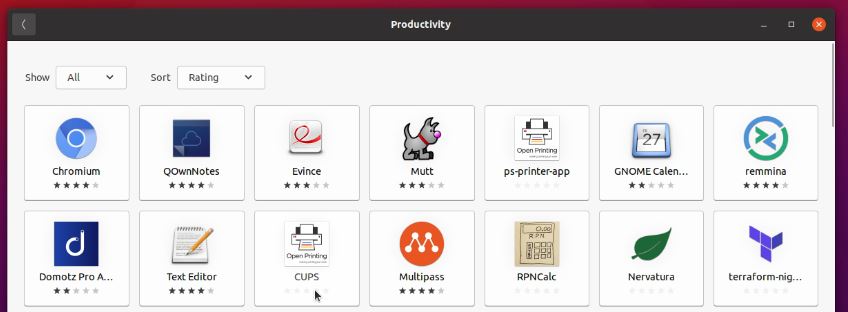
However, a strength of Ubuntu is its application catalog. Like an app store on a smartphone, you can easily find and install new programs. It’s a bit slow on launching, but then you have access to different categories where you can see the most popular apps with ratings and some screenshots.

We’ll come to this in the next section, this tool is a bit slow on Raspberry Pi, but it’s still a great user experience, as you can quickly find the apps you are looking for, even if you don’t know their names.
Note: Just to be clear, not all applications are available in this tool, so you may still have to use APT (or Snap which can be interesting too on Ubuntu). For example, VNC and SSH server are not available in Ubuntu Software by default.
Summary
As a whole, Raspberry Pi OS includes the best default applications for the Raspberry Pi, but Ubuntu offers a better user experience for finding and installing new programs. A mix of the two would be better, but it’s not available :).
I will give a short advantage to Ubuntu, as you’ll probably need to install new apps in both cases, and it will be easier with Ubuntu.
| Raspberry Pi OS | Ubuntu | |
|---|---|---|
| Default applications | 5/5 | 3/5 |
| Application management | 2.5/5 | 5/5 |
Note: Ubuntu may also provide proprietary software in its repositories, which is not the case on Raspberry Pi OS. From a user standpoint, it's often better to have more choice, but some of you might be attached to the open-source philosophy.
Raspberry Pi OS vs Ubuntu: Performance
You now have a better idea about what to expect from each system. The last thing we need to test is the overall performance. We know that Raspberry Pi OS is intended to be better optimized for Raspberry Pi, but let’s see how it competes in real usage.
Check this: The Raspberry Pi I'd actually buy today

Raspberry Pi OS
In terms of performance, Raspberry Pi OS offers a great user experience. We are still reminded regularly that we are on Raspberry Pi and not on a gamer PC, but for desktop usage it’s decent.
| Test | Results with RPI OS |
|---|---|
| Time to boot | 22s |
| Time to access a website (Wikipedia) | 13s |
| Time to open LibreOffice Writer | 15s |
| YouTube experience | Browsing is a bit slow (probably a hardware limitation). Watching experience is perfect, even in HD. No drops in full screen. |
These results don’t really have any meaning without comparison, so let’s see how Ubuntu performs with these same tests.
Ubuntu
The great user interface and desktop environment offered by Ubuntu has a cost: the performance won’t be as good as on Raspberry Pi OS. They also don’t spend as much time as the Foundation does to optimize for Raspberry Pi, and we can see this in the results:
| Test | Results with Ubuntu |
|---|---|
| Time to boot | 53s |
| Time to access a website (Wikipedia) | 23s |
| Time to open LibreOffice Writer | 11s |
| YouTube experience | Slow browsing. A few drops in full screen and HD, but great improvments compared to older Ubuntu versions. |
So, the two main issues here at first glance are the time to boot and the browsing speed. If you are patient for the first boot (or keep your Raspberry Pi on all the time) and replace Firefox with Chromium, it should fix these problems.
Summary
As a whole, Raspberry Pi OS is faster than Ubuntu in terms of performance. So, if speed is important to you, Raspberry Pi OS might be a better choice.
I still find these results a bit slow—a Raspberry Pi 5/500 would probably do better. One way to speed things up is to use an SSD instead of the SD card. You’ll get better boot and response times in general, so I recommend doing this for desktop usage.
| Raspberry Pi OS | Ubuntu | |
|---|---|---|
| Time to boot | 3/5 | 2/5 |
| Time to open a website | 4/5 | 3/5 |
| Time to open an applicaiton | 4/5 | 4/5 |
| User experience on YouTube | 3.5/5 | 3/5 |
| Average performance | 3.6/5 | 3/5 |
Stuck on this project? Ask me or other Pi users in the RaspberryTips Community. We help each other out and you'll get answers quick. Join and fix it together.
Raspberry Pi OS vs Ubuntu: Which One to Choose?

The choice between Raspberry Pi OS and Ubuntu is often personal, and this article hopefully has answered most of your questions already. You should now be able to make a choice depending on everything you’ve read in this comparison. I will still try to give you my recommendations.
Raspberry Pi OS is a great solution for beginners on Raspberry Pi that don’t want to mess with configuration and performance issues. It will require a bit of work to customize it if appearance is important to you, and also some research to find good apps for your goals.
But because there’s a large community, it shouldn’t be a major issue and you’ll quickly find help, especially on this website :). For example, you can check my guides on how to change the desktop appearance and the top apps to install.
Ubuntu has made great progress in challenging Raspberry Pi OS. The user interface design is almost perfect with user-friendly tools like the applications catalog and the control center. It still has some performances issues but its overall support should improve over time.
If you are used to Ubuntu on PC and don’t mind the slow boot time, it’s worth giving it a try. I would even suggest Pop!_OS if you really want to use Ubuntu, as a few things have been improved compared to the base version.
| Criteria | Best Choice |
|---|---|
| Compatibility | Raspberry Pi OS |
| Updates | Raspberry Pi OS for stability, Ubuntu for recent versions |
| Installation | Raspberry Pi OS |
| Interface | Ubuntu |
| Applications | Raspberry Pi OS for default apps, Ubuntu for app management |
| Performance | Raspberry Pi OS |
The verdict in this table seems pretty clear, but I still think Ubuntu is a good choice in some cases, and it will probably become better by the next Raspberry Pi model release.
Remember that many other distributions are available on Raspberry Pi (as listed in this article). I know that many of you would prefer Manjaro for desktop usage, so maybe I’ll do a comparison in the future with other operating systems. Let me know if you are interested :).
For your convenience, I have created a page with a list of all images for the Raspberry Pi, with download and tutorial links. Make sure to check it out or even bookmark it if you want to try out different systems.
Check this: Not Every Raspberry Pi Project Is Worth Building
Ready to try this for real?
Reading is easy. Doing is different.
Once you start your own setup, things don’t always go as planned. That’s where people lose hours.
Get help right away instead of figuring everything out alone.
- Avoid the usual beginner mistakes
- Get guidance on your setup
- Access step-by-step videos for most projects


