

Install PyCharm on Raspberry Pi: Easy Guide for Beginners
At some point, I got tired of coding on my Raspberry Pi with the default editors, so I started looking for a full-featured IDE instead. PyCharm was one of the tools I tested. And… it works better than you might expect. I’ll show you how to install it step by step.
PyCharm has both a premium and free version, available on their website. The downloaded files for Linux are already compiled, so the PyCharm IDE can be started directly by running the pycharm.sh file on Raspberry Pi.
Running it just once is fine, but the idea in this article is to go further. I’ll show you everything to get the most out of it.
If you’re like me and sometimes mix up syntax between programming languages, I’ve got just the thing for you. I’ve put together a Python cheat sheet with all the essential syntax in one place, so you can keep it handy and avoid any confusion. Download it here for free!
Install PyCharm on Raspberry Pi OS
Along with Eclipse and Visual Studio Code, PyCharm is one of the most popular IDEs for programmers, especially for Python. Market share results vary too much to be considered—from 7% on the Top IDE index to 20% for JetBrains, the PyCharm editor ^^.
PyCharm is well-known in the industry, with all the best features we can expect from an IDE, that’s why we’ll learn how to install it on our Raspberry Pi.
Download PyCharm
PyCharm used to have two separate versions available:
- A Professional Edition, where you need a license to use it (approximately $200 a year).
- A Community Edition, which is open-source and free to use.
Recently, they’ve been combined into one software: you automatically start with a free trial of the Professional Edition, and after it runs out, you’ll be on the free Community Edition.
To download the files, you can go to this URL on the official website.

Extract the Files
You should get a tar.gz file in your Downloads folder.
Here’s how to extract the files:
Bonus tip: : Instead of Googling syntax every time, I keep a small cheat sheet with the main Python elements. Check it here.

Want to build real Raspberry Pi projects with Python? This book starts from scratch and guides you toward practical scripts, automation, APIs, cameras and more.
Learn Python on Raspberry PiYou can get answers from real experts in minutes.
Get help with your setup
- Open the file manager (there’s a shortcut in the top bar).
- Go to your Downloads folder (e.g., /home/pat/Downloads).
- Find the PyCharm archive and right-click it.
- Choose “Extract Here”:

After a few moments, a new folder will be created containing all the files.
If you prefer the command line, you can also start a terminal and run:tar -zxvf pycharm-A.B.C-aarch64.tar.gzReplace A.B.C with the version you downloaded (tip: use TAB to auto-complete the file name).
Not sure what tar is? Check this article: How to Use the Tar Command on Linux.
Install Java
If you try to run PyCharm immediately on a fresh Raspberry Pi OS installation, it won’t work. So before continuing, we also need to install Java. I’ll show you how to do this in the GUI, but you can find the command line at the end of this section if you prefer.
Here’s how to install Java:
- In the main menu, go to Preferences > Add/Remove Software.
- Type “openjdk” into the search bar on the top left.
- Install the package named Standard Java or Java compatible Development Kit:

- If you’re on the Full version or have already installed Java apps, it may be installed already.
But on a fresh Raspberry Pi OS Desktop, it’s not.
And here’s how to do the same thing from the command line:sudo apt install default-jdkThat’s it, we can now start PyCharm!
If you don’t understand what we are doing here, or need any more help, I have an entire tutorial on how to install Java on a Raspberry Pi.
First Run
As there is no installation wizard for PyCharm, you won’t find it in the main menu.
We’ll get back to this later, but for now, you can try running it from the Downloads folder:
- Open the File Manager and visit your Downloads folder (e.g., /home/pat/Downloads).
- Go into the newly extracted folder (e.g., pycharm-2025.3.3).
- The executable is in the bin subfolder.
- Double-click on the pycharm.sh file.
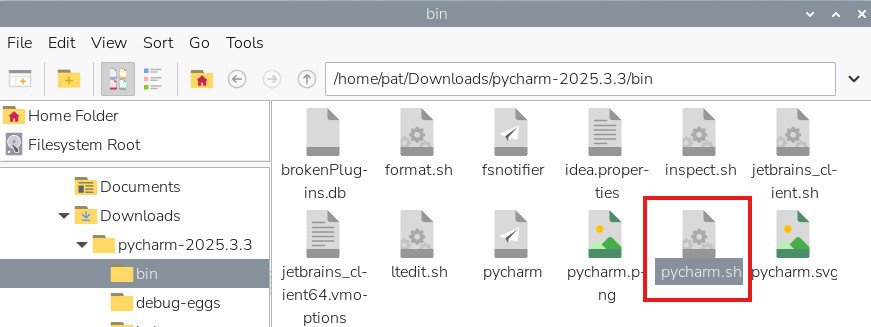
- Choose Execute when the popup window appears.
That’s it, PyCharm should start directly. You need to accept the use agreement, and the interface will start.

From there you can use it as you’re used to. The goal of this tutorial isn’t to show you how to use PyCharm. If it is your first time using it, you can easily find some help from the Internet.
Improve Your PyCharm Installation
If you’re familiar wtih my articles, you know that I always try to add a few bonus tips. After installing PyCharm, there are at least two things you can do to improve your experience.
Move PyCharm to a Safer Location
I don’t know about you, but in my case, I consider the Downloads folder a temporary folder. You rarely need the files in it more than once. As soon as I have too many files in it, I delete everything or at least move the files into a subfolder to make sure I don’t need them.
Anyway, it isn’t a good practice to keep your applications in the Downloads folder. If there isn’t an installation wizard, it’s recommended to move them to another folder (/opt for example). That’s exactly what we’ll do:
- Close PyCharm if it’s still running.
- Open a terminal.
- Run the following command:
sudo mv ~/Downloads/pycharm-A.B.C /opt
(Don’t forget to replace your A.B.C with the version number of your folder.)
Bonus tip: : Instead of Googling syntax every time, I keep a small cheat sheet with the main Python elements. Check it here.
We have to use a terminal because the default user on Raspberry Pi doesn’t have permission to write to the /opt folder.
You can now start PyCharm from /opt instead of the Downloads folder. Obviously, that’s not very convenient, so next I’ll show you how to create a shortcut in the desktop menu.
Tip: Command lines can be a pain to memorize. I put the essential Linux commands on a printable cheat sheet so you don't have to keep googling them. You can grab the PDF here if you want to save some time.
Create a Shortcut for PyCharm in the Pi Menu
Since there wasn’t an installation wizard, we have to create the shortcut manually:
- Open the Pi menu > Preferences > Control Centre.
- Go to the Main Menu tab.
- Click the New Item button on the right to create a shortcut.

- A form shows up, fill it in like this:
- ID: pycharm
- Category: Programming
- Name: PyCharm
- Command: /opt/pycharm-A.B.C/bin/pycharm.sh
(Click “Browse” to go find exactly where the file is on your system.) - Click Set Icon to choose an icon for the menu item.
There is a PNG file available in the PyCharm’s bin directory. - You can skip the remaining fields if you want.

- Click “OK” to confirm.
The new entry should now be available in the main menu, under Programming:

Also, if you have any doubt about this guide to install PyCharm on a Raspberry Pi, I have a step-by-step video that you can find here:
You might also like: 25 project ideas you can try at home with Raspberry Pi
This can be useful to watch while you install PyCharm on your Raspberry Pi, just to make sure you don’t miss anything. Also, there are 3 PyCharm bonus tips that I love and share with you.
Still stuck after following this guide? Drop your question in the RaspberryTips Community — real Pi users answer fast. Post your question here.
Alternatives to PyCharm on Raspberry Pi
As I told you at the beginning, PyCharm is not the only option to code on a Raspberry Pi.
Some basic editors like Geany and Thonny are pre-installed.
Visual Studio Code is now available in the Recommended Software tool, and many others can be installed on a Raspberry Pi.
If you are still not sure if PyCharm is the best solution for you, I highly recommend reading my article about the best editors available on Raspberry Pi. You’ll necessarily find the top solution for your specific needs.
Not getting the same result?
Even when you follow every step, small differences in OS version, hardware or config can change the outcome. Instead of wasting time guessing, get help from people who have already fixed the same kind of issue.
- Get help on your exact issue
- Access step-by-step videos for tricky setups
- Browse the website without ads


Thanks for the article.
In a couple of places, I see “opendjk” being used. It should be “openjdk”.
Fixed, thanks!
Great tutorial, thanks! 😀
Just FYI you misspelled “Download” in the following command:
sudo mv /home/pi/Dowloads/pycharm-community-A.B.C /opt/
Thanks
Sir kindly update you article according to new version of raspbian os
Hi, did you notice any difference? Any error?
I don’t see which part should be updated.