

How to Install Firefox on Raspberry Pi? (Latest Version)
Firefox is one of the best web browsers around, especially if you care about privacy and security. In the past, installing Firefox on Raspberry Pi wasn’t always straightforward, especially if you wanted the latest version with all of the newest features. In this article, I’ll show you how.
The latest version of Firefox is pre-installed on the newest Raspberry Pi OS releases (trixie and bookworm). For older releases (bullseye or older), the official version in the repository is Firefox ESR; it’s possible to get the latest version by adding the Firefox repository.
So yes, there is a solution! I will explain everything to you in this tutorial, starting with the difference between the two versions and followed by steps to install Firefox depending on which release of Raspberry Pi OS you’re running.
If you’re feeling lost in all the Raspberry Pi jargon, I’ve got something to help you out. I’ve created a free glossary that explains all the essential terms and abbreviations in a way that’s easy to understand. It’s a great resource to have by your side. Get your free copy here.
What’s the Difference Between Firefox RR and Firefox ESR?
Firefox RR is the latest version with all the newest features. Firefox ESR is an older but more stable version.
The instructions below will depend on which release of Raspberry Pi OS you’re running. If you’re not sure, check out this article to learn about their differences.
Before we go into the install steps, let’s discuss the differences between Firefox RR and Firefox ESR in more detail.
You might also like: Not Every Raspberry Pi Project Is Worth Building
What Is Firefox RR?
Firefox RR stands for “Rapid Release” and is the latest stable Firefox version available. This version is the one we typically get on our PCs.
Firefox is updated very frequently by the developers. New versions are typically released to users immediately, as soon as there are a few changes. That’s why we’re already at version numbers above 140, even if this software isn’t very old.
You can expect a major version approximately every 4 weeks, as that’s the current development cycle for Firefox.
You can get answers from real experts in minutes.
Get help with your setup
There are also development versions with shorter release cycles, but that’s not our topic for today. We want a recent version that works, not something too buggy 🙂
What Is Firefox ESR?
Firefox ESR stands for “Extended Support Release.”
In critical environments (in a company for example), getting new updates every month isn’t the ideal solution. Updates can include bugs and habit changes for users.
Bonus tip: When I started, the hardest part wasn’t the setup, it was figuring out what to build next. I ended up creating a list of 75+ project ideas with links and difficulty, so it’s easier to just pick something and try it. Grab the list here.

If you want a clearer path than jumping from tutorial to tutorial, my book gives you a step-by-step roadmap to really understand your Raspberry Pi.
Check the book hereThis is why the ESR version exists. It’s an older version but more stable version of Firefox that includes only the latest security updates without the latest features or improvements. If you’re familiar with Ubuntu, it’s similar to the idea of LTS versions (Long-Term Support).
You might also like: Want to install Windows 11 on your Pi? Here's how
Installing Firefox on Raspberry Pi OS (Trixie)
If you’ve installed the more recent releases of Raspberry Pi OS Desktop (codename trixie or codename bookworm), Firefox should already be installed by default. It’s under the main menu > Internet. To get the latest version, you simply have to update your system.
If Firefox is not there for some reason, follow the steps below to install it.
Installation
To install Firefox (RR), you can use either the desktop or command-line method below.
On Desktop
Here’s how to install Firefox (RR) on the desktop:
- Open the main menu > Preferences > Add/Remove Software.
- Type “firefox” into the search bar and hit ENTER.

- Check the box next to “Mozilla Firefox web browser” (it should be the first result).
- Click “OK” to confirm.
- The system will ask for your password to complete the installation.
From the Command Line
It’s often faster to install software from the command line IF you are comfortable with the process.
If you have a terminal open or are connected via SSH, here’s how to install Firefox (RR):
- Update the package list:
sudo apt update - Install the Firefox package:
sudo apt install firefox
Tip: Command lines can be a pain to memorize. I put the essential Linux commands on a printable cheat sheet so you don't have to keep googling them. You can grab the PDF here if you want to save some time.
First Start
Firefox is now installed and you should see be able to launch it from the main menu.

Stuck on this project? Ask me or other Pi users in the RaspberryTips Community. We help each other out and you'll get answers quick. Join and fix it together.
Installing Firefox on Older Raspberry Pi OS Releases
If you’re using an older release of Raspberry Pi OS (codename bullseye or older), Firefox might not be included with the desktop and has to be installed manually.
You can choose between Firefox ESR or the latest Firefox RR instead. I’ll show you how to install both of them. Jump down to the version you want below.
Installing Firefox ESR: The Default Version
Getting Firefox ESR on Raspberry Pi OS (bullseye) is pretty simple. It’s the same way as you would any other software.
If you need help with installation, decide whether you want use the desktop interface or a terminal. Then follow the steps in the appropriate section below.
On Desktop
Here’s how to install Firefox (ESR) using the desktop interface:
- Open the main menu > Preferences > Add/Remove Software.
- In the search bar, type “firefox-esr” and hit Enter.

- Check the box next to “Mozilla Firefox web browser” (it should be the first one on the list).
- Click on “OK” to confirm.
- The system will ask for your password to complete the installation.
From the Command Line
If instead you’d rather install Firefox (ESR) from a terminal or SSH, here’s how:
You might also like: I've tested hundreds of Linux apps, here are the ones I recommend.
- Update the package list:
sudo apt update - Install the Firefox-ESR package:
sudo apt install firefox-esr
First Start
Bonus tip: When I started, the hardest part wasn’t the setup, it was figuring out what to build next. I ended up creating a list of 75+ project ideas with links and difficulty, so it’s easier to just pick something and try it. Grab the list here.
Firefox is now installed and you should see be able to launch it from the main menu:
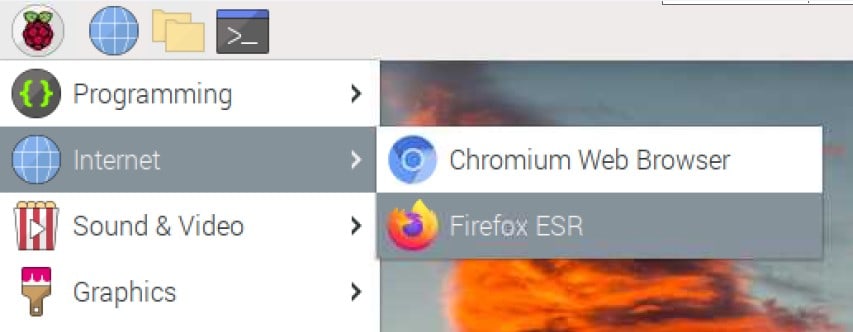
The browser works well, but it might be 10 to 15 versions older than the latest version. For example, Firefox ESR on Raspberry Pi OS is currently in version 140 (versus 150 on my PC).

This isn’t a big deal most of the time, but it may not be optimal if you are really used to the latest features. If you’d prefer to use the latest version instead, keep reading! I’ll explain how in the next section.
Installing Firefox RR: The Latest Version
Since Firefox RR isn’t available on the official repo for older versions of Raspberry Pi OS, installing the latest version of Firefox isn’t as straightforward as the methods above.
You’ll be adding the official Firefox repository maintained by Mozilla, which will then let you download and install the latest version like any other package on your system.
Installation
Note: If you are not used to the command line yet, and not confident doing this, the easiest way would be to install Pi-Apps on your system and use their tool to install Firefox.
Here’s how to get Firefox (RR) from official sources:
You might also like: Need a clear GPIO pinout diagram? Here's mine.
- Open a terminal (SSH is fine too), and type the following commands.
- Create a new sources.list file using your favorite text editor:
sudo nano /etc/apt/sources.list.d/mozilla-firefox.list - Add this line to the file:
deb http://ppa.launchpad.net/mozillateam/ppa/ubuntu focal main
- Save and exit (CTRL+X, Y, Enter).
- Add the signing key for this repository:
sudo apt-key adv --keyserver keyserver.ubuntu.com --recv-keys 9BDB3D89CE49EC21 - We can now update the package list and install Firefox (RR):
sudo apt update
sudo apt install firefox
As you can see, there’s no mention of “ESR” in the package name this time.
In theory, everything should work properly, and you now have the latest version of Firefox.
First Start
You can start Firefox from the main menu > Internet > Firefox Web Browser.
You should now have the latest version running on your Raspberry Pi:

Congrats! You now know how to get Firefox on your Raspberry Pi. You know the differences between Firefox ESR and Firefox RR, and how to install each one.
I hope this tutorial was useful for you. If it’s the case, feel free to share it on your social media—your support helps me a lot.
By the way, Firefox is not necessarily the best browser for your Raspberry Pi (click on the link to read my comparison with the other options, I tested 5 of them on mine so you don’t have to).
Not getting the same result?
Even when you follow every step, small differences in OS version, hardware or config can change the outcome. Instead of wasting time guessing, get help from people who have already fixed the same kind of issue.
- Get help on your exact issue
- Access step-by-step videos for tricky setups
- Browse the website without ads


Your command for apt-key generates an error: “WARNING: no command supplied. Trying to guess what you mean …”
I’m trying to get the RR version because the ESR version (78.10?) causes the pi (3B+) to hang. Running Buster.
Apr 28,2021
Seems there is a bug in WordPress, it doesn’t display the double dash correctly…
Even in the comments it doesn’t work, I pasted it here: https://webinpact.com/paste/?id=608a4697c1d3b
Firefox-RR keeps crashing in my Raspberry Pi 400 running on Raspberry Pi Os please suggest a troubleshooting guide