

Best Storage Size for Your Raspberry Pi (expert tips)
Figuring out the best storage size for your Raspberry Pi can be a bit tricky. You can use SD cards or USB drives, but it’s hard to know which size is best. But don’t worry. I’ve tested a bunch of options and have some solid advice on what works best.
As a general rule, 32 GB of storage space would be enough. The Pi is not isn’t the most demanding computer. You can even go lower. After that, it highly depends on the storage needed for the applications and personal documents.
In this article, I’ll give you more details about this short answer, what my reasoning is and the options I recommend for your main storage.
If you’re feeling lost in all the Raspberry Pi jargon, I’ve got something to help you out. I’ve created a free glossary that explains all the essential terms and abbreviations in a way that’s easy to understand. It’s a great resource to have by your side. Get your free copy here.
How Much Storage Do You Need for Raspberry Pi?

If you want to run an operating system on your Raspberry Pi computer, you would actually need a micro-SD as the storage for your computer. Yes, you won’t need anything large such as an entire hard drive. A micro-SD will be enough for your Raspberry Pi computer.
How Much Space for Your Raspberry Pi?
A Raspberry Pi with just the base operating system doesn’t take up much space. Something as small as 8GB would be enough for a Raspberry Pi computer. However, in most cases, 8GB could be a fast limit for adding new applications and features.
In that regard, you can use a 16 GB micro-SD card, which is usually the most common option for a lot of casual Raspberry Pi users out there, as they believe that 16 GB of storage space is enough for most of their computing needs. It might even be more than enough if you are only using your Raspberry Pi casually.
I recommend starting with a 32GB option to make sure you have enough storage for future projects. Storage is cheap, but your time isn’t. You don’t want to spend weeks reinstalling your system just because you need some extra space.
If you have a 32 GB micro-SD card for your Raspberry Pi, it would certainly be more than enough as 32 GB (or less) is the recommended storage space for your Raspberry Pi computer.
By the way, following the results of a poll I made on my YouTube channel, the 32 GB option seems the most commonly used among my subscribers. There are 44% of the Raspberry Pi users who have a 32 GB SD card, while 18% are using a 64 GB and 16% with 16 GB or less.
Bonus tip: When I started, the hardest part wasn’t the setup, it was figuring out what to build next. I ended up creating a list of 75+ project ideas with links and difficulty, so it’s easier to just pick something and try it. Grab the list here.

If you want a clearer path than jumping from tutorial to tutorial, my book gives you a step-by-step roadmap to really understand your Raspberry Pi.
Check the book hereYou can get answers from real experts in minutes.
Get help with your setup

Still, you do have the option to go bigger by using a 64 GB card, which should be more than enough storage for your Raspberry Pi computer, although you can still go for bigger (the maximum is currently at 1 TB, example here on Amazon). Bigger will always be better, but there is a catch.
Raspberry Pi’s bootloader will only support reading from file systems that are formatted as FAT16 and FAT32. In case you did not know, micro-SD cards that are 64 GB or higher come with the exFAT file system format. That means that you cannot use your 64 GB right out of the box, and you will have to reformat it to FAT32 in order to use it for your Raspberry Pi computer.
Typically, Etcher and Raspberry Pi Imager will automatically handle this, but it can cause weird issues for specific distributions.
How Much Storage Do You Need for Each Linux Distribution?

As a general rule, a 16 GB micro-SD card will be enough to install any of the most popular distribution for Raspberry Pi. This is the minimum required to install it, it doesn’t count the packages and files you’ll add later.
| Raspberry Pi System | Image Size | Minimum SD Card |
|---|---|---|
| Ubuntu Desktop | 2.9 GB | 16 GB |
| Raspberry Pi OS Full | 3.0 GB | 16 GB |
| Manjaro 64-bit (XFCE) | 0.9 GB | 8 GB |
| Raspberry Pi OS Desktop | 1.1 GB | 8 GB |
| Batocera | 2.0 GB | 8 GB |
| Recalbox | 1.2 GB | 4 GB |
| Retropie | 0.8 GB | 4 GB |
| Raspberry Pi OS Lite | 0.42 GB | 4 GB |
| DietPi | 0.17 GB | 2 GB |
| LibreElec | 0.10 GB | 1 GB |
| Lakka | 1.0 GB | 2 GB |
For example, Lakka requires less than 2 GB to be installed on your SD card. But once installed, you will transfer games ROM that can quickly increase the required storage space. Most PlayStation games are over 512 MB each for example.
Want even more ideas? I put together a free resource with over 75 Raspberry Pi project ideas, each with a quick description, tutorial link, and hardware requirements. Whether you’re just starting out or looking for something to do this weekend, this list will keep you busy for a while. Just click here to get instant access.
Same thing on Raspberry Pi OS. A 16 GB SD card will be enough to install any version. If you use it as a desktop computer, you’ll quickly add downloads, documents and new applications which might double the space you need rapidly.
That’s why it’s probably a good idea to go for a 32 GB SD card minimum (and that’s what most users seems to do in our poll).
How to Add Storage to Raspberry Pi
As mentioned, bigger will always be better when it comes to storage space. This applies to your Raspberry Pi computer. However, there might be a tiny issue when it comes to using bigger micro-SD cards such as 64 GB or higher.
Most of the time, Raspberry Pi Imager and Etcher will create a partition to the size required by the image file. Then, most operating systems (like Raspberry Pi OS), will expand the partition size to the maximum available on first boot. You have nothing to do in this case. But don’t forget to check that on more exotic distributions. The first step after installing some system is to expand the partition yourself.

Alternatively, you can also expand your storage space in your Raspberry Pi computer by making use of a USB storage device. This is the best way for you to expand the storage space of your Raspberry Pi computer because it allows you to ensure that you will never run out of storage space because you can just swap out your USB storage device for another one. And if you are using a recent Raspberry model (3 and above), you can even install the OS on the USB storage device.
You can use plenty of different USB storage devices for your Raspberry Pi such as a compact flash drive, an external hard drive, or even an SSD, which is a good option for you because of its speed and power (here is my favorite SSD by the way).
You might also like: I tried to replace my main PC with a Pi 5, here's what happened.
Raspberry Pi Storage Options
Here are some of the storage options you have for your Raspberry Pi computer:
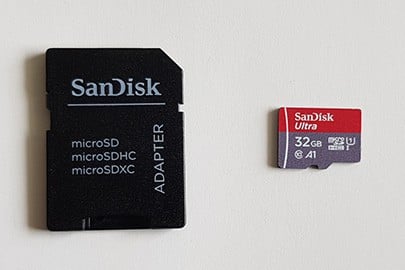
SanDisk Ultra 32 GB
Bonus tip: When I started, the hardest part wasn’t the setup, it was figuring out what to build next. I ended up creating a list of 75+ project ideas with links and difficulty, so it’s easier to just pick something and try it. Grab the list here.
SanDisk Ultra 32 GB is the best for general computing purposes because it pretty much covers everything you need as far as storage size is concerned. However, this isn’t the best option if you are going after speed because it isn’t the fastest micro-SD card on the market.
Still, it also isn’t the slowest as well, and that is why it sits right at the middle as the best for general computing especially if you really don’t care enough about speed, but you need enough storage space from your micro-SD card. You can check SanDisk Ultra 32 GB here.
SanDisk Extreme Pro 32 GB

The SanDisk Extreme Pro 32 GB, which you can find here, has a similar storage size to the Ultra 32 GB. But the difference here is that this micro-SD card trumps its Ultra counterpart in terms of its speed and performance.
This makes it the better choice for those who need storage and power such as when they are playing games or when they’re using their Raspberry Pi computers for tasks and applications that require more speed and power from the storage device.
Samsung EVO Select 64 GB
While 32 GB micro-SD cards are usually already more than enough for most people, there will still be some Raspberry Pi users who may not be content with 32 GB storage – especially if they are using their computers for gaming. That is where the Samsung EVO Select 64 GB comes in as it has double the storage space of most of our other options on this list. Moreover, it also comes with power that is comparable to the SanDisk Extreme Pro especially when it comes to its writing speeds.
Just don’t expect it to be cheap because it does come with more storage space. Check it out here if you are interested.
Read next: 7 Surprising Uses for a Raspberry Pi
Kingston Canvas Select 16 GB
If you are really only using your Raspberry Pi computer for basic computing functions such as browsing and for creating certain documents, you wouldn’t need anything that is more powerful than the Kingston Canvas Select 16 GB. This micro-SD card is also the cheapest option that we have for you as it really doesn’t cost a lot, but it can get the job done as far as basic functions are concerned. It comes with the right speed and the right storage space for most of the casual Raspberry Pi users out there.
By the way, if you are interested in speed vs price, I have a benchmark of the most popular SD cards that you can find here.
Stuck on this project? Ask me or other Pi users in the RaspberryTips Community. We help each other out and you'll get answers quick. Join and fix it together.
Going Further
By the way, if you are just getting started on Raspberry Pi, you might have many similar questions, and will spend a lot of time find all the answers.
There is a much better way. Join the RaspberryTips community to get instant answers from experienced users, step-by-step guides, and exclusive resources. You’ll have a supportive group ready to help you solve problems and start awesome projects faster.
Not getting the same result?
Even when you follow every step, small differences in OS version, hardware or config can change the outcome. Instead of wasting time guessing, get help from people who have already fixed the same kind of issue.
- Get help on your exact issue
- Access step-by-step videos for tricky setups
- Browse the website without ads


Como puedo descargar e instalar wndows 10 en Raspberry Pi4 8GB
https://raspberrytips.com/install-windows10-raspberry-pi/