PayPal is a famous online platform that helps people send and receive money online. Everyone would agree that PayPal is one of the best options to perform secure and quick transactions.
it is obvious, that having an integration with PayPal is a must for each WordPress plugin. The WordPress Quiz Plugin has an Integration with PayPal.
So, in this article, we will explore how to enable the Integration. Let’s get started.
Creating a PayPal Account #
At first, of course, you need to create an account on PayPal.
To do that, head to the PayPal website > PayPal Sign Up Page. Choose an Account Type and fill in the remaining data.
If you already have an account on PayPal, just log in there.
Creating PayPal Client ID #
With the next step, you need to configure the PayPal Settings and take the Client ID from your account.
To do so, follow these steps:
- Head to the Developer PayPal Dashboard.
- Go to the Apps and Credentials page.
- Click on the Create App button.
- Fill in the App Name, choose the App Type, and click on the Create App button.

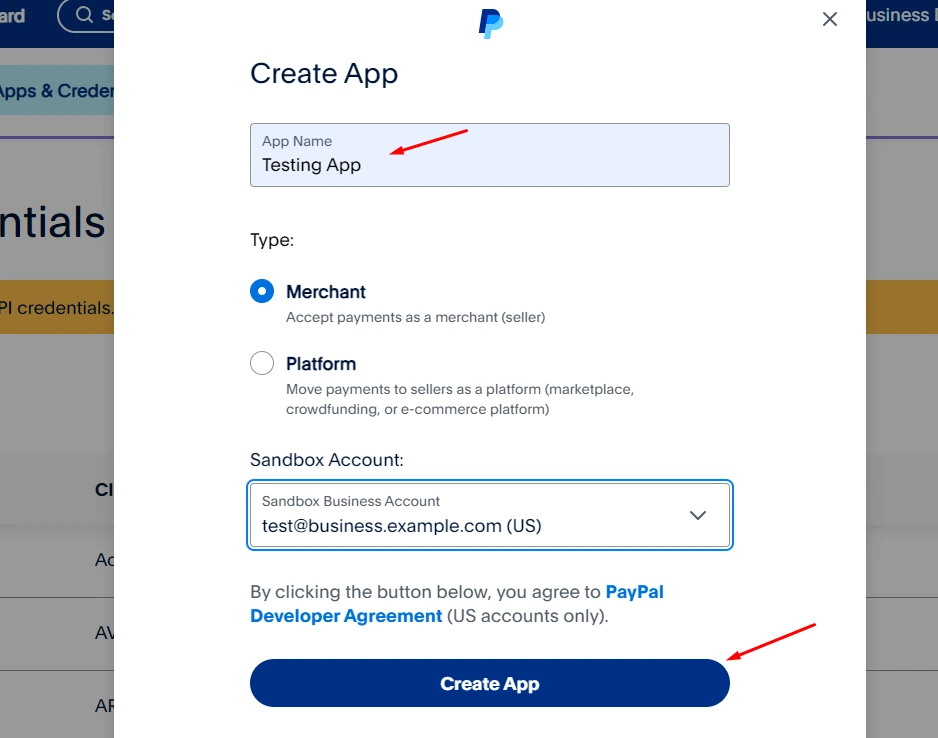
- Copy the Client ID to paste it into the Quiz Plugin Settings later.

Enabling PayPal Integration in the WordPress Quiz Plugin #
Once you have created PayPal Client ID and Secret Key, it is high time to enable the Integration in the Quiz Plugin.
Please follow these steps to finalize the activation.
- Head to the Quiz Maker plugin > General Settings page > Integrations Tab.
- Find the PayPal Integration and fill in the Client ID.
- Then, save the changes.

Once the PayPal Client ID is connected, you can follow these steps to activate the Integration.
- Head to the Quizzes page > particular quiz > Integrations Tab.
- There, click on the checkbox to activate the Integration.
- Configure the remaining settings the way you prefer.

That’s all. These were the simple steps to enable the PayPal Integration for the Quiz. Don’t forget to check the video tutorial on How to Create a Paid Quiz for more information.
Pass the Quiz X Times After Purchase #
The “Pass the quiz x times after the purchase” option in the Quiz Maker plugin allows you to control how many times a user can attempt and successfully pass a quiz after paying for it. Instead of granting unlimited access, you can set a specific number of attempts that keeps the quiz fair and manageable. For example, you may allow learners to pass a certification quiz up to three times after purchase, or let them retry an assessment twice before requiring another payment.
Step 1: Enable Paid Quizzes
To use this feature, your quiz needs to be a paid quiz. The first step is to connect your payment gateway.
- Navigate to Quiz Maker > General Settings > Integrations.
- Under the PayPal Integration section, enter your Client ID.
- If you already have one, paste it here.
- If not, sign up at PayPal Developer and create your Client ID, then paste it into the field.

Step 2: Choose the Payment Term – Limit by Count
Now you’ll need to set the payment term for your quizzes.
- Still in the General Settings > Integrations > PayPal section, next to Payment Terms you will see four options:
- You will see four options:
- Lifetime Payment – Unlimited permanent access.
- Onetime Payment – One payment, one attempt.
- Active Period – Access for a limited time.
- Limit by Count – Restricts the number of quiz attempts after purchase.
- Select Limit by Count.
- A new field called Quiz Attempts Limit will appear. Enter the number of times you want to allow users to take the quiz after purchase.
- Save your changes.
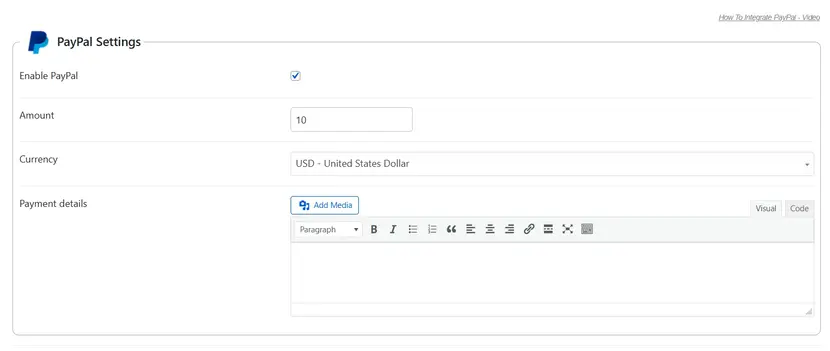
That’s it! You’ve now enabled the “Pass the quiz x times after purchase” option in the Quiz Maker plugin. From now on, users will be able to purchase the quiz and attempt it only the number of times you’ve allowed.
Watch also our video guide on How to integrate PayPal with Quiz Maker.


