Archive
keysound
Problem
I have a non-mechanical keyboard. However, when I press keys, I also want to hear some insane clickytty clicks. What to do?
Solution
If you don’t want to buy a new keyboard, you can try my keysound project. When you press a key, a short sound file is played.
At the bottom of the README of this project’s GitHub page, I also collected some related work, thus there are several alternatives available.
monitoring key presses in a console application in a thread
Problem
I wrote a console application that shows a table and updates the screen every second. Later, I wanted to add a table sorting functionality. For instance, if you press ‘b’, then the table is sorted by the 2nd column, pressing ‘c’ would sort the table by the 3rd column, etc.
I found some keyboard monitoring libraries but they were all blocking, i.e. you had to call a function which was waiting for a key press. If you didn’t press any key, this function was just waiting.
However, in my program I had an infinite loop that was doing the following steps: (1) clear the screen, (2) draw the table, (3) repeat. If I add anywhere the keyboard monitoring, the loop gets blocked somewhere.
Solution
I asked this question on reddit (see here), and /u/Viddog4 suggested that I should use a thread. Of course! I have the main loop that draws the table, and I have a thread in the background that monitors the keyboard.
Here is a simplified code that demonstrates the idea:
#!/usr/bin/env python3

"""
pip3 install pynput xlib
"""

import threading
from time import sleep

from pynput.keyboard import Key, Listener


class myThread(threading.Thread):
    def __init__(self, _id, name):
        super().__init__()
        self.daemon = True    # daemon threads are killed as soon as the main program exits
        self._id = _id
        self.name = name

    def on_press(self, key):
        print('{0} pressed'.format(key))

    def on_release(self, key):
        print('{0} release'.format(key))
        if key == Key.esc:
            # Stop listener
            return False

    def run(self):
        with Listener(on_press=self.on_press, on_release=self.on_release) as listener:
            listener.join()


def main():
    thread1 = myThread(1, "thread_1")
    thread1.start()
    # main loop:
    while True:
        print(".", flush=True)
        try:
            sleep(1)
        except KeyboardInterrupt:
            break

##########

if __name__ == "__main__":
    main()
You can stop the thread with Esc. You can terminate the whole program with Ctrl+C. The thread is registered as a daemon thread, which means that if the main program exits (e.g. you press Ctrl+C), then daemon threads are automatically stopped.
Links
- pynput, keyboard monitoring library
- An Intro to Threading in Python, to learn more about threads
- Different ways to kill a Thread, I chose to set it as a daemon thread
Type text to an application from a script
Problem
Today I saw a nice motivational video: Girl does push ups for 100 days time lapse. Great, let’s do the same! I sit in front of my computer several hours a day, so some pushups won’t hurt :) But how to track the days?
I use Trello for some TODO lists, and it allows you to create a checklist. When you type a text and press Enter, a new checklist item is created. But typing “Day 1<Enter>”, “Day 2<Enter>”, … “Day 100<Enter>” is too much, I would die of boredom by the end… How to automate the input?
Solution
Under Linux there is a command called “xdotool” that (among others) lets you programmatically simulate keyboard input. “xdotool key D” will simulate pressing “D”, “xdotool key KP_Enter” is equivalent to pressing the Enter, etc.
Here is the script:
#!/usr/bin/env python3
# coding: utf-8

import os
from time import sleep

PRE_WAIT = 3

REPEAT = 100
WAIT = 0.3

def my_type(text):
    for c in text:
        if c == " ":
            key = "KP_Space"
        elif c == "\n":
            key = "KP_Enter"
        else:
            key = c
        #
        cmd = "xdotool key {}".format(key)
        os.system(cmd)

def main():
    print("You have {} seconds to switch to the application...".format(PRE_WAIT))
    sleep(PRE_WAIT)
    #
    for i in range(1, REPEAT+1):
        text = "Day {}\n".format(i)
        my_type(text)
        print("#", text)
        sleep(WAIT)

##############################################################################

if __name__ == "__main__":
    main()
Create a checklist in Trello, start adding a new item, launch this script and switch back to Trello. The script will automatically create the items for the days.
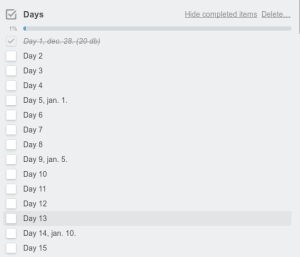
screenshot
In the screenshot the dates were added manually. As you can see, I could do 20 pushups the very first day. Not bad :)
Update (20170302)
If you want to figure out the key code of a key, then start “xev -event keyboard” and press the given key. For instance, if you want xdotool to press “á” for you, the command above will tell you that the key code of “á” is “aacute“, thus the command to generate “á” is “xdotool key aacute“.
To avoid the special key codes, here is another idea: copy the text to the clipboard (see the command xsel for instance), then paste it with xdotool key "shift+Insert".

 Python Adventures
You must be logged in to post a comment.