Archive
taking screenshots with pyscreenshot
“The pyscreenshot module can be used to copy the contents of the screen to a PIL image memory or file.”
Installation
sudo pip install pyscreenshot
Example
import pyscreenshot as ImageGrab

# fullscreen
im=ImageGrab.grab()
im.show()

# part of the screen
im=ImageGrab.grab(bbox=(10,10,500,500))
im.show()

# to file
ImageGrab.grab_to_file('im.png')
Autoconnect to wifi in my hotel
Problem
In my hotel there is a fast wifi connection. However, some things trouble me. When I open the browser and I’m not logged in to the wifi, I’m automatically redirected to a page where I must provide my username and password. Unfortunately, the connection is terminated after a certain time so I have to log in again.
Could I use a script for automatically log in to the wifi? Furthermore, if the connection is lost, could it be restarted automatically?
Auto login
This solution is specific to my case but it can be customized to other networks too. Here is my login script:
#!/usr/bin/env python

# wifi.py

from splinter.browser import Browser
from time import sleep

URL = 'https://controller.mobile.lan/103/portal/'
NAME = 'login_name'
PASSWORD = 'login_password'

def main():
    br = Browser('chrome')
    br.visit(URL)
    sleep(3)
    if br.is_text_present('Connection', wait_time=7):
        br.fill('login', NAME)
        br.fill('password', PASSWORD)
        br.find_by_css('#logonForm_connect_button').first.click()

#############################################################################

if __name__ == "__main__":
    main()
I use splinter for browser automation. First, we open the wifi login page (see Figure 1). The login page uses AJAX so we wait some seconds until the page is completely loaded. As an added security, we also verify if the text “Connection” is present. If not, let’s wait some more time. If the page is OK, then fill the fields and click on the form button.

Figure 1: Login page
Figure 2 shows that the connection is established. The red warning message says that the browser must be left opened, otherwise the connection is lost. So from the script we won’t close the browser window. The Python script terminates but the browser window stays there, keeping the wifi connection alive.
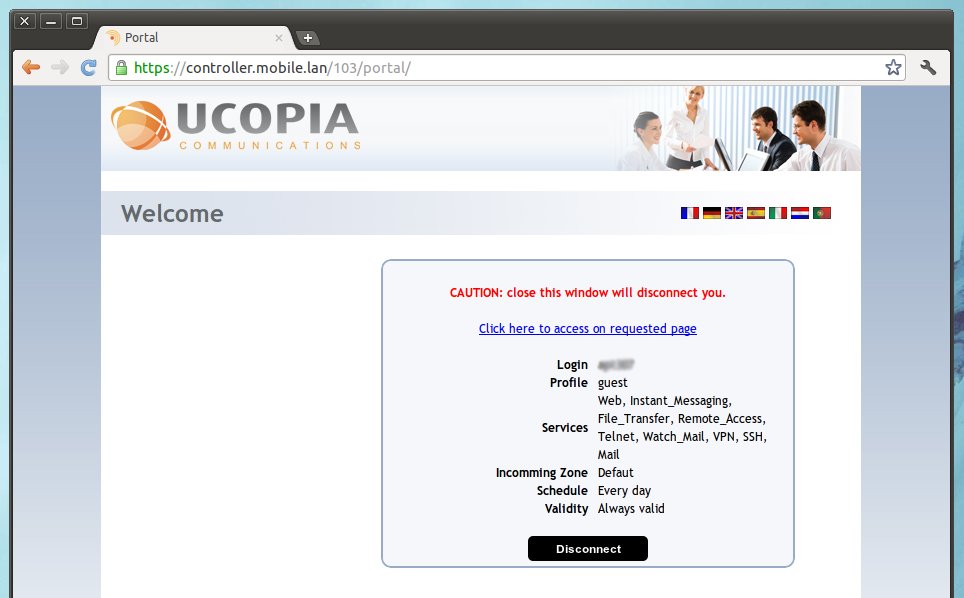
Figure 2: Successful login, connection established
Monitoring the network connection
As mentioned above, my connection is terminated after some hours. Here is another script that monitors the network connection. If the network is down, it closes the previously opened browser window and calls the first script (wifi.py) in the background. The first script will establish the connection and the night mass downloading can go on without any problem :)
#!/usr/bin/env python

# monitor_wifi.py

import os
import psutil
from jabbapylib.network import network
from time import sleep
from datetime import datetime
from jabbapylib.process import process

PROCNAME = 'chromedriver'
SLEEP_TIME = 2 * 60

def kill_chromedriver():
#    print '# killing chromedriver'
    for proc in psutil.process_iter():
        if proc.name == PROCNAME:
            proc.kill()

def start_wifi():
    print '# restarting wifi ({now})'.format(now=datetime.now())
    os.chdir('/home/jabba/bin.python')
    process.execute_cmd_in_background("./wifi.py")

def main():
    while True:
        if not network.is_internet_on():
#            print '# network is down'
            kill_chromedriver()
            start_wifi()
        else:
#            print '# network is up'
            pass

#        print '# sleeping...'
        sleep(SLEEP_TIME)

#############################################################################

if __name__ == "__main__":
    main()
Here I use my jabbapylib library.
Usage
For browsing I use Firefox. For logging in I start an instance of Chromium, thus the two things are kept separate. Start wifi.py to create the connection. Then launch monitor_wifi.py. Normally that should be all. I only tested it under Linux.
psutil: a cross-platform process and system utilities module
“psutil is a module providing an interface for retrieving information on all running processes and system utilization (CPU, disk, memory) in a portable way by using Python, implementing many functionalities offered by command line tools such as: ps, top, df, kill, free, lsof, netstat, ifconfig, nice, ionice, iostat, iotop, uptime, tty. It currently supports Linux, Windows, OSX and FreeBSD both 32-bit and 64-bit with Python versions from 2.4 to 3.3 by using a single code base.” (source)
Example
Let’s kill a process by name:
# http://stackoverflow.com/questions/2940858/kill-process-by-name-in-python
import psutil

PROCNAME = 'chromedriver'

def kill_chromedriver():
    for proc in psutil.process_iter():
        if proc.name == PROCNAME:
            proc.kill()
md5 hash of a text / file + crack an md5 hash
Update (20140406)
The implementation of the function file_to_md5() was replaced. It still produces the same output.
(1) text / file => md5 (encode)
You have a text or a file and you want to generate its md5 hash.
#!/usr/bin/env python

import hashlib

def string_to_md5(content):
    """Calculate the md5 hash of a string.

    This 'string' can be the binary content of a file too."""
    md5 = hashlib.md5()
    md5.update(content)
    return md5.hexdigest()

def file_to_md5(filename, block_size=8192):
    """Calculate the md5 hash of a file. Memory-friendly solution,
    it reads the file piece by piece.

    https://stackoverflow.com/questions/1131220/get-md5-hash-of-big-files-in-python"""
    md5 = hashlib.md5()
    with open(filename, 'rb') as f:
        while True:
            data = f.read(block_size)
            if not data:
                break
            md5.update(data)
    return md5.hexdigest()

#############################################################################

if __name__ == "__main__":
    text = 'uncrackable12'  # :)
    print string_to_md5(text)
    #
    filename = '/usr/bin/bash'
    print file_to_md5(filename)
The md5.hexdigest() returns a string of hex characters that is always 32 characters long. Thus, if you want to store it in a database, you can use the type CHAR(32).
(2) md5 => string (decode)
An md5 hash cannot be decoded, it’s a one-way process. However, you can try to find the md5 hash in a database that contains “string : md5” pairs. One such online database is available at http://www.md5decrypter.co.uk/ for instance. See also dictionary attack.
Starting web development with Python
Web development with Python has been on my TODO list for a very long time. This weekend I played with that, so I collect here some useful links.
Actually, I wanted to try Google App Engine a few weeks ago but when I saw it was Python 2.5 only, I said to myself “No way.“. However! A few days ago I noticed that GAE has experimental Python 2.7 support! What’s more, they added some long-awaited 3rd-party libraries like lxml, numpy, pil, etc. So it’s time to start playing with GAE :)
Links
* HOWTO Use Python in the web (overview)
* Python Web Development Getting Started Guide (2009, tons of links, Python/Django)
* Microframeworks
____+ Bottle
________— How to build a web app using Bottle with Jinja2 in Google App Engine
____+ Flask
________— Flying with Flask on Google App Engine
________— Flask template for GAE #1 (flask-appengine-template @ GitHub)
________— Flask template for GAE #2 (flask-engine @ GitHub)
________— Flask template for GAE #3 (flask-gae-skeleton @ GitHub)
________— project organization @SO
* Werkzeug (Flask includes Werkzeug)
* Jinja2 (The Python Template Engine, Flask includes it)
* Google App Engine
____+ How to Host your Website on Google App Engine for Free (hosting a static site)
* Amazon S3
____+ How to Use Amazon S3 for Hosting your Website (upload a static website)
Sorry for the ugly list but this wordpress theme doesn’t handle nested unordered lists correctly :(
Python-forum.org
UliPad: a lightweight Python editor based on wxPython
 “Ulipad is a wxPython powered, programmer oriented and flexible editor. It has many features such as class browser, code auto-complete, html viewer, directory browser, wizard and many others.”
For writing Python code, I usually use vim (for small scripts) and Eclipse + PyDev (for larger projects with more than one file). Ulipad with the black color scheme looks very similar to the elflord theme of vim that I use, so I felt comfortable right away :) When you save a file in Ulipad, it checks the source against the PEP8 recommendations and provides a list of warnings. Clicking on a warning brings the cursor to the appropriate line, making corrections very easy.
There is only one thing that I missed (or didn’t find): intelligent renaming, i.e. renaming just in a scope. I think this is the most important refactoring step, so it’s a must-have for me. This is one of the main reasons why I use PyDev.
I haven’t tested Ulipad much yet but I plan to use it for smaller scripts. Even if you use another editor, Ulipad can serve you for polishing the source to follow PEP8.
Thanks Yves for recommending UliPad.
Python web server on localhost
python2 -m SimpleHTTPServer
Tip from here.
Python 3
python3 -m http.server
Update (20170914)
If you want to share a file with several people, use Node.js. The Python web server (as seen above) is single threaded, while Node.js works in async mode. Read more here.
Install NumPy and SciPy on Ubuntu
On Ubuntu 11.10, here is what I had to do:
sudo pip install numpy
sudo apt-get install libatlas-base-dev gfortran
sudo pip install scipy
sudo pip install matplotlib   # recommended
Line 2 was necessary for SciPy, otherwise it was complaining that BLAS and a Fortran compiler were missing. Note that gfortran replaces the package g77.
Upload an image to imgur.com from Python
If you are familiar with reddit, you must have noticed that most images are hosted on imgur. I would like to upload several images from my computer and I want to collect their URLs on imgur. Let’s see how to do that.
Imgur has an API, this is what we’ll use. Anonymous upload is fine for my needs. For this you need to register and you get an API key. Under the examples there is a very simple Python code. When you execute it, pycurl prints the server’s XML response to the standard output. How to store that in a variable? From that XML we want to extract some data.
Here is an extended version of the uploader script:
#!/usr/bin/env python

import pycurl
import cStringIO
import untangle    # XML parser

def upload_from_computer(image):
    response = cStringIO.StringIO()   # XML response is stored here

    c = pycurl.Curl()

    values = [
              ("key", your_api_key),
              ("image", (c.FORM_FILE, image))]
    # OR:     ("image", "http://example.com/example.jpg")]
    # OR:     ("image", "YOUR_BASE64_ENCODED_IMAGE_DATA")]

    c.setopt(c.URL, "http://api.imgur.com/2/upload.xml")
    c.setopt(c.HTTPPOST, values)
    c.setopt(c.WRITEFUNCTION, response.write)   # put the server's output in here
    c.perform()
    c.close()

    return response.getvalue()

def process(xml):
    o = untangle.parse(xml)
    url = o.upload.links.original.cdata
    delete_page = o.upload.links.delete_page.cdata

    print 'url:        ', url
    print 'delete page:', delete_page

#############################################################################

if __name__ == "__main__":
    img = '/tmp/something.jpg'
    xml = upload_from_computer(img)
    process(xml)
The tip for storing the XML output in a variable is from here. Untangle is a lightweight XML parser; more info here.

 Python Adventures
You must be logged in to post a comment.