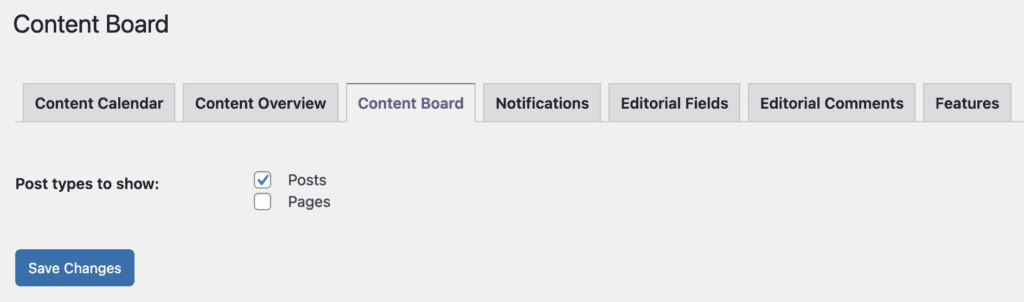
The Content Board screen in PublishPress Planner allows you to use a kanban board layout to organize your WordPress content. The Content Board screen allows you to see content organized by status.
Introducing the Content Board Screen #
By default the Content Screen screen provides 4 filters and 4 card details. Each post on this screen is referred to as a “card”.
- Default filters: Date, Post Status, Author, Post Type.
- Default card details: Post Date, Title, Post Type, Author
You can customize the columns and card details that are used on this screen. Here is our guide to custom filters and here is our guide to custom card details.
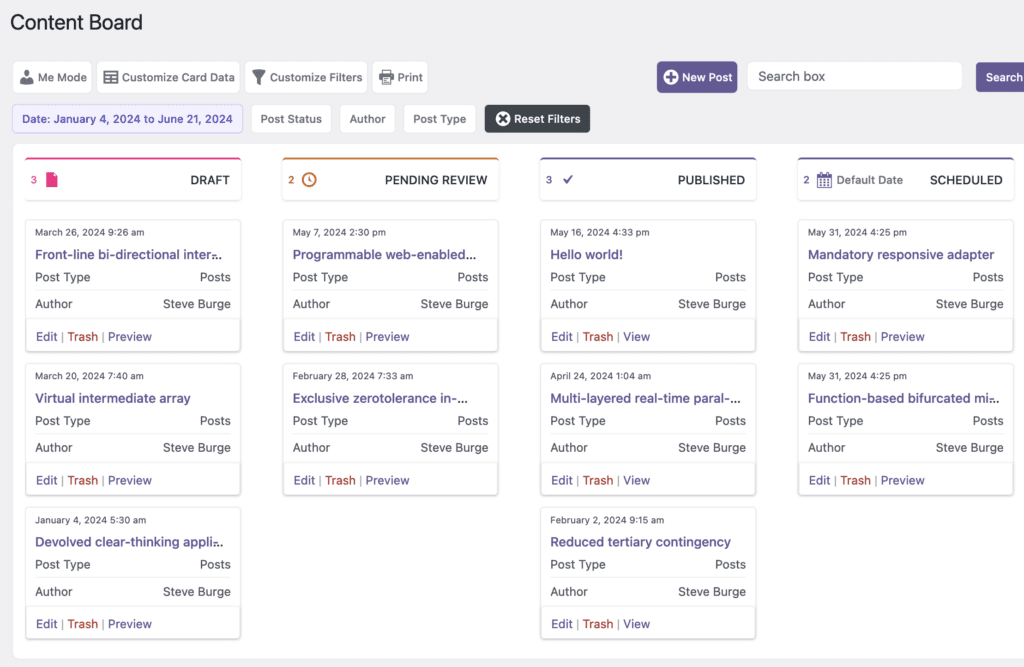
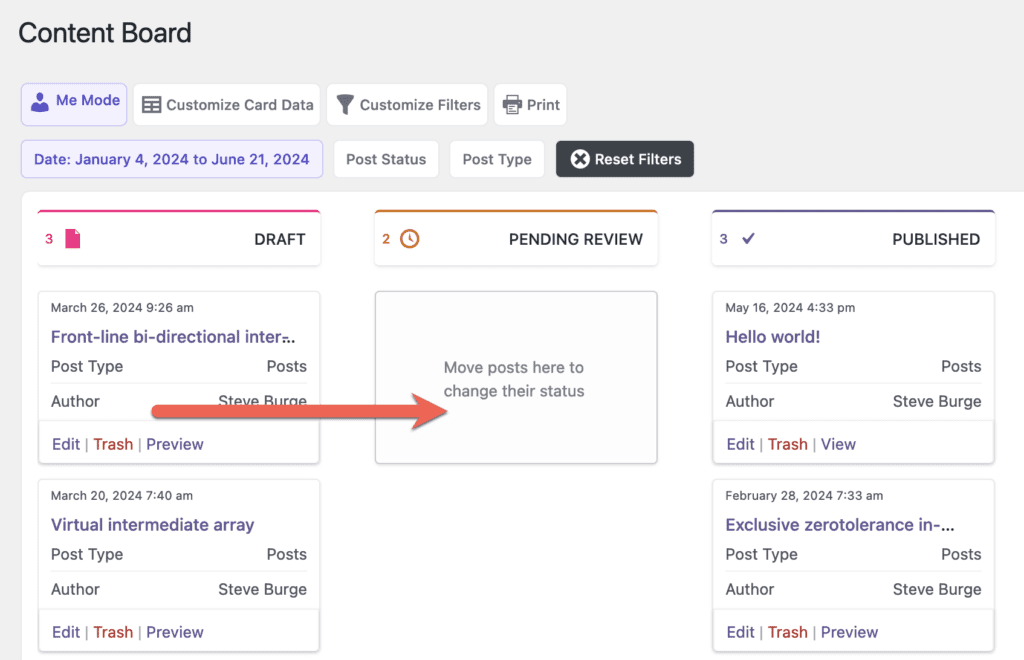
You can use this screen, you drag-and-drop the posts to change their status. In the image below, we're moving a post from the “Draft” status to the “Pending Review” status.
You can move posts to any status including the “Scheduled” status. If you move a post to the “Scheduled” status, it will automatically be given the date chosen in the “Default Date” setting, as in this screenshot below.

If you want to add more statuses, this is possible with the PublishPress Statuses plugin. If you have more statuses than appear on the screen, there will be a horizontal scrollbar, as in this screenshot below.

Once you have created the layout you need, there is also a “Print button available so you can print a copy of all your planned content.

The Modal Editing Window #
This feature requires the Pro version of the PublishPress Planner plugin.
If you're using the Pro version of PublishPress Planner, you can click on any post and see a larger modal that allows you to edit many details of each post:

Content Board Default Settings #
You can change what post types are visible by default on this screen by going to Planner > Settings > Content Board