The “Schedule Control” feature is part of the Block Controls feature in the PublishPress Blocks plugin. This feature allows you to control when a specific Gutenberg block will start and stop showing. You choose the dates, days of the week, and times that your block will show.
Schedule a block between selected dates #
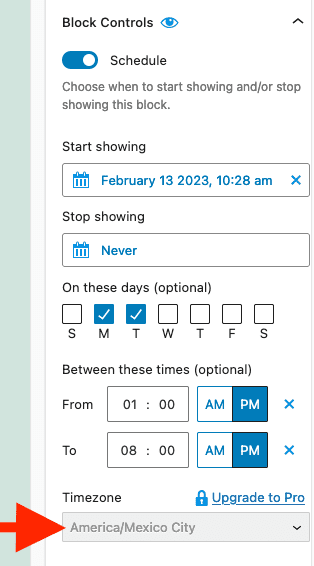
If you want to show a block to show, look for the “Schedule” option under “Blocks Controls” as show in this screenshot.

There are multiple options available in this feature:
- Start showing: Select a date to start showing the block.
- Stop showing: Select a date to stop showing the block.
- Recurring: This will appear after you have selected two dates. Enable this feature to show the block between the selected dates every year.
- On these days: If you want to show the block in specific days of the week, check the days here.
- Between these times: If you want to show the block in a time range hours, select the hours here.
- Timezone (Pro version): You can select a timezone different to the site settings.
- Add Another Schedule: It's possible to add multiple schedule for one block.
Schedule a block from a starting date #
If you want to show a block forever (starting from a specific date), follow these steps:
- Go to the “Block Controls” panel.
- Enable the “Schedule” setting.
- Select a date for “Start showing”.
- Leave “Stop showing” as “Never”.

Schedule a block until a selected date #
If you want to show a block until reaching a selected date, follow these steps:
- Go to the “Block Controls” panel in the right sidebar.
- Enable the “Schedule” setting.
- Leave “Start showing” as “Now”.
- Select a “Stop showing” date.

Timezone settings #
PublishPress Blocks will automatically use the timezone is the same one configured in your WordPress site through Settings > General > Timezone.

You can also see the timezone in Gutenberg editor below the Schedule settings and when selecting a date:
Custom timezone (Pro) #
This feature requires the Pro version of the PublishPress Blocks plugin.
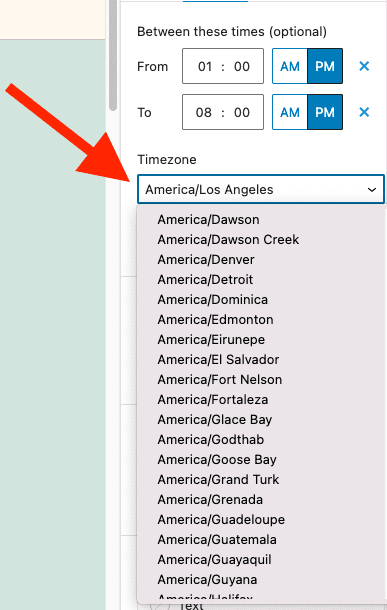
With PublishPress Blocks Pro, you can select a timezone different to the site settings: