This feature requires the Pro version of the PublishPress Revisions plugin.
This feature requires the Pro version of the PublishPress Statuses plugin.
The Pro version of PublishPress Statuses offers the ability to create statuses for revisions created with the Pro version of the PublishPress Revisions Pro. After installing both plugins, you will see a tab extra labelled “Revision”, shown in the screenshot below.
The PublishPress Revisions plugin allows you to submit changes to existing posts on your site. This PublishPress Statuses feature allows you to process those changes through a workflow before they are published.
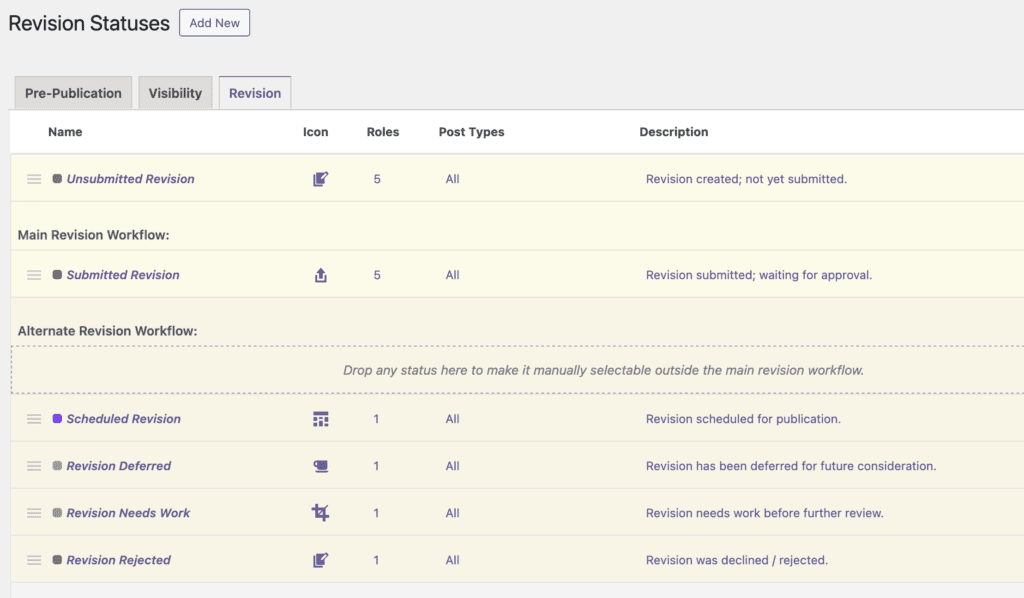
These statuses have the same features as other statuses in the PublishPress Revisions plugin:
- Name: Choose the name, color, and icon for the status.
- Labels: Select the labels that are used for this status when editing a revision.
- Post Types: Choose which post types this status will apply to.
- Roles: Select which user roles can assign this status to a post.
- Post Access: This gives you detailed control over who can edit and delete content in this status.
These statuses will appear in the post editor when you are working on a revision. Click the “Workflow” button as shown in this screenshot:

You will then be given a choice of which status to move this revision to, as in this next screenshot:

These statuses will be labelled on the “Revisions Queue” screen. In this screenshot below you can see the “Status” column is reflecting the custom statuses.

It's now possible to combine the PublishPress Revisions and PublishPress Planner plugins.
In the Revisions plugin, you can schedule revisions to be automatically published in the future. This allows you to update content now, but publish those changes at a later date.
In the Planner plugin, you can use the Content Calendar screen to see all your planned content.
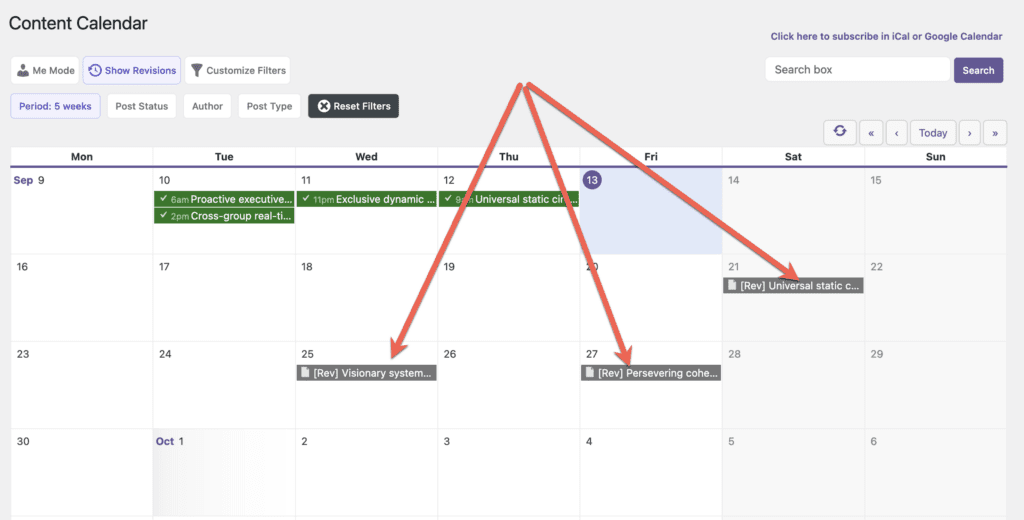
You can see all your scheduled revisions on the Content Calendar screen. If you're using the Pro version of PublishPress Planner, you'll see the “Show Revisions” button in the screenshot below.

After you click the “Show Revisions” button, you'll be able to see all your scheduled revisions, as in this screenshot below:
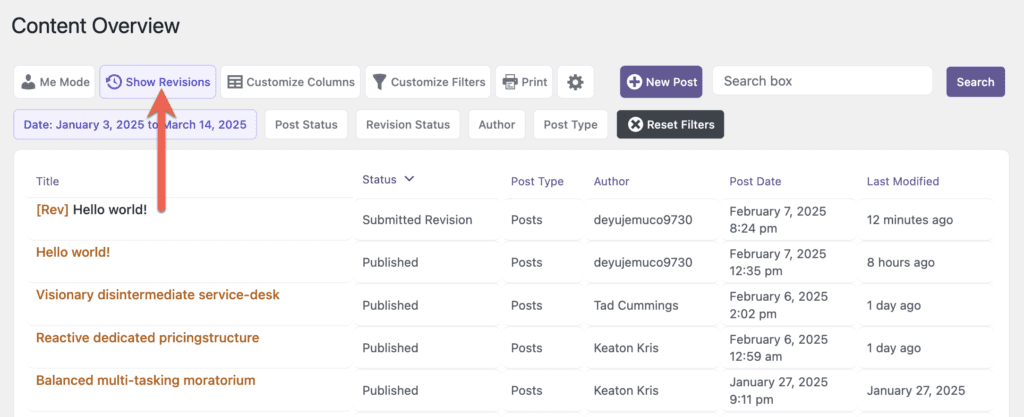
This approach also works for the Content Overview and Content Board screens. This next screen shows how to view revisions on the Content Overview screen:
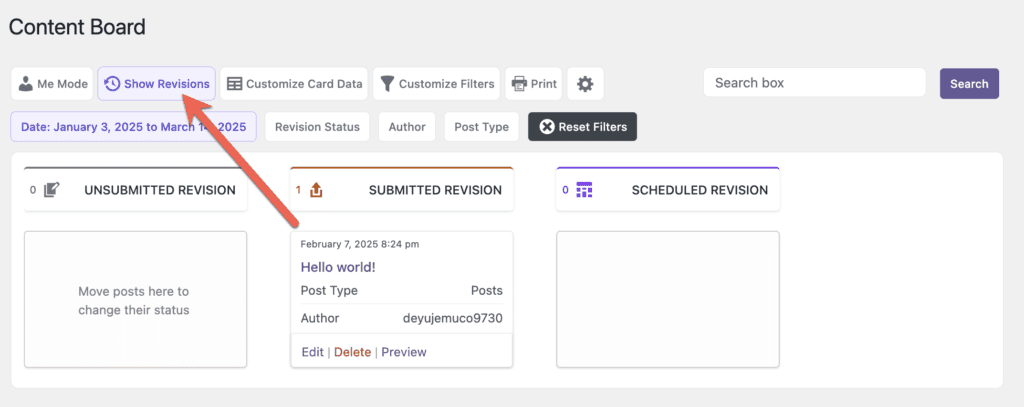
This next screen shows how to view revisions on the Content Board screen. If you click “Show Revisions”, only the revision statuses will be shown.