
Table of Contents
This feature requires the Pro version of the PublishPress Permissions plugin.
Visibility Circles are a feature in PublishPress Permissions Pro that restrict users to viewing posts that were authored by other users in the same group.
How to Enable Visibility Circles #
To enable this feature, follow this steps:
- Go to “Permissions, then “Settings”, then “Features”.
- Check the box called “Access Circles”.
- Click “Save Changes”.
Follow these steps to enable a Visibility Circle:
- Go to “Permissions” in the WordPress admin menu.
- Choose a group to edit.
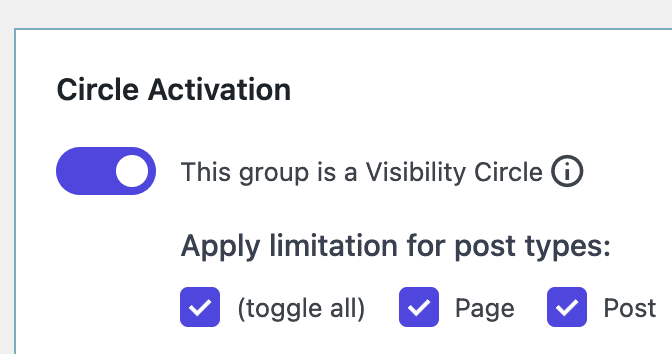
- Check the box for “This group is a Visibility Circle”.

- You will now be able to apply the restrictions based on post type. In the screenshot below, users in this role will only be able to see Posts and Pages written by other users in the same role.
Visibility Circles for Default Roles #
There's one key thing to understand with Visibility Circles: the default behavior in WordPress is for all posts to be visible to all users. So if you want to create a Visibility Circle using default user roles such as Subscriber, Editor, or Author, you will need to modify those those roles.
Here's an example of how to modify a default role:
- Go to “Permissions” then “Permissions” in your WordPress admin menu.
- Click on the “Editor” role.
- You'll see a message, “Visibility Circle restrictions do not apply to this role, since it has the pp_exempt_read_circle capability.”

Here's how to change that setting for a user role:
- Install our PublishPress Capabilities plugin
- Go to “Capabilities”, then “Capabilities”
- Select the role you want to modify.
- Click on the “PublishPress Permissions” tab
- Uncheck the “pp_exempt_read_circle” capability you can see in the screenshot below.
- Click the “Save Changes” button.
