

You can now connect AI platforms like ChatGPT (OpenAI) and Claude (Anthropic) to PIA’s resources using something called the Model Context Protocol, or MCP for short. This lets you access PIA tools—like GovQuery and Recommendation Spotlight —right inside your favorite AI chat platforms or even within your own apps or internal systems.
It’s a simple way to bring PIA’s data and insights into the places you already work, whether you’re asking questions, doing research, or building something new.
Ready to get started? Just follow the steps below for the platform you’re using.
Instructions
Claude: Configure a Connection to PIA's MCP Server
Requirements:
- A Claude Pro or Max account
- A PIA Community Login (see above)
You will need to configure a connection between Claude and PIA's MCP server. This is a one-time setup, you don't have to do this every time you use Claude.
1. Log into Claude → Settings → Manage Connectors

2. Click 'Add Custom Connector'

3. In the Connector configuration screen enter
- Connection name: PIA MCP
- Remote MCP Server URL: https://mcp.programintegrity.org

4. Click 'Add'
5. After a small delay, the new custom connection should appear. Click the 'Connect' button.

4. When prompted enter your PIA community email (see above for how to create an account)

5. Next enter your PIA Community password.

6. Confirm your login, click "Next"

7. Back in the Connectors screen, clicke the 'Configure' button
8. Choose the data sources you want by toggling. Also, decide whether to allow tool use 'Unsupervised' or not. Claude will prompt for permission for using tool call if not set to 'Unsupervised'

Claude: Use PIA's MCP Server in Chat and Deep Research
Requirements:
- A Claude Pro or Max account
- A PIA Community Login (see above)
- You have configured a connection to PIA's MCP Server in Claude (see above)
By default, Clause will use the PIA MCP Server if activated, with the tools you selected during configuration. If you want to change which tools are used, and deactivate other sources such as web search:
1. Log into Claude → Settings

2. To choose tools, select the PIA MCP Server and toggle on/off the ones you need
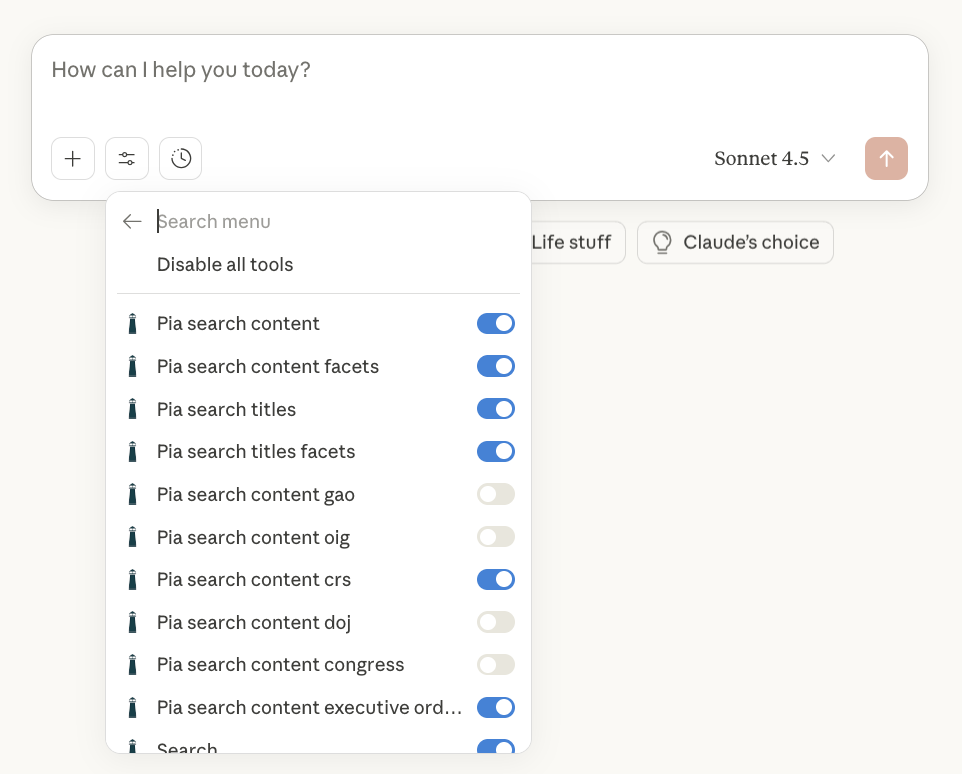
To use Claude with PIA's MCP server, simply start chatting.

The output should provide deep linking to report pages, which isn't supported with Claude's out-of-the-box features.

You can also use with Claude's deep research feature, by activating it in chat with the clock icon.

ChatGPT: Configure a Connection to PIA's MCP Server
Requirements:
- A ChatGPT Plus, Pro or Enterprise account
- A PIA Community Login (see above)
- ChatGPT is set to 'Developer mode' (see above)
You will need to configure a connection between ChatGPT and PIA's MCP server. This is a one-time setup, you don't have to do this every time you use ChatGPT.
Note: Connection to MCP servers from ChatGPT is still a preview feature, only currently available in 'Developer Mode'. We expect this to be generally released this year.
1. Activate Developer Mode
In ChatGPT, select Settings → Apps & Connectors → Advanced Settings (bottom of page) → Developer mode

2. Connect to PIA's MCP Server
In ChatGPT, select Settings → Apps & Connectors → Create (button, top-right)

3. Configure using PIA's MCP Server Details
Populate the form with vallues:
- Name: PIA
- MCP Server URL: https://mcp.programintegrity.org/
- Authentication: OAuth
- I Understand and want to Continue: Checked
See below for an example screenshot. Once filled, click "Create"

4. Next, when prompted enter your PIA community email (see above for how to create an account)

5. Next enter your PIA Community password
6. Confirm your login, click "Next"
ChatGPT: Use PIA's MCP Server in chat and deep research
Requirements:
- A ChatGPT Plus, Pro or Enterprise account
- A PIA Community Login (see above)
- ChatGPT is set to 'Developer mode' (see above)
- A connection between ChatGPT and PIA's MCP Server has been configured
Once you have configured ChatGPT, you can use PIA's MCP server in your chat and deep research sessions.
1. Click + → ... More → PIA MCP

2. Enter your query

2. When prompted approve the use of PIA's MCP Tools

This should result ina response where CchatGPT has used the tools PIA provides:

Typically ChatGPT will provide a references section. These should link directly to the pages information was found (something ChatGPT doesn't do by default):

ChatGPT Deep Research
PIA's MCP Server can also be used as a source in ChatGPT Deep Research.
1. First select Click + → Deep Research

2. Then select PIA as a datasource

Deep research will now use PIA's MCP Server.
Custom Integration: Get a PIA MCP Server API Key for Use in Custom Developed Code
Requirements:
- A PIA Community Login (see above)
To use PIA's MCP server in your own code, you will need a PIA MCP server API key:
2. Log in with your PIA Community email and password
3. Your API Key will be emailed to you
Custom Integration: Use PIA's MCP Server in Your Own Applications Using Docker
Requirements:
- A PIA MCP Server API Key (see above)
PIA's MCP Server is available by the popular and secure Docker MCP Catalog.
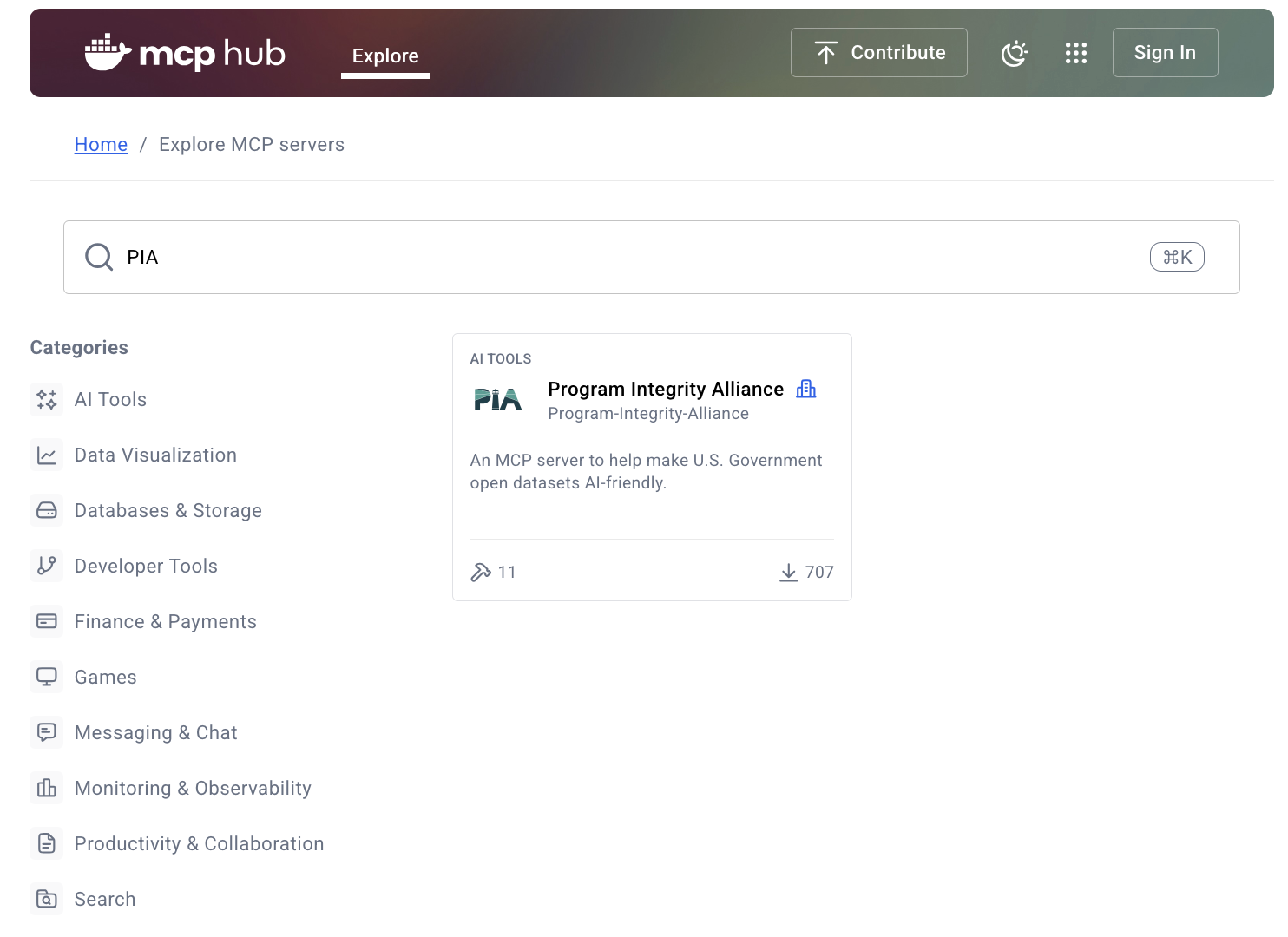
To use it in Docker:
1. Install Docker 4.43 or later.
Go to Docker https://www.docker.com/products/docker-desktop/ and click 'Download Docker Desktop'
2. Start Docker Desktop and activate MCP Toolkit
You can find excellent instructions for this here.
3. In Docke Desktop, select 'MCP Toolkit' and search for 'PIA' in Catalog

4. Click '+'
5. In the secrets box enter your API Key (see above) and click the check mark

You can now use your Dockerized PIA MCP Server in clients such as Claude deskop:
6. In Docker desktop, MCP Toolkit → Clients → Claude Desktop → Connect

7. Restart Claude Desktop, you should now see an 'MCP Docker' source with PIA's MCP Server's tools
Custom Integration: Running a local PIA MCP Server
Requirements:
- A PIA MCP Server API Key (see above)
Before the advent of remote MCP servers, they were typically run locally. PIA provides a local server for this style of integration, which acts as a conduit to PIA's remote MCP server. You can find instructions in the PIA Local MCP Server GitHub repo.
Custom Integration: Calling PIA's MCP Server from Langchain
You can connect to PIA's MCP server directly from your own Python code using Langchain. For more details and a demo on how to do this with OpenAI, Azure, Anthropic, and Hugging Face LLM providers, check out this repo:
Hugging Face: Configure a Connection to PI's MCP Server in Hugging Chat
Hugging Face is a widely used community platform for Open models, and includes HuggingChat . What's nice is you can try this out for free!
To set this up ...
1. Get a PIA Community API Key (see 'First, Register for a Free PIA Community Account' above)
2. Go to HuggingChat
3. Click on 'MCP Servers' in the bottom left

4. Click 'Add Server' top right

5. Set server name to something like "PIA" and Server URL to: https://mcp.programintegrity.org

6. Click 'HTTP Headers (Optional)', and click "+ Add Header"
7. Set 'X-API-KEY' to your PIA Community API Key

8. Click 'Add Server', you should now see your server

9. Click 'Health Check'

You should now see 'Connected'

10. Exit out of the MCP Server Configuration window by clicking 'x'
11. In your chat window, you can now select PIA as a source by selecting '+' → MCP Servers → PIA

AI Responses will use PIA tools across a wide range of federal data sources when responding to your questions.
If you have any questions, please contact [email protected].