Steamworks Documentation
- Documentation Home Page
- Getting Started
-
Store Presence
- Applications
- Coming Soon
- Developer And Publisher Homepages
- Early Access
- Explain Your Editions
- Franchise Pages
- Free To Play Games
- Graphical Assets - Overview
- Livestreaming
- Localization and Languages
- Pre-Purchasing on Steam
- Pricing
- Promo Event Tools, Rules, and Guidelines
- Release Dates
- Release Options
- Release Process
- Removing a product from Steam
- Review Process
- Season Passes
-
Steam China
- Steam Tags
- Store Page, Building and Editing
- Testing On Steam
- Top Sellers Lists
- Trailers
- Updating Your Game - Best Practices
- User Reviews
-
Features
- Anti-cheat and Game Bans
- Common Redistributables
- Enhanced Rich Presence
- Game Notifications
- Microtransactions (In-Game Purchases)
- Multiplayer
- Stats and Achievements
- Steam Audio
- Steam Cloud
- Steam Cloud Play (Beta)
- Steam Community
- Steam DRM
- Steam Error Reporting
- Steam Families
- Steam HTML Surface
-
Steam Input
- Action Manifest Files
- Action Set Layers
- Activators
- Browsing Configurations
- General Concepts
- Getting Started for Developers
- Getting Started for Players
- In-Game Actions File
- Input Source Modes
- Input Sources
- Legacy Mode Bindings
- Mode Shifting
- Mouse Regions
- Radial Menus
- Steam Input Devices
- Steam Input Gamepad Emulation - Best Practices
- Templates for In-Game Actions Files
- Touch Menus
- Uploading Steam Input Configs to Steam Workshop
- Steam Inventory Service
- Steam Keys
- Steam Leaderboards
- Steam Overlay
- Steam Playtest
- Steam Remote Play
- Steam Screenshots
- Steam Timelines
- Steam Voice
- Steam Workshop
- User Authentication and Ownership
- Virtual Reality
- Finance
-
Sales and Marketing
- Advertising on Steam
- Best Practices, Marketing
- Community Moderation
- Curators and Curator Connect
- Discounting
- Events and Announcements Tools
- Features And Tools, Marketing
- Followers
- Google Analytics
- Points Shop Items
- Profile Features
- Steam Branding Guidelines
- Steam Community Items
- Store and Platform Traffic Reporting
- Store Widget
-
Upcoming Steam Events
- Steam Next Fest
-
Steam Themed Sale Events
- Steam Auto Battler RPG Fest 2026
- Steam Board Game Fest 2026
- Steam Bullet Fest 2026
- Steam Cooking Fest 2026
- Steam Cyberpunk Fest 2026
- Steam Deckbuilders Fest 2026
- Steam Hidden Object Fest 2026
- Steam Horse Fest 2026
- Steam House & Home Fest 2026
- Steam Medieval Fest 2026
- Steam Ocean Fest 2026
- Steam Party-Based RPG Fest 2026
- Steam Pins & Pegs Fest 2026
- Steam Programming Fest 2026
- Steam PvE Survival Crafting Fest 2026
- Steam PvP Fest 2026
- Steam Scream V Fest
- Steam Social Deduction Fest 2026
- Steam Tower Defense Fest 2026
- Steam Train Fest 2026
- Steam Typing Fest 2026
- UTM Analytics
- Visibility on Steam
- Wishlists
- Steamworks SDK
- Web API Overview
- Accessibility Features
-
Steam Deck
- Getting your game ready for Steam Deck
- How to debug Windows games on Steam Deck
- How to load and run games on Steam Deck
- Social Media Templates
- Steam Deck and Proton
- Steam Deck Brand Guidelines and Logos
- Steam Deck Compatibility Review Process
- Steam Deck Developer Kits
- Steam Deck FAQ
- Steam Deck SVG Line Art
- Steamworks Virtual Conference: Steam Deck - Nov 12th 2021
- Steam Frame
- Steam PC Café Program
-
Steamworks API Reference
- ISteamApps Interface
- ISteamClient Interface
- ISteamController Interface (Deprecated)
- ISteamFriends Interface
- ISteamGameCoordinator Interface
- ISteamGameServer Interface
- ISteamGameServerStats Interface
- ISteamHTMLSurface Interface
- ISteamHTTP Interface
- ISteamInput Interface
- ISteamInventory Interface
- ISteamMatchmaking Interface
- ISteamMatchmakingServers Interface
- ISteamMusic Interface
- ISteamNetworking Interface
- ISteamNetworkingMessages Interface
- ISteamNetworkingSockets Interface
- ISteamNetworkingUtils Interface
- ISteamParties Interface
- ISteamRemotePlay Interface
- ISteamRemoteStorage Interface
- ISteamScreenshots Interface
- ISteamTimeline
- ISteamUGC Interface
- ISteamUser Interface
- ISteamUserStats Interface
- ISteamUtils Interface
- ISteamVideo Interface
- SteamEncryptedAppTicket
- steamnetworkingtypes.h
- steam_api.h
- steam_gameserver.h
-
Steamworks Web API Reference
- IBroadcastService Interface
- ICheatReportingService Interface
- ICloudService Interface
- IEconMarketService Interface
- IEconService Interface
- IGameInventory Interface
- IGameNotificationsService Interface
- IGameServersService Interface
- IInventoryService Interface
- ILobbyMatchmakingService Interface
- IPartnerFinancialsService Interface
- IPlayerService Interface
- IPublishedFileService Interface
- ISiteLicenseService Interface
- ISteamApps Interface
- ISteamCommunity Interface
- ISteamEconomy Interface
- ISteamGameServerStats Interface
- ISteamLeaderboards Interface
- ISteamMicroTxn Interface
- ISteamMicroTxnSandbox Interface
- ISteamNews Interface
- ISteamPublishedItemSearch Interface
- ISteamPublishedItemVoting Interface
- ISteamRemoteStorage Interface
- ISteamUserAuth Interface
- ISteamUser Interface
- ISteamUserStats Interface
- ISteamWebAPIUtil Interface
- IStoreService Interface
- IWorkshopService Interface
Broadcast Moderation and Adding Moderators
Steamworks Documentation > Store Presence > Livestreaming > Broadcast Moderation and Adding Moderators
Moderating Chat on your Steam Broadcast
https://www.youtube.com/watch?v=ayrTy-IyyCo
There are several ways that you can moderate the chat on your broadcast on Steam using the built-in moderation tools, and we'll cover the various ways to do that on this documentation page.
Before You Start
Make sure you are signed into the account that will be broadcasting on Steam or an account that has been promoted to moderator status.
Defining Moderators for Broadcast Chat
There are a couple ways you can add or update moderators that are allowed to help in your broadcast chat room.In Chat
From within the broadcast chat itself, you can right click on an account and select the option to make them a moderator. Note: users who have been promoted to moderator status cannot promote other users to moderator.Friends List
You can select from your list of friends to elevate someone to be a moderator whenever your account is broadcasting. Note that this will follow you around, allowing the account to moderate any broadcast of yours.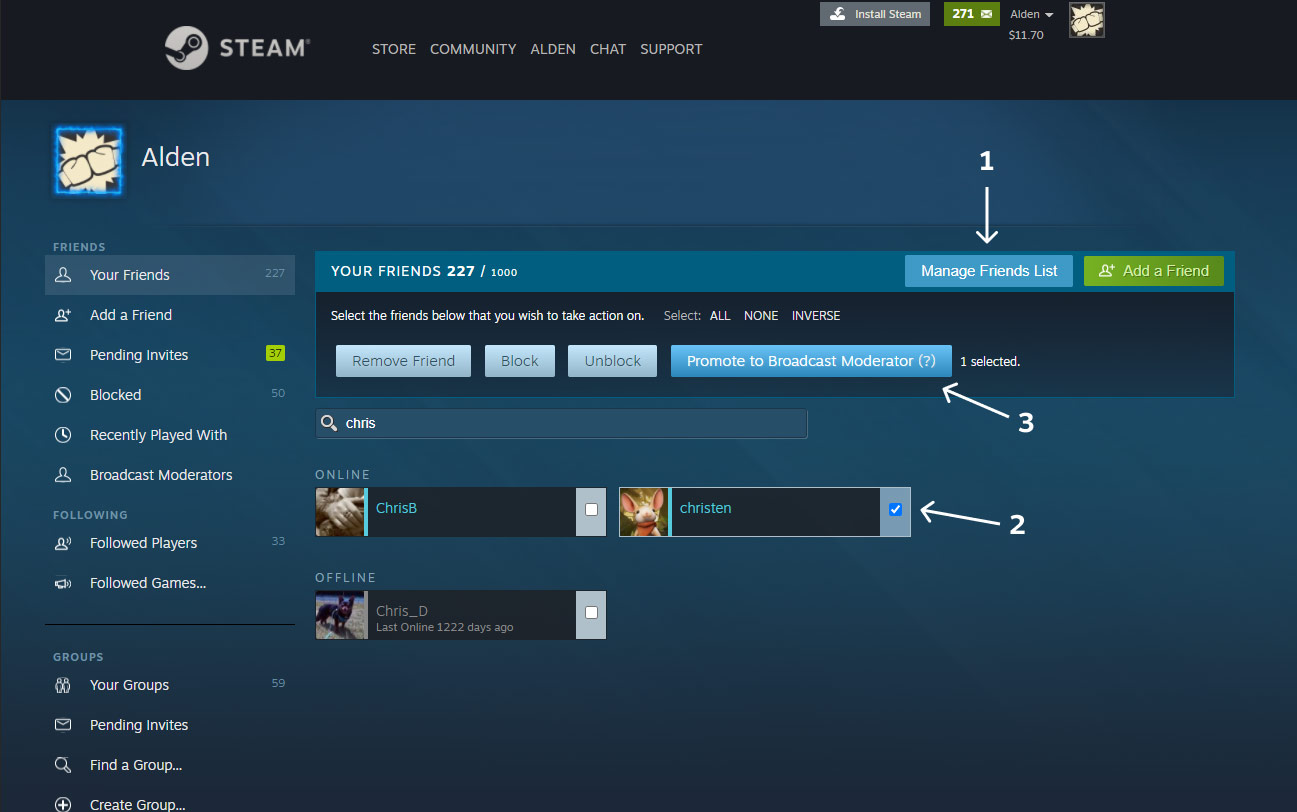
Moderating Chat
There are several places you can moderate the chat on your Steam broadcast: on your store page, on your steam broadcast page, and in the chatonly view. Once you see the chat, you can click on any line of chat to bring up the moderation tools:- Remove this user's messages
- Mute user for 12 hours
- Mute user for a week
- Mute user permanently
- Unmute
- Make this user a Moderator
- Remove Moderator status for user
Store page
From your Steam store page, click on Show Chat underneath your broadcast to view the chat.Broadcast page
From your Steam broadcast page--which you can access from your store page broadcast by clicking on "View broadcast page".Chat only view
To help with dedicated moderation tasks, you can open any broadcast chat in it's own window. There are two ways to get to this view:- By using this URL format:https://steamcommunity.com/broadcast/chatonly/<steamID of the broadcaster>
The SteamID used here is the 64-bit Steam ID. A quick way to view your 64-bit Steam ID is to visit this URL: https://steamcommunity.com/broadcast/moderators (Your Steam ID will be appended to the end of this URL when you visit this site.) - Or, navigate to http://steamcommunity.com/broadcast/upload and then click on Broadcast Chat to open a new window to display all of the chat on your broadcast.
To open moderation menu on the chat only page, click the arrow on the right-hand side of any line of chat.
Viewing Moderators and Moderation History
Navigate to http://steamcommunity.com/broadcast/upload and then click on Moderation Dashboard to view a list of your current broadcast moderators as well as view the moderation history.
You can also see a concise list of moderators and users that have had moderation action taken against them by visiting this url:
https://steamcommunity.com/broadcast/moderators/<steamid of the broadcaster>