


While Macs have a reputation for being secure straight out of the box, they’re not immune to all malware. In 2025, there was a 67% increase in backdoor malware targeting Macs, compared to 2024, while stealer malware grew by 17%, according to Moonlock’s macOS threat report.
So, if avoiding all malware infections is no longer feasible, the next best thing is to detect the virus as soon as it infects your Mac. Running regular virus scans on your Mac is an essential part of staying secure, and in this guide, we’ll show you how to do it best.
What does “malware” even mean?
Quite often, we switch between the terms “malware” and “virus.” Many people may believe that they are synonymous, but there’s actually a difference.
Malware refers to an all-encompassing category for many different kinds of threats against a computer and/or network. Included in that category are viruses, but other subcategories can include threats such as adware, spyware, scareware, ransomware, keyboard loggers, worms, and remote access trojans (RATs).
Recent examples of macOS malware include Atomic Stealer (AMOS), which targets passwords and crypto wallets, and Banshee Stealer, which targets macOS credentials. There’s also the Trojan XCSSET, which infects Xcode projects on Mac, making it a concern for software developers in particular.
For the sake of simplicity, we will refer to viruses in this article as malware.
The common symptoms of a malware infection
Just like sneezing means you have a cold, there are typical symptoms of malware infection. Here are a few.
Your MacBook is running much slower than it should

Pieces of malware are greedy little creatures. Not only do they want all your data, but some types also try to use your CPU and memory for their own purposes. This is especially the case for malware like crypto miners or ransomware, as both processes use up a lot of system resources.
Some legitimate apps can take up a lot of CPU usage, but usually, shutting down non-essential apps can bring that CPU usage back down to a sustainable level.
If nothing seems to make a difference, however, and your CPU and memory remain stubbornly above 90%, then you likely have a malicious app or script running in the background.
Keep your Mac secure: use antivirus software, follow these tips and avoid cracked or pirated software.
Oleh Kulchytskyi, Reverse engineer at Moonlock
Your Wi-Fi connection keeps dropping
This, in itself, doesn’t always automatically mean malware. We all experience slow or unstable Wi-Fi from time to time, and restarting the router usually fixes it. But if your connection keeps slowing down or dropping speed multiple times a day, there might be something else at play here.
Data-stealers, or malware that turns your Mac into a relay for DDoS attacks, often generate unusually high network traffic. It needs your Wi-Fi to send the info and files it stole to a remote server. This can result in noticeably slower browsing, video buffering, or high values in the Activity Monitor’s Network tab (Sent Bytes/Recvd Bytes columns).

Suspicious installed apps are appearing
One common malware delivery method is through malicious apps on your MacBook. These can arrive by either the malware installing them or you installing them from an unsafe source. These apps then coordinate the heist of your data.
If you find a strange app in your Finder’s Applications folder that you don’t remember installing, it needs to be removed immediately:
- Open Finder, then click on Applications.
- Sort applications by Date Added.
- Remove any application you don’t recognize.
Some malware reinstalls itself if you only remove the infected app. You’ll need to run a Mac virus scan to detect the hidden components of the malware and remove the infection completely. Malicious apps can come from dishonest developers, or malware may be secretly bundled with legitimate software and installed secretly in the background.

Your security settings were changed
Sometimes, malware can target your default settings, changing your homepage, preferred search engine, login items, or security settings and access permissions. Never brush off any unexpected changes to your settings, as they could be a sign of a browser hijacker or Trojan infection.
Your browser has developed a mind of its own
When you type “google.com” into the browser URL bar, the usual result is that you go to Google. Obvious, right? But what if you enter “google.com” and end up on a different web browser? A browser hijacker may be to blame.
With browser hijackers, hackers can redirect to an obviously different site or a cloned website that looks like the one you want to go to. Only if you look closely will you see that not everything is as it seems. If you have any unknown extensions on your browser, that is also a sign of browser hijacking.
You’re drowned by pop-up ads

One of the scourges of the internet is pop-ups. Users utterly hate them. That’s why ad blockers have become so popular.
For a hacker, however, pop-ups (in the form of adware or scareware) represent a potential cash cow. By making a pop-up intimidating and dramatic enough, they can convince people to click it and buy whatever is being advertised. Not only could this result in a malware-infected file on your computer, but your personal details could also get stolen and used.
One particularly dangerous type of adware is scareware. Instead of showing you invasive ads, scareware disguises itself as urgent pop-ups claiming your Mac is infected. A major red flag is a fake security alert that you didn’t trigger yourself. Never click on a pop-up you don’t recognize, and always check them at the source. Legitimate Mac malware scan results appear only after a scan, and not at random times.
Your Mac’s storage is filling up
Some malware quietly replicates itself or downloads additional files in the background, taking up storage space. If your available storage suddenly drops without explanation, check what’s consuming the space and run a Mac malware scan to rule out malicious activity.
How to run a Mac virus scan
If you believe your Mac has been infected with malware, you’ll need to use an antimalware solution to check for sure. Using your Mac’s built-in security tools isn’t enough, and you’ll likely need something specialized to act as an additional layer of security.
Moonlock antivirus is built specifically to help Mac users if they suspect they have a malware problem. Unlike XProtect from Apple, which is invisible in the background, Moonlock allows you to be a more active participant in scanning and cleaning your device from malware.
Try Moonlock today with a free trial and run your first malware scan.
Open Moonlock
If this is your first time using Moonlock, you’ll need to configure the virus scan on your Mac.

Here’s what you’ll do:
- Open Moonlock, then click on Malware Scanner on the left.
- In the new tab, from the drop-down menu, click Configure.
- A new window will pop up. Under “Scan type,” you can choose between a Deep, Balanced, or Quick scan, with the speed, depth, and purpose of each scan type listed below it.
- We recommend opting for a Deep scan and checking all optional files: archives, disk images (DMG), and packages (PKG).
- Once you’re happy with your picks, close the window. Don’t worry, Moonlock will remember your preferred configurations for all future scans.
- Click Scan.

Run a scan
A Deep scan shouldn’t take more than 10 minutes, depending on your device’s storage and total number of files. Similar scans can be set to run in the background with minimal impact on system performance, so you can continue working as usual.
It’s important to make running device scans a habit in order to catch threats as soon as they infect your device, and before they get the chance to spread and potentially corrupt your files.

Review and quarantine threats
Once the malware scan on your Mac is complete, Moonlock antivirus will present you with a list of all the threats it found and put in Quarantine. This is to stop these threats from causing any more damage to your computer. Review the results and try to see if there are any clues in the file names to determine how they got onto your device, then delete everything.
Schedule deep scans and turn on Real-Time Protection
As mentioned above, running a Deep Scan will ensure that no malware is lingering on your device. Here’s how to schedule scans in Moonlock:
- Open Moonlock.
- From the Home page, click on Explore.
- On the right-hand sidebar, scroll down to Scan Planner and click Open.
- Next, click on Plan a Scan and select the scan type, time, and frequency.
- Once you’re done, click Save to confirm your preferences.

To turn on real-time protection, you can follow these steps:
- From the Home page, click on Explore.
- On the right-hand sidebar, under real-time protection, click Options.
- In the new window, under “Continuous monitoring” tick the box for “Turn on real-time protection.”
- Close the window.
How else can you check for malware on your Mac?
Moonlock, combined with macOS’s built-in security tools, is usually formidable enough against malware. But technically, there are some other methods to check for malware on your Mac.
Check your browser extensions
Earlier, we mentioned that browser hijackers typically use their own browser extensions. Back in the day, third-party toolbars were the usual weapon, but with third-party toolbars now virtually obsolete, apps have mostly stepped in to take their place.
It’s not just browser hijackers that can result in a malicious extension. If you sideload an extension onto your browser, this will bypass the browser security protocols. This is an important lesson on why you should never sideload.
By checking your browser extensions folder, you can quickly see if there’s anything you don’t recognize. If there is something there, remove it immediately. As a side note, you might want to run a web search for the name of the app first, just to make sure you didn’t install it yourself and forget about it.
You may also want to consider completely uninstalling the browser and then reinstalling it. But if you sync all your browser settings, take care not to accidentally reinstall the malicious extension.
Here’s how to check for malware and clean up extensions in the most popular browsers:
Safari:
- Open the Safari browser.
- Go to Settings, then click on Extensions.
- Review all installed extensions and remove anything you don’t recognize or no longer use.
Chrome:
- Open the Chrome browser.
- Click on the menu in the upper right-hand corner, then Settings.
- Go to Extensions, then Manage Extensions.
- Remove any extensions you don’t recognize or no longer use.
Firefox:
Review and remove any extensions or add-ons you don’t recognize or no longer use.
- Open the Firefox browser.
- Click on the puzzle piece-shaped button in the upper right-hand corner.
- At the bottom, click on “Manage extensions.”
Check system permissions in Privacy & Security
Go to System Settings, then to Privacy & Security and review which apps have access to sensitive functionality, like your camera, microphone, files, or even automation features. If you see anything suspicious or unknown, it could be a sign of malware attempting to gain extra control over your MacBook.
Check your Login Items and Launch Agents for hidden malware
Simply restarting your Mac isn’t enough to remove malware, as most can automatically start whenever your Mac boots. In order to fully purge your device of hidden malware and launch agents, you need to catch them at startup:
- Open System Settings, then click on General, then Login Items & Extensions. Review the list for any apps or background items you don’t recognize and remove them.
- For advanced users, you can inspect suspicious apps in Finder. Use Go, then Go to Folder and inspect ~/Library/LaunchAgents, /Library/LaunchAgents, and /Library/LaunchDaemons for unfamiliar .plist files.
- You can similarly use Terminal to run launchctl print gui/$(id -u) to review active launch services, allowing you to remove any you don’t recognize.

Review your Downloads folder
Open your Downloads folder and check it for .dmg installers, files, apps, and disk images you don’t remember downloading. If you’re unsure where a file came from, delete it and empty the Trash.
As a final precaution, run a Deep Scan with Moonlock to confirm that anything malicious was fully uninstalled.
Check system permissions in Privacy & Security
It’s never a good idea to let apps have more access permissions than what’s strictly necessary:
- Go to System Settings, then Privacy & Security.
- Review which apps have access to sensitive functionality.
- Keep access to your camera, mic, and files to a minimum.
- Under Privacy & Profiles, also check Profiles.
- Delete any unfamiliar configuration profiles.
Use Moonlock’s System Protection function to help you make the most of your Mac’s built-in security functionality. It will check your system for any vulnerabilities leaving you exposed to online exploits.
Can you get infected with a virus or other malware and not notice it?
It’s entirely possible to get a virus or other malware on your computer and not even realize it for quite some time.
Some people may think the excessive pop-ups are a normal part of the internet and simply close them. Or they may also have an old computer that already runs slowly, so when it runs a bit slower, they think nothing of it.
Stealthy threats such as rootkits, fileless malware, Trojans, and infostealers can run in the background, going completely undetected for months. During that time, they can steal passwords, browser data, and cryptocurrency wallets, sending them to a remote server controlled by the malware’s creator.
One recent example was the Lumma Stealer. In 2025, Microsoft and Europol disrupted the stealer after it had infected close to 400,000 devices worldwide. Microsoft stated that this particular fight against Lumma highlights the need for a multi-layered approach to security for combating modern cybercrime.
So, yes, it’s possible that you may not realize you have a virus or other type of malware. But by educating yourself on what malware looks like and proactively scanning for it regularly with Moonlock, you can decrease your risk.
Does Mac have a built-in virus protection scanner?
It’s worth remembering that macOS has its own built-in virus scanner. XProtect comes standard with every Mac. You don’t even have to enable anything or configure any settings. It scans your Mac for malware from the get-go automatically.
XProtect is one of macOS’s built-in security features. It’s the gatekeeper of your system, blocking untrusted apps by scanning downloaded files for known malware. It works alongside System Integrity Protection, which safeguards the most critical system files from unauthorized access or changes.
XProtect pulls its definitions from a signature database maintained and frequently updated by Apple, and it does a great job. However, XProtect may not catch everything, so having Moonlock as an insurance policy is a smart move.
Safeguarding your Mac from malware threats
As the saying goes, an ounce of prevention is worth a pound of cure. In other words, try not to have a malware problem at all by being proactive with your computer hygiene.
Install all macOS and app updates

Apple is good at providing timely updates to address known security vulnerabilities. But all they can do is provide them. It’s up to you to install them quickly.
New updates are usually time-sensitive. The hole needs to be plugged before criminals can exploit it. So, the longer you delay the updates, the more opportunity you’re providing cyber attackers.
Use the antivirus to detect malware and stay protected
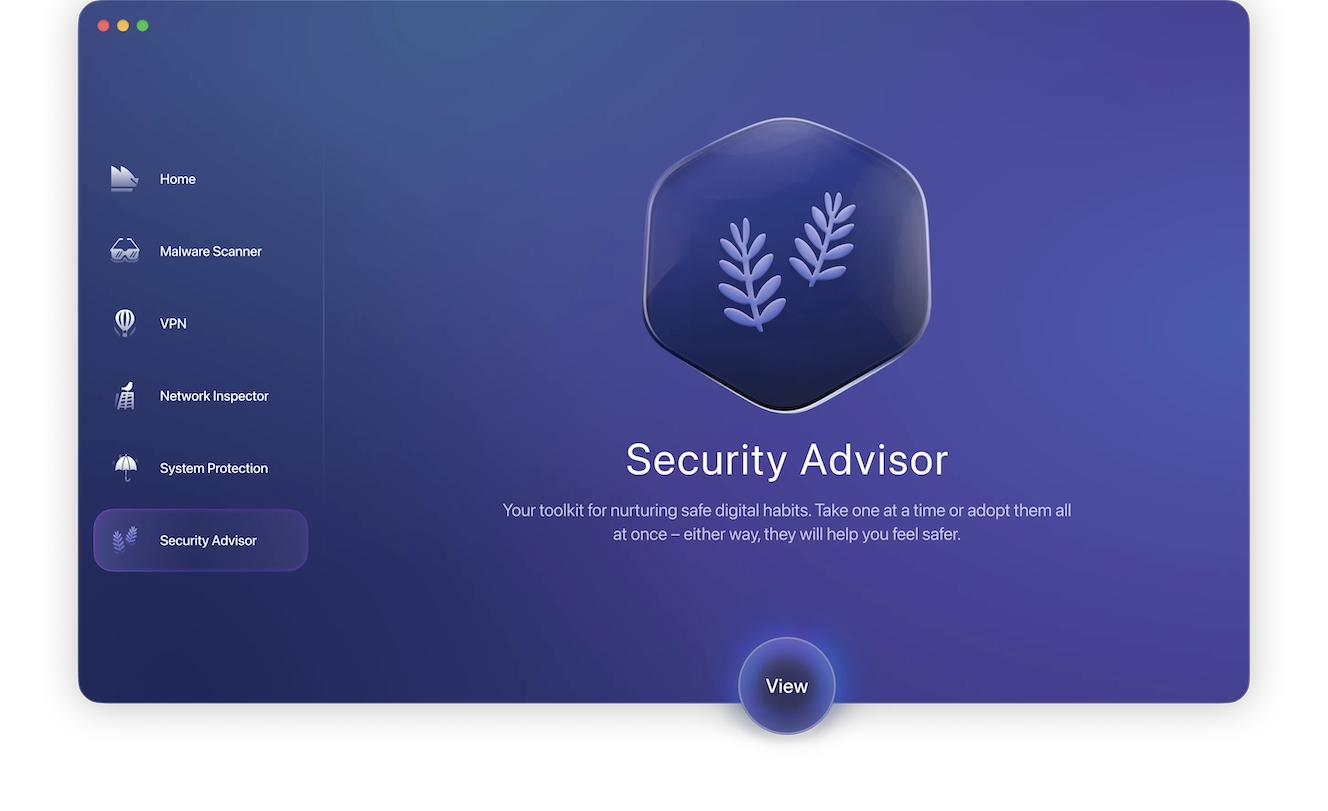
Moonlock will fill in the gaps that Apple’s XProtect might miss. It is specifically designed for Mac and works seamlessly with macOS. You get these features with Moonlock:
- Malware Scanner: Runs quick or deep scans to find malware on your Mac and other security threats.
- Real-time protection: A 24/7 shield that neutralizes any threats as they try to access the Mac
- Quarantine: Where neutralized threats are kept so they can’t damage the device
- Network Inspector & VPN: Protects your online traffic by hiding your IP and blocking any suspect connections
- System Protection and Security Advisor: Improves your Mac’s security and settings and gives hints and tips on how to build good habits
Protection has never felt so simple, so get a free trial of Moonlock antivirus and never have to worry about malware again.
Only use software in the App Store and from trusted developers
People sometimes complain about being shepherded to the Apple App Store to buy software there instead of through their preferred platform. But those same people forget that Apple is doing you a solid favor. The company is vetting and scanning those apps for threats — and blocking the problematic ones.
So, by limiting your software downloads to the App Store, you’re protecting yourself from the worst of the malware and decreasing your risk level considerably.
There are, of course, trusted third-party developers, such as MacPaw and Moonlock, that you can use. The major companies are generally trustworthy, but when it comes to smaller and lesser-known companies, use the App Store instead. Avoid cracked or pirated software, as these often contain malware and pose a serious security risk to your Mac.
Keep an eye on system performance

If you start to notice your Mac’s performance slowing down, the device heating up, or the battery lasting significantly shorter than usual, there is a possibility that malware could be affecting your system performance. Spyware and cryptominers can also be deployed in the background on your machine to consume your power and resources.
Moonlock’s System Protection is designed to improve your system’s security settings to make sure that it is as hard as possible for any of these malicious files to enter your Mac. It will point out weak spots and guide you toward better default settings, making sure that your Mac is secure and running at optimal performance.
Check your Mac with System Protection to keep your Mac protected and performing!
Only visit HTTPS websites
Google did everyone a favor when they decided to prioritize sites with HTTPS security certificates. This had the effect of not only pushing malicious websites into the black hole of Google search results but also highlighting the dangers of normal HTTP websites.
That said, not every HTTPS website is automatically safe. Hackers can use fake security certificates to provide the illusion of safety and security. But, on the whole, HTTPS is much safer than HTTP.
Modern browsers now warn you about non-HTTPS websites, and some block access by default. Treat the padlock icon next to the URL as a secondary confirmation, not as your primary trust signal. There’s always the risk of a malicious website still using an HTTPS certificate to trick visitors.
Checking for malware on a Mac is something that should become second nature for every MacBook owner. Never be complacent or assume it could never happen to you.
Cyberattacks happen to everyone eventually. The only factor you can control is how quickly it’s stopped and, hopefully, destroyed. If you have Moonlock, that process will be quick, painless, and efficient.
This is an independent publication, and it has not been authorized, sponsored, or otherwise approved by Apple Inc. Mac, MacBook, and macOS are trademarks of Apple Inc.


