WP Database Cleaner Plugin tutorial shows you how to manage and maintain a clean and optimize database using this great plugin.
Last Updated: January 28, 2026
Latest News: Updated the document.

Advanced Database Cleaner plugin is simple and easy to use and setup. It has many potential features that help you maintain and optimize your database without having to leave your admin site. It is a simple plugin for users who don’t have any database knowledge and don’t know how to log into their server and use phpMyAdmin or something similar to clean the database.
This tutorial list below will show you how to set up and use Advanced Database Cleaner plugin.
Note: These tutorials are based on version 3.1.5.
Advanced Database Cleaner changelog 4.0.5
- Fix: The plugin left menu was unstable in some environments.
- Fix: Some filters did not correctly reflect the displayed data.
- Fix: Certain strings were not translated in Multisite REST responses.
- Fix: Some special usermeta entries in Multisite and custom table prefix setups were not correctly assigned to WordPress core.
- Tweak: Improved the General Cleanup page to reduce the number of REST requests for better performance.
- Tweak: Take into account the site_status_autoloaded_options_size_limit filter when displaying the autoload size warning.
- Tweak: Added bulk actions to the bottom of tables as well.
- Tweak: Added the ability to select multiple items using the Shift key.
- Tweak: Optimized loading of scan results from files for improved performance.
- Tweak: Optimized the calculation of non-scanned items for better performance.
- Tweak: Added plugin settings to the System Info page.
- Tweak: Unified the structure of installed add-ons data sent during Remote Scan.
- Tweak: Various improvements to code quality, security, and styling.
What You Need:
- Free version Advanced Database Cleaner plugin.
- Premium version advanced-database-cleaner (Affiliated link. I get a commission if you make a purchase.)
WP Database Cleaner Tutorials:
- WP Database Cleaner Plugin
- Overview & Settings
- Remove AIOWPS From WP Database Tables And Options
WP Database Cleaner Plugin
Warning: Before you begin, make sure you create a database backup of your site. Just in case something goes wrong.
Before You Begin
Make a note of the following list of 12 default tables used by WordPress. These 12 tables exist in your site, before other tables are added by plugins or theme/s. It is important that you make a note of this. It can help you make sure you don’t delete any of these default WordPress tables by accident.
Note: Click the following link Database Description to learn more.
Default WordPress Tables
- wp_options
- wp_users
- wp_links
- wp_commentmeta
- wp_term_relationships
- wp_postmeta
- wp_posts
- wp_term_taxonomy
- wp_usermeta
- wp_terms
- wp_comments
- wp_termmeta
Step 1 ) Go to WP DB Cleaner as illustrated in the image to start setting up the plugin.

Step 2 ) The following image shows you the different admin tabs available for you to setup and help you keep your database clean and optimized.
WP DB Cleaner Admin Tabs
- General clean-up
- Tables
- Options
- Cron jobs
- Overview & Settings
- Premium

General clean-up
Step 3 ) Go to WP DB Cleaner -> General clean-up as illustrated in the image below to clean up the following options. In the following list you can see a list of different elements. Some elements might not require any attention while others will need cleaning.
General clean-up Options
- Revisions
- Auto Drafts
- Trashed posts
- Pending comments
- Spam Comments
- Trashed comments
- Pingbacks
- Trackbacks
- Orphaned post meta
- Orphaned comment meta
- Orphaned user meta
- Orphaned term meta
- Orphaned relationships
- Expired transients

Step 3-a ) The following image displays the count number of one of the elements. This count number is the number of entries that is okay to delete.
Elements to clean Options
- Revisions = This is the elements name.
- Count
- View = Note: See Step 3-b ) below.
- Scheduled
- Keep last
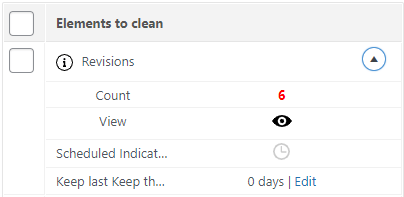
Step 3-b ) The following image displays information regarding the element that is ready to be cleaned.
Information of the element ready to be cleaned
- ID number
- Revision Title
- Content
- Date

Step 3-c ) The following image lets you know about elements that can be cleaned. It also allows you to add new General clean-up scheduled options by clicking on Add new schedule button.

Tables
Step 4 ) Go to WP DB Cleaner -> Tables as illustrated in the image below to check and delete any obsolete tables from your database if there are any.
Tables List Options
- All (42) = In this example you can see 42 tables in this database.
- Uncategorized (42)
- Orphans = Only available in the pro version.
- Plugins tables = Only available in the pro version.
- Themes tables = Only available in the pro version.
- WP tables = Only available in the pro version.
- The search filtering is only available in the pro version.
- Items per page

Step 4-a ) The following image illustrates a list of tables and also information about one of the tables.
Tables Information Displayed
- Rows
- Size
- Belongs to = Only available in the pro version.

Step 4-b ) The following image allows you to select from the following options. When you you select a database table, you can carry out one of the tasks listed below.
Tables Drop Down Menu Options
- Optimize
- Repair
- Empty rows
- Delete

Step 4-b ) The following image shows you a clear warning message before you click on Continue button to delete a table from your database.

Step 4-c ) The following image lets you know if your database is optimized or not. It also allows you to add new General clean-up scheduled options by clicking on Add new schedule button.

Options
Step 5 ) Go to WP DB Cleaner -> Options as illustrated in the image below to check and delete any obsolete options if there are any.
Tables List Options
- All (265) = In this example you can see 265 entries in the options table in this database.
- Uncategorized (265)
- Orphan (*) = Only available in the pro version.
- Plugin options (*) = Only available in the pro version.
- Themes options (*) = Only available in the pro version.
- WP options (*) = Only available in the pro version.
- The search filtering is only available in the pro version.
- Items per page

Step 5-a ) The following image allows you to select from the following options. When you you select a table entry from the options tab, you can carry out one of the tasks listed below.
Drop Down Menu Options
- Delete
- Set autoload to yes
- Set autoload to no

Cron Jobs
Step 6 ) Go to WP DB Cleaner -> Cron Jobs as illustrated in the image below to check and delete any cron jobs not needed any more.
Cron Jobs Options
- All (12) = In this example you can see 12 cron jobs available.
- Uncategorized (12)
- Orphan (*) = Only available in the pro version.
- Plugin options (*) = Only available in the pro version.
- Themes options (*) = Only available in the pro version.
- WP options (*) = Only available in the pro version.
- The search filtering is only available in the pro version.
- Items per page

Overview & settings
Step 7 ) Go to WP DB Cleaner -> Overview & settings as illustrated in the image below to check and see what is going on in the backend of your database.
Note: Click the following link wp-database-cleaner-overview-and-settings to learn more.

Premium
Step 8 ) Go to WP DB Cleaner -> Premium tab to learn more about the premium options.
The above steps should help you maintain an optimize and cleaner database for your site.
If you have any questions please let me know. I will be updating this post from time to time. So keep coming back for the latest.
Enjoy.
 I have been working in IT since 1999 and I enjoy the challenges it brings me. I love developing websites with WordPress. I spend a lot of time helping out in wordpress.org forums. I have been writing tutorials since 2011. Now I am learning how to manage my own VPS "Virtual Private Server.