First of all: I want to thank everybody who actively contributes in the Appleseed Macadmins Slack channel and everybody who filled feedback to Apple using the Appleseed for IT program! It’s always a scary time when Apple releases their new macOS beta versions in June after the WWDC and we (Mac admins) discover tons of “little challenges” where no management solution is in place yet.
There are probably a handful of articles written and published for Apple Managed Login Items this week with the release of macOS Ventura. If you followed the Macadadmins Slack in the Appleseed for IT channel you probably read some recommendations what the “best” or “safest” option is to create a login items profile. There are a couple options to choose from to manage the toggle switch for the login/launchd item: BundleIdentifier, BundleIdentifierPrefix, Label, LabelPrefix and TeamIdentifier. The last one (TeamIdentifier) is considered the most “secure” way, because it checks vendors developer ID.
For some items I used the TeamIdentifier, for example the Adobe and Microsoft stuff as you can see in the snippet below:
But doing this I stumbled on a caveat.
Not only are the launchd items managed, but also the applications you want to auto start when you login to your Mac. Users can freely add prefered applications to this list, like I did with Photoshop and Word:
You notice they are “greyed out”. We all know what that means: It’s managed by your sysadmin! This results to the user who can’t remove Photoshop or MS Word anymore from its own personal added items in the list.
I have some doubts this “works as designed”. But if you don’t agree how this is implemented by Apple, please file feedback using the Appleseed for IT program!
This of course started the discussions (On Slack in #activedirectory) why to bind to AD? In my (and most my other fellow edu lab admins) opinion binding Macs to AD for labs is still the best way for shared macOS devices. We also use 802.1x wifi login profiles for example.
A lot of Macadmins (including myself) started to create tickets with Apple (Feedback assistant!) and Microsoft to bring this problem to their attention.
With the help of my Windows colleague we could run the fix on the AD server and successfully bind with PacRequestorEnforcement set to “2”! We used Win 2019 build 17763.2803. Build that didn’t work: 17763.2300
On Slack in the #activedirectory channel more admins had the same results.
Big thank you to Jaap for your help and everybody in #activedirectory in Slack. We can breath again!
Note: At the moment I’m limited with my testing capabilities, therefore it’s impossible to test more different combinations of these profile keys. You can contact me via slack @patrick_van_nerum if you think some info isn’t correct. I will update this blogpost if I have additional testing capabilities and test results.
When macOS Monterey got released this week I noticed that my Big Sur laptop showed Monterey in the Software update Preference panel. On an older test laptop with Catalina installed it didn’t show Monterey as an upgrade option. It turns out I had totally forgotten that with the release of macOS 11.3 Apple added additional software update and upgrade keys to the mdm restriction payload. When Apple released those keys I was excited and I did ask my mdm provider to support these keys as these are a major improvement for our classroom and laptop deployments. The ticket got closed that it will be added in the near future. After this I totally forgot as we don’t have any Big Sur clients in production yet. I’ve got everything in place for Big Sur now, but I’m going to probably skip that and deploy straight to Monterey soon hoping to get a better update experience for our labs with the new software update mdm commands when my mdm provider makes them available.
————————————————————————————————————————————————————————————————————————————————————————————————————————————
Major OS:forceDelayedMajorSoftwareUpdates
If set to true, delays user visibility of major OS Software Updates.
Available in macOS 11.3 and later.
Default: false
enforcedSoftwareUpdateMajorOSDeferredInstallDelay
This restriction allows the admin to set how many days to delay a major software update on the device. When this restriction is in place the user sees a software update only after the specified delay after the release of the software update. This value controls the delay for forceDelayedMajorSoftwareUpdates.
Available in macOS 11.3 and later.
Default: 30
Minimum: 1
Maximum: 90
————————————————————————————————————————————————————————————————————————————————————————————————————————————
Minor OS:forceDelayedSoftwareUpdates
If true, delays user visibility of software updates. In macOS, seed build updates are allowed, without delay. Requires a supervised device in iOS and tvOS.
The delay is 30 days unless enforcedSoftwareUpdateDelay is set to another value.
Available in iOS 11.3 and later, macOS 10.13 and later, and tvOS 12.2 and later.
Default: false
enforcedSoftwareUpdateMinorOSDeferredInstallDelay
This restriction allows the admin to set how many days to delay a minor OS software update on the device. When this restriction is in place the user see a software update only after the specified delay after the release of the software update. This value controls the delay for forceDelayedSoftwareUpdates.
Available in macOS 11.3 and later.
Default: 30
Minimum: 1
Maximum: 90
enforcedSoftwareUpdateDelay (1/2)
Sets how many days to delay a software update on the device. With this restriction in place, the user doesn't see a software update until the specified number of days after the software update release date. This value is used by forceDelayedAppSoftwareUpdates and forceDelayedSoftwareUpdates.
Requires a supervised device in iOS and tvOS.
Available in iOS 11.3 and later, macOS 10.13.4 and later, and tvOS 12.2 and later.
Default: 30
Minimum: 1
Maximum: 90
————————————————————————————————————————————————————————————————————————————————————————————————————————————
Non OS:forceDelayedAppSoftwareUpdates
If true, delays user visibility of non-OS Software Updates. Requires a supervised device.
Visibility of Operating System updates is controlled through forceDelayedSoftwareUpdates.
The delay is 30 days unless enforcedSoftwareUpdateDelay is set to another value.
Available in macOS 11 and later.
Default: false
enforcedSoftwareUpdateNonOSDeferredInstallDelay
This restriction allows the admin to set how many days to delay an app software update on the device. When this restriction is in place the user sees a non-OS software update only after the specified delay after the release of the software. This value controls the delay for forceDelayedAppSoftwareUpdates.
Available in macOS 11.3 and later.
Default: 30
Minimum: 1
Maximum: 90
enforcedSoftwareUpdateDelay (2/2)
Sets how many days to delay a software update on the device. With this restriction in place, the user doesn't see a software update until the specified number of days after the software update release date. This value is used by forceDelayedAppSoftwareUpdates and forceDelayedSoftwareUpdates.
Requires a supervised device in iOS and tvOS.
Available in iOS 11.3 and later, macOS 10.13.4 and later, and tvOS 12.2 and later.
Default: 30
Minimum: 1
Maximum: 90
Profiles and keys
Basically we have a software update restriction pre macOS 11.3 (starting from macOS 10.13) and post macOS 11.3 that both need their own set of keys.
Pre macOS 11.3:
We only had one option: set a delay from 1 till 90 days for ALL Apple software updates and upgrades. Here we only use these 2 keys from the list above:
forceDelayedSoftwareUpdates
enforcedSoftwareUpdateDelay
Post macOS 11.3:
We have 3 options which you can choose independently from 1 till 90 days:
Major upgrades for example upgrade from macOS Big Sur to macOS Monterey. Use these 2 keys from the list above:
forceDelayedMajorSoftwareUpdates
enforcedSoftwareUpdateMajorOSDeferredInstallDelay
Minor updates for example macOS Big Sur 11.6.0 to 11.6.2. Use these 2 keys from the list above:
forceDelayedSoftwareUpdates
enforcedSoftwareUpdateMinorOSDeferredInstallDelay
Non OS updates for example Safari. Use these these 2 keys from the list above:
forceDelayedAppSoftwareUpdates
enforcedSoftwareUpdateNonOSDeferredInstallDelay
Testing: I used a macOS 11.5.1 client to test. It should show or hide Monterey, macOS 11.6, macOS 11.6.1 and maybe a “Device Support Update”. There are 3 profiles created with the settings for delay set to more days than I will do in production. This was just for testing purposes! In production I probably set Defer Minor and Non OS updates to 7 days.
In my testing scenarios the pre 11.3 profiles, the post 11.3 Major and Minor profiles all worked. Sometimes we needed a reboot before the new pushed profile was showing the results I expected. Only the Defer Non OS updates was a bit of a strange one. I suspect the “Device Support Update” or Safari 15.1 falls under this category. But when all 3 profiles where installed those updates were still presented.
Results:
When using no profile at all Software Update showed: macOS Monterey, macOS 11.6.1 and the “Device Support Update”
Only defer Major upgrades 60 days succeeded:
Only defer Minor updates 30 days succeeded by not showing macOS 11.6.1:
Defer Non OS updates failed?:
In my testing with macOS Big Sur 11.3+ deferring major Monterey, minor updates 11.6 from 11.1 and minor update 11.6.1 from 11.6 worked perfectly with the matching profiles. Even when I changed a defer minor profile from 90 to 30 days I noticed immediately in the Software update preference pane a change that I was expecting.
But defer Non OS updates seems a bit of a mystery. I couldn’t defer the “Device Support Update” and the Safari 15.1 update. Even when all profiles were installed with a 90 days deferral. As Monterey is just released I can’t test similar minor updates yet. The only clue we have is the updated documentation page:
If you regularly create all separate Adobe (update) packages for Macs with Intel or Apple Silicon you know what a tedious and time consuming task this is. Deploying Adobe apps is by far the most labour intensive for us admins that need to deploy all Adobe packages separately. Here are some tools/tips you can use to speed up this part of the Adobe deployment process.
By far the most helpful tool is Autopkg and the Adobe recipe created by dataJAR. The recipe will import the packages you created in the Adobe admin console to your preferred deployment. tool
To avoid the extended attribute (com.apple.quarantine) added to the package you download via a browser, Adobe decided to create the “Adobe Package Downloader.app” which downloads the actual package after you created one in the Adobe admin console. This added extra steps for us admins to get the actual installer packages. There is a way to download Adobe packages directly from the Adobe console. This is also documented in my previous blog post.
Remove the com.apple.quarantine with my rmaq script:
I’m using the above methods for a longer period now, but I was removing the com.apple.quarantine per package using the terminal command: xattr -dr com.apple.quarantine (add/path/to/package/here) per package. We all know we hate to do repetitive jobs and this should be done by a script. And so my rmaq (ReMove Apple Quarantine) tool was born. I have this script in a folder joined by other scripts I regularly use and added that folder to my $PATH.
If you run the script with: rmaq /path/to/my/new/adobe/downloads it wil:
1: Search for Apple installer packages 2: Checks if the com.apple.quarantine is set for the found packages 3: Asks if you want to remove it 4: checks again if the attribute is gone 5: exits
If you want the script to just delete the attribute, yank all the other parts you don’t need.
And as last a massive thank you for all the work you did for the Macadmins community Daz Wallace! For example the recent presentation you gave about Adobe contained so much details that’s useful for us. You will be missed in the #Adobe channel.
Update: Check the bonus tip further down this article!
Do you package every Adobe app separately so you can offer your users a unified (own branded company/school) app-store with Munki or Jamf School experience?
I do and I know what a tedious job this is. I even heard some IT colleagues think it’s way too much work for them to create those 19 different Adobe packages. For us (art education) Adobe is the most important software most students and employees work with.
I’m also convinced more software developers (Autodesk?) will come with something similar Adobe offers with their Creative Cloud Desktop application.
I create those 19 Adobe separate Adobe package downloaders (19 times running thru the same menus in the Adobe console) and run them all at the same time on my laptop:
In Big Sur this isn’t possible anymore. You can’t run multiple Adobe Downloaders at the same time anymore. As a quick test I duplicated Firefox.app and Adapter.app. One has hardening enabled and the other one doesn’t. And I can run run them all at the same time on Big Sur.
I filed an issue (case id: E-000313621) with Adobe enterprise and received a really quick reply: You should NEVER runall the Adobe Package Downloader.app’s at the same time on any kind of macOS. It’s not supported and never will.
This (again) drastically influences my precious time to successfully deploy Adobe in our organisation and I will still run all those Adobe Download apps on a Catalina Mac. I’ve filed a feature request (E-000314316) and if you have the same workflow as me please file one too and reference this case-id.
Thank you “Dom Adobe” in the #adobe channel on macadmins Slack channel for the extra effort you put in to make things easier for Macadmins to deploy Adobe products.
Another Adobe tip from Patrick Fergus (foigus) to create new “updated” packages for the current version of an Adobe product to speed up your update deployoment
Click on an expired title, this will popup a banner in the right side to create an update package with the same items you’ve chosen before:
Bonus tip:
Thanks to Carl Ashley, Patrick Fergus and especially @dokihara and Michael Harnest found in the #adobe channel of the macadmins Slack!
It is possible to download Apple .pkg’s from the Adobe console directly instead of the “Adobe package downloader.app in a .dmg!
Set the user agent of your browser to: Mozilla/5.0 (Macintosh; Intel Mac OS X 10_11_6) AppleWebKit/601.7.8 (KHTML, like Gecko) Version/10.1.1 Safari/603.2.5
Now download a build package from the console. Notice the slow download? It’s actually downloading the full pkg installer!
The only thing you need to do is to remove the quarantine bit, for example like this for the Photoshop installer and uninstaller before you import it to your munki repo for example:
We use Jamf School (formally known as Zuludesk) in combination with Munki to manage our macOS devices. We were already using Munki (To install profiles) before it was kinda mandatory to use a MDM for macOS deployments (DEP, PPPC, approving kernel extensions etc.). Zuludesk had a lot of experience for iPad deployments in classrooms and macOS deployment was a relative new platform for them. Working in education and in search for a simple MDM solution to add to our Munki workflows this seemed a logical choice for us approximately 2 years ago.
Sometimes I stumble upon some strange issues that I forward to their support, but not all issues are being resolved or seen as a problem. Managing custom profiles is one for example. And now that Big Sur is coming you can’t install profiles with the /usr/bin/profiles command anymore (which Munki uses) it’s time to move all your profiles to your mdm!
Custom profiles workflow
I use a lot of custom made profiles to manage some sort of setting. Jamf School has issues with updating/replacing a custom profile or maybe I’m just used using Munki to install a profile with just one setting changed. To keep things simple I use a profile setting to place the Dock on the left or the right side for the example below.
How it’s supposed to work
I create 1 Dock profile in the Jamf School management environment. This is just a standard “non” custom profile. The Dock is managed to appear on the “left” side of the screen. This profile is scoped to my demo laptop. When the scope is applied the Dock appears on the “left” side. When I change the position of the Dock to the right in the profile pane and click “Save” the Dock appears on the right side after a couple seconds. Magic!
Same settings as the example above. I create a profile with the Dock in the left side. Upload this profile as a “Custom” profile via the Jamf School interface. When applied to my demo machine, the Dock moves to the left side.
When I choose to replace the profile (after I edited the profile locally with a text editor) the change is not noticed bij Jamf School management. The version hasn’t changed either.
To get it working you need to perform these steps:
Change all! UUID’s in the .mobileconfig file. Generate those using Terminal.app: /usr/bin/uuidgen
Change the PayloadDisplayName. I put version numbers at the end. Jamf School does the same for the standard built in profiles.
In the following screenshot you can see the changes made to the profile using Kaleidoscope.
This replaced profile isn’t being pushed to all clients automatically. Tell Jamf School to “Refresh Details” for the scope of your profile, as you can see in the below screenshots.
Go to your “Devices” tab, choose “Filter” and search for the appropriate computer group:
This presents you a list with computer records. Select all and choose “Refresh details”
With Jamf School it’s possible to upload a macOS installer to distribute via an “automated MDM enrolment profile” or as part of another workflow. You can read more about this in my first blogpost.
However there are some peculiar behaviours you should know about which I encountered using Jamfschool the past 2 years. These behaviours are some of the “challenges” where I’m trying to find a workaround for. But that’s material for a future blogpost!
How Jamfschool analyses a package when uploading
Note: The package must be a “Distribution” style package format. If you want to know more about this style of packages or packaging in general, check Armin Briegel’s excellent book: “Packaging for Apple Administrators”
When you upload a package the following actions are performed:
Jamf School starts a parsing process.
It tries to find an .app bundle and reads the xxx.app/Contents/Info.plist file.
Jamf School will retrieve the CFBundleShortVersionString and the CFBundleIdentifier keys from the Info.plist file
It displays the information so you can change the name of the installer, add additional scopes etc.
Jamf School also signs your installer package. If you signed the package with your own Developer certificate, that certificate will be changed to the one from Jamf School.
If your package is a “Payload free” package or doesn’t contain an .app bundle:
Jamf School starts a parsing process.
It tries to find an .app bundle and reads the xxx.app/Contents/Info.plist file.
Jamf School can’t find a .app bundle, so it will create a random .app bundle for you
That new .app bundle will be added to your package in “/Library/Jamf\ School/Notifiers/jamf-school.notifier.xxxxxx.app
The reason why Jamf School adds the bundle to the installer is to keep track if the package is installed on a macOS client. It does add an extra unidentifiable entry in the /var/db/receipts database that’s unrecognisable for us admins! For example: com.jamfschool.notifier.23d03eaf-1d34-46bd-b333-25b96fdd7768..pkg. Notice there’s a double dot in the name…..
Limitations with installer package versions
The mechanism that Jamf School uses to import and check installer packages isn’t what a macOS sysadmin “expects” how it should work. They perform an extra check if the package xxx.app/Contents/Info.plist “CFBundleIdentifier” already exists for any current uploaded packages in Jamf School’s application list. If there’s a package with the same “CFBundleIdentifier” it will notify you that the package is already uploaded. You have 2 options: Cancel or replace existing package.
As you can see in the screenshots below these are 2 totally different packages for a macOS device. Well not according to Jamf School as you can see in screenshot 5.
Why doesn’t Jamf School use the installer package info to read the receipts that macOS writes to the local /var/db/receipts database?
Screenshot 4:
screenshot 5:
This limitation makes it impossible to:
Test a new version of the package. Remember you can only replace the current package, even if you choose a new “Add app”.
Upload a second different version of the package that contains other pre or post install scripts, even if the package has totally different receipts.
Challenges I encounter with Jamf School and the Munki installers
For the fleet that I manage I actually needed 2 versions of the Munki installer packages created with the “make_munki_mpkg_DEP.sh” script.
One Munki installer that works from DEP with bootstrap and another without bootstrap. I can create a separate package that contains the bootstrap file, but due to possible APNS failures I want everything in one package.
Munki 5
Munki 5 has been released to circumvent the (broken) “/usr/sbin/softwareupdate” binary and prompts the user of the device to install macOS and security updates that require a reboot.
So now I need extra versions of the Munki installer in Jamf School:
Munki 4 dep and bootstrap package for our (non T2) 10.14 shared lab macOS clients bound to Active Directory
Munki 5 dep and bootstrap package for our 10.14/10.15 personal desktops bound to Active Directory
Munki 5 dep without bootstrap package for our 10.14/10.15 personal Macbooks
That’s it for this blogpost. My next post will be about the possible solutions I am currently working on.
I will be writing a series of blogposts on how to use Munki with Jamfschool using “Automated device enrollment” formerly known as DEP workflow. As I work in higher education where 80% are (non-personal) lab iMacs bound to Active Directory and 20% (personal) 1:1 MacBooks, I need to perform extra steps to overcome the challenges getting it properly working for our whole fleet. These blogposts are written with Jamf School as the MDM vendor, but probably are useful if you use another vendor like Mosyle or SimpleMDM.
Next step after the mdm setup
There is already a lot of good documentation found on the internet and on the Macadmins Slack. So no need to explain how to setup DEP, Apple School Manager (ASM) and Jamf School with the Apple push certificates etc.
My aim for this blogpost is to explain how you can create the Munki installer so it can be used with Jamf School DEP workflow and how you can configure Jamf School to install Munki during MDM enrollment.
The standard Munki installer package you can download from the github repository isn’t usable for installation during DEP in the setup assistant. This package needs a restart to load the launchd items when installed. When DEP installs the munki package there can’t be a restart when you are in the MDM Enrollment / setup assistant windows for example.
This will create a Munki installer package that will use a postinstall script to load the Launchd items during the MDM setup process. It also offers you to enable Munki Bootstrap and other options as wel:
Usage: $(basename "$0") [-i id] [-r root] [-o dir] [-c package] [-s cert] [-S cert] [-b]
    -i id       Set the base package bundle ID
    -r root     Set the munki source root
    -o dir      Set the output directory
    -p          Build Python.framework even if one exists
    -c package  Include a configuration package (NOT CURRENTLY IMPLEMENTED)
    -s cert_cn  Sign distribution package with a Developer ID Installer certificate from keychain.
                Provide the certificate's Common Name. Ex: "Developer ID Installer: Munki (U8PN57A5N2)"
    -S cert_cn  Sign apps with a Developer ID Application certificated from keychain. Provide
                the certificate's Common Name. Ex: "Developer ID Application: Munki (U8PN57A5N2)"
    -b          Enable munki bootstrap mode (will fire as soon as DEP release the Mac to the LoginWindow, to use with scenario where the Mac is bound to a domain during DEP)
Note: Jamf School signs the package when you upload it, some other MDM vendors you need to sign the package yourself. At the moment it isn’t necessary to notarise the package, because it is installed bij the MDM. This can change in the future.
Login to your Jamf School environment.
Create a DEP profile, choose a name that starts with DEP-xxxx and set your settings meeting your requirements.
Don’t forget to enable “Wait for the configuration to be applied before continuing the Setup Assistant” for your DEP profile.
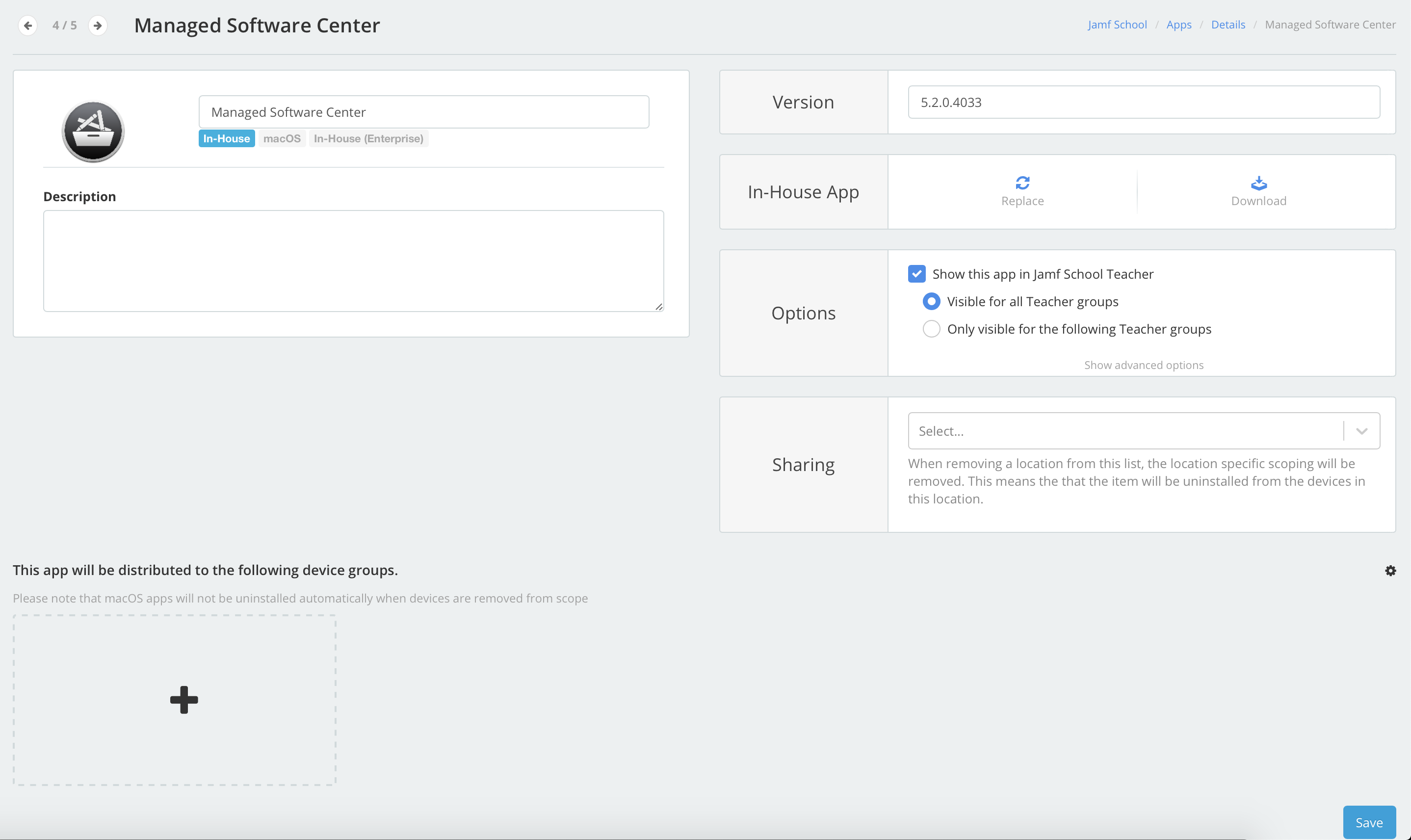
Upload your munki client in the “Apps” menu, by choosing “+ Add App”.
Choose: “Add In-House macOS Package” and upload your munki installer package.
There will be a separate blogpost why Jamf School names the package “Managed Software Center” and the version it retrieves.
Go to the “Devices” menu and create a new “Device Group”. I advice you to choose something that starts with DEP-xxx if you’re planning to create more device groups.
Make it a “Smart” group.
Add the munki installer when you need to select an application. Make an auto install item
When you’re at the last step “filter” scope it with “DEP Profile” and select the DEP-xx profile you just created.
Under the Devices tab, go to DEP and ad your client to the created DEP profile from step 2
I use a configuration profile for the munki client to connect and set settings added to the DEP device smart group from step 9.
With the next blogposts I will write about the limitations I ran into using Jamf School with packages and how you can circumvent those using different possibilities. As /usr/sbin/softwareupdate is unreliable to perform automated installations of macOS and security updates to unattended devices using Munki, I am working on a temporary solution to deploy Munki 4 and 5 to my fleet.
We use Archiware backup2go to backup our employees Mac desktops and laptops. One part I miss is user notification to the local user environment. Archiware does provide a way to use Growl, but Growl is only available thru the Mac appstore and it’s not free.
A while ago I found this blog post written by Graham Gilbert using the Yo notification app created by sheagcraig
With this tool and the information from Graham’s blogpost I can create a “branded” notification that notifies the local user every 16 hours when the last successful backup was completed.
On the Github page from sheagcraig you can find how to incorporate a logo into the Yo.app.
Below you find the parts I created to create the notification. I have a shellscript triggered by a launchagent.
Shellscript
The backup2go client can output the time in Unix seconds when the last successful backup ran. You can run this command on a backup2go client:
/usr/local/aw/bin/nsdchat -c Server 10001 lastend
The output in seconds needs to be translated to human readable output.
You can also download the script and launchd item from my Github account.
Script:
#!/bin/sh

# backup2go last succesfull backup

LASTBACKUP=$( /usr/local/aw/bin/nsdchat -c Server 10001 lastend );
TIME=$( date -j -r "$LASTBACKUP" );

/Applications/Utilities/yo.app/Contents/MacOS/yo -z Pop -t "Backup2go last succesfull" -n "$TIME"
Slowly I’m migrating from the old “imaging+MCX-group” workflow to “Munki thin/no imaging+profiles”. But in the old workflow I encountered a problem. Our location based computer names coming from our Filemaker inventory database is lacking the right information. We have one department who uses a different OD group with minimal client settings. In Workgroup manager I was unable to lookup those Macs and change to the right OD group. I really didn’t want to walk to all those Macs and get serialnumber+location+macaddress. Therefore I created this script which I run as a payload free package after that client was imaged.
I also posted this script on my Github: Github repo
#!/bin/sh

# With this script installed as a payloadfree package by Deploystudio as a postponed installation I can move that computer from the original
# OD group to another. In the OD master these couple Macs didn't have the right computer+inventory name and I needed them applied other MCX settings.

# You need to change these settings to your own environment
# Because our Macs are bound to de OD they have a $ behind their name in the computer record.

computerName=$( scutil --get ComputerName );
COMPUTER_ID="${computerName}\$"
ODSERVER=/LDAPv3/dns-name.of.yourodserver
DIRADMIN=youroddiradmin
DIRPASSWD=yoursecretodpassword
REMOVEFROMGROUP=oldcompugroup
ADDTOGROUP=newcompgroup

# delete computer from original group
/usr/sbin/dseditgroup -o edit -n "$ODSERVER" -u "$DIRADMIN" -P "$DIRPASSWD" -d "$COMPUTER_ID" -L -t computer -T computergroup -q "$REMOVEFROMGROUP"

# Add to computergroup

/usr/sbin/dseditgroup -o edit -n "$ODSERVER" -u "$DIRADMIN" -P "$DIRPASSWD" -a "$COMPUTER_ID" -L -t computer -T computergroup -q "$ADDTOGROUP"




 Patrick van Nerum’s blog