
Quantity Discounts & Pricing for WooCommerce

Are you looking for a powerful WooCommerce quantity discount plugin to
✅ Increase Average Order Value (AOV): Incentivize larger purchases with attractive quantity-based discounts.
✅ Boost Sales Volume: Drive more units sold by making bulk purchases more appealing
✅ Clear Inventory Faster: Strategically discount slow-moving products to free up warehouse space.
✅ Enhance Customer Loyalty: Reward loyal customers or wholesale buyers with exclusive pricing.
✅ Save Time & Reduce Errors: Automate complex pricing rules and eliminate manual coupon management.
✅ Improve Conversion Rates: Present clear, appealing pricing structures directly on product pages.

Key Features of Our woocommerce Quantity Discount Plugin
- Intuitive User Interface: Manage all your pricing rules from a single, easy-to-use interface within the WordPress dashboard.
- Tiered Pricing & Quantity Discounts: Set up sophisticated discounts based on product quantity. Offer different price points for different tiers (e.g., Buy 1-5 for $10 each, 6-10 for $9 each, 11+ for $8 each).
- Role-Based Pricing: Create unique pricing rules for specific customer roles (e.g., wholesale customers, VIPs, distributors). Perfect for B2B stores or loyalty programs.
- Category-Wide Discounts: Apply quantity discounts across entire product categories, making it easy to manage large inventories.
- Product & Variant Specific Rules: Define pricing rules for individual products or even specific product variations (sizes, colors, etc.).
- Bundle Discounts: Offer discounts when customers purchase a specific combination of products.
- Cart Total Discounts: Apply discounts based on the total value of the customer’s cart.
- Conditional Logic: Combine rules with advanced conditions such as cart contents, user roles, specific dates, or payment methods.
- Automatic Application: Discounts are applied automatically in the cart and checkout, eliminating the need for customers to remember or enter coupon codes.
- Clear Pricing Display: Dynamically update product prices and display clear discount tables or messages on product pages to inform customers of potential savings.
- Exclusion Rules: Easily exclude specific products, categories, or user roles from discount rules to maintain desired profit margins.
- Multiple Discount Types: Offer discounts as a percentage off, a fixed amount off, or even a fixed price per item.
Feature details of Our woocommerce Quantity Discount Plugin
Tiered Pricing & Quantity Discounts
Implement dynamic pricing that scales with the quantity your customers purchase. Encourage larger orders by setting different price points or percentage discounts for various quantity ranges. For example, offer 5% off when buying 5-9 units, 10% off for 10-19 units, and 15% off for 20+ units. This powerful feature is perfect for bulk sales, wholesale pricing structures, and incentivizing customers to hit higher purchasing thresholds.


Backend Settings
It’s easy to set the rules in backend just like the image
Price per quantity
The price per quantity feature allows you to set a different price for each product quantity.

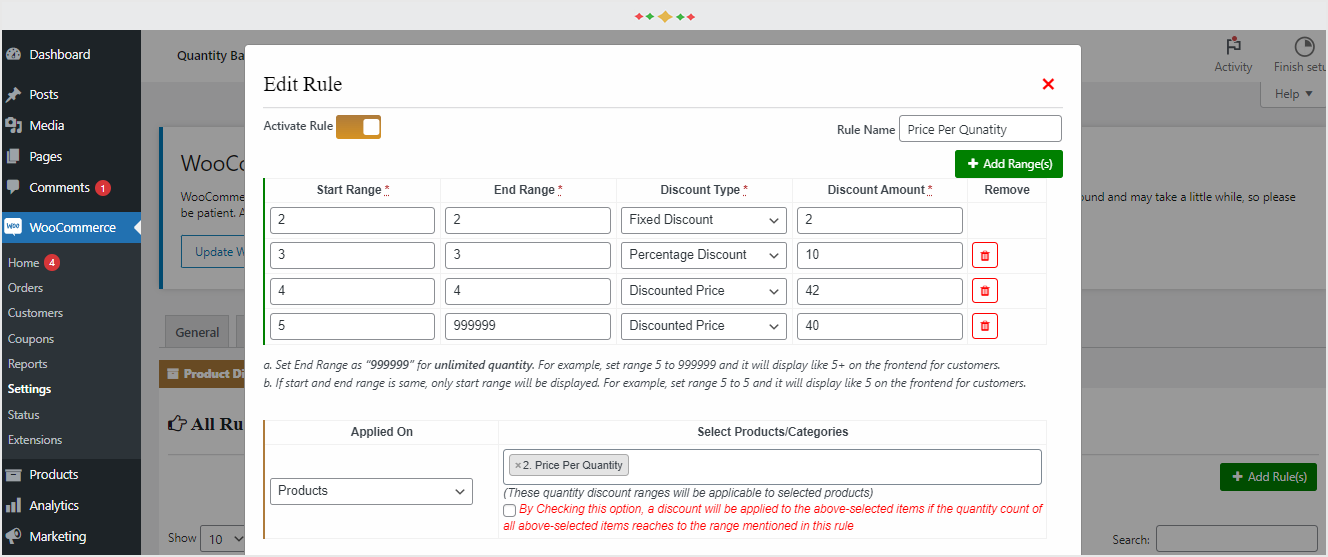
Price per quantity backend settings
The price per quantity feature allows you to set a different price for each product quantity.
Variable Product Supports
You can also set price and apply discount rules on variable products.


Display Smallest Price on Shop
You can display the smallest price on the shop and product page to your customers and customize the price label.
Provide Cart based Discounts
Offer cart discounts based on:
- Cart items’ quantity
- Cart subtotals
- Coupon code
- User roles
- Product in cart
- Category in cart
Create cart discounts with multiple “And” conditions which customers have to meet to avail the discount.

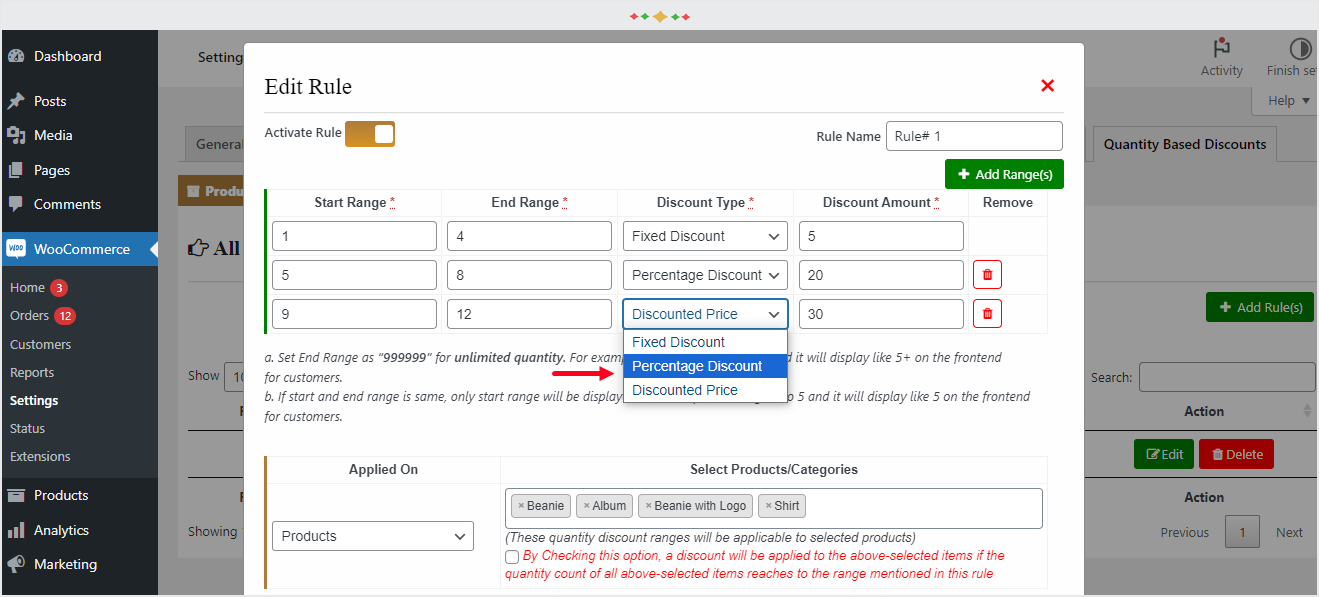
Three types of discounts
This woocommerce quantity discount plugin allows you to set three types of discounts such as fixed, percentage, and discounted price.
Apply to specific products or categories
The woocommerce quantity discount plugin saves your time by applying each rule to multiple products and categories.


Set quantity discounts for user roles
The woocommerce quantity discount plugin enables you to restrict discounts to specific user roles. It is useful for B2B businesses.
Pricing table location
It allows you to display the pricing table on various locations such as before product summary, after, or before add to cart.

Get Dynamic Quantity Discounts for WooCommerce Today!
Unlock powerful pricing strategies and start boosting your sales right now. One simple price, all features included.
All Features Included
Access every powerful feature to transform your store’s pricing.
FAQ (Frequently asked questions)
It provides Product based and Cart based discounts. In product based discount, you can create quantity ranges and set specific discounts for each range. You can also set price per product quantity. In cart based discount it allows to create multiple conditions to meet to get discounts
When creating the range, set the starting quantity to 5 and the ending quantity to 999999. This will display as 5+ in the pricing table.
Yes, the plugin supports discounts based on the collective quantity of products or categories defined in a rule. For example, if a customer purchases two different products from the same category and their combined quantity meets the threshold, the discount will apply.
You can apply cart-based discounts using the following conditions: Number of items in the cart Cart subtotal User role Specific product in the cart Specific product category in the cart Coupon code used
Yes, you can display the lowest possible price on the shop and category pages, along with customizable label text.
Yes, you can. This plugin gives you the flexibility to apply product-level discounts, cart-level discounts, or both at the same time, depending on your pricing strategy.
Who Needs This WooCommerce Quantity Discount & Pricing for Plugin?
- Wholesale & B2B (Business-to-Business) Stores: Businesses that sell in bulk to other businesses (e.g., suppliers, manufacturers, distributors).
- Stores Selling Consumables & High-Volume Items: Shops that sell products people buy frequently or in large quantities. Examples include coffee beans, craft supplies (yarn, beads), printing services (business cards), food items, cosmetics, or e-liquids.
- Stores with a Strong Membership or Loyalty Program: Businesses that have a “VIP,” “Pro,” or “Member” user role with special perks. This includes subscription box sites, course creators, or exclusive clubs.
- Apparel & Fashion Stores (Mix & Match): Shops selling T-shirts, socks, accessories, etc.
- Event & Service-Based Businesses: People selling tickets to workshops, group classes, or digital services.
- Marketers Running Targeted Promotions: Any store owner who wants to run specific, time-sensitive sales.
Installation Guide
Before you begin, please ensure you have the WooCommerce plugin installed and activated. Otherwise, this plugin cannot function correctly.
Automatic Installation (Recommended):
First, navigate to Plugins > Add New inside your WordPress dashboard. Next, search for “Live Event Seating for WooCommerce” in the search bar. Finally, click the “Install Now” button followed by “Activate” to complete the process.
Manual Installation:
Alternatively, you can install the plugin manually. To start, download the plugin .zip file from the WordPress repository. Then, go to Plugins > Add New in your dashboard. After that, click “Upload Plugin” and choose the .zip file you just downloaded. Once uploaded, simply click “Install Now” and “Activate.”
Initial Setup (Required):
All features of the plugin are consolidated under a single, easy-to-access menu item within WooCommerce to keep your dashboard clean.
Navigate to WooCommerce > Quantity Discounts.
You will see a page with three main tabs. It’s important to understand what each tab does:
- Product Quantity Rules: This is where you will create your product-specific discounts, such as tiered pricing (“Buy 5+, get 10% off”) and Mix & Match rules.
- Cart Discount Rules: This is where you will create site-wide discounts that apply to the entire cart based on a powerful set of “AND/OR” conditions (e.g., “15% off for VIP members on orders over $200”).
- Settings: This is your first stop. Here, you will configure the global settings that control how the discounts are displayed and how they interact with your store.
Configuring Global Settings
Before creating your first discount rule, it’s highly recommended to configure the global settings. Navigate to WooCommerce > Quantity Discounts and click the Settings tab.
Pricing Table & Display Settings
These options control the appearance of the pricing table on your product pages.
- ‘Starting From’ Price: When enabled, this will change the price display on shop and category pages for products with a quantity discount. Instead of the regular price, it will show “Starting From: [lowest possible price]”.
- Recommendation: Enable this to entice customers with the best possible price.
- Table Position: Choose where the pricing table appears on the single product page. The most common and effective position is “Before Add To Cart Form”.
Table Column Settings
These settings allow you to customize the labels and visibility of columns in the pricing table.
- Quantity Column: Controls the “Quantity” or “Tier” column. It’s recommended to keep this enabled.
- Discount Column: When enabled, this adds a column showing the exact savings for each tier (e.g., “10%” or “$5.00”).
- Recommendation: Enable this to clearly communicate the value of buying more.
- Price Column: Controls the “Per Item Price” column. It’s recommended to keep this enabled.
Table Styling
Customize the look and feel of your pricing table to match your brand.
- Header Background/Text Color: Set the colors for the table’s header row (<th>).
- Active Tier Background Color: Set the highlight color for the table row that corresponds to the quantity a customer has entered. This provides excellent visual feedback.
Discount Logic
These settings control how your discounts interact with other parts of WooCommerce.
- Coupon Interaction: This is a very important setting.
- Allow both: Customers can use a coupon code and receive an automatic quantity discount.
- Disable coupons…: If a quantity discount has been applied to the cart, all coupon fields will be disabled.
- Disable quantity discounts…: If a customer applies a coupon code, any automatic quantity discounts will be removed.
- Discount Promotions: When enabled, this displays a “View Available Discounts” button on your shop and category pages. Clicking it opens a popup that advertises all your active cart-level discounts, encouraging customers to shop.
- Recommendation: Enable this to increase the visibility of your special offers.
After configuring these options to your liking, click Save Changes.
Next Steps
Your plugin is now configured! The next logical step is to create your first discount.
- To create a tiered pricing rule for a single product (e.g., “Buy 5+ T-shirts for $15 each”), go to the Product Quantity Rules tab and click “Add New Quantity Rule”.
- To create a site-wide offer (e.g., “10% off all orders over $100”), go to the Cart Discount Rules tab and click “Add New Cart Rule”.
Please refer to the next sections of this manual for detailed instructions on creating each type of rule.