

Description
PublishPress Checklists is the best plugin to make sure your content is ready to go live. Using PublishPress Checklists, you define tasks that must be completed before content is published.
Let’s show you a few possible options for your posts:
- Ensure your posts have a minimum or maximum number of words.
- Require your posts have a featured image.
- Check for any broken links.
- Force authors to use a specific number of Tags or Categories.
- Require posts to be approved by a user in a specific role.
- Use OpenAI to scan your content and make sure it uses good grammar or the correct tone.
Next to every post and page, writers see a checklist box, showing the tasks they need to complete. Tasks can either be recommended or required. As authors complete each task, the red X automatically turns to a green checkmark.
PublishPress Checklists integrates with WooCommerce, Yoast SEO, All in One SEO, Rank Math SEO,and Advanced Custom Fields. You can set requirements based on those plugins.
PublishPress Checklists also integrates with OpenAI. You can use OpenAI technology to scan your posts and check for the right tone, good spelling, or correct grammar.
PublishPress Checklists Pro
Checklists Pro
This plugin is the free version of the Checklists Pro plugin that comes with all the features you need to set standards for your WordPress content. Click here to purchase the best premium WordPress checklists plugin now!
Each task on your pre-publish checklist can be configured to meet your site’s needs. You can also set maximum and minimum values.
Read the Getting Started guide for PublishPress Checklists.
Content Tasks
- Title: Maximum or minimum number of characters.
- Body text: Maximum or minimum number of words in the post content.
- Excerpt: Maximum or minimum number of characters in the excerpt.
- Avoid specific heading tags (Pro version): You can enter choices for the headings to prohibit. The options are H1, H2, H3, H4, H5, and H6.
Publish Date/ Time Tasks
- Publish time should be at a specific time (Pro version): Make sure that your WordPress posts are created with a specific Publish time.
- Publish time should be in the future (Pro version): Specify that your WordPress posts are created with a Publish date that is in the future.
Approval Tasks
- User role approval: Require that posts are approved by users in a specific role.
- User approval (Pro version): Require that posts are approved by a specific user.
Image Tasks
- All images have ALT text: Require ALT text for all images.
- Number of images in content (Pro version): Require a maximum and minimum number of images in the post.
Featured Image Tasks
- Featured image: Require a featured image.
- Featured image has ALT text: Require ALT text for the featured image.
- Featured image has a Caption: Require a caption for the featured image.
- Featured image size (Pro version): Require a maximum and minimum height and width for featured images.
Link Tasks
- Internal links: Maximum or minimum number of internal links.
- External links: Maximum or minimum number of external links.
- Broken links: Check that all links use a valid format.
- Permalink: Control the characters in the URL.
Taxonomy Tasks
- Taxonomy terms: Maximum or minimum number of categories or tags.
- Required taxonomy terms: Force users to add specific terms.
- Prohibited taxonomy terms: Force users to not add specific terms.
Accessibility Tasks
- Only one H1 tag in content (Pro version): Specify that there is only a single H1 tag in your content.
- Header tags are used in logical order (Pro version): Ensure that posts on your WordPress site have headings in the correct order. For example: the heading order in your posts should be H1, H2, and then H3
- Tables have a header row (Pro version): Specify that all tables added to your WordPress posts have header rows.
You can configure each requirement, depending on whether you want to require writers to complete the tasks. Here are the three options:
- Disabled
- Recommended
- Required
If you choose the “Required” option, it will be impossible to publish without completing the task.
OpenAI Checklist Requirements
PublishPress Checklists integrates with OpenAI. You can use prompts to analyze your content. If OpenAI decides that your content doesn’t meet the requirements, it will show the task as incomplete.
You can create checklist requirements like these:
- “Is the content clear and easy to read?”
- “Is this content tone professional?”
- “Does this article use correct grammar?”
OpenAI will scan your content and given a detailed verdict. This is an excellent way to catch errors and improve your content before publishing.
Click here to see how to create OpenAI requirements.
You Can Create New Checklist Requirements
You can create new requirements for your checklists by clicking the “Add custom task” link. For example, you can require authors to get a green Yoast sign, or force them to run a spell-check before publishing.
Click here to see how to create custom requirements.
It is also possible to create more powerful requirements using a custom plugin. We have created a sample plugin to show how to do this. The sample plugin will automatically check that your site’s authors have included a specific word in their main content. If this new requirement is enabled, it will automatically search the text of your content to make sure it contains the word you choose.
Pro Version: Checklists for WooCommerce Products
The Pro version of PublishPress Checklists has support for WooCommerce. There are all the requirements you can choose:
- Number of characters in Excerpt
- Number of Product tags
- Number of Product categories
- Number of words
- Featured image
- Check the “Virtual” box
- Check the “Downloadable” box
- Enter a “Regular price”
- Enter a “Sale price”
- Schedule the “Sale price”
- Discount for the “Sale price”
- Enter a “SKU”
- Check the “Manage stock?” box
- Check the “Sold individually” box
- Check the “Allow backorders?” box
- Select some products for “Upsells”
- Select some products for “Cross-sells”
- Product image
Click here to read more about WooCommerce checklists.
Pro Version: Checklists for Advanced Custom Fields
The Pro version of PublishPress Checklists has support for the Advanced Custom Fields plugin. For example, you can require that text fields have a certain number of characters or that image fields are filled in.
Click here to read more about ACF checklists.
Pro Version: Checklists for Yoast SEO
With the PublishPress Checklists plugin, you can require that site’s content meets minimum standards with the Yoast SEO plugin. If the content doesn’t meet those standards, you can choose to show a warning, or prevent the post from being published. The Checklists plugin integrates with the SEO and Readability features in Yoast SEO.
Click here to read more about Yoast SEO checklists.
Pro Version: Checklists for Rank Math SEO
With the Pro version of the PublishPress Checklists plugin, you can require that site’s content meets minimum standards with the Rank Math SEO plugin. If the content doesn’t meet those standards, you can choose to show a warning, or prevent the post from being published. The Checklists plugin integrates with the “SEO Score” feature in Rank Math SEO.
Click here to read more about Rank Math SEO checklists.
Pro Version: Checklists for All in One SEO
With the Pro version of the PublishPress Checklists plugin, you can require that site’s content meets minimum standards with the All in One SEO plugin. If the content doesn’t meet those standards, you can choose to show a warning, or prevent the post from being published. The Checklists plugin integrates with the “SEO Score” and “SEO Headline Score” features in All in One SEO.
Click here to read more about All in One SEO checklists.
Join PublishPress and get the Pro plugins
The Pro versions of the PublishPress plugins are well worth your investment. The Pro versions have extra features and faster support. Click here to join PublishPress.
Join PublishPress and you’ll get access to these ten Pro plugins:
- PublishPress Authors Pro allows you to add multiple authors and guest authors to WordPress posts.
- PublishPress Blocks Pro has everything you need to build professional websites with the WordPress block editor.
- PublishPress Capabilities Pro is the plugin to manage your WordPress user roles, permissions, and capabilities.
- PublishPress Checklists Pro enables you to define tasks that must be completed before content is published.
- PublishPress Future Pro is the plugin for scheduling changes to your posts.
- PublishPress Permissions Pro is the plugin for restricted content and advanced WordPress permissions.
- PublishPress Planner Pro is the plugin for managing and scheduling WordPress content.
- PublishPress Revisions Pro allows you to update your published pages with teamwork and precision.
- PublishPress Series Pro enables you to group content together into a series.
- PublishPress Statuses Pro enables you to create additional publishing steps for your posts.
Together, these plugins are a suite of powerful publishing tools for WordPress. If you need to create a professional workflow in WordPress, with moderation, revisions, permissions and more… then you should try PublishPress.
Bug Reports
Bug reports for PublishPress Checklists are welcomed in our repository on GitHub. Please note that GitHub is not a support forum, and that issues that aren’t properly qualified as bugs will be closed.
Screenshots
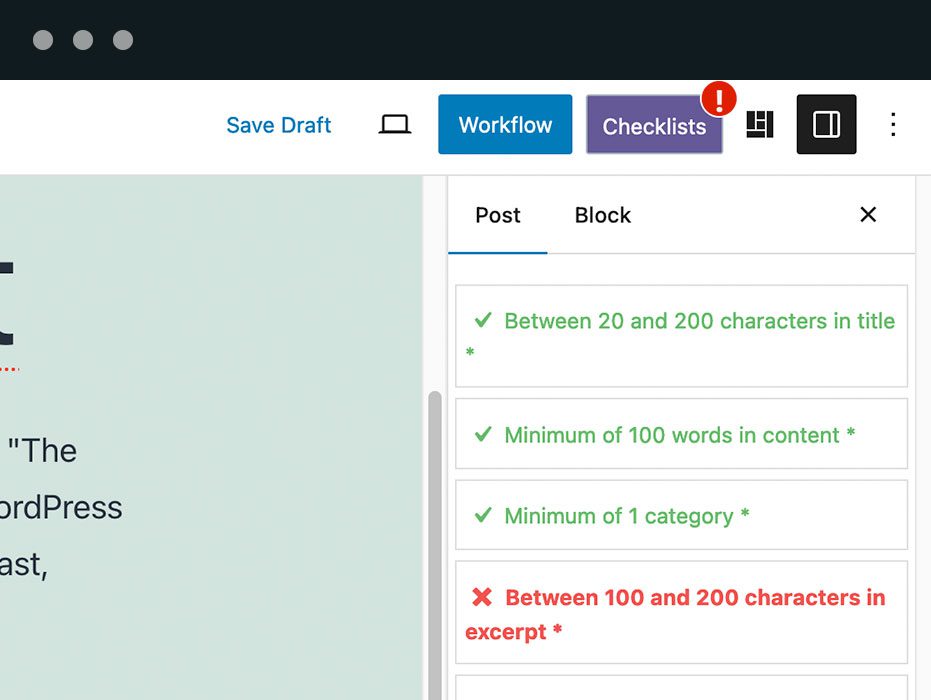
Create your own checklists: Next to every post and page, writers see a checklist box, showing the tasks they need to complete. 
Custom checklist rules: In addition to the default rules, PublishPress Checklists allows you to create your own rules. 
Configure your requirements: Each item on the checklist can be configured to meet your site’s needs. You can decide whether items are recommended, required or ignored. 
Feedback before publishing: If the writers don’t complete all the requirements, PublishPress Checklists will show them a message explaining what they need to do. 
WooCommerce products checklist: This feature in Checklists Pro allows you to create requirements for WooCommerce products.1. Create your own checklists. Next to every post and page, writers see a checklist box, showing the tasks they need to complete. As writers complete each item, the red text automatically turns to green when it is complete. 
Configure your requirements. Each item on the checklist can be configured to meet your site’s needs. You can decide whether items are recommended, required or ignored. You can also set maximum and minimum values.
FAQ
-
Can I choose the number of characters in WordPress post titles?
-
With the PublishPress Checklists plugin, you can require a maximum and minimum number of characters for the Title in your WordPress content. If the Title isn’t the correct length, you can choose to show a warning, or prevent the post from being published. Many sites require the title to be around 55 to 60 characters long. This is often because that is the optimal length to show in Google’s search results.
- Go to Checklists > Settings.
- Find the Title option.
- You can choose from “Disabled, Recommended, or Required” options.
- You can choose “Who can ignore this task?“
- You can enter choices for “Min” and “Max”.
- If you enable this title option, it will be visible when you edit content. If your title is not the correct length, this task will be marked in red in the sidebar. If your title is the correct length, this task will be marked in green in the sidebar/
-
Can I choose the number of words in WordPress post content?
-
With the PublishPress Checklists plugin, you can require a maximum and minimum number of words for the content of your WordPress posts. If the content isn’t the correct length, you can choose to show a warning, or prevent the post from being published. Many WordPress sites want to specify a certain number of words for all their posts. For example, the Yoast SEO plugin recommends that you aim for around 1,000-1,500 words.
- Go to Checklists > Settings.
- You can choose from “Disabled, Recommended, or Required” options.
- You can choose “Who can ignore this task?“
- You can enter choices for “Min” and “Max”.
- If you enable the content option, it will be visible when you edit content. If your content text is not the correct length, this task will be marked in red in the sidebar. If your content text is the correct length, this task will be marked in green in the sidebar.
-
Can I set the maximum and minimum number of categories?
-
With the PublishPress Checklists plugin, you can require a maximum and minimum number of categories for your WordPress posts. If the correct number of categories aren’t added, you can choose to show a warning, or prevent the post from being published. Having the correct number of categories is important for your site’s SEO. By default, Categories are only available on WordPress Posts. However, with the “TaxoPress” plugin you can add Categories to other post types and so you will be able to use the tutorial for those post types too.
- Go to Checklists > Settings.
- You can choose from “Disabled, Recommended, or Required” options.
- You can choose “Who can ignore this task?“
- You can enter choices for “Min” and “Max”.
- If you enable the categories option, it will be visible when you edit content. If you add an incorrect number of categories, this task will be marked in red in the sidebar. If you add a correct number of categories, this task will be marked in green in the sidebar.
-
With the PublishPress Checklists plugin, you can require a maximum and minimum number of tags for your WordPress posts. This feature also supports taxonomy terms from other plugins or custom post types. If the correct number of tags aren’t added, you can choose to show a warning, or prevent the post from being published. Having the correct number of tags is important for your site’s SEO.
- Go to Checklists > Settings. If you are using a custom post type or plugin, any available taxonomies will show as options.
- You can choose from “Disabled, Recommended, or Required” options.
- You can choose “Who can ignore this task?“
- You can enter choices for “Min” and “Max”.
- If you enable this tags option, it will be visible when you edit content. If you add an incorrect number of tags, this task will be marked in red in the sidebar. If you add a correct number of tags, this task will be marked in green in the sidebar.
-
Can I decide the number of characters in WordPress excerpts?
-
With the PublishPress Checklists plugin, you can require a maximum and minimum number of characters for the Excerpts in your WordPress content. If the Excerpt isn’t the correct length, you can choose to show a warning, or prevent the post from being published. The Excerpt field is a very useful feature in WordPress. The Excerpt is an optional summary or description of the main content.
- Go to Checklists > Settings.
- You can choose from “Disabled, Recommended, or Required” options.
- You can choose “Who can ignore this task?“
- You can enter choices for “Min” and “Max”.
- If you enable the Excerpt option, it will be visible when you edit content. If your Excerpt text is not the correct length, this task will be marked in red in the sidebar. If your Excerpt text is the correct length, this task will be marked in green in the sidebar.
Read about choosing the number of characters in WordPress excerpts
-
Can I limit the number of internal links in WordPress posts?
-
With the PublishPress Checklists plugin, you can require a maximum and minimum number of internal links in your WordPress content. If the content does not have the correct number of internal links, you can choose to show a warning, or prevent the post from being published. We define “internal links” as any “a href” link to another page on your site. Many sites want a large number of internal links because it can improve their site’s search engine optimization.
- Go to Checklists > Settings.
- You can choose from “Disabled, Recommended, or Required” options.
- You can choose “Who can ignore this task?“
- You can enter choices for “Min” and “Max”.
- If you enable this internal links option, it will be visible when you edit content. If you do not have the correct number of internal links, this task will be marked in red in the sidebar. If you do have the correct number of internal links, this task will be marked in green in the sidebar.
Read about choosing the number of internal links in WordPress excerpts
-
Can I limit the number of external links in WordPress posts?
-
With the PublishPress Checklists plugin, you can require a maximum and minimum number of external links in your WordPress content. If the content does not have the correct number of external links, you can choose to show a warning, or prevent the post from being published. We define “external links” as any “a href” link to URL on another website. Many sites want to prevent a large number of external links because it can harm their site’s search engine optimization.
- Go to Checklists > Settings.
- You can choose from “Disabled, Recommended, or Required” options.
- You can choose “Who can ignore this task?“
- You can enter choices for “Min” and “Max”.
- If you enable this external links option, it will be visible when you edit content. If you do not have the correct number of external links, this task will be marked in red in the sidebar. If you do have the correct number of external links, this task will be marked in green in the sidebar.
Read about choosing the number of external links in WordPress excerpts
-
Can I check that all my links are valid?
-
With the PublishPress Checklists plugin, you can ensure that all the links in your content (both external and internal) use a valid link format. This feature won’t check the destination URL, but it will check the link format to make sure you haven’t used URLs such as htpps// or .nt.
- Go to Checklists > Settings.
- You can choose from “Disabled, Recommended, or Required” options.
- You can choose “Who can ignore this task?“
- If you enable this link validation option, it will be visible when you edit content. If you have broken links in your content, this task will be marked in red in the sidebar. If you do not have broken links, this task will be marked in green in the sidebar.
The Checklists plugin uses these regular expressions to check for broken links. You will find this code in this file: /core/Utils/HyperlinkValidator.php.
-
Can I check that all my images have ALT text?
-
With the PublishPress Checklists plugin, you can require that all the images have ALT text in your WordPress content. If an image is missing the ALT text, you can choose to show a warning, or prevent the post from being published. ALT text (short for “alternative text”) is useful because it describes images to visitors who are unable to see them. Visually impaired users often use screen readers that can read ALT text to better understand an on-page image.
- Go to Checklists > Settings.
- You can choose from “Disabled, Recommended, or Required” options.
- You can choose “Who can ignore this task?“
- You can enter choices for “Min” and “Max”.
- If you enable the ALT text option, it will be visible when you edit content. If your images are missing ALT text, this task will be marked in red in the sidebar. If all your images have ALT text, this task will be marked in green in the sidebar.
-
Can I require a featured image on all posts?
-
With the PublishPress Checklists plugin, you can require that all your posts have a Featured image. If the image is missing, you can choose to show a warning, or prevent the post from being published. Many sites require a featured image for blog posts because an image is important for sharing on social media.
- Go to Checklists > Settings.
- You can choose from “Disabled, Recommended, or Required” options.
- You can choose “Who can ignore this task?”
- If you enable this Featured image option, it will be visible when you edit content. If your Featured image box is empty, this task will be marked in red in the sidebar. If your Featured image box has an image, this task will be marked in green in the sidebar.
-
Can I require all posts to be approved by an administrator?
-
With this requirement, you can stop content from being published unless it has been approved by a user in a particular role. This is an excellent way to allow some users to “sign off” on content before it is published.
- Go to Checklists > Settings.
- You can choose from “Disabled, Recommended, or Required” options.
- You can choose “Who can ignore this task?“
- In the final box, you can choose which roles can approve posts. If a user is in one of the selected roles, they will see a checkbox. If the user approves the post, they can check the box and the content can be published.
-
Can I force all posts to be approved by Yoast SEO?
-
With the PublishPress Checklists plugin, you can require that site’s content meets minimum standards with the Yoast SEO plugin. If the content doesn’t meet those standards, you can choose to show a warning, or prevent the post from being published. Many sites require that their content meets Yoast SEO standards. This helps ensure that their content is optimized for search engines. The Checklists plugin integrates with the SEO and Readability features in Yoast SEO.
- Go to Checklists > Settings.
- You can choose from “Disabled, Recommended, or Required” options.
- You can choose “Who can ignore this task?“
- You can enter choices for both options. Choose either “OK” (yellow/orange) or “Good” (green).
- If you enable the Yoast SEO option, they will be visible when you edit content. If you don’t meet the minimum requirements, the checklist items will be shown in red.
Reviews


Contributors & Developers
“PublishPress Checklists: Pre-Publishing Approval Checklist – Validate Post Requirements” is open source software. The following people have contributed to this plugin.
Contributors


“PublishPress Checklists: Pre-Publishing Approval Checklist – Validate Post Requirements” has been translated into 10 locales. Thank you to the translators for their contributions.
Interested in development?
Browse the code, check out the SVN repository, or subscribe to the development log by RSS.
Changelog
The full changelog can be found on GitHub.