


If you’ve switched to Ubuntu but still depend on a handful of Windows applications — Microsoft Office, Adobe Photoshop, your company’s proprietary accounting tool, or that one niche program nobody has heard of — you’ve probably tried Wine, cursed at compatibility errors, and wondered if there’s a better way.
There is. It’s called WinBoat.
WinBoat is a free, open-source application that lets you run Windows programs directly on your Ubuntu desktop as if they were native Linux apps. Not inside a clunky virtual machine window. Not through Wine’s hit-or-miss compatibility layer. Individual Windows applications open in their own windows, sitting right alongside your Linux programs in the taskbar, sharing your clipboard and file system.
In this article, we will show how we can download the WinBoat application on Ubuntu and install it along with other requirements such as Docker to install Windows 11 and its applications. However, what to expect once Winboat starts running — including the rough edges, because this tool is still in beta while writing this article hence it may not always work smoothly.
What Is WinBoat and How Does It Work?
WinBoat is an Electron-based application created by developer TibixDev, released in mid-2025 and licensed under MIT. The project has picked up serious momentum — as of early 2026, it has nearly 20,000 stars on GitHub, active development with regular releases, and a growing community on Discord.
Here’s the simplified version of what happens when you use WinBoat: it runs a real copy of Windows inside a Docker or Podman container on your machine. Behind the scenes, that container uses KVM (Linux’s built-in virtualization technology) to run the Windows instance as a lightweight virtual machine. WinBoat then communicates with a “Guest Server” installed inside Windows to detect your installed applications, manage resources, and handle integration features.
The clever part is how it displays the apps. Instead of showing you a full Windows desktop inside a window (like VirtualBox would), WinBoat uses FreeRDP along with Microsoft’s RemoteApp protocol to extract individual application windows and composite them onto your Linux desktop. So when you launch, say, Microsoft Word through WinBoat, you see a Word window — not a Windows desktop with Word running inside it. It behaves like any other window on your Ubuntu machine. You can Alt-Tab to it, resize it, and move it between workspaces.
This is fundamentally different from Wine. Wine tries to translate Windows API calls to Linux equivalents in real time — which works brilliantly for some apps but fails completely for anything that relies on newer Windows APIs, UWP frameworks, the Microsoft Store, or heavy DRM.
How Is WinBoat Different from WinApps?
If you’ve heard of WinApps, you’re probably wondering how WinBoat compares. Both use the same underlying approach — a Windows VM exporting individual app windows via RDP’s RemoteApp feature. The difference is in philosophy and user experience.
WinApps is the older, more mature project. It’s highly configurable and supports Docker, Podman, and direct KVM/libvirt setups. But it expects you to be comfortable editing config files, running setup scripts, and troubleshooting virtualization issues. There’s no graphical installer.
WinBoat takes the opposite approach. It wraps everything in a polished GUI. You install it, launch it, pick your preferences (RAM allocation, CPU cores, storage location, Windows ISO), and WinBoat handles the rest — downloading Windows, configuring the container, setting up RDP, and installing the Guest Server. The tradeoff is less customization, but for most people who just want their Windows apps working, that’s a fair deal.
One practical difference worth noting: WinApps registers your Windows apps directly in your Linux application launcher, so you can find them in your GNOME or KDE menu. WinBoat currently keeps apps inside its own interface — you launch WinBoat first, then open your apps from there. It’s a minor workflow difference, but worth knowing.
System Requirements
Before installing, make sure your Ubuntu machine meets these requirements. WinBoat is not demanding by modern standards, but it does need certain things in place.
Hardware:
- Your CPU must support hardware virtualization (Intel VT-x or AMD-V), and it needs to be enabled in your BIOS/UEFI. Most modern processors have this, but some manufacturers ship with it disabled by default.
- You’ll need at least 4 GB of RAM allocated to WinBoat (so realistically, your machine should have 8 GB total at a minimum ).
- At least 2 CPU threads are required. And you’ll want at least 32 GB of free disk space for the Windows installation. An SSD is strongly recommended; running a containerized Windows instance from a mechanical hard drive will be painfully slow.
Software:
- You need Docker (with Docker Compose v2) or Podman (with Podman Compose).
- FreeRDP version 3.x.x with sound support. WinBoat uses this to render the RemoteApp windows on your desktop.
Note: One thing to be aware of: if your Ubuntu system uses Wayland (which is the default on Ubuntu 24.04 and later), you may experience some quirks with window management, especially on multi-monitor setups. Several users in the community have reported better stability under X11. If you run into weird display behavior, switching to an X11 session at the login screen is a reasonable first troubleshooting step.
Step-by-Step WinBoat Installation on Ubuntu
I’m breaking this into stages because the Docker setup on Ubuntu is where most people hit snags. Take it one step at a time.
Stage 1: Install Docker Engine
First, remove any old or conflicting Docker packages that might be lingering on your system:
for pkg in docker.io docker-doc docker-compose docker-compose-v2 podman-docker containerd runc; do sudo apt-get remove $pkg; doneNow add Docker’s official repository. This ensures you get the latest version directly from Docker rather than the potentially outdated package in Ubuntu’s default repos:
sudo apt-get update
sudo apt-get install ca-certificates curl
sudo install -m 0755 -d /etc/apt/keyrings
sudo curl -fsSL https://download.docker.com/linux/ubuntu/gpg -o /etc/apt/keyrings/docker.asc
sudo chmod a+r /etc/apt/keyrings/docker.asc
Add the Docker repository to your system:
echo \
  "deb [arch=$(dpkg --print-architecture) signed-by=/etc/apt/keyrings/docker.asc] https://download.docker.com/linux/ubuntu \
  $(. /etc/os-release && echo "${UBUNTU_CODENAME:-$VERSION_CODENAME}") stable" | \
  sudo tee /etc/apt/sources.list.d/docker.list > /dev/null
Install Docker Engine and its companion tools:
sudo apt-get update
sudo apt-get install docker-ce docker-ce-cli containerd.io docker-buildx-plugin docker-compose-plugin
Now, this part is critical, and people forget it all the time — add your user to the Docker group so you can run Docker commands without sudo:
sudo usermod -aG docker $USERYou must log out and log back in (or reboot) for this group change to take effect. Skipping this step is the single most common reason WinBoat throws errors on first launch.
After relogging, verify Docker is working:
docker run hello-worldIf you see a success message, Docker is ready.

Stage 2: Install FreeRDP
WinBoat needs FreeRDP 3.x to render Windows application windows on your desktop. On Ubuntu 24.04 and later:
sudo apt update
sudo apt install freerdp3-x11
If freerdp3-x11 isn’t available in your Ubuntu version’s repositories, fall back to version 2.x:
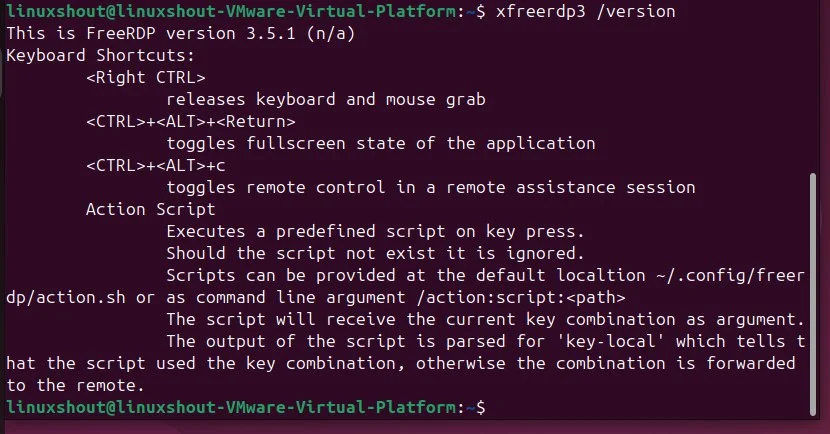
sudo apt install freerdp2-x11Verify the installation:
xfreerdp3 /version
or
xfreerdp /version
You should see a version number. As long as it’s 2.x or 3.x, you’re good to go.
Stage 3: Install WinBoat
Head to the WinBoat releases page on GitHub (github.com/TibixDev/winboat/releases) and download the .deb file for the latest release.
Install it with APT, which will handle dependencies automatically:
cd ~/Downloads
sudo apt install ./winboat-*-amd64.debAlternatively, if you prefer not to use the .deb package, WinBoat also offers an AppImage. Download it, make it executable (chmod +x WinBoat-*.AppImage), and run it directly. Note that the AppImage route requires libfuse2 to be installed — you can grab it with sudo apt install libfuse2.
Stage 4: First Launch and Windows Setup
Launch WinBoat from your application menu or by typing winboat in the terminal.

On first launch, WinBoat checks that all prerequisites are met — Docker running, Docker group membership, FreeRDP installed, KVM available. If anything is missing, it tells you what needs fixing. If the system met all the pre-requirements you will get NEXT button enabled to move forward. This pre-flight check is one of the things that makes WinBoat friendlier than WinApps for beginners.

Once everything passes, WinBoat walks you through creating your Windows instance:
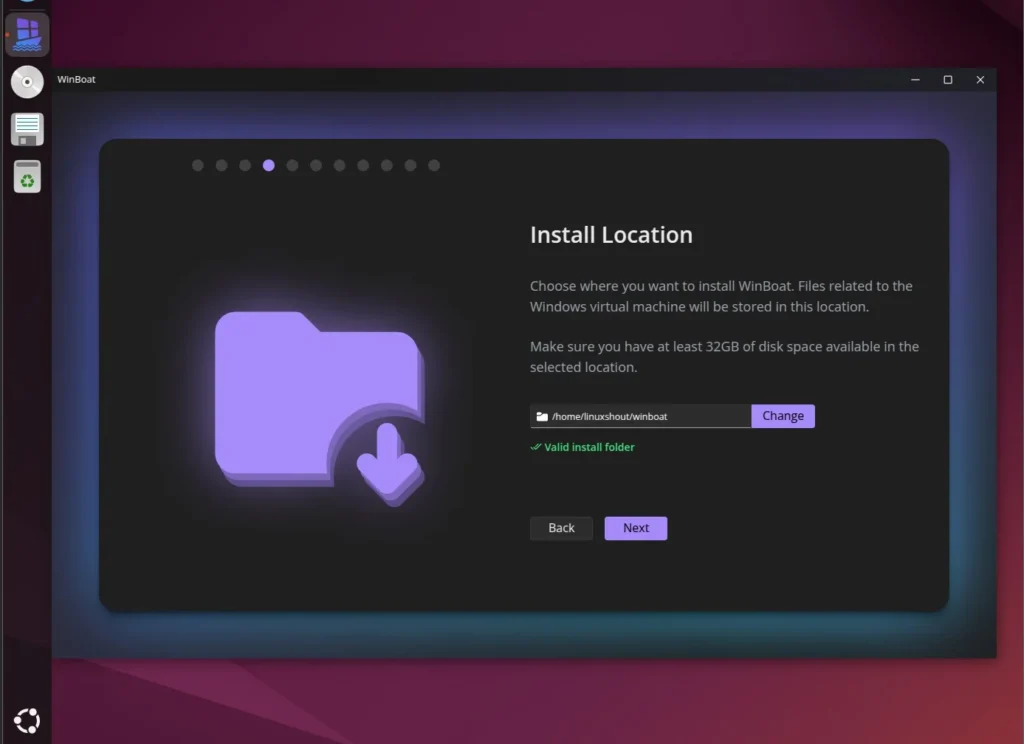
- Choose your storage location. WinBoat asks where to store the containerized VM. The default is
~/winboat, but you can point it anywhere — useful if your home directory is on a smaller partition and you have a second drive with more space.
- Windows ISO. You can let WinBoat automatically download a trial Windows ISO, or point it to a custom ISO you’ve already downloaded. The automatic download pulls a standard Windows trial image from Microsoft. Several experienced users recommend using Windows 10 IoT LTSC for a lighter footprint if you have access to that ISO.

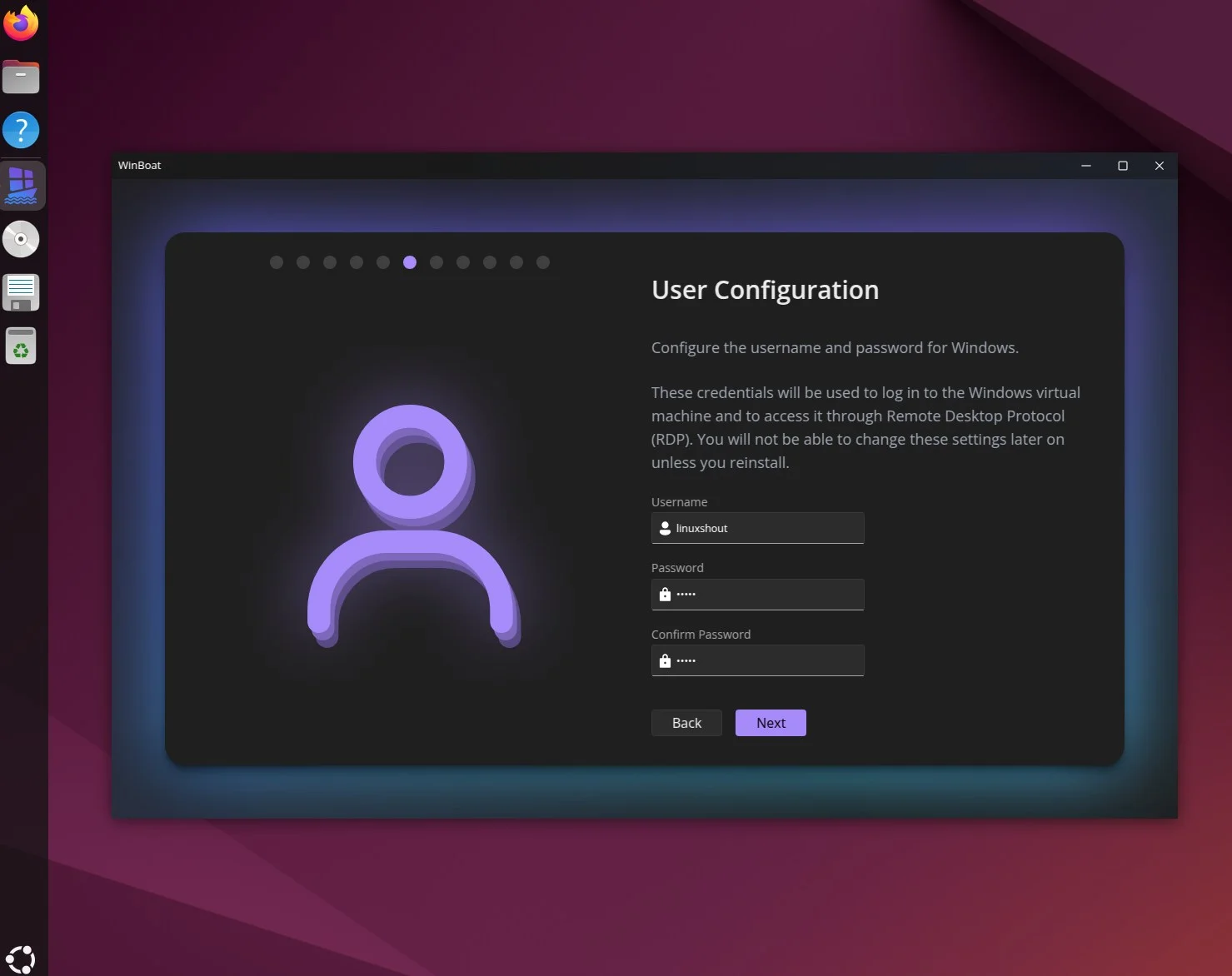
- Add the username and password for Windows 11.
- Allocate resources. Pick how much RAM, how many CPU threads, and how much disk space to give Windows. For general productivity apps (Office, Acrobat, lightweight tools), 4 GB RAM and 2 CPU threads work fine. For heavier software like Adobe Creative Suite, bump it up to 6–8 GB RAM if your hardware allows.

- Wait for installation. WinBoat downloads the ISO (if needed), creates the Docker container, installs Windows inside it, and sets up the Guest Server. This process takes anywhere from 30 to 60 minutes depending on your internet speed and hardware. Go make some chai — there’s nothing for you to do during this phase.
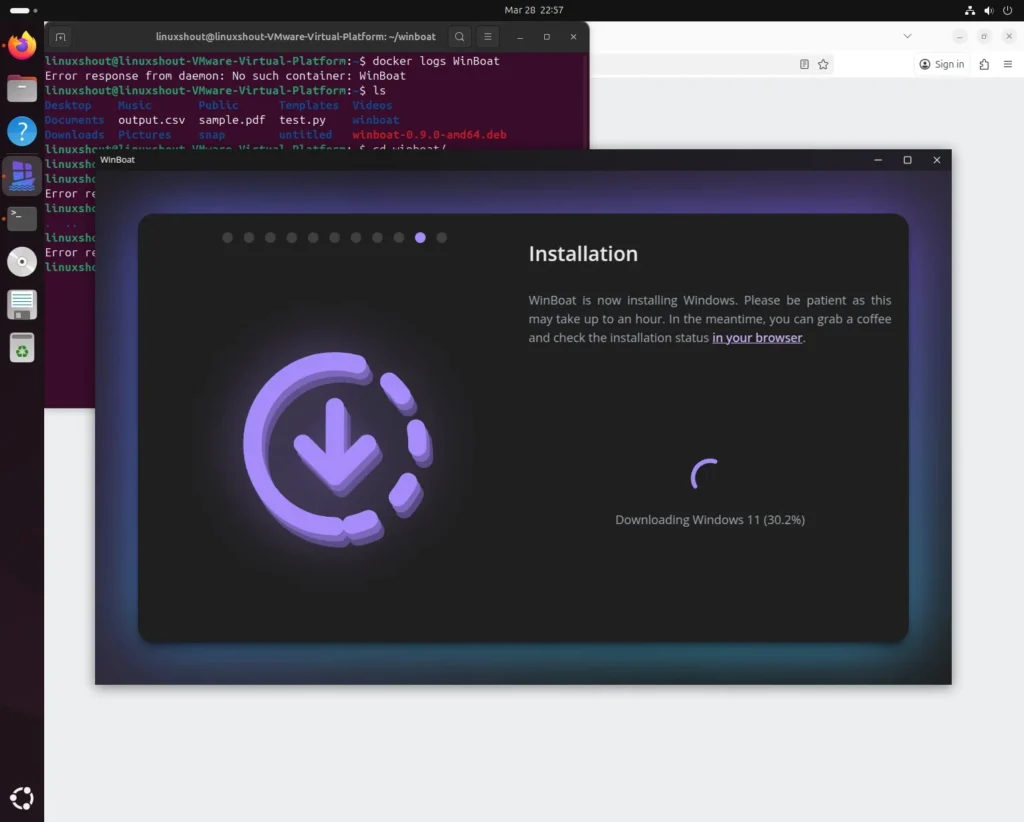

Once setup finishes, WinBoat’s dashboard shows the status of your Windows instance, including resource usage and connection status.

Running Windows Apps
Open the Apps section in WinBoat’s left-hand menu. You’ll see a list of detected Windows applications — the built-in ones like Notepad, Paint, WordPad, and File Explorer are there automatically.
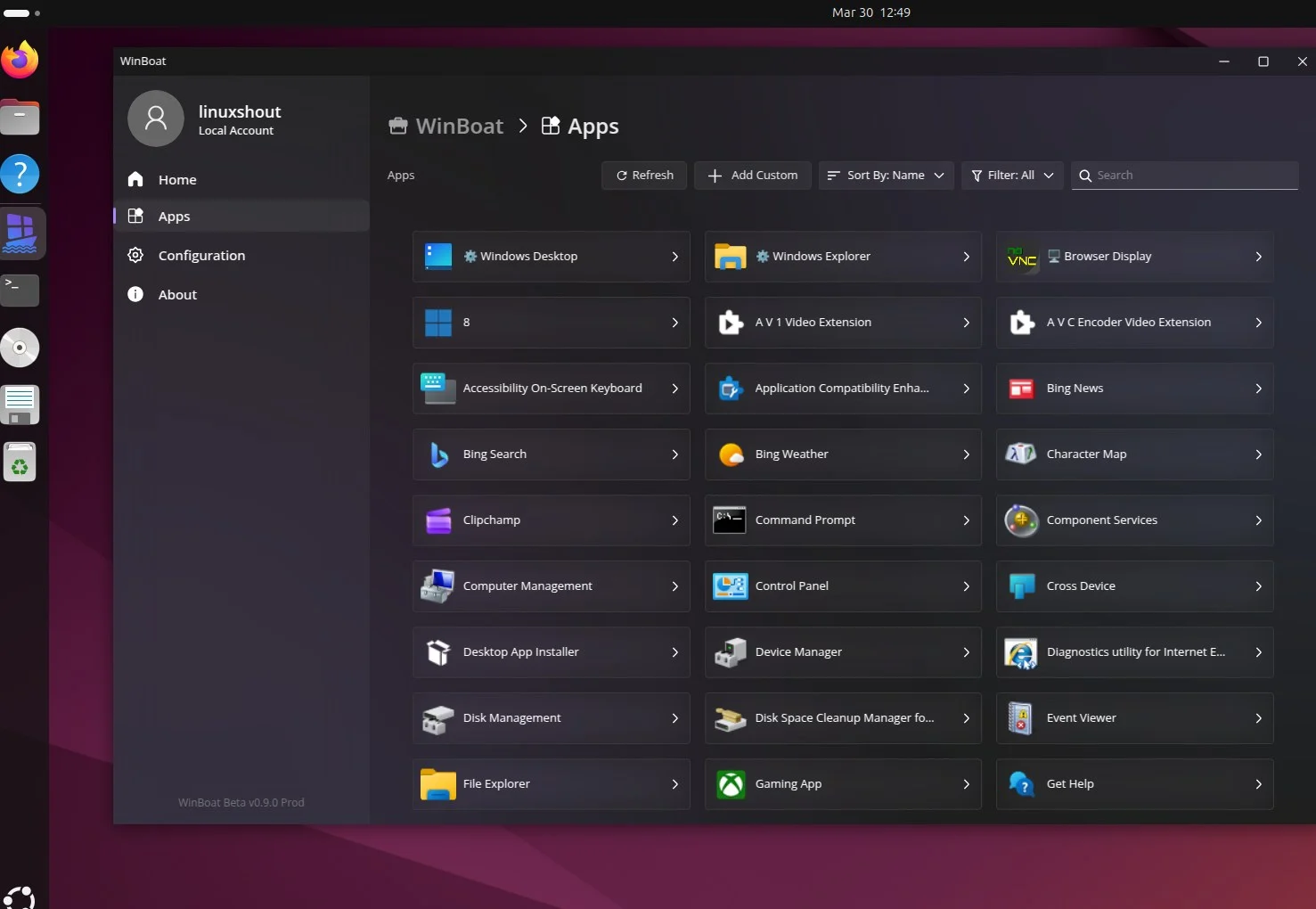
Click any app name and hit Launch. WinBoat fires up the RDP connection (if it’s not already active), and within a few seconds, the application window appears on your Ubuntu desktop. It looks and behaves like a regular window. You can copy and paste between it and your Linux apps. Your Linux home directory is accessible inside Windows as a mounted network drive, so file sharing between the two environments is straightforward.
Installing Additional Windows Software
To install software that isn’t already in the default app list:
- Launch the Windows Desktop from WinBoat (this opens a full remote desktop session).
- Inside the Windows desktop, install your application the way you normally would — download the installer, run it, follow the prompts.
- Close the desktop session and go back to WinBoat’s Apps section. The new application should be detected and added to the list.

If an app doesn’t appear automatically, you can add it manually using the Add Custom option, where you specify the app name and the path to its executable inside Windows.
Since version 0.9.0, WinBoat also supports UWP (Universal Windows Platform) apps, meaning Microsoft Store applications are visible and launchable too — something that’s completely impossible with Wine or Bottles.
What Works Well, and What Doesn’t (Honest Assessment)
I want to be upfront about this because WinBoat is still in beta, and some articles online make it sound more polished than it currently is.
What works well:
The installation experience, once Docker is set up, is genuinely smooth. The GUI is well-designed and walks you through everything. Basic productivity apps — Microsoft Office, WPS Office, Adobe Acrobat, Notepad++, and similar — run without issues for most users. Clipboard sharing and file system integration work as advertised. Audio passthrough functions through FreeRDP. USB passthrough has been available since version 0.8.0 as an experimental feature (Docker only, not yet on Podman).
What has rough edges:
There is no GPU acceleration yet. Applications that need graphics horsepower (Photoshop with large canvases, video editing tools, 3D modeling software) will run, but they’ll be slow because all rendering happens in software through the CPU. The WinBoat team has looked into paravirtualized GPU drivers but nothing is production-ready at this point.
Games with kernel-level anti-cheat (Valorant, Fortnite with EAC, etc.) won’t work. Anti-cheat systems detect the virtualized environment and refuse to run. This is a fundamental limitation of any VM-based approach, not specific to WinBoat.
Multi-monitor setups on Wayland can be problematic. FreeRDP and Wayland don’t always play nicely together, and community reports indicate window placement, resizing, and display mapping issues. Switching to X11 resolves most of these problems.
The first cold launch of an app (when the Windows container isn’t already running) takes 10–20 seconds. Subsequent launches are much faster since the VM stays running in the background.
Disk usage is significant. A WinBoat installation with Windows and a few apps can easily eat 30–40 GB. That’s the nature of running a real Windows instance, but it’s worth factoring into your storage planning.
WinBoat vs Other Methods: When to Use What
WinBoat is excellent for a specific use case, but it’s not the right tool for every situation. Here’s a quick guide:
Use WinBoat when you need to run commercial Windows applications (Office, Adobe, proprietary enterprise software) that don’t work in Wine, and you want them integrated into your Linux desktop without managing a VM manually. WinBoat is also the better choice over WinApps if you’re not comfortable with config files and CLI-heavy setup. You can also see – How to install Wine on Ubuntu 24.04 Linux
Use Wine or Bottles when you only need a few lightweight or older Windows apps. Wine has zero VM overhead, runs apps at near-native speed, and doesn’t require 32 GB of disk space for a Windows installation. For compatible apps, it’s the leaner solution. Check out guide on how to install bottles on ubuntu.
Use a full VM (VirtualBox, VMware, virt-manager) when you need GPU passthrough for graphics-intensive work, need to test software in a complete isolated Windows environment, or need features like snapshots and cloning that a traditional hypervisor offers.
Use WinApps instead of WinBoat when you want deeper Linux integration (apps appearing in your system launcher), more control over VM configuration, or you’re running a KVM/libvirt setup already and prefer to use it directly instead of going through Docker.
Troubleshooting Common Issues
WinBoat won’t launch or shows red items on the prerequisites screen. This almost always means either Docker isn’t running or your user isn’t in the Docker group. Run groups in the terminal and check if docker appears. If it doesn’t, re-run sudo usermod -aG docker $USER and reboot (not just log out — a full reboot is safest).
Apps launch as a black screen that immediately closes. This typically means FreeRDP is not installed or is the wrong version. Run xfreerdp /version to check. If the command isn’t found, install FreeRDP as described earlier. If you’re on Ubuntu 24.04 and installed freerdp3-x11 but still have issues, try freerdp2-x11 as a fallback.
Windows installation gets stuck or fails midway. Check Docker logs for more specific errors: docker logs $(docker ps -q --filter name=winboat). Common causes include insufficient disk space in the install directory, Docker running out of allocated resources, or network issues during the Windows ISO download. If you’re behind a corporate proxy, the ISO download may fail silently.
Slow performance or high latency when using apps. Make sure you’ve allocated enough RAM. Running WinBoat with just 2 GB is possible but miserable — 4 GB is the practical minimum, and 6–8 GB makes a noticeable difference for Office and similar apps. Also check that KVM is actually active (run kvm-ok — if it says KVM acceleration can NOT be used, your virtualization support is either disabled in BIOS or your CPU doesn’t support it).
Copy-paste between Linux and Windows doesn’t work. Restart WinBoat and the app. Clipboard sync occasionally drops, particularly after the Windows VM has been running for extended periods. This is a known FreeRDP-side issue that both WinBoat and WinApps users experience.
Multi-monitor weirdness — windows jumping to wrong screens, incorrect sizing. Switch to X11 at the login screen if you’re on Wayland. Inside WinBoat’s configuration, you can also toggle between “MultiMon” (separate displays per monitor) and “Span” (stretched across monitors) to find what works best with your setup.
Tips for a Better Experience
Keep your Windows instance lean. Don’t install software you don’t need inside it. Every additional program, background service, and Windows update eats into the resources you’ve allocated. If you’re only using WinBoat for Office and Acrobat, disable unnecessary Windows services and startup programs inside the VM.
Consider using a Windows 10 ISO instead of Windows 11 if your machine has limited RAM. Windows 10 runs noticeably lighter in a containerized environment, and most desktop applications work identically on both.
Store the WinBoat data directory on an SSD. The performance difference between SSD and HDD storage for the containerized VM is dramatic — app launch times, file operations inside Windows, and overall responsiveness all benefit from fast storage.
If you’re using Docker, make sure the Docker daemon is configured to start on boot (sudo systemctl enable docker) so the Windows container is ready when you need it without having to manually start services.
Do You Need a Windows License?
Yes, for long-term use. WinBoat itself is free and open source, but it downloads a trial version of Windows during setup. That trial is functional but will eventually show activation watermarks and may limit certain features. WinBoat does not provide or activate any Windows license — you need to bring your own product key if you want a fully activated installation.
For occasional or testing use, the trial version works fine.
Conclusion
WinBoat fills a gap that’s existed in the Linux ecosystem for years. Wine handles some Windows apps beautifully but falls apart for anything complex. Full virtual machines work for everything but feel clunky and disconnected from your desktop. WinBoat sits in the sweet spot — a real Windows instance running under the hood, with individual apps surfacing on your Linux desktop as though they belong there.
It’s not perfect. The beta status is real, GPU acceleration is missing, Wayland support has rough edges, and the disk footprint is substantial. But for the core use case — running Office, Adobe tools, or that one stubborn Windows app your workflow depends on — WinBoat delivers something that didn’t exist in this form a year ago.
If you’re on Ubuntu and tired of workarounds, give it a try. The setup takes about an hour, the prerequisites are well-documented, and the worst that happens is you remove a Docker container and reclaim your disk space.
Frequently Asked Questions
WinBoat is a free, open-source (MIT-licensed) application that runs Windows inside a Docker container and displays individual Windows apps as native windows on your Linux desktop. The source code is publicly available on GitHub, the project has nearly 20,000 stars, and it’s been reviewed by publications including The Register and XDA Developers. Windows runs isolated inside a container, so your Linux host system is not at risk from anything that happens inside the Windows environment.
In principle, yes — since it runs a genuine Windows installation, any app that works on a standard Windows PC should work inside WinBoat. The practical exceptions are games with kernel-level anti-cheat (they detect and block virtualization), apps requiring GPU acceleration for acceptable performance (WinBoat currently lacks GPU passthrough), and some apps with extremely aggressive DRM that checks for VM environments.
Not for initial setup and testing — WinBoat downloads a trial Windows image. But for continued use, you’ll need a valid Windows license to fully activate the installation and avoid the trial limitations.
The minimum is 4 GB RAM and 32 GB disk space dedicated to WinBoat, in addition to what Ubuntu itself needs. Realistically, you’ll have a much better experience with 8 GB allocated to WinBoat (meaning 16 GB total system RAM) and 50+ GB of SSD storage.
If you want the easiest setup and a GUI that guides you through everything, go with WinBoat. If you want deeper Linux integration (apps in your system launcher), more VM configuration options, or you’re already comfortable with KVM and libvirt, WinApps gives you more control. Under the hood, both use the same fundamental approach — a Windows VM with FreeRDP and RemoteApp.





