


If you manage multiple computers in an office, school lab, or enterprise environment, you know how tedious it can be to install operating systems one machine at a time. Walking from desk to desk with USB drives or DVDs is not just time-consuming—it’s inefficient and prone to inconsistency.
This is exactly the problem FOG Project solves. In this guide, you’ll learn how to install FOG server on Ubuntu or Debian Linux, giving you the power to deploy Windows (including Windows 11), Linux, and other operating systems to dozens or even hundreds of computers simultaneously over your network.
Whether you’re a sysadmin at a school district, an IT technician managing a corporate fleet, or a homelab enthusiast who wants to experiment with network imaging, this fog project installation guide will walk you through every step with clear explanations of what you’re doing and why.
What Is FOG Project and How Does It Work?
FOG (Free Open-source Ghost) is a network-based computer cloning and management solution available on GitHub. Unlike traditional imaging tools that require physical media, FOG uses PXE (Preboot Execution Environment) to boot client computers directly from the network and either capture or deploy disk images.
Here’s the basic workflow:
- Capture: You set up a reference machine with Windows or Linux configured exactly how you want it—drivers installed, software configured, updates applied. FOG captures this as an image stored on your server.
- Deploy: When you need to set up new machines or reimage existing ones, client computers boot from the network via PXE. FOG pushes the stored image to them automatically.
- Manage: FOG also provides inventory tracking, Active Directory integration, printer management, and scheduled tasks.
The fog pxe server linux setup means your imaging infrastructure runs on stable, free software rather than expensive proprietary solutions. Common use cases include:
- Educational institutions reimaging computer labs between semesters
- Corporate IT departments deploying standardized workstations
- MSPs (Managed Service Providers) setting up client machines efficiently
- Repair shops restoring machines to factory configurations
System Requirements for FOG Server
Before you install fog server on Debian or Ubuntu, make sure your hardware and network meet these requirements.
Hardware Requirements
FOG itself is lightweight, but image storage demands space:
- CPU: Any modern 64-bit processor (multi-core recommended for faster compression)
- RAM: Minimum 2 GB, recommended 4 GB or more
- Storage: This depends entirely on how many images you plan to store. A single Windows 11 image can range from 15-50 GB depending on installed software. Plan for at least 100 GB for the FOG partition, with more being better.
- Network Interface: Gigabit Ethernet strongly recommended—imaging over 100 Mbps is painfully slow
Network Requirements
- A wired network connection (Wi-Fi won’t work for PXE boot)
- Either control over your DHCP server or the ability to run FOG’s built-in DHCP
- Network switches that support PXE/TFTP traffic (most do by default)
Supported Operating Systems
FOG officially supports:
- Ubuntu: 20.04 LTS, 22.04 LTS, 24.04 LTS or 26.04 LTS
- Debian: 11 (Bullseye), 12 (Bookworm)
Other distributions work, but Ubuntu and Debian receive the most testing and community support. For production environments, stick with LTS releases.
Things to Prepare Before Installing FOG
Spending a few minutes on preparation will save you hours of troubleshooting later.
Assign a Static IP Address
Your FOG server needs a consistent IP address. If DHCP assigns a new address after a reboot, client machines won’t find your PXE server. Configure a static IP either through your router’s DHCP reservation feature or directly in your server’s network configuration.
For Ubuntu/Debian with Netplan, you’d edit /etc/netplan/ configuration files. For systems using traditional networking, modify /etc/network/interfaces. The FOG installer will ask for your IP configuration, so have these details ready:
- Server IP address
- Subnet mask
- Gateway address
- DNS server(s)
Use a Wired Connection
PXE boot happens before any operating system loads, so Wi-Fi drivers aren’t available. Both your FOG server and client machines must connect via Ethernet cables.
Understand Secure Boot Implications
Modern machines with UEFI Secure Boot enabled may refuse to PXE boot unsigned bootloaders. You have two options:
- Disable Secure Boot in the client BIOS/UEFI settings
- Configure FOG to use signed bootloaders (more complex but maintains security)
For most internal deployments, temporarily disabling Secure Boot during imaging is the practical choice.
Step-by-Step Guide to Install FOG Server on Ubuntu or Debian
Now let’s get into the actual installation. These steps work for both Ubuntu and Debian with minimal differences.
Step 1 – Update the System
Start with a clean, fully updated system. This ensures you have the latest security patches and that package dependencies resolve correctly.
sudo apt update && sudo apt upgrade -yIf your kernel was updated, reboot before proceeding:
sudo rebootWhy this matters: Installing FOG on an outdated system can cause package conflicts. The installer expects certain library versions that may differ on unpatched systems.
Step 2 – Install Required Packages
FOG’s installer handles most dependencies automatically, but you need git to download the source code:
sudo apt install git -yOn minimal server installations, you may also want to install basic utilities:
sudo apt install curl wget net-tools -yStep 3 – Download FOG Project from GitHub
Clone the official FOG repository. Always use the official source to avoid tampered code:
cd /opt
sudo git clone https://github.com/FOGProject/fogproject.git
This creates /opt/fogproject/ containing the latest development version. For production stability, you can check out a specific release tag, but the development branch is generally stable for FOG.
Step 4 – Run the FOG Installation Script
After downloading the project switch to its bin folder and execute the installation script.
cd /opt/fogproject/bin
sudo ./installfog.sh
The installer is interactive and will ask several questions. Here are the recommended answers for most setups:
What version of Linux would you like to install FOG on, let the default choice selected.


Critical DHCP Decision: If you already have a DHCP server (your router, Windows Server, etc.), answer **N**
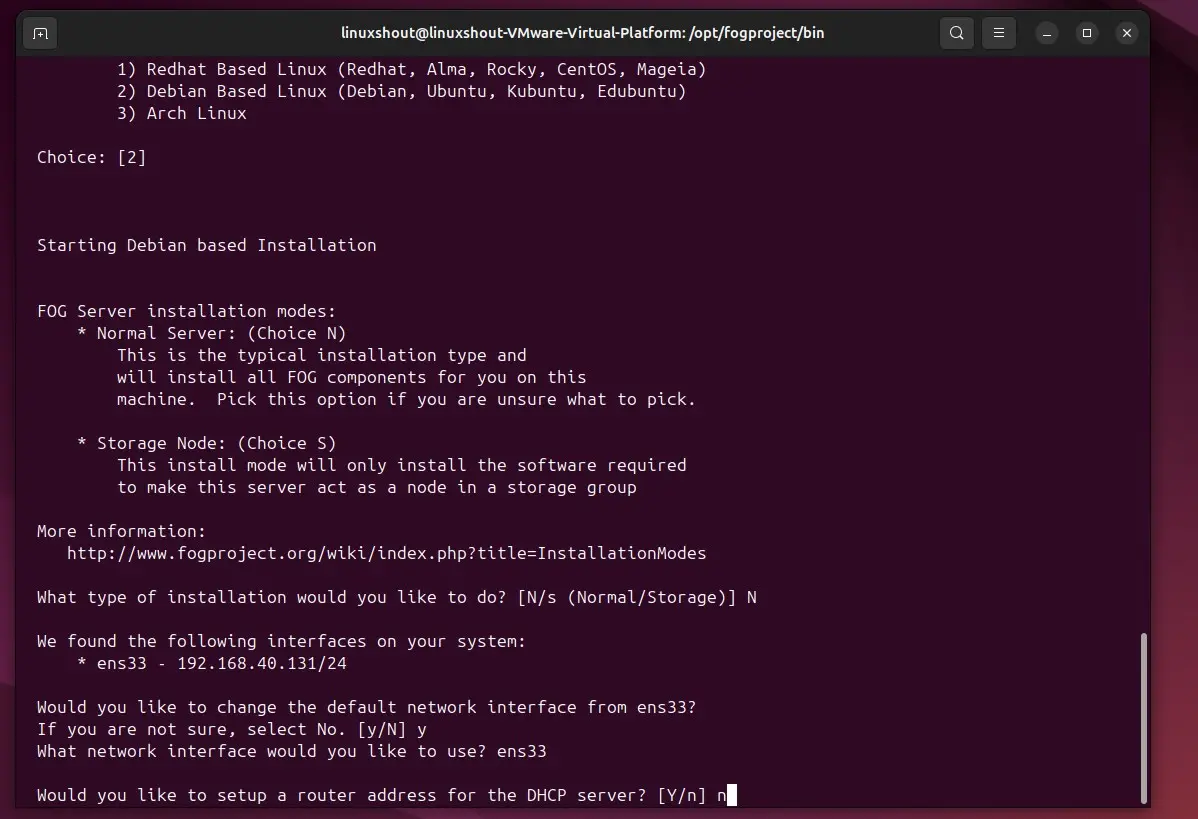
Let DHCP handle DNS or configure it as your requirements.


The installation takes 10-20 minutes depending on your internet speed and hardware. It installs and configures:
– Apache web server
– MariaDB database
– PHP and required modules
– TFTP server
– NFS for image storage
– FOG services and web interface
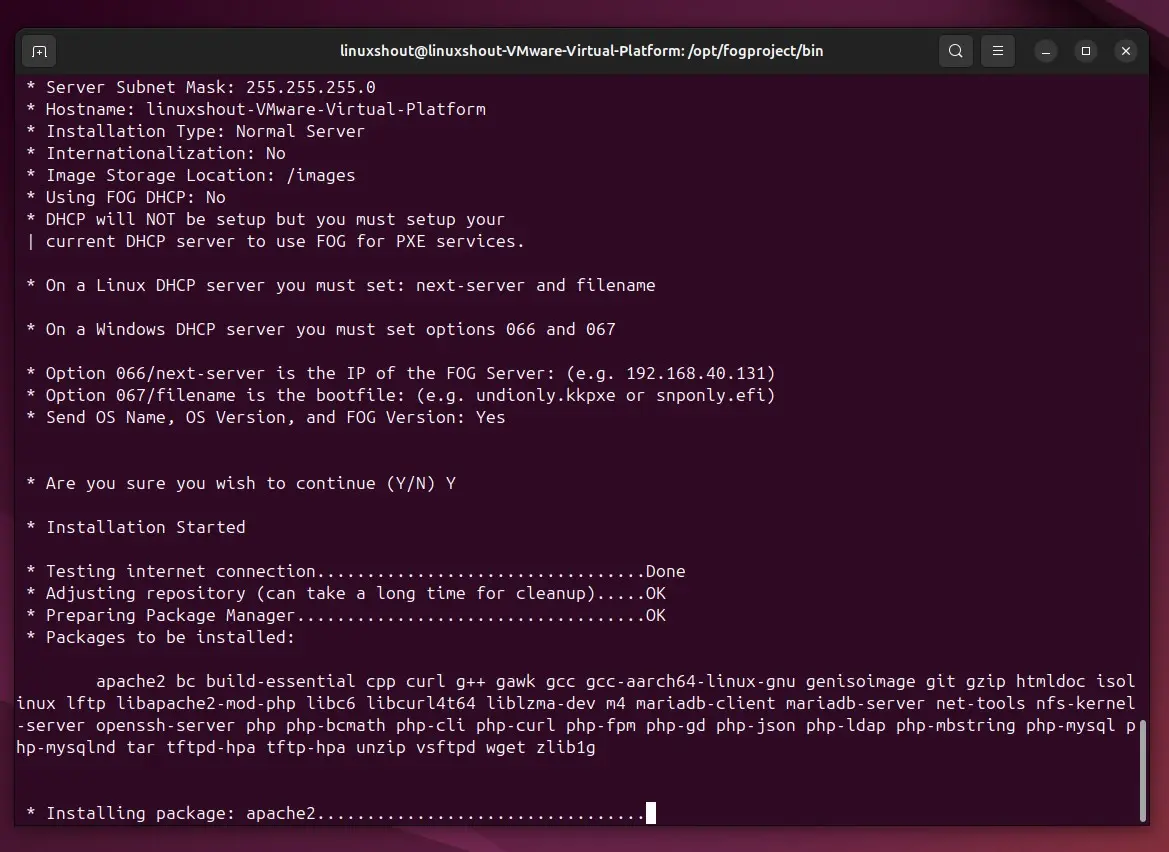
You will see the link to access the FOG web GUI, use that to initialize the Database
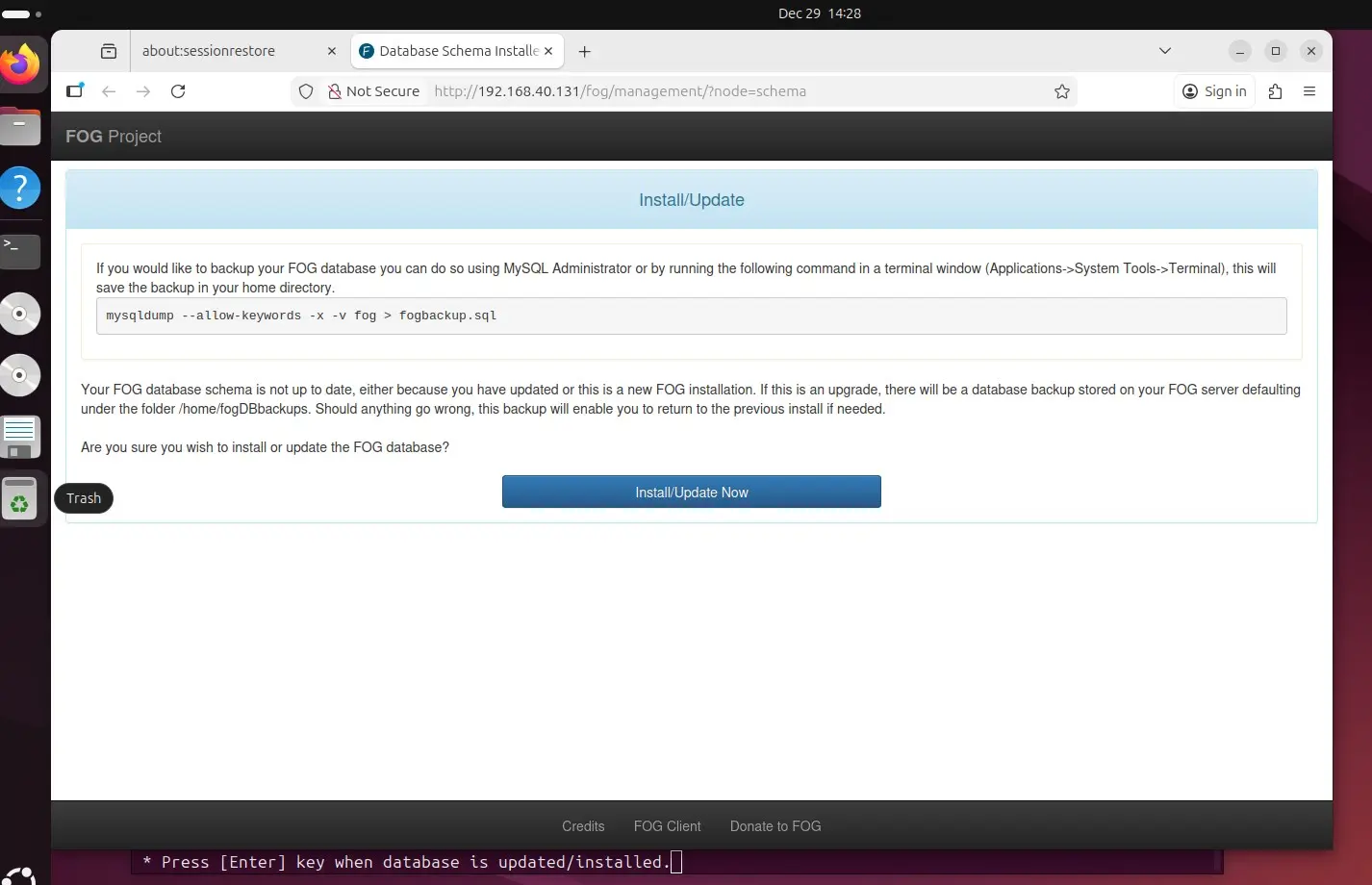
Step 5 – Complete FOG Web Interface Setup
When the script finishes, you’ll see a message directing you to complete setup via the web interface. Open a browser and navigate to
http://YOUR-SERVER-IP/fog/management
You’ll see a database installation/update page. Click the “Install/Update Now” button. This creates the necessary database schema. Once complete, you’re redirected to the login page.
How to Access the FOG Web Dashboard
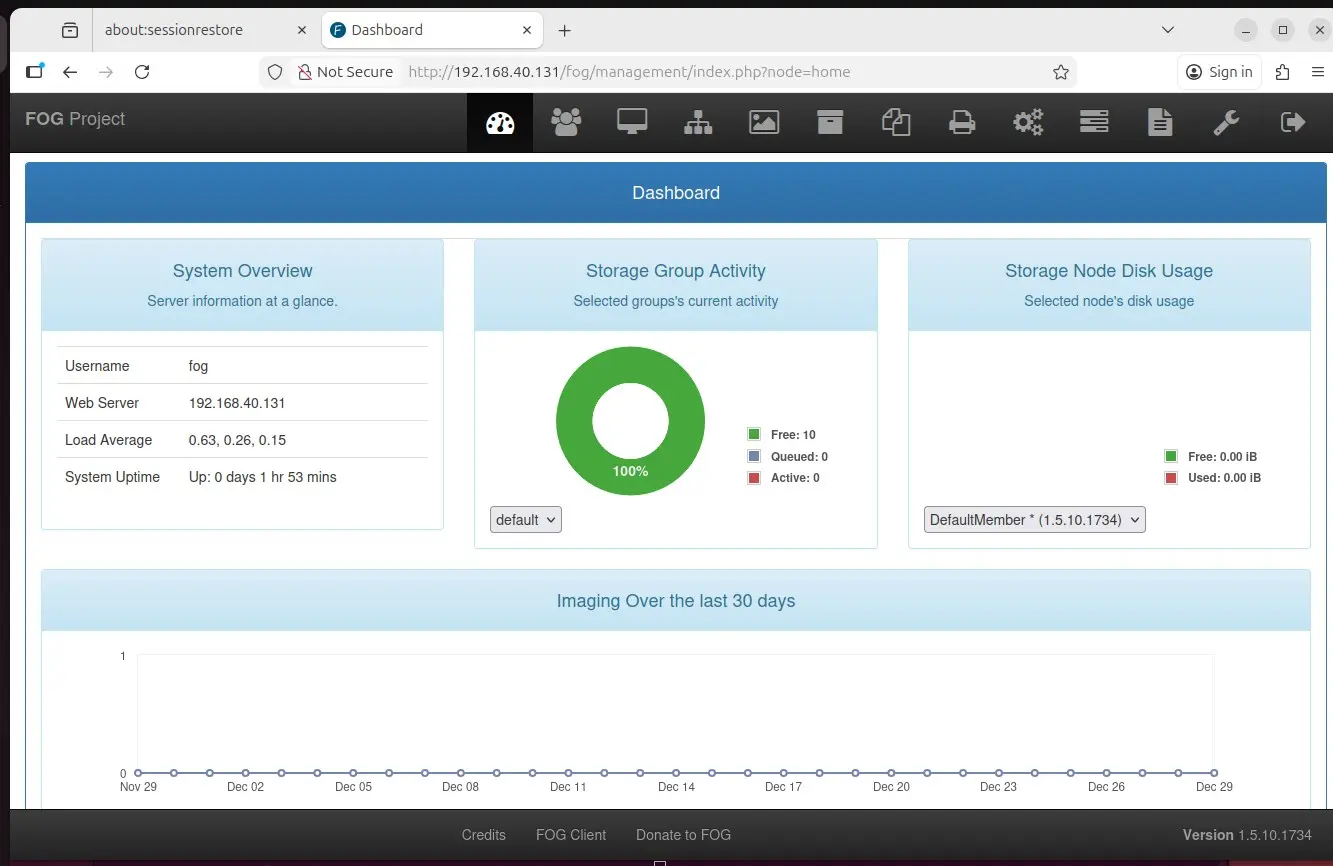
After installation, access the FOG management console at:
http://YOUR-SERVER-IP/fog/managementDefault Login Credentials
- Username: fog
- Password: password
Immediately change these credentials after your first login. Go to User Management in the dashboard and update the password. Leaving default credentials is a serious security risk, especially if your FOG server is accessible beyond your local network.
The dashboard provides access to:
- Host Management: Register and manage client computers
- Image Management: Create, upload, and manage OS images
- Task Management: Schedule and monitor imaging jobs
- Reports: Hardware inventory and deployment history


Common Installation Problems and Fixes
Even careful installations sometimes hit snags. Here are the issues I see most often when helping others with their fog server ubuntu setup.
DHCP Conflicts
Symptom: Clients get IP addresses but don’t PXE boot, or they boot to the wrong server.
Solution: You cannot have two DHCP servers handing out addresses on the same network segment without careful configuration. Either disable FOG’s DHCP and configure your existing server with options 66/67, or disable all other DHCP servers and let FOG handle everything.
Firewall Blocking Services
Symptom: Installation completes but clients can’t connect.
Solution: FOG requires multiple ports. On Ubuntu/Debian with UFW:
sudo ufw allow 80/tcp    # HTTP
sudo ufw allow 443/tcp   # HTTPS
sudo ufw allow 69/udp    # TFTP
sudo ufw allow 21/tcp    # FTP
sudo ufw allow 2049/tcp  # NFS
sudo ufw allow 9098/tcp  # FOG Services
For testing, you can temporarily disable the firewall with sudo ufw disable, but re-enable it with proper rules for production.
PXE Boot Not Working
Symptom: Client shows “PXE-E32: TFTP open timeout” or similar errors.
Solution: This usually indicates TFTP traffic isn’t reaching the server. Check:
- Is the TFTP service running?
sudo systemctl status tftpd-hpa - Are firewall rules allowing UDP port 69?
- Is the client on the same network segment as the server?
- For UEFI clients, ensure you’re using the correct boot file (
ipxe.efiinstead ofundionly.kpxe)
Is FOG Server Safe and Suitable for Production Use?
This is a fair question for any open-source tool handling critical infrastructure.
Security Considerations
FOG transmits images over your local network, typically unencrypted. For most internal networks, this is acceptable. However:
- Always change default credentials
- Place your FOG server on a management VLAN if possible
- Keep FOG updated with
cd /opt/fogproject && sudo git pull && sudo ./bin/installfog.sh - Restrict dashboard access to administrator IPs if your firewall supports it
Community Support
FOG has an active community with forums, wiki documentation, and regular updates. Unlike abandoned projects, FOG receives consistent development attention. When you encounter problems, searching the FOG forums usually reveals solutions.
FOG vs. Paid Tools
FOG is excellent for straightforward imaging needs. However, commercial tools like Microsoft’s SCCM (now part of Endpoint Manager) or Symantec Ghost offer deeper Windows integration, patch management, and enterprise support contracts. Choose FOG when:
- Budget is a primary concern
- You need cross-platform imaging (Windows and Linux)
- Your deployment needs are straightforward cloning/imaging
- You’re comfortable with community-based support
Choose paid tools when you need vendor support contracts, advanced OS deployment sequencing, or integration with enterprise management suites.
Final Thoughts
Setting up a fog project windows imaging infrastructure might seem complex at first, but once configured, it transforms how you handle machine deployments. Instead of spending hours on repetitive installations, you’ll capture a perfect reference image once and deploy it to any number of machines in minutes.
The initial investment in learning FOG pays dividends every time you need to:
- Set up new employee workstations
- Refresh a computer lab for a new semester
- Recover quickly from malware infections
- Maintain consistent configurations across your fleet
If you’ve followed this guide, you now have a working FOG server ready to capture your first image. Start with a test machine, practice the capture and deploy workflow, and build confidence before rolling it out to production systems.
FOG isn’t flashy, and it won’t win design awards. But it’s reliable, efficient, and genuinely useful—exactly what infrastructure software should be. For sysadmins tired of USB drives and manual installations, it’s a tool worth mastering.





