


ShareX is a popular tool for capturing screenshots on Windows 11 and 10 operating systems; however, it is unfortunately not available for Linux systems. Therefore, if you are previously using a Windows OS and have not switched to Linux, and you are missing ShareX, then this article discusses the way to install it on Ubuntu.
Why Use ShareX on Ubuntu?
Unlike basic screenshot utilities, ShareX offers a comprehensive suite of features, including region capture, scrolling capture, screen recording with multiple codec options, automatic image uploading to over 80 destinations, and powerful post-capture editing tools. The application’s workflow automation capabilities allow users to create complex capture routines, making it invaluable for technical documentation, bug reporting, and content creation.
Linux users often struggle to find a single application that matches ShareX’s extensive feature set. While the Linux ecosystem offers many excellent screen capture tools, most focus on specific aspects rather than providing an all-in-one solution. Native Linux applications typically excel in certain areas but may lack the workflow integration and extensive sharing options that make ShareX so appealing.
Running ShareX on Ubuntu through Wine bridges this functionality gap, allowing Linux users to access the whole ShareX experience. Wine has matured significantly over the years, providing stable compatibility for many Windows applications.
Prerequisites
Before beginning the ShareX installation process on Ubuntu Linux, ensure your system meets the following basic requirements.
- First and foremost, you should be running a current version of Ubuntu Linux, ideally Ubuntu 24.04 LTS or newer, to ensure compatibility with the latest Wine versions. You can use any other version of Ubuntu as well.
- Your system should have at least 2GB of RAM and sufficient disk space for both Wine and ShareX installation.
- Administrative privileges are essential for this installation process, as you’ll need sudo access to install Wine and its dependencies.
- Additionally, a stable internet connection is required to download the necessary packages and the ShareX installer.
Step-by-Step ShareX Installation on Ubuntu Linux
Installing Wine on Ubuntu
The first phase of getting ShareX running on Ubuntu involves installing Wine. Wine is a sophisticated compatibility layer that has been in development for decades, providing increasingly better support for Windows applications on Linux systems.
Step 1: Update Package Lists
Open your terminal and ensure your system’s package information is current by running:
sudo apt update
sudo apt upgrade -y
This ensures you’ll be installing the latest available versions of all packages.
Step 2: Enable 32-bit Architecture
Wine requires 32-bit architecture support for many Windows applications. Enable it with:
sudo dpkg --add-architecture i386Step 3: Add the Wine Repository
To get the latest stable version of Wine, add the official Wine repository to your system:
sudo mkdir -pm755 /etc/apt/keyrings
wget -O - https://dl.winehq.org/wine-builds/winehq.key | sudo gpg --dearmor -o /etc/apt/keyrings/winehq-archive.key -
sudo wget -NP /etc/apt/sources.list.d/ https://dl.winehq.org/wine-builds/ubuntu/dists/noble/winehq-noble.sourcesNote: Replace ‘noble‘ with your Ubuntu version codename (jammy for 22.04, focal for 20.04).
Step 4: Install Wine
Now install the Wine stable version along with the recommended packages:
sudo apt update
sudo apt install --install-recommends winehq-stable
Step 5: Verify Wine Installation
Confirm Wine is installed correctly by checking its version:
wine --versionYou should see output displaying the Wine version number.
Installing ShareX with Wine
With Wine successfully installed, you can now proceed to install ShareX on your Ubuntu system.
Step 1: Configure Wine
Initialize Wine configuration:
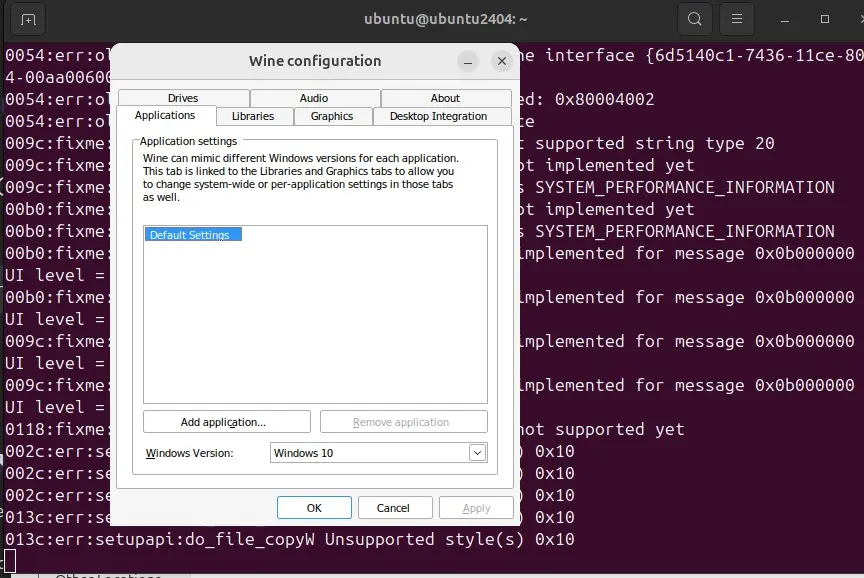
winecfgIn the configuration window, set Windows version to Windows 10 for best compatibility with ShareX. Click “Apply” and “OK” to save settings.
Step 2: Download ShareX
Download the ShareX installer from the official website:
wget https://github.com/ShareX/ShareX/releases/latest/download/ShareX-Setup.exeAlternatively, visit the ShareX website directly at https://getsharex.com to download the latest version.
Step 3: Install ShareX
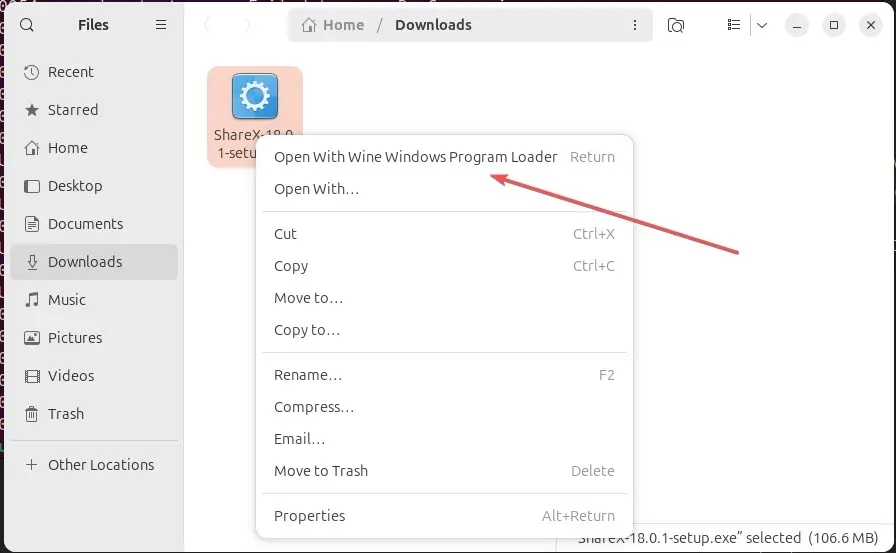
Switch to directory where you have downloaded the ShareX installer using Wine. Right-click on the ShareX and then select “Open With Wine Windows Program Loader”.
Follow the installation wizard prompts. The installer will run just like on Windows, allowing you to choose the installation directory and components. Keep the default settings unless you have specific requirements.

Step 4: Launch ShareX
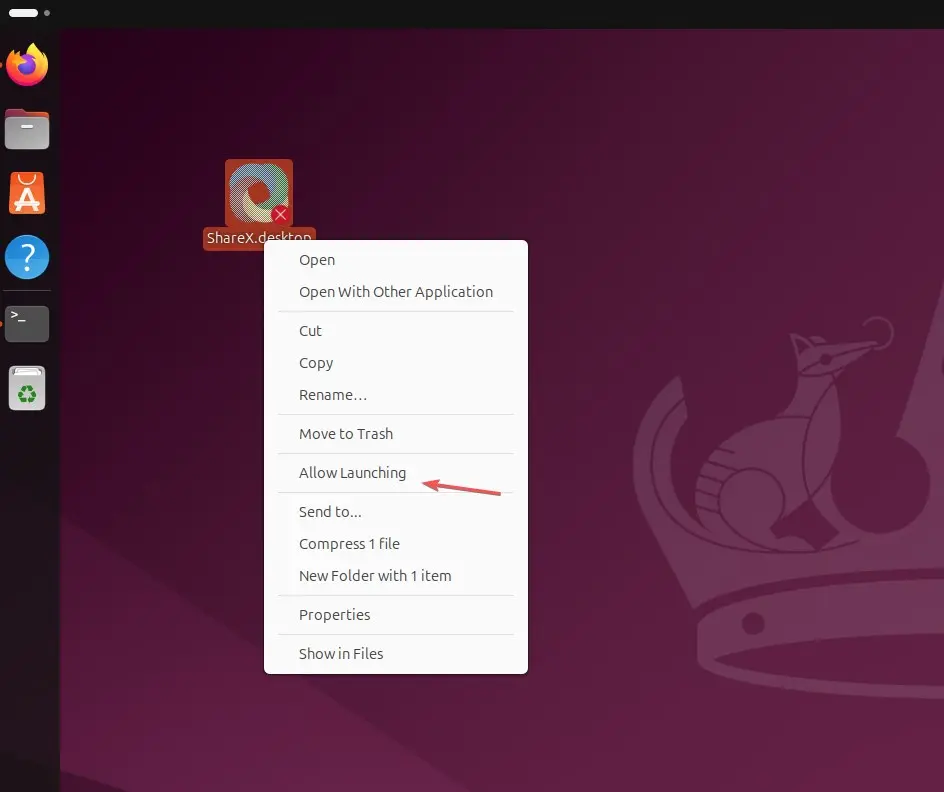
After installation completes, you can launch ShareX using either by searching it from the Applciation area in Ubuntu or the Desktop shortcut. However, to make the Desktop Shortcut executable right-click on it and select “Allow-launching” first and then use it.
Errror: Font ‘Microsoft Sans Serif’ cannot be found.
Some users on starting the ShareX could have error “Font ‘Microsoft Sans Serif‘ cannot be found.” to resolve this here are the steps to follow:

Font 'Microsoft Sans Serif' cannot be found.

System.ArgumentException: Font 'Microsoft Sans Serif' cannot be found.
at System.Drawing.FontFamily.CreateFontFamily(String name, FontCollection fontCollection)
at ShareX.ApplicationConfiguration.Initialize()
at ShareX.Program.Run()
at ShareX.Program.Main(String[] args)ShareX 18.0.1
First, download the Microsoft Sans Font manually on your Ubuntu system, here is the link.
The downloaded file will be in zipped format, extract the file whih by default will be in Downloads folder.
mv ~/Downloads/microsoft-sans-serif/micross.ttf ~/.wine/drive_c/windows/Fonts/
The captured screenshot and videos will be stored in the Documents direcotry of Ununtu :

Troubleshooting Common Issues
If ShareX doesn’t launch properly, try installing Microsoft .NET Framework through Wine:
winetricks dotnet48For screenshot functionality issues, ensure your Wine prefix has proper screen permissions:
winecfgNavigate to the Graphics tab and experiment with different settings like enabling “Allow the window manager to control the windows.”
If you experience clipboard issues, install additional Wine components:
winetricks gdiplus corefontsAlternatives to ShareX on Ubuntu
While ShareX on Wine provides a familiar experience for Windows users, Ubuntu offers several excellent native alternatives that integrate seamlessly with the Linux desktop environment.
Flameshot
Flameshot has emerged as one of the most popular screenshot tools for Linux, offering an intuitive interface with powerful annotation features. It provides instant markup tools, allowing you to add arrows, text, blur sensitive information, and highlight important areas directly after capture. Flameshot’s upload integration supports various image hosting services, and its command-line interface makes it perfect for scripting and automation.
Install it simply with sudo apt install flameshot.

Ksnip
Ksnip is another feature-rich screenshot tool that closely mimics ShareX’s functionality in a native Linux application. It supports various capture modes including rectangular area, full screen, current screen, and active window capture. Ksnip’s built-in editor rivals commercial solutions, offering annotations, effects, and even OCR capabilities. The application supports uploading to multiple destinations and can be configured with custom upload scripts.
OBS Studio
OBS Studio, while primarily known as a streaming platform, excels as a screen recording solution on Ubuntu. It offers unparalleled control over recording quality, multiple audio sources, and scene composition. OBS Studio’s plugin ecosystem extends its functionality far beyond basic screen recording, making it ideal for creating tutorials, presentations, and professional content. Its native Linux support means optimal performance without compatibility layers.
Each of these tools brings unique strengths to Ubuntu’s screen capture landscape, and many users find that combining them creates a workflow that equals or exceeds what ShareX offers. Also check out – 8 Best Ubuntu Screen Recorder Apps to Install
Conclusion
Successfully installing ShareX on Ubuntu Linux through Wine opens up a world of powerful screen capture and sharing capabilities previously exclusive to Windows users. By following this guide, you’ve bridged the gap between operating systems, gaining access to ShareX’s comprehensive toolkit while maintaining your preferred Linux environment. The installation process, while requiring several steps, is straightforward and provides a stable solution for users who need ShareX’s specific features.





