


Claude is a good alternative to popular ChatGPT and Deepseek AI tools for performing various tasks. But what if I tell you that you can use your Terminal on Linux to generate codes and perform other tasks using Cluade? Yes, that is possible, and in this tutorial, we learn how to do that.
I have already created multiple guides around artificial intelligence tool integration. For example, recently, we published the methods for integrating ChatGPT into WordPress. Similarly, today, we will go through the Claude Code setup guide to make things easy for new users and avoid issues.
In short, are you tired of context-switching between your terminal and AI assistants? Claude Code brings Anthropic’s AI directly to your command line. Let’s dive in!
What is Claude Code and Why Linux Developers Should Care
Claude Code is Anthropic’s command-line interface that lets you interact with their AI models directly from your terminal. For Ubuntu users who live in the terminal, this means you can:
- Generate code snippets without leaving your workflow
- Troubleshoot errors with AI assistance
- Automate documentation tasks
- Prototype ideas quickly
Unlike web-based interfaces, Claude Code integrates seamlessly with your existing development environment, enhancing the user experience and saving a lot of time.
Prerequisites for Installing Claude Code
Before we begin the installation process, make sure you have:
- Ubuntu 20.04 LTS or newer (I’ve tested this on versions up to 24.04). You can also use other Ubuntu or Debian based systems to follow this guide.
- Node.js (version 18 or later) and npm installed
- An Anthropic API Key (you’ll need to sign up at Anthropic’s website)
- Git and Ripgrep (optional but recommended for enhanced file search capabilities)
- At least 100MB of free disk space
If you already have Node.js installed and are unsure about its version, run this in your terminal:
node --version
Step-by-Step Claude Code Installation on Ubuntu
1. Update Your System
On your Ubuntu Linux, access the command terminal and run the system update command to update the existing packages before installing new software.
sudo apt update && sudo apt upgrade -y2. Install Node.js and npm (if not already installed)
Those who are not developers or are not dealing with Java development would not have Node.js installed. Therefore, here are the commands to get LTS version 18.x (recommended) using the official NodeSource repository:
curl -fsSL https://deb.nodesource.com/setup_18.x | sudo -E bash -After adding the repository, run this command to install the Node.js and the package manager NPM.
sudo apt install -y nodejsCheck the version:
node -v && npm -v3. Configure npm for Global Packages
To avoid permission issues during Cluade Code installation using NPM (Node package manager):
#Create a directory for global packages
mkdir ~/.npm-global#Configure npm to use the new directory
npm config set prefix '~/.npm-global'#Update your PATH
echo 'export PATH=~/.npm-global/bin:$PATH' >> ~/.bashrcsource ~/.bashrc4. Install Git and Ripgrep (Optional but Recommended)
These tools enhance file search capabilities within Claude Code:
sudo apt install git ripgrep5. Install Claude Code on Ubuntu Linux
With everything configured, install Claude Code globally:
npm install -g @anthropic-ai/claude-codePro tip: This setup ensures that npm uses a directory you own, which sidesteps those pesky permission issues that often plague Ubuntu users.
6. Authenticate with Anthropic for API
In this step, we further configure Claude Clode to use on the Ubuntu Terminal. For that, after completing the installation, type the given command to start the Claude code.
claudeComplete the one-time OAuth process: Follow the on-screen instructions to link Claude Code to your Anthropic account using your API key.
First, select the text style you want to have on the terminal to interact with Claude.
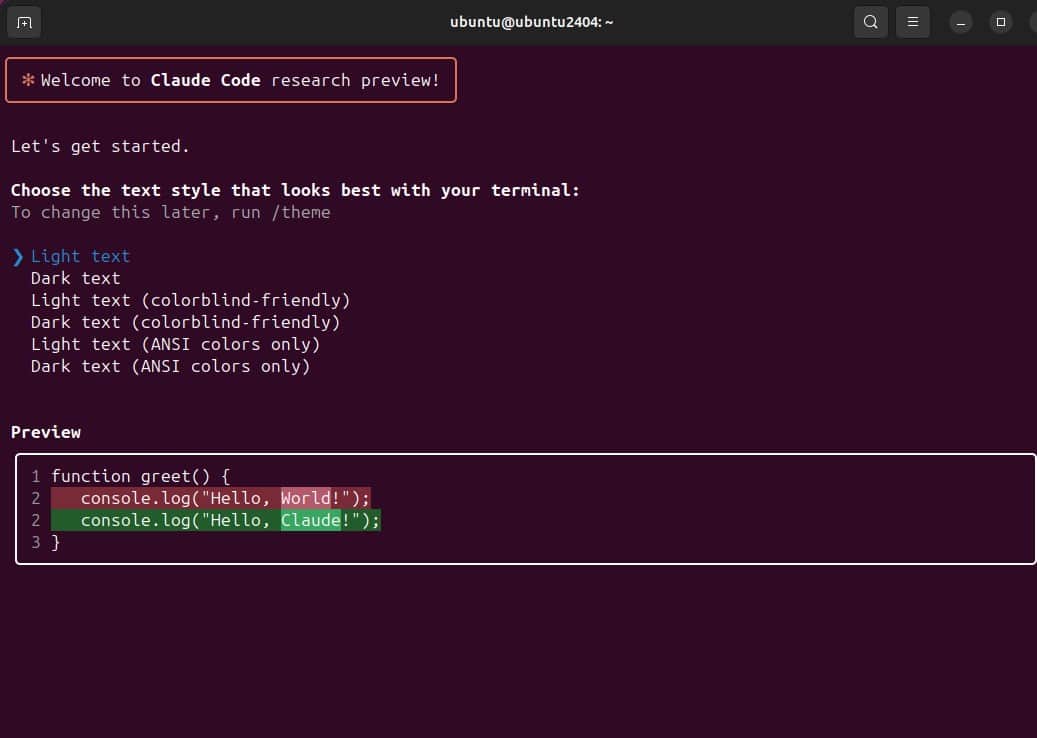
Now, press Enter to log in to your Anthropic Console account and connect the API key.

The browser will open automatically and log in to your account with email or Google.

Select the type of your Anthropic account.

Click the “Authorize” button to generate keys and use them later from the Ubuntu Terminal to issue prompts or communicate with Claude from the Ubuntu Terminal.

Using Claude Code with Your Projects
To use Claude Code with your project:
- Navigate to your project directory:
cd /path/to/your/projectStart Claude Code:
claudeInteract with your codebase using natural language:
For example:
- Get an Overview
give me an overview of this codebase - Dive into Specific Components:
explain the main architecture patterns used hereTroubleshooting Common Installation Issues
“Command Not Found” After Installation
If you encounter “command not found” errors after installation, double-check your PATH configuration:
echo 'export PATH=~/.npm-global/bin:$PATH' >> ~/.bashrc
source ~/.bashrc
OAuth Authentication Failures
Make sure your Anthropic account is properly set up with an active subscription that has access to Claude Code. The OAuth process should guide you through this, but if you encounter issues, verify your account status on Anthropic’s website.
Node.js Version Compatibility
Claude Code requires Node.js version 18 or later. If you’re using an older version, you’ll need to upgrade:
# Check your current version
node --version

# If below v18, update using NodeSource

curl -fsSL https://deb.nodesource.com/setup_18.x | sudo -E bash -
sudo apt install -y nodejs
FAQs About Claude Code on Ubuntu
Yes, Claude Code works on all Ubuntu flavors, including Kubuntu, Xubuntu, and Ubuntu MATE. The installation process is identical across variations.
The base installation requires approximately 100MB, but usage logs and caching can grow over time. I recommend having at least 500MB available.
No, Claude Code requires an internet connection to communicate with Anthropic’s API. Unlike some tools, all processing happens on Anthropic’s servers, not locally.
Yes! I’ve personally tested Claude Code on Ubuntu running in Windows Subsystem for Linux, and it works perfectly. Just follow the same installation steps.
Simply run: npm update -g @anthropic-ai/claude-code
Claude Code itself may be free to install, but you’ll need an Anthropic API key, which typically involves usage-based pricing. Check Anthropic’s official pricing documentation for the most current information.
Conclusion
Installing Claude Code on Ubuntu Linux opens up powerful AI capabilities right in your terminal. Whether you’re debugging complex code issues, generating documentation, or exploring creative solutions, having Claude accessible via the command line can significantly boost your productivity.
In my experience supporting development teams, tools like Claude Code save an average of 5-7 hours per week once developers get comfortable with the workflow.
Which AI tools are you integrating into your Ubuntu development environment? Have you found any creative uses for Claude Code? Share your experiences in the comments!
Disclaimer: While I’ve verified these installation steps on multiple Ubuntu versions, always refer to Anthropic’s official documentation for the most up-to-date information. The Claude Code tool is actively developing; specific commands or requirements may change.





