Extracting tables from PDF files in Python is not always a straightforward process unless you have a specific library to do that. For PDF data extraction, using Camelot is one of the go-to tools. The best part is that it is not very difficult to install, especially if you already have Python, as its package manager, PIP, makes things relatively simple.
What Makes Camelot Different?
It’s worth understanding why Camelot requires a bit more setup than your average Python package. Unlike simpler libraries, Camelot relies on external dependencies—specifically Ghostscript and Tkinter—to handle PDF rendering and image processing. This is actually what makes it powerful for extracting complex tables from PDFs, but it also means we need to prepare our system properly.
Prerequisites You’ll Need
Regardless of your operating system, you’ll want:
- At least Python 3.7 or higher (I recommend 3.9 or newer for better compatibility)
- pip package manager
- Administrator or sudo access for installing system dependencies
Installing Camelot on Windows
Windows installation tends to be the trickiest because of how dependencies are managed. Here’s my tested approach:
Step 1: Install Ghostscript
Ghostscript is essential for Camelot’s PDF processing. Head to the Ghostscript downloads page and grab the Windows installer. During installation, make note of where it’s installed—usually something like C:\Program Files\gs\gs10.06.0\bin.

After installation, you need to add Ghostscript to your system PATH. Open your command prompt and run the given command to check Ghostscript executable is in your path or not:
If the given command opens the the Ghostscript command tool then everyhting is fine .
gswin64If while running the above command you get erorr the command not found then add its executable manually using the given command:
Note: gs10.06.0 is the version of Ghostscript you downloaded; replace it with the current version you have downloaded and installed on your system.
After replacing the path with your actual Ghostscript installation directory and running the command in Windows, close and reopen your command prompt for changes to take effect.
setx PATH "%PATH%;C:\Program Files\gs\gs10.06.0\bin"Step 2: Install the Required Python Packages
Now for the Python side of things. Open your command prompt and install Camelot along with its dependencies. If you don’t have Python installed on your Windows 11 or 10 system already then check out our tutorial – 6 Best Ways to Install Python on Windows 11
pip install camelot-py[cv]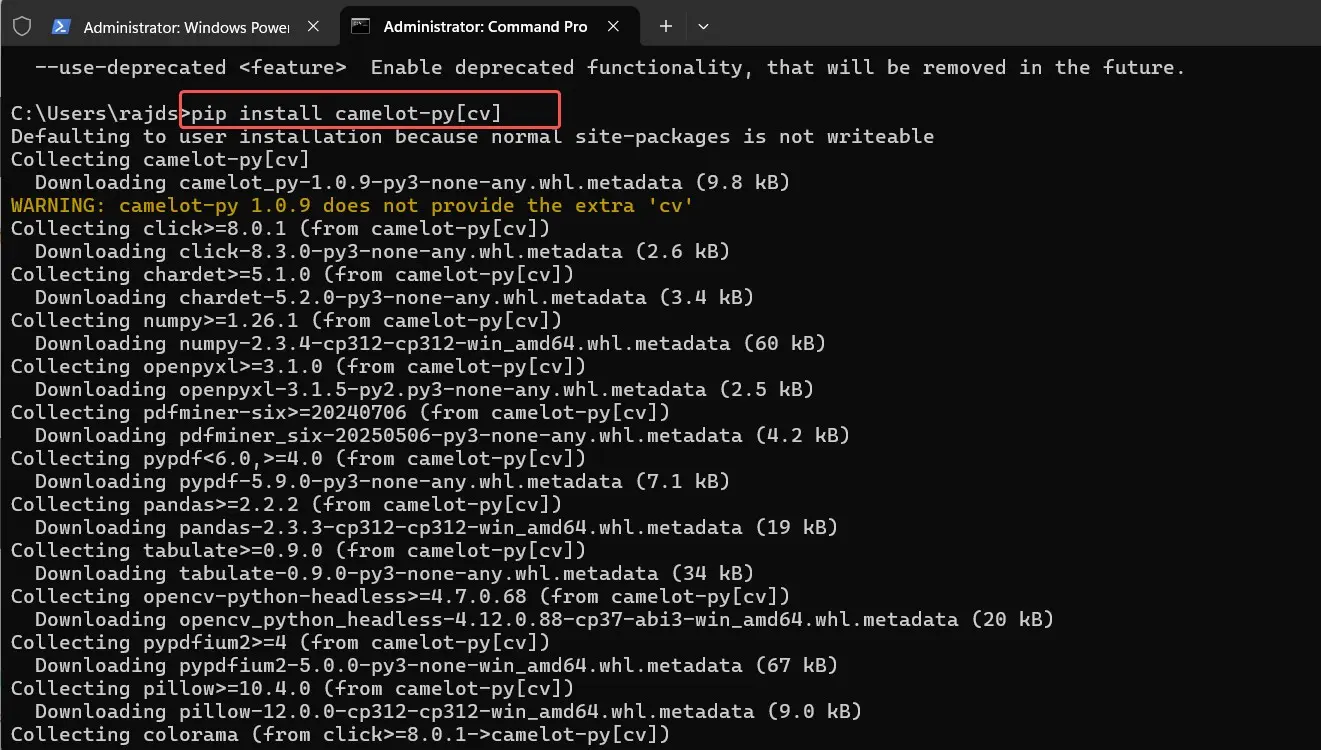
That [cv] extra installs the computer vision dependencies, which you’ll need for image-based table extraction. If you run into issues, try installing the base dependencies separately:
pip install opencv-python-headless
pip install camelot-py[base]
Troubleshooting Windows Issues
I’ve encountered situations where Windows throws errors about missing DLLs. If that happens, install the Visual C++ Redistributable from Microsoft’s website. Also, if you’re using Anaconda, create a fresh environment to avoid package conflicts:
conda create -n camelot-env python=3.9
conda activate camelot-env
pip install camelot-py[cv]
Installing Camelot on macOS
macOS installation is generally smoother, but you’ll want Homebrew installed first. If you don’t have it, grab it from brew.sh or simply in your terminal run /bin/bash -c "$(curl -fsSL https://raw.githubusercontent.com/Homebrew/install/HEAD/install.sh)" to install it.
Step 1: Install System Dependencies
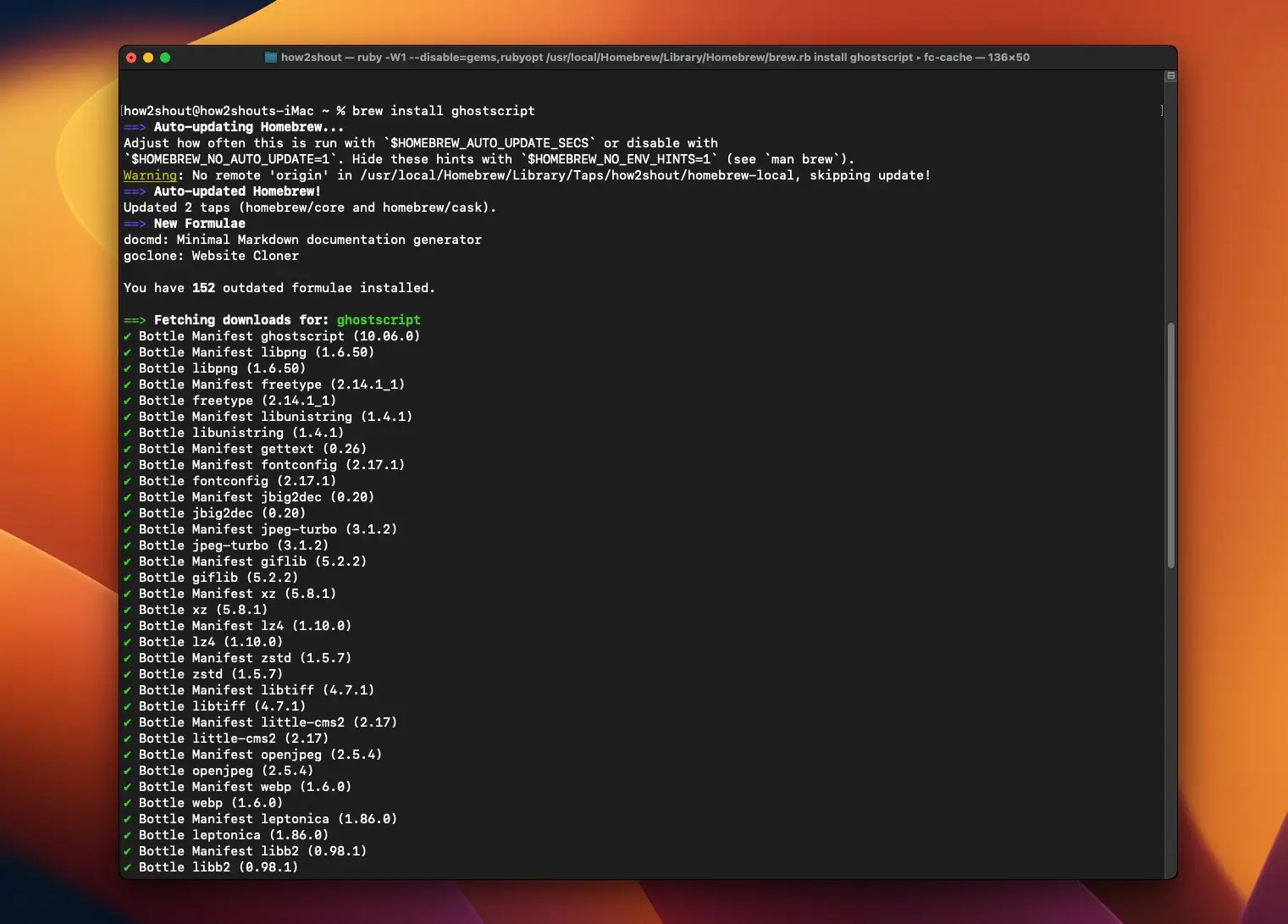
After having the Brew, on your macOS terminal and run to get the required dependencies:
brew install ghostscript
brew install tcl-tk
brew install python-tk
Homebrew handles the path configuration automatically, which is one less thing to worry about.
Step 2: Install Camelot
With dependencies in place, install Camelot:
pip3 install "camelot-py[cv]"If you’re working with Python virtual environments (which I strongly recommend), set one up first:
python3 -m venv camelot-env
source camelot-env/bin/activate
pip3 install "camelot-py[cv]"
macOS-Specific Considerations
On Apple Silicon Macs (M1, M2, M3 chips), you might encounter architecture-related issues. In my experience, using Miniforge instead of standard Anaconda resolves most compatibility problems:
conda install -c conda-forge camelot-pyInstalling Camelot on Linux
Linux installation varies slightly depending on your distribution, but the process is generally the most straightforward.
For Ubuntu/Debian-based Systems
First, install system dependencies:
bash
sudo apt-get update
sudo apt-get install ghostscript python3-tk python3-pip python3-venv
Then install Camelot:
Step 1: Create a virtual environment
python3 -m venv camelot-envStep 2: Activate the environment
source camelot-env/bin/activateYour terminal prompt should now show (camelot-env) at the start.
Step 3: Install Camelot (with OpenCV)
pip install "camelot-py[cv]"Step 4: Verify installation
python -m camelot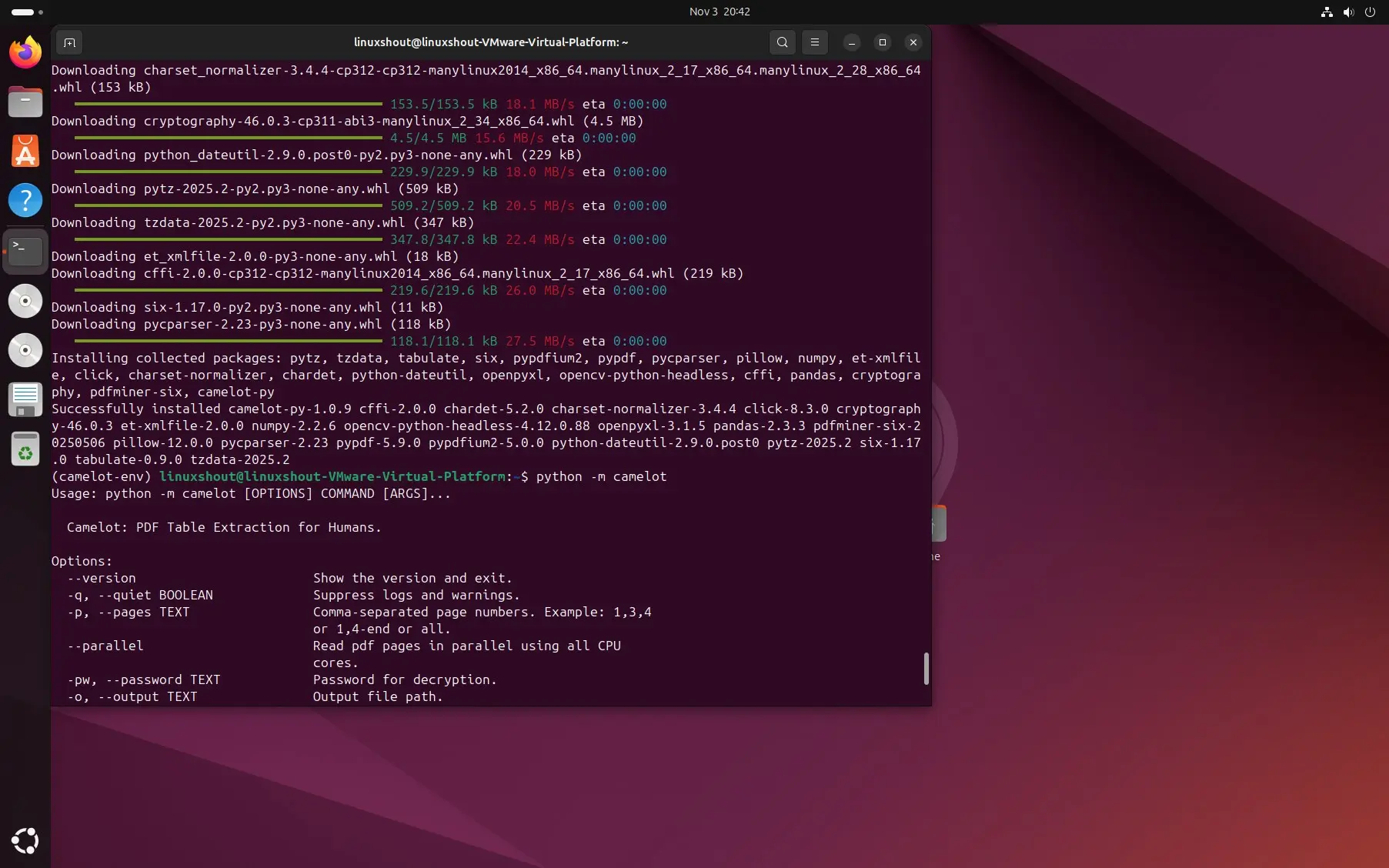
When done, deactivate with:
deactivateFor Fedora/RHEL-based Systems
The package names differ slightly:
sudo dnf install ghostscript python3-tkinter
pip3 install camelot-py[cv]
For Arch Linux
sudo pacman -S ghostscript tk
pip install camelot-py[cv]
Using Virtual Environments on Linux
I always work within virtual environments to keep projects isolated:
python3 -m venv ~/camelot-env
source ~/camelot-env/bin/activate
pip install camelot-py[cv]
Verifying Your Installation
Once everything’s installed, let’s make sure it actually works. Create a simple test script:
nano test.pyAdd the following lines and save the file. Note: Chnage the file sample.pdf with the PDF you want to use in the following code:
import camelot

# Read table from PDF
tables = camelot.read_pdf("sample.pdf", pages="1")

print("Total tables found:", tables.n)
if tables.n > 0:
    tables[0].to_csv("output.csv")
    print("First table exported as output.csv")
else:
    print("No tables detected.")
Run the script:
python test.pyIf this runs without errors, you’re good to go. If you see an error about Ghostscript not being found, double-check your PATH configuration. The output with extracted table will be saved in the same directory as “output.csv“.
Output:

Common Installation Headaches and Solutions
“Ghostscript executable not found”: This usually means Ghostscript isn’t in your system PATH. Go back and verify the installation and PATH configuration steps for your operating system.
OpenCV errors on Windows: Install the headless version specifically: pip install opencv-python-headless before installing Camelot.
Permission errors on Linux: Use pip install --user camelot-py[cv] to install in your user directory, or use a virtual environment instead of system-wide installation.
Import errors after installation: Make sure you’re installing camelot-py, not camelot. There’s an older, unmaintained package called just “camelot” that you want to avoid.
Optional but Recommended: Installing Additional Flavors
Camelot offers two extraction methods: “lattice” for tables with visible borders and “stream” for borderless tables. The stream parser works better with additional dependencies:
pip install "camelot-py[plot]"This installs matplotlib for visualizing detected tables, which is incredibly helpful when debugging extraction issues.
What’s Next?
With Camelot installed, you’re ready to start extracting tables from PDFs. The library is remarkably powerful once you understand how to use the flavor parameter and adjust settings like table_areas and columns for specific PDF layouts.
I’ve found that spending time on proper installation pays dividends later. A clean setup means fewer mysterious errors down the road when you’re actually trying to extract data. Take the time to verify everything works, and you’ll save yourself headaches during actual development.
The Python ecosystem for PDF processing continues evolving, and while Camelot requires more setup than some alternatives, its accuracy with complex tables makes it worth the effort. Whether you’re building data pipelines, automating report processing, or just need to pull tables from academic papers, you now have a solid foundation to work from.