


Programming in C doesn’t always require Windows, as various C development tools are available for Linux. In fact, Linux has been the preferred operating system for C developers for decades—and for good reason. It provides native access to powerful compilers, robust debugging tools, and a development environment that feels natural for systems programming.
Whether you’re a computer science student writing your first “Hello World” program, an embedded systems engineer developing firmware, a competitive programmer seeking speed, or a kernel developer working on operating system internals, this article will cover every tool you need. We’ll talk about compilers, debuggers, build systems, and all the best IDEs and editors available—from heavyweight professional tools to lightning-fast terminal editors.
By the end, you’ll know exactly which tools match your workflow and how to set them up from scratch.
Why Choose Linux for C/C++ Programming?
Linux and C share deep historical roots. The Linux kernel itself is written almost entirely in C, and the GNU toolchain that powers most Linux development was built from the ground up for C and C++ programmers. This creates a uniquely integrated development experience you won’t find on other platforms.
Native Compiler Support
GCC (GNU Compiler Collection) comes pre-installed or is a single command away on virtually every Linux distribution. Unlike Windows, where you need third-party toolchains like MinGW or Cygwin to get a proper C development environment, Linux treats C as a first-class citizen. The compiler, debugger, and build tools all ship together and work seamlessly.
System-Level Programming
System-level programming becomes intuitive on Linux. POSIX compliance means your C programs can interact directly with system calls, file descriptors, processes, signals, and threads via well-documented APIs. The header files you include (<unistd.h>, <sys/types.h>, <pthread.h>) map directly to the operating system you’re running on—no abstraction layers or compatibility shims required.
Open-Source Ecosystem
The open-source ecosystem gives you complete visibility into how things work. When you’re debugging a library call or trying to understand compiler behavior, you can read the actual source code. This transparency accelerates learning and helps you write better code. You can even read the Linux kernel source to understand how your system calls actually work.
Stability and Performance
Stability and performance matter when you’re compiling large codebases or running extended test suites. Linux handles memory management, process scheduling, and I/O efficiently, making compilation faster and development smoother compared to other platforms. Many professional developers report significantly faster build times on Linux than on Windows or macOS.
Cost
Everything is free. The operating system, compilers, debuggers, IDEs, and editors covered in this guide are available at no cost. You can build professional-grade software without spending a dollar on development tools.
Must-Have Tools: Compiler, Debugger & Build Tools
Before choosing an IDE or editor, you need to understand the core tools that power C development on Linux. These work independently or integrate with your preferred development environment.
GCC vs Clang: Which C Compiler Should You Use?
The two dominant C compilers on Linux are GCC (GNU Compiler Collection) and Clang (part of the LLVM project). Both produce excellent, production-ready code and support modern C standards, but they have different philosophies and strengths.
GCC (GNU Compiler Collection)
GCC has been around since 1987 and remains the default compiler on most Linux distributions. It’s the compiler used to build the Linux kernel, GNU utilities, and countless other foundational software.
Strengths:
- Supports an enormous range of target architectures—from tiny embedded microcontrollers to supercomputers
- Typically provides slightly better optimization for specific workloads
- Broader support for older or niche platforms
- The “safe” choice for Linux kernel development and maximum portability
- Mature and battle-tested over nearly four decades
Install GCC:
# Ubuntu/Debian
sudo apt install gcc

# Fedora
sudo dnf install gcc

# Arch
sudo pacman -S gcc
Clang (LLVM)
Clang emerged from Apple’s need for a more modular, library-based compiler architecture. It’s now widely used across the industry and is the default compiler on macOS and FreeBSD.
Strengths:
- Dramatically better error messages—Clang points directly to problematic code with clear, colorful explanations
- Faster compilation times in many scenarios
- Modular architecture makes it easier to build analysis tools
- Many modern IDE features rely on Clang’s libraries (libclang) for code intelligence
- Better support for newer C standards in some cases
- Native Windows support (unlike GCC, which requires MinGW)
Install Clang:
# Ubuntu/Debian
sudo apt install clang

# Fedora
sudo dnf install clang

# Arch
sudo pacman -S clang
Head-to-Head Comparison
| Feature | GCC | Clang |
|---|---|---|
| Error Messages | Functional, improving | Excellent, highly readable |
| Compilation Speed | Good | Often faster |
| Optimization | Slightly ahead in some benchmarks | Comparable, sometimes better at -O3 |
| Platform Support | Extremely broad | Broad, native Windows support |
| IDE Integration | Good | Excellent (libclang powers many tools) |
| C17/C18 Support | Complete | Complete |
| License | GPL v3 | Apache 2.0 |
| Linux Kernel Compatible | Yes (required) | Experimental support |
Which Should You Choose?
Use GCC if:
- You’re doing Linux kernel development
- You need maximum portability across Unix-like systems
- You’re working on embedded systems with exotic architectures
- Your project requires GPL-licensed toolchains
Use Clang if:
- You want better error messages during development
- You’re learning C and want clearer feedback
- Your IDE uses libclang for code intelligence
- You’re doing cross-platform development, including Windows
Pro tip: Install both. Many developers use Clang during development for its superior error messages, then verify their code compiles cleanly with GCC before release. This catches compiler-specific assumptions and improves code quality.
GDB: The GNU Debugger
GDB (GNU Debugger) is the standard debugger for C and C++ on Linux. It’s an essential tool that lets you:
- Pause program execution at specific points (breakpoints)
- Step through the code line by line
- Inspect and modify variable values
- Examine memory contents and registers
- Analyze crash dumps (core files)
- Debug multi-threaded programs
- Attach to running processes
Every serious C developer needs proficiency with GDB. While it has a learning curve, the investment pays off enormously when you’re tracking down subtle bugs.
How GDB Works
GDB operates by attaching to a process or loading an executable compiled with debugging symbols. To include debugging symbols, compile with the -g flag:
gcc -g myprogram.c -o myprogramThe -g flag tells the compiler to embed information mapping machine code back to your source code—variable names, line numbers, function names, and type information. Without it, GDB can only show you assembly code.
Essential GDB Commands
| Command | Description |
|---|---|
gdb ./program | Start GDB with your program |
run or r | Start program execution |
break main | Set breakpoint at main function |
break file.c:42 | Set breakpoint at line 42 |
next or n | Execute next line (step over functions) |
step or s | Execute next line (step into functions) |
continue or c | Continue to next breakpoint |
print var or p var | Print variable value |
backtrace or bt | Show call stack |
info locals | Show all local variables |
watch var | Break when variable changes |
quit or q | Exit GDB |
While GDB’s command-line interface takes practice, most IDEs provide graphical frontends that make common operations point-and-click. However, understanding the underlying GDB commands helps when debugging on remote servers or embedded systems where a GUI isn’t available.
Install GDB:
# Ubuntu/Debian
sudo apt install gdb

# Fedora
sudo dnf install gdb

# Arch
sudo pacman -S gdb
Build Systems: Make & CMake
As soon as your project grows beyond a single source file, manually typing compiler commands becomes tedious and error-prone. Build systems automate compilation and manage dependencies between files.
Make
Make is the traditional Unix build tool that has been around since 1976. You write a Makefile that declares:
- Targets (files to build)
- Dependencies (files each target depends on)
- Commands (how to build each target)
‘Make’ then figures out what needs recompilation based on file modification times, only rebuilding what’s necessary.
CMake
CMake operates at a higher level than Make. Instead of writing platform-specific build instructions, you write a CMakeLists.txt that describes your project structure. CMake then generates the appropriate build files for your platform:
- Makefiles on Linux
- Visual Studio projects on Windows
- Xcode projects on macOS
- Ninja build files (for faster builds)
Install CMake:
# Ubuntu/Debian
sudo apt install cmake

# Fedora
sudo dnf install cmake

# Arch
sudo pacman -S cmake
When to Use Which
- Make: Simple projects, learning build systems, working with legacy code, and Linux kernel development.
- CMake: New projects, cross-platform development, projects using CLion or other CMake-aware IDEs
Best C IDEs for Linux (Full-Featured Development Environments)
IDEs (Integrated Development Environments) combine code editing, compilation, debugging, and project management into a single application. They’re ideal for larger projects, team development, and developers who prefer graphical interfaces.
Visual Studio Code (with C/C++ Extension)

Best for: Developers who want a modern, lightweight editor with extensive customization and a massive extension ecosystem.
Visual Studio Code is Microsoft’s free, open-source code editor that has exploded in popularity across all programming languages. While not a traditional IDE, it becomes a powerful C development environment when paired with the right extensions.
Key Features:
- IntelliSense powered by Microsoft’s C/C++ language server
- Integrated debugging with GDB support
- Built-in Git integration
- Integrated terminal
- Thousands of extensions for additional functionality
- Remote development support (SSH, containers, WSL)
- Lightweight yet feature-rich
Pros:
- Fast startup and responsive even on modest hardware
- Extremely customizable through extensions and settings.json
- A large community means problems get solved quickly
- Cross-platform—same experience on Linux, macOS, Windows
- Free and open-source
- Excellent for polyglot developers (supports virtually every language)
Cons:
- Not an actual IDE—project management requires extensions
- C/C++ extension can be slow on huge codebases (100K+ lines)
- Configuration via JSON files has a learning curve
- Some features require multiple extensions working together
Installation:
# Using snap (Ubuntu/Debian)
sudo snap install code --classic

# Using dnf (Fedora)
sudo dnf install code

# Or download .deb/.rpm from https://code.visualstudio.com
After installation, open VS Code and install the “C/C++” extension from Microsoft (Ctrl+Shift+X to open Extensions). Check out our dedicated article – 4 Ways to install VS Code Editor on Ubuntu 24.04 | 22.04 LTS
Recommended Extensions for C Development:
- C/C++ (Microsoft) – Essential for IntelliSense and debugging
- C/C++ Extension Pack – Bundles useful tools
- Code Runner – Quick code execution
- CMake Tools – CMake integration
CLion

Best for: Professional developers and teams who need powerful refactoring tools, deep code analysis, and tight CMake integration.
CLion is JetBrains’ commercial IDE for C and C++ development. It brings the same level of polish and intelligent features that made IntelliJ IDEA famous to systems programming.
Key Features:
- Excellent CMake support with automatic project import
- Intelligent code completion that understands context
- Powerful refactoring (rename, extract function, change signature, move)
- Deep static analysis finds bugs before you compile
- Integrated debugging with memory view and disassembly
- Built-in support for Valgrind, sanitizers, and profiling tools
- Remote development and embedded development support
- Database tools and terminal integration
Pros:
- Unmatched code intelligence and refactoring capabilities
- Finds potential bugs through static analysis before compilation
- Consistent JetBrains experience if you use their other IDEs (IntelliJ, PyCharm)
- Excellent documentation and support
- Regular updates with new features
Cons:
- Paid software (~$10.90 per month for individuals, though often discounted)
- Free for students, teachers, and open-source project maintainers
- Resource-heavy—needs 8GB+ RAM for comfortable use on large projects
- Can feel sluggish on older hardware
- Overkill for simple single-file programs
- Requires JVM (Java Virtual Machine)
Installation: Download from jetbrains.com/clion or use JetBrains Toolbox for easy management of multiple JetBrains products. Ubuntu users can run the SNAP command to get CLion:
sudo snap install clion --classicTip: Apply for free educational or open-source licenses if you qualify—they’re generously granted.
Code::Blocks

Best for: Students, beginners, and developers who want a straightforward IDE that works out of the box, with no configuration complexity.
Code::Blocks is a free, open-source IDE explicitly built for C and C++ development. It’s been around since 2005 and provides a traditional IDE experience with everything integrated.
Key Features:
- Built-in support for multiple compilers (GCC, Clang, Visual C++)
- Visual debugger with watch windows, call stacks, and memory view
- Project management with workspaces for various projects
- Plugin system for extended functionality
- Consistent interface across Windows, macOS, and Linux
- Code completion and syntax highlighting
- Built-in code profiler
Pros:
- Simple installation—works immediately without configuration
- Lightweight and runs well on older hardware
- Explicitly designed for C/C++, not an afterthought
- Great for learning—exposes compiler flags and build processes
- Completely free with no paid tiers
- No internet connection required after installation
Cons:
- Interface feels dated compared to modern editors
- The plugin ecosystem is limited compared to VS Code
- Development has slowed (but still maintained)
- IntelliSense-style features aren’t as sophisticated as CLion or VS Code
- Occasional quirks with project file handling
Installation: We can use the provided commands on our Linux system, or we can download it directly from its official website.
# Ubuntu/Debian
sudo apt install codeblocks

# Fedora
sudo dnf install codeblocks

# Arch (from AUR)
yay -S codeblocks
Eclipse CDT (C/C++ Development Tooling)
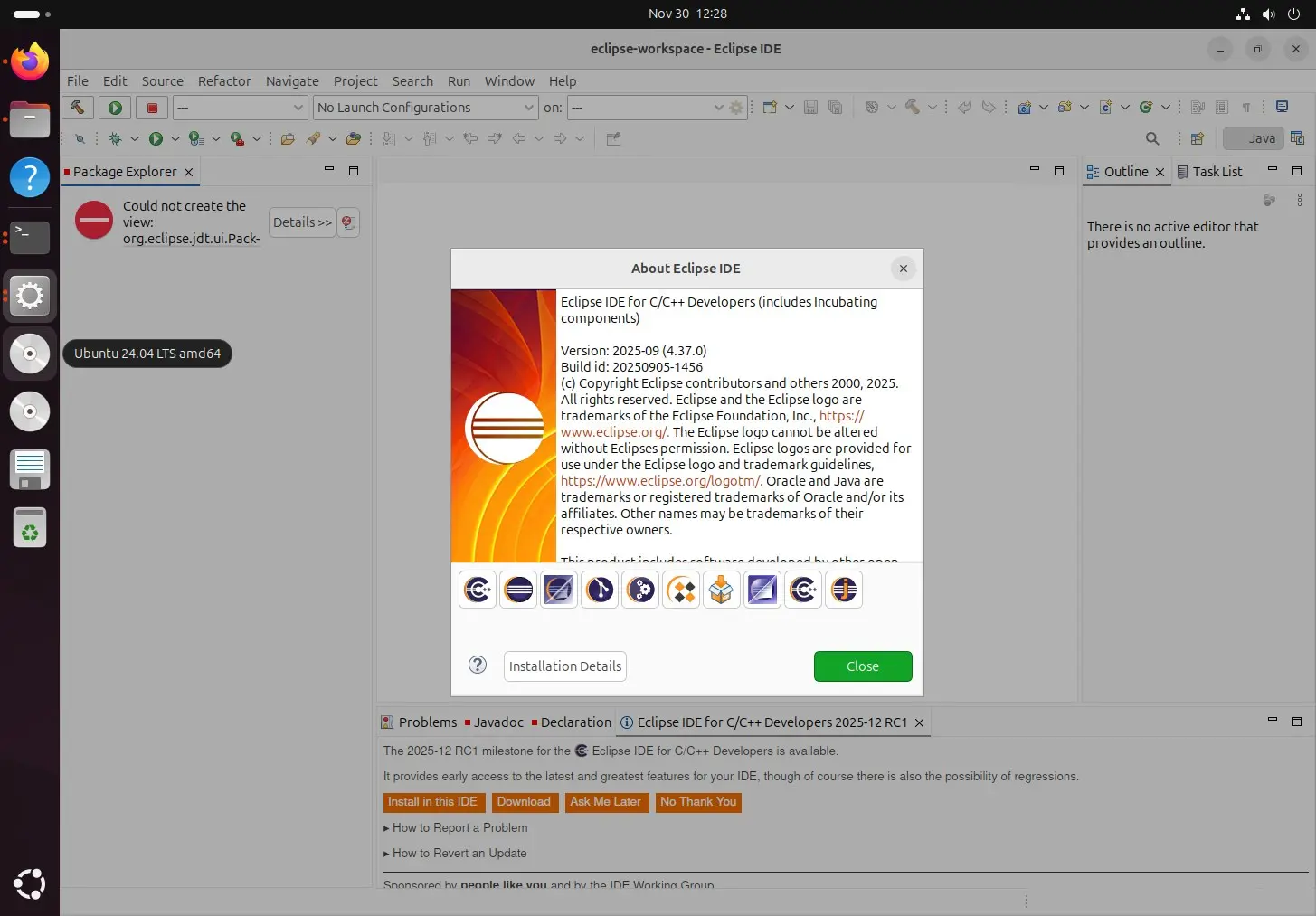
Best for: Enterprise developers, teams with established Eclipse workflows, and embedded systems projects with vendor-provided Eclipse plugins.
Eclipse CDT (C/C++ Development Tooling) adds comprehensive C and C++ support to the Eclipse IDE platform. It’s been used in enterprise and embedded development for over two decades.
Key Features:
- Mature project management and workspace system
- Visual debugging with extensive features
- Refactoring support (rename, extract, move)
- Integration with version control systems (Git, SVN)
- Support for various build systems and cross-compilers
- Extensive plugin ecosystem
- Memory analysis tools
- Remote debugging support
Pros:
- Free and open-source with strong institutional backing
- Handles large, complex projects well
- Extensive plugin ecosystem (many embedded vendors provide Eclipse plugins)
- Good support for embedded and cross-compilation workflows
- Familiar to Java developers who already use Eclipse
Cons:
- Notoriously slow startup and high memory usage
- The interface is cluttered and takes time to learn
- Configuration can be frustrating for beginners
- Java-based, which some C developers find ironic
- Steep learning curve for effective use
Installation:
Users can download it from the official website or GitHub page.
# Download from eclipse.org/downloads/packages/
# Choose "Eclipse IDE for C/C++ Developers"

# Or via snap
sudo snap install eclipse --classic
If you already have the Eclipse IDE installed for Java programming, you can add C/C++ support by installing the available packages.
To install the C/C++ package, click “Help,” then select “Install New Software.”
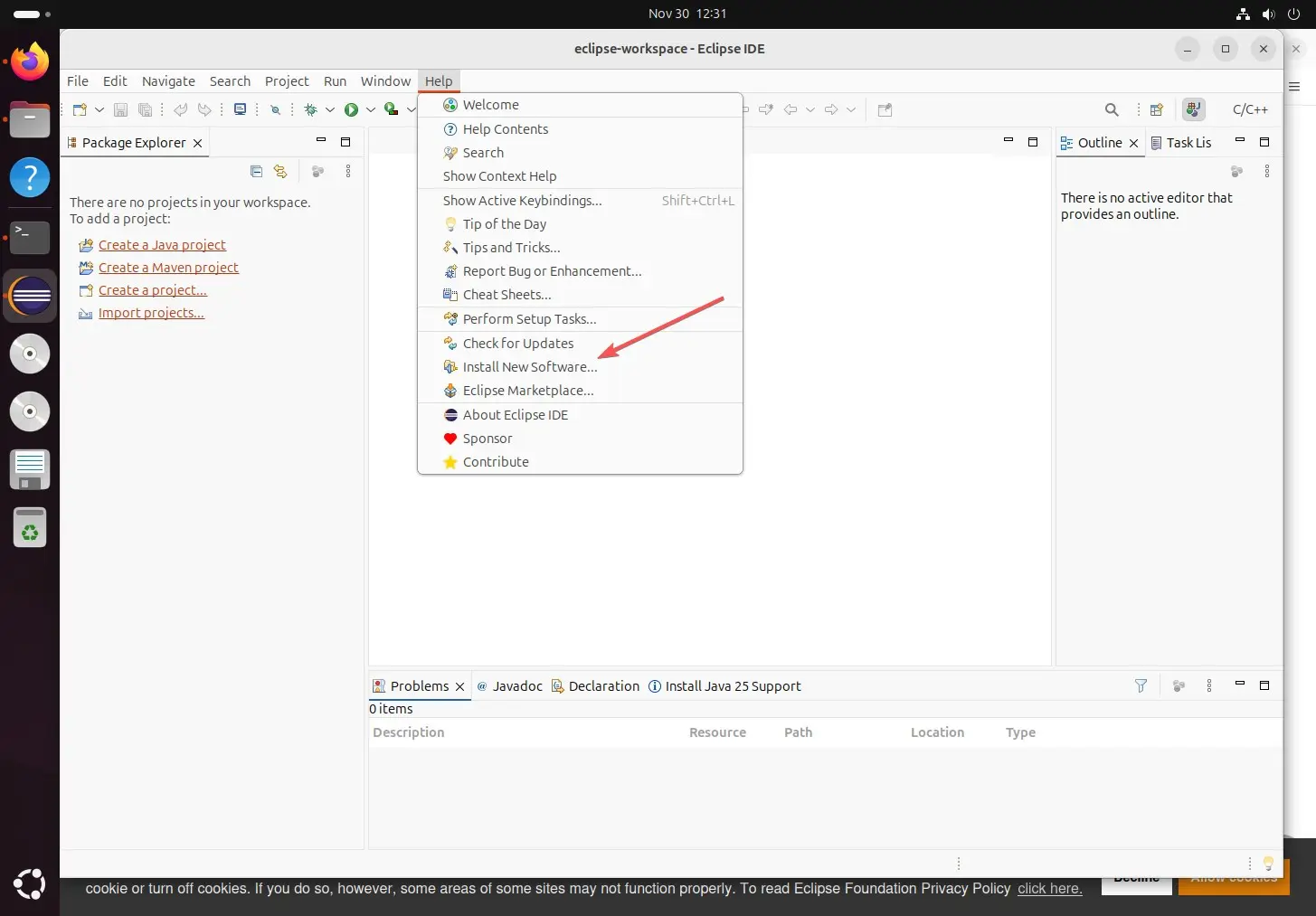
After that, select the latest Eclipse release and then choose the packages available for C/C++ development.

Qt Creator

Best for: GUI application developers, embedded systems developers, and anyone building cross-platform applications with the Qt framework.
Qt Creator is a cross-platform IDE that excels at C and C++ development, particularly for projects using the Qt framework. It’s also excellent for pure C development without Qt. Apart from that, it can also be used for JavaScript, Python, and QML integrated development environments
Key Features:
- Excellent CMake and qmake support
- Visual debugger with GDB integration
- Built-in Qt Designer for GUI development
- Code completion and refactoring
- Cross-platform deployment tools
- Integrated profiler and memory analysis
- Support for embedded and mobile development
- Built-in terminal and version control
Pros:
- Polished, professional IDE that’s completely free (open-source version)
- Excellent for embedded development
- Fast and responsive compared to Eclipse
- Great documentation and tutorials
- Works well for non-Qt projects too
- Native look and feel on Linux
Cons:
- Some features are Qt-specific and less useful for pure C
- Commercial version required for some advanced features
- It can be overwhelming if you want a simple C environment
- Less popular for non-Qt development
Installation:
# Ubuntu/Debian
sudo apt install qtcreator

# Fedora
sudo dnf install qt-creator

# Or download from qt.io for latest version
KDevelop

Best for: KDE desktop users, CMake-based projects, and developers who want a powerful free IDE with deep Linux integration.
KDevelop is the KDE project’s IDE, offering a feature-rich environment for C, C++, Python, QML/JavaScript, and PHP. It integrates deeply with the KDE desktop but works on any Linux desktop.
Key Features:
- Excellent CMake integration
- Advanced code navigation (go to definition, find references)
- Powerful code completion using Clang
- Integrated debugger
- Version control support
- Semantic highlighting
- Support for multiple build systems
Pros:
- Free and open-source
- Powerful features comparable to commercial IDEs
- Native KDE integration (but works elsewhere too)
- Fast code parsing
- Good documentation
Cons:
- Less well-known than other options
- Best experience on the KDE desktop
- A smaller community means fewer resources online
- It can feel unfamiliar to developers from other platforms
Installation:
# Ubuntu/Debian
sudo apt install kdevelop

# Fedora
sudo dnf install kdevelop

# Arch
sudo pacman -S kdevelop
Best C Code Editors for Linux (Lightweight & Fast)
Not everyone needs a full IDE. Many experienced developers prefer lightweight editors that start instantly, stay out of the way, and don’t consume excessive resources. These editors pair with command-line tools (GCC, GDB, Make) for a robust development workflow.
Vim / Neovim
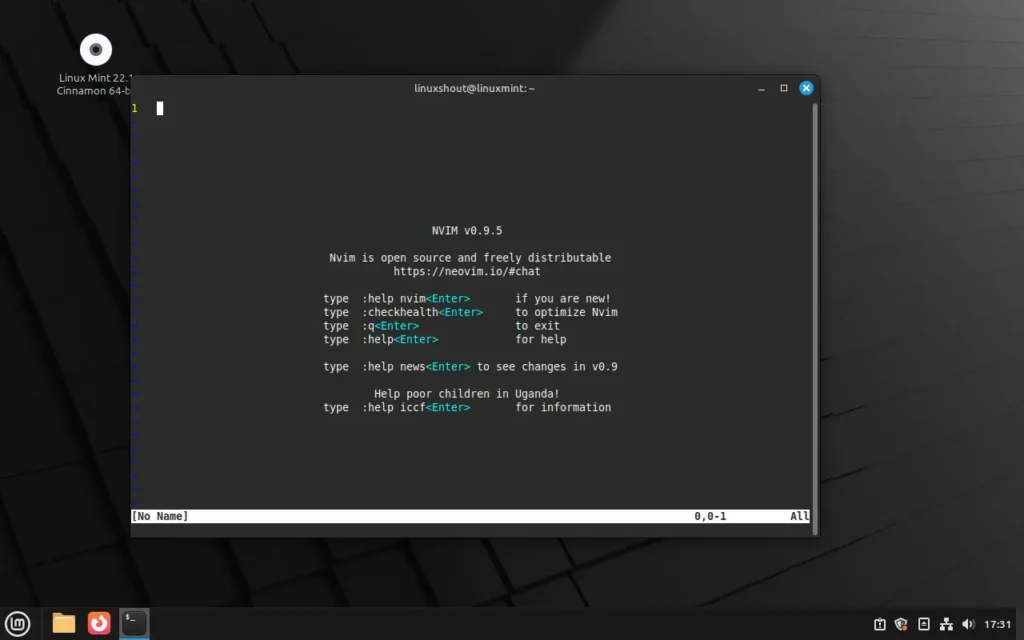
Best for: Terminal-centric developers, server administrators, power users who value speed and keyboard efficiency, and anyone who wants their editor to be available on every Unix system.
Vim (Vi IMproved) is the modal text editor that’s pre-installed on virtually every Unix-like system. Neovim is a modernized fork with better defaults, Lua scripting, and improved plugin architecture.
Key Features:
- Modal editing (normal, insert, and visual modes) enables high-speed text manipulation
- Available on every Linux system—learn once, use everywhere
- Extremely lightweight and fast (starts instantly)
- Powerful keyboard-driven interface
- Syntax highlighting for hundreds of languages
- Extensive plugin ecosystem
- Can be configured into a complete IDE-like environment
- Works over SSH with no graphical interface required
Pros:
- Lightning fast—opens instantly, never lags
- Available everywhere (servers, containers, embedded systems)
- Once mastered, editing becomes incredibly efficient
- Highly customizable
- Runs in terminal (perfect for remote development)
- Active community with constant plugin development
- Neovim adds LSP support for IDE-like features
Cons:
- Steep learning curve (modal editing is unfamiliar to most)
- Requires significant configuration for IDE-like features
- Plugin management can be complex
- Not beginner-friendly
- GUI features require additional setup
Installation:
# Vim (usually pre-installed)
sudo apt install vim        # Ubuntu/Debian
sudo dnf install vim        # Fedora

# Neovim (recommended for new users)
sudo apt install neovim     # Ubuntu/Debian
sudo dnf install neovim     # Fedora
sudo pacman -S neovim       # Arch
Essential Vim Plugins for C Development:
- coc.nvim or nvim-lspconfig: Language Server Protocol support for code completion
- ALE: Asynchronous linting
- vim-fugitive: Git integration
- NERDTree or nvim-tree: File explorer
- tagbar: Code structure overview
Quick Vim Survival Guide:
- Press
ito enter insert mode (type normally) - Press
Escto return to normal mode - Type
:wto save - Type
:qto quit - Type
:wqto save and quit - Type
:q!to quit without saving
Emacs

Best for: Developers who want infinite customization, Lisp enthusiasts, and those who prefer a self-contained computing environment.
GNU Emacs is another legendary editor, dating back to 1976. Unlike Vim’s modal approach, Emacs uses modifier keys (Ctrl, Alt) for commands. It’s famous for being endlessly extensible—users joke that it’s an operating system that happens to include a text editor.
Key Features:
- Powerful extension system using Emacs Lisp
- Can be configured into a complete development environment
- Org-mode for notes, documentation, and task management
- Built-in package manager
- Works in terminal or GUI mode
- Active development for nearly 50 years
Pros:
- Extensibility and customization
- Excellent documentation
- Self-documenting (every function has built-in help)
- Passionate, helpful community
- “Emacs Lisp” is a powerful programming language in itself
Cons:
- Steep learning curve
- Key bindings can cause RSI concerns (lots of Ctrl combinations)
- Configuration can become a hobby unto itself
- High initial investment to become productive
- Heavy compared to Vim
Installation:
# Ubuntu/Debian
sudo apt install emacs

# Fedora
sudo dnf install emacs

# Arch
sudo pacman -S emacs
Recommended Emacs Configurations:
- Doom Emacs: Pre-configured, Vim-like keybindings option
- Spacemacs: Popular configuration with both Vim and Emacs modes
Geany

Best for: Quick editing sessions, resource-constrained systems, beginners who want simplicity, and developers who prefer minimal tools.
Geany is a lightweight IDE that loads fast and stays out of your way. It offers more features than a basic text editor, yet remains snappy and simple.
Key Features:
- Speedy startup (typically under 1 second)
- Syntax highlighting for 50+ languages
- Basic code completion
- Built-in terminal emulator
- Simple build system integration (compile, run from menu)
- Plugin support for additional features
- Symbol browser for code navigation
Pros:
- Lightning fast and responsive
- Runs on virtually any hardware, even old machines
- Clean, intuitive GTK interface
- Good “enough” for most small to medium projects
- Minimal learning curve
- Works well as a quick editor for config files, too
Cons:
- Limited code intelligence compared to heavier IDEs
- No built-in visual debugger (use GDB from the terminal)
- Project management is basic
- Not suited for huge codebases
- The plugin ecosystem is smaller
Installation:
# Ubuntu/Debian
sudo apt install geany geany-plugins

# Fedora
sudo dnf install geany geany-plugins

# Arch
sudo pacman -S geany geany-plugins
Sublime Text

Best for: Developers who want a fast, polished graphical editor with powerful features, without the complexity of an IDE.
Sublime Text is a sophisticated code editor known for its speed, beautiful interface, and powerful features. While proprietary, it offers unlimited free evaluation.
Key Features:
- Extremely fast, even with large files
- “Goto Anything” for quick file/symbol navigation
- Multiple cursors for simultaneous editing
- Powerful search and replace with regex
- Distraction-free writing mode
- Split editing
- Customizable with Python plugins
- Command palette for quick access to features
Pros:
- Beautiful, minimal interface
- Fast startup and operation
- Cross-platform with consistent experience
- Powerful out of the box
- Package Control for easy plugin management
- Excellent for quick edits and large files
Cons:
- Proprietary (though free evaluation has no time limit)
- The license costs $99 for continued use
- Limited built-in C/C++ support (needs plugins)
- No integrated debugger
- Package Control must be installed separately
Installation:
# Ubuntu/Debian (via official repo)
wget -qO - https://download.sublimetext.com/sublimehq-pub.gpg | sudo tee /etc/apt/keyrings/sublimehq-pub.asc > /dev/null
echo -e 'Types: deb\nURIs: https://download.sublimetext.com/\nSuites: apt/stable/\nSigned-By: /etc/apt/keyrings/sublimehq-pub.asc' | sudo tee /etc/apt/sources.list.d/sublime-text.sources
sudo apt update
sudo apt install sublime-text

# Fedora
sudo dnf install sublime-text

# Or download from sublimetext.com
# for other linux repositories visit - https://www.sublimetext.com/docs/linux_repositories.html
CodeLite

Best for: Developers who want a lightweight, free IDE designed explicitly for C/C++ with good debugging support.
CodeLite is a free, open-source IDE focused on C, C++, and PHP development. It’s lighter than Eclipse but more feature-rich than basic editors.
Key Features:
- Built-in GCC, Clang, and Visual C++ support
- Visual debugger with GDB integration
- Refactoring tools
- Code completion using Clang
- Git integration
- Valgrind support (memory debugging on Linux)
- Workspace-based project management
Pros:
- Lightweight (about 50MB memory usage)
- Designed specifically for C/C++
- Active development with frequent updates
- Good Valgrind and debugging integration
- Free and open-source
- Clean interface
Cons:
- Smaller community than VS Code or Eclipse
- Less polished than commercial options
- Some features can be buggy
- Limited plugin ecosystem
Installation:
# Ubuntu/Debian
sudo apt install codelite

# Fedora
sudo dnf install codelite

# Or download from codelite.org
IDE & Editor Comparison Table
| Tool | Type | Best For | Startup Speed | Memory Usage | Price | Debugger |
|---|---|---|---|---|---|---|
| VS Code | Editor/IDE | Modern development, extensions | Fast | Medium | Free | Yes (GDB) |
| CLion | IDE | Professional, refactoring | Slow | High | $249/yr | Yes |
| Code::Blocks | IDE | Beginners, simplicity | Fast | Low | Free | Yes |
| Eclipse CDT | IDE | Enterprise, embedded | Slow | High | Free | Yes |
| Qt Creator | IDE | GUI apps, embedded | Medium | Medium | Free | Yes |
| KDevelop | IDE | KDE users, CMake | Medium | Medium | Free | Yes |
| Vim/Neovim | Editor | Power users, servers | Instant | Very Low | Free | Via plugins |
| Emacs | Editor | Customization enthusiasts | Medium | Medium | Free | Yes (GDB mode) |
| Geany | Editor | Quick edits, low resources | Instant | Very Low | Free | No (use GDB) |
| Sublime Text | Editor | Fast editing, aesthetics | Instant | Low | $99 | No |
| CodeLite | IDE | Lightweight C/C++ IDE | Fast | Low | Free | Yes |
How to Set Up a Complete C Development Environment on Linux
Let’s get your system ready for C development with everything you need.
Ubuntu / Debian
# Update package lists
sudo apt update

# Install essential build tools (GCC, Make, libc headers)
sudo apt install build-essential

# Install GDB debugger
sudo apt install gdb

# Install Clang (for better error messages)
sudo apt install clang

# Install CMake (for modern projects)
sudo apt install cmake

# Install Valgrind (memory debugging)
sudo apt install valgrind

# Install man pages for C library functions
sudo apt install manpages-dev

# Verify installation
gcc --version
clang --version
gdb --version
cmake --version
The build-essential package is a metapackage that installs GCC, G++, Make, and the standard library headers—everything you need to compile C programs.
Fedora
# Install development tools group
sudo dnf groupinstall "Development Tools"

# Install additional tools
sudo dnf install gdb clang cmake valgrind

# Verify installation
gcc --version
Arch Linux
# Install base development packages
sudo pacman -S base-devel

# Install additional tools
sudo pacman -S gdb clang cmake valgrind

# Verify installation
gcc --version
Verify Your Setup
After installation, verify everything works:
# Check GCC
gcc --version

# Check GDB
gdb --version

# Check Make
make --version

# Check CMake
cmake --version

# Test compilation
echo '#include <stdio.h>
int main() { printf("Hello, Linux!\\n"); return 0; }' > test.c
gcc test.c -o test
./test
rm test test.c
Which Tool Should You Choose? (Practical Recommendations)
1. For Absolute Beginners
Start with: Code::Blocks or Geany
Code::Blocks provides a complete IDE experience with visual debugging—you can see your code, set breakpoints with clicks, and inspect variables without learning command-line tools. Geany is even simpler if you want to write, compile, and run.
However, also practice with the command line:
gcc program.c -o program
./program
Understanding what happens beneath the IDE makes you a better programmer.
2. For Computer Science Students
Recommended: VS Code + command-line tools
Your university courses will likely require familiarity with GCC, GDB, Make, and possibly Vim. VS Code provides a comfortable graphical environment as you learn these tools.
Dedicate time to learning:
- GCC flags and compilation
- Basic GDB usage
- Writing simple Makefiles
- Basic Vim for editing files on servers
3. For Professional Software Developers
Recommended: CLion (if budget allows) or VS Code
CLion’s refactoring tools, static analysis, and CMake integration save significant time on large projects. If budget is a concern, VS Code with the C/C++ extension handles professional workloads well.
For teams, standardizing on one environment (with shared configuration files) improves collaboration.
4. For Embedded Systems Developers
Recommended: Eclipse CDT, Qt Creator, or CLion
Many embedded chip vendors provide Eclipse-based IDEs and plugins. If your vendor doesn’t mandate Eclipse, Qt Creator offers excellent embedded support with a better user experience. CLion supports remote development and cross-compilation well.
5. For Linux Kernel / Systems Developers
Recommended: Vim/Neovim or Emacs + command-line tools
Kernel development traditionally uses lightweight editors. The kernel build system assumes Make and GCC. You’ll often work over SSH, where terminal editors are essential.
Popular kernel developer setups:
- Vim/Neovim with ctags/cscope
- Emacs with built-in tag support
- VS Code with remote-SSH extension
6. For Competitive Programmers
Recommended: Sublime Text, VS Code, or Vim
Speed matters. You need an editor that starts instantly and lets you write, compile, and test rapidly. Configure keyboard shortcuts for compilation and testing.
7. For Resource-Constrained Systems
Recommended: Geany, Vim, or CodeLite
If you’re on an older laptop or lightweight system, avoid Eclipse and CLion. Geany and Vim run smoothly on virtually any hardware. CodeLite provides IDE features with modest resource usage.
Common Mistakes & Troubleshooting
“gcc: command not found.”
GCC isn’t installed. Install build-essential:
# Ubuntu/Debian
sudo apt install build-essential

# Fedora
sudo dnf groupinstall "Development Tools"

# Arch
sudo pacman -S base-devel
“fatal error: stdio.h: No such file or directory”
C standard library headers aren’t installed. On Ubuntu/Debian:
sudo apt install libc6-devThis is usually included in build-essential.
“undefined reference to ‘function_name'”
This linker error means the function is declared but not defined. Common causes:
- Forgot to compile all source files:
gcc file1.c file2.c -o program # Compile all files together- Missing library linkage:
   gcc program.c -lm -o program    # Link math library
gcc program.c -lpthread -o program # Link pthread library- Typo in function name (C is case-sensitive)
“permission denied” when running the program
The executable bit isn’t set. Fix with:
chmod +x ./programOr just recompile—GCC sets the executable bit automatically.





