(\ _ /)
( ・-・)
/っ  就是第 2 个东西,第 3 个不支持图片识别就不折腾了。

价格不重要,有赠金的时候才折腾,没赠金就嫖别的渠道.jpg
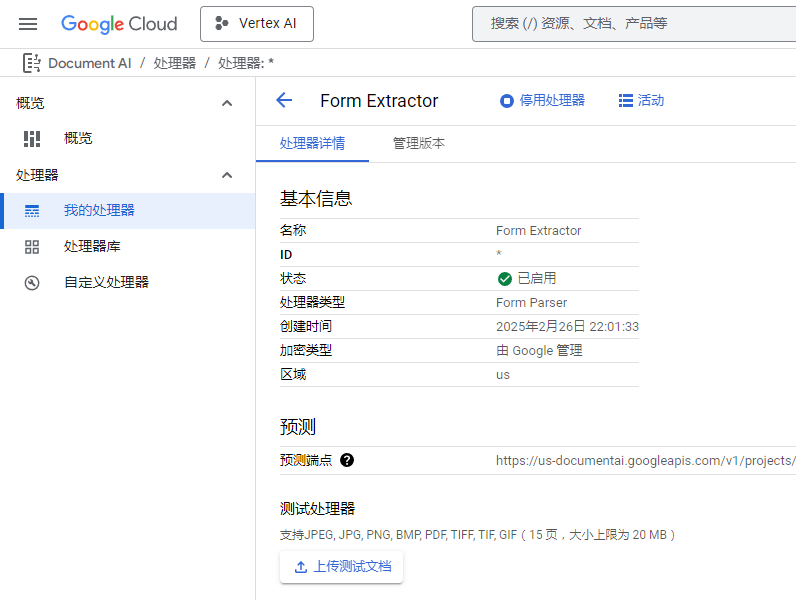
总而言之鼠标点点创建就行,会给一个 API 接口。
然后直接上源码:
DocumentaiFormExtractor.py
# pip install google-cloud-documentai
# pip install grpcio==1.50.0  # Windows 7 只能兼容到这个版本。
# pip install tqdm  # 用于进度条显示

# 导入必要的库
from google.api_core.client_options import ClientOptions
from google.cloud import documentai  # type: ignore
import tkinter as tk
from tkinter import filedialog
import os
import threading
from concurrent.futures import ThreadPoolExecutor, as_completed
from tqdm import tqdm
import time

# 设置代理
os.environ.update({'http_proxy': 'http://127.0.0.1:1081', 'https_proxy': 'http://127.0.0.1:1081'})

# 设置服务帐户密钥文件路径
os.environ["GOOGLE_APPLICATION_CREDENTIALS"] = "(你的鉴权文件).json"

# 配置信息
project_id = "(这里改成你端点的)"  # 你的 GCP 项目 ID
location = "us"  # 处理器位置,可以是 "us" 或 "eu"
processor_id = "(这里改成你端点的)"  # 你的 Form Parser 处理器ID
max_workers = 5  # 最大并行线程数,可根据需要调整

def process_single_document(file_path, client, processor_name):
    """处理单个文档的函数"""
    try:
        # 读取文件内容到内存
        with open(file_path, "rb") as image:
            image_content = image.read()

        # 根据文件扩展名确定 mime_type
        file_extension = os.path.splitext(file_path)[1].lower()
        if file_extension == ".pdf":
            mime_type = "application/pdf"
        elif file_extension in [".jpg", ".jpeg"]:
            mime_type = "image/jpeg"
        elif file_extension == ".png":
            mime_type = "image/png"
        elif file_extension == ".gif":
            mime_type = "image/gif"
        elif file_extension in [".tif", ".tiff"]:
            mime_type = "image/tiff"
        elif file_extension == ".bmp":
            mime_type = "image/bmp"
        else:
            raise ValueError(f"不支持的文件格式: {file_extension}")

        # 加载二进制数据
        raw_document = documentai.RawDocument(
            content=image_content,
            mime_type=mime_type,
        )

        # 配置处理请求
        request = documentai.ProcessRequest(name=processor_name, raw_document=raw_document)

        # 调用 Document AI 服务处理文档
        result = client.process_document(request=request)
        document = result.document

        # 获取所选文件的目录和文件名(不含扩展名)
        file_dir = os.path.dirname(file_path)
        file_name = os.path.splitext(os.path.basename(file_path))[0]

        # 构建输出文件的完整路径(JSON 格式)
        output_file_path = os.path.join(file_dir, f"{file_name}.json")

        # 将识别的表单数据写入到输出文件(JSON 格式)
        with open(output_file_path, "w", encoding="utf-8") as output_file:
            output_file.write(documentai.Document.to_json(document)) # 使用 to_json 方法

        return True, file_path, output_file_path
    except Exception as e:
        return False, file_path, str(e)

def batch_process_documents():
    """批量处理文档的主函数"""
    # 初始化 Document AI 客户端
    opts = ClientOptions(api_endpoint=f"{location}-documentai.googleapis.com")
    client = documentai.DocumentProcessorServiceClient(client_options=opts)
    processor_name = f"projects/{project_id}/locations/{location}/processors/{processor_id}"

    # 创建文件选择对话框
    root = tk.Tk()
    root.withdraw()  # 隐藏主窗口

    # 弹出文件选择对话框,允许多选, 并添加更多文件类型
    file_paths = filedialog.askopenfilenames(
        title="选择多个文件",
        filetypes=[
            ("所有支持的格式", "*.pdf;*.jpg;*.jpeg;*.png;*.gif;*.tif;*.tiff;*.bmp"),
            ("PDF 文件", "*.pdf"),
            ("JPEG 图片", "*.jpg;*.jpeg"),
            ("PNG 图片", "*.png"),
            ("GIF 图片", "*.gif"),
            ("TIFF 图片", "*.tif;*.tiff"),
            ("BMP 图片", "*.bmp"),
        ]
    )

    # 如果用户取消了文件选择,则退出程序
    if not file_paths or len(file_paths) == 0:
        print("未选择文件,程序退出。")
        return

    total_files = len(file_paths)
    print(f"已选择 {total_files} 个文件,开始处理...")

    # 创建进度条
    progress_bar = tqdm(total=total_files, desc="处理进度", unit="文件")

    # 使用线程池并行处理文件
    results = []
    with ThreadPoolExecutor(max_workers=max_workers) as executor:
        # 提交所有任务
        future_to_file = {
            executor.submit(process_single_document, file_path, client, processor_name): file_path
            for file_path in file_paths
        }

        # 处理完成的任务
        for future in as_completed(future_to_file):
            file_path = future_to_file[future]
            try:
                success, path, result = future.result()
                if success:
                    results.append((path, result, True))
                else:
                    results.append((path, result, False))
            except Exception as e:
                results.append((file_path, str(e), False))

            # 更新进度条
            progress_bar.update(1)

    # 关闭进度条
    progress_bar.close()

    # 显示处理结果统计
    success_count = sum(1 for _, _, success in results if success)
    failed_count = total_files - success_count

    print(f"\n处理完成!成功: {success_count} 个文件,失败: {failed_count} 个文件")

    # 如果有失败的文件,显示详情
    if failed_count > 0:
        print("\n失败文件列表:")
        for path, error, success in results:
            if not success:
                print(f"- {os.path.basename(path)}: {error}")

    # 显示所有成功处理的文件路径
    if success_count > 0:
        print("\n成功处理的文件:")
        for path, output, success in results:
            if success:
                print(f"- {os.path.basename(path)} -> {os.path.basename(output)}")

if __name__ == "__main__":
    batch_process_documents()
这个跑完会返回一个 json,因为包含了原图 base64 所以比较巨大。

然后这个是转成 html 预览的脚本 
DocumentaiFormJsonViewer.py
import json
import tkinter as tk
from tkinter import filedialog
import os
from google.cloud import documentai_v1 as documentai
from PIL import Image
import io
import base64

def get_bounding_box_str(entity):
    """Helper function to format bounding box vertices."""
    try:
        if entity.bounding_poly and entity.bounding_poly.normalized_vertices:
            vertices = entity.bounding_poly.normalized_vertices
            return ", ".join([f"({v.x:.3f}, {v.y:.3f})" for v in vertices])
        else:
            return "N/A"
    except AttributeError:
        return "N/A"

def convert_json_to_html(json_file_path, font_size=12, image_opacity=0.5, show_visual_elements=False):
    """
    Converts Document AI JSON to HTML with layout preservation.

    Args:
        json_file_path: Path to the Document AI JSON file.
        font_size:  The font size (in pixels) to use for the text.
        image_opacity: The opacity of the background image (0.0 to 1.0).
        show_visual_elements: Whether to show visual elements (like checkboxes).
    """
    try:
        with open(json_file_path, 'rb') as f:
            json_data = f.read()
        document = documentai.Document.from_json(json_data)

    except Exception as e:
        print(f"Error loading document: {e}")
        return

    html_output = f"""
    <!DOCTYPE html>
    <html><head>
        <title>Document AI Output</title>
        <style>
            .page-container {{ position: relative; border: 1px solid black; }}
            /* 动态宽度,不截断文本 */
            .positioned-element {{ position: absolute; font-size: {font_size}px; }}
            .image-element {{ position: absolute; opacity: {image_opacity}; }}
            .checkbox {{ position: absolute; width: 12px; height: 12px; border: 1px solid gray; }}
            .checked {{ background-color: black; }}
            /* 视觉元素样式 */
            .visual-element {{ position: absolute; border: 1px dashed blue; width: 12px; height: 12px;}}
            .bbox {{ color: blue; font-size: smaller; }}
        </style>
    </head><body>
    """

    for page_number, page in enumerate(document.pages):
        width = int(page.dimension.width)
        height = int(page.dimension.height)

        html_output += f'<div class="page-container" style="width: {width}px; height: {height}px;">'

        # 1. 图像 (放在最底层)
        if page.image:
            try:
                image_data = page.image.content
                image = Image.open(io.BytesIO(image_data))
                buffered = io.BytesIO()
                image.save(buffered, format="PNG")
                img_str = base64.b64encode(buffered.getvalue()).decode()
                html_output += f'<img class="image-element" src="data:image/png;base64,{img_str}" style="left: 0px; top: 0px; width: {width}px; height: {height}px; z-index: 1; pointer-events: none;" disabled>'
            except Exception as e:
                print(f"Error processing image: {e}")


        # 2. 文本块
        for block in page.blocks:
            bbox = block.layout.bounding_poly.normalized_vertices
            if bbox:
                x1, y1 = int(bbox[0].x * width), int(bbox[0].y * height)
                x2, y2 = int(bbox[2].x * width), int(bbox[2].y * height)
                text = get_text(block.layout, document)
                html_output += f'<div class="positioned-element" style="left: {x1}px; top: {y1}px;  z-index: 3;">{text}</div>'

        # 3. 表单字段
        for field in page.form_fields:
            # 字段名
            if field.field_name:
                name_bbox = field.field_name.bounding_poly.normalized_vertices
                name_text = get_text(field.field_name, document) or ""
                if name_bbox:
                    x1, y1 = int(name_bbox[0].x * width), int(name_bbox[0].y * height)
                    x2, y2 = int(name_bbox[2].x * width), int(name_bbox[2].y * height)
                    html_output += f'<div class="positioned-element" style="left: {x1}px; top: {y1}px;  font-weight: bold; z-index: 3;">{name_text.strip()}</div>'

            # 字段值
            if field.field_value:
                value_bbox = field.field_value.bounding_poly.normalized_vertices
                value_text = get_text(field.field_value, document) or ""

                if value_bbox:
                    x1, y1 = int(value_bbox[0].x * width), int(value_bbox[0].y * height)
                    x2, y2 = int(value_bbox[2].x * width), int(value_bbox[2].y * height)
                    html_output += f'<div class="positioned-element" style="left: {x1}px; top: {y1}px; z-index: 3;">{value_text.strip()}</div>'

        # 4. 视觉元素 (可选显示)
        if show_visual_elements:
            for visual_element in page.visual_elements:
                bbox = visual_element.layout.bounding_poly.normalized_vertices
                if bbox:
                    x1, y1 = int(bbox[0].x * width), int(bbox[0].y * height)
                    x2, y2 = int(bbox[2].x * width), int(bbox[2].y * height)
                    # 为所有视觉元素添加通用样式, 并设置较小的尺寸
                    html_output += f'<div class="visual-element" style="left: {x1}px; top: {y1}px; z-index: 2;"></div>'

        html_output += "</div>"

    html_output += "</body></html>"

    base_name = os.path.splitext(json_file_path)[0]
    html_file_path = base_name + ".html"
    with open(html_file_path, "w", encoding="utf-8") as f:
        f.write(html_output)
    print(f"HTML output saved to: {html_file_path}")

def get_text(entity, document):
    """Extracts text from an entity, handling cases where text_anchor might be None."""
    text = ""
    if hasattr(entity, 'text_anchor') and entity.text_anchor:
        if entity.text_anchor.text_segments:
            for segment in entity.text_anchor.text_segments:
                start_index = int(segment.start_index)
                end_index = int(segment.end_index)
                text += document.text[start_index:end_index]
    return text

def open_file_dialog():
    root = tk.Tk()
    root.withdraw()
    file_path = filedialog.askopenfilename(title="Select Document AI JSON File", filetypes=[("JSON files", "*.json")])
    if file_path:
        # 示例:设置字体大小、图像透明度。不显示视觉元素
        convert_json_to_html(file_path, font_size=18, image_opacity=0.1, show_visual_elements=False)

if __name__ == "__main__":
    open_file_dialog()
(\ _ /)
( ・-・)
/っ  就是这样。效果


 感谢佬友分享