Scoop is a command-line package manager for Windows, similar to Winget and Chocolatey. It allows you to manage applications—install, update, and uninstall—right from your command line with simple commands, eliminating the need for graphical installers and excessive clicking.
This guide will walk you through using Scoop to manage applications on your Windows system easily.
📝 NOTE:
If Scoop is not yet installed, you must first follow the guide: How to Install Scoop in Windows.
What is a Bucket in Scoop?
A Bucket is essentially a repository for apps. It’s a collection of app manifests (.json files) that contain the instructions Scoop uses to install a specific application.
When you try to install a package, Scoop searches through your installed buckets to find the corresponding app manifest. If found, the installation proceeds; otherwise, you’ll see a message like “Couldn’t find manifest for ‘PACKAGE’“.
Managing Buckets
When you install Scoop, the main bucket is installed by default. You can install others as needed.
| Command | Description |
scoop bucket known | Lists all community-known buckets. |
scoop bucket add <BUCKET_NAME> | Adds a new bucket (e.g., scoop bucket add extras). |
scoop bucket list | Lists the buckets currently installed on your system. |
scoop bucket rm <BUCKET_NAME> | Removes an installed bucket. |
Default Bucket Locations
Installed buckets are stored under your Windows user profile directory at:
C:\Users\USER_NAME\scoop\buckets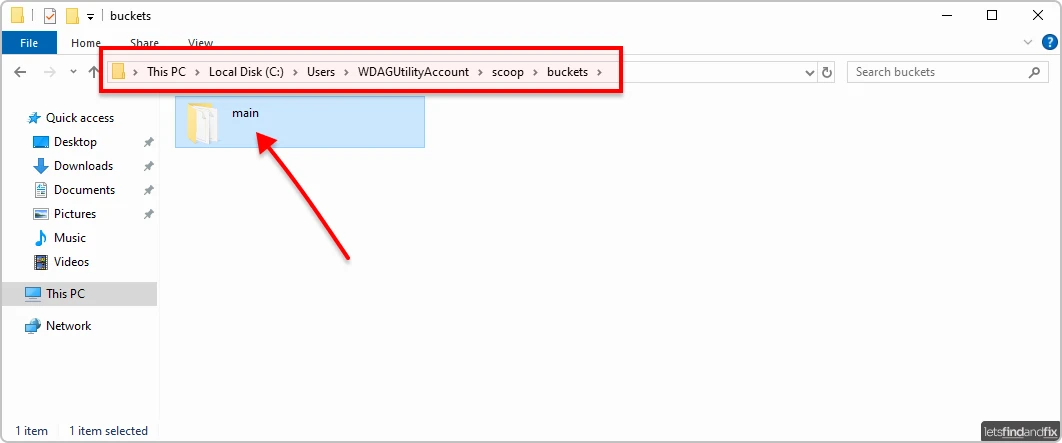
Initial Configuration: Installing Git
Scoop relies on Git for essential functions like updating itself, updating installed packages, and adding new buckets. It’s best to install Git right after installing Scoop.
The command is:
scoop install gitFinding Packages (Apps)
To install an app, you first need to identify its exact package name and the bucket it belongs to, which you can do in two ways.
Way #1: Using the Command Line
The most common way is to use the scoop search command in PowerShell or Command Prompt.
Syntax:
scoop search <PACKAGE_NAME>Example:
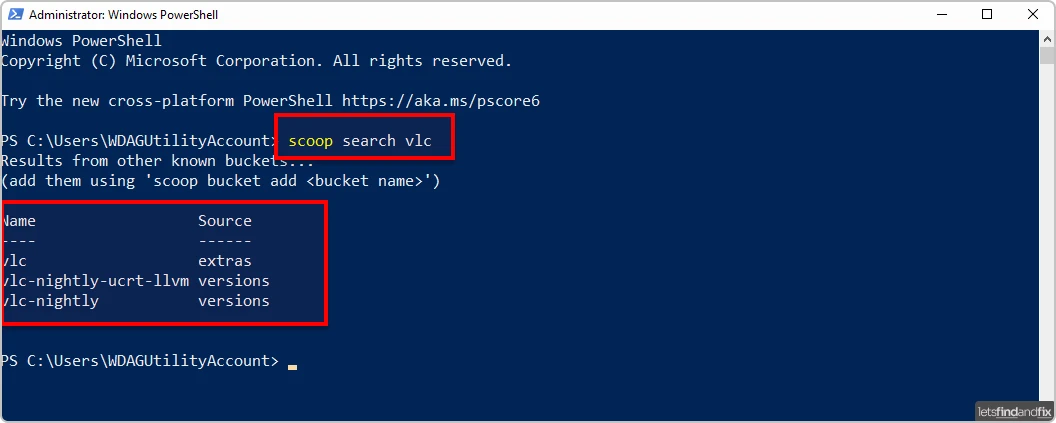
To find the VLC media player package:
scoop search vlcThe output will show the package name (e.g., vlc) and its source bucket (e.g., extras).
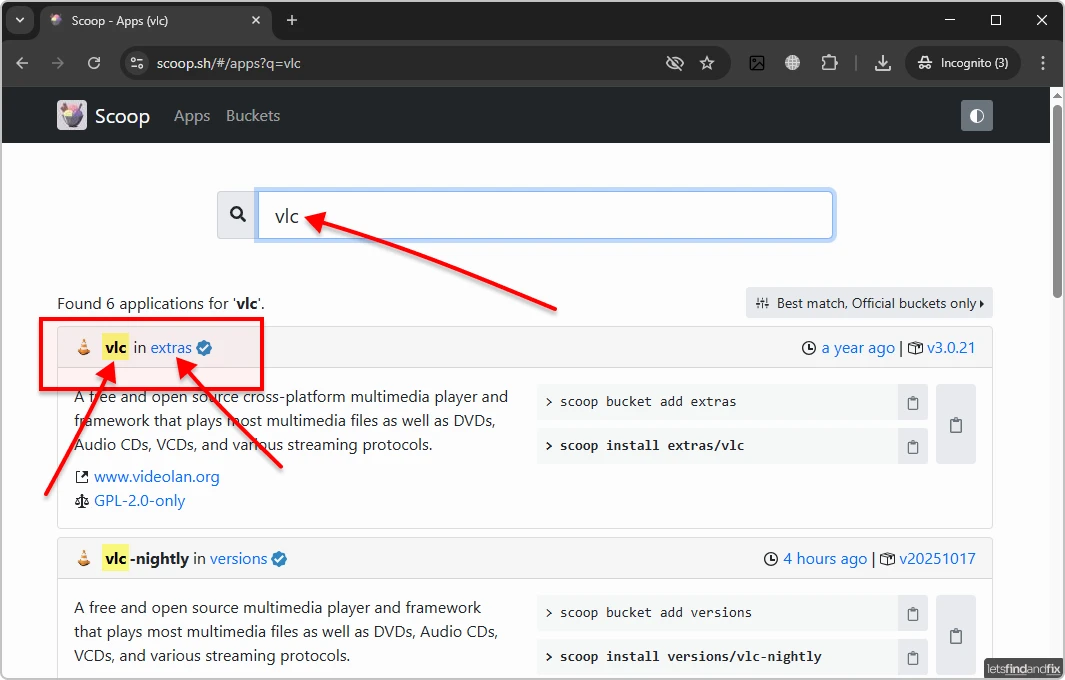
Way #2: Using the Scoop Website
You can also search directly on the Scoop website for an app. The search results will typically show the package name and the required bucket (e.g., “vlc in extras” means package is vlc and bucket is extras).
Installing Packages
Installing an application is a two-step process if the package is in a bucket, you haven’t added yet: add the bucket, then install the package.
Install a Single Package
1. Add the Bucket: If the required package (e.g., vlc) belongs to a new bucket (like extras), add the bucket using the scoop bucket add command.
scoop bucket add extras2. Install the Package: Now, install the app using the scoop install command.
scoop install vlcInstall a Specific Version
By default, scoop install grabs the latest stable version. To install a specific version, use the @VERSION suffix.
Syntax:
scoop install <PACKAGE_NAME>@<VERSION>Example:
To install Python version 3.12.0:
scoop install [email protected]Install Multiple Packages at Once
You can install several packages by listing their names separated by spaces. Ensure you’ve added all necessary buckets first.
Syntax:
scoop install <PACKAGE_01> <PACKAGE_02> <PACKAGE_03>Example:
To install Google Chrome and VLC (both in the extras bucket):
scoop install googlechrome vlcListing Installed Packages
To manage (update or uninstall) any installed app, you must know its exact package name. Use the scoop list command to see all apps installed via Scoop.
scoop list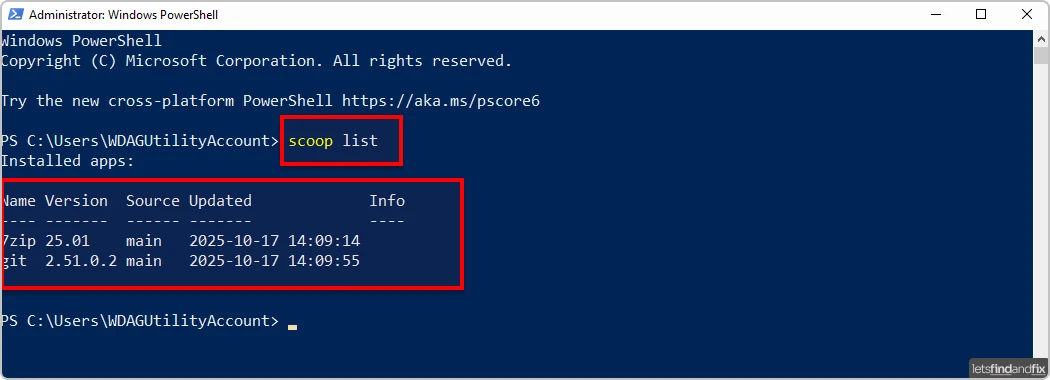
Updating Packages
Use the scoop update command followed by the package name.
Syntax:
scoop update <PACKAGE_NAME>Example:
To update VLC Media Player, the command is:
scoop update vlcUpdate Multiple Packages
To update several packages at once, list their names separated by spaces in the scoop update command.
Syntax:
scoop update <PACKAGE_01> <PACKAGE_02> <PACKAGE_03>Example:
To update VLC Media Player and Google Chrome, the command is:
scoop update vlc googlechromeUpdate All Packages
To update all installed packages and all installed buckets at once, use the scoop update command with any of the following flags:
--all-a*
The command is:
scoop update --allYou can also use:
scoop update -aOr,
scoop update *Uninstalling Packages
Use the scoop uninstall command to remove a package from your system.
Syntax:
scoop uninstall <PACKAGE_NAME>Example:
To uninstall VLC Media Player, the command is:
scoop uninstall vlcUninstall Multiple Packages
To uninstall several packages at once, list their names separated by spaces in the scoop uninstall command.
Syntax:
scoop uninstall <PACKAGE_01> <PACKAGE_02> <PACKAGE_03>Example:
To uninstall VLC Media Player and Google Chrome, the command is:
scoop uninstall vlc googlechromeThe Help Command
To explore Scoop’s full potential and discover more advanced commands, use the built-in help features.
General Help
To get a list of all available commands:
scoop helpSpecific Command Help
To see the options and usage for a specific command:
Syntax:
scoop help <COMMAND_NAME>Example:
To view the options for the install command:
scoop help installKey Scoop Commands Reference
This table summarizes the essential Scoop commands used throughout this tutorial for managing packages and buckets. Use this as a quick reference guide for installation, updating, uninstallation, and system configuration.
| Command | Syntax | Example |
| install (Package) | scoop install <PACKAGE_NAME> | scoop install git |
| install (Specific Version) | scoop install <PACKAGE_NAME>@<VERSION> | scoop install [email protected] |
| search | scoop search <PACKAGE_NAME> | scoop search vlc |
| list | scoop list | scoop list |
| update (Single) | scoop update <PACKAGE_NAME> | scoop update vlc |
| update (All) | scoop update --all | scoop update -a |
| uninstall | scoop uninstall <PACKAGE_NAME> | scoop uninstall vlc |
| bucket known | scoop bucket known | scoop bucket known |
| bucket add | scoop bucket add <BUCKET_NAME> | scoop bucket add extras |
| bucket list | scoop bucket list | scoop bucket list |
| bucket rm | scoop bucket rm <BUCKET_NAME> | scoop bucket rm extras |
| help (General) | scoop help | scoop help |
| help (Specific) | scoop help <COMMAND_NAME> | scoop help install |
This guide provides everything you need to start managing Windows packages—installing, updating, and uninstalling—using Scoop. To explore its advanced features, refer to the official Scoop GitHub documentation for detailed information.