
Do you want to spice up your ESP32 projects with sleek graphics or display your device’s IP address without opening the Serial Monitor? Then it’s time to light up the OLED screen. These little displays are super lightweight, incredibly thin, and produce sharper, brighter images that pop right off the screen.
In this hands-on tutorial, we’ll walk you through how to connect an OLED display to your ESP32. You’ll learn how to show text, draw basic shapes, and even display your own custom images. And to make things even more fun, we’ve included a tool to help you convert any image into display-ready code!
Let’s dive in and bring your projects to life—pixel by pixel!
OLED Display Module Overview
OLED displays come in a wide range of options, giving you plenty of choices depending on what your project needs. They are available in different sizes, such as 128×64 pixels or 128×32 pixels, and you can choose from a variety of colors like white, blue, or even cool dual-color versions. These displays also support different ways of communicating with your ESP32—some use I2C, while others use SPI.
In this tutorial, we’ll be working with a 0.96-inch 128×64 I2C OLED display. But if your display happens to be a different size or color, don’t worry. The basic ideas we’ll cover still apply, and the steps to get it working will be very similar.

No matter which size, color, or communication method you go with, all of these OLED displays rely on the same tiny but powerful chip called the SSD1306 OLED driver. This chip acts as the “brain” of the display. It takes care of drawing everything you see on the screen by storing image data in its own memory (RAM buffering). Thanks to this clever design, your microcontroller doesn’t have to constantly update the screen—it can focus on other tasks.
Power
Unlike traditional LCD displays, OLED displays don’t need a backlight because OLED pixels create their own light. This gives OLEDs high contrast, excellent viewing angles, and truly deep black colors. Since they don’t need a backlight, OLED displays use less power—around 20mA on average, making them perfect for battery-powered projects.
OLED displays work with voltages between 3.3V and 5V. This means you can easily connect your OLED display to a 3.3V or 5V microcontroller without any problems.
Understanding the OLED Memory Map
To control what appears on your OLED display, you need to understand how the display’s memory is organized.
No matter the size of your OLED display, the SSD1306 driver chip inside has 1KB (kilobyte) of memory, known as Graphic Display Data RAM (GDDRAM). This memory stores the pattern of pixels that shows up on your screen. Each bit in this memory controls one pixel.
Here’s how this 1KB memory is organized:
- The memory is divided into 8 pages (numbered 0 to 7)
- Each page has 128 columns (also called segments)
- Each column contains 8 vertical pixels on the screen
So the math works out like this:
8 pages × 128 columns × 8 bits = 8,192 bits = 1,024 bytes = 1KB of memory
The entire 1K memory, including pages, segments, and data, is highlighted below.

Remember, every OLED module contains 1KB of RAM, no matter its size. A 128×64 OLED module displays everything in that 1KB of RAM (all 8 pages), while a 128×32 OLED module shows only half of the RAM (just the first 4 pages).
Pinout
Before we dive into the hookup and example code, let’s take a closer look at the pinout of the I2C OLED display module.

GND is the ground pin.
VCC is the power supply pin for the display. You can connect it to either the 3.3V or 5V pin on your microcontroller.
SCL is the serial clock pin used for the I2C interface.
SDA is the serial data pin for the I2C interface.
Wiring an OLED display module to an ESP32
Let’s connect the OLED display to the ESP32.
Connections are straightforward. First, connect the VCC pin of the display to the ESP32’s 3.3V output and the GND pin to the ground.
Next, we need to connect the pins used for I2C communication. Connect the SCL pin on the display to D22 on the ESP32, and the SDA pin to D21 on the ESP32.
Here’s a quick reference table for the pin connections:
| OLED Display | ESP32 | |
| VCC | 3.3V | |
| GND | GND | |
| SCL | D22 | |
| SDA | D21 |
This diagram shows you exactly how to connect everything:

Library Installation
The SSD1306 controller used in OLED displays is very flexible, but it can also be quite complicated to work with directly. To use it properly, you would normally need a good understanding of how memory addressing works, which can be tricky—especially for beginners.
Luckily, we don’t have to worry about all that. The Adafruit SSD1306 library was created to make things much easier. This library takes care of all the complex stuff behind the scenes, so you can control your OLED display using simple and easy-to-understand commands.
To install the library,
- First open your Arduino IDE program. Then click on the Library Manager icon on the left sidebar.
- Type “adafruit ssd1306” in the search box to filter your results.
- Look for the Adafruit SSD1306 Library by Adafruit.
- Click the Install button to add it to your Arduino IDE.

Since the Adafruit SSD1306 Library relies on other libraries to function, you will be prompted to install its dependencies, which include the Adafruit Bus IO Library and the Adafruit GFX Library.
When this message appears, simply click INSTALL ALL to ensure everything is set up correctly.

ESP32 Example Code 1 – Displaying Text
Now comes the fun part—let’s start displaying some cool stuff on the OLED screen!
The sketch below shows you how to:
- Display simple text
- Display inverted text
- Display numbers
- Display numbers with base (Hex, Dec)
- Display ASCII symbols
- Scroll text horizontally and vertically
- Scroll part of the display
Once you understand this example, you’ll be well on your way to building more creative and advanced projects with your OLED display.
#include <SPI.h>
#include <Wire.h>
#include <Adafruit_GFX.h>
#include <Adafruit_SSD1306.h>

#define SCREEN_WIDTH 128  // OLED display width, in pixels
#define SCREEN_HEIGHT 64  // OLED display height, in pixels

// Declaration for SSD1306 display connected using I2C
#define OLED_RESET -1  // Reset pin
#define SCREEN_ADDRESS 0x3C
Adafruit_SSD1306 display(SCREEN_WIDTH, SCREEN_HEIGHT, &Wire, OLED_RESET);

void setup() {
  Serial.begin(9600);

  // initialize the OLED object
  if (!display.begin(SSD1306_SWITCHCAPVCC, SCREEN_ADDRESS)) {
    Serial.println(F("SSD1306 allocation failed"));
    for (;;)
      ;  // Don't proceed, loop forever
  }

  // Clear the buffer.
  display.clearDisplay();

  // Display Text
  display.setTextSize(1);
  display.setTextColor(WHITE);
  display.setCursor(0, 28);
  display.println("Hello world!");
  display.display();
  delay(2000);
  display.clearDisplay();

  // Display Inverted Text
  display.setTextColor(BLACK, WHITE);  // 'inverted' text
  display.setCursor(0, 28);
  display.println("Hello world!");
  display.display();
  delay(2000);
  display.clearDisplay();

  // Changing Font Size
  display.setTextColor(WHITE);
  display.setCursor(0, 24);
  display.setTextSize(2);
  display.println("Hello!");
  display.display();
  delay(2000);
  display.clearDisplay();

  // Display Numbers
  display.setTextSize(1);
  display.setCursor(0, 28);
  display.println(123456789);
  display.display();
  delay(2000);
  display.clearDisplay();

  // Specifying Base For Numbers
  display.setCursor(0, 28);
  display.print("0x");
  display.print(0xFF, HEX);
  display.print("(HEX) = ");
  display.print(0xFF, DEC);
  display.println("(DEC)");
  display.display();
  delay(2000);
  display.clearDisplay();

  // Display ASCII Characters
  display.setCursor(0, 24);
  display.setTextSize(2);
  display.write(3);
  display.display();
  delay(2000);
  display.clearDisplay();

  // Scroll full screen
  display.setCursor(0, 0);
  display.setTextSize(1);
  display.println("Full");
  display.println("screen");
  display.println("scrolling!");
  display.display();
  display.startscrollright(0x00, 0x07);
  delay(2000);
  display.stopscroll();
  delay(1000);
  display.startscrollleft(0x00, 0x07);
  delay(2000);
  display.stopscroll();
  delay(1000);
  display.startscrolldiagright(0x00, 0x07);
  delay(2000);
  display.startscrolldiagleft(0x00, 0x07);
  delay(2000);
  display.stopscroll();
  display.clearDisplay();

  // Scroll part of the screen
  display.setCursor(0, 0);
  display.setTextSize(1);
  display.println("Scroll");
  display.println("some part");
  display.println("of the screen.");
  display.display();
  display.startscrollright(0x00, 0x00);
}

void loop() {
}
This is what the output looks like.

Code Explanation:
The sketch starts by including four libraries: SPI.h, Wire.h, Adafruit_GFX.h, and Adafruit_SSD1306.h. These libraries allow the ESP32 to communicate with the OLED display. Even though we’re using I2C (which doesn’t need the SPI library), we still include SPI.h to make sure the code compiles without any errors.
#include <SPI.h>
#include <Wire.h>
#include <Adafruit_GFX.h>
#include <Adafruit_SSD1306.h>
Next, we define the width and height of the screen in pixels. Most common OLED displays are 128 pixels wide and 64 pixels tall, so we set SCREEN_WIDTH to 128 and SCREEN_HEIGHT to 64.
Then, we create a display object using the Adafruit_SSD1306 library. We tell it the size of our screen—128 pixels wide and 64 pixels tall—and we let it know we’re using I2C. Since our OLED module doesn’t have a reset pin, we pass -1 to show that we’re not using one.
#define SCREEN_WIDTH 128 // OLED display width, in pixels
#define SCREEN_HEIGHT 64 // OLED display height, in pixels

// Declaration for SSD1306 display connected using I2C
#define OLED_RESET     -1 // Reset pin
#define SCREEN_ADDRESS 0x3C
Adafruit_SSD1306 display(SCREEN_WIDTH, SCREEN_HEIGHT, &Wire, OLED_RESET);
Inside the setup() function, we first begin serial communication to print messages to the Serial Monitor for debugging.
Then we call display.begin() to start communication with the OLED display. The first argument turns on the internal charge pump circuitry, which helps power the screen, and the second argument sets the I2C address (the I2C address of the screen is usually 0x3C, but some displays use 0x3D, so you’d change it if needed). If the display doesn’t start correctly, we show an error message and stop the program.
Serial.begin(9600);

// initialize the OLED object
if (!display.begin(SSD1306_SWITCHCAPVCC, SCREEN_ADDRESS)) {
  Serial.println(F("SSD1306 allocation failed"));
  for (;;)
    ;  // Don't proceed, loop forever
}
Once the display is ready, we clear the screen using display.clearDisplay(). This makes sure we’re working with a blank screen.
// Clear the buffer.
display.clearDisplay();
Displaying simple Text (Hello World)

// Display Text
display.setTextSize(1);
display.setTextColor(WHITE);
display.setCursor(0,28);
display.println("Hello world!");
display.display();
delay(2000);
To show text on the OLED screen, we first set the size of the text using the setTextSize() function. This function takes a number where 1 is the smallest size, and higher numbers make the text bigger.
Next, we choose the color of the text using setTextColor(). Use WHITE for a dark background, and BLACK for a bright background. Since our OLED screen has a dark background, we use WHITE so the text stands out clearly.
Before printing anything, we tell the display where to start writing by setting the cursor position using setCursor(x, y). The x value controls how far from the left the text starts, and y controls how far from the top. The top-left corner is position (0, 0).
To actually display a message on the screen, we use the print(" ") or println(" ") functions. These work just like printing to the Serial Monitor. Remember, println() moves the cursor to the next line after printing, while print() keeps it on the same line.
Finally, we use display() to update the screen and show everything we’ve prepared in the code. The screen doesn’t update until you call this function.
Displaying Inverted Text

// Display Inverted Text
display.clearDisplay();
display.setTextColor(BLACK, WHITE); // 'inverted' text
display.setCursor(0,28);
display.println("Hello world!");
display.display();
delay(2000);
If you want to show text with the colors flipped (black text on a white background), you can do that by using the setTextColor() function again, but this time with two values. When we use setTextColor(BLACK, WHITE), we’re telling the display to draw black letters on a white rectangle. The reason we can pass two values now is because of something called “function overloading“—it just means the same function can behave differently depending on how many values we give it.
Scaling Font Size

// Changing Font Size
display.clearDisplay();
display.setTextColor(WHITE);
display.setCursor(0,24);
display.setTextSize(2);
display.println("Hello!");
display.display();
delay(2000);
Earlier in the sketch, we used the setTextSize() function and passed the number 1 to set the default font size. But you’re not limited to just that—you can make the text bigger by passing a larger number instead.
For example, calling setTextSize(2) will make the text twice as big as size 1. You can use any whole number (like 2, 3, 4…) depending on how big you want the text to appear.
Note that each character on the OLED screen is drawn in a rectangular box with a width-to-height ratio of 7:10. So:
- Font size 1 draws each character at 7×10 pixels
- Font size 2 draws each character at 14×20 pixels
- Font size 3 would be 21×30 pixels, and so on
Displaying Numbers

// Display Numbers
display.clearDisplay();
display.setTextSize(1);
display.setCursor(0,28);
display.println(123456789);
display.display();
delay(2000);
Just like with text, you can use print() or println() to show numbers on the screen. These functions accept 32-bit unsigned integer values, meaning you can display numbers ranging from 0 to 4,294,967,295.
Specifying Base For Numbers

// Specifying Base For Numbers
display.clearDisplay();
display.setCursor(0,28);
display.print("0x"); display.print(0xFF, HEX);
display.print("(HEX) = ");
display.print(0xFF, DEC);
display.println("(DEC)");
display.display();
delay(2000);
Sometimes, you might want to show a number in a different format, like binary (base 2), octal (base 8), decimal (base 10), or hexadecimal (base 16). The print() and println() functions let you do this by adding a second parameter that tells it which format to use. For example, print(78, BIN) shows 1001110, while print(78, HEX) shows 4E.
This second parameter can also be used for decimal numbers to control how many digits appear after the decimal. For instance, print(1.23456, 2) will show 1.23, and print(1.23456, 4) will show 1.2346.
Displaying ASCII Symbols
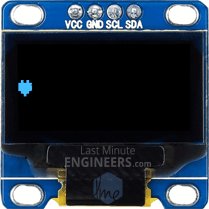
// Display ASCII Characters
display.clearDisplay();
display.setCursor(0,24);
display.setTextSize(2);
display.write(3);
display.display();
delay(2000);
You can also show special symbols using the write() function. This works a bit differently than print()—instead of regular text, it sends a number that represents an ASCII symbol directly to the screen. For example, write(3) will display a heart symbol. It’s a fun way to add icons to your display!
Full Screen Scrolling

// Scroll full screen
display.clearDisplay();
display.setCursor(0,0);
display.setTextSize(1);
display.println("Full");
display.println("screen");
display.println("scrolling!");
display.display();
display.startscrollright(0x00, 0x07);
delay(2000);
display.stopscroll();
delay(1000);
display.startscrollleft(0x00, 0x07);
delay(2000);
display.stopscroll();
delay(1000);
display.startscrolldiagright(0x00, 0x07);
delay(2000);
display.startscrolldiagleft(0x00, 0x07);
delay(2000);
display.stopscroll();
If you want your message to move across the screen, you can make it scroll. First, you display the message normally using the steps we’ve learned. Then, you use startscrollright() or startscrollleft() to make the text move in that direction. You can also use startscrolldiagright() or startscrolldiagleft() to scroll diagonally.
Each of these functions requires two parameters: the start page and the stop page. For more information on the pages, refer to the OLED Memory Map section. Since the display has eight pages, numbered from 0 to 7, you can scroll the entire screen by scrolling through all the pages. To do this, simply pass the parameters 0x00 (for the start page) and 0x07 (for the stop page).
When you want the scrolling to stop, just use stopscroll().
Scrolling Specific Part

// Scroll part of the screen
display.setCursor(0,0);
display.setTextSize(1);
display.println("Scroll");
display.println("some part");
display.println("of the screen.");
display.display();
display.startscrollright(0x00, 0x00);
Sometimes, you might not want to scroll the entire screen, but just a part of it. You can do this by providing the correct start and stop page values to the scrolling functions. For example, if you pass 0x00 for both the start and stop page, it will only scroll the first page of the display.
ESP32 Example Code 2 – Basic Drawings
This example sketch shows how you can draw simple shapes like rectangles, circles, and triangles on the OLED display.
Go ahead and upload the sketch to your Arduino to see how it works before we explain it in detail.
#include <SPI.h>
#include <Wire.h>
#include <Adafruit_GFX.h>
#include <Adafruit_SSD1306.h>

#define SCREEN_WIDTH 128  // OLED display width, in pixels
#define SCREEN_HEIGHT 64  // OLED display height, in pixels

// Declaration for SSD1306 display connected using I2C
#define OLED_RESET -1  // Reset pin
#define SCREEN_ADDRESS 0x3C
Adafruit_SSD1306 display(SCREEN_WIDTH, SCREEN_HEIGHT, &Wire, OLED_RESET);

void setup() {
  Serial.begin(9600);

  // initialize the OLED object
  if (!display.begin(SSD1306_SWITCHCAPVCC, SCREEN_ADDRESS)) {
    Serial.println(F("SSD1306 allocation failed"));
    for (;;)
      ;  // Don't proceed, loop forever
  }

  // Clear the buffer.
  display.clearDisplay();

  // Draw Rectangle
  display.setTextSize(1);
  display.setTextColor(WHITE);
  display.setCursor(0, 0);
  display.println("Rectangle");
  display.drawRect(0, 15, 60, 40, WHITE);
  display.display();
  delay(2000);
  display.clearDisplay();

  // Draw Filled Rectangle
  display.setTextSize(1);
  display.setTextColor(WHITE);
  display.setCursor(0, 0);
  display.println("Filled Rectangle");
  display.fillRect(0, 15, 60, 40, WHITE);
  display.display();
  delay(2000);
  display.clearDisplay();

  // Draw Round Rectangle
  display.setTextSize(1);
  display.setTextColor(WHITE);
  display.setCursor(0, 0);
  display.println("Round Rectangle");
  display.drawRoundRect(0, 15, 60, 40, 8, WHITE);
  display.display();
  delay(2000);
  display.clearDisplay();

  // Draw Filled Round Rectangle
  display.setTextSize(1);
  display.setTextColor(WHITE);
  display.setCursor(0, 0);
  display.println("Filled Round Rectangl");
  display.fillRoundRect(0, 15, 60, 40, 8, WHITE);
  display.display();
  delay(2000);
  display.clearDisplay();

  // Draw Circle
  display.setTextSize(1);
  display.setTextColor(WHITE);
  display.setCursor(0, 0);
  display.println("Circle");
  display.drawCircle(20, 35, 20, WHITE);
  display.display();
  delay(2000);
  display.clearDisplay();

  // Draw Filled Circle
  display.setTextSize(1);
  display.setTextColor(WHITE);
  display.setCursor(0, 0);
  display.println("Filled Circle");
  display.fillCircle(20, 35, 20, WHITE);
  display.display();
  delay(2000);
  display.clearDisplay();

  // Draw Triangle
  display.setTextSize(1);
  display.setTextColor(WHITE);
  display.setCursor(0, 0);
  display.println("Triangle");
  display.drawTriangle(30, 15, 0, 60, 60, 60, WHITE);
  display.display();
  delay(2000);
  display.clearDisplay();

  // Draw Filled Triangle
  display.setTextSize(1);
  display.setTextColor(WHITE);
  display.setCursor(0, 0);
  display.println("Filled Triangle");
  display.fillTriangle(30, 15, 0, 60, 60, 60, WHITE);
  display.display();
  delay(2000);
  display.clearDisplay();
}

void loop() {
}
This is what the output looks like.

You’ll notice that the code for setting up the display is exactly the same as in the previous example. The difference here is that we’re using new functions that let us draw shapes instead of just showing text.
Drawing Rectangle


display.clearDisplay();
display.setTextSize(1);
display.setTextColor(WHITE);
display.setCursor(0,0);
display.println("Rectangle");
display.drawRect(0, 15, 60, 40, WHITE);
display.display();
delay(2000);

display.clearDisplay();
display.setTextSize(1);
display.setTextColor(WHITE);
display.setCursor(0,0);
display.println("Filled Rectangle");
display.fillRect(0, 15, 60, 40, WHITE);
display.display();
delay(2000);
To draw a rectangle, we use the drawRect() function. This function needs five values: where to start drawing on the screen (the X and Y coordinates), how wide and tall the rectangle should be, and what color to draw it in. This function draws only the outline of the rectangle with a 1-pixel thick border.
If you want the rectangle to be filled in completely, you can use fillRect() instead.
Drawing Round Rectangle


display.clearDisplay();
display.setTextSize(1);
display.setTextColor(WHITE);
display.setCursor(0,0);
display.println("Round Rectangle");
display.drawRoundRect(0, 15, 60, 40, 8, WHITE);
display.display();
delay(2000);

display.clearDisplay();
display.setTextSize(1);
display.setTextColor(WHITE);
display.setCursor(0,0);
display.println("Filled Round Rectangl");
display.fillRoundRect(0, 15, 60, 40, 8, WHITE);
display.display();
delay(2000);
For a rectangle with curved corners, you use drawRoundRect(). Just like drawRect(), you give it the X and Y coordinates, the width and height, and the color. But this one also needs an extra number that tells the display how round the corners (the corner radius) should be.
Again, if you want the rounded rectangle to be filled in, you can use fillRoundRect().
Drawing Circle


display.clearDisplay();
display.setTextSize(1);
display.setTextColor(WHITE);
display.setCursor(0,0);
display.println("Circle");
display.drawCircle(20, 35, 20, WHITE);
display.display();
delay(2000);

display.clearDisplay();
display.setTextSize(1);
display.setTextColor(WHITE);
display.setCursor(0,0);
display.println("Filled Circle");
display.fillCircle(20, 35, 20, WHITE);
display.display();
delay(2000);
To draw a circle, you use the drawCircle() function. Here, instead of giving the top-left corner like we did with rectangles, we give the X and Y position of the center of the circle, along with the radius, and the color. This draws just the outline of the circle.
If you want to draw a solid circle, use fillCircle() with the same values.
Drawing Triangle


display.clearDisplay();
display.setTextSize(1);
display.setTextColor(WHITE);
display.setCursor(0,0);
display.println("Triangle");
display.drawTriangle(30, 15, 0, 60, 60, 60, WHITE);
display.display();
delay(2000);

display.clearDisplay();
display.setTextSize(1);
display.setTextColor(WHITE);
display.setCursor(0,0);
display.println("Filled Triangle");
display.fillTriangle(30, 15, 0, 60, 60, 60, WHITE);
display.display();
delay(2000);
To draw a triangle, we use the drawTriangle() function. This one is a bit different because we need to provide three points—each point is made up of an X and Y coordinate. These three points represent the vertices of the triangle. The first point is the top vertex, and the other two are the left and right vertices, in that order. This function draws the outline of the triangle by connecting the three points with straight lines. You also pass in the color just like before.
If you want a filled triangle, use fillTriangle() and give it the same coordinates and color.
ESP32 Example Code 3 – Displaying an Image
In this final example, we’re going to learn how to show an image on the OLED screen. This can be really useful when you want to display things like logos, icons, game sprites, or even simple infographics.
To display an image on the OLED, you first need to convert the image into something the OLED can understand—a special byte array. This array is made up of numbers that represent each individual pixel in the image.
To make things easier, we’ve developed a simple tool that helps you turn your image into an array that the OLED display can use.
OLED Image Converter
1. Select image
2. Image Settings
3. Preview
4. Output
How to Use the Converter?
To get started, upload the image you want to display on your OLED screen.

For this example, we chose a picture of Marilyn Monroe.

Once your image is uploaded, fill in the Identifier field with a name that matches your image. This name will be used as the title of the array in your final Arduino code.
Since our image is of Marilyn Monroe, we entered “MarilynMonroe” as the identifier.
Before you move forward, it’s really important to make sure your image matches the OLED screen’s resolution of 128×64 pixels. If your image is larger than that, it might not display properly on the screen.
You’ll see your image’s current size displayed under the “Image size” section in the Image Settings. To resize it, enter 128 for the width and 64 for the height. Then, choose the proper scaling option to fit your image. You can also choose to center the image vertically or horizontally, and even flip it if you want. All of your changes will appear instantly in the Preview section.
In our case, the original Marilyn Monroe image was 400×300 pixels. So, we entered 128 for the width and 64 for the height, selected “scale to fit,” and centered the image horizontally to make sure it was positioned nicely.

One of the most important settings here is the brightness threshold. This setting decides which pixels become black or white. Any pixel brighter than the threshold will appear white, and anything darker will turn black. There’s also a setting that lets you invert the image colors, which can be useful depending on how you want it to look on your display.
For our image, we set the brightness threshold to 171 to capture more detail and make the image clearer.
As you adjust these settings, keep an eye on the Preview section—it updates in real time so you can see exactly how the image will appear on the OLED.

Once you’re happy with the way everything looks, just click the Generate code button.
And that’s it! Your image will be converted into a ready-to-use array that you can copy and paste into your Arduino sketch.

Arduino Code
To display your image on the OLED screen, insert the generated byte array into the Arduino sketch below.
#include <SPI.h>
#include <Wire.h>
#include <Adafruit_GFX.h>
#include <Adafruit_SSD1306.h>

#define SCREEN_WIDTH 128  // OLED display width, in pixels
#define SCREEN_HEIGHT 64  // OLED display height, in pixels

// Declaration for SSD1306 display connected using I2C
#define OLED_RESET -1  // Reset pin
#define SCREEN_ADDRESS 0x3C
Adafruit_SSD1306 display(SCREEN_WIDTH, SCREEN_HEIGHT, &Wire, OLED_RESET);

// Bitmap of MarilynMonroe Image
const unsigned char MarilynMonroe[] PROGMEM = {
  0xff, 0xff, 0xff, 0xff, 0xff, 0xf8, 0x1f, 0xff, 0xff, 0xff, 0xff, 0xff, 0xff, 0xff, 0xff, 0xff,
  0xff, 0xff, 0xff, 0xff, 0xff, 0xc0, 0x1f, 0xff, 0xff, 0xf0, 0x41, 0xff, 0xff, 0xff, 0xff, 0xff,
  0xff, 0xff, 0xff, 0xff, 0xff, 0x80, 0x7f, 0xff, 0xff, 0xf8, 0x03, 0xff, 0xff, 0xff, 0xff, 0xff,
  0xff, 0xff, 0xff, 0xff, 0xff, 0xf9, 0xff, 0xff, 0xff, 0xe0, 0x07, 0xff, 0xff, 0xff, 0xff, 0xff,
  0xff, 0xff, 0xff, 0xff, 0xff, 0x87, 0xff, 0xff, 0xff, 0xf8, 0x03, 0xff, 0xff, 0xff, 0xff, 0xff,
  0xff, 0xff, 0xff, 0xff, 0xff, 0x07, 0xff, 0xff, 0xff, 0xf8, 0x01, 0xf1, 0xff, 0xff, 0xff, 0xff,
  0xff, 0xff, 0xff, 0xff, 0xff, 0x9f, 0xff, 0xff, 0xff, 0xf8, 0x00, 0xf8, 0xff, 0xff, 0xff, 0xff,
  0xff, 0xff, 0xff, 0xff, 0xff, 0xbf, 0xff, 0xff, 0xff, 0xfc, 0x02, 0x78, 0x7f, 0xff, 0xff, 0xff,
  0xff, 0xff, 0xff, 0xff, 0xff, 0xfc, 0x3f, 0xff, 0xff, 0xfe, 0x03, 0x7c, 0x1f, 0xff, 0xff, 0xff,
  0xff, 0xff, 0xff, 0xff, 0xff, 0xf0, 0x07, 0xff, 0xff, 0xfe, 0x01, 0xfe, 0x1f, 0xff, 0xff, 0xff,
  0xff, 0xff, 0xff, 0xff, 0xfd, 0xe0, 0x03, 0xff, 0xff, 0xfc, 0x00, 0xfe, 0x0f, 0xff, 0xff, 0xff,
  0xff, 0xff, 0xff, 0xff, 0xfe, 0x87, 0xe0, 0xff, 0xff, 0xfc, 0x00, 0x06, 0x07, 0xff, 0xff, 0xff,
  0xff, 0xff, 0xff, 0xff, 0xfc, 0x1f, 0xf9, 0xff, 0xff, 0xfc, 0x00, 0x02, 0x07, 0xff, 0xff, 0xff,
  0xff, 0xff, 0xff, 0xff, 0xf8, 0x1f, 0xff, 0xff, 0xff, 0xfc, 0x00, 0xc3, 0xc3, 0xff, 0xff, 0xff,
  0xff, 0xff, 0xff, 0xff, 0xf0, 0x3f, 0xff, 0xff, 0xe0, 0x0c, 0x00, 0xe7, 0x81, 0xff, 0xff, 0xff,
  0xff, 0xff, 0xff, 0xff, 0xf0, 0x0f, 0xff, 0xff, 0xe0, 0x02, 0x00, 0x02, 0x00, 0xff, 0xff, 0xff,
  0xff, 0xff, 0xff, 0xff, 0xf0, 0x0f, 0xff, 0xff, 0xe0, 0x01, 0x00, 0x00, 0x00, 0x3f, 0xff, 0xff,
  0xff, 0xff, 0xff, 0xff, 0x80, 0x00, 0x3f, 0xff, 0xff, 0xe0, 0x00, 0x00, 0x1e, 0x3f, 0xff, 0xff,
  0xff, 0xff, 0xff, 0xfc, 0x00, 0x00, 0x0f, 0xff, 0x3f, 0xf8, 0x00, 0x18, 0x7f, 0x1f, 0xff, 0xff,
  0xff, 0xff, 0xff, 0xf8, 0x01, 0x80, 0x03, 0xfc, 0x3f, 0xfc, 0x00, 0x70, 0xfe, 0x1f, 0xff, 0xff,
  0xff, 0xff, 0xff, 0xf0, 0x43, 0xff, 0xff, 0xf8, 0x7f, 0xf8, 0x00, 0x00, 0x7e, 0x1f, 0xff, 0xff,
  0xff, 0xff, 0xff, 0xe0, 0x07, 0xff, 0xff, 0xf0, 0xff, 0xfc, 0x00, 0x00, 0x7c, 0x3f, 0xff, 0xff,
  0xff, 0xff, 0xff, 0xe0, 0x0f, 0xff, 0xff, 0xf1, 0xef, 0xf8, 0x00, 0x01, 0xfc, 0x3f, 0xff, 0xff,
  0xff, 0xff, 0xff, 0xe4, 0xff, 0xff, 0xff, 0xf3, 0x80, 0xa0, 0x00, 0x07, 0xfc, 0xaf, 0xff, 0xff,
  0xff, 0xff, 0xff, 0xec, 0x5f, 0xff, 0xff, 0xe7, 0xf0, 0x00, 0x00, 0x03, 0xfe, 0xdf, 0xff, 0xff,
  0xff, 0xff, 0xff, 0xee, 0x7f, 0xff, 0xff, 0xc7, 0xf8, 0x00, 0x00, 0x03, 0xff, 0xdf, 0xff, 0xff,
  0xff, 0xff, 0xff, 0xfe, 0x7f, 0xff, 0xf7, 0xc7, 0xff, 0x06, 0x00, 0x03, 0xff, 0xbf, 0xff, 0xff,
  0xff, 0xff, 0xff, 0xfe, 0x5f, 0xff, 0xc7, 0x07, 0xff, 0x80, 0x00, 0x07, 0xdb, 0xbf, 0xff, 0xff,
  0xff, 0xff, 0xff, 0xee, 0xff, 0xff, 0x80, 0x03, 0xff, 0xc0, 0x00, 0x03, 0xc3, 0x0f, 0xff, 0xff,
  0xff, 0xff, 0xff, 0xfe, 0xff, 0xff, 0x98, 0x03, 0xff, 0xf8, 0x00, 0x07, 0xe0, 0x0f, 0xff, 0xff,
  0xff, 0xff, 0xff, 0xef, 0xff, 0xff, 0xf8, 0x01, 0xff, 0xfc, 0x01, 0x07, 0xfc, 0x1f, 0xff, 0xff,
  0xff, 0xff, 0xff, 0xcf, 0xef, 0xff, 0xff, 0xe1, 0xff, 0xfc, 0x01, 0x07, 0xf8, 0x1f, 0xff, 0xff,
  0xff, 0xff, 0xff, 0x9f, 0xff, 0xff, 0x7f, 0xf1, 0xff, 0xf8, 0x02, 0x07, 0x88, 0x3f, 0xff, 0xff,
  0xff, 0xff, 0xff, 0xcf, 0xef, 0xf8, 0x0f, 0xff, 0xff, 0xe0, 0x00, 0x07, 0x84, 0x3f, 0xff, 0xff,
  0xff, 0xff, 0xff, 0xe7, 0xef, 0xf0, 0x04, 0x7f, 0xff, 0xc0, 0x00, 0x07, 0x84, 0x7f, 0xff, 0xff,
  0xff, 0xff, 0xff, 0x3f, 0xff, 0xe0, 0x00, 0x1f, 0xff, 0x80, 0x00, 0x06, 0x04, 0xff, 0xff, 0xff,
  0xff, 0xff, 0xff, 0x3f, 0x7f, 0xe1, 0xf0, 0x07, 0xff, 0x80, 0x00, 0x07, 0x06, 0xff, 0xff, 0xff,
  0xff, 0xff, 0xff, 0xff, 0xff, 0xc3, 0xfe, 0x03, 0xff, 0x00, 0x00, 0x03, 0x80, 0xff, 0xff, 0xff,
  0xff, 0xff, 0xff, 0xf2, 0x3f, 0xc6, 0x7f, 0x81, 0xce, 0x00, 0x00, 0x01, 0xc1, 0xff, 0xff, 0xff,
  0xff, 0xff, 0xff, 0xe0, 0x3f, 0xc0, 0x07, 0xc1, 0xfe, 0x00, 0x00, 0x0d, 0xc0, 0x7f, 0xff, 0xff,
  0xff, 0xff, 0xff, 0xe0, 0x3f, 0xc0, 0x01, 0xe0, 0xfc, 0x00, 0x00, 0x0f, 0xc0, 0x7f, 0xff, 0xff,
  0xff, 0xff, 0xff, 0xc0, 0x3f, 0xc0, 0x00, 0x50, 0xfc, 0x00, 0x00, 0x0e, 0xc0, 0xff, 0xff, 0xff,
  0xff, 0xff, 0xff, 0xc0, 0x3f, 0xc0, 0x00, 0x18, 0xf8, 0x00, 0x00, 0x0e, 0xc1, 0xff, 0xff, 0xff,
  0xff, 0xff, 0xff, 0xc0, 0x3f, 0xc0, 0x00, 0x00, 0xf8, 0x00, 0x00, 0x66, 0x81, 0xff, 0xff, 0xff,
  0xff, 0xff, 0xff, 0xc0, 0x1f, 0xc7, 0x80, 0x00, 0xf8, 0x00, 0x01, 0xe0, 0x00, 0xff, 0xff, 0xff,
  0xff, 0xff, 0xff, 0xc0, 0x1f, 0xc1, 0xe0, 0x01, 0xf8, 0x00, 0x03, 0xf0, 0x01, 0xff, 0xff, 0xff,
  0xff, 0xff, 0xff, 0x80, 0x1f, 0xc0, 0x3e, 0x03, 0xf0, 0x00, 0x00, 0xe0, 0x03, 0xff, 0xff, 0xff,
  0xff, 0xff, 0xff, 0x00, 0x1f, 0xe0, 0xe0, 0x03, 0xf2, 0x00, 0x00, 0xc0, 0x03, 0xff, 0xff, 0xff,
  0xff, 0xff, 0xff, 0x80, 0x1f, 0xf0, 0x00, 0x07, 0xe6, 0x00, 0x00, 0xc0, 0x03, 0xff, 0xff, 0xff,
  0xff, 0xff, 0xff, 0x80, 0x1f, 0xff, 0x00, 0x1f, 0xee, 0x00, 0x00, 0x80, 0x07, 0xff, 0xff, 0xff,
  0xff, 0xff, 0xff, 0xb8, 0x0f, 0xff, 0xf0, 0x3f, 0xdc, 0x00, 0x00, 0x00, 0x0f, 0xff, 0xff, 0xff,
  0xff, 0xff, 0xff, 0xbc, 0x0f, 0xff, 0xff, 0xff, 0xdc, 0x00, 0x00, 0x00, 0x0f, 0xff, 0xff, 0xff,
  0xff, 0xff, 0xff, 0x9e, 0x0f, 0xff, 0xff, 0xff, 0xf8, 0x00, 0x00, 0x00, 0x1f, 0xff, 0xff, 0xff,
  0xff, 0xff, 0xff, 0x08, 0x0f, 0xff, 0xff, 0xff, 0x70, 0x00, 0x00, 0x00, 0x1f, 0xff, 0xff, 0xff,
  0xff, 0xff, 0xff, 0x00, 0x0b, 0xff, 0xff, 0xfe, 0xe0, 0x00, 0x00, 0x00, 0x1f, 0xff, 0xff, 0xff,
  0xff, 0xff, 0xff, 0x00, 0x0b, 0xff, 0xff, 0xf9, 0xc0, 0x00, 0x00, 0x00, 0x3f, 0xff, 0xff, 0xff,
  0xff, 0xff, 0xff, 0x3c, 0x09, 0xff, 0xff, 0xf1, 0x80, 0x00, 0x00, 0x00, 0x7f, 0xff, 0xff, 0xff,
  0xff, 0xff, 0xff, 0x1e, 0x08, 0x3f, 0xff, 0xc0, 0x00, 0x00, 0x00, 0x00, 0x7f, 0xff, 0xff, 0xff,
  0xff, 0xff, 0xff, 0x1f, 0x08, 0x03, 0xff, 0x00, 0x00, 0x00, 0x00, 0x00, 0x7f, 0xff, 0xff, 0xff,
  0xff, 0xff, 0xff, 0x00, 0x08, 0x00, 0x00, 0x00, 0x00, 0x00, 0x00, 0x00, 0x1f, 0xff, 0xff, 0xff,
  0xff, 0xff, 0xff, 0x80, 0x1c, 0x00, 0x00, 0x00, 0x00, 0x00, 0x00, 0x00, 0x1f, 0xff, 0xff, 0xff,
  0xff, 0xff, 0xff, 0xce, 0x1c, 0x00, 0x00, 0x00, 0x00, 0x00, 0x00, 0x00, 0x1f, 0xff, 0xff, 0xff,
  0xff, 0xff, 0xff, 0xfe, 0x1c, 0x00, 0x00, 0x00, 0x00, 0x00, 0x00, 0x00, 0x3f, 0xff, 0xff, 0xff,
  0xff, 0xff, 0xff, 0xff, 0x7e, 0x00, 0x00, 0x00, 0x00, 0x00, 0x00, 0x00, 0x7f, 0xff, 0xff, 0xff
};

void setup() {
  Serial.begin(9600);

  // initialize the OLED object
  if (!display.begin(SSD1306_SWITCHCAPVCC, SCREEN_ADDRESS)) {
    Serial.println(F("SSD1306 allocation failed"));
    for (;;)
      ;  // Don't proceed, loop forever
  }

  // Clear the buffer.
  display.clearDisplay();

  // Display bitmap
  display.drawBitmap(0, 0, MarilynMonroe, 128, 64, WHITE);
  display.display();

  // Invert Display
  //display.invertDisplay(1);
}

void loop() {
}
Once you upload this sketch to your Arduino, your image will appear on the OLED screen just like in the Preview from the converter tool.

Give it a try, and have fun experimenting with your own favorite images!
Code Explanation
This sketch begins just like the previous examples, where we first set up the OLED display. We include the required libraries and initialize the display using the begin() function. Once that setup is done, we are now adding a custom image to the screen.
To do this, we first place the image data—a byte array—in the global section of the code, above the setup() function. This array is generated using our image converter tool, which turns a picture into a format the OLED screen can understand. In our example, the array is named MarilynMonroe.
Inside the setup() function, after clearing the display, we use a new function called drawBitmap() to draw the image onto the screen. This function is the key to displaying images and it requires six inputs.
The first two values are the X and Y coordinates, which decide where on the screen the image will begin. In our case, we set both to 0, which means the image starts from the top-left corner of the display. The third value is the name of the image array we want to draw, which in our example is MarilynMonroe. The next two values are the width and height of the image—in pixels. Our OLED screen is 128 pixels wide and 64 pixels tall, and our image is exactly that size, so we pass 128 and 64. The last parameter is the color. Since we’re working with a monochrome screen, we use WHITE to display the image in white pixels against the dark background.
So the complete line looks like this:
// Display bitmap
display.drawBitmap(0, 0,  MarilynMonroe, 128, 64, WHITE);
However, even though this function prepares the image to be shown, it won’t actually appear on the screen until we call display.display();. This line sends everything we’ve prepared in memory to the actual OLED screen, so it can be seen.
display.display();Since the image doesn’t need to change or repeat in this example, we leave the loop() function empty.
