


 Subscribe to Help Center RSS Feed
JumpCloud offers several direct channels for technical support, including the Customer Portal, live chat, and phone support.
Help Center
Prior to contacting JumpCloud Support, we encourage you to look up our Help Center for immediate solutions.
To get to our Help Center:
- In the top right corner of the Admin Portal, click Support > Go to Help Center.
- You can either search our Help Center or click on the tiles to bring you to a specific category to explore what articles might be helpful.
Giving Feedback on Documentation
At the bottom of every Help Center article, you can let us know if our content met your needs:
- Click the Yes or No button to indicate if the information was helpful.
- Enter your Email address.
- Choose a general reason for your feedback from the dropdown menu (e.g., "Information inaccurate" or "Enhancement suggestion").
- Provide specific details in the Description field and click Send.
Methods for Contacting Support
You can reach our team through the following channels based on your support tier:
- Admin Portal: Access the Customer Portal directly to create and track cases. Jump to Submitting a Support Case from the Admin Portal
- Live Chat:
- Premium Support: Access real-time chat through the Admin Portal.
- Free Trial: New accounts have 30 days of Premium Chat access.
- Self-Service: All tiers can use the Resolution bot and check platform status via Chat.
Jump to Live Chat in the Admin Portal.
- Phone: Premium Support customers can call 1-855-481-9316. Keep your Support PIN ready to confirm your identity.
Information to Include in Your Request
To help us resolve your issue faster, provide as much detail as possible in your case, including:
- Detailed issue description and your workflow summary
- Troubleshooting steps you have already taken
- Error messages and screenshots
- Device details: System ID, Agent version, and OS version
- Applicable JumpCloud Agent logs:
- Windows:
C:\Windows\Temp\jcagent.log - Mac & Linux:
/var/log/jcagent.log
- Windows:

Support requests must be submitted by an active Admin associated with your account.

- See Best Practices for Submitting Support Case to learn what information to include so we can resolve your issue faster.
- See Vulnerability Disclosure Policy to learn more on reporting a security vulnerability.
Submitting a Support Case from the Admin Portal

If you're a corporate partner, or MSP using the Multi-Tenant Portal, see Support in the MTP to learn more.
- Log in to your JumpCloud Admin Portal.
If your data is stored outside of the US, check which login URL you should be using depending on your region, see JumpCloud Data Centers to learn more.
- Click the support icon on the top right.

- Click View Case Portal or Create A Support Ticket. This opens JumpCloud’s Customer Portal in a new tab.
- On the main page, click Create a Support Case.

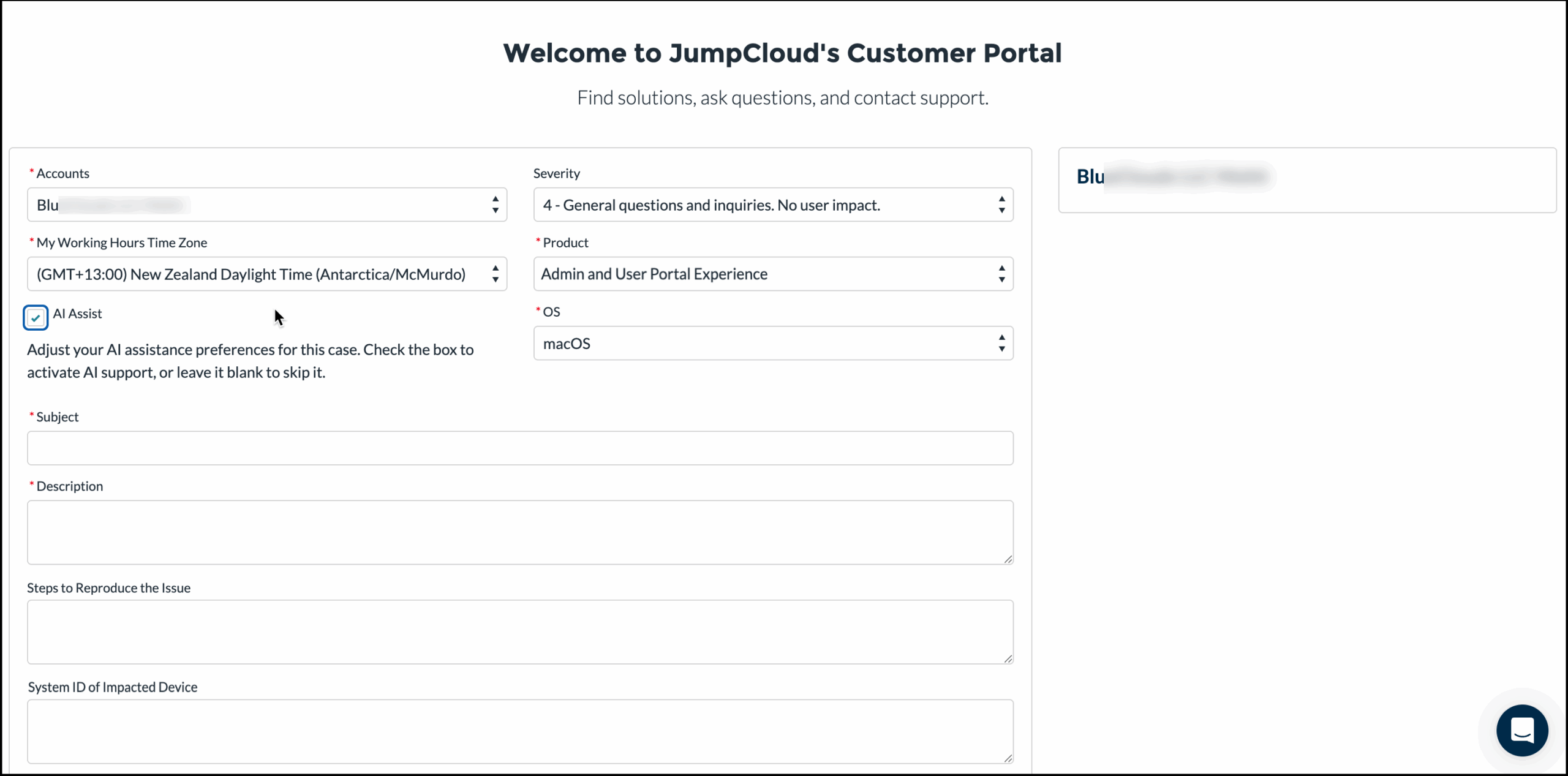
- Fill in the following fields:
- Accounts: Select the org associated with the issue.
- Severity: Choose the level that matches the operational impact.
- My Working Hours Time Zone: Select your time zone.
- Product: Select the impacted product area and operating system.

- AI Assist: Check the box to activate AI support for this case.
AI Assist provides an instant response within minutes by analyzing thousands of proven solutions, reducing your manual troubleshooting time. A human agent is always ready to take over if the issue requires further escalation.
- OS: Select the operating system. Go to the impacted device's Highlights page and scroll down to Device Overview.
- Subject: Enter a brief, descriptive title for the issue.
- Description: Provide a thorough explanation of the problem and the outcome you need.
- Steps to Reproduce the Issue: List the primary steps needed to trigger the error.
- System ID of Impacted Device: Enter the unique ID found in the Device Overview section of your Admin Portal.


Some orgs have settings that change Device ID to JumpCloud System ID. They both refer to the same thing. To find the System ID on the device locally, open the configuration file found in the JumpCloud installation folder, and locate "systemKey":
- macOS/Linux:
/opt/jc/jcagent.conf - Windows:
C:\Program Files\JumpCloud\Plugins\Contri\jcagent.config
- Click Next.
- A file upload section is displayed. Optionally, attach your files to the ticket. Accepted file types are: .log, .txt, .png, and .jpg.
- Click Finish. The new case appears in the Open Cases table after a few moments. You will receive a confirmation email for your submitted ticket.
What to Expect After Submitting a Ticket
- After you submit a support ticket, you’ll receive a confirmation email of your submitted ticket. You can reply to this email to add additional information regarding your ticket.
- Easily view and track submitted ideas and support cases in the Customer Portal. See Manage Support Cases in the Customer Portal to learn more.
- See JumpCloud Support Request Guidelines to learn about our response times and issue escalation policies.
To share your ideas on new features or enhancements from the Admin Portal, use the Feature Request Portal. See Request Features to learn more.
Using Live Chat in the Admin Portal
Premium Support customers can access live chat support through the Admin Portal.
All customers, regardless of support tier, will be able to use self-service features in chat and see the Status of the platform. New accounts in the 30-day free trial have access to Premium Support Live Chat for the full 30 days.
To initiate live chat support:
- From the JumpCloud Admin Portal top menu, click Live Chat.
- Alternatively, in the bottom right, click Live Chat.
If you're a corporate partner, or MSP using the Multi-Tenant Portal, you will need to contact support through an individual org's Admin Portal.
- In the chat menu, click Send us a message.


We will automatically recognize your Premium Support status and you won't need to provide a Premium Support PIN.
Support Request Guidelines
In order to gain a mutual understanding on the relative impact of a technical issue for an organization, the purpose of this section is to define severity levels, target response times, and an escalation path. JumpCloud support is available to eligible orgs, see JumpCloud Support Policies to learn more.
Support Tiers and Eligibility
- Premium Support - Customers and partners can opt for 24 x 7 x 365 priority support access via phone, email, and chat through JumpCloud’s Premium Support offering. This support level is ideal for all customers and especially those interested in efficiency, security, and maximizing their IAM investments.
- Standard Support - Our customers and partners who are currently engaged in month-to-month or annual contract billing plans with JumpCloud receive the benefit of JumpCloud’s support assistance.
- 30-Day Free Trial - JumpCloud Help Center access is always available, and Premium Support is included in the 30-day free trial.
- Free Accounts (no active trial) - Legacy free accounts that are not in an active trial period with JumpCloud are entitled to JumpCloud Help Center access and JumpCloud's chat bot located in the Admin Portal. Free accounts are not entitled to phone, email, or chat support.
Support Level by Tier
| Free Trial Period | Standard | Premium | |
|---|---|---|---|
| Pricing | N/A | Included |
Contact Sales to enroll |
| Priority Access | N/A | Standard | Priority Access |
| Support Method and Time | Online | Weekdays, 9am-5pm Local Time | 24 x 7 x 365 |
| JumpCloud Help Center | x | x | x |
| Email Support | x | x | x |
| Live Chat | x | x | |
| Phone | x | ||
| Eligible for Early Access functionality | x | ||
| Response Time SLA | |||
|
Severity 1 Entire loss of functionality; severe operational impact. Majority of users impacted. |
4 hours | 1 hour | |
|
Severity 2 Major loss of functionality; operations / user impact high. |
8 hours | 2 hours | |
|
Severity 3 Partial; non-critical issue; operations not severely impacted; user impact is low. |
Next business day | 4 hours |
Requesting an Issue Escalation
If a support request is not progressing as expected or the situation changes, you can request an escalation. This brings the case to the attention of management to prioritize resources for a timely resolution
To escalate a case, reply to the last communication received on the issue and CC Escalations.
After an escalation has been requested, an escalation engineer will evaluate the situation and determine the appropriate next steps. The request will not be de-escalated until we have:
- Confirmed there is an acceptable action plan.
- Verified troubleshooting and problem analysis are following proper process.
- Documented that all parties agree the request can be de-escalated.
 In this Article
 Learn More