DIY Guide: Creating a COVID-19 Style Interactive Map for Your Website with MapGeo


The COVID-19 pandemic has drastically impacted the way we view and interact with the world. As businesses, institutions, and individuals scramble to comprehend the magnitude and scale of this global crisis, data visualization has proven to be an invaluable tool. Among the most impactful and widely circulated of these are the interactive COVID-19 maps. If you want to create your own interactive COVID-19 style map for your website, you’ve come to the right place.
MapGeo, formerly known as Interactive Geo Map, is an impressive tool that allows you to craft your own interactive maps infused with data. Today, we’ll guide you step-by-step on how to use MapGeo to create a COVID-19 style interactive map for your website. Don’t worry, you don’t need to be a tech genius—it’s business casual and fun.
Step 1: Download and Install MapGeo
Your first step is to get your hands on MapGeo. Head to the MapGeo website, click on ‘Download’, and follow the prompts to install. Remember, safety first—ensure your download is complete before moving onto the next step.
Step 2: Choose Your Map
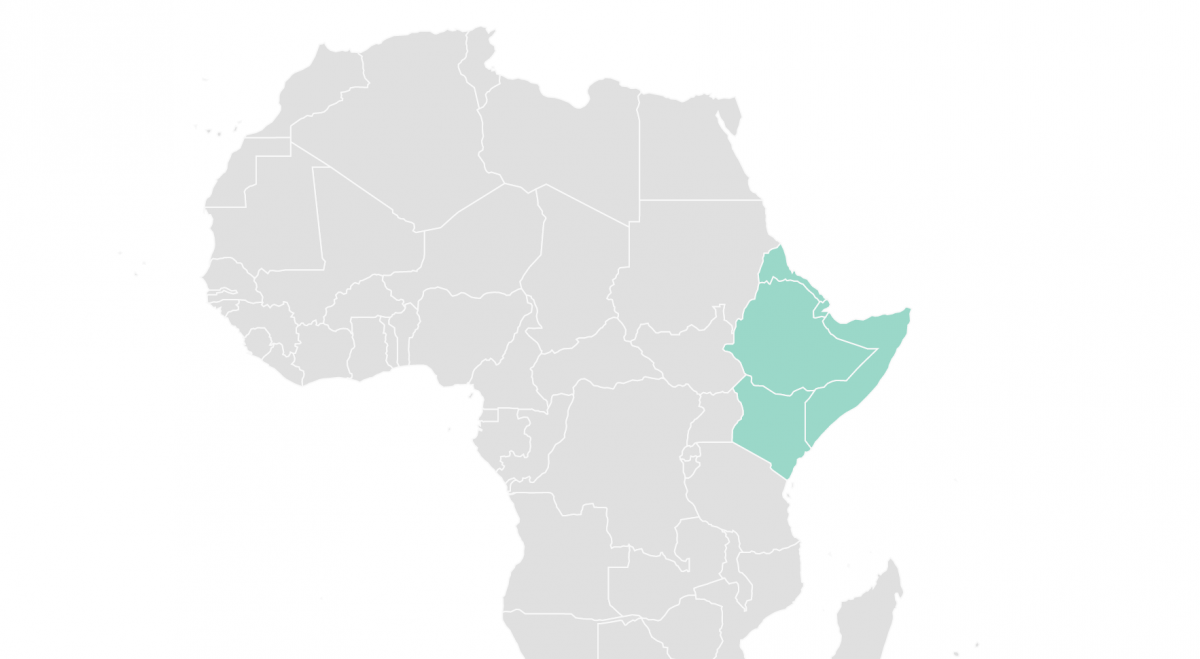
Once MapGeo is up and running, it’s time to select the map you want to use. MapGeo offers a dynamic range of global, regional, and country-specific maps. Choose the one that best fits your needs.
Step 3: Visualizing Data
Here’s where the magic happens—transforming raw data into a visual spectacle. You’ll want to connect your data source to MapGeo. This could be a CSV file or an API from a health organization. MapGeo’s ‘Data’ tab helps you do this seamlessly.
Step 4: Customize Your Map
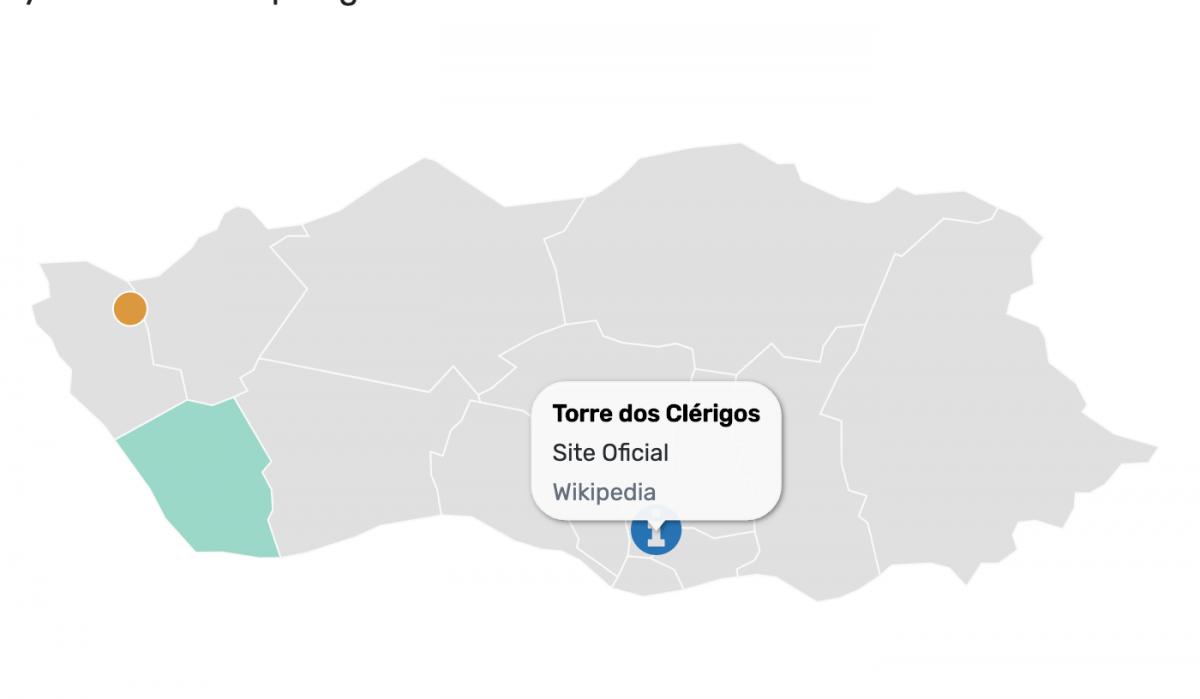
MapGeo’s customization options are extensive. You can change colors based on data ranges, add tooltips, and even create zoom buttons. Tailor your map to your heart’s content, ensuring it visually represents the data you want to convey.
Step 5: And… Publish!
Once you’ve fine-tuned your map, it’s time to share it with the world. Publishing your interactive map on your website is as simple as copying and pasting the provided shortcode into your webpage’s code.
In conclusion, creating a COVID-19 style interactive map for your website using MapGeo is straightforward and effective. It’s a great way to showcase the data you care about and give your audience an interactive experience they’ll appreciate. So roll up your sleeves and start mapping!