Turn on two factor authentication
On this page
Two factor authentication (2FA) adds a second sign in step to your Deskwoot account: a code from an authenticator app, on top of your password. Even if your password leaks, nobody can sign in without the 6 digit code from your app.
Turn on 2FA
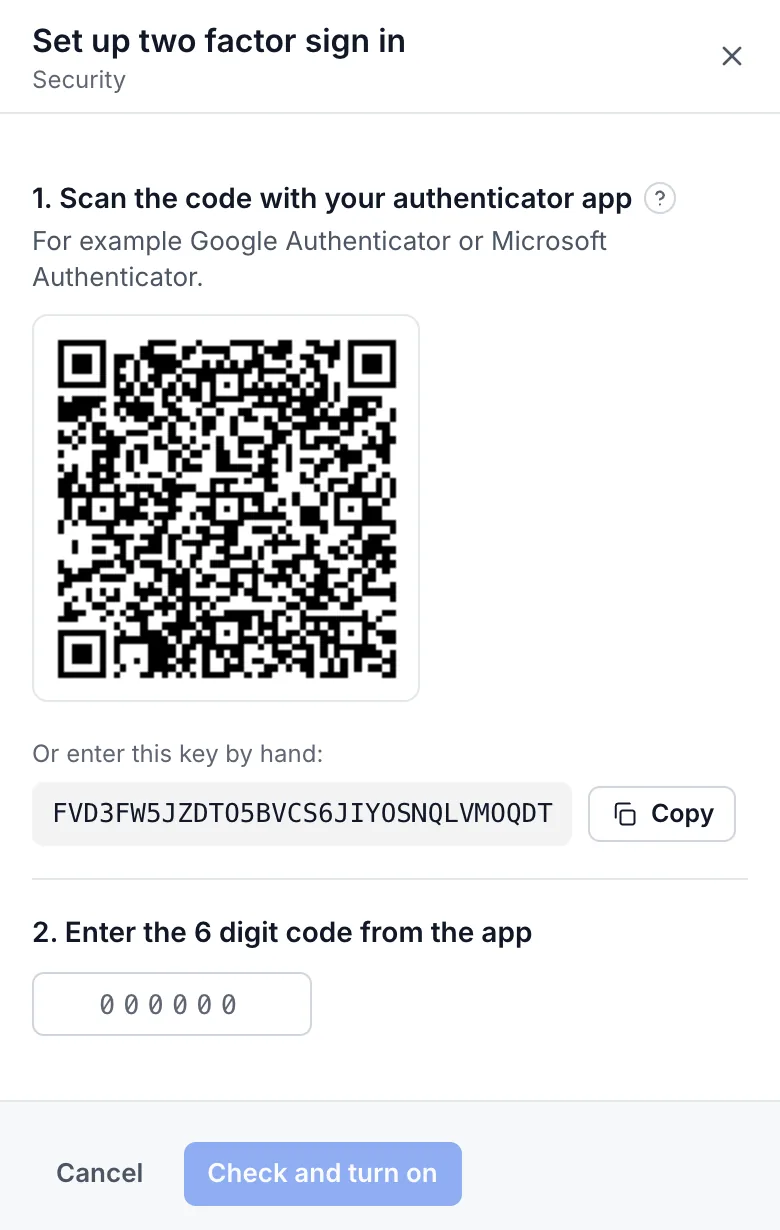
Setup takes about 1 minute and works with any TOTP app, for example Google Authenticator, Authy, 1Password or Microsoft Authenticator.
- Go to Settings > Security.
- Next to Two factor sign in, click Set up.
- Enter your password and click Continue.
- Open your authenticator app on your phone and scan the QR code on the screen.
- Enter the 6 digit code from the app and click Check and turn on.
- Save the 8 recovery codes in a safe place, then click Done. They are shown only once, and you need them if you lose access to your authenticator app.
You can also use a passkey or a security key, with the app or instead of it: click Add next to Passkeys and security keys on the same page.
Tips
- Keep your recovery codes safe. Write them down or store them in a password manager. They get you back in if your phone is lost, stolen or reset.
- Use an authenticator app. Deskwoot does not send codes by SMS, and codes from an app are harder to intercept anyway.
- Set your phone's clock to automatic. Codes depend on the time, and even a small drift makes Deskwoot reject them.
- Ask your whole team to turn on 2FA, especially administrators and agents with access to sensitive customer data.
- Keep your authenticator app up to date so it stays compatible and gets the latest security fixes.
Frequently asked questions
Can I require 2FA for everyone in my workspace?
Yes, on the Enterprise plan. By default 2FA is optional. An administrator turns on Two factor sign in for everyone under Settings > Account Settings.
Members without 2FA are sent to their security settings on their next visit and can continue to the dashboard only after they set it up under Settings > Security.
What if I lose my phone?
Sign in with one of the recovery codes you saved during setup. Then turn 2FA off and set it up again with your new phone. If you also lost the recovery codes, contact Deskwoot support. Workspace administrators cannot reset another member's 2FA.
Do I enter the code every time I sign in?
Yes. There is no option to trust a device for X days, because security comes first in a tool that holds customer data. If signing in this often gets in your way, tell support.
Does 2FA work with the mobile app?
Yes. The first time you sign in to the mobile app, you enter your password and the 6 digit code, as on the web. After that the app uses a long lived token, so you don't enter the code each time you open it.
How do I turn off 2FA?
Go to Settings > Security and click Turn off next to Two factor sign in. You confirm with your password and the code from your app (or a recovery code), so nobody with access to your open session can quietly remove the protection.
If your workspace requires 2FA for all members, you are sent straight back to set it up again. If you added a passkey, the row is called Authenticator app and Turn off removes only the app, so you keep signing in with your passkey.
Can I use more than one authenticator device?
Yes. Scan the QR code with several devices during setup, for example your phone and a 1Password vault on your laptop. Each one makes valid codes, which helps if you often switch devices or want a backup.
Was this guide helpful?
Keep reading
- Slack notificationsAdd the Deskwoot app to Slack and pick which channels get new conversations, assignments, mentions, resolved conversations, CSAT ratings and SLA breaches.Read guide
- API tokens and developer accessCreate a token for the Deskwoot REST API, pick its scopes and expiry, and make your first call.Read guide
- Import from ZendeskMove Zendesk tickets (archived ones included), users, organizations and your help center to Deskwoot.Read guide