Embed the chat widget code
On this page
The chat widget goes on your website with one short snippet of code before the closing </body> tag, or through Google Tag Manager. It loads asynchronously, so it does not slow down your page.
JavaScript embed code
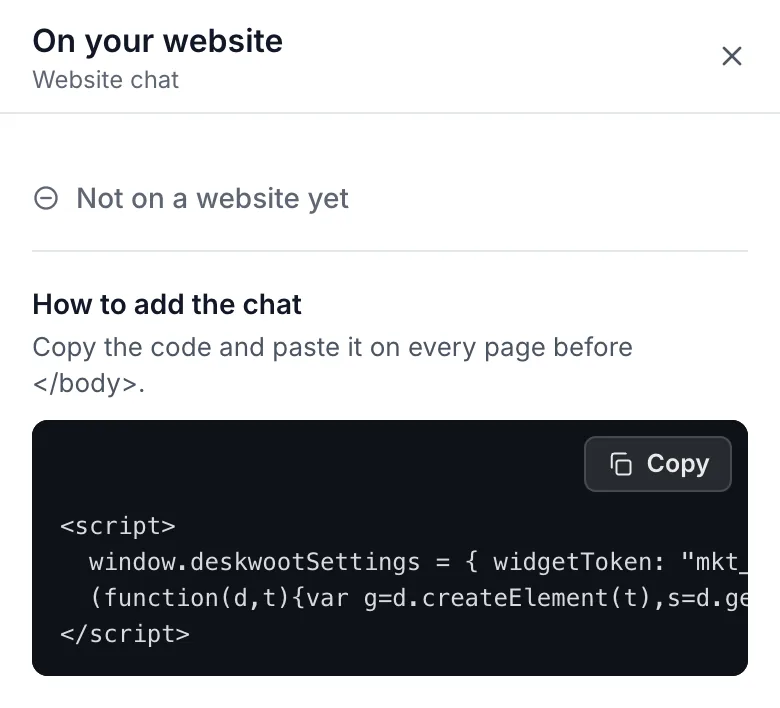
Deskwoot creates the snippet when you create a live chat inbox. To copy it:
- Go to Settings > Inboxes.
- Click your live chat inbox.
- Click On your website.
- Under How to add the chat, click Copy.
- Paste the code before the closing
</body>tag on every page where you want the chat.
The snippet is a short inline script. It sets window.deskwootSettings = { widgetToken: "YOUR_WIDGET_TOKEN" } and then loads https://deskwoot.com/widget/deskwoot-loader.js asynchronously.
You need no build step and no npm package. The code works on WordPress, Webflow, Shopify, Wix, plain HTML and any site that lets you add a script tag.
Widget token
The widgetToken value in the code is your widget's unique id: it connects the widget to your inbox, and you find it in your inbox settings. It is safe to keep in your frontend code, because it only lets visitors start conversations.
Each live chat inbox has its own widget and token, so your marketing site and your app can show different widgets.
React and Next.js
- React: add the script tag to your index.html, or load it with a useEffect hook.
- Next.js: use the Script component from next/script with
strategy='afterInteractive'. Put it in your layout.tsx or _app.tsx to load the widget on every page.
WordPress
- Go to Appearance > Theme Editor.
- Open the footer.php file.
- Paste the code before the closing </body> tag.
To add the code without editing theme files, use a plugin like 'Insert Headers and Footers'. With a page builder like Elementor, add an HTML widget with the code.
Single page apps
The widget works with every single page app framework, including React, Vue, Angular and Svelte. Load the script once in your app shell, and it stays across route changes.
window.deskwootSettingstakes options such as a signed user identity, see Identity verification for logged in customers.window.deskwootopens, closes or toggles the widget from your code, see Open the chat widget from your own button.
Frequently asked questions
Where do I find my embed snippet?
Go to Settings > Inboxes, click your live chat inbox, then On your website. The code under How to add the chat already holds your widget token, so you just copy and paste it.
Where on the page does the snippet go?
Anywhere before </body>, and the <head> works too. The widget loads asynchronously, so its position does not slow down the first paint of your page. Many sites add it with Google Tag Manager and never touch the HTML.
How do I install it on WordPress?
Use a plugin for header and footer code, for example WPCode. Paste the code into its 'Body' or 'Footer' slot and save. No plugin? Edit your theme's footer.php and paste it before </body>, or paste it into a Custom HTML block.
How do I install it on Shopify?
Go to Online Store > Themes > Edit code, open theme.liquid and paste the code before </body>. The chat then shows on every page of your store.
Was this guide helpful?
Keep reading
- Identity verification for logged in customersLet the chat recognize customers who are logged in on your site: your server signs their user id, and they chat under their real name, marked as verified.Read guide
- Show the chat inside your pageEmbedded mode shows the chat in a container on your page or full screen, instead of the floating bubble, with one option in your widget code.Read guide
- Add the chat to your mobile appThe mobile SDK puts your live chat into your iOS and Android app as a native screen, and replies reach your customers as push notifications.Read guide