
SandVault - Run AI agents and shell commands in a sandboxed macOS user account. Sandboxed web and app testing with Chrome and iOS Simulator.

- AI ready - Includes Claude Code, OpenAI Codex, OpenCode, Google Gemini, pi, Muse Code, and the herdr agent multiplexer
- Web and iOS automation - sandbox access to Chrome / Lightpanda and iOS Simulator
- Fast context switching - No VM overhead; instant user switching
- Passwordless - switch accounts without a prompt (after setup)
- Shared workspace - joint access to
/Users/Shared/sv-$USER - Defense in depth - limited user account +
sandbox-exec - Clean uninstall - Complete removal with
sv uninstall
- Run Browser Automation from within the sandbox that can be used for testing web interactions.
- Run iOS Simulator Automation from within the sandbox that can be used for iOS app testing.
- To run
xcodebuildorswiftsee Sandboxing xcodebuild and swift for details. - To run other sandboxed applications inside sandvault, use the
-xoption. See Sandboxing other apps for details. - It's not possible to run GUI applications from within the sandbox; see Running GUI Applications for details.
SandVault has limited access to your computer:
- Cannot access your home directory
- Runs with standard user privileges
- Cannot modify system files
- Has no access to mounted drives
- writable:  /Users/Shared/sv-$USER         -- only accessible by you & sandvault-$USER
- writable:  /Users/sandvault-$USER         -- sandvault's home directory
- readable:  /usr, /bin, /etc, /opt         -- system directories
- no access: /Users/*                       -- other user directories

- writable:  /Volumes/Macintosh HD          -- accessible as per file permissions
- no access: /Volumes/*                     -- cannot access mounted/remote/network drives
Install via Homebrew:
brew install sandvaultInstall via git:
# Clone the repository
  git clone https://github.com/webcoyote/sandvault

# Option 1: add the sandvault directory to your path
  export PATH="$PATH:/path/to/where/you/cloned/sandvault"

# Option 2: add to your shell configuration for easy access
  echo >> ~/.zshrc  'alias sv="/path/to/where/you/cloned/sandvault/sv"'
echo >> ~/.bashrc 'alias sv="/path/to/where/you/cloned/sandvault/sv"'# Run Claude Code in the sandbox
# shortcut: sv cl
sv claude
# Run OpenAI Codex in the sandbox
# shortcut: sv co
sv codex
# Run OpenCode in the sandbox
# shortcut: sv o
sv opencode
# Run Google Gemini in the sandbox
# shortcut: sv g
sv gemini
# Run pi in the sandbox
# shortcut: sv p
sv pi
# Run Muse Code in the sandbox
# shortcut: sv m
sv muse
# Run herdr (many agents, one terminal) in the sandbox
# shortcut: sv hd
sv herdr
# Run command shell in the sandbox
# shortcut: sv s
sv shellThe default mode for sandvault runs commands as a limited user (basically sudo -u sandbox-$USER COMMAND). Sandvault also configures the limited sandvault account so that you can run commands via SSH (ssh [email protected]), and everything works the same. Use the -s or --ssh option to use SSH mode with sv, or use tmux or screen for users so inclined.
# Run using impersonation
# sv COMMAND
  sv gemini

# Run using ssh
# sv -s/--ssh COMMAND
  sv --ssh gemini
To let other keys SSH into the sandvault user, drop each public key into its own file in ~/.config/codeofhonor/sandvault/authorized_keys.d/, then run any sv command to apply it:
cp ~/.ssh/id_ed25519_laptop.pub ~/.config/codeofhonor/sandvault/authorized_keys.d/laptop
sv build
Those files are the source of truth: sandvault regenerates the sandvault user's authorized_keys from them plus its own key on every run, so deleting a file revokes that key on the next run. Files that are not SSH public keys are ignored with a warning, and a private key left there stops the build rather than being copied into the sandbox.
# Run AI agent with optional arguments
# Usage:
#   sv <agent> [PATH] [-- AGENT_ARGUMENTS]
# Example:
  sv gemini -- --continue


# Run shell command in sandvault and exit
# Usage:
#  sv shell [PATH] -- [SHELL_COMMAND]
# Example:
  sv shell /Users -- pwd      # output: /Users


# Send input via stdin
# Usage:
#   <producer> | sv shell [PATH] [-- SHELL_COMMAND]
# Examples:
  echo "pwd ; exit" | sv shell /Users       # output: /Users

  echo ABC | sv shell -- tr 'A-Z' 'a-z'     # output: abc

  cat PROMPT.md | sv gemini


# Clone local/remote Git repository into /Users/Shared/sv-$USER/repos/<git-repository> and open there
# Usage:
#   sv-clone [OPTIONS] URL_OR_LOCAL_PATH [-- SV_ARGS]
# Examples:
  sv-clone https://github.com/webcoyote/sandvault.git -- codex
  sv-clone ~/src/my-app -- codex
  sv-clone https://github.com/webcoyote/sandvault.git -- shell
  sv-clone ../my-app -- shell
Use a full or relative path with a directory name for local clones. Everything
after -- is passed to sv, so sv-clone ~/src/my-app -- claude -- --model opus
clones the repository and starts Claude Code there. Run sv-clone --help for the
full list of options, including -k/-w to provision a per-repository deploy key.
For local Git repositories, sandvault also wires remotes:
- Your local Git repository gets/updates remote
sandvault->/Users/Shared/sv-$USER/repos/<git-repository> - This lets you run
git fetch sandvaultfrom the original local Git repository to pull commits made in the sandvault Git repository.
By default, SandVault installs AI tools via Homebrew on the host side. With --native-install (-N), tools are instead installed inside the sandbox using their own installers:
- Claude Code — installed via
curl -fsSL https://claude.ai/install.sh | bash - Codex — installed via
npm install -g @openai/codex - OpenCode — installed via
curl -fsSL https://opencode.ai/install | bash - Gemini — installed via
npm install -g @google/gemini-cli - pi — installed via
npm install -g @earendil-works/pi-coding-agent - Muse Code — installed via
curl -fsSL https://dev.meta.ai/install.sh | bash - herdr — installed via
curl -fsSL https://herdr.dev/install.sh | sh
Tools are installed on first run and reused on subsequent runs.
# Install and run Claude Code natively
sv --native-install claude
sv -N claude

# Works with all AI agents
sv -N codex
sv -N opencode
sv -N gemini
sv -N pi
sv -N muse
sv -N herdr
To make native install the default, set SANDVAULT_ARGS:
# Add to your shell profile (~/.zshrc, ~/.bashrc, etc.)
export SANDVAULT_ARGS="--native-install"

# Now 'sv claude' uses native install automatically
sv claudeSet SANDVAULT_ARGS to supply default arguments that are prepended to the command line:
# Add to your shell profile (~/.zshrc, ~/.bashrc, etc.)
export SANDVAULT_ARGS="--verbose --ssh"

# Now these are equivalent:
sv claude
sv --verbose --ssh claude
Shell quoting is supported, so arguments with spaces work:
export SANDVAULT_ARGS='shell "/Users/me/my project"'Explicit command-line arguments are appended after SANDVAULT_ARGS, so they are processed afterwards.
# Build sandvault but do not run a command
  sv build
  sv b


# Rebuild sandvault, including updating all file permissions and ACLs in the shared volume
  sv build --rebuild
  sv b -r

# Fix permissions when using a restrictive umask (e.g. 077)
  sv --fix-permissions
  sv --fix-permissions build

# Uninstall sandvault (does not delete files in the shared volume)
  sv uninstall


# Misc commands
  sv --version
sv --helpSetting up sandvault requires administrative permission to create a new user account, shared directories, a sudoers file, and more, so a standard user account without the ability to run sudo cannot configure sandvault.
It is possible for an administrative user to setup sandvault on behalf of a standard user account (here, somebody) by temporarily giving that person administrative rights, then revoking permission afterwards:
# assumes sandvault is already installed via `brew install sandvault`
echo 'somebody ALL=(ALL) NOPASSWD: ALL' | sudo tee /etc/sudoers.d/tmp-somebody
sudo -u somebody -i sv build
sudo rm /etc/sudoers.d/tmp-somebody
agentsview is a dashboard for AI coding agents that shows session history, search, and cost tracking. If you have agentsview installed on the host, sv-agentsview-setup mirrors sandbox session data so that it appears next to your host-side sessions.
# Detect agentsview, prompt to opt in, and configure
sv-agentsview-setup
You are prompted once, on the first run. After that, sv-agentsview-setup re-syncs on every run. It installs the mirror symlinks and adds the missing scan paths to ~/.agentsview/config.toml. New agents that sandvault adds in a later release appear the next time you run the command. When a new scan path is added, the command shows a diff and asks for confirmation. If you decline, that agent is skipped permanently. Remove its key from /Users/Shared/sv-$USER/_sandvault/setup/agentsview-declined.keys to enable it again.
Then run agentsview serve. You will see your sandvault AI sessions in the agentsview dashboard.
herdr is a terminal multiplexer for coding agents: run several agents as panes in one session, with a sidebar showing which are working, blocked or done.
sv herdr                          # start, or reattach to, herdr in the sandbox
sv herdr -- --session experiments # arguments after -- go to herdr (separate server)
Detach with ctrl+b q; the panes keep running and the next sv herdr reattaches.
herdr runs a background server that outlives the sv command, and every pane is a child of that server. So panes keep the sandbox and environment of the session that first started the server, not of the session that later attaches:
--no-sandboxis refused with herdr: an unsandboxed first launch would leave every later pane unsandboxed too. Runningherdrfrom insidesv -x shellis refused for the same reason.--chromeand--iosare refused with herdr. Their endpoints are torn down when you detach, but the server's panes would keep the staleSV_BROWSER_ENDPOINT/SV_IOS_SIMULATOR_ENDPOINT. Runsv --lightpanda herdr, as the lightpanda browser runs inside the sandbox.- The starting directory and
-Nsetting are also fixed when the server starts. Use-- --session NAMEfor a separate server.
herdr can install state-reporting hooks into other agents (herdr integration install claude). This is not done automatically because it edits those agents' config files; run each agent once first so its config folder exists.
In addition to running in a different macOS user account, sandvault also runs applications using macOS sandbox-exec, which further limits what resources are accessible.
Some applications, like swift, already run inside a sandbox. Because macOS does not support nested (i.e. recursive) sandboxes, these applications fail to run.
Read on for solutions.
For swift (and xcodebuild, which runs swift), you can set the following variables in your build scripts to run inside sandvault:
For swift:
ARGS=()

# Disable sandboxing when running inside sandvault to avoid nested sandbox-exec
if [[ -n "${SV_SESSION_ID:-}" ]]; then
    ARGS+=(--disable-sandbox)
fi

swift build "${ARGS[@]}" "$@"
For xcodebuild:
ARGS=()

# Disable sandboxing when running inside sandvault to avoid nested sandbox-exec
if [[ -n "${SV_SESSION_ID:-}" ]]; then
    export SWIFTPM_DISABLE_SANDBOX=1
    export SWIFT_BUILD_USE_SANDBOX=0
    ARGS+=("-IDEPackageSupportDisableManifestSandbox=1")
    ARGS+=("-IDEPackageSupportDisablePackageSandbox=1")
    # shellcheck disable=SC2016 # Expressions don't expand in single quotes # that is intentional
    ARGS+=('OTHER_SWIFT_FLAGS=$(inherited) -disable-sandbox')
fi

xcodebuild \
    build \
    "${ARGS[@]}" \
...If the app you intend to run does not support disabling the use of sandbox-exec like xcodebuild and swift you can run sandvault without sandbox-exec:
# Disable use of sandbox-exec (app still runs as sandvault user) using -x / --no-sandbox
  sv -x           claude
  sv --no-sandbox codex
  sv --no-sandbox shell $HOME/projects/my-app -- xcodebuild ...
Disabling sandbox-exec has the following security implications:
- No protection against reading/writing removable drives (
/Volumes/...) - No protection against writing files with
o+w(0002) file permissions
# To find all files on your computer that are "world writable" (perms: `o+w` / 0002)
# run this command from your account (not in sandvault):
  find / \
       -path "/Users/sandvault-$USER" -prune \
    -o -path "/Users/sv-$USER" -prune \
-o -perm -o=w -print 2>/dev/nullIf your sandbox is misbehaving you can fix it with a rebuild or uninstall/reinstall. They're both safe and will not delete files in the shared sandbox folder.
# Force rebuild
sv --rebuild build


# Uninstall then reinstall
sv uninstall
sv build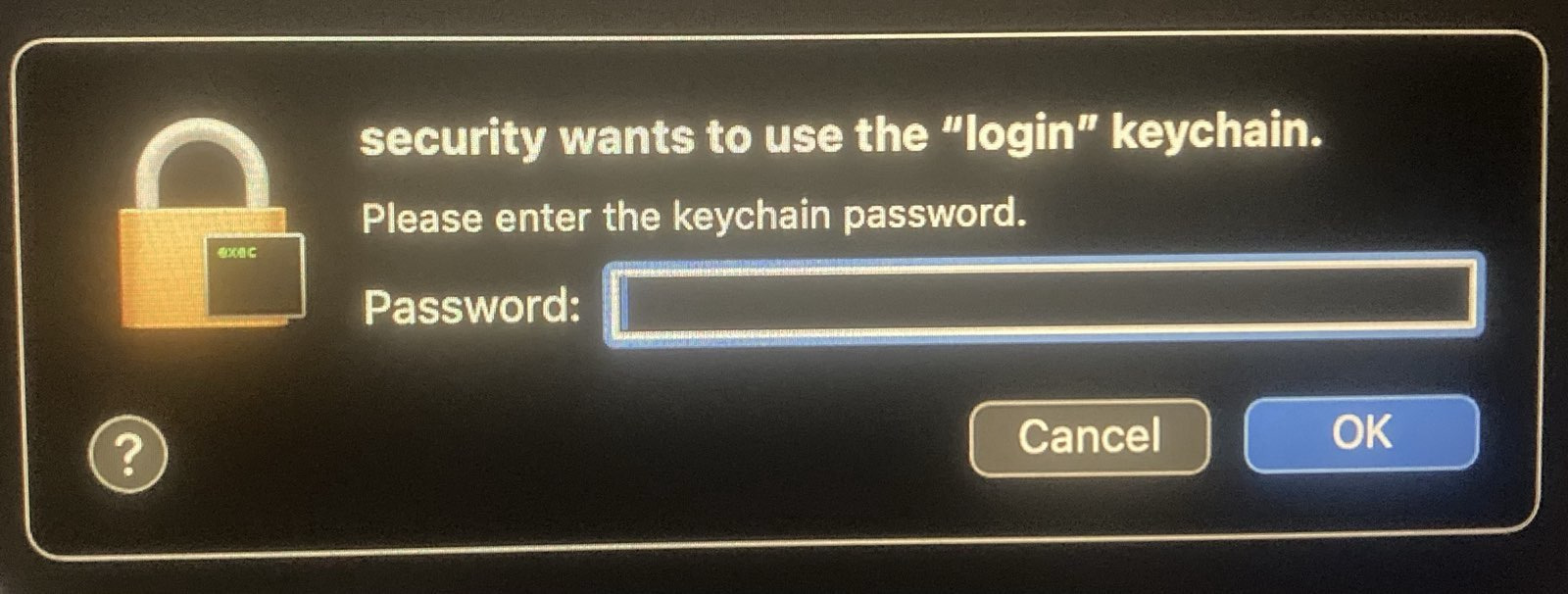
If you see a security popup above, it may be because files in the shared sandvault directory don't have the correct ACLs, which occurs when another user's files are copied into the sandvault shared directory (/Users/Shared/sv-$USER). This can be corrected by running the rebuild command sv --rebuild build, or adding the rebuild flag to any command, e.g. sv -r shell. This only needs to be done once.
If you see "Permission denied" errors when running sv, your shell may have a restrictive umask (e.g., 077 instead of the default 022). Check with:
umaskSandVault detects this and warns you. To fix it for the current session, add --fix-permissions:
# Fix permissions (standalone or with build)
sv --fix-permissions
sv --fix-permissions build
If you previously installed Homebrew under a restrictive umask, you may also need to fix its directory permissions:
sudo chmod -R o+rX /opt/homebrewIf you're using sandvault, you're probably the type of person who also sets custom shell configuration files, and you'd be disappointed if you had to use default zsh while running sv shell. Here's how to configure your custom configuration for sandvault:
- Ensure sandvault has been installed by running a command like
sandvault build,sandvault shell,sandvault claude, etc. - Copy your desired configuration files (e.g.
.zshrc,.zprofile, etc.) to/Users/Shared/sv-${USER}/user/.
Next time you run sandvault, your files will be copied to the sandvault user home directory, and your zsh configuration files will be sourced:
.zshenv → .zprofile → .zshrc
NOTE: .zlogin and .zlogout not supported
Note: Earlier versions of sandvault supported configuration files in
guest/home/user/, which didn't work for Homebrew installations. Consequently, this is no longer supported, and you'll get an error message asking you to moveguest/home/userto/Users/Shared/sv-${USER}/user/.
SandVault supports a headless browser for automation from within the sandbox. The browser runs inside the sandbox as the sandvault user, so it can only read and write the same files the sandbox can, and agents connect to it via the Chrome DevTools Protocol (CDP) over localhost. Two backends are supported: Lightpanda (default) and Chrome.
Chrome: macOS does not let Chrome apply its own internal sandbox inside the sandvault sandbox, so Chrome is launched with
--no-sandbox. A malicious web page that exploits a Chrome bug would get the sandvault user's access, the same access the agent already has, rather than Chrome's tighter per-page sandbox.
Muse Code:
sv --browser musestarts the browser, but muse is not told the endpoint exists — it is the one agent with no way to inject a system prompt. TheSV_BROWSER_ENDPOINTvariable below is still set in its environment, so mention it in your prompt or the project'sAGENTS.mdto make muse aware of it.
# Launch with browser support (Lightpanda by default)
sv --browser claude
sv --browser shell

# Explicit backend selection
sv --lightpanda claude   # same as --browser
sv --chrome claude       # use Chrome instead of Lightpanda
Inside the sandbox, the SV_BROWSER_ENDPOINT environment variable contains the CDP endpoint URL (e.g. http://127.0.0.1:52858).
// Playwright
const browser = await chromium.connectOverCDP(process.env.SV_BROWSER_ENDPOINT);

// Puppeteer
const browser = await puppeteer.connect({ browserURL: process.env.SV_BROWSER_ENDPOINT });
See also ./tests/chrome/*.js and ./tests/lightpanda/*.js for examples of using Playwright and Puppeteer. See guest/home/bin/prompts/browser.md for prompt.
- The browser is launched headless on the host side (one per sandvault session), and the sandbox connects via
localhost.
SandVault can expose the iOS Simulator to sandboxed AI agents for iOS app testing. The simulator runs on the host (it is a GUI app and cannot run inside the sandbox), and an HTTP bridge on localhost translates sandbox-side requests into xcrun simctl and iosef invocations.
Muse Code:
sv --ios museboots the simulator, but muse is not told the bridge exists — it is the one agent with no way to inject a system prompt. TheSV_IOS_SIMULATOR_ENDPOINTvariable below is still set in its environment, so mention it in your prompt or the project'sAGENTS.md.
# Launch with iOS Simulator support
sv --ios claude
sv --ios shell
Add --ios-gui to also show the Simulator.app window — useful when debugging interactively or watching an agent's actions:
sv --ios-gui shellSimulator.app is left running on session exit so that other simulators (yours or other tools') aren't disrupted.
Inside the sandbox, the SV_IOS_SIMULATOR_ENDPOINT environment variable points at the HTTP bridge (e.g. http://127.0.0.1:52861).
# Check if simulator is ready
curl $SV_IOS_SIMULATOR_ENDPOINT/ready

# Read the accessibility tree
curl $SV_IOS_SIMULATOR_ENDPOINT/describe

# Tap a button by accessibility name
curl -X POST -H 'Content-Type: application/json' \
  -d '{"name":"Sign In"}' \
  $SV_IOS_SIMULATOR_ENDPOINT/tap

# Launch an app by bundle id
curl -X POST -H 'Content-Type: application/json' \
  -d '{"bundle_id":"com.apple.Preferences"}' \
  $SV_IOS_SIMULATOR_ENDPOINT/launch

# Save a screenshot as JPG (point resolution)
curl -o low_res.jpg $SV_IOS_SIMULATOR_ENDPOINT/view

# Save a screenshot as PNG (pixel resolution)
curl -o high_res.png $SV_IOS_SIMULATOR_ENDPOINT/view_pixels
See guest/home/bin/prompts/ios-simulator.md for the full list of endpoints. This file is automatically included in your AI agent prompt when using --ios/--ios-gui. See tests/ios-simulator/scripts/tests for a runnable example.
- A fresh scratch simulator (named
sandvault-<session-id>) is created and booted on the host for each--iossession, and deleted on exit. - A Python HTTP bridge (
helpers/sv-ios-bridge) listens on a dynamic localhost port and fronts a whitelisted set ofiosefandxcrun simctlsubcommands. .appbundles passed to/installmust live under/Users/Shared/(so the sandbox user can already access them); the bridge rejects paths outside that tree.- All subprocess calls use explicit argv lists, not shells.
- Xcode with at least one iOS runtime installed (Xcode → Settings → Platforms).
- Homebrew (used to install
uv, which installsiosef). sandvault installs both automatically on first use.
TL;DR: Sorry, macOS security limitations prevent this from working.
It would be great to be able to run GUI applications (e.g. browsers, Claude Desktop) in the sandbox account to limit their access to main account resources.
The issue seems to be that an application cannot report to a WindowServer that's owned by a different user.
Internet posts suggest it's possible using sudo su, sudo launchctl asuser, and sudo launchctl bsexec, but those answers are from long ago and it seems likely that Apple improvements to macOS security have closed those doors.
In the event you do find a solution, send a PR please :)
After exploring Docker containers, Podman, sandbox-exec, and virtualization, I needed something that:
- Works natively on macOS without virtualization overhead
- Provides meaningful isolation without too much complexity
- Runs Claude Code with
--dangerously-skip-permissions - Runs OpenAI Codex with
--dangerously-bypass-approvals-and-sandbox - Runs OpenCode with
OPENCODE_PERMISSION='{"*":"allow"}' - Runs Google Gemini with
--yolo - Runs pi with
--approveto trust project-local files (pi needs no permission bypass) - Runs Muse Code with
--yolo, which disables both its approval prompts and its own sandbox — sandvault is already the sandbox, and muse's nested one defaults to proxy-only network and workspace-only writes - Runs herdr unmodified (it is a multiplexer, not an agent) and refuses to run it without the sandbox or with
--browser/--ios, because its server outlives the session - Automates Chrome for web testing (via Chrome DevTools Protocol)
- Automated iOS Simulator for app testing (via
xcrun simctl, andiosef) - Maintains a clean separation between trusted and untrusted code
SandVault uses macOS's Unix heritage and user account system to create a simple but effective sandbox.
- ClodPod runs Claude Code inside a macOS virtual machine.
- Chamber is a proof-of-concept app for running Claude Code inside a macOS virtual machine.
- Claude Code Sandbox runs Claude Code in a Docker container (Linux)
Apache License, Version 2.0
SandVault Copyright © 2026 Patrick Wyatt
See LICENSE.md for details.
We welcome contributions and bug reports.
See CONTRIBUTORS.md for the list of contributors to this project.
This project builds on the great works of other open-source authors:
- Claude - AI coding assistant
- Codex - AI coding assistant
- CMux - an awesome terminal
- Ghostty - an awesome terminal & terminal library
- Homebrew: 🍺 The missing package manager for macOS (or Linux)
- Shellcheck: finds bugs in your shell scripts
- uv: An extremely fast Python package and project manager, written in Rust
- Claude Code Hooks Mastery: Quickly master how to use Claude Code hooks to add deterministic (or non-deterministic) control over Claude Code's behavior
- StatusLine: project status information for Claude Code
... as well as GNU, BSD, Linux, curl, Git, Sqlite, Node, Python, netcat, jq, and more. "We stand upon the shoulders of giants."