Repository navigation
[BUG] Channel chrome on M1 chip performance degradation #17193
Description

Context:
- Playwright Version: 1.25.0
- Operating System: Mac M1 pro
- Node.js version: 14.6
- Browser: Chrome
- Extra: channel chrome
Code Snippet
import { test, expect } from '@playwright/test';
  test('login to homepage with Email', async ({ page, baseURL }) => {
  await page.goto('https://google.com/')
  });
Playwright project config for chrome channel
 {
      name: 'chromium',
      use: {
        channel: 'chrome',
        ...devices['Desktop Chrome'],
      },
    },
Describe the bug
When tests are run with channel chrome rendering speed is severely affected. Chrome under tests tries to eat all the cpu and RAM available. The easiest way to experience it is to make a debug breakpoint and open chrome in headed mode and try to use it. (pop inspect, navigate to another page)
There are no issues with the default chromium channel.
Chrome channel is used in my case to have FFmpeg codecs included.
Reacted by Scott Rippey
Activity
[-][BUG][/-][+][BUG] Channel chrome on M1 chip performance degradation[/+]dgozman commentedon Sep 8, 2022
Vladyslav Lopatynskyi (@vladyslavlopa) I just tried this on M1, and there is no performance difference between chrome and chromium when I
page.goto('https://google.com/'). Perhaps something's different in your setup?You can try recording performance trace in Chrome Developer Tools in both browsers and compare them, or attach them here and we can take a look. Other than that, we should be able to reproduce the issue in order to fix it.
vladyslavlopa commentedon Sep 11, 2022
ChromiumChannle.mov
Video from chromium:
Everything seems to be flying as it should. opening up inspect almost in an instant and page refresh does not load CPU that much.
Unfortunately, I could not get a full screen capture with less 10 mb here for chrome (not sure what's the difference). Every time I refresh the page it loads CPU to 100%. This is the problem not only for the rendering itself. But seems like the whole chrome is freezing. Opening Inspect for the page is taking ages.
Video for Chrome channel:
https://user-images.githubusercontent.com/6050427/189523350-5d99d210-155c-4219-9c0d-137bd62ab174.mov
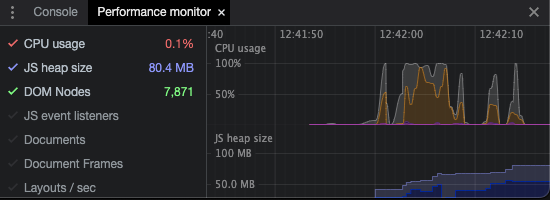
Screenshot from refreshing google page with performance insights (it spikes CPU to 100% every-time page is loaded)
I have performance insights log here from Chrome channel. But, it seems that functionality is not available in chromium, so nothing really to compare against
ChromePerformanceTrace.gz
harir5 commentedon Sep 12, 2022
We are also noticing some issues when channel is specified (running scripts on Apple M1 chip). on an average, a single test run takes about 9 seconds when No channel is specified. when we specify a channel (say chrome), page load times increase tremendously,overall script execution time is about 35 secs. there is a vivid difference.
mxschmitt commentedon Sep 13, 2022
Could you run the following command in the terminal and provide us the output? It will show if you are running the arm and amd version of Google Chrome:
file "/Applications/Google Chrome.app/Contents/MacOS/Google Chrome"Also it might be about Enterprise policies. Are you in a corporate/managed environment? Could you go to
chrome://policywith your Google Chrome and see if there are some entries?vladyslavlopa commentedon Sep 13, 2022
result of execution
There are no policies set for the chrome

mxschmitt commentedon Sep 13, 2022
So yeah this output looks good, it's a good Google Chrome executable (universal binary) and there are no policies configured.
Are you using Google Chrome as your main browser? Would be useful if you could try to reproduce it without Playwright. This means opening the browser, navigating to websites etc. if this is also very slow, then its not a Playwright bug and I'd redirect you to crbug.com
vladyslavlopa commentedon Sep 13, 2022
I am using it as a default browser. I have not noticed any issues in the last 2 weeks with it. It only becomes an issue when using it as a browser under test from Playwright
harir5 commentedon Sep 16, 2022
Max Schmitt (@mxschmitt) - i too am seeing the same thing in my macbook as well. When i use it in a playwright test, i see a sudden increase in execution time.
mxschmitt commentedon Sep 16, 2022
Hari (@harir5) are you also on M1?
harir5 commentedon Sep 16, 2022
Max Schmitt (@mxschmitt) - i use an older macbook, but my colleagues use the M1. they are seeing this issue.
mrwwalmsley commentedon Dec 20, 2022
I get the same issue when I upgraded to a Mac with M1 chip. When I run Chrome from Applications it uses the arm64 version of Chrome. But when I run Playwright it uses the intel Chrome.
The tests run fine for my colleagues that have M1 chip devices.
I did use the option to copy data from my old intel Mac to the new M1 Chip.
I wonder if there is some setting that was copied from my old Intel Mac that is causing Playwright to use the Intel Chrome.
I filed this related issue: #19602
bdav commentedon Feb 17, 2023
I'm also seeing the same issue while switching to an M1 laptop.
tassoevan commentedon Apr 14, 2023
Very degraded performance at Google Chrome 112.0.5615.49.
wburgess-around commentedon Jul 7, 2023
Just hit this problem, you need to un-check

Open using Rosettaon yourTerminal(or whatever shell), and restart your machine:I'm assuming Chrome when launched via Playwright (which is launched via Terminal) is inheriting the arch somehow. You can check this by hitting

About Google Chromeand checking the arch in the parenthesis:If you pause your Playwright session and it shows
x86_64 translated, then it is running in the wrong arch.AbhishekPalani commentedon Aug 27, 2023
If you are using terminal to run your test cases. Just add prefix to your execution command
arch -arm64.It works wonders!!
Example:
arch -arm64 npx playwright testDavidPatterson-Cole commentedon Jan 17, 2024
I'm still running into this issue. Would really appreciate any suggestions on how to force playwright to open the arm64 version of chrome.
Context:
Playwright Version: 1.40.0
Operating System: Mac M1 pro
Python version: 3.10.6
Browser: Chrome
Extra: channel chrome
Tests I ran:
/Applications/Google Chrome.app/Contents/MacOS/Google Chrome: Mach-O universal binary with 2 architectures: [x86_64:Mach-O 64-bit executable x86_64] [arm64:Mach-O 64-bit executable arm64]
/Applications/Google Chrome.app/Contents/MacOS/Google Chrome (for architecture x86_64): Mach-O 64-bit executable x86_64
/Applications/Google Chrome.app/Contents/MacOS/Google Chrome (for architecture arm64): Mach-O 64-bit executable arm64
VarunSriram99 commentedon Feb 28, 2024
I faced the same issue. Google Chrome was getting launched in the
x86_64 translatedversion instead of the arm version which was slowing down the entire browser and using up a lot of system resources. I was running the Playwright commands on a non-rosetta-enabled terminal. (To check if you have rosetta enabled you can typearchin your terminal. If it returnsarm64then you're not using rosetta. If it returnsi386then it is using rosetta.)The reason why Chrome is launching in the x86 translated build is probably because the node version you're using must be an x86 version. To confirm this you can use the
oslibrary provided by NodeJS. Add this code in yourplaywright.config.(ts/js)file:Now when you run your Playwright tests in a non-rosetta-enabled terminal, if you see
Architecture: x64then that means you have the x86 version of node installed on your system. This might have been caused because you installed node in a rosetta-enabled terminal. To solve this issue is as simple as to uninstall and reinstall your current version of node from a non-rosetta enabled terminal. If you're using nvm then you can follow the steps below.It's important to note that executing the commands above might affect your package managers like yarn if you have them installed. In that is the case you just have to reinstall them.
Now you can go to your playwright test folder and execute this command to reinstall all the packages.
Once this is done you should be able to open Chrome in the arm64 version in the Playwright tests and the tests should execute much more smoothly.
OliverDayunLiu commentedon Mar 6, 2025
S Varun (@VarunSriram99) Huge saver. Thanks so much.
alexsorokoletov commentedon Jul 3, 2025
Had exactly this issue and it took a lot of time to find the root cause.
Checked my host app (Claude desktop), checked my terminal arch, checked what playwright installed (playwright uninstall, playwright install - showed arm64 being downloaded).
Root cause for me was a bug in node version switcher
fnmthat caused wrong version of Node 22 to be installed on ARM (clue)The fix was:
Apidcloud commentedon Jul 15, 2025
I had the same issue with nvm. If you are ensure which arch your node is using just run this command in your terminal (you can use the same logic for any app you are unsure of):
file $(which node)If it's not arm64, then uninstall it and install the arm64 version. Ffor me it was all tied up to using rosetta in the terminal, and now using arm64. So I ended up uninstalling brew, etc., and reinstalling everything. At the end only node was missing, as it was installed outside of brew, through nvm.
After changing node to arm64, channel chrome works normally.
fix: Apple Silicon Rosetta 2 warn + remove stale playwright install c…