Repository navigation
Wsl2 sound support #5816
Description

Is your feature request related to a problem? Please describe.
The Pulseaudio doesn't natively supported by WSL2 and it difficult to link it to Windows speakers.
Describe the solution you'd like
Add driver support of sound as update
Describe alternatives you've considered
Codes for Pulseaudio to link Windows speaker or export sound of linux to local host ip address.
Reacted by Ian C. Ward, CoconutMacaroon, lhl2617, Bob, James Finn, NonlinearFruit, rubyFeedback, mltony, Ashish Kumar, Quin Gillespie and 7 more
Activity
Biswa96 commentedon Aug 26, 2020
This article may help https://x410.dev/cookbook/wsl/enabling-sound-in-wsl-ubuntu-let-it-sing/
therealkenc commentedon Aug 26, 2020
Spiritually dupe #237 which is the three-digit landing zone for sound, with ref #486 and #4205. WSL2 can have its own LZ for reasons.
ameeno commentedon Aug 27, 2020
I found a way that is better than the x410 guide and works with the latest version of pulse on windows 10. installs pulse as a service, and is seamless.
this is the guide.
originally available from https://tomjepp.uk/2015/05/31/streaming-audio-from-linux-to-windows.html but now down:
I found a much newer set of binaries from the X2Go project: http://code.x2go.org/releases/binary-win32/3rd-party/pulse/.
To set up PulseAudio 5.0 on Windows, do the following:
Download pulseaudio-5.0-rev18.zip from http://code.x2go.org/releases/binary-win32/3rd-party/pulse/pulseaudio-5.0-rev18.zip
Extract it and copy the pulse folder to C:\pulse
Create a config.pa file in that folder with these contents:
Test this setup by running: c:\pulse\pulseaudio.exe -F config.pa
On the wsl2 side you must run:
play some sound on wsl2 and you will get it working.
You should now be able to get Linux sound playing on your Windows PC.
For a permanent setup, we need to create a Windows service rather than running PulseAudio in a command prompt. I use NSSM to run arbitrary programs as services. Download the latest version of NSSM.
Extract it and copy nssm.exe from the win32 folder to c:\pulse.
Run:
Fill in the following details on the Application tab:
Path: c:\pulse\pulseaudio.exe
Start-up directory: c:\pulse
Arguments: -F c:\pulse\config.pa
On the Details tab, fill in:
Display name: PulseAudio
Now click Install service.
Finally, start the newly installed service - either through Services in Administrative Tools, or by running net start PulseAudio
now you will have a permanent pulseaudio service on windows which is very low ram usage.
for permanent settings on the WSL side, you could put the following in your .bashrc file:
That way, all pulseaudio sound will be passed to windows, seamlessly.
btw, my config above allows anonymous connections. you can restrict it to IP of the wsl2 vm if you want but it changes regularly. so there isnt really a way as far as I can tell, to have the IP restrictions in place and secured properly.
I have seen people use methods such as: sed and regex to update /modify the config.pa file to the correct IP address on WSL2 start-up, (that lives on /mnt/c/pulse/config.pa) but you must then stop and start the pulse audio NSSM service in windows. - I do not think that is so easy.
Allowing anonymous connections works fine for so far, and has the added benefit, that any WSL/Hyper-V -VM can just put sound out of my laptop over tcp.
Hope that helps!
ameeno commentedon Sep 1, 2020
@tomjepp hey Tom. Awesome thanks.
your guide was more pulse on windows for network based sound redirection.
But is the best way I have found for having a more modern pulse server permanently on windows.
I adapted it slightly for wsl use and allowed anonymous sound.
Perhaps you could incorporate wsl1/2 usage into your guide?
Pulse as a service + x410 on start-up makes Linux GUI apps almost seamless.
Thanks for the guide initially!
cerebrate commentedon Sep 5, 2020
Seems like the first relevant question here is what, if any, sound support is coming along with the GUI app support we already know is on the roadmap? Craig Loewen (@craigloewen-msft) ?
Panchie commentedon Sep 17, 2020
Arun Shah (@ameeno) @tomjepp Thank you both so much for this, works perfectly with Debian Buster + Mopidy on my desktop. Outstanding stuff.
eamondo2 commentedon Oct 9, 2020
So I had attempted to get some of the suggestions from this thread, as well as from others I'd found while doing research and wasn't able to get them working reliably.
This is mostly based on the guide from Arun Shah (@ameeno) above, but with a few extra bits to get X11 working as well.
Git Page
This is an attempt to collate what ended up working, hopefully it will be of some help.
ameeno commentedon Oct 9, 2020
Eamon Bode (@eamondo2) Yea, that sounds good.
Only I use X410 instead of vcxsrv
also my .bashrc vars look like this:
Which seems to work great
another guide I have adapted slightly is this one:
https://x410.dev/cookbook/wsl/opening-linux-terminal-directly-from-file-explorer/
Changes I have made include:
ubuntu1804.exe becomes ubuntu.exe (for normal ubuntu d/l from ms store)
All my Exports/functions/vars for wsl2 and .bashrc is actually inside a file called .exports in my home folder.
my .bashrc file sources /home//.exports
My Terminal here script sources /home//.exports
also I use d:\wsl\ for the vbs script files.
In your case you would need to start the vcxsrv generated file to start your x server.
its really handy to have a true linux terminal wherever you want it!!!! :)
glad to help.
timriker commentedon Oct 21, 2020
I’ve set in etc/pulse/default.pa this:
load-module module-native-protocol-tcp auth-ip-acl=127.0.0.1;172.16.0.0/12This will authorize all local connections for WSL1 and the RFC-1918 block 172.16.0.0/12 which is the default space for WSL2.
I would not recommend
auth-anonymous=1as this would allow any remote machine to connect. I use this inside my .bashrc:Note: I lookup the WSL2 ip using ip route instead of /etc/resolv.conf as I bypass the WSL2 nameserver due to #5806
adamcunnington commentedon Jan 4, 2021
Arun Shah (@ameeno) thanks for your guide. I followed it to the letter but unfortunately, on the WSL2 side, I get this:
Connection failure: Connection refusedOn the windows side, here is what my running instance looks like - should I be concerned about any of the warnings/errors?
ameeno commentedon Jan 4, 2021
Your pulse server is not accepting connections. Can you try to put pulse In c:\pulse\ directory and run pulse as administrator in CMD?
I expect if the pulse server does not come up on the windows side, then connection refused on the wsl2 side is quite normal.
Make sure you run your CMD as administrator to launch pulse first time.
Also I noticed you have a mix of back slashes and forward slashes in your logs.
adamcunnington commentedon Jan 4, 2021
Arun Shah (@ameeno) I don't think it's that because here's a strange thing... sound works when I run a docker container within wsl2.
In my dockerfile, i do 2 things:
How can it be working through docker via WSL but not from WSL directly?
Full details below.
make run-localruns locally whereasmake runruns a docker container. How strange that the latter works and the former doesn't - what am I missing?63 remaining items
dcharlespyle commentedon Aug 1, 2022
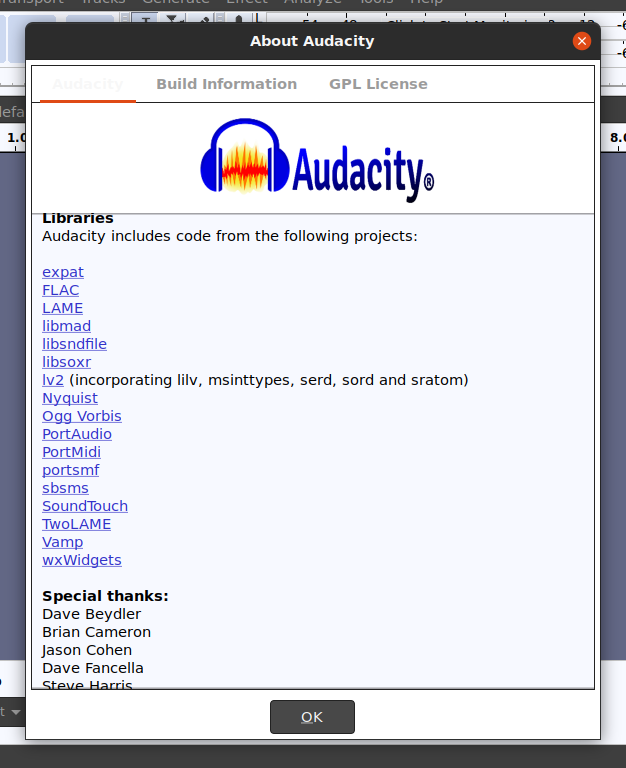
This is what the About dialog displays:
capoei commentedon Aug 1, 2022
tried "jack -d portaudio" but it says driver not found.
dcharlespyle commentedon Aug 1, 2022
That's not too surprising. You need to install the jack and portaudio backends for pulseaudio and for ALSA. But there is another issue. I tried to run jack, and I don't even get that far (I don't recall ever using it in all the time I've used Linux, either). I get a message asking me if I meant to type several other commands. That does not seem to bode well for the package in Ubuntu.
There is no jack installation candidate in 20.04. I can install jackd (which is identified as a dummy package) and run the jackd command, though, if I wanted to do so. I also tried to install portaudio but both synaptic and apt say the package is not found. I do have the libportaudio2 package installed, however. And the portaudio19-dev package still is available, but installing it seems pointless if the portaudio package itself isn't available. Why do you need to use jack in WSL2? Do you have software that is dependent upon it?
If you still want to use it, you might try enabling the backports repository. But when Ubuntu starts putting stuff in backports, it often means it is going away.
And one other thing: There is no audio hardware device in WSL. Not even emulated hardware. Not presently at any rate. All that is available is the RDP Sink device.
capoei commentedon Aug 1, 2022
I will look further into your post later, but as someone working with audio there is tons of great free audio plugins in Linux I would like to be able to use via WSL2, like the "Linux Studio Plugins" for example.
when you showed that Audacity works, which is using PortAudio afaiui, I wondered if we could use PortAudio as a backend to make Jack work.
If I had a free wish I would wish PipeWire support though. With Pipewire everybody would be served, and it would be future proof
dcharlespyle commentedon Aug 1, 2022
Whatever solution is used, it must address the RDP Sink. There is no audio hardware emulation in WSL. At least, not yet.
milo-kc commentedon Apr 26, 2023
sometimes for connection refused, we should add --exit-idle-time=1 for pulse service on Windows.
rbrisita commentedon May 4, 2023
Here is one way to resolve
Connection failure: Connection refusedissue:~/.bashrc:source ~/.bashrc.etc/pulse/default.paandetc/pulse/daemon.conffiles as stated here.pulseaudio.exe.Windows Defender Firewallcontrol panel.Advanced settings.Inbound Rules.pulseaudioapplication.Allow the connectionaction.OK.xt0r3 commentedon Aug 13, 2023
I wanted to add my two cents:
If you're encountering static hissing or white noise when trying to play sounds with
aplayor if you experience your microphone connecting to the server but not recording any soundsudo apt remove pulseaudioto make sure(I'm not fully sure what the issue is, but this fixed it for me.)
Also, some services like
sox (play),alsa-utils (aplay)andpulseaudio-utils (paplay)won't find the audio device, butmpg123willYou can install it by running
sudo apt install mpg123Then, you can use it to play sounds by running
mpg123 file.mp3thelamer commentedon Apr 9, 2024
Shooting comments into a necro thread because I have nothing better to do.
How in the heck can AUDIO SUPPORT be an afterthought? This is not some obscure feature set, this is AUDIO for the applications that run under WSL. You jumped though like 50 hoops to make video acceleration function but "install pulseaudio server on your Windows machine and proxy traffic to it over tcp" is the official solution citing a pile of third party blogs.
I am not sure how to emphasize this to you as I thought this was supposed to be your job, but just because some randos found a way to make it work does not mean that you should not be working to support audio out of the box.
You are already leeching off of the great work of a mountain of devs that do this stuff day in and day out for free the least you can do here is keep the issue open and put something in your backlog to officially support pipewire and pulseaudio in some fashion in WSL.
What I want to hear is "You ain't got no problem TheLamer, we're on it, everyone just chill out, we're sending the dev which should be coming directly"
darrenhearn commentedon Apr 30, 2024
Ryan Kuba (@thelamer) , as someone who's done my own share of shouting into voids, I sympathize with the comment; however, if you're still digging for WSL2 sound support, note that PulseAudio should work "out of the box" these days - see wslg/README.md. It worked for me, though I had to pay attention to the WSLg Architecture Overview (and run a few experiments) to understand that the sound interface is limited to a PulseAudio "bridge" - therefore interfaces that look for sound hardware, e.g. PortAudio, probably won't work without additional effort. At least that was my take-away; I think it's also roughly the same take as dcharlespyle's prior comment.
For what it's worth, my (limited) experience is that WSL development does an admirable job of keeping pace with customer demands. But I'd also agree that transparency about what's in the works/priorities can feel thin on the ground (case in point, it would've been nice/saved me time if there had been a follow-up pointer in the "closing this issue" comment 3 years ago).
epdesjardins commentedon May 22, 2024
Can anyone provide insight into why my sound works out of the box using bash in WSL2 but if I open the same binary via zsh no audio device driver is recognized? Is there something I need to add to my zshrc?
onomatopellan commentedon May 24, 2024
epdesjardins Type
envin both cases and you will see which environment variable is missing. In later WSL2 versions theexport PULSE_SERVER=unix:/mnt/wslg/PulseServeris a must.epdesjardins commentedon May 24, 2024
DavidBurela commentedon Aug 11, 2024
Thanks, this worked
pppo-cmyk commentedon Apr 13, 2025
/Duplicate of #