Skip to content

WSL2 cannot access Windows proxy #4402

Closed

Description

@maicWorkGithub
  • Your Windows build number: Microsoft Windows [版本 10.0.18956.1000]

  • What you're doing and what's happening:

I come from China, because of GFW, I cannot access the API of Hacker News, so I have to start a proxy. I use shadowsocks to start a proxy on port 10808, it workd fine, I can access Google.com.
I can access sites like Google and hacker news, with netstata -an in power shell:

...
  TCP    127.0.0.1:8080         0.0.0.0:0              LISTENING
  TCP    127.0.0.1:8080         127.0.0.1:59792        ESTABLISHED
  TCP    127.0.0.1:10808        127.0.0.1:54155        ESTABLISHED
  TCP    127.0.0.1:10808        127.0.0.1:54156        ESTABLISHED
  TCP    127.0.0.1:10808        127.0.0.1:54157        ESTABLISHED
  TCP    127.0.0.1:10808        127.0.0.1:54165        ESTABLISHED
  TCP    127.0.0.1:10808        127.0.0.1:54368        ESTABLISHED
  TCP    127.0.0.1:10808        127.0.0.1:54369        ESTABLISHED
  TCP    127.0.0.1:10808        127.0.0.1:54399        ESTABLISHED
  TCP    127.0.0.1:10808        127.0.0.1:54400        ESTABLISHED
  TCP    127.0.0.1:10808        127.0.0.1:54401        ESTABLISHED
  TCP    127.0.0.1:10808        127.0.0.1:54409        ESTABLISHED
  TCP    127.0.0.1:10808        127.0.0.1:59827        ESTABLISHED
  TCP    127.0.0.1:10808        127.0.0.1:60354        ESTABLISHED
  TCP    127.0.0.1:10808        127.0.0.1:60355        ESTABLISHED
  TCP    127.0.0.1:10808        127.0.0.1:60357        ESTABLISHED
  TCP    127.0.0.1:10808        127.0.0.1:60359        ESTABLISHED
  TCP    127.0.0.1:10808        127.0.0.1:60361        ESTABLISHED
  TCP    127.0.0.1:10808        127.0.0.1:60362        ESTABLISHED
  TCP    127.0.0.1:10808        127.0.0.1:60372        TIME_WAIT
  TCP    127.0.0.1:10808        127.0.0.1:60374        TIME_WAIT
  TCP    127.0.0.1:10808        127.0.0.1:60510        TIME_WAIT
  TCP    127.0.0.1:10808        127.0.0.1:60512        TIME_WAIT
  TCP    127.0.0.1:10808        127.0.0.1:60531        TIME_WAIT
  TCP    127.0.0.1:10808        127.0.0.1:60596        ESTABLISHED
  TCP    127.0.0.1:10808        127.0.0.1:60598        ESTABLISHED
  TCP    127.0.0.1:10808        127.0.0.1:60600        FIN_WAIT_2
  TCP    127.0.0.1:10808        127.0.0.1:60602        TIME_WAIT
  TCP    127.0.0.1:10808        127.0.0.1:60641        TIME_WAIT
  TCP    127.0.0.1:10808        127.0.0.1:60678        TIME_WAIT
  TCP    127.0.0.1:10808        127.0.0.1:60712        ESTABLISHED
  TCP    127.0.0.1:10808        127.0.0.1:60714        ESTABLISHED
  TCP    127.0.0.1:10808        127.0.0.1:60716        ESTABLISHED
  TCP    127.0.0.1:10808        127.0.0.1:60842        ESTABLISHED
  TCP    127.0.0.1:10808        127.0.0.1:60844        ESTABLISHED
  TCP    127.0.0.1:10808        127.0.0.1:60872        ESTABLISHED
  TCP    127.0.0.1:10808        127.0.0.1:60873        ESTABLISHED
  TCP    127.0.0.1:10808        127.0.0.1:60876        ESTABLISHED
  TCP    127.0.0.1:10808        127.0.0.1:60877        ESTABLISHED
  TCP    127.0.0.1:10808        127.0.0.1:60882        ESTABLISHED
  TCP    127.0.0.1:10808        127.0.0.1:60884        ESTABLISHED
  TCP    127.0.0.1:10808        127.0.0.1:60914        ESTABLISHED
  TCP    127.0.0.1:10808        127.0.0.1:60917        ESTABLISHED
  TCP    127.0.0.1:10808        127.0.0.1:60918        ESTABLISHED
  TCP    127.0.0.1:10808        127.0.0.1:60930        ESTABLISHED
  TCP    127.0.0.1:10808        127.0.0.1:60934        ESTABLISHED
  TCP    127.0.0.1:10808        127.0.0.1:60937        ESTABLISHED
  TCP    127.0.0.1:10808        127.0.0.1:60947        ESTABLISHED
  TCP    127.0.0.1:10808        127.0.0.1:60949        ESTABLISHED
  TCP    127.0.0.1:10808        127.0.0.1:60964        ESTABLISHED
  TCP    127.0.0.1:10808        127.0.0.1:60966        ESTABLISHED
  TCP    127.0.0.1:10808        127.0.0.1:61002        ESTABLISHED
  TCP    127.0.0.1:10808        127.0.0.1:61007        ESTABLISHED
  TCP    127.0.0.1:10808        127.0.0.1:61009        ESTABLISHED
  TCP    127.0.0.1:10808        127.0.0.1:61015        ESTABLISHED
  TCP    127.0.0.1:10808        127.0.0.1:61030        ESTABLISHED
  TCP    127.0.0.1:10808        127.0.0.1:61032        ESTABLISHED
  TCP    127.0.0.1:10808        127.0.0.1:61034        FIN_WAIT_2
  TCP    127.0.0.1:10808        127.0.0.1:61036        TIME_WAIT
  TCP    127.0.0.1:10808        127.0.0.1:61071        ESTABLISHED
  TCP    127.0.0.1:10808        127.0.0.1:61073        ESTABLISHED
  TCP    127.0.0.1:10808        127.0.0.1:61076        ESTABLISHED
  TCP    127.0.0.1:10808        127.0.0.1:61080        ESTABLISHED
  TCP    127.0.0.1:10808        127.0.0.1:61087        ESTABLISHED
  TCP    127.0.0.1:10808        127.0.0.1:61089        ESTABLISHED
  TCP    127.0.0.1:10808        127.0.0.1:61091        ESTABLISHED
  TCP    127.0.0.1:10808        127.0.0.1:61094        ESTABLISHED
  TCP    127.0.0.1:10808        127.0.0.1:61096        ESTABLISHED
  TCP    127.0.0.1:10808        127.0.0.1:61099        ESTABLISHED
  TCP    127.0.0.1:10808        127.0.0.1:61100        ESTABLISHED
  TCP    127.0.0.1:10808        127.0.0.1:61103        ESTABLISHED
  TCP    127.0.0.1:10808        127.0.0.1:61106        ESTABLISHED
  TCP    127.0.0.1:10808        127.0.0.1:61111        ESTABLISHED
  TCP    127.0.0.1:10808        127.0.0.1:61115        ESTABLISHED
  TCP    127.0.0.1:10808        127.0.0.1:61116        ESTABLISHED
  TCP    127.0.0.1:10808        127.0.0.1:61117        ESTABLISHED
  TCP    127.0.0.1:10808        127.0.0.1:61120        ESTABLISHED
  TCP    127.0.0.1:10808        127.0.0.1:61126        ESTABLISHED
  TCP    127.0.0.1:10808        127.0.0.1:61128        ESTABLISHED
  TCP    127.0.0.1:10808        127.0.0.1:61129        ESTABLISHED
  TCP    127.0.0.1:10808        127.0.0.1:61133        ESTABLISHED
  TCP    127.0.0.1:10808        127.0.0.1:61135        ESTABLISHED
  TCP    127.0.0.1:10808        127.0.0.1:61137        ESTABLISHED
  TCP    127.0.0.1:10808        127.0.0.1:61143        ESTABLISHED
  TCP    127.0.0.1:10808        127.0.0.1:61145        ESTABLISHED
  TCP    127.0.0.1:10808        127.0.0.1:61147        ESTABLISHED
  TCP    127.0.0.1:10808        127.0.0.1:61149        ESTABLISHED
  TCP    127.0.0.1:10808        127.0.0.1:61155        ESTABLISHED
  TCP    127.0.0.1:10808        127.0.0.1:61157        ESTABLISHED
  TCP    127.0.0.1:10808        127.0.0.1:61159        ESTABLISHED
  TCP    127.0.0.1:10808        127.0.0.1:61161        ESTABLISHED
  TCP    127.0.0.1:10808        127.0.0.1:61162        ESTABLISHED
  TCP    127.0.0.1:10808        127.0.0.1:61165        ESTABLISHED
  TCP    127.0.0.1:10808        127.0.0.1:61169        FIN_WAIT_2
  TCP    127.0.0.1:10808        127.0.0.1:61171        TIME_WAIT
  TCP    127.0.0.1:10808        127.0.0.1:61173        FIN_WAIT_2
  TCP    127.0.0.1:10808        127.0.0.1:61175        TIME_WAIT
  TCP    127.0.0.1:10808        127.0.0.1:61179        ESTABLISHED
  TCP    127.0.0.1:10808        127.0.0.1:61181        ESTABLISHED
  TCP    127.0.0.1:10808        127.0.0.1:61185        ESTABLISHED
  TCP    127.0.0.1:10808        127.0.0.1:61187        ESTABLISHED
...

then I set the proxy:

export http_proxy=http://127.0.0.1:10808
export https_proxy=http://127.0.0.1:10808
// or
sudo nano /etc/apt/apt.conf.d/proxy.conf
Acquire::http::Proxy "http://127.0.0.1:10808";
Acquire::https::Proxy "http://127.0.0.1:10808";

and I want use this proxy in my WSL2, it shows in WSL2, the port is free for use

  • What's wrong / what should be happening instead:
 curl -vv 'https://hacker-news.firebaseio.com/v0/item/8863.json?print=pretty'                  
 *   Trying 220.250.64.225...                                                                                           
 * TCP_NODELAY set                                                                                                       
*   Trying ::...                                                                                                        
* TCP_NODELAY set                                                                                                       
* connect to :: port 10808 failed: Connection refused
// and even start a file server on port 10808 without error

Activity

  1. therealkenc commented on Aug 12, 2019

    @therealkenc

    You might be able to use your Window's IP address as described here instead of https_proxy=http://127.0.0.1:10808. But that address moves all over the place, and you might have to jump firewall and other shadowsocks config hurdles (dunno).

    If it were me I'd do the socks proxy WSL-side. Try setting up the socks proxy entirely in your WSL 2 distro, and point your WSL2-side proxy.conf to WSL's localhost. Both your Windows and your WSL socks proxies should both work okay simultaneously.

    Heads up the devs recently added tunneling 127.0.0.1 in the Windows ➡️ WSL direction, but not the WSL ➡️ Windows direction. Once support for the other direction is implemented, your scenario will probably work out of the box.

    Do the profanity in 官话, that way it slips by. Bonne chance.

  2. maicWorkGithub commented on Aug 12, 2019

    @maicWorkGithub
    Author

    Thanks for first.

    ➜  ~ cat /etc/resolv.conf                                                                                                                                                                                                                                                                                                                                                  # This file was automatically generated by WSL. To stop automatic generation of this file, add the following entry to /etc/wsl.conf:
    # [network]
    # generateResolvConf = false
    nameserver 172.18.144.1
    ➜  ~ export https_proxy='http://172.18.144.1:10808' 
    ➜  ~ export http_proxy='http://172.18.144.1:10808'
    ➜  ~ curl -vv google.com                                                                                                                                                                                                                                                                                                                                               * Rebuilt URL to: google.com/
    *   Trying 172.18.144.1...
    * TCP_NODELAY set
    
    * connect to 172.18.144.1 port 10808 failed: Connection timed out
    * Failed to connect to 172.18.144.1 port 10808: Connection timed out
    * Closing connection 0
    curl: (7) Failed to connect to 172.18.144.1 port 10808: Connection timed out
    

    still not work. I give up and spin another shadowsocks server in WSL2, and it works.

    ➜  ~ export https_proxy='socks5://127.0.0.1:1081'                                                                                                                                                                                                                                                                                                                          ➜  ~ export http_proxy='socks5://127.0.0.1:1081'
    ➜  ~ curl -vv google.com                                                                                                                                                                                                                                                                                                                                                   * Rebuilt URL to: google.com/
    *   Trying 127.0.0.1...
    * TCP_NODELAY set
    * SOCKS5 communication to google.com:80
    * SOCKS5 connect to IPv4 216.58.200.46 (locally resolved)
    * SOCKS5 request granted.
    * Connected to 127.0.0.1 (127.0.0.1) port 1081 (#0)
    > GET / HTTP/1.1
    > Host: google.com
    > User-Agent: curl/7.58.0
    > Accept: */*
    >
    < HTTP/1.1 301 Moved Permanently
    < Location: http://www.google.com/
    < Content-Type: text/html; charset=UTF-8
    < Date: Mon, 12 Aug 2019 09:16:03 GMT
    < Expires: Wed, 11 Sep 2019 09:16:03 GMT
    < Cache-Control: public, max-age=2592000
    < Server: gws
    < Content-Length: 219
    < X-XSS-Protection: 0
    < X-Frame-Options: SAMEORIGIN
    <
    <HTML><HEAD><meta http-equiv="content-type" content="text/html;charset=utf-8">
    <TITLE>301 Moved</TITLE></HEAD><BODY>
    <H1>301 Moved</H1>
    The document has moved
    <A HREF="http://www.google.com/">here</A>.
    </BODY></HTML>
    * Connection #0 to host 127.0.0.1 left intact
    
  3. therealkenc commented on Aug 12, 2019

    @therealkenc
    ~ export https_proxy='http://172.18.144.1:10808' 
    

    That's exactly the right idea. I'm sure it can be made to work like that with enough effort. It should anyway, since doing a remote socks proxy server is a common enough scenario. But the smarter play was to give up. :)

  4. maicWorkGithub commented on Aug 12, 2019

    @maicWorkGithub
    Author

    emmmmmm, and what's this meaning?

    Do the profanity in 官话, that way it slips by. Bonne chance.

    sorry, my english is very bad. 🤣

  5. therealkenc commented on Aug 12, 2019

    @therealkenc

    The mother f--ker is frowned upon and should probably be edited in your post. But if it translates into Mandarin well, no one will over here will notice.

  6. maicWorkGithub commented on Aug 13, 2019

    @maicWorkGithub
    Author

    OK, got it.

  7. lackovic commented on Dec 6, 2019

    @lackovic

    Heads up the devs recently added tunneling 127.0.0.1 in the Windows ➡️ WSL direction, but not the WSL ➡️ Windows direction. Once support for the other direction is implemented, your scenario will probably work out of the box.

    Is there any place we can check to know when the WSL->Windows direction will be completed?

  8. therealkenc commented on Dec 9, 2019

    @therealkenc

    Is there any place we can check to know when the WSL->Windows direction will be completed?

    #4619

  9. youlxs commented on Jan 3, 2020

    @youlxs

    Thanks for first.

    ➜  ~ cat /etc/resolv.conf                                                                                                                                                                                                                                                                                                                                                  # This file was automatically generated by WSL. To stop automatic generation of this file, add the following entry to /etc/wsl.conf:
    # [network]
    # generateResolvConf = false
    nameserver 172.18.144.1
    ➜  ~ export https_proxy='http://172.18.144.1:10808' 
    ➜  ~ export http_proxy='http://172.18.144.1:10808'
    ➜  ~ curl -vv google.com                                                                                                                                                                                                                                                                                                                                               * Rebuilt URL to: google.com/
    *   Trying 172.18.144.1...
    * TCP_NODELAY set
    
    * connect to 172.18.144.1 port 10808 failed: Connection timed out
    * Failed to connect to 172.18.144.1 port 10808: Connection timed out
    * Closing connection 0
    curl: (7) Failed to connect to 172.18.144.1 port 10808: Connection timed out
    

    still not work. I give up and spin another shadowsocks server in WSL2, and it works.

    ➜  ~ export https_proxy='socks5://127.0.0.1:1081'                                                                                                                                                                                                                                                                                                                          ➜  ~ export http_proxy='socks5://127.0.0.1:1081'
    ➜  ~ curl -vv google.com                                                                                                                                                                                                                                                                                                                                                   * Rebuilt URL to: google.com/
    *   Trying 127.0.0.1...
    * TCP_NODELAY set
    * SOCKS5 communication to google.com:80
    * SOCKS5 connect to IPv4 216.58.200.46 (locally resolved)
    * SOCKS5 request granted.
    * Connected to 127.0.0.1 (127.0.0.1) port 1081 (#0)
    > GET / HTTP/1.1
    > Host: google.com
    > User-Agent: curl/7.58.0
    > Accept: */*
    >
    < HTTP/1.1 301 Moved Permanently
    < Location: http://www.google.com/
    < Content-Type: text/html; charset=UTF-8
    < Date: Mon, 12 Aug 2019 09:16:03 GMT
    < Expires: Wed, 11 Sep 2019 09:16:03 GMT
    < Cache-Control: public, max-age=2592000
    < Server: gws
    < Content-Length: 219
    < X-XSS-Protection: 0
    < X-Frame-Options: SAMEORIGIN
    <
    <HTML><HEAD><meta http-equiv="content-type" content="text/html;charset=utf-8">
    <TITLE>301 Moved</TITLE></HEAD><BODY>
    <H1>301 Moved</H1>
    The document has moved
    <A HREF="http://www.google.com/">here</A>.
    </BODY></HTML>
    * Connection #0 to host 127.0.0.1 left intact
    

    You just need to turn on the "connection from private net work" option.
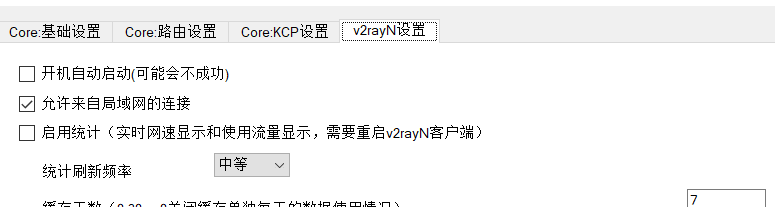
    image

  10. YanWenKun commented on Feb 15, 2020

    @YanWenKun

    Hi folks, just found another workaround:

    If you have installed Docker Desktop for Windows (with WSL2 backend, in my case), just use host.docker.internal:

    export http_proxy=http://host.docker.internal:1080

    and it just works!

    I have no idea about the VM's networking, but host.docker.internal is something like 192.168.1.5, so it accesses host just like someone else in LAN.

  11. Rsweater commented on May 30, 2020

    @Rsweater

    I didn't understand why my computer does not work when using 127.0.0.1. And I already turned on the "connection from private net work" option for v2ranN。you can be ? My PC must use the host LAN IP, for example:192.168.123.176, it works.
    And the IP also is host.docker.internal, it is added to the hosts file, do the redirection.

  12. YanWenKun commented on Jun 1, 2020

    @YanWenKun

    Seasoning (@Rsweater) If you cannot access host.docker.internal, maybe you need to change your Windows Firewall settings from public network to private network (if I understand you correctly).

  13. solider245 commented on Jul 28, 2020

    @solider245

    大家好,刚刚发现了另一个解决方法:

    如果您已安装Docker Desktop for Windows(以WSL2后端为例),请使用host.docker.internal:

    export http_proxy=http://host.docker.internal:1080

    它就可以了!

    我对虚拟机的网络一无所知,但是host.docker.internal有点像192.168.1.5,所以它像局域网中的其他人一样访问主机。
    妈蛋,谷歌可以访问,但是git依然无法访问……

  14. YanWenKun commented on Aug 2, 2020

    @YanWenKun

    solider245 分两种情况

    (仅适用于 WSL2 环境下的 git 配置)

    ① HTTP 访问 git,命令行:
    git config --global http.https://github.com.proxy http://host.docker.internal:1080

    ② SSH 访问 git,编辑 ~/.ssh/config 文件:

    ## 使用 netcat(WSL Ubuntu 自带)作为代理中继
    
    # 我在 GitHub
    Host github.com
      Hostname github.com
      ProxyCommand nc -v -x host.docker.internal:1080 %h %p
      User git
      # 认证方式,这里用的是 SSH 密钥
      PreferredAuthentications publickey
      # SSH 私钥文件
      IdentityFile ~/.ssh/my_github_ed25519
    

    In English:

    HOW TO CONFIG GIT WITH PROXY IN WSL2

    a) You access git via HTTP:

    Shell command
    git config --global http.https://github.com.proxy http://host.docker.internal:1080

    b) You access git via SSH:

    edit file ~/.ssh/config

    ## Use netcat (bundled with WSL Ubuntu) as proxy relay.
    
    # My GitHub
    Host github.com
      Hostname github.com
      ProxyCommand nc -v -x host.docker.internal:1080 %h %p
      User git
      # Authentication Method
      PreferredAuthentications publickey
      # PRIVATE KEY
      IdentityFile ~/.ssh/my_github_ed25519
    
  15. solider245 commented on Aug 2, 2020

    @solider245

    solider245 分两种情况

    ① HTTP 访问 git,命令行:
    git config --global http.https://github.com.proxy http://host.docker.internal:1080

    ② SSH 访问 git,编辑 ~/.ssh/config 文件:

    ## 你可能需要安装 connect-proxy
    
    # 我在 GitHub
    Host github.com
      Hostname github.com
      ProxyCommand connect -H host.docker.internal:1080  %h %p
      User git
      # 认证方式,这里用的是 SSH 密钥
      PreferredAuthentications publickey
      # SSH 私钥文件
      IdentityFile ~/.ssh/my_github_ed25519
    ```好的,我尝试下,感谢你的耐心解答了。
    

    connect-proxy我没用过。proxychains4可以用不?理论上效果应该是一样的吧?

  16. YanWenKun commented on Aug 13, 2020

    @YanWenKun

    solider245 不需要,proxychains 直接接管了程序的网络请求。我也更新了一下原回答。


    In English:

    You don't need ProxyCommand line if you use proxychains, it just take over Git's network access.

  17. solider245 commented on Aug 13, 2020

    @solider245

    @ solider245不需要,proxychains直接接管了程序的网络请求。我也更新了一下原回答。

    用英语讲:

    ProxyCommand如果使用proxychains,则不需要线路,只需接管Git的网络访问即可。

    请问下,这个如何设置使用git的时候自动使用proxychains呢?我现在已经可以完美实现git的时候加上proxychains前缀了。
    速度直接上了10M/S,太恐怖了!
    再次感谢你的帮助!
    感觉这个问题解决之后,基本上目前win10的作业环境就趋近于完美了。
    现在WSL唯一的问题是,在使用MARKDOWN作业的时候,无法使用系统粘贴板,不知道阁下有没没有遇到过这个问题。

  18. caowent commented on Aug 14, 2020

    @caowent

    sudo git config --global http.proxy socks5://172.23.144.1:10808

    "Sudo" should be added, otherwise it will not take effect.

  19. solider245 commented on Aug 14, 2020

    @solider245
  20. gricn commented on Nov 5, 2020

    @gricn

    You can refer to this blog(Chinese version) to set WSL2 proxy.

  21. Mango3403 commented on Jan 1, 2021

    @Mango3403

    You can refer to this blog(Chinese version) to set WSL2 proxy.

    This worked for me. Thank you!

  22. XuRongYan commented on Jan 13, 2021

    @XuRongYan

    You can refer to this blog(Chinese version) to set WSL2 proxy.

    I followed this blog and I got this:

    * Uses proxy env variable http_proxy == 'http://172.30.144.1:10808'
    *   Trying 172.30.144.1:10808...
    * TCP_NODELAY set
    * Connected to 172.30.144.1 (172.30.144.1) port 10808 (#0)
    > GET http://www.baidu.com/ HTTP/1.1
    > Host: www.baidu.com
    > User-Agent: curl/7.68.0
    > Accept: */*
    > Proxy-Connection: Keep-Alive
    >
    * Empty reply from server
    * Connection #0 to host 172.30.144.1 left intact
    curl: (52) Empty reply from server
    

    Is this normal?

  23. gricn commented on Jan 13, 2021

    @gricn

    You can refer to this blog(Chinese version) to set WSL2 proxy.

    I followed this blog and I got this:

    * Uses proxy env variable http_proxy == 'http://172.30.144.1:10808'
    *   Trying 172.30.144.1:10808...
    * TCP_NODELAY set
    * Connected to 172.30.144.1 (172.30.144.1) port 10808 (#0)
    > GET http://www.baidu.com/ HTTP/1.1
    > Host: www.baidu.com
    > User-Agent: curl/7.68.0
    > Accept: */*
    > Proxy-Connection: Keep-Alive
    >
    * Empty reply from server
    * Connection #0 to host 172.30.144.1 left intact
    curl: (52) Empty reply from server
    

    Is this normal?

    It is abnormal. If you are using V2RayN for proxy, I think that you mistake the socks port and HTTP port.
    As for V2RayN, the 10808 port is reserved for socks, 10809 is reserved for HTTP proxy by default.

  24. sccccchallz commented on Jun 19, 2021

    @sccccchallz

    用clash for windows改半天出不来, 默默打开了软路由里的clash

  25. link89 commented on Sep 1, 2022

    @link89

    Just a kind reminder that when LAN support of V2Ray is turned on, it will pick up another listening port to accept LAN connection and you need to ensure you are using the right port inside wsl2. In my case the default port of socks is 1080 and the listening port for LAN is 1082.

  26. ulic-youthlic commented on Apr 30, 2023

    @ulic-youthlic

    In my case:

    I use clash for windows for proxy in my windows.
    its default port is 7890.

    First, I set the proxy for apt of ubuntu-20.04 of wsl.

    I do:

    $ touch /etc/apt/apt.conf.d/proxy.conf
    $ nvim /etc/apt/apt.conf.d/proxy.conf

    and add the following code in the proxy.conf

    Acquire::http::Proxy "http:/172.21.160.1/:7890/";
    

    where

    • 172.21.160.1 is my windows's ip in wsl
      • I got it by running grep nameserver /etc/resolv.conf | sed 's/nameserver //'
    • 7890 is the default port of clash
      Luckily, it works. I run sudo apt update, and it is faster.

    Second, I try to set proxy for curl

    1. I run curl -vv baidu.com
    • this step can check whether I can visit Internet, because baidu.com is a website that can be visited nomally in China without any special proxy.
    • of couse, it works.
    1. I set two environmental variables:
    $ export ALL_PROXY="http://$(grep nameserver /etc/resolv.conf | sed 's/nameserver //'):7890"; export all_proxy="${ALL_PROXY}"
    

    then I have a test:

    $ curl -vv google.com
    

    return:

    * Uses proxy env variable all_proxy == 'http://172.21.160.1:7890'
    *   Trying 172.21.160.1:7890...
    * TCP_NODELAY set
    _
    

    and it freeze.
    then I also have another try:

    curl -vv baidu.com
    

    it returned:

    * Uses proxy env variable all_proxy == 'http://172.21.160.1:7890'
    *   Trying 172.21.160.1:7890...
    * TCP_NODELAY set
    _
    

    it seemed that my wsl can not link to internet anymore.

    1. i try to open my windows firewall, and open ALLOW LAN in my clash for windows
      it like this:
      image
      and this:
      image
      and this:
      image

    it did not work finallly.

    1. i try to change the proxy ip to my windows's ip in LAN
      like this:
    $ export all_proxy="http://192.168.43.127:7890"; export ALL_PROXY="${all_proxy}"
    

    where, 192.168.43.127 is the ip in LAN gotten by opening windows's setting:
    image
    then it works:

    $ curl -vv google.com
    

    return:

    * Uses proxy env variable all_proxy == 'http://192.168.43.127:7890'
    *   Trying 192.168.43.127:7890...
    * TCP_NODELAY set
    * Connected to 192.168.43.127 (192.168.43.127) port 7890 (#0)
    > GET http://google.com/ HTTP/1.1
    > Host: google.com
    > User-Agent: curl/7.68.0
    > Accept: */*
    > Proxy-Connection: Keep-Alive
    >
    * Mark bundle as not supporting multiuse
    < HTTP/1.1 301 Moved Permanently
    < Content-Length: 219
    < Cache-Control: public, max-age=2592000
    < Connection: keep-alive
    < Content-Security-Policy-Report-Only: object-src 'none';base-uri 'self';script-src 'nonce-QGCpfbnKk9oOM6DfYjFkEg' 'strict-dynamic' 'report-sample' 'unsafe-eval' 'unsafe-inline' https: http:;report-uri https://csp.withgoogle.com/csp/gws/other-hp
    < Content-Type: text/html; charset=UTF-8
    < Date: Sun, 30 Apr 2023 19:15:54 GMT
    < Expires: Tue, 30 May 2023 19:15:54 GMT
    < Keep-Alive: timeout=4
    < Location: http://www.google.com/
    < Proxy-Connection: keep-alive
    < Server: gws
    < X-Frame-Options: SAMEORIGIN
    < X-Xss-Protection: 0
    <
    <HTML><HEAD><meta http-equiv="content-type" content="text/html;charset=utf-8">
    <TITLE>301 Moved</TITLE></HEAD><BODY>
    <H1>301 Moved</H1>
    The document has moved
    <A HREF="http://www.google.com/">here</A>.
    </BODY></HTML>
    * Connection #0 to host 192.168.43.127 left intact
    

    Now, my question is why my win ip in wsl does not work?

  27. kardusenor commented on May 1, 2023

    @kardusenor
  28. sylvanding commented on Aug 5, 2024

    @sylvanding

    这里是一个更好的简易解决方案:WSL Proxy Configuration 2024 New Solution (using v2rayN as an example) - Simple and Effective

    WSL2中使用curl/wget raw.github...或git命令总是因为网速问题失败,因此在部署环境时需要配置网络,但WSL2通过虚拟机方式实现,网络不再像WSL1一样与Windows共享,所以想使用宿主机的网络proxy就比较麻烦。

    网上可找到的教程多为修改DNS服务器地址、通过局域网实现proxy,如:

    但上述方案实现困难,稍有不慎(如Windows防火墙等配置不正确)就会前功尽弃。且新版WSL设置proxy环境变量后,会提示:WSL: A localhost proxy configuration was detected but not mirrored into WSL. WSL in NAT mode does not support localhost proxies. 此时,proxy设置失败。wsl: 检测到 localhost 配置,但未镜像到 WSL。NAT 模式下的 WSL 不支持 localhost。 #10753

    本文提出一种WSL配置网络实现代理的新解决方案,使用网络镜像极大简化了繁琐复杂的操作流程,同时给出v2rayN配置示例,无需修改DNS和防火墙,也无需开启局域网共享,可放心操作。

  29. shrekuu commented on Sep 20, 2024

    @shrekuu

    Sorry I am late. In windows WSL2, instead of http_proxy, you should use HTTP_PROXY instead. eg:

    function proxy {
      export http_proxy=socks5://172.19.48.1:7890; export https_proxy=socks5://172.19.48.1:7890; export all_proxy=socks5://172.19.48.1:7890;
      export HTTP_PROXY=socks5://172.19.48.1:7890; export HTTPS_PROXY=socks5://172.19.48.1:7890; export ALL_PROXY=socks5://172.19.48.1:7890;
      echo -e "proxy on"
    }
    function unproxy {
      unset http_proxy https_proxy all_proxy
      unset HTTP_PROXY HTTPS_PROXY ALL_PROXY
      echo -e "proxy off"
    }
    
    function proxygit {
      git config --global https.proxy socks5://172.19.48.1:7890
      git config --global http.proxy socks5://172.19.48.1:7890
      git config --global ssh.proxy socks5://172.19.48.1:7890
      echo -e "git: proxy on"
    }
    
    function unproxygit {
      git config --global --unset https.proxy
      git config --global --unset http.proxy
      git config --global --unset ssh.proxy
      echo -e "git: proxy off"
    }

    ref: HTTPS_PROXY vs https_proxy
    Forget about the lower case upper case details and add both.

    Replace the 172.19.48.1 section with the host ip. Get the host IP like this:

    $ cat /etc/resolv.conf                                                                                                                                                                                                                                                                                                                                                  # This file was automatically generated by WSL. To stop automatic generation of this file, add the following entry to /etc/wsl.conf:
    # [network]
    # generateResolvConf = false
    nameserver 172.19.48.1

    So the host IP is : 172.19.48.1

    Also ensure the proxy software allows connections from LAN. Maybe trying to restart the proxy software helps too.

Sign up for free to join this conversation on GitHub. Already have an account? Sign in to comment

Metadata

Metadata

Assignees

No one assigned

    Labels

    No labels
    No labels

    Type

    No type

    Projects

    No projects

      Milestone

      No milestone

      Relationships

      None yet

      Development

      No branches or pull requests

      Issue actions