PDF, or Portable Document Format, is a universally recognized format used to distribute readable documents across various systems and applications seamlessly.
Python stands out as a robust, high-level programming language renowned for its simplicity and flexibility when interacting with different file formats and systems. Managing multiple PDFs in Python might be tricky. However, thanks to IronPDF—a comprehensive library for Python—it becomes much easier to manipulate and merge existing PDF documents.
This tutorial will detail how to integrate and use IronPDF for Python to combine several PDFs into one single document.
IronPDF is an extensive Python library that simplifies the process of creating, editing, and reading PDF files. This library allows users to build PDFs from the ground up, alter their style via HTML, CSS, and JavaScript, and append metadata like titles and authors. Importantly, it supports the merging of various PDFs into one file, fully functioning without the need for external dependencies.
IronPDF's compatibility with cross-platform environments, specifically Python 3.x on Windows and Linux, ensures that its tools can be utilized in diverse operational settings.
Begin by installing the IronPDF library via pip with this command:
pip install ironpdfIn your Python scripts, include IronPDF by importing its functionalities as follows:
from ironpdf import *We start by merging PDF files in two main steps:
- Creation of the PDF files.
- Merging of these files into one resultant PDF document.
Consider this code snippet that merges two PDFs:
# HTML content for the first PDF

***Based on <https://ironpdf.com/how-to/python-merge-pdf/>***

html_a = """<p>Welcome to PDF_A</p>
            <p>Detail of the 1st Page</p>
            <div style='page-break-after: always;'></div>
            <p>Detail of the 2nd Page</p>"""

# HTML content for the second PDF

***Based on <https://ironpdf.com/how-to/python-merge-pdf/>***

html_b = """<p>Welcome to PDF_B</p>
            <p>Info on the 1st Page</p>
            <div style='page-break-after: always;'></div>
            <p>Info on the 2nd Page</p>"""

# Initialize the PDF renderer

***Based on <https://ironpdf.com/how-to/python-merge-pdf/>***

renderer = ChromePdfRenderer()

# Convert HTML to PDF

***Based on <https://ironpdf.com/how-to/python-merge-pdf/>***

pdf_a = renderer.RenderHtmlAsPdf(html_a)
pdf_b = renderer.RenderHtmlAsPdf(html_b)

# Merge the PDF documents

***Based on <https://ironpdf.com/how-to/python-merge-pdf/>***

merged_pdf = PdfDocument.Merge([pdf_a, pdf_b])
In this example, HTML content is designed for two separate pages. The RenderHtmlAsPdf function from IronPDF transforms this HTML into individual PDF files, PdfDocument objects. These are then combined into one new PdfDocument using the PdfDocument.Merge function.
To save the merged PDF output to your desired file path, use the following code line:
# Storing the merged PDF document

***Based on <https://ironpdf.com/how-to/python-merge-pdf/>***

merged_pdf.SaveAs("FinalMerged.pdf")
The image below illustrates the appearance of the merged PDF document:

Example of Merging Two PDF Documents
For merging more than two PDF files using IronPDF in Python, follow these steps:
- Collect
PdfDocumentobjects of the files to be merged into an array. - Provide this array to the
PdfDocument.Mergemethod.
Here's how you might implement it:
# HTML content setup for multiple PDFs

***Based on <https://ironpdf.com/how-to/python-merge-pdf/>***

html_c = """<p>Intro to PDF_C</p>
            <p>Overview on the 1st Page</p>
            <div style='page-break-after: always;'></div>
            <p>Overview on the 2nd Page</p>"""

# Initialize and convert

***Based on <https://ironpdf.com/how-to/python-merge-pdf/>***

pdf_c = renderer.RenderHtmlAsPdf(html_c)

# PDF document array

***Based on <https://ironpdf.com/how-to/python-merge-pdf/>***

pdf_documents = [pdf_a, pdf_b, pdf_c]

# Combine into one PDF

***Based on <https://ironpdf.com/how-to/python-merge-pdf/>***

final_pdf = PdfDocument.Merge(pdf_documents)

# Persist the final merged document

***Based on <https://ironpdf.com/how-to/python-merge-pdf/>***

final_pdf.SaveAs("ComprehensiveMerged.pdf")
In this instance, three PDF files are produced and subsequently merged into a single document.
The image below demonstrates the merged document of more than two files:
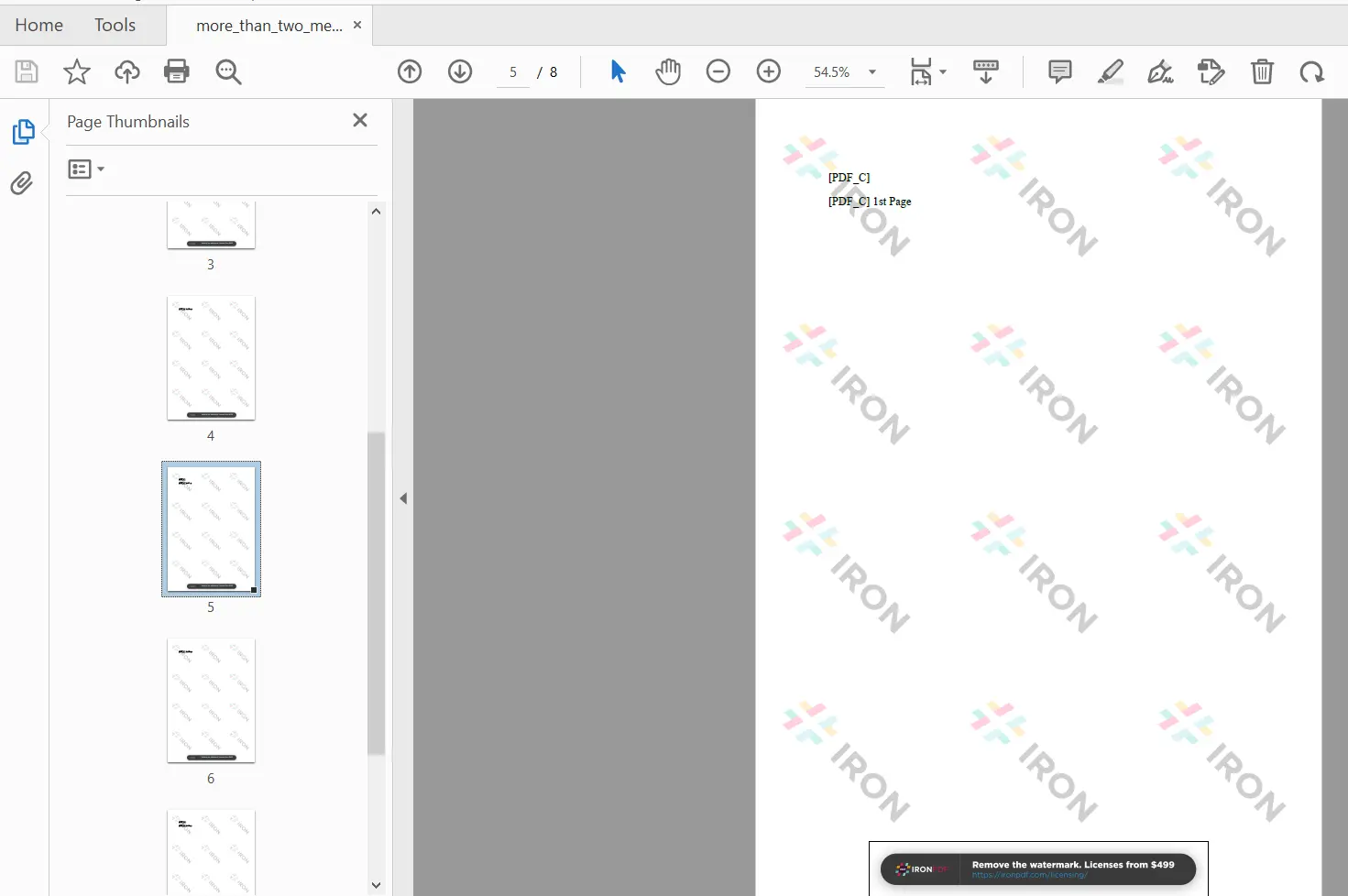
Merging More Than Two PDF Documents
This guide explored the process of merging PDF documents using the IronPDF library for Python, handling everything from installation to the practical steps of combining PDF files.
IronPDF offers reliable performance and precision in manipulating PDF documents. Utilizing IronPDF's capabilities can significantly enhance document handling tasks in Python projects.
For deeper insights into using IronPDF, visit the expansive Code Examples. IronPDF is free for development, with various licensing options available for commercial use. For more details on licensing, refer to this link.