
sidepulse is the command-line and macOS companion project for
SidePulse.
They can display the status of an AI agent, battery level, or other system signals.
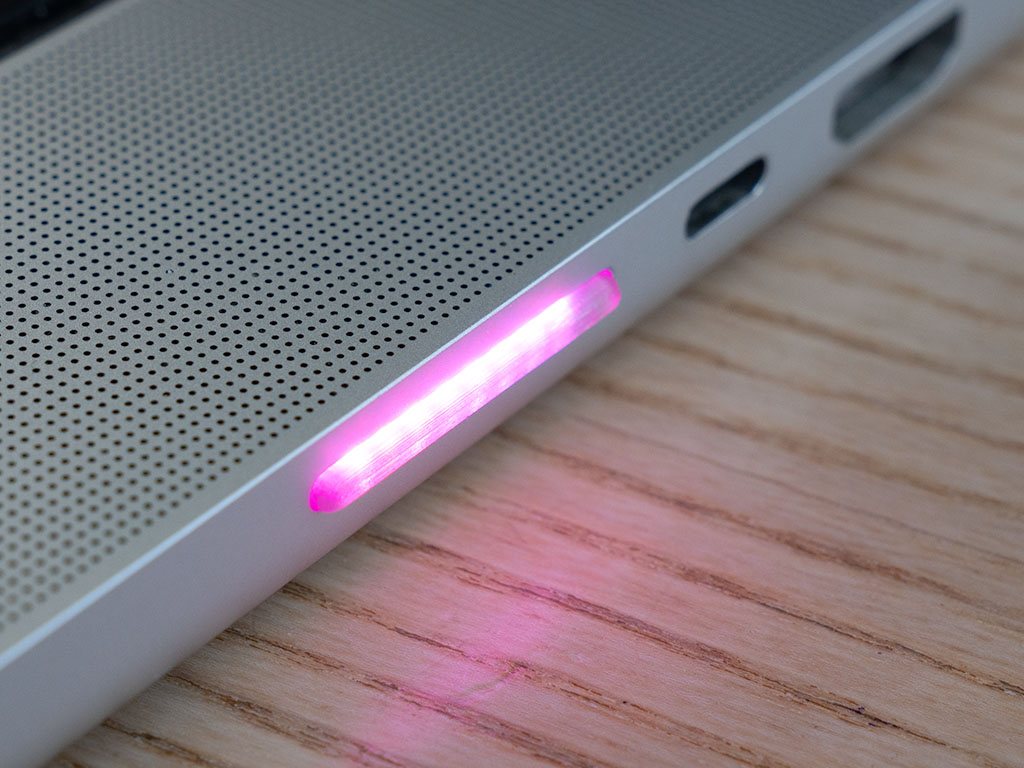 |
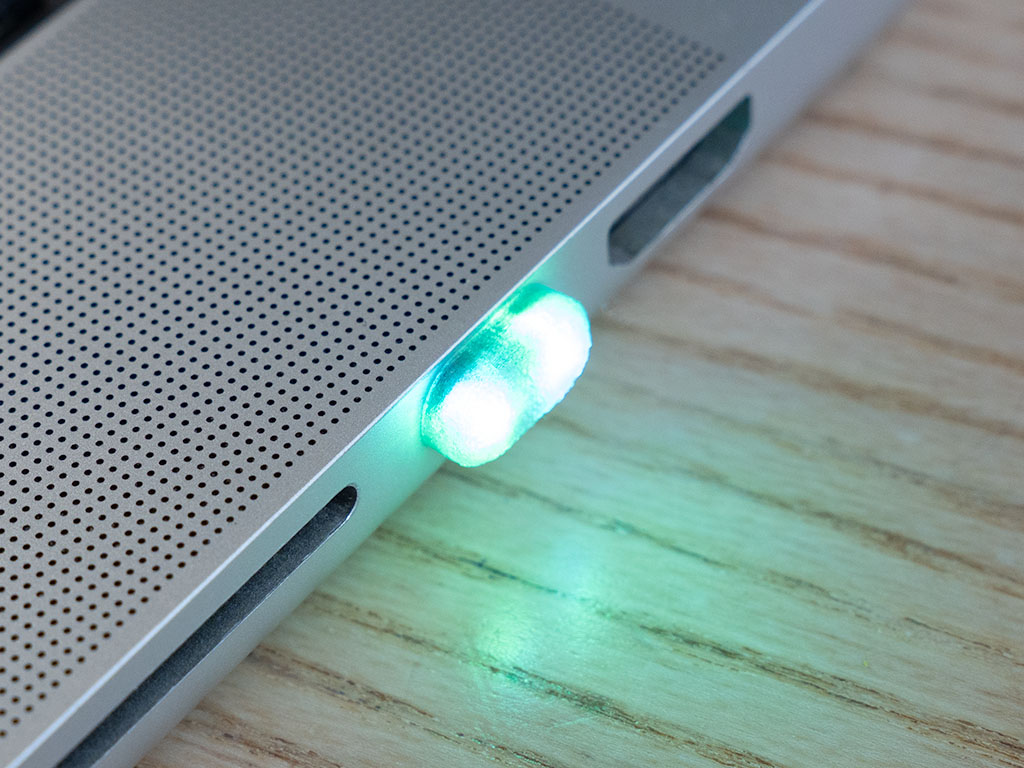 |
|---|---|
| SidePulse Pro — eight-LED SD card device for MacBook Pro. | SidePulse Dot — tiny two-LED USB-C device. |
Agent status, at a glance:
sidepulse-demo-v2.mp4
The device mounts as a disk drive. You can control the LEDs by writing to LEDS.LED.
The LED control DSL is described in LEDS_FORMAT.md.
Firmware downloads and release notes are available in
firmware/README.md.
Choose the level that fits how you want to use SidePulse.
curl -fsSL https://sidepulse.io/setup.sh | bashThe command works on macOS and Linux. It uses an existing Python 3.10 or newer
when available. On macOS, if a suitable Python is missing, it automatically
downloads Python 3.13 using uv into ~/.local/share/sidepulse, without requiring
Homebrew or administrator access. On Linux, install Python 3.10 or newer first. The
setup script creates an isolated environment under
~/.local/share/sidepulse/venv, installs SidePulse from GitHub, links the CLI
at ~/.local/bin/sidepulse, and runs sidepulse setup.
All available components are checked by default, and Install is focused.
Use the up and down arrow keys to move, Space to toggle a checkbox, and Enter
on Install to start setup. Press q to cancel.
The Agent hooks group lists Codex, Claude Code, Grok, Cursor, Junie, and Antigravity on
macOS and Linux. The macOS integrations group lists SD card ejection prevention
(important for deep sleep) and the status-bar indicator. Leaving an item
unchecked skips its setup for this run. The core CLI and background service are
included in every install.
The one-command installer sets up SD card ejection prevention as a system-wide LaunchDaemon so it can run before login. Selecting it requests administrator approval during interactive setup. Setup removes the old per-user guard after the system guard starts.
Setup shows progress as it checks requirements, prepares Python, builds and
installs packages, and configures services and selected components.
It keeps detailed output in
${XDG_STATE_HOME:-$HOME/.local/state}/sidepulse/setup/. On failure, it shows
the last 30 lines and the full log path.
Agents and automation can install all available components without prompting. This command also reports a failed download to the caller.
bash -o pipefail -c 'curl -fsSL https://sidepulse.io/setup.sh | env SIDEPULSE_SETUP_NONINTERACTIVE=1 sh'From a checkout, run sh scripts/setup.sh --headless. For an existing install,
run sidepulse update --headless. Headless macOS setup needs non-interactive
sudo to install the system eject guard. To skip the guard from a checkout,
use sh scripts/setup.sh --headless --no-sd-eject-guard.
sp is a short alias for sidepulse; for example, sp status runs
sidepulse status.
Setup also installs a headless SidePulse service. It runs through a LaunchAgent
named SidePulse Background Service in macOS background activity settings,
and a user systemd service on Linux. Setup restarts the service, so an
upgrade takes effect right away instead of leaving the previous build running.
If a Linux session has no systemd user manager, setup still installs the unit
and records in the setup log that it could not start. sidepulse service run is
a foreground fallback.
For fresh Linux installation, official-main upgrade, service recovery, and real Claude/Codex testing in an isolated VM, see the Linux test harness guide. The native Windows test harness guide tracks the Windows installation probes and the coverage still in progress.
On macOS, the daemon also owns sleep prevention, low-battery safeguards, lid animations, battery-change previews, and status-history recording. When you choose Quit in the status bar, Quit Status Bar Only keeps those features running. Stop Service and Quit also stops the daemon and releases its sleep controls.
History samples every 15 seconds and includes CPU and case temperatures in °C
on Macs with readable SMC sensors. CPU uses a die/package sensor; case uses the
palm-rest skin sensor. The History tab plots both. Missing sensors are recorded
as null and older history remains readable; temperatures start with this build.
If you already manage your own Python 3.10+ environment:
python3 -m pip install --upgrade \
  "git+https://github.com/inteliwear/sidepulse.git"
sidepulse setupUse an editable installation when you want to modify or hack on SidePulse:
git clone https://github.com/inteliwear/sidepulse.git
cd sidepulse
python3 -m pip install -e .
sidepulse setupShow the firmware version of connected SidePulse devices:
sidepulse firmware versionUpgrade a connected device to the latest published firmware for its model:
sidepulse firmware upgrade
sidepulse firmware upgrade --dry-run
The CLI downloads firmware from this repository on GitHub and verifies the ZIP
and its contents before writing to the device. --dry-run downloads and checks
the package without writing it or changing USB storage settings. With multiple
devices connected, use --device to select a drive or Dot USB selector, or
upgrade every detected device with one command.
sidepulse firmware upgrade --all --dry-run
sidepulse firmware upgrade --all
Each device gets the release for its model. If an upgrade fails, the command reports the device, continues with the others, and exits with a failure status.
Choose a specific version or install a downloaded ZIP:
sidepulse firmware upgrade --version 1.1.0
sidepulse firmware upgrade --file firmware/v1.1.0/sidepulse-pro-1.1.0-ota.zip
Use the ZIP for your model from the firmware downloads. Local ZIPs work offline. The CLI rejects packages for the wrong model and older versions, and skips a version that is already installed.
On macOS, a Pro with firmware 1.1 or newer can receive an update through its
setup.html control channel when the drive is mounted read-only. To require
that channel even on a writable mount, run
sidepulse firmware upgrade --all --read-only. An outdated Dot reports a
failure in this mode because its firmware installer requires a writable drive.
For a storage-off Dot with a unique production serial, the CLI enables its drive, matches it after reconnection, and restores its saved storage preference before copying. The preference takes effect at the next device restart. The host must allow the Dot drive to mount and accept writes.
After the transfer, leave the device connected for at least 10 seconds, then
reconnect it and run sidepulse firmware version to confirm the installed
version. Use sidepulse firmware version --json for machine-readable output.
Enable or disable the Dot's disk drive while keeping USB control available:
sidepulse storage status
sidepulse storage off
sidepulse storage on
The setting is saved in the Dot's flash. The CLI safely ejects its disk before disabling storage, reconnects USB automatically, and verifies the new setting. No unplug is needed. Close any files open on the Dot first; if ejection fails, the command stops. This requires Dot firmware with storage-control support.
With multiple Dots connected, choose one using its serial or USB selector from
sidepulse storage status:
sidepulse storage off --device SPD-000006
sidepulse storage status --json
sidepulse firmware version works with storage off. When an update is needed,
sidepulse firmware upgrade can enable the Dot drive for the transfer.
The USB storage setting is specific to Dot.
To control live LEDs with storage off, pass the USB selector shown by
sidepulse storage status to write:
sidepulse write --device /dev/sidepulse-usb/Dot-002-001 "#FF0000"This sends the program directly over USB and checks the device acknowledgement. The selector identifies the current USB connection and may change after reconnecting. The menu-bar app also lists storage-disabled Dots and controls their agent-status, battery and manual LED displays over USB. USB device preferences follow the Dot's production serial when its connection address changes.
The Mac tray title shows a small version and local build date after SidePulse.
Hover for the full version, build timestamp and GitHub main check result.
The daemon checks in the
background once every 24 hours while running and caches the result across
restarts. A development branch ahead of main is considered up to date.
When main has changes missing from the build, Update available appears in
the title; clicking it opens the commit history. An offline or failed check is
reported in the tooltip. Checking does not install updates or change the current branch.
sidepulse update
sidepulse update --headless
sidepulse update --dry-run
update runs the same installer as curl -fsSL https://sidepulse.io/setup.sh | bash.
It downloads the script completely before executing it, so curl failures do not
run a partial installer. The website script forwards to scripts/setup.sh on
GitHub, keeping both entry points on one implementation.
The installer updates ~/.local/share/sidepulse/venv from GitHub, refreshes the
CLI links, and runs sidepulse setup for the selected components.
It replaces the installed code even when the package version has not changed.
Settings and linked devices are retained. Downloads and builds finish before
the background service and menu-bar app are paused; if installation fails,
the installer attempts to restart them. Restart manually started processes yourself.
Both commands honor PYTHON_BIN, SIDEPULSE_INSTALL_SPEC,
SIDEPULSE_INSTALL_ROOT, and SIDEPULSE_BIN_DIR. They use the managed install
path above, even when invoked from a development checkout or bundled app.
Send an LED program to SidePulse:
sidepulse write "off\n#ff3a00 1.6s pulse\nrepeat"List connected hardware and the path to use with --device:
sidepulse list
sidepulse ls
sidepulse list --json
The list includes mounted Pro/Dot drives and USB Dots with storage disabled.
Mounted Dots appear once. USB Dots remain visible when their disk is unmounted.
Dot firmware 1.1.14 also supports live LED writes when its drive never mounts.
In that case, sidepulse list shows a USB selector with the firmware version
and serial unavailable.
The CLI, tray, background service and pip package share the same device discovery
and LED writer. The Python API exposes the same targets shown by sidepulse ls:
from sidepulse import discover_devices, write_led_program

devices = discover_devices()
for device in devices:
    print(device.model, device.serial, device.root)

# Select a device from that list; root can be a drive or USB selector.
write_led_program("#FF0000", device_path=devices[0].root)
sidepulse write prefers mounted hardware and falls back to a linked phone.
sidepulse push accepts the same options but prefers a linked phone, which is
useful for hooks and remote notifications:
sidepulse push "off\n#00ff66 pulse\nrepeat" \
  --title "Build complete" \
  --message "All tests passed"
The LED program is optional when a title or message is present:
sidepulse push --title "Agent needs input" --message "Choose a deployment region"Choose a destination by its displayed name or short ID. If multiple compatible
destinations are available, SidePulse asks for --to instead of silently
broadcasting. Use --all when broadcasting is intentional:
sidepulse write "off" --to "Peter's iPhone"
sidepulse push "off" --to a1b2c3d4
sidepulse write "off" --all
Both commands accept - for stdin. sidepulse write also reads piped stdin when
no LED argument or notification text was supplied:
printf 'off\n#ff3a00 pulse\nrepeat' | sidepulse write
sidepulse push - --title "Deploying" < deploy.LED
The CLI auto-detects mounted devices by looking for a SidePulse Pro/SidePulse
Dot-style volume name or an existing LEDS.LED. It checks /Volumes on macOS
and common removable-media locations such as /media/$USER,
/run/media/$USER, and /mnt on Linux. For a specific local path, the
existing --device option remains available:
sidepulse write "off\n#ff3a00 1.6s pulse\nrepeat" --device /Volumes/SidePulsePro
sidepulse write "off" --device /Volumes/SidePulsePro/LEDS.LED
# Linux example:
sidepulse write "off" --device /media/$USER/SidePulseDot
The writer decodes simple escapes such as \n, then enforces the controller's
512-byte and 20-line limits before writing the LED control file.
Mounted drives restricted to read-only storage, including by an MDM policy,
automatically use an alternate LED transport on firmware 1.1 or newer:
SidePulse Pro uses READ2ME through SD reads of setup.html (macOS), and
SidePulse Dot uses direct SPC2 USB control (macOS and Linux). This applies to
the CLI, menu bar, battery display, and background service without extra flags.
Dot's USB library is included with the app and installed as a Python dependency.
The app tries a normal file write first and falls back only when opening
LEDS.LED is denied as read-only or by permissions. A failure after writing
begins is never replayed through another transport. The firmware version is
checked in STATUS.TXT; older or unrecognized firmware produces an error.
Upgrade older firmware using a computer that permits storage writes.
Alternate transports require a valid device acknowledgement before reporting
success. Dot is matched to the selected mount's USB connection, including when
multiple devices are attached. USB access can still be blocked by management
policy, and Pro's SD reader must support uncached reads; these failures are
reported without changing mount permissions. The fallback controls live LEDs;
it does not install firmware or change startup programs. Pro file contents may
appear stale until remount; Dot USB commands do not modify LEDS.LED.
For an unmounted macOS device, the standalone standard-library utility can
write the existing LEDS.LED directly through /dev/diskN or /dev/rdiskN:
# Replace disk4 with the SidePulse device. Unmount first if already mounted.
diskutil unmountDisk /dev/disk4
sudo python3 scripts/write_led_raw.py /dev/rdisk4 'off\n#ff00ff 1s pulse\nrepeat'
sudo python3 scripts/write_led_raw.py /dev/disk4 - < animation.LED
It requires a whole drive of at most 300,000 bytes, verified using device capacity queries on the open disk before writing. Partitions, unknown capacity, mounted volumes, and larger drives are rejected, with no override. The filesystem must be FAT12 starting at sector zero, with one FAT and 512-byte sectors. Programs are limited to 512 bytes and 20 lines. It writes the existing file's first data sector and updates its directory size, preserving its FAT allocation.
Both apps can scan the QR code from sidepulse link, or you can paste the
complete push token shown by the app. Android tokens use
fcm_<registration-token>_<32-character-sender-key>. Keep the entire token,
including its case and underscores. Android delivery uses the production
bridge's FCM route and data messages; the phone applies the program to its
connected Dot through USB. Its app must have USB access.
Existing iPhone links are preserved. Android links are stored alongside them
with private file permissions. Re-pairing the same registration replaces its
sender key; Android link IDs stay stable when the sender key changes.
sidepulse push, sidepulse write, --to, and --all support both platforms.
For example:
sidepulse push "off\n#00ff00 pulse" --to "Pixel 10 Pro XL" --title "Build complete"Run one command and either scan the terminal QR code with the SidePulse iOS app
or paste the push token shown by the app. Production tokens have 64 hexadecimal
characters; development tokens have the dev_ prefix followed by 64 hexadecimal
characters. The app appends _<shared-key> to identify this sender; keep that
suffix and its exact letter case when pasting or saving the token. Keep the
dev_ prefix on development tokens. Removing the key in the iOS app stops this
sender's pushes from being processed; pair again to receive a new key.
Pairing issues the key in the iOS app. Saving a new token for the same device
and APNs environment replaces its previous saved link. The CLI preserves the
key's case and sends the entire token in the bridge URL; the updated bridge
strips the suffix for Apple and adds it as top-level shared_key in both the
push and recovery payloads. A request body cannot override that key.
The app accepts only locally active keys. Missing, unknown, or removed keys produce no LED write, inbox entry, sender activity, or link-state change. Their notifications are suppressed in the foreground and dismissed when the app or Update from Server handles them. The update action finishes quietly when there is nothing authorized to update; with no active keys it skips fetching. Background alerts can appear before iOS lets the app run cleanup.
Settings → Active Push Keys shows only the last four key characters, last accepted activity, and lifetime received count. The app deduplicates the latest 256 event/message IDs per sender across push and recovery. Removing a key revokes it on the phone; removing a saved CLI link alone does not revoke the phone's key. Use matching updated versions of the bridge, iOS app, and CLI; older unkeyed senders must obtain a new token.
sidepulse linkList saved phones and remove a stale link by its displayed ID:
sidepulse unlink
sidepulse unlink ID_FROM_LIST
sidepulse link
unlink requires an exact ID. This keeps phones with the same name separate.
If two links have the same displayed ID, remove the intended entry by its full
token from ~/.config/sidepulse/agent-monitor/links.json (or the equivalent
under $XDG_CONFIG_HOME/sidepulse/agent-monitor/links.json). Pair with the
updated iOS build by scanning the QR code or pasting its current push token.
Do not add or remove dev_ by hand; the token determines the bridge route.
Linked phones receive session state through the existing bridge. In the tray, open the phone submenu and use Forward sessions (enabled by default for supported links). Choose session LED patterns in the phone app. Mac animations and battery display never automatically control phone colors; explicit sidepulse push commands still work. Turning forwarding off leaves the last received sessions on the phone.
Linked phones are stored locally. Remote LED-only write commands are silent;
LED-only push commands use the notification title Update. Adding
--title or --message produces one visible notification containing the same
LED program and event metadata. Remote payloads also include the sending
computer's name and available battery state. Set SIDEPULSE_SERVER to use
another bridge origin.
Run sidepulse link on the receiving Mac to enable the relay and get the command
for the other computer. Paste that command into the VM. It looks like this:
sidepulse link AbCdEfGhIjKlMnOpQrStUvThe VM stores that channel locally. Its hook adapters translate provider events into OSC-style JSON and submit them to the background SidePulse daemon. The daemon holds live state in memory and forwards individual updates. The Mac accounts the remote JSON alongside local sessions and updates connected SidePulse hardware; a linked phone receives session updates and chooses its own patterns. The VM is an event source, so it does not appear in the Devices menu.
The channel is a 128-bit capability token: possession grants access, so treat the command like a password. There is no separate one-time code. Check the service on either computer with:
sidepulse service statusReport application state with OSC 7501-compatible JSON fields:
sidepulse report --scope my-build --state working --app build
sidepulse report --scope my-build --state blocked --kind permission --msg 'Approve release?'
sidepulse report --scope my-build --state done
You can also pass one raw OSC 7501 line directly or through stdin (Bash/Zsh):
sidepulse report --scope my-build --osc $'\e]7501;state=working:app=build\e\\'
printf '\033]7501;state=done:app=build\007' | sidepulse report --scope my-build --osc
To capture OSC 7501 from an interactive command on macOS or Linux:
sidepulse wrap codex
sp wrap claude
sp is the short alias for sidepulse. Everything after wrap is the command
and its arguments; -- is optional. The wrapper preserves keyboard interaction,
terminal resizing, and the command's exit code. It captures emitted OSC 7501
reports and answers capability queries. The program must emit OSC 7501 to produce
status updates; the wrapper does not infer status from screen text.
The hook adapter, CLI decoder, or terminal wrapper translates input into JSON; the daemon holds the state, drives physical LEDs, and handles remote delivery. Individual status updates travel through the existing bridge queues to remote computers and updated iOS/Android apps, which account and render locally. Each session has one current state. The updated bridge keeps the latest queued value per source/session, up to 10 items per key for at most 300 seconds, with a 2048-byte request/recovery limit. Senders cap msg at 1,024 UTF-8 bytes and shorten it further if needed to fit. See the protocol and quickstart, design plan, and test strategy.
The bundled plugin supports macOS and Linux with Herdr 0.9.3 or newer. Install it from Settings → Agents, select Herdr in SidePulse setup, or run the setup command from your shell.
sidepulse setup herdrThe setup command configures the SidePulse background service, registers the
plugin, and requests an initial sync if the current Herdr server is running. It
also syncs on Herdr startup and agent state changes. Launch agents normally
from their Herdr panes. Herdr, SidePulse agent hooks, and sidepulse wrap
share one SidePulse session per pane. Direct agent hooks take precedence when
both report the same agent.
SidePulse also reads agent status from enabled saved machines in Herdr's sidebar. The SidePulse menu shows these sessions under Remote Herdr, with their machine name. If a machine becomes unreachable, its last known sessions show Disconnected until it reconnects. Use Herdr to open those sessions.
Use herdr plugin log list --plugin sidepulse.status to check plugin errors.
Use sidepulse setup herdr --uninstall to remove it.
Choose battery display, charger wattage, and power-change previews in the macOS app's device settings. The daemon handles physical LED updates. SidePulse Pro uses eight LEDs as a battery bar, with a pulsing frontier while charging; SidePulse Dot uses two LEDs. Programs update when the display state changes.
sidepulse includes a companion menu-bar app for macOS that controls
SidePulse Pro and SidePulse Dot.
SidePulse monitors Codex, Claude, Grok, Cursor, Junie, and Antigravity through hooks and OpenCode and Herdr through plugins. Agent activity drives the LED status.
Agent status modes:
| Mode | Meaning | LED pattern |
|---|---|---|
| Idle / Ready | The agent is available and not currently running a task. | Very dim idle pulse. |
| Working | The agent is thinking, generating, or otherwise actively processing. | Cyan rolling animation. |
| Tool Running | A shell command, API call, or external tool is in progress. | Cyan rolling animation. |
| Waiting for Input | The agent needs a user decision, approval, or additional context. | Slow amber pulse. |
| Long Task Progress | A longer job has measurable progress. | Cyan rolling animation. |
| Blocked / Error | The agent cannot continue, a tool failed, or a recoverable error needs attention. | Slow amber pulse. |
| Completed | The agent finished successfully. | Solid green. |
Each mode can be configured independently in Settings... → Animations.
Every state uses the same animation library: Idle Pulse, Cyan Roll,
Amber Pulse, Solid Green, KITT Scanner, KITT Scanner Red, and
the Ember, Neon, and Purple animation families, plus any named custom animation.
Add Custom… adds a reusable LEDS.LED program to that shared
library, and animation profiles save or apply all state selections together.
The built-in profiles are Cyan (the default), Ember, Neon, and Purple.
Built-ins live in src/sidepulse/resources/animations/ as .LED files; patterns
that depend on the hardware layout have only -2.LED and -8.LED variants.
Custom programs are stored in the animations/ folder beside settings.json.
An animation may set its own brightness, which is multiplied by the device's
brightness setting so the device setting remains the overall limit. The tab shows a
live SidePulse Notch-rendered preview for every state;
Show sends that pattern to connected agent-display devices for three
seconds, then restores live status. Current appears whenever individual
state selections no longer match one of the built-in or saved profiles.
Profiles can be exported as self-contained JSON—including referenced custom
animations—and imported on another SidePulse installation.
When multiple states are active, SidePulse should show the most actionable mode first: Blocked / Error, Waiting for Input, Tool Running, Long Task Progress, Working, then Idle / Ready.
For multiple agents, SidePulse aggregates their statuses into one global display state. Each agent reports its own mode, and SidePulse renders the highest-priority active mode across all non-stale agents. This keeps the device useful at a glance: if any agent is blocked or waiting, the LEDs show that actionable state instead of trying to show every agent separately.
Aggregation priority:
| Priority | Mode | Aggregated behavior |
|---|---|---|
| 1 | Blocked / Error | Show immediately if any agent is blocked or has errored. |
| 2 | Waiting for Input | Show if any agent needs user input and no agent is blocked. |
| 3 | Tool Running | Show if any agent is running a tool and no higher-priority state is active. |
| 4 | Long Task Progress | Show the newest long-task status when no higher-priority mode is active. |
| 5 | Working | Show while one or more agents are actively processing. |
| 6 | Completed | Show briefly when the latest active agent completes successfully. |
| 7 | Idle / Ready | Show when all visible sessions are idle or no sessions remain. |
Status updates carry timestamps and sequence numbers. Explicit Working and Blocked states persist until a newer update or lifecycle cleanup. Each receiver retains the 64 most recently updated sessions; Done expires after 20 minutes.
Hook adapters translate local AI agent events into OSC-style JSON. The daemon
accepts those updates through its status socket and keeps live session state in
memory. The macOS status-bar app and default status/watch commands query it through
the daemon socket. Closing the UI preserves daemon state; restarting the daemon
starts empty. The daemon drives physical LEDs even when the UI is open. Raw hooks are not delivered to the UI or bridge, and provider
logs/transcripts do not recover or override live session state. Hooks also
append event-status.jsonl, a compact decision log that records each hook event
and the SidePulse status it produced for debugging/export. The app does not
rescan historical logs or transcripts on every refresh.
The package can also mirror the aggregate state to a mounted SidePulse Pro or
SidePulse Dot by writing the current LED program to LEDS.LED.
The monitor currently supports:
| Provider | Config | Detected log |
|---|---|---|
| Codex | ~/.codex/config.toml |
${XDG_STATE_HOME:-~/.local/state}/sidepulse/agent-monitor/codex.jsonl |
| Claude | ~/.claude/settings.json |
${XDG_STATE_HOME:-~/.local/state}/sidepulse/agent-monitor/claude.jsonl |
| Grok | ~/.grok/hooks/sidepulse.json |
${XDG_STATE_HOME:-~/.local/state}/sidepulse/agent-monitor/grok.jsonl |
| Antigravity | ~/.gemini/config/hooks.json |
${XDG_STATE_HOME:-~/.local/state}/sidepulse/agent-monitor/antigravity.jsonl |
Install the optional MLX dependency, then classify a message with the default
4-bit mlx-community/Qwen2.5-0.5B-Instruct-4bit model:
python3 -m pip install -e '.[reply-classifier]'
sidepulse-reply "Could you check this for me?"
echo "Thanks, I received it." | sidepulse-reply --json
The model runs locally and uses deterministic greedy decoding. To benchmark the canonical labeled examples plus recent assistant messages collected in the SidePulse decision log:
python3 examples/benchmark_reply_classifier.py --warm-runs 20 --log-examples 12Generate the labeled dataset (eight human-collected examples plus 300 balanced, reproducible synthetic examples):
python3 scripts/generate_reply_dataset.pyThe resulting data/reply_expectation.jsonl records label, source, split,
and category. Human-collected examples are kept in the test split and synthetic
examples are explicitly marked so evaluation can report them separately.
For explicit offline log diagnostics, the file-based analyzer can read local transcripts:
- Codex:
~/.codex/sessions/**/*.jsonl - Claude:
~/.claude/projects/**/*.jsonl
These diagnostic readers do not feed the live daemon, UI, or phone session state. A hook missed entirely by the producer is not reconstructed from a transcript.
By default the monitor stores runtime logs under
~/.local/state/sidepulse/agent-monitor/, following the XDG state directory
convention. Set XDG_STATE_HOME to place them somewhere else.
Install locally for the sidepulse CLI:
python3 -m pip install -e .For an isolated user installation that does not modify system Python packages:
./scripts/install-user.sh
~/.local/bin/sidepulse setup
The installer creates ~/.local/share/sidepulse/venv and links the CLI into
~/.local/bin. Override PYTHON_BIN, SIDEPULSE_INSTALL_ROOT, or
SIDEPULSE_BIN_DIR when a different location is needed.
This also installs the Cocoa dependencies for the macOS status-bar app.
Set up this Mac explicitly after package install:
sidepulse setupsidepulse setup installs or refreshes all supported agent integrations, including
Junie CLI, Google Antigravity, the OpenCode plugin, and the Herdr plugin when Herdr is available. On macOS it installs SidePulse Pro Eject Prevention, writes the status-bar
LaunchAgent, starts both helpers immediately, and enables them at login. This is
intentionally an explicit command instead of a pip install side effect. To set
up only one provider, pass its name, for example sidepulse setup junie.
For multiple providers, repeat --agent, for example
sidepulse setup --agent codex --agent cursor.
Use --no-agent-monitor, --no-sd-eject-guard, or --no-status-bar to skip
individual components.
SidePulse Pro Eject Prevention keeps the built-in SD reader attached after
macOS hibernate or lock-screen mount refusals. When you run sidepulse setup
directly, its auto scope chooses a system-wide daemon if the command already
has administrator privileges and a per-user LaunchAgent otherwise.
The guard checks whether macOS restarted Disk Arbitration. If it did, the guard exits and launchd starts it again with a fresh disk session. KeepAlive must remain enabled for this recovery; an interactive guard run needs a manual restart after a Disk Arbitration restart.
sidepulse setup --sd-eject-guard-scope auto
sidepulse setup --sd-eject-guard-scope user
sidepulse setup --sd-eject-guard-scope system --no-status-bar
The system scope requires the command to already have system install permissions.
Manage SidePulse Pro Eject Prevention directly:
sidepulse sdejectguard start
sidepulse sdejectguard stop
sidepulse sdejectguard uninstall
sidepulse sdejectguard logs
sidepulse sdejectguard start -it
start -it runs the guard in the current terminal for interactive debugging.
On Homebrew Python, use the user-site install form:
python3 -m pip install --user --break-system-packages -e .
ln -sf "$(python3 -m site --user-base)/bin/sidepulse" ~/.local/bin/sidepulseA signed and notarized PKG release can be built with
packaging/build_macos_pkg.sh. See
packaging/README.md for the required Developer ID
certificates and notarization profile.
Check the current hook configuration:
sidepulse doctorInstall or refresh the monitor hooks:
sidepulse setup
sidepulse setup codex
sidepulse setup claude
sidepulse setup grok
sidepulse setup cursor
sidepulse setup junie
sidepulse setup antigravity
sidepulse setup opencode
sidepulse setup herdr
Each hook invokes a small, standard-library-only Python entry point. It writes the event to a diagnostic log, converts it to OSC-style JSON, and submits one status update to the daemon. If the daemon is unavailable, the hook still exits successfully; that update is not stored elsewhere. The CLI reports the unavailable daemon.
Show current aggregated status:
sidepulse statusWatch the same daemon state refresh every second:
sidepulse live
sidepulse live --interval 2
status and live use the same session selection and display. Both support
--all to include inactive sessions, --no-color, and --json. JSON output
contains one complete snapshot per line; live --json streams those snapshots.
live --once prints the same single frame as status.
sidepulse status --all
sidepulse live --all
sidepulse status --json
sidepulse live --json
Both views require the daemon; neither reads provider logs or writes LEDs. Working and blocked sessions remain until a newer update or lifecycle cleanup. The daemon retains the 64 most recently updated sessions, evicting the oldest on overflow.
Codex's Interrupt hook clears Working, Tool Running, and Ask when a turn is
interrupted. The session returns to Idle / Ready without being marked completed;
the next prompt makes it active again. Reinstall the Codex hooks after upgrading
to register this event. Transcript monitoring is not required.
PostToolUse keeps the session Working while the assistant finishes its answer.
A subsequent producer update is required to mark it Done; silence does not infer completion.
Codex tool failures and denied tool calls also stay Working while Codex handles
them. They do not flash Ask. Input/approval requests, explicit error statuses,
and session-level StopFailure events still need attention. A separate pending
question remains Ask until it is answered or otherwise resolved.
Completed remains visible for 20 minutes so the status bar and LEDs can show
Done long enough to be noticed. After that it drops out instead of counting as
an active session for the full stale window, and the LEDs return to the very
dim Idle pattern. Idle/session-start records also do not count as active
sessions.
Status detection is strongest when the agent tells the monitor its intended handoff state explicitly. A final assistant message can include a hidden marker line:
<!-- sidepulse:ask -->
<!-- sidepulse:done -->
<!-- sidepulse:working -->
<!-- sidepulse:blocked -->
<!-- sidepulse:idle -->
Explicit markers win over text heuristics. If no marker is present, the monitor
falls back to provider events and then to conservative question detection in the
final assistant message. Casual closing questions such as "Anything else?" are
treated as Done unless the agent emits <!-- sidepulse:ask -->; concrete
follow-ups such as "Want me to push?" still count as Ask. Questions inside
markdown code spans or fenced code examples are ignored.
Codex PermissionRequest events are treated as Ask and remain sticky until the
matching tool command finishes. This prevents unrelated same-session activity
from hiding an approval prompt that is still waiting on the user.
For Codex, Claude, Grok, Cursor, or Junie projects that should report this reliably, add guidance like this to the relevant agent instructions:
When your final response needs user input, approval, or a decision, include
`<!-- sidepulse:ask -->` as a final hidden marker line. When the work is complete
and no user response is needed, include `<!-- sidepulse:done -->`.
The daemon updates physical LEDs when their display state changes. SidePulse Dot programs use two LEDs; SidePulse Pro programs use eight LEDs.
Remove provider hooks:
sidepulse setup --uninstall
sidepulse setup codex --uninstall
sidepulse setup claude --uninstall
sidepulse setup grok --uninstall
sidepulse setup cursor --uninstall
sidepulse setup junie --uninstall
sidepulse setup antigravity --uninstall
sidepulse setup opencode --uninstall
sidepulse setup herdr --uninstall
Install and start the macOS status-bar app:
sidepulse status-bar
sidepulse status-bar start
This writes ~/Library/LaunchAgents/io.sidepulse.agentstatus.plist, starts the
menu-bar app immediately, enables it at login, and mirrors the same aggregate
state to the LEDs. For debugging, run it in the foreground:
sidepulse status-bar start --foregroundOn first launch, the status-bar app shows a SidePulse Setup window. It can:
- enable Run at Login;
- install or uninstall SidePulse Pro Eject Prevention, which keeps SidePulse Pro/SidePulse Dot available after sleep;
- open the one-time closed-lid sleep prevention installer in Terminal.
To reopen Setup, choose Settings… → Advanced → Open Setup….
The status-bar item uses a single icon, with the current state in its tooltip:
| Label | Meaning |
|---|---|
| Idle | No recent active agent work. |
| Working | One or more agents are thinking, running tools, or progressing. |
| Done | The most recent active agent completed successfully. |
| Ask | An agent needs input, permission, or attention. |
To hide the icon, open Settings → Advanced and uncheck Show menu bar icon.
Monitoring and LEDs continue running. Reopen settings with sidepulse settings
in Terminal (it starts the app if needed), or open the installed SidePulse app
from Finder or Spotlight. Check Show menu bar icon to restore it.
Running sidepulse status-bar (or sidepulse status-bar start) also restores
the icon immediately. Automatic starts at login retain your visibility preference.
Click the status-bar item to expand the recent session list. Click a session row to open that agent using the remembered choice for that provider. Use the session's Open Options row to choose and remember another opener, such as the provider app, Terminal resume, or Claude Code in VS Code.
Enable T3 Code in Settings → Agents or run sidepulse setup t3code. To stop
monitoring its provider logs, click Disable or run sidepulse setup t3code --uninstall.
A separate process reads recent provider logs and reports status to the
SidePulse background service, even without native SidePulse hooks. Provider hooks and T3 events
share a session when SidePulse can match the provider's native session ID or
the T3 thread link. Agents and Setup show T3 Code's monitoring status.
Use Settings → Diagnostics or sidepulse doctor to see the provider log
directory, whether SidePulse has read recent events, and whether the T3
environment ID is available. For a custom T3 data directory, set T3CODE_HOME
in the SidePulse service environment.
T3 Code sessions default to Open in T3 Code when SidePulse has the thread link. A compatible T3 Code desktop app handles the link. When the thread link is unavailable, SidePulse offers the underlying provider's available openers. Set the default for T3 Code in Settings → Agents → Session Opening. A choice saved from a session's Open Options takes precedence for that provider in T3 Code. T3 Code sessions drive the same desktop, LED, and linked-phone status updates as hook sessions.
Open a connected device under Devices to see its firmware version. The app checks published releases for that model in the background and offers Upgrade to VERSION… when newer firmware is available. The update is downloaded and verified before transfer. Keep the device connected for at least 10 seconds after transfer, then reconnect it to confirm the installed version. Firmware updates require a writable mounted drive. Release checks are cached for six hours; failed checks retry after five minutes and show an unavailable status instead of claiming the firmware is current.
The dropdown also includes a checked Connect to Device item. A checkmark means
the status-bar app is actively connected to a mounted SidePulse Pro/SidePulse Dot target.
If both devices are mounted, the status-bar app prefers SidePulse Pro, then
SidePulse Dot. Click the item to disconnect and turn the LEDs off; click it again to
reconnect.
The menu-bar dropdown can switch the LEDs between agent status and battery
status. In Settings → Advanced, Show battery for 7s on plug/unplug can
briefly show the battery animation for seven seconds after the power source
changes when agent status is selected.
Open Settings → Dark Hours to schedule lights-out for SidePulse Pro and Dot devices displaying agent or battery status. Enable the schedule, choose local start and end times, and select the days it starts. The default is midnight to 6:30 a.m. every day. You can allow waiting-for-input and error alerts through. After Dark Hours, the LEDs resume their current display at the saved brightness. The schedule also applies when the service starts or the computer wakes. The menu bar, SidePulse Notch, linked phones, session history, and sleep prevention continue operating throughout.
The Devices section also offers Add SidePulse Notch, an optional virtual
eight-LED device. It appears as a notch-shaped status-bar overlay that covers
the camera island/notch footprint and adds a straight 5 px LED band along the
bottom edge, or the corresponding top-center position on a display without a
notch. Each virtual LED blends across a three-LED footprint: centered on the
target LED, fading one LED width left and right. It shares the physical
device's status animations, display-mode selection, and per-device brightness
control. SidePulse Notch evaluates the same LEDS.LED programs with the
firmware/websim sdled.wasm engine, then AppKit only draws the returned RGB
frames.
Open Settings... from the dropdown to manage agent integrations. The settings
window can manage Codex, Claude, Grok, Cursor, Junie, and Antigravity hooks and the OpenCode and Herdr plugins.
The transcript checkboxes apply only to explicit file-based diagnostics. The status-bar app reads
accounted OSC-style JSON through the daemon socket. Settings are stored at
${XDG_CONFIG_HOME:-~/.config}/sidepulse/agent-monitor/settings.json.
Google Antigravity's app, IDE, and CLI share a global hook configuration.
Run sidepulse setup antigravity to track each conversation as it starts,
runs tools, requests input, and finishes. On macOS, clicking a desktop session
opens Antigravity and uses ⌘K, the chat title, and Return to select the conversation.
SidePulse checks the opened chat ID. If multiple chats share the title, it leaves search open.
If the launcher needs Accessibility access, SidePulse offers
a one-time choice. Review Permission… opens Accessibility settings and shows SidePulse Chat Opener
in Finder. Enable it in Settings, or drag it into the list if it is missing. After granting access, click the session again.
Open App Only remembers your choice and brings the app forward on each click.
Use ⌘K to find the chat. You can grant or revoke access later in System Settings
→ Privacy & Security → Accessibility under SidePulse Chat Opener. Choose
Review Chat Access… in a desktop session’s options to revisit the choice.
CLI sessions resume in Terminal. The SidePulse hook group appears in the
CLI's /hooks view and the app and IDE's Hooks settings.
Antigravity hook reference
Junie support uses its user-level ~/.junie/config.json hooks. Junie currently
emits hooks from its interactive and batch CLI hosts, including CLI sessions
connected to a JetBrains IDE; Junie hosted directly through IDE/ACP does not yet
emit hooks. SidePulse intentionally does not register a Junie PermissionRequest
hook because a successful observer hook would automatically approve the requested
action. Junie's normal approval prompts therefore remain unchanged.
Junie sessions use the project path from the hook or the Junie session index when
available. The index at ~/.junie/sessions/index.jsonl also supplies task names.
In Settings → Agents → Session
Opening, Automatic opens the recorded project in JetBrains for IDE-origin
sessions when a matching installed IDE is available. Other Junie sessions resume
in Terminal. You can also set either opener as the Junie preference. If SidePulse
cannot find a matching installed IDE in JetBrains' recent projects, it falls back
to Terminal.
OpenCode has no command hooks, so SidePulse installs a small plugin at
${XDG_CONFIG_HOME:-~/.config}/opencode/plugins/sidepulse.ts instead. OpenCode
loads it automatically. The plugin follows OpenCode's session events and submits
each state change with sidepulse report --json: Working while a session runs,
Waiting for Input for a permission prompt or a question, then Done, Error, or
Idle when it stops. Subagent sessions report through their parent session. The
plugin reports the session title, working directory, permission action, and
question title. Setup preserves existing unmanaged plugins at sidepulse.ts
and sidepulse.js. Restart OpenCode after installation. The bundled plugin
requires OpenCode 2. The status-bar menu can resume a tracked OpenCode session
in Terminal.
Settings can export the hook decision log as CSV or HTML. This log lives at
${XDG_STATE_HOME:-~/.local/state}/sidepulse/agent-monitor/event-status.jsonl
and shows the path from provider hook event to interpreted SidePulse status.
The Keep Awake With Lid Closed menu section controls the stronger sleep
prevention policy:
The intended closed-lid behavior, including the distinction between macOS
clamshell mode and SidePulse's no-external-display fallback, is documented in
docs/design/closed-lid-power.md.
| Choice | Behavior |
|---|---|
| Never | Do not use the closed-lid sleep override. |
| When Agents Work | Keep the Mac awake while agents are Working / Tool Running / Progressing, plus the existing five-minute Ask / Done / Error grace period. |
| Always | Keep the closed-lid sleep override active while the status-bar app is running. |
The daemon caches connected devices and refreshes discovery on USB or mount
notifications: Disk Arbitration/IOKit on macOS, mount-table/USB events on Linux,
and device broadcasts on Windows. Native filesystem notifications also watch
Linux mount folders and custom SIDEPULSE_MOUNT_ROOTS on all three platforms.
Normal Mac/Windows volumes use only native device notifications. Windows uses
drive letters as volumes. LED writes and file reads do not trigger discovery.
Device metadata is read during discovery or an explicit firmware check. On Mac,
the daemon also reads one uncached 512-byte sector of each connected Pro's
STATUS.TXT every 60 seconds to keep the SD reader active. Discovery counts as
a fresh read and resets that interval. This uses the cached device list and
existing daemon cycle, without periodic volume scans or LED writes. Dots do
not receive these keepalive reads. If notification setup fails, the daemon logs
the failure and falls back to scanning so connections can still be found.
The closed-lid policy uses the SidePulse sleep helper when it is installed. The PKG installer sets this up automatically; source/dev installs can run the one-time setup command:
sudo "$(command -v sidepulse)" status-bar install-sleep-helperThe helper is a narrow sudoers rule for exactly
/usr/bin/pmset -a disablesleep 0|1, so the status-bar app can toggle it
silently with non-interactive sudo. SidePulse uses this automatically for
Keep Awake With Lid Closed and only restores the setting if SidePulse changed
it. Remove the helper with:
sudo "$(command -v sidepulse)" status-bar uninstall-sleep-helperOpen Settings... → Animations to choose and preview the Lid Closed and Lid
Open rows alongside the agent-state animations. Animation programs use the same LEDS.LED syntax as
sidepulse write; device brightness is applied automatically before writing.
The app is also installed as a user LaunchAgent at
~/Library/LaunchAgents/io.sidepulse.agentstatus.plist.
Stop and remove the LaunchAgent:
sidepulse status-bar stopRead the daemon's current sessions from Python:
from sidepulse.program_presentation import DaemonMonitor

snapshot = DaemonMonitor().snapshot()
print(snapshot.aggregate.mode.value)
for status in snapshot.statuses:
    print(status.provider, status.mode.value, status.cwd)
Submit normalized status from another local process:
from sidepulse.program_transport import submit_status

submit_status({
    "v": 1, "type": "program_status", "scope": "example",
    "status": {"state": "done", "app": "example", "msg": "Finished."},
})examples/audio_monitor.py turns microphone volume into a smooth LED level
bar. The LEDs stay dim at rest, run green through yellow to red, and brighten as
the audio level fills the bar.
Install the optional live-audio dependencies:
python3 -m pip install sounddevice numpyPreview the meter in the terminal without touching a device:
python3 examples/audio_monitor.py --dry-run --terminalWrite to a mounted SidePulse Pro or SidePulse Dot:
python3 examples/audio_monitor.py --device /Volumes/SidePulsePro --terminal
python3 examples/audio_monitor.py --device /Volumes/SidePulseDot --terminal
List audio inputs or tune sensitivity:
python3 examples/audio_monitor.py --list-inputs
python3 examples/audio_monitor.py --device /Volumes/SidePulsePro --gain-db 8 --release 0.45...
python3 -m pip install -e '.[test]'
python3 -m pytest tests -q
CI runs the suite on macOS and Linux, and a tagged release will not publish unless it passes. Four files, each guarding a different failure mode:
| File | Guards against |
|---|---|
tests/test_packaging.py |
Importing a module no dependency declares. Every module-level import must resolve to a declared distribution, so a new import without a matching pyproject.toml entry fails at commit time rather than on a user's machine. |
tests/test_environment.py |
A working dev machine hiding a broken install. Builds an empty virtualenv, runs pip install . against pyproject.toml alone, then imports every module and runs the real commands — including sidepulse status-bar start --foreground — inside it. An undeclared dependency is simply absent there. |
tests/test_hook_stability.py |
Breaking somebody's agent session. Hooks must exit 0 and stay silent on stdout for every input and internal failure — and must still work with PyObjC entirely unavailable. |
tests/test_status_bar_ui.py |
Menus and windows that build but crash when clicked. Runs headlessly against a real StatusBarController; verifies every selector string resolves to a real method. |
tests/test_sidepulse.py |
Collector, settings, install, and provider logic. |
The UI tests skip if AppKit is unavailable. Set SIDEPULSE_REQUIRE_UI_TESTS=1
to turn that skip into a failure, which is how CI runs them. Likewise, the
OpenCode plugin tests in tests/test_opencode_provider.py skip without Node.js
22.6 or newer; CI sets SIDEPULSE_REQUIRE_PLUGIN_TESTS=1 on Linux.
The clean-room install tests take ~15s because they build a virtualenv and
install into it. Set SIDEPULSE_SKIP_CLEAN_INSTALL=1 to skip them while
iterating; CI always runs them.
For fresh-macOS installer and real Claude/Codex integration checks, use the
UTM test harness. It bundles the current working tree,
supports a shared /Volumes/SidePulse, and produces JSON/JUnit reports.
Build and verify the wheel and source archive locally:
./scripts/release.shThe script generates a sortable calendar version such as 1.20260901.67530:
major version 1, UTC date 20260901, and seconds since UTC midnight 67530.
It runs the test suite in an isolated environment, builds the wheel and source
archive, checks their package metadata, installs the wheel into a clean
environment for a smoke test, and writes SHA-256 checksums beside the artifacts
in dist/. It prints the exact tag to push, but never tags, publishes, or
pushes itself. Use --skip-tests only when the suite has already passed in the
same checkout.
Pushing the printed tag, for example
git tag v1.20260901.67530 && git push origin v1.20260901.67530, runs the full
suite, uses the tag as the package version, builds, publishes, and then
reinstalls the release from PyPI on a clean macOS runner to re-run the
clean-room tests against the artifact users actually download.
The version comes from the tag, so no source files need a version bump. To point the clean-room tests at any published build:
SIDEPULSE_INSTALL_SPEC='sidepulse==1.20260901.67530' python3 -m pytest tests/test_environment.py -v