


Dimble is a menu bar manager for macOS 27 with just the right features and a lot of attention to detail. It keeps your Live Activities on the bar while everything else is hidden, a click opens the card. The icons you don't need tuck away and come back the instant you ask, in the menu bar, a panel or a row under it. macOS does the hiding. Free, open source, no account, no analytics.
Tip
Beta channel. Fixes and new features land there first, a stable release rolls them up every week or two. Turn on "Get beta releases" in Settings › About, or download the latest beta:

Collapsed, and a hover later.

Three sections, one rule: Visible is always there, Hidden comes back on a hover or a click, and Always Hidden only appears when you ask for it (double-click or ⌥-click the chevron, or a middle-click once you turn it on). Arrange them in the layout editor (real app-icon previews, drag-and-drop ordering): the editor is a drawing the bar follows, and Apply lays the bar out to match it in one pass. Or skip the window entirely and ⌘-drag icons across the chevron right in the menu bar. Dimble records that move in the editor and leaves the rest where they are. And when macOS or an app shifts an icon out of that order, Dimble puts it back on its own the next time you pause.
The layout editor is a drawing the bar follows. Drag Spotify to Visible and nothing moves yet. Press Apply and it's there. Or leave it, and Dimble does it the next time you pause.
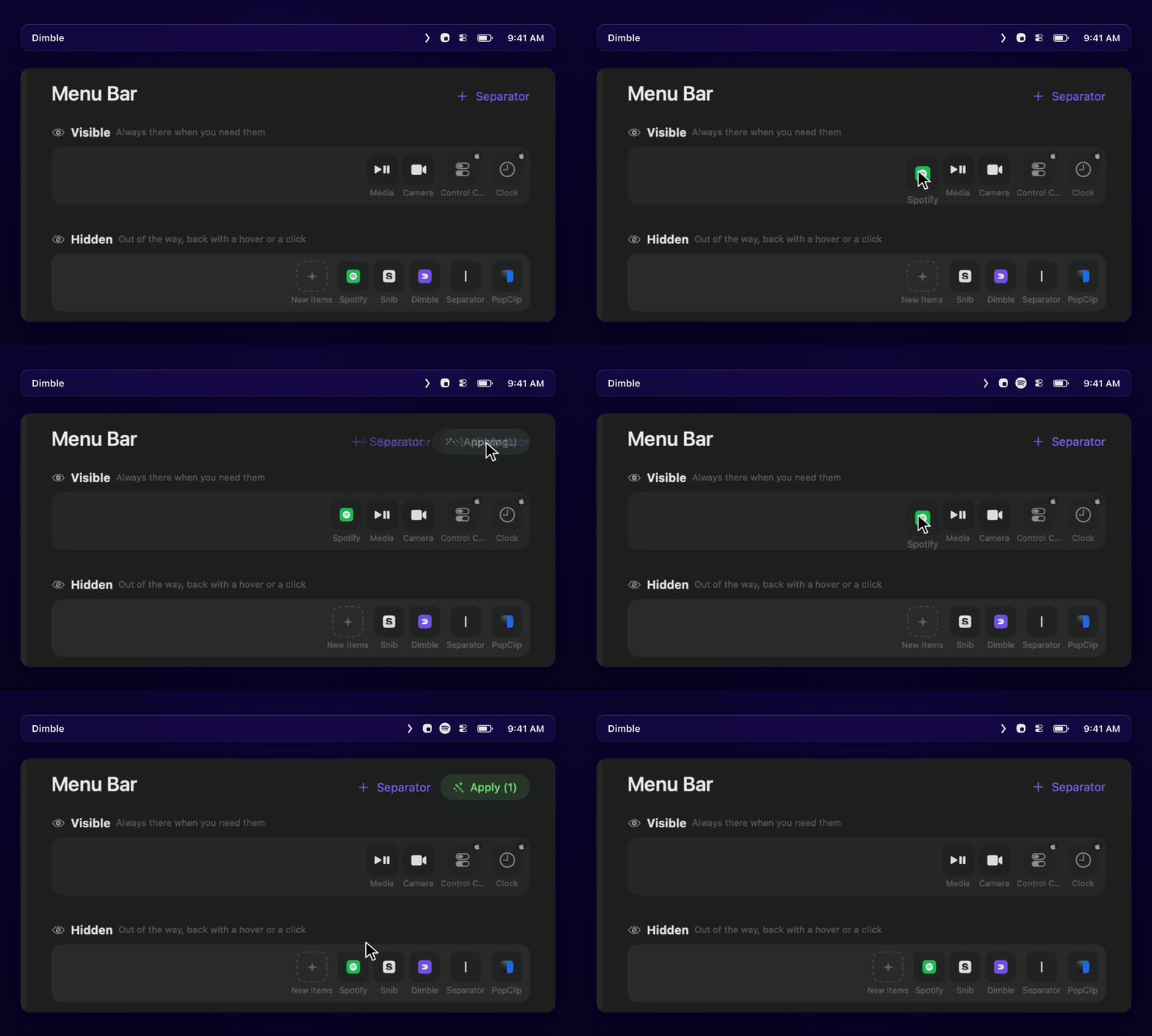
Apply reveals what it needs, lays the whole bar out in one pass with the pointer hidden for a moment, and reports what it did next to the button. On a full bar it opens macOS's own « for an icon drawn behind it, moves it, and closes the « again. A "New items" tile shows where icons Dimble has never seen will land. Updating leaves your bar alone. The first time Dimble sees a section out of order, it takes that section's order from the bar instead of moving anything. And a pending update shows as a banner on every Settings pane, with a daily reminder until you install it.
System icons hide too. Sound, Battery and friends behave like any other icon. The few macOS protects (Clock, Control Center) are shown locked in the editor rather than pretended away, and anything macOS groups together gets an honest badge instead of a fake handle. Siri and Time Machine, which macOS only hides as a pair, come as Dimble's own items so each can go wherever you like.
Every way back in is a setting: hover (with a delay from 0.1 to 0.5 seconds), a click on empty menu bar space, a double-click for the always-hidden section, or the chevron itself. The keyboard works too, from any app. ⌥⌘, shows the hidden icons and ⌃⌥⌘, brings the always-hidden ones with them (you can change both in Settings › General). Always Hidden on its own can get a key too, and a middle-click on the chevron can show either section. Pick how it looks (Instant, Smooth or Fade) and how it ends, either auto-rehide after a delay you set (instant to 5 seconds) or the moment you click somewhere else.

Your rules for revealing, and for putting everything back.
Hidden icons in a panel
Hidden icons don't have to slide back into the bar. Turn on Panel and they open as tiles in a panel under the menu bar, and the bar stays put. Each tile is a picture of the real icon, and a click opens that icon's real menu. Settings › Panel has the switch, with Menu bar as the default and Row as the same tiles in one strip. It's the big new feature in 0.3.2 (#26).
- Always Hidden sits behind a fold. Click the fold at the end of the panel to open it.
- Type to find. Start typing and press Return. The top match's menu opens, and Esc closes the panel.
- Drag tiles around. Reorder a tile in its section, or drop it on another one. Drag it up onto the bar to show it there.
- ⌘-drag from the bar. Drop an icon on the panel and it's filed in the section under the pointer.
Hover, open the fold, type "ta", Return. Tailscale's menu drops from its own icon.


Where hidden icons open, and how the panel looks.
Press ⌥⌘K, type a few letters, press Return, and that icon's menu opens right from its real icon, hidden or not. The arrow keys work in the menu like they normally do. Search knows the short names people type (bt, wifi) and puts the icons you open most first. It finds Dimble's settings too, and ⌘K on a result moves it to another section or gives it its own shortcut. What it learns stays on your Mac. New in 0.3.1.
⌥⌘K, "bt", Return. Bluetooth's menu drops from its own icon.

A game's score, a Shortcut running: macOS shows those in a pill beside the clock, and it takes the pill off the bar while your icons are hidden. Dimble keeps it there. The pill sits next to the chevron for as long as the activity runs, a click opens its card, and the system icons come back alongside it. It's on by default, and it needs Screen Recording. Settings › Menu Bar › "Show Live Activities" turns it off. New in 0.3.4. macOS 27.3's "System & App Protection Override" pill is the one left out by default. A Mac with Dimble has it up all day, so Settings › Menu Bar › Live Activities brings it back if you want it.
The game's pill stays on the bar. A click opens its card.

Dimble has twelve Shortcuts actions. Get Menu Bar Layout gives back your whole layout as text (JSON). Set Menu Bar Layout puts every icon where that text says, in one go. Keep the text in a file to bring the layout back later, or on another Mac. You get a list of the icons it couldn't find. New in 0.4.1.
- Move things. Move an icon to a section or right after another one, and add or remove a separator. Dimble drags the real icons, so leave the mouse alone while it runs.
- Show or open. Bring out the hidden icons or just one, and open an icon's menu wherever it sits. Are Icons Shown answers yes or no, for an If in your shortcut.
- The rest. Open Search with text typed in, or turn reveal on hover or on click on and off.
dimble:// links do the smaller changes without Shortcuts, from a launcher or a
script.
| Link | What it does |
|---|---|
dimble://show |
Shows the Hidden icons (show-all adds Always Hidden) |
dimble://hide |
Puts them back (toggle does one or the other) |
dimble://search?q=Tailscale |
Opens Search with the text typed in |
dimble://move?icon=Tailscale&to=hidden |
Moves an icon to visible, hidden or always-hidden |
dimble://move?icon=Tailscale&after=Bluetooth |
Moves it next to another icon (before works too) |
dimble://add-separator?after=Tailscale |
Adds a separator (to=hidden adds it to that section) |
dimble://remove-separator?after=Tailscale |
Removes that separator |
An icon goes by the name Settings shows. If two share a name, use the id from
the layout. A space is %20, as in Little%20Snitch. Any web page can open a
link, so a link can't read your layout, click an icon or change a setting.
In Terminal, open -g runs a link. An action goes in a shortcut first. Run that
once in the Shortcuts app and pick Always Allow, or Terminal waits on macOS's
prompt. With Get Menu Bar Layout in a shortcut named Menu Bar Layout, the second
line saves your layout to a file.
open -g "dimble://toggle"
shortcuts run "Menu Bar Layout" --output-path layout.json --output-type public.plain-text < /dev/null- Per-display behavior. Set a display to always show everything or to collapse. Whichever display your pointer is on wins.
- Built-in replacements. Media controls, AirDrop, camera/mic indicator, a timer, Focus, fast user switching and Shortcut buttons (with an icon you pick) that survive hiding, since macOS temporarily removes its own extras while hiding is active. Media controls, Time Machine and Focus show when active or always, and a ⌘-drag off the bar turns any of them off.
- App launchers. A Dimble icon for any app: click opens it, and it hides like everything else. The fix for apps whose own icon can't be hidden (see the FAQ), and a handy launcher for the rest.
- Separators. Visual dividers that behave like icons, with adjustable opacity, edited on their tiles. A new one is part of the drawing until Apply places it. ⌘-drag them anywhere in the bar.
- Nothing to phone home about. No account, no analytics, no server. The only connection Dimble ever makes is checking for its own updates.
- Signed updates. Sparkle with EdDSA signatures, checked against a signed appcast.
- Your icon, or none. Nine menu bar icon styles (two chevrons, arrow, eye, dots, grid, panel, two dots), or turn the icon off entirely and reach Settings by shortcut or right-click.
- Tighter icons. One slider for the gap macOS leaves between menu bar icons, down to 1 point. Dimble relaunches itself and the system icons so the clock and Control Center follow at once, other apps pick it up the next time they open.
- Speaks your language. English, German, French, Spanish, Italian,
Portuguese (Brazil), Japanese, Simplified Chinese, Korean and Russian.
Dimble follows your system language, or pick one in Settings › General ›
Language. Translations are machine-drafted for now, corrections are welcome
in
scripts/gen-xcstrings.py.

General. Pick the icon Dimble wears, or your language.
macOS 27's menu bar can hide items natively. It's the mechanism behind the system's assessment (exam lockdown) mode. Dimble drives that mechanism directly. It asserts a configuration listing what should stay visible, and macOS itself hides the rest and reflows the bar. That's why hiding feels like part of the system. It is the system.
The catch: this API lives in a private Apple framework
(MenuBarClientCore). It isn't documented or guaranteed, so a macOS update
could change or remove it. Dimble resolves it at runtime and fails soft. If the
API ever disappears, Dimble simply reports hiding as unavailable rather than
breaking your menu bar. Everything else (item positions, clicks, previews)
uses public APIs: Accessibility and ScreenCaptureKit.
Download the latest DMG from Releases, drag Dimble to Applications, and launch it. Or with Homebrew:
brew install --cask dimbleRequires macOS 27 (Golden Gate). Earlier versions of macOS use a different menu bar architecture that Dimble doesn't target.
On first launch Dimble asks for one permission:
- Accessibility (required). How Dimble sees the menu bar's items and positions, and how clicking a hidden item works without revealing everything.
Screen Recording is optional, offered next to Accessibility in onboarding and skippable. The animation styles use it: macOS shows and hides icons with an animation of its own, and Dimble's Instant, Smooth and Fade play over it using two stills of the menu bar. Nothing is recorded or kept. Without it, icons show and hide the way macOS does it.
Dimble is notarized by Apple and ships with the hardened runtime. It isn't sandboxed, managing the menu bar requires APIs the App Store sandbox forbids.
More in the FAQ.
Requires Xcode with the macOS 27 SDK and xcodegen.
git clone https://github.com/fif7y/dimble.git
cd dimble
xcodegen
xcodebuild -project Pelmet.xcodeproj -scheme Pelmet -configuration Release build
The engine logic lives in two local Swift packages, Packages/PelmetCore
(section model, rehide state machine) and Packages/PelmetEngine (menu bar
convergence), each with its own test suite:
swift test --package-path Packages/PelmetCore
swift test --package-path Packages/PelmetEngine
UI strings live in Pelmet/Resources/Localizable.xcstrings, generated from
the translation table in scripts/gen-xcstrings.py. Edit the script, re-run
it, commit both. English keys must match the code literals exactly.
dimble (n.), a secluded hollow, a hiding place. Now also the same thing, for your menu bar's icons. It was called Pelmet up to 0.3.1, and Pliss for one beta.
Dimble's macOS 27 approach is based on the work of Thaw, whose maintainers worked out how the rebuilt menu bar can be managed, in public, during the macOS 27 betas (thaw-app/Thaw#687). Thaw is a fork of Ice, the open-source menu bar manager for earlier versions of macOS, which is what got Dimble started in the first place.
Dimble's only third-party dependency is Sparkle (in-app updates), used under the MIT-style Sparkle license. Everything else is custom code on top of Apple's system frameworks.
© 2026 Gabriel Faucon. Licensed under the GNU General Public License v3.0. Use it, fork it. Distributed derivatives must remain open under the same license.
Dimble is an independent project, not affiliated with or endorsed by Apple Inc. Apple, macOS, and the Mac are trademarks of Apple Inc.