Communication Protocols
Serial Studio supports multiple communication protocols, allowing you to connect to virtually any device. This page helps you understand which protocol to use for your project.
Serial Studio supports 7 different communication protocols, each designed for specific use cases:
| Protocol | Type | Range | Speed | Best For | Pro Required |
|---|---|---|---|---|---|
| Serial/UART | Wired | Cable length | Low-High | Arduino, embedded dev | No |
| TCP/UDP Network | Wired/WiFi | Local/Internet | Medium-High | ESP32, remote devices | No |
| Bluetooth LE | Wireless | ~10-100m | Low-Medium | Battery-powered sensors | No |
| MQTT | Internet | Global | Medium | IoT cloud, distributed systems | Yes |
| Modbus | Wired/Network | Local/Network | Medium | Industrial PLCs, SCADA | Yes |
| CAN Bus | Wired | Vehicle/Industrial | High | Automotive, industrial machinery | Yes |
| Audio Input | Wired | Cable length | High | Sound analysis, vibration monitoring | Yes |
These protocols are available in both the free (GPLv3) and Pro versions:
What it is: Traditional serial communication over USB, RS-232, or hardware UART.
When to use:
- Connecting Arduino, ESP32, or other microcontrollers via USB
- Direct hardware UART connections
- RS-232/RS-485 industrial devices
- Quick prototyping and development
Typical applications:
- Arduino sensor projects
- Embedded systems development
- Hardware debugging
- Educational projects
Educational Video - Understanding Serial Communication:
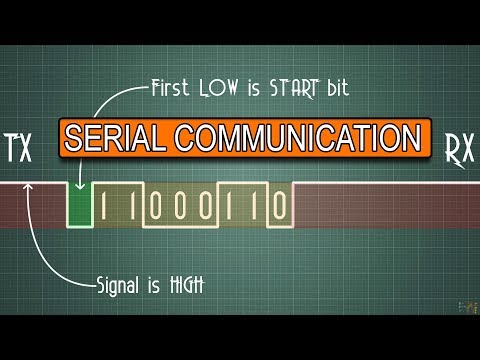
Video: Understanding UART Communication - A comprehensive introduction to serial communication fundamentals.
Learn more: Data Sources - Serial Port Configuration
What it is: Network communication over Ethernet or WiFi using TCP (reliable) or UDP (fast) protocols.
When to use:
- ESP8266/ESP32 WiFi projects
- Remote data acquisition over network
- Distributed sensor systems
- When devices are on the same network or internet
Typical applications:
- ESP32-based weather stations
- Remote telemetry over WiFi
- Network-connected sensors
- Multi-device monitoring
Learn more: Data Sources - Network Socket Configuration
What it is: Low-power wireless protocol for short-range communication (typically 10-100 meters).
When to use:
- Battery-powered wireless sensors
- Wearable devices
- Mobile device integration
- Low-power applications
Typical applications:
- Heart rate monitors
- Environmental sensors
- Fitness trackers
- Wireless IMU/accelerometer modules
Educational Video - Bluetooth Low Energy Explained:

Video: Introduction to Bluetooth Low Energy - Learn about BLE fundamentals, services, and characteristics.
Learn more: Data Sources - Bluetooth LE Configuration
These advanced protocols require a Serial Studio Pro license:
What it is: Lightweight publish/subscribe messaging protocol designed for IoT applications.
When to use:
- Cloud-connected IoT devices
- Distributed sensor networks
- Remote monitoring over internet
- Multi-subscriber dashboards
- Integration with cloud services (AWS IoT, Azure IoT Hub, etc.)
Typical applications:
- Remote weather station dashboard
- Multi-location sensor monitoring
- Cloud data logging
- Smart home integration
Educational Video - MQTT Protocol Explained:

Video: MQTT Protocol Tutorial - Understanding the publish/subscribe model and IoT messaging.
Learn more: MQTT Integration
What it is: Industrial communication protocol widely used in SCADA systems and PLCs.
When to use:
- Connecting to PLCs (Programmable Logic Controllers)
- Industrial automation systems
- Building management systems
- Reading data from Modbus-enabled equipment
Variants:
- Modbus RTU: Serial (RS-485) communication
- Modbus TCP: Ethernet/IP communication
Typical applications:
- Factory automation monitoring
- PLC data visualization
- HVAC system monitoring
- Industrial equipment diagnostics
Educational Video - Modbus Protocol Introduction:

Video: Modbus Protocol Tutorial - Learn about Modbus RTU, TCP, registers, and function codes.
Learn more: Protocol-Specific Setup Guides - Modbus
What it is: Robust vehicle bus standard designed for automotive and industrial applications.
When to use:
- Automotive diagnostics (OBD-II)
- Vehicle telemetry and data logging
- Industrial machinery with CAN networks
- Racing car telemetry
- Electric vehicle monitoring
Features:
- DBC file import for automatic signal decoding
- Standard and extended frame support
- High-speed data logging
Typical applications:
- OBD-II vehicle diagnostics
- Racing car telemetry
- Electric vehicle battery monitoring
- CAN bus network analysis
Educational Video - CAN Bus Fundamentals:

Video: CAN Bus Protocol Explained - Learn the fundamentals of Controller Area Network communication.
Learn more: Protocol-Specific Setup Guides - CAN Bus
What it is: Capture and visualize audio signals from your computer's audio input (microphone, line-in).
When to use:
- Audio spectrum analysis
- Vibration monitoring via audio-coupled sensors
- Acoustic measurements
- Any analog signal within audio frequency range (20 Hz - 20 kHz)
Typical applications:
- Sound level monitoring
- Machinery vibration analysis
- Musical instrument tuning
- Frequency analysis
- Analog signal visualization
Learn more: Protocol-Specific Setup Guides - Audio Input
Answer these questions to find your protocol:
| If your situation is... | Use this protocol |
|---|---|
| Device already connected via USB | Serial/UART |
| Device has WiFi/Ethernet | TCP/UDP Network |
| Battery-powered wireless sensor | Bluetooth LE |
| Need cloud connectivity or multi-user access | MQTT (Pro) |
| Connecting to industrial PLCs or SCADA | Modbus (Pro) |
| Working with automotive CAN bus networks | CAN Bus (Pro) |
| Want to analyze audio or vibration signals | Audio Input (Pro) |
| Device Type | Recommended Protocol |
|---|---|
| Microcontroller (Arduino, ESP32) | Serial/UART or TCP/UDP |
| Industrial PLC | Modbus (Pro) |
| Vehicle/CAN device | CAN Bus (Pro) |
| BLE sensor | Bluetooth LE |
| IoT cloud device | MQTT (Pro) |
| Audio/Vibration source | Audio Input (Pro) |
| Connection Method | Recommended Protocol |
|---|---|
| USB cable | Serial/UART |
| Network cable/WiFi | TCP/UDP or MQTT (Pro) |
| Wireless (BLE) | Bluetooth LE |
| RS-485/Modbus | Modbus (Pro) |
| CAN bus | CAN Bus (Pro) |
| Audio jack | Audio Input (Pro) |
Fastest to Slowest (typical):
- CAN Bus (Pro) - Up to 1 Mbps
- Audio Input (Pro) - 44.1-48 kHz sample rate
- Serial/UART - Up to 921,600 baud (common: 115,200)
- TCP/UDP Network - Depends on network (typically 1-100 Mbps)
- Bluetooth LE - ~1 Mbps (practical throughput lower)
- MQTT (Pro) - Network-dependent, plus protocol overhead
- Modbus (Pro) - Typically 9,600 - 115,200 baud (RTU) or network speed (TCP)
Longest to Shortest:
- MQTT (Pro) - Global (internet-based)
- TCP/UDP Network - Local network to internet
- Modbus TCP (Pro) - Network-based
- Bluetooth LE - ~10-100 meters
- Serial/UART - Cable length (typically <5m for RS-232, longer for RS-485)
- Modbus RTU (Pro) - Cable length (RS-485 up to 1200m)
- CAN Bus (Pro) - Cable length (up to 500m at low speeds)
- Audio Input (Pro) - Cable length
Easiest to Most Complex:
- Serial/UART - Plug and play for most USB devices
- Audio Input (Pro) - Select input device and go
- TCP/UDP Network - Requires IP address and port
- Bluetooth LE - Requires device scanning and pairing
- MQTT (Pro) - Requires broker configuration
- Modbus (Pro) - Requires register addressing and function codes
- CAN Bus (Pro) - Requires bitrate config and optionally DBC files
- Serial/UART: Arduino projects, beginner tutorials
- Bluetooth LE: Wireless sensor experiments
- TCP/UDP: Network programming labs
- Serial/UART: Arduino, Raspberry Pi projects
- TCP/UDP: ESP32/ESP8266 WiFi projects
- Bluetooth LE: Battery-powered sensors
- MQTT (Pro): Home automation, IoT projects
- Modbus (Pro): PLC monitoring, factory automation
- CAN Bus (Pro): Vehicle diagnostics, industrial machinery
- MQTT (Pro): Enterprise IoT deployments
- CAN Bus (Pro): OBD-II diagnostics, race car telemetry
- Serial/UART: ECU development and testing
- Serial/UART: Lab equipment, data acquisition
- Audio Input (Pro): Acoustic analysis, vibration studies
- TCP/UDP: Distributed sensor networks
You can only use one protocol at a time in Serial Studio. However, you can:
- Run multiple instances of Serial Studio (one per protocol)
- Switch between protocols in the same session
- Log data from one protocol and replay it later
Different protocols require different hardware:
Serial/UART:
- USB cable (most common)
- USB-to-Serial adapter (CH340, FTDI, CP210x)
- RS-232 or RS-485 adapter (for industrial devices)
TCP/UDP Network:
- Ethernet cable or WiFi connection
- Device must support TCP/IP stack
Bluetooth LE:
- Computer with Bluetooth 4.0+ support
- BLE-enabled device
MQTT (Pro):
- Internet connection
- MQTT broker (self-hosted or cloud service)
Modbus (Pro):
- RS-485 to USB adapter (for Modbus RTU)
- Ethernet connection (for Modbus TCP)
CAN Bus (Pro):
- CAN bus adapter (PEAK PCAN-USB, Kvaser, CANable, etc.)
- Proper termination resistors (120Ω)
Audio Input (Pro):
- Audio input device (microphone, line-in, audio interface)
- Appropriate adapter for your sensor
If you're having trouble connecting:
- Verify protocol selection - Make sure you've selected the correct protocol in Serial Studio
- Check hardware - Verify cables, adapters, and connections
- Check device settings - Ensure baud rate, IP address, or other settings match your device
- Review permissions - Some protocols require system permissions (Linux serial ports, audio access, etc.)
- Consult troubleshooting guide - Troubleshooting Guide
- Data Sources - Detailed configuration for each protocol
- Protocol-Specific Setup Guides - Step-by-step setup for advanced protocols
- Getting Started - First-time setup tutorial
- Troubleshooting Guide - Solutions to common problems
- Pro vs Free Features - Compare free and Pro protocol features
Need help choosing? Ask on the GitHub Discussions or consult the DeepWiki for AI-powered assistance.