Plotting a TRMM NetCDF

TRMM NetCDF – Near-Real-Time Precipitation Rate – Plot created with Python

I received the following question:

I saw the Python code examples to plot GOES-R data provided during the 2021 online training course and I would like to create similar plots using TRMM data. I’m trying to reproduce one of the examples and got some errors. Could you please provide an example script to plot this TRMM NetCDF?

Please find below an example script.

These are the steps I followed:

  1. Check the available NetCDF datasets using NASA’s Panoply or using the H5Web extension for Visual Studio Code.
  2. Saw that the precipitation variable is named “TRMM_3B42RT_7_precipitation” and the lat lon bounds are named “lat_bnds” and “lon_bnds”. Also, you may retrieve the time infortation using the “start_time” and “end_time” global attributes.
  3. Created a custom color map using the reference found here.

#-----------------------------------------------------------------------------------------------------------
# TRMM (Tropical Rainfall Measuring Mission) - Plotting Example
# Author: Diego Souza
#-----------------------------------------------------------------------------------------------------------
#-----------------------------------------------------------------------------------------------------------
# Required libraries
#-----------------------------------------------------------------------------------------------------------
from netCDF4 import Dataset # Read / Write NetCDF4 files
import matplotlib.pyplot as plt # Plotting library
from datetime import datetime # Basic Dates and time types
import cartopy, cartopy.crs as ccrs # Plot maps
import cartopy.io.shapereader as shpreader # Import shapefiles
import cartopy.feature as cfeature # Common drawing and filtering operations
import numpy as np # Scientific computing with Python
import matplotlib.colors # Matplotlib colors
#-----------------------------------------------------------------------------------------------------------
# Reading the data
#-----------------------------------------------------------------------------------------------------------
# Open the file using the NetCDF4 library
nc = Dataset('trmm_file.nc')
# Extracting the lat lon
min_lat = nc.variables['lat_bnds'][:].min()
max_lat = nc.variables['lat_bnds'][:].max()
min_lon = nc.variables['lon_bnds'][:].min()
max_lon = nc.variables['lon_bnds'][:].max()
# Extract the Brightness Temperature values from the NetCDF
precip = nc.variables['TRMM_3B42RT_7_precipitation'][:]
#-----------------------------------------------------------------------------------------------------------
# Plotting the data
#----------------------------------------------------------------------------------------------------------
# Choose the plot size (width x height, in inches)
plt.figure(figsize=(10,10))
# Use the Geostationary projection in cartopy
ax = plt.axes(projection=ccrs.PlateCarree())
# Define the image extent (plot and outside the plot)
img_extent = [min_lon, max_lon, min_lat, max_lat]
reg_offset = 3
ax.set_extent([min_lon-reg_offset, max_lon+reg_offset, min_lat-reg_offset, max_lat+reg_offset])
# Create a custom color scale (reference: https://disc.gsfc.nasa.gov/datasets/TRMM_3B42_Daily_7/summary):
colors = ["#b9d3f1", "#1751bb", "#80e7cd", "#49bd75", "#3d9942",
"#fdf850", "#fed919", "#fb7c07", "#d34800", "#a71d00",
"#932349"]
cmap = matplotlib.colors.LinearSegmentedColormap.from_list("", colors)
cmap.set_under('#b9d3f1')
cmap.set_over('#932349')
vmin = 0
vmax = 2.5
# Plot the image
img = ax.imshow(precip, origin='upper', interpolation='bilinear', vmin=vmin, vmax=vmax, extent=img_extent, cmap=cmap)
# Add coastlines, borders and gridlines
ax.coastlines(resolution='10m', color='black', linewidth=0.8)
ax.add_feature(cartopy.feature.BORDERS, edgecolor='black', linewidth=0.5)
gl = ax.gridlines(crs=ccrs.PlateCarree(), color='white', alpha=1.0, linestyle='--', linewidth=0.10, xlocs=np.arange(-180, 180, 5), ylocs=np.arange(-90, 90, 5), draw_labels=True)
gl.top_labels = False
gl.right_labels = False
# Add a background image
land = ax.add_feature(cfeature.LAND)
ocean = ax.add_feature(cfeature.OCEAN, facecolor='dimgrey')
# Add a shapefile
shapefile = list(shpreader.Reader('ne_10m_admin_1_states_provinces.shp').geometries())
ax.add_geometries(shapefile, ccrs.PlateCarree(), edgecolor='gray',facecolor='none', linewidth=0.3)
# Add a colorbar
plt.colorbar(img, label='Near-Real-Time Precipitation Rate (mm/h)', extend='both', orientation='horizontal', pad=0.05, fraction=0.05)
# Extract start and end date from the global attributes
start_time = nc.getncattr('start_time')
end_time = nc.getncattr('end_time')
# Add a title
plt.title(f'Time Averaged Map of Near-Real-Time Precipitation Rate 3-hourly - {start_time} - {end_time}', fontweight='bold', fontsize=8, loc='left')
#-----------------------------------------------------------------------------------------------------------
# Saving and visualizing the plot
#----------------------------------------------------------------------------------------------------------
# Save the image
plt.savefig('trmm_img.png', bbox_inches='tight', pad_inches=0, dpi=150 )
# Show the image
plt.show()
view raw plot_trmm.py hosted with ❤ by GitHub

Installing and Configuring the FAZZT Client on Windows

In this procedure we’ll install the KenCast FAZZT Professional Client on Windows, using the files provided by KenCast on the FAZZT DVD. The procedure should work for both FAZZT v9 and v10.

The DVD provided by KenCast (or downloaded via an FTP, also provided by KenCast) has the following content:

The KenCast FAZZT DVD content

In this procedure we’ll use the content from two folders only: “3rdParty/SQLExpress” and “Fazzt/Windows”.

The FAZZT Client needs a database software to work, so in the first step we are going to install the SQL Server 2014.

STEP 1. Access the “3rdParty/SQLExpress” folder and execute the “install64.bat” file. This will install the SQL Server 2014 with the right options (as configured in the “Config64.ini”)

Executing the “.bat” file that will install the SQL Server 2014 with the right options

Note: Most of the procedure is just clicking the “Next >” button, but for reference sake, you may find screenshots from each step below (this could be useful if you’re configuring the SQL Database from scratch, withou the “.ini” file).

On the “Choose Directory For Extracted Files” pop-up window, click the “OK” button:

Chossing the directory for extracted files
The SQL Server 2014 installation being prepared

On the “Product Key” screen, click the “Next >” button:

“Product Key” screen

On the “License Terms” screen, check the “I accept the license terms” box and click the “Next >” button:

“License Terms” screen

On the “Microsoft Update” screen, check the “Use Microsoft Update to check for updates” and click the “Next >” button:

“Microsoft Update” screen

On the “Product Updates” screen, click the “Next >” button if there are no files to update:

“Product Updates” screen

On the “Install Rules” screen, check the computer and the conditions for SQL Server installation, then click the “Next >” button:

“Install Rules” screen

On the “Setup Role” screen, click the “Next >” button:

“Setup Role” screen

On the “Feature Selection” screen, click the “Next” button:

“Feature Selection” screen

On the “Instance Configuration” screen, click the “Next >” button:

“Instance Configuration” screen

On the “Server Configuration” screen, click the “Next >” button:

“Server Configuration” screen

On the “Database Engine Configuration”, click the “Next >” button:

“Database Engine Configuration” screen

On the “Ready to Install” screen, click the “Install” button:

Ready to Install screen

The database will be installed:

“Installation Progress” screen

On the “Complete” screen, click the “Close” button:

“Complete” screen

The SQL Server 2014 Express has been successfully installed. Press any key to close the command prompt screen:

Closing the installation prompt

With the database software installed, we are ready to install the FAZZT Professional Client.

STEP 2. Access the “Fazzt/Windows” folder and execute the “FazztProfessionalClient.exe” file. This will install the FAZZT Professional Client:

Executing the file that will install the FAZZT Professional Client

On the Wizard screen, click the “Next >” button:

“Wizard” screen

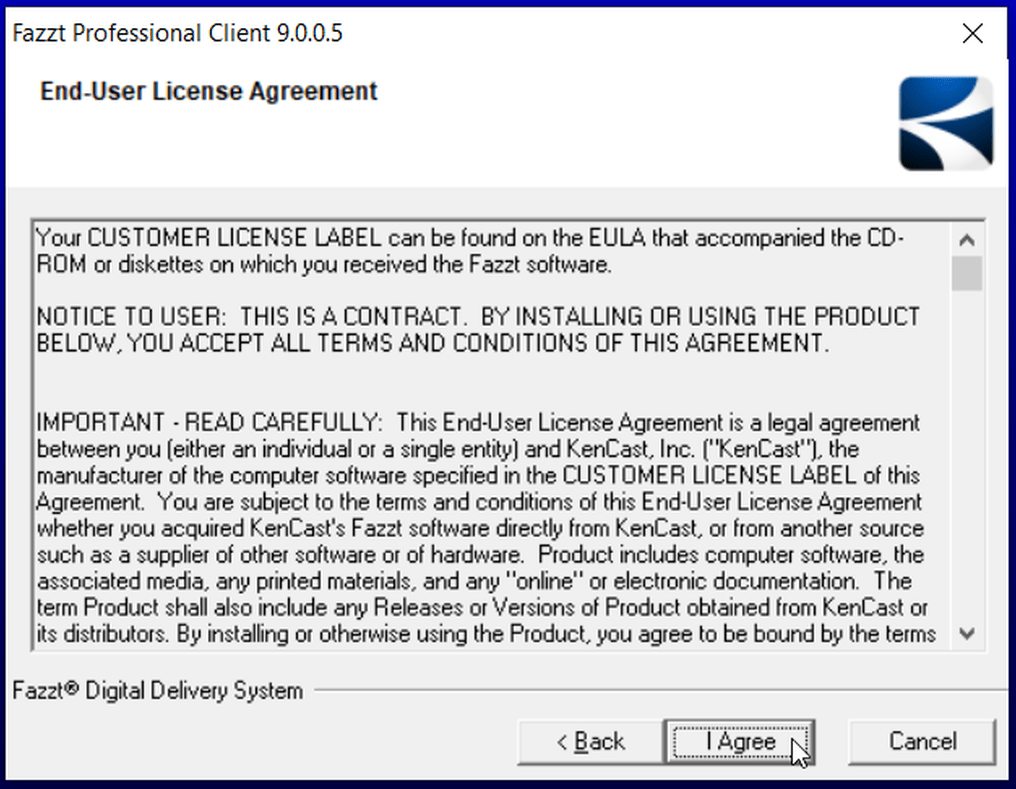
On the “End-User License Agreement”, click the “I Agree” button:

“End-User License Agreement” screen

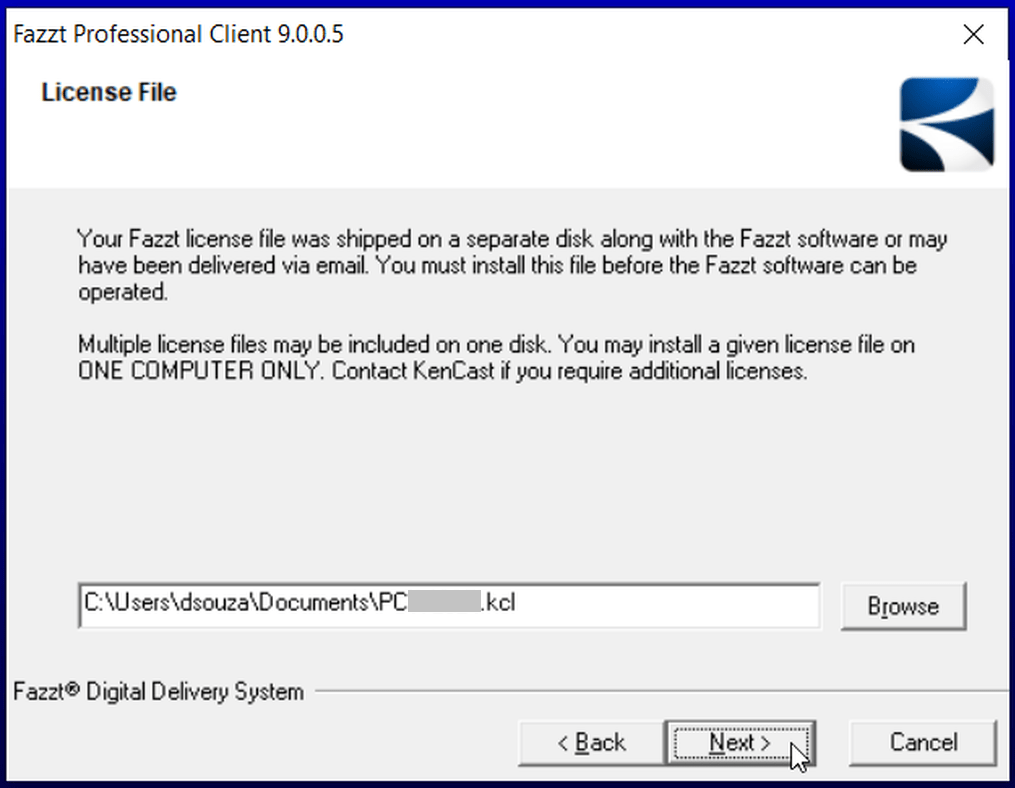
On the “License File” screen, click the “Browse” button and select the license file (“.kcl” extension), provided by KenCast. Note: The License File should be placed in advance in any folder. After installation, it will be copied to the Destination Folder specified later:

“License File” screen

On “Select Database Server”, click the “Next >” button:

“Select Database Server” screen

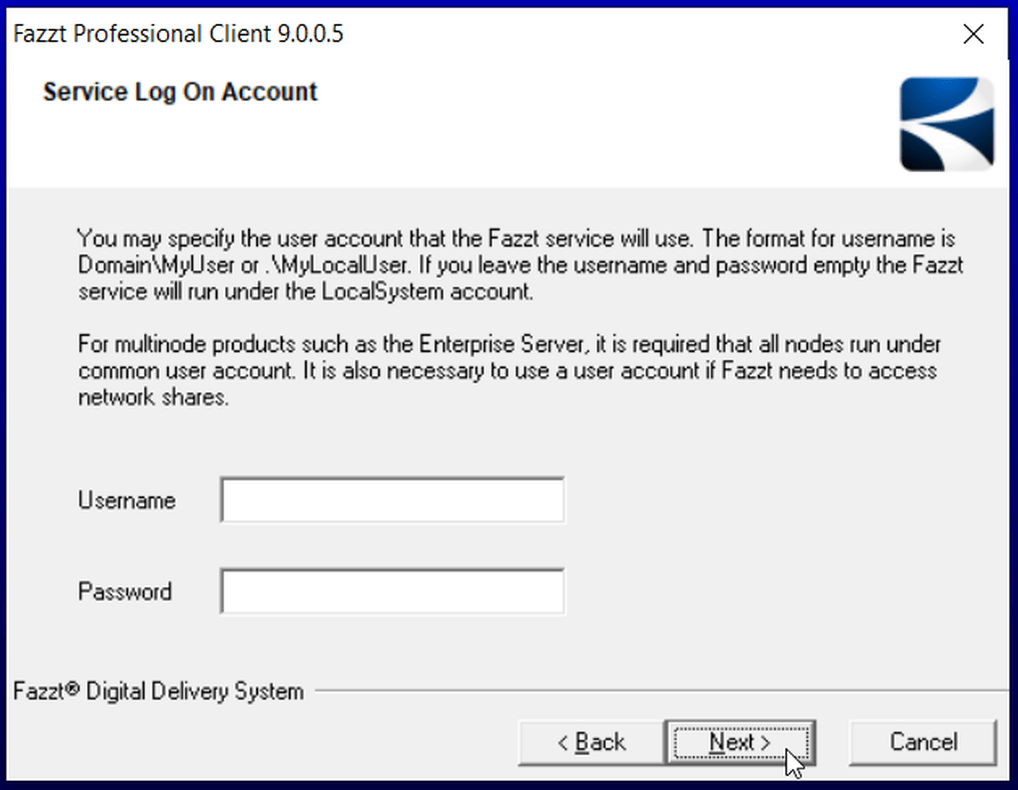
On the “Service Log On Account” screen, click the “Next >” button. The “Username” and “Password” fields can be left empty:

On the “Destination Location” screen, click the “Next >” button. Please note that the default ingestion location will be automatically configure to this destination + “\incoming“. In any case, this could be changed later.

On the “Start Installation” screen, click the “Next >” button:

“Start Installation” screen
The FAZZT Professional Client being installed

Click the “Finish” button to complete the installation.

Finishing the FAZZT installation

STEP 3. Allow the FAZZT Client through the Windows Defender Firewall:

In order to allow the ingestion through the Windows Defender Firewall, go to “Control Panel” > “All Control Panel Items” > “WIndows Defender Firewall” > “Allow an app or feature through Windows Defender Firewall”.

Click on “Allow another app…”:

Allowing apps through the Windows Defender Firewall

On the “Add an app” window, click the “Browse…” button.

Adding an app through the Windows Defender Firewall

Go to the KenCast installation directory “C:\Program Files (x86)\KenCast\Fazzt\bin” and add the FazztSrv.exe.

Selecting the program that will be allowed

Back to the “Add an app” window, click on the “Add” button:

Adding an app through the Windows Defender Firewall

STEP 4. Let’s start the FAZZT Professional Client:

After the installation above, a new icon will appear in your system tray (a purple antenna):

If you move the mouse cursor over it, you will see that FAZZT is stopped:

FAZZT icon on the system tray

Right-click the purple antenna icon and select “Start Fazzt” to start the FAZZT service:

Starting the FAZZT service

If you move the mouse cursor over the icon again, you will the the message “Fazzt is running”:

FAZZT service running

Let’s access the FAZZT configuration interface. Right-click the icon again and select “Admin (WWW)”:

Accessing the FAZZT configuration interface

The FAZZT Professional Client administration page will be opened in your default browser:

The KenCast FAZZT Professional Client main window

STEP 5. Let’s configure the FAZZT Professional Client:

KENCAST FAZZT CONFIGURATION

Let’s configure the FAZZT Client for the GNC-A ingestion. The configuration is the same for versions 9.0 or 10.0. At the menu on the left, choose “Configuration” > “Channels” and then, at the “Channels” window, choose “Channels Defaults”. At “Interface”, choose the IP address of the Network Card where you have your DVB-S2 receiver connected – in the example below, 192.168.0.23, the IP of my network card (you may also select the “ALL” option). Click on “Save”.

Selecting the IP of the network card connected to the receiver

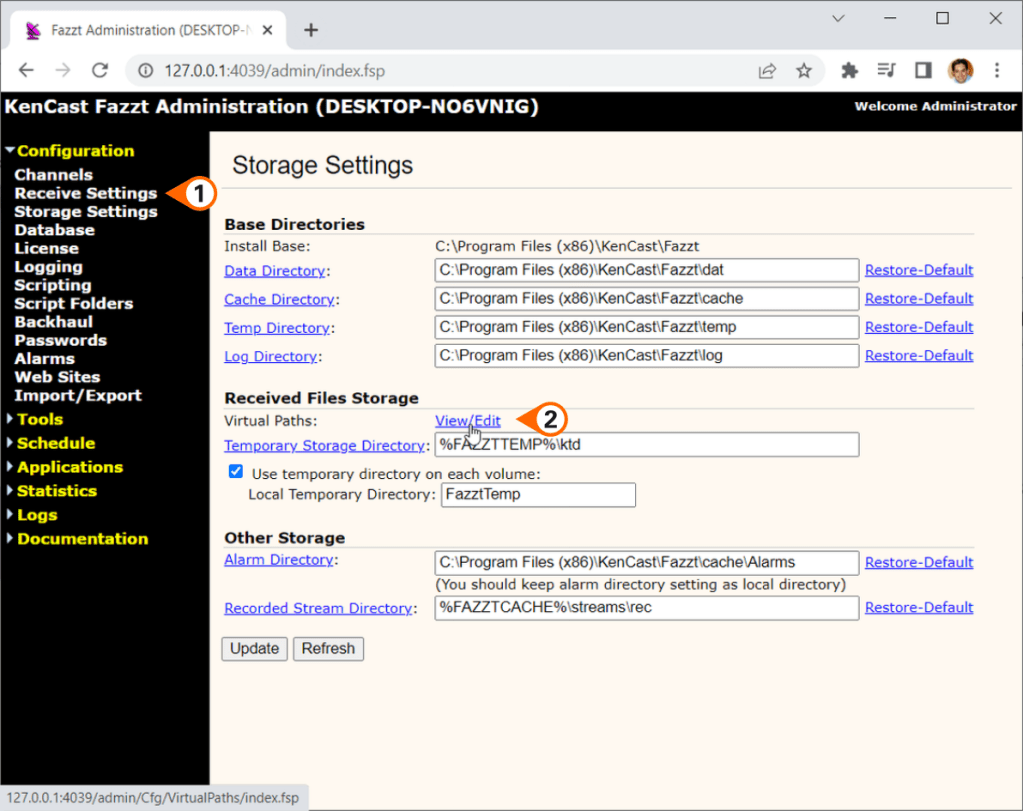
Select the ingestion folder at “Configurations”“Storage Settings”“Virtual Paths: View/Edit”

Chaning the ingestion directory

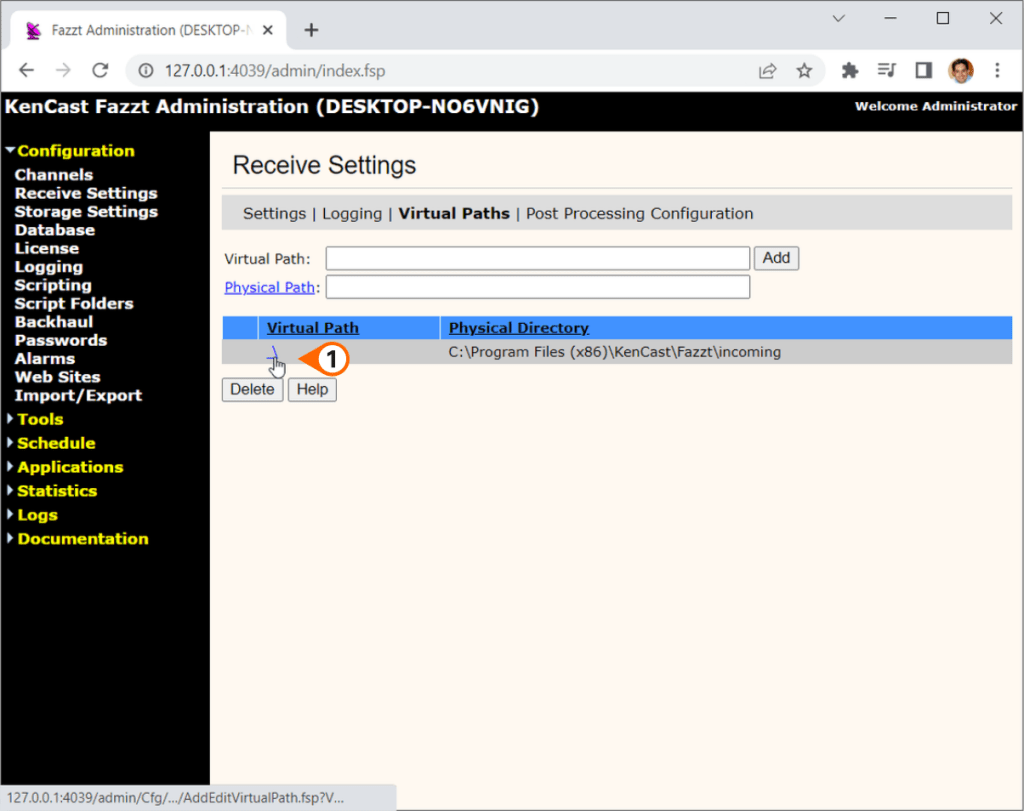
Click at the backslash “\” as shown on the image below and choose the folder where the received files will be stored. In this procedure the default location has been shown “C:\Program Files (x86)\KenCast\Fazzt\incoming” but it may be any folder you want. You may use this one or any folder of your preference.

Chaning the ingestion directory

Back to the “Channels” interface, click at the “1.Main” channel “Edit” option:

Chaning the “Main” channel configuration

And at “Interface”, choose “default” (you may also select the “ALL” option).

Changing the “Main” channel interface

After a while (a couple of minutes), you should see the GNC-A Broadcast channels being listed at the “Configuration” “Channels” interface.

KCf.png
GEONETCast-Americas channels being detected on the FAZZT interface

And that’s it! Your GNC-A station is ingesting data!

Please find at the following links other tutorials about the FAZZT Client:

Configuring the S300D Receiver on Windows

Please find below the procedure to configure the NOVRA S300D, one of the most used DVB-S2 receivers, using both the command line tool (CMCS – Central Management and Control Software) and the Graphical User Interface (NOVRA Mgmt). The procedure below has been tested on Windows 10.

First of all, let’s check the GNC-A downlink parameters:

GNC-A DOWNLINK PARAMETERS

Satellite: Intelsat IS-21 @ 58°W (302°E)
Polarization: Vertical downlink
Transponder: WH 19C
Carrier center freq: 4080 MHz 
Symbol rate: 30 Msps
FEC: 5/6
Rolloff: 1.2 (20%)
Format: DVB-S2 
PID: 4201

This will be necessary to configure the receiver, especially the “Polarization”“Carrier center freq”“Symbol rate”“Format” and “PID”.

USING THE COMMAND LINE TOOL (CMCS)

STEP 1. Download the CMCS utility from the NOVRA’s webpage:

STEP 2. Unzip the file in the folder of your preference:

Unzipping the CMCS Utility

STEP 3. Execute the CMCS utility by double clicking the “cmcs300.exe” file. The CMCS Utility will open in a new prompt.

Executing the CMCS Utility

Connect the S300D receiver using a crossover ethernet cable and log on the S300D using the receiver’s IP, as shown in the example below (the IP below is the one from an example receiver. Please confirm the IP of your receiver before trying to connect). The factory IP is 192.168.0.11.

Note: The IP address of the device and the IP address of the workstation network card must reside on the same subnet, or there must be a route that connects both of them through a router.

CMCS> login 192.168.0.11

rface will ask for a password. If you haven’t changed the S300D factory settings, insert the default password: Novra-S2

Acessing the CMCS Utility

After that, please execute the following commands:

Note: The “frequency” number on the S300D configuration is the LNB oscilator frequency (5150 MHz) minus the GNC-A downlink frequency (4080 MHz for the new DVB-S2 signal). That’s why the configuration is 1070.

CMCS> mode DVBS2 
CMCS> frequency 1070 
CMCS> symbolrate 30.00 
CMCS> lnb polarization vertical 
CMCS> add pid mpe 4201

The “LOCK” light should turn on if the antenna is correctly pointed towards the satellite and the LNB is correctly set, and the “SIGNAL” light should blink when you have the FAZZT Professional Client already configured and the ingestion begins.

blinking.png
“LOCK” LED on and “DATA” LED blinking, indicating that data is being received

You may check the reception parameters with the “show satellite” or “show sat” command:

CMCS> show satellite

USING A GRAPHICAL USER INTERFACE (NOVRA MGMT)

Using the Novra Mgmt on Windows is very easy.

STEP 1. Download the Receiver Mgt Win32 App V6.3.15 from the NOVRA’s webpage:

STEP 2. Unzip the file in the folder of your preference:

Unziping the Receiver Mgmt App

Connect the S300D receiver using a crossover ethernet cable and log on the S300D using the receiver’s IP, as shown in the example below (the IP below is the one from an example receiver. Please confirm the IP of your receiver before trying to connect). The factory IP is 192.168.0.11.

Note: The IP address of the device and the IP address of the workstation network card must reside on the same subnet, or there must be a route that connects both of them through a router.

STEP 3. Execute the Novra Mgmt App by double clicking the “Novra Mgmt V6.3.15.exe” file.

Loading the Receiver Mgmt App

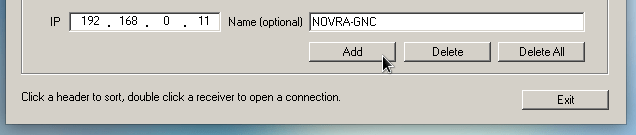
When running the GUI, the receiver should be automatically listed in the “Devices Discovered” window. If not, you can manually add it, inserting the IP and giving it a name (which is optional). Click on “Add”:

Adding a new receiver to the list

The receiver should appear in the “Managed List”. Double click at it:

Opening the receiver console

A window will pop-up, asking for a password. If you haven’t changed the S300D factory settings, insert the default password: Novra-S2

Inserting the password

The S300D Management Console will appear. With the factory defaults, you shouldn’t see the signal locked yet.

The S300D Management Console

In the upper toolbat, click on the “Satellite” button.

Click on “LNB Parameters” button, and change the “L.O. Frequency” to 5150. Click OK.

Changing the LNB configuration

At the “Satellite” window, change the “RF Freq.” to 4080, on “Symbol Rate”, select “Automatic”, check the “LNB Power On?” option, on “Polarization”, select “Vertical / Right” and on “Search Mode”, select “DVB-S2”.

This should be the final configuration for the “Satellite” window. Click “Apply”:

Changing the “Satellite” configuration

You’ll see a pop-up window saying the new configuration has been successfully applied:

Back to the main window, click at the “Content” button:

Opening the “Content” configuration

In “Add PID > PID” insert “4201” and click “Add”:

Adding the GNC-A PID

The 4201 PID will be added to the list. Click “Apply”. You’ll see a pop-up window saying the new configuration has been successfully applied:

GNC-A PID added

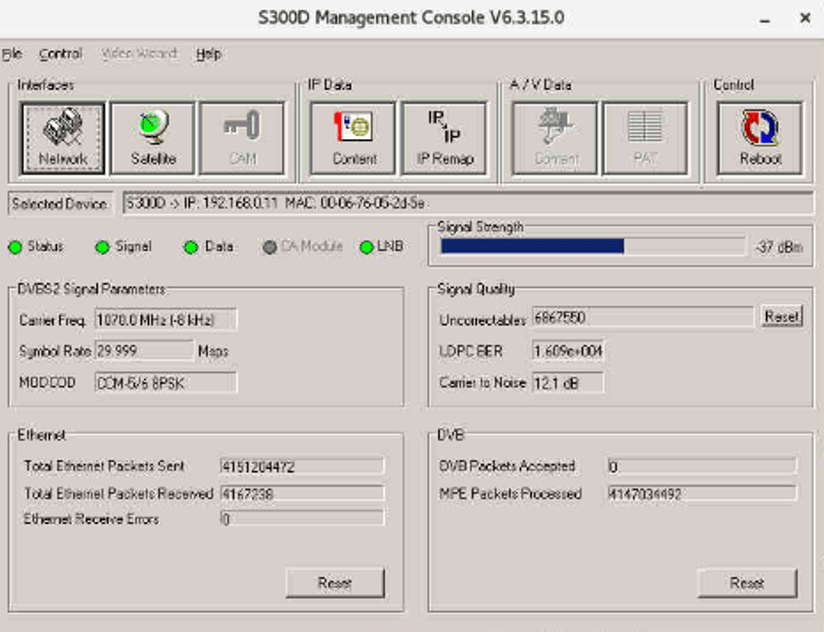
Back to the main window, if the antenna is correctly pointed towards the satellite and the LNB is correctly set, you should see the “Status”, “Signal”, “Data” and “LNB” circles as green and a “Signal Strength” being shown.

Note: The lower the “LDPC BER” the better (bit error rate) and the higher the “Carrier to Noise” the better (a minimum of 10 dB is acceptable. Higher than 12 dB is desirable).

The S300D successfully configured to receive the GNC-A signal

In the receiver, the “LOCK” light should turn on (if the antenna is correctly pointed towards the satellite and the LNB is correctly set), and the “SIGNAL” light should blink when you have the FAZZT Professional Client already configured and the ingestion begins.

blinking.png
“LOCK” LED on and “DATA” LED blinking, indicating that data is being received

Please find at the following links other tutorials about GNC receivers:

Installing and Configuring the FAZZT Client on Linux (RHEL7)

In this procedure we’ll install the KenCast FAZZT Professional Client using a shell script. This works for both FAZZT v9 or v10 (just change the name of the installer in the script below).

Please download the installation script from the following repository (right click at “Raw” and “Save link as…”):

https://github.com/diegormsouza/GEONETCast-Americas/blob/main/FAZZT/RHEL7/install_FAZZT.sh

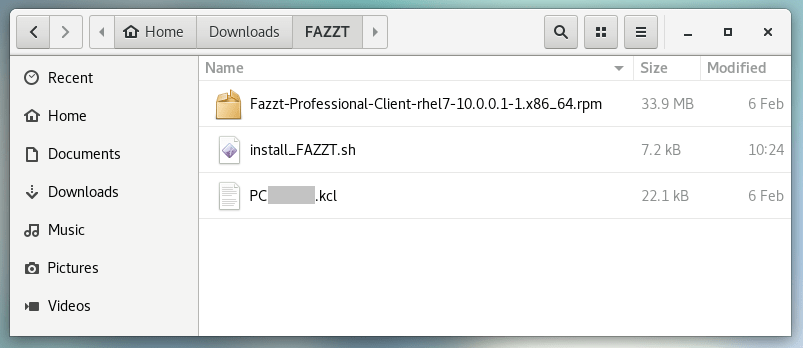
Put the installation script, your FAZZT installer and your FAZZT license (both provided by KenCast) at the same folder in your machine (in the example below, they are found at /Downloads/FAZZT):

FAZZT installer, the installation script and the “.kcl” license (provided by KenCast)

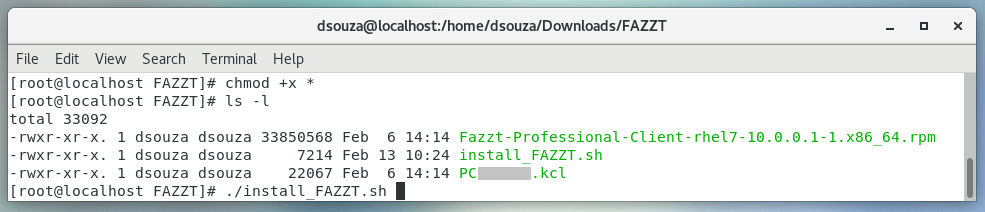
Change the file permissions:

chmod +x *

And run the installation script:

./install_FAZZT.sh
Changing the file permissions and running the installation script
Installation script finished

After running the installation script, execute the following commands:

systemctl restart httpd
/sbin/restorecon -v /usr/lib64/httpd/modules/mod_fsp.so
ausearch -c 'httpd' --raw | audit2allow -M my-httpd
semodule -i my-httpd.pp

Start the FAZZT client and restart httpd with the following commands:

systemctl start fazzt
systemctl restart httpd
Additional commands

In your browser, access the FAZZT admin interface at the following address:

http://127.0.0.1:4039/admin/
The KenCast FAZZT Professional Client main window

KENCAST FAZZT CONFIGURATION

Let’s configure the FAZZT Client for the GNC-A ingestion. The configuration is the same for versions 9.0 or 10.0. At the menu on the left, choose “Configuration” > “Channels” and then, at the “Channels” window, choose “Channels Defaults”. At “Interface”, choose the IP address of the Network Card where you have your DVB-S2 receiver connected – in the example below, 192.168.0.23, the IP of my network card (you may also select the “ALL” option). Click on “Save”.

Select the ingestion folder at “Configurations”“Storage Settings”“Virtual Paths: View/Edit”

Click at the backslash “\” as shown on the image below and choose the folder where the received files will be stored. In this procedure we suggested “/home/data/fazzt” but it may be any folder you want – please note we created the ingestion folder in the installation script, automatically. You may use this one or any folder of your preference.

Back to the “Channels” interface, click at the “1.Main” channel “Edit” option:

And at “Interface”, choose “default” (you may also select the “ALL” option).

After a while (a couple of minutes), you should see the GNC-A Broadcast channels being listed at the “Configuration” “Channels” interface.

KCf.png

And that’s it! Your GNC-A station is ingesting data!

Please find at the following links other tutorials about the FAZZT Client:

Configuring the S300D Receiver on Linux (RHEL7)

Please find below the procedure to configure the NOVRA S300D, one of the most used DVB-S2 receivers, using both the command line tool (CMCS – Central Management and Control Software) and the Graphical User Interface (NOVRA Mgmt). The procedure below has been tested in CentOS 7.9.

First of all, let’s check the GNC-A downlink parameters:

GNC-A DOWNLINK PARAMETERS

Satellite: Intelsat IS-21 @ 58°W (302°E)
Polarization: Vertical downlink
Transponder: WH 19C
Carrier center freq: 4080 MHz 
Symbol rate: 30 Msps
FEC: 5/6
Rolloff: 1.2 (20%)
Format: DVB-S2 
PID: 4201

This will be necessary to configure the receiver, especially the “Polarization”, “Carrier center freq”, “Symbol rate”, “Format” and “PID”.

USING THE COMMAND LINE TOOL (CMCS)

STEP 1. Download the CMCS utility from the NOVRA’s webpage:

or using wget:

wget https://www.novra.com/web/content/4593?unique=528acf0ed6fd1e4314068cea693989257b9938d0&download=true

STEP 2. Decompress the file:

gzip -d cmcs300\ Linux.gz
tar -xvf cmcs300\ Linux

STEP 3. Install the CMCS utility to /usr/bin (so you may use the command anywhere):

install cmcs /usr/bin

STEP 4. Execute the CMCS utility:

cmcs

You will see the following prompt:

Executing the CMCS command line tool

Connect the S300D receiver using a crossover ethernet cable and log on the S300D using the receiver’s IP, as shown in the example below (the IP below is the one from an example receiver. Please confirm the IP of your receiver before trying to connect). The factory IP is 192.168.0.11.

Note: The IP address of the device and the IP address of the workstation network card must reside on the same subnet, or there must be a route that connects both of them through a router.

CMCS> login 192.168.0.11

The interface will ask for a password. If you haven’t changed the S300D factory settings, insert the default password: Novra-S2

Connecting to the S300D receiver using CMCS

After that, please execute the following commands:

Note: The “frequency” number on the S300D configuration is the LNB oscilator frequency (5150 MHz) minus the GNC-A downlink frequency (4080 MHz for the new DVB-S2 signal). That’s why the configuration is 1070.

CMCS> mode DVBS2 
CMCS> frequency 1070 
CMCS> symbolrate 30.00 
CMCS> lnb polarization vertical 
CMCS> add pid mpe 4201

The “LOCK” light should turn on if the antenna is correctly pointed towards the satellite and the LNB is correctly set, and the “SIGNAL” light should blink when you have the FAZZT Professional Client already configured and the ingestion begins.

blinking.png
“LOCK” LED on and “DATA” LED blinking, indicating that data is being received

You may check the reception parameters with the “show satellite” or “show sat” command:

CMCS> show satellite

USING A GRAPHICAL USER INTERFACE (NOVRA MGMT)

If you want to use the Novra Mgmt GUI in Linux, we need to use Wine.

Wine is a compatibility layer capable of running Windows applications on several POSIX-compliant operating systems, such as Linux, macOS, & BSD. 

STEP 1. Download the Receiver Mgt Win32 App V6.3.15 from the NOVRA’s webpage:

https://novra.com/sites/default/files/resource_pdf/Receiver%20Mgt%20Win32%20App%20V6.3.15.zip

or using wget:

wget https://novra.com/sites/default/files/resource_pdf/Receiver%20Mgt%20Win32%20App%20V6.3.15.zip

STEP 2. Download and install Wine. The Novra GUI is a 32 bit Windows app so we’ll install Wine for 32 bit.

To make things easier, we will download and install wine using the following shell script (right click at “Raw” and “Save link as…”):

https://github.com/zma/usefulscripts/blob/main/script/install-wine-i686-centos7.sh

Change the file permissions:

chmod +x install-wine-i686-centos7.sh

And execute the script:

sh -x install-wine-i686-centos7.sh

After a while, you’ll see the following message:

Finishing the wine installation

You may check the installed wine version with the following command (mine is 4.0.1):

wine --version
Checking the wine version

STEP 3. Executing the Novra Mgmt V6.3.15.exe without a shortcut:

This is not the best way to do but for demonstration purposes, here’s how.

You may use the terminal to execute the app with the following command:

wine /home/dsouza/Downloads/NOVRA/"Novra Mgmt V6.3.15.exe"

Or, you may execute the graphical user interface with wine by right-clicking the “Novra Mgmt V6.3.15.exe” file, and selecting “Open With Other Application”:

Opening the Novra App with wine, manually

And selecting “Wine Windows Program Loader”:

Opening the Novra App with wine, manually

When executing Wine for the first time, it will install some required modules:

Installing the wine dependencies – Mono
Installing the wine dependencies – Gecko

After that, the NOVRA Mgmt GUI will be executed.

The Novra Mgmt App being executed

However, executing the command on the terminal or right-clicking the “.exe” file might not the most intuitive option, so let’s see how to create a shortcut that will execute the command automatically.

STEP 4. Executing the Novra Mgmt V6.3.15.exe with a shortcut:

First of all, download the following png: Link

Put it in a known directory. We will use it as our shortcut image.

Open a terminal, go to the desktop folder:

cd /home/dsouza/Desktop

Create a desktop file with your favorite editor (gedit in the example below). In this example, we’ll call the shortcut simply “S300D”.

gedit S300D.desktop

Add the following text to the file (note: you need to change where the executable file and the PNG image locations!):

[Desktop Entry]
Version=1.0
Type=Application
Terminal=false
Icon[C]=down
Name[C]=S300D
Exec=wine /home/dsouza/Downloads/NOVRA/"Novra Mgmt V6.3.15.exe"
Name=Novra Management
Icon=/home/dsouza/Downloads/NOVRA/S300D.png
Creating a shortcut that will automatically execute the Novra Mgmt App

Save the shortcut file. Note that the PNG image will not appear yet.

In ther terminal, change the file permissions:

chmod +x S300D.desktop

Also, change the owner to your user name (note: you need to change it to your own username!):

sudo chown dsouza:dsouza /home/dsouza/Desktop/S300D.desktop

When double clicking it for the first time, a pop-up window will appear, saying that the launcher has not been marked as trusted. Click at “Trust and Launch”.

Finishing the shortcut configuration and launching the app

The PNG image configured in the file will appear, and the app will be executed:

Shortcut created, with a custom PNG image

STEP 5. Configuring the receiver using the Novra Mgmt GUI:

Note: The IP address of the device and the IP address of the workstation network card must reside on the same subnet, or there must be a route that connects both of them through a router.

When running the GUI, the receiver should be automatically listed in the “Devices Discovered” window. If not, you can manually add it, inserting the IP and giving it a name (which is optional). Click on “Add”:

Adding a receiver to the managed list (if not detected automatically)

The receiver should appear in the “Managed List”. Double click at it:

Opening the receiver console

A window will pop-up, asking for a password. If you haven’t changed the S300D factory settings, insert the default password: Novra-S2

Inserting the password

The S300D Management Console will appear. With the factory defaults, you shouldn’t see the signal locked yet.

The S300D Management Console

In the upper toolbat, click on the “Satellite” button.

Click on “LNB Parameters” button, and change the “L.O. Frequency” to 5150. Click OK.

Changing the LNB configuration

At the “Satellite” window, change the “RF Freq.” to 4080, on “Symbol Rate”, select “Automatic”, check the “LNB Power On?” option, on “Polarization”, select “Vertical / Right” and on “Search Mode”, select “DVB-S2”.

This should be the final configuration for the “Satellite” window. Click “Apply”:

Changing the “Satellite” configuration

You’ll see a pop-up window saying the new configuration has been successfully applied:

Back to the main window, click at the “Content” button:

Opening the “Content” configuration

In “Add PID > PID” insert “4201” and click “Add”:

Adding the GNC-A PID

The 4201 PID will be added to the list. Click “Apply”. You’ll see a pop-up window saying the new configuration has been successfully applied:

GNC-A PID added

Back to the main window, if the antenna is correctly pointed towards the satellite and the LNB is correctly set, you should see the “Status”, “Signal”, “Data” and “LNB” circles as green and a “Signal Strength” being shown.

Note: The lower the “LDPC BER” the better (bit error rate) and the higher the “Carrier to Noise” the better (a minimum of 10 dB is acceptable. Higher than 12 dB is desirable).

The S300D successfully configured to receive the GNC-A signal

In the receiver, the “LOCK” light should turn on (if the antenna is correctly pointed towards the satellite and the LNB is correctly set), and the “SIGNAL” light should blink when you have the FAZZT Professional Client already configured and the ingestion begins.

blinking.png
“LOCK” LED on and “DATA” LED blinking, indicating that data is being received

Please find at the following links other tutorials about GNC receivers: