

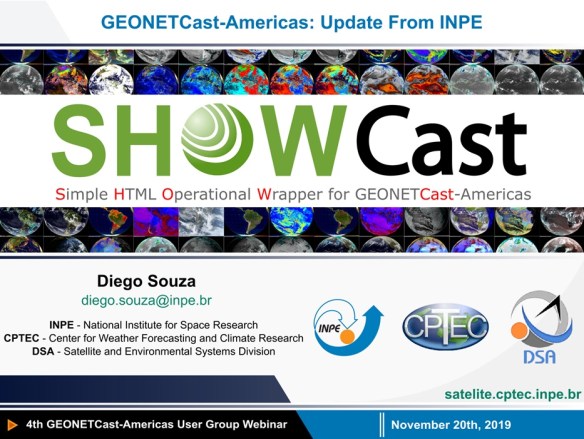
Hi GEONETCasters! There is a new SHOWCast update available! And this is a nice one!
WHAT’s NEW ON SHOWCAST v1.2.0 ?
- Now it is possible to configure the visualization area (lat / lon extent) for all 82 current visualized products! Now we have two visualization options, the geostationary full disks (with custom resolutions) and the custom user sector on the cylindrical equidistant projection (also with custom resolutions)!
Now, you may have, for example, a Full Disk of a given product being generated at 8 km (or the resolution you want), and the same product being generated at 2 km (or the resolution you want) for a user defined region. Great!
Check out on the image below the new option added on this version:

Selecting the desired SHOWCast menu
When the “Full Disk” option is selected, you’ll see on the SHOWCast menu all the 82 products on the original projection, with the resolutions configured by you (the resolution for each product is configured separately!). To exemplify, the image below shows the GOES-16 RGB’s in the “Full Disk” menu option:

GOES-16 RGB’s with the “Full Disk” option selected
Let’s click on any Full Disk RGB and see the animation window:

Airmass RGB (Full Disk) opened on the SHOWCast animation window
Now, if we change the Main SHOWCast menu option to “User Sector”:

You will see all the 82 products in the cylindrical equidistant projection, with the resolution selected by you, for the region configured by you!

Let’s click in an example RGB and check:

Airmass RGB (User Sector), on the cylindrical equidistant projection, opened on the SHOWCast animation window
- Now it is possible to change from the Full Disk view and the User Sector view within the SHOWCast animation window!
On the SHOWCast animation window, now it is possible to change from Full Disk to User Sector very quickly!
To exemplify, let’s open the “Derived Motion Winds” Baseline Product from GOES-16 in the “Full Disk” menu:
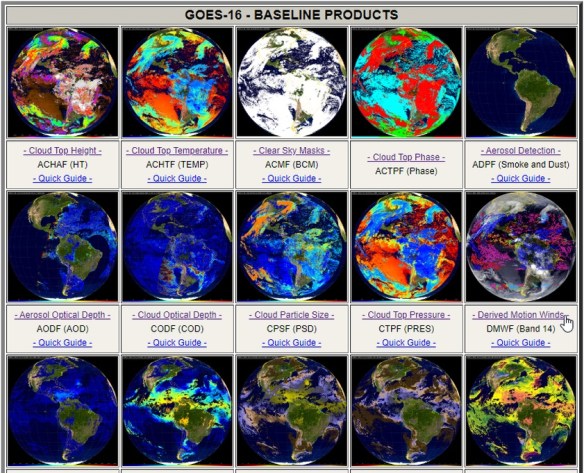
Selecting the Baseline Products on the “Full Diks” SHOWCast menu
You’ll see the Full Disk version, with the resolution defined by you (in this case I have configured to 8 km):
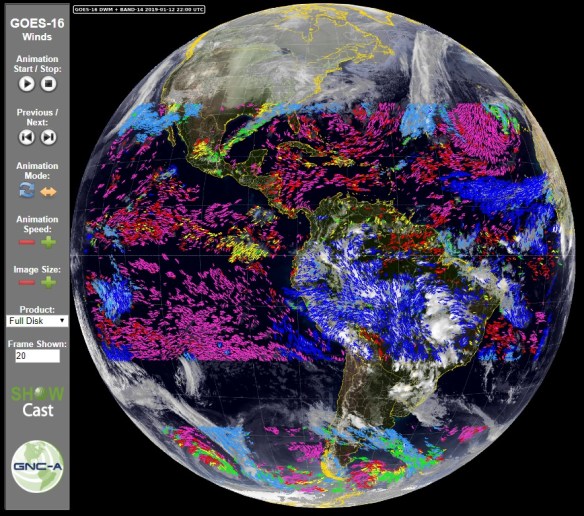
Visualizing the GOES-16 Derived Motion Winds (Full Disk) on the SHOWCast animation window
Now, if you click on the “Product” option, and select “User Sector”:

Changing from “Full Disk” to user sector inside the SHOWCast animation window
The animation window will change to the “User Sector”, with the sector configured by you and the resolution defined by you (in this case I have configured to 2 km):

Visualizing the GOES-16 Derived Motion Winds (User Sector) on the SHOWCast animation window
Alternatively, you could choose the “User Sector” menu and directly select the animation window for the sector view:

Selecting the Baseline Products on the “User Sector” SHOWCast menu
SELECTING THE PRODUCTS YOU WANT TO PROCESS
On the showcast_config.py you may select the products you want to process (configured as “True”) and the ones you do not want to process (configured as “False”):

Selecting the products you want to process with SHOWCast
SELECTING THE DESIRED RESOLUTION
On the showcast_config.py you may select the desired resolution of the processed products. The example below shows the configuration of the GOES-16 Band 13 Full Disk product to 8 km, and the same Band 13, User Sector, configured to 2 km:

The default resolutions are (You may change any resolution you want):
- GOES-16 Cloud Top Height, Cloud Top Pressure, Derived Stability Indices, Land Surface Temperature and Total Precipitable Water: 10 km (max for these product)
- GOES-16 Cloud Optical Depth: 4 km (max for this product)
- GOES-16 Band 02 and False Color User Sector products: 1 km
- All other GOES-16, GOES-17 and METEOSAT Full Disks: 8 km
- All other GOES-16 and GOES-17 products (User Sector): 2 km
- All other METEOSAT products (User Sector): 3 km
SELECTING THE DESIRED EXTENT
On the showcast_config.py you may select the desired extentof the processed products. The example below shows the configuration of the GOES-16 Cloud Top Phase User Sector product to:
[-63.0, -35.0, -35.0, -10.0]
Note: [min lon, min lat, max lon, max lat]


The default extents are (you may change any extents you want):
GOES-16 Band 02, given the default 1 km resolution: [-54.0, -28.0, -43.0, -18.0] Note: [min lon, min lat, max lon, max lat]

GOES-16 Cloud Top Height, Cloud Top Pressure, Derived Stability Indices, Land Surface Temperature and Total Precipitable Water, given their original low resolution: [-105.0, -60.0, -15.0, 20.0] Note: [min lon, min lat, max lon, max lat]
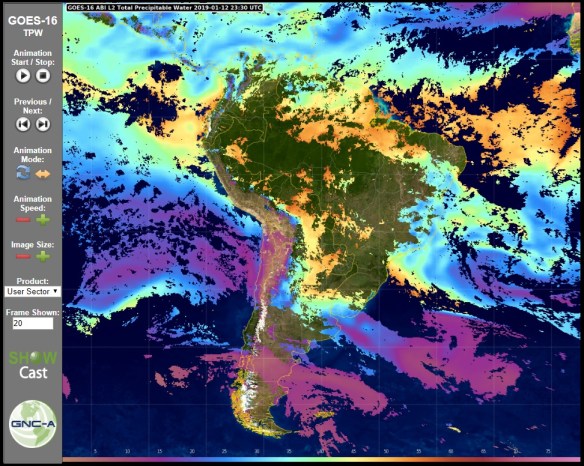
All other GOES-16 Products: [-63.0, -35.0, -35.0, -10.0] Note: [min lon, min lat, max lon, max lat]
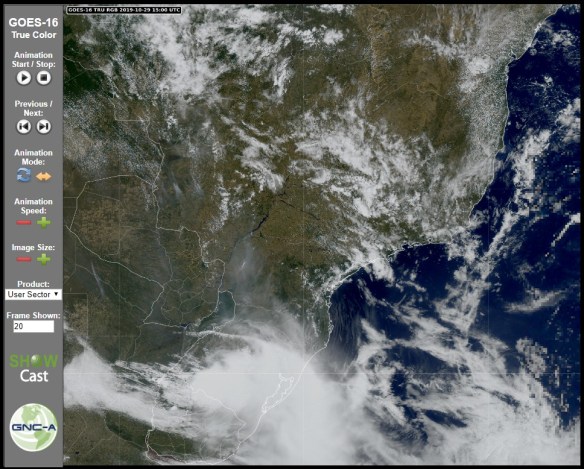
All GOES-17 Products:[-120.0, 0.0, -75.0, 45.0] Note: [min lon, min lat, max lon, max lat]

All METEOSAT Products:[-63.0, -35.0, -35.0, -10.0] Note: [min lon, min lat, max lon, max lat]

SHOWCAST v1.2.0 DOWNLOAD
Please download SHOWCast v 1.2.0 at the following link:
SHOWCAST LINKS
- Installation instructions (English): Link
- Installation instructions (Spanish): Link
- User examples:
- Uruguayan Air Force
- Peruvian Air Force
- MARN El Salvador
- IPMet
- EUMETCast-Europe user (Christian Peters)
UPDATE INSTRUCTIONS
NOTE: It is recommended creating a backup of your previous working versions (whole “SHOWCast” folder) in case something goes wrong
If you already had SHOWCast 1.0.0 or 1.1.0 installed and running, these are the steps required:
- Stop the showcast_start.py
- Extract the SHOWCast_v_1.2.0.zip file in the directory you want
- Configure the showcast_start.py with your python environment, GEONETCast-Americas directory and number of days + hours you would like to have your plots stored on “SHOWCast/Output” folder.
- Configure the showcast_config.py with the products you would like to process, the desired resolutions and regional extents
- Execute the showcast_start.py on the new pack to restart the process with the updated pack
This is the last update of the year, I’m leaving for vacation today 🙂
On the next releases, probably in January or February, we’ll have JPSS / GCOM-W1 and GFS model data added to SHOWCast! Have great holidays!

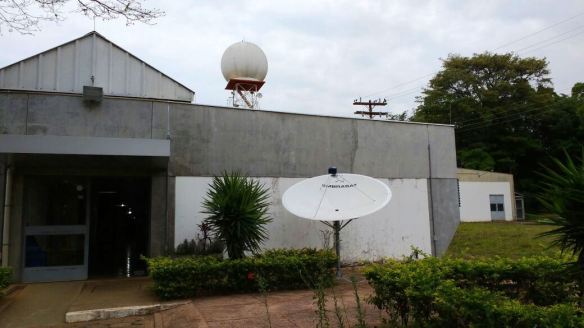
A storm is approaching INPE















 GNC-A Blog