

GOES-16 plot made with Python – Let’s see how to do it!
Quickstart With Python and Satellite Imagery
Contact: If you have any questions, please contact:- E-mail: [email protected]
- Skype: diego.rsouza
- Become familiar with some basic tools to start manipulating satellite images with Python
- Understand how to make basic operations like:
- Reading a GOES-R (GOES-16 or 17) NetCDF files
- Making a basic GOES-R plot and visualize pixel values (brightness temperatures / reflectances)
- Change color scales, add a title and a colorbar to the plot
- Add coastlines, countries, states / provinces (and other shapefiles)
- Create a Full Resolution Plot
- Create an RGB Composite
Prerequisites:
For this exercise, we’ll need the following:- Python 3.7 (our programming language)
- A “Package Manager” (to install libraries)
- An “Environment Manager” (to separate our projects)
- A Text Editor (to write our code)
- GOES-R imagery samples (the data to be manipulated)
For the first three items (“Python 3.7”, “Package Manager” and “Environment Manager”), the “Miniconda” tool will be sufficient.
As for the text editor, there are many options available (Spyder, PyCharm, Atom, Jupyter, etc), but for simplicity, today we’ll use “Notepad++”:For the GOES-R imagery samples, we’ll download them from the cloud (Amazon). You may also get these from your GNC-A station or other receive mechanisms (GRB, etc).
Installation steps:
1 ) Download and install Miniconda for Python 3.7 at the following link (60 MB only):
Notes:
- During the installation, it is not necessary to check “Add Anaconda to my Path environment variable”.
- You may check “Register Anaconda as my default Python 3.7”
- The installation will take approximately 5 minutes.
Creating a Python virtual environment and installing libraries:
2 ) Let’s create a Python environment called “workshop“ and install the following libraries and their dependencies in this environment:
- matplotlib: plotting library
- netcdf4: read / write NetCDF files
- cartopy: produce maps and other geospatial data analyses
 And insert the following command:
conda create --name workshop -c conda-forge matplotlib netcdf4 cartopyWhere:
workshop: The name of your environment. It could be anything, like “satellite”, “goes”, etc…
matplotlib netcdf4 cartopy: The libraries we wan’t to install Notes:- During the installation, type “y” and Enter to proceed, when requested.
- This procedure should take approximately 10 minutes.

 Finally, activate the newly created virtual environment with the following command:
activate workshop
 Note: If you are using Linux, use “source activate workshop“
A plus: Although the commands below are not required for these exercises, they are nice to know for your future development:
Note: If you are using Linux, use “source activate workshop“
A plus: Although the commands below are not required for these exercises, they are nice to know for your future development:
- Deactivate an environment: conda deactivate
- Viewing list of environments: conda env list
- Viewing a list of packages (libraries, etc) installed in an environment: conda list
We are ready to start using Python, however, we need an editor to write our code and also, we need some sample GOES-R imagery.
Downloading an editor:
3 ) Download and install Notepad++ at the following link (4 MB only): Note:
Note:
- If the link above fails, you may download the installer (64 bit) at this link.
- You may use any editor you want (e.g.: Windows Notepad), as long as you save the file with the “.py” extension.
Downloading GOES-R NetCDF samples:
4 ) Create a folder called VLAB\Python\ in your machine ( e.g.: C:\VLAB\Python\ )5 ) Access the following page:
Choose the following options:
- Satellite: Either GOES-16/East or GOES-17/West
- Domain: Full Disk
- Product: ABI L2 Cloud and Moisture Imagery
- Date and Hour (UTC): Any date and hour you want!
Click on “Submit” and then download a file for Band 13, by clicking at the blue boxes with the minutes for that hour (pick any time you want).
Note: For the printscreens on this page, we’ve downloaded files for JULY 17, 2019, 12:00 UTC.
The NetCDF will be downloaded.
Put the NetCDF at the folder you just created ( e.g.: C:\VLAB\Python\ )
We are ready to begin!
PRACTICE 1: FIRST PLOT AND GETTING PIXEL VALUES
6 ) Open your text editor / IDE (in our example, “Notepad++”), insert the code below, and save it as “Script_01.py”, inside the C:\VLAB\Python\ folder (the same directory you have your NetCDF sample):
Important: Insert the name of the file you just downloaded in the instruction from line 8:
# Training: Python and GOES-R Imagery: Script 1

# Required modules
from netCDF4 import Dataset      # Read / Write NetCDF4 files
import matplotlib.pyplot as plt  # Plotting library

# Open the GOES-R image
file = Dataset("OR_ABI-L2-CMIPF-M6C13_G16_s20191981200396_e20191981210116_c20191981210189.nc")

# Get the pixel values
data = file.variables['CMI'][:]

# Choose the plot size (width x height, in inches)
plt.figure(figsize=(7,7))

# Plot the image
plt.imshow(data, vmin=193, vmax=313, cmap='Greys')

# Save the image
plt.savefig('Image_01.png')
# Show the image
plt.show()
YOU MAY DOWNLOAD THE SCRIP ABOVE (Script_01.py) AT THIS LINK
The image below shows the script opened in Notepad++:
In the Anaconda prompt, with the “workshop” environment activated, access the C:\VLAB\Python\ directory:
cd C:\VLAB\Python
Execute the script “Script_01.py” using the following command:
python Script_01.py
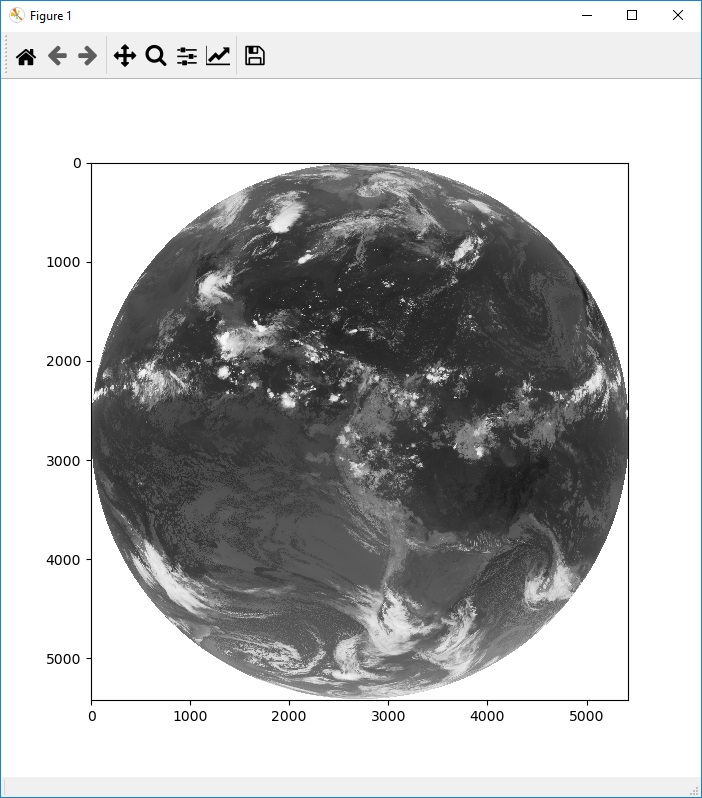
 A window will pop-up and you should see your first GOES-R plot made with Python:
- Seeing the Brightness Temperatures
Move the mouse pointer over the plot, and you will see the Band 13 pixel values in Brightness Temperatures (K) in the lower left part of the screen. In the example image below, this particular cloud top temperature is 227 K:

- Zoom on a given region
In order to zoom on a given region, just click on the magnifier icon in the upper part of the screen and select the region you want to zoom in.
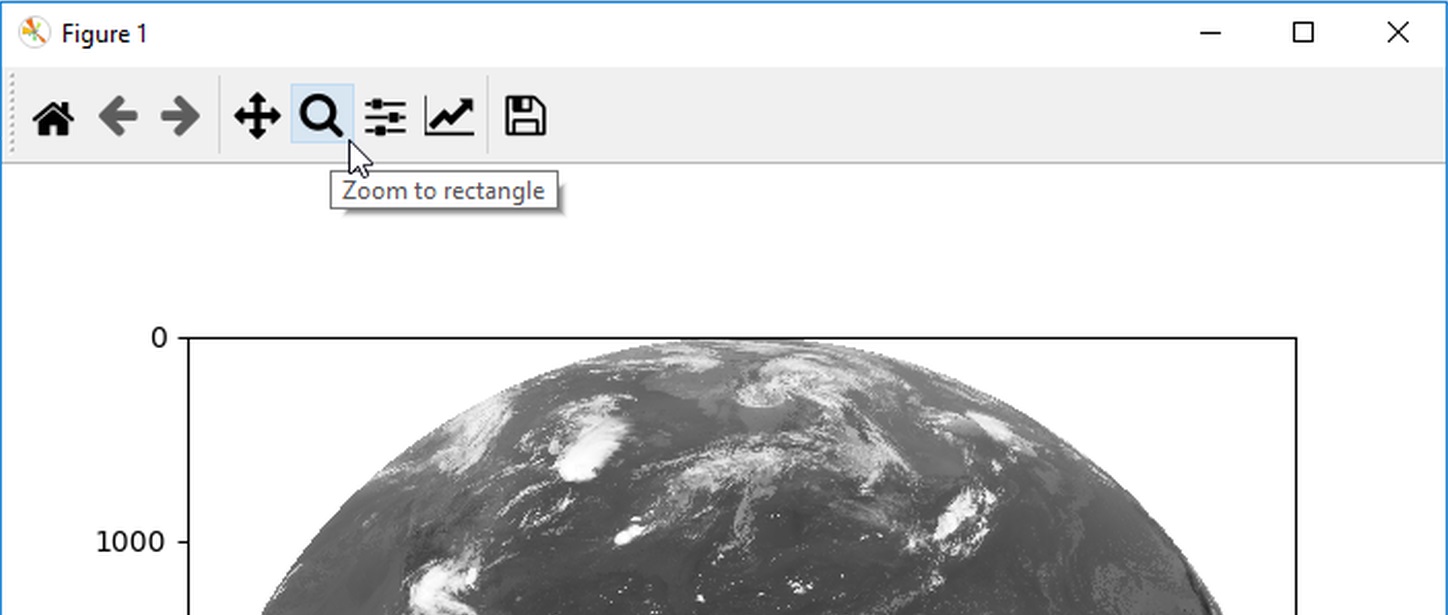 To go back to the full view, click at the “Home” icon.
Apart from the visualization screen, a PNG image called ‘Image_01.png’ has been saved to your working directory (C:\VLAB\Python\).
To go back to the full view, click at the “Home” icon.
Apart from the visualization screen, a PNG image called ‘Image_01.png’ has been saved to your working directory (C:\VLAB\Python\).
 What can you quickly change in this script?
- The image to be read. Try downloading other images from Amazon (other time, dates and bands) and plot it.
- The final image size. Try generating images with other dimensions.
- The minimum and maximum vales. Try changing the min and max Kelvin values to see different contrasts.
PRACTICE 2: CONVERT TO CELSIUS, ADD A COLORBAR AND A TITLE
Let’s create our second script. Save a file called “Script_02.py”. In order to convert the pixels to Celsius, just add the following subtraction to line 11:By doing this, we have to change the minimum and maximum values of our colormap, from 193 ~ 313 K to -80 ~ 40 °C:# Get the pixel values data = file.variables['CMI'][:] - 273.15
In order to add a colorbar, just add the following line to the script:# Plot the image plt.imshow(data, vmin=-80, vmax=40, cmap='Greys')
In order to add a Title, add the following lines to the script:# Add a colorbar plt.colorbar(label='Brightness Temperatures (°C)', extend='both', orientation='horizontal', pad=0.05, fraction=0.05)
# Putting a title
plt.title('GOES-16 Band 13', fontweight='bold', fontsize=10, loc='left')
plt.title('Full Disk', fontsize=10, loc='right')
# Training: Python and GOES-R Imagery: Script 2
# Required modules
from netCDF4 import Dataset # Read / Write NetCDF4 files
import matplotlib.pyplot as plt # Plotting library
# Open the GOES-R image
file = Dataset("OR_ABI-L2-CMIPF-M6C13_G16_s20191981200396_e20191981210116_c20191981210189.nc")
# Get the pixel values
data = file.variables['CMI'][:] - 273.15
# Choose the plot size (width x height, in inches)
plt.figure(figsize=(7,7))
# Plot the image
plt.imshow(data, vmin=-80, vmax=40, cmap='Greys')
# Add a colorbar
plt.colorbar(label='Brightness Temperature (°C)', extend='both', orientation='horizontal', pad=0.05, fraction=0.05)
# Add a title
plt.title('GOES-16 Band 13', fontweight='bold', fontsize=10, loc='left')
plt.title('Full Disk', fontsize=10, loc='right')
# Save the image
plt.savefig('Image_02.png')
# Show the image
plt.show()
YOU MAY DOWNLOAD THE SCRIP ABOVE (Script_02.py) AT THIS LINK
Execute the script “Script_02.py” using the following command:
python Script_02.py
You should see the following plot: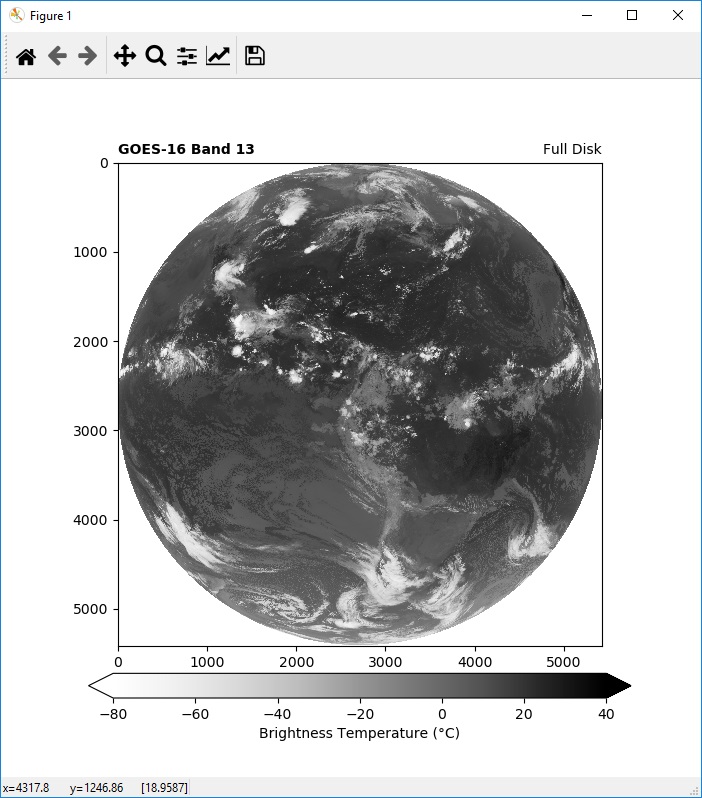
- Changing the colormap (cmap)
Now, in line 17, change the cmap from ‘Greys’ to ‘jet’.
# Plot the image
plt.imshow(data, vmin=-80, vmax=40, cmap='jet')

What can you quickly change in this script?
- The colormap. Try making plots with diferent colormaps form the webpage above.
- The title of the image. Try changing the size of the text.
- The colorbar appearance. Try changing the orientation to “vertical” and the colorbar size changing the “fraction” value
PRACTICE 3: ADDING MAPS WITH CARTOPY
Let’s create our third script. Save a file called “Script_03.py”. In order to use cartopy in our plot, this is the script we’ll use:
# Training: Python and GOES-R Imagery: Script 3

# Required modules
from netCDF4 import Dataset          # Read / Write NetCDF4 files
import matplotlib.pyplot as plt      # Plotting library
import cartopy, cartopy.crs as ccrs  # Plot maps

# Open the GOES-R image
file = Dataset("OR_ABI-L2-CMIPF-M6C13_G16_s20191981200396_e20191981210116_c20191981210189.nc")

# Get the pixel values
data = file.variables['CMI'][:] - 273.15

# Choose the plot size (width x height, in inches)
plt.figure(figsize=(7,7))

# Use the Geostationary projection in cartopy
ax = plt.axes(projection=ccrs.Geostationary(central_longitude=-75.0, satellite_height=35786023.0))
img_extent = (-5434894.67527,5434894.67527,-5434894.67527,5434894.67527)

# Add coastlines, borders and gridlines
ax.coastlines(resolution='10m', color='white', linewidth=0.8)
ax.add_feature(cartopy.feature.BORDERS, edgecolor='white', linewidth=0.5)
ax.gridlines(color='white', alpha=0.5, linestyle='--', linewidth=0.5)

# Plot the image
img = ax.imshow(data, vmin=-80, vmax=40, origin='upper', extent=img_extent, cmap='Greys')

# Add a colorbar
plt.colorbar(img, label='Brightness Temperatures (°C)', extend='both', orientation='horizontal', pad=0.05, fraction=0.05)

# Add a title
plt.title('GOES-16 Band 13', fontweight='bold', fontsize=10, loc='left')
plt.title('Full Disk', fontsize=10, loc='right')

# Save the image
plt.savefig('Image_03.png')

# Show the image
plt.show()
YOU MAY DOWNLOAD THE SCRIP ABOVE (Script_03.py) AT THIS LINK
Execute the script “Script_03.py” using the following command:
python Script_03.py
You should see the following plot: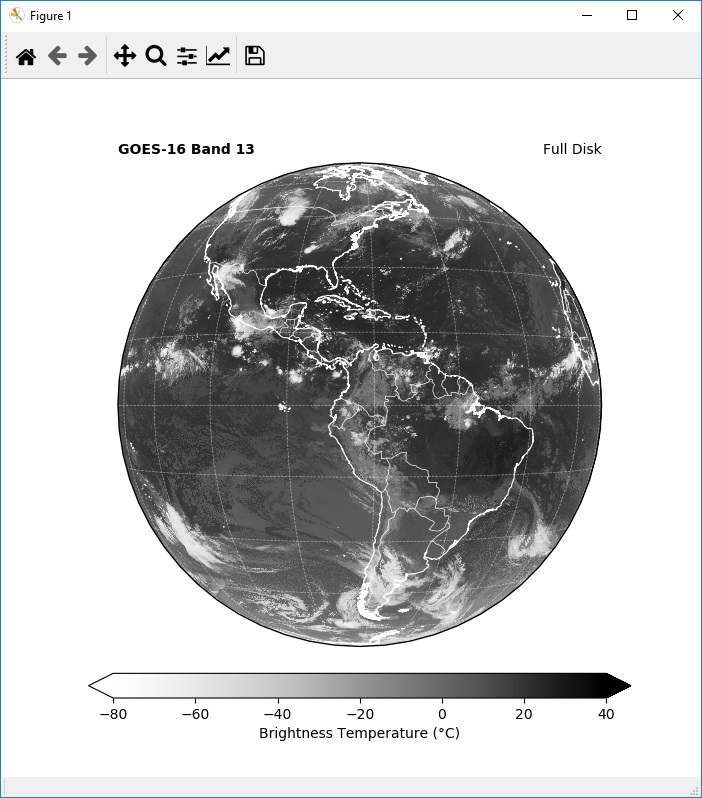
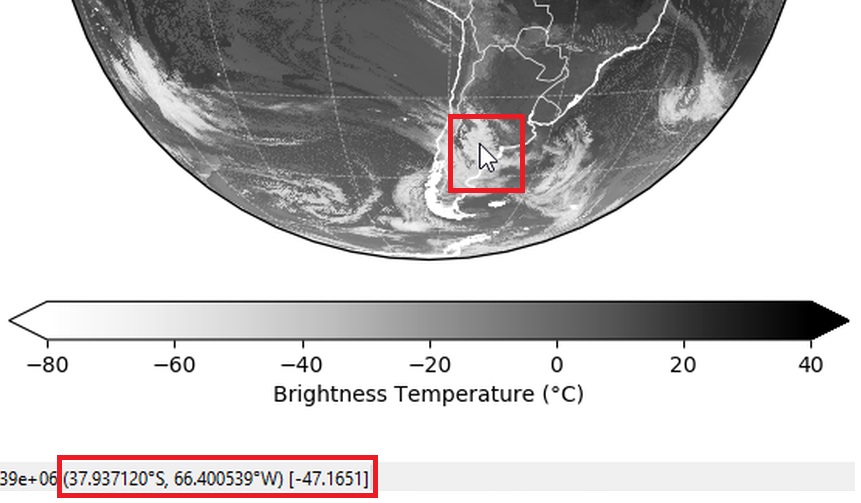
- Seeing the Latitudes, Longitudes and Brightness Temperatures
Move the mouse pointer over the plot, and apart from the Band 13 pixel values in Brightness Temperatures (°C), you will see the pixel coordinates:
 Apart from the visualization screen, a PNG image called ‘Image_03.png’ has been saved to your working directory (C:\VLAB\Python\).
What can you quickly change in this script?
Apart from the visualization screen, a PNG image called ‘Image_03.png’ has been saved to your working directory (C:\VLAB\Python\).
What can you quickly change in this script?
- The map colors and line widths. Please find at this link, a list of named colors.
PRACTICE 4: ADD SHAPEFILES
Let’s create our fourth script. Save a file called “Script_04.py”.Please download a sample shapefile, with the world states and provinces at this link. Extract it (unzip) in your C:\VLAB\Python\ directory, where you have your scripts and sample imagery.
This is what you should have in your directory by now: In order to add a shapefile, we need to import the Cartopy “shapereader”:
And add the shapefile to the visualization with the following commands:import cartopy.io.shapereader as shpreader # Import shapefiles
# Add a shapefile
shapefile = list(shpreader.Reader('ne_10m_admin_1_states_provinces.shp').geometries())
ax.add_geometries(shapefile, ccrs.PlateCarree(), edgecolor='gold',facecolor='none', linewidth=0.3)
# Training: Python and GOES-R Imagery: Script 4

# Required modules
from netCDF4 import Dataset                # Read / Write NetCDF4 files
import matplotlib.pyplot as plt            # Plotting library
import cartopy, cartopy.crs as ccrs        # Plot maps
import cartopy.io.shapereader as shpreader # Import shapefiles

# Open the GOES-R image
file = Dataset("OR_ABI-L2-CMIPF-M6C13_G16_s20191981200396_e20191981210116_c20191981210189.nc")

# Get the pixel values, and convert to Celsius
data = file.variables['CMI'][:] - 273.15

# Choose the plot size (width x height, in inches)
plt.figure(figsize=(7,7))

# Use the Geostationary projection in cartopy
ax = plt.axes(projection=ccrs.Geostationary(central_longitude=-75.0, satellite_height=35786023.0))
img_extent = (-5434894.67527,5434894.67527,-5434894.67527,5434894.67527)

# Add a shapefile
shapefile = list(shpreader.Reader('ne_10m_admin_1_states_provinces.shp').geometries())
ax.add_geometries(shapefile, ccrs.PlateCarree(), edgecolor='gold',facecolor='none', linewidth=0.3)

# Add coastlines, borders and gridlines
ax.coastlines(resolution='10m', color='white', linewidth=0.8)
ax.add_feature(cartopy.feature.BORDERS, edgecolor='white', linewidth=0.8)
ax.gridlines(color='white', alpha=0.5, linestyle='--', linewidth=0.5)

# Plot the image
img = ax.imshow(data, vmin=-80, vmax=40, origin='upper', extent=img_extent, cmap='Greys')

# Add a colorbar
plt.colorbar(img, label='Brightness Temperature (°C)', extend='both', orientation='horizontal', pad=0.05, fraction=0.05)

# Add a title
plt.title('GOES-16 Band 13', fontweight='bold', fontsize=10, loc='left')
plt.title('Full Disk', fontsize=10, loc='right')

# Save the image
plt.tight_layout()
plt.savefig('Image_04.png')

# Show the image
plt.show()
YOU MAY DOWNLOAD THE SCRIP ABOVE (Script_04.py) AT THIS LINK
Execute the script “Script_04.py” using the following command:
python Script_04.py
Important: This particular shapefile has a considerable size. The plot may take a while to complete. You should see the following plot: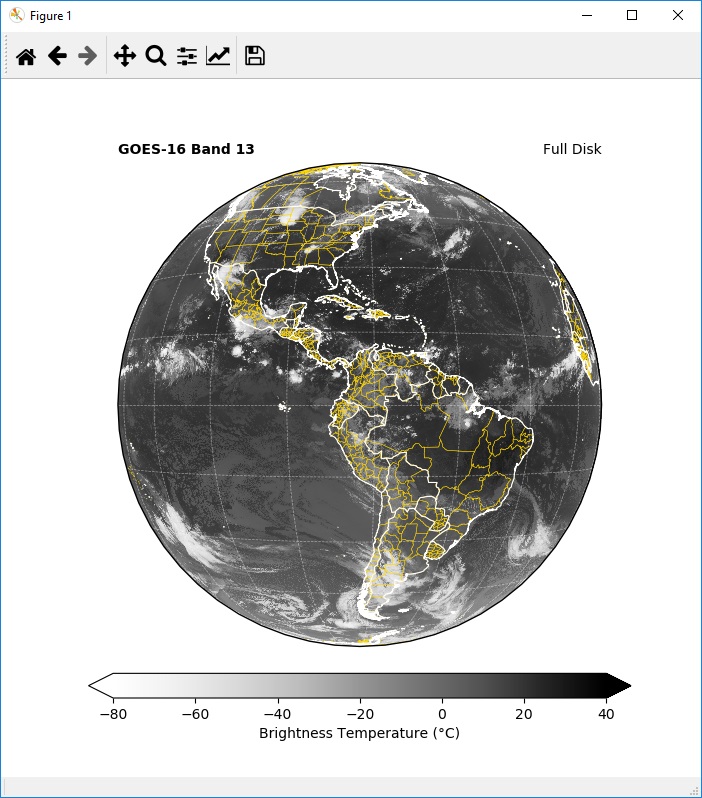
Apart from the visualization screen, a PNG image called ‘Image_04.png’ has been saved to your working directory (C:\VLAB\Python\).
What can you quickly change in this script?
- The shapefile to be read. Try adding other shapefiles of your preference (e.g.: rivers)
PRACTICE 5: FULL RESOLUTION PNG PLOT
Let’s create our fifth script. Save a file called “Script_05.py”. For now, we have been defining the size of our image, in inches, as below:In order to create a full resolution PNG image, let’s change this line to the following:# Choose the plot size (width x height, in inches) plt.figure(figsize=(7,7))
# Add a shapefile
shapefile = list(shpreader.Reader('ne_10m_admin_1_states_provinces.shp').geometries())
ax.add_geometries(shapefile, ccrs.PlateCarree(), edgecolor='gold',facecolor='none', linewidth=0.3)
# Save the image
plt.tight_layout()
plt.savefig('Image_05.png')
And also comment the plt.show instruction, for we just want to create the PNG:# Add a colorbar #plt.colorbar(img, label='Brightness Temperature (°C)', extend='both', orientation='horizontal', pad=0.05, fraction=0.05)
This should be your full script by now:# Show the image #plt.show()
# Training: Python and GOES-R Imagery: Script 5
# Required modules
from netCDF4 import Dataset # Read / Write NetCDF4 files
import matplotlib.pyplot as plt # Plotting library
import cartopy, cartopy.crs as ccrs # Plot maps
import cartopy.io.shapereader as shpreader # Import shapefiles
# Open the GOES-R image
file = Dataset("OR_ABI-L2-CMIPF-M6C13_G16_s20191981200396_e20191981210116_c20191981210189.nc")
# Get the pixel values, and convert to Celsius
data = file.variables['CMI'][:] - 273.15
# Choose the plot size (width x height, in inches)
# Choose the final image size (inches)
dpi = 150
plt.figure(figsize=(data.shape[1]/float(dpi), data.shape[0]/float(dpi)), dpi=dpi)
# Use the Geostationary projection in cartopy
ax = plt.axes(projection=ccrs.Geostationary(central_longitude=-75.0, satellite_height=35786023.0))
img_extent = (-5434894.67527,5434894.67527,-5434894.67527,5434894.67527)
# Add a shapefile
shapefile = list(shpreader.Reader('ne_10m_admin_1_states_provinces.shp').geometries())
ax.add_geometries(shapefile, ccrs.PlateCarree(), edgecolor='gold',facecolor='none', linewidth=0.3)
# Add coastlines, borders and gridlines
ax.coastlines(resolution='10m', color='white', linewidth=0.8)
ax.add_feature(cartopy.feature.BORDERS, edgecolor='red', linewidth=0.8)
ax.gridlines(color='white', alpha=0.5, linestyle='--', linewidth=0.5)
# Plot the image
img = ax.imshow(data, vmin=-80, vmax=40, origin='upper', extent=img_extent, cmap='Greys')
# Add a colorbar
#plt.colorbar(img, label='Brightness Temperature (°C)', extend='both', orientation='horizontal', pad=0.05, fraction=0.05)
# Add a title
plt.title('GOES-16 Band 13', fontweight='bold', fontsize=10, loc='left')
plt.title('Full Disk', fontsize=10, loc='right')
# Save the image
plt.tight_layout()
plt.savefig('Image_05.png')
# Show the image
#plt.show()
YOU MAY DOWNLOAD THE SCRIP ABOVE (Script_05.py) AT THIS LINK
Execute the script “Script_05.py” using the following command:
python Script_05.py
After the script execution, you should have the following full resolution PNG: Zooming in an specific region:

PRACTICE 6: CREATING AN RGB (RED, GREEN, BLUE) COMPOSITE
Let’s create the Airmass RGB Composite with Python. Consider the Airmass recipe found on the RAMMB Quick Guide:
 This is the recipe:
 Step 1) First of all, according to the recipe, we need to read four GOES-R Bands:
- Band 08 (6.2 um)
- Band 10 (7.3 um)
- Band 12 (9.6 um)
- Band 13 (10.3 um)
Access the Amazon Download Web Page from the beggining of this tutorial, and download NetCDF’s for the same time and date for these 4 channels.
This is what you should have by now: We already know how to read GOES-R files, right?
# Open the GOES-R image
file1 = Dataset("OR_ABI-L2-CMIPF-M6C08_G16_s20191981200396_e20191981210104_c20191981210182.nc")
# Get the pixel values, and convert to Celsius
data1 = file1.variables['CMI'][:] - 273.15
#print(data1)
# Open the GOES-R image
file2 = Dataset("OR_ABI-L2-CMIPF-M6C10_G16_s20191981200396_e20191981210116_c20191981210188.nc")
# Get the pixel values, and convert to Celsius
data2 = file2.variables['CMI'][:] - 273.15
# Open the GOES-R image
file3 = Dataset("OR_ABI-L2-CMIPF-M6C12_G16_s20191981200396_e20191981210111_c20191981210185.nc")
# Get the pixel values, and convert to Celsius
data3 = file3.variables['CMI'][:] - 273.15
# Open the GOES-R image
file4 = Dataset("OR_ABI-L2-CMIPF-M6C13_G16_s20191981200396_e20191981210116_c20191981210189.nc")
# Get the pixel values, and convert to Celsius
data4 = file4.variables['CMI'][:] - 273.15
Step 3) And we need to set the minimuns, maximuns and gamma values, according to the recipe:# RGB Components R = data1 - data2 G = data3 - data4 B = data1
# Minimuns, Maximuns and Gamma Rmin = -26.2 Rmax = 0.6 Gmin = -43.2 Gmax = 6.7 Bmin = -29.25 Bmax = -64.65
R[R>Rmax] = Rmax R[R<Rmin] = Rmin G[G>Gmax] = Gmax G[G<Gmin] = Gmin B[B<Bmax] = Bmax B[B>Bmin] = Bmin
Step 4) Let’s normalize the data beween 0 and 1:gamma_R = 1 gamma_G = 1 gamma_B = 1
Step 5) Finally, we stack the R, G and B components to create the final composite:# Normalize the data R = ((R - Rmin) / (Rmax - Rmin)) ** (1/gamma_R) G = ((G - Gmin) / (Gmax - Gmin)) ** (1/gamma_G) B = ((B - Bmin) / (Bmax - Bmin)) ** (1/gamma_B)
Step 6) And plot it!# Create the RGB RGB = np.stack([R, G, B], axis=2) # Eliminate values outside the globe mask = (RGB == [R[0,0],G[0,0],B[0,0]]).all(axis=2) RGB[mask] = np.nan
# Choose the plot size (width x height, in inches)
plt.figure(figsize=(7,7))
# Use the Geostationary projection in cartopy
ax = plt.axes(projection=ccrs.Geostationary(central_longitude=-75.0, satellite_height=35786023.0))
img_extent = (-5434894.67527,5434894.67527,-5434894.67527,5434894.67527)
# Add coastlines, borders and gridlines
ax.coastlines(resolution='10m', color='white', linewidth=0.8)
ax.add_feature(cartopy.feature.BORDERS, edgecolor='white', linewidth=0.8)
ax.gridlines(color='white', alpha=0.5, linestyle='--', linewidth=0.5)
# Plot the image
img = ax.imshow(RGB, origin='upper', extent=img_extent)
# Add a title
plt.title('GOES-16 Airmass RGB', fontweight='bold', fontsize=10, loc='left')
plt.title('Full Disk', fontsize=10, loc='right')
# Save the image
plt.tight_layout()
plt.savefig('Image_06.png')
# Show the image
plt.show()
# Training: Python and GOES-R Imagery: Script 6
# Required modules
from netCDF4 import Dataset # Read / Write NetCDF4 files
import matplotlib.pyplot as plt # Plotting library
import cartopy, cartopy.crs as ccrs # Plot maps
import numpy as np # Import the Numpy packag
# Open the GOES-R image
file1 = Dataset("OR_ABI-L2-CMIPF-M6C08_G16_s20191981200396_e20191981210104_c20191981210182.nc")
# Get the pixel values, and convert to Celsius
data1 = file1.variables['CMI'][:] - 273.15
# Open the GOES-R image
file2 = Dataset("OR_ABI-L2-CMIPF-M6C10_G16_s20191981200396_e20191981210116_c20191981210188.nc")
# Get the pixel values, and convert to Celsius
data2 = file2.variables['CMI'][:] - 273.15
# Open the GOES-R image
file3 = Dataset("OR_ABI-L2-CMIPF-M6C12_G16_s20191981200396_e20191981210111_c20191981210185.nc")
# Get the pixel values, and convert to Celsius
data3 = file3.variables['CMI'][:] - 273.15
# Open the GOES-R image
file4 = Dataset("OR_ABI-L2-CMIPF-M6C13_G16_s20191981200396_e20191981210116_c20191981210189.nc")
# Get the pixel values, and convert to Celsius
data4 = file4.variables['CMI'][:] - 273.15
# RGB Components
R = data1 - data2
G = data3 - data4
B = data1
# Minimuns, Maximuns and Gamma
Rmin = -26.2
Rmax = 0.6

Gmin = -43.2
Gmax = 6.7

Bmin = -29.25
Bmax = -64.65
R[R>Rmax] = Rmax R[R<Rmin] = Rmin G[G>Gmax] = Gmax G[G<Gmin] = Gmin B[B<Bmax] = Bmax B[B>Bmin] = Bmin
gamma_R = 1
gamma_G = 1
gamma_B = 1
# Normalize the data
R = ((R - Rmin) / (Rmax - Rmin)) ** (1/gamma_R)
G = ((G - Gmin) / (Gmax - Gmin)) ** (1/gamma_G)
B = ((B - Bmin) / (Bmax - Bmin)) ** (1/gamma_B)
# Create the RGB
RGB = np.stack([R, G, B], axis=2)

# Eliminate values outside the globe
mask = (RGB == [R[0,0],G[0,0],B[0,0]]).all(axis=2)
RGB[mask] = np.nan
# Choose the plot size (width x height, in inches)
plt.figure(figsize=(7,7))

# Use the Geostationary projection in cartopy
ax = plt.axes(projection=ccrs.Geostationary(central_longitude=-75.0, satellite_height=35786023.0))
img_extent = (-5434894.67527,5434894.67527,-5434894.67527,5434894.67527)

# Add coastlines, borders and gridlines
ax.coastlines(resolution='10m', color='white', linewidth=0.8)
ax.add_feature(cartopy.feature.BORDERS, edgecolor='white', linewidth=0.8)
ax.gridlines(color='white', alpha=0.5, linestyle='--', linewidth=0.5)

# Plot the image
img = ax.imshow(RGB, origin='upper', extent=img_extent)

# Add a title
plt.title('GOES-16 Airmass RGB', fontweight='bold', fontsize=10, loc='left')
plt.title('Full Disk', fontsize=10, loc='right')

# Save the image
plt.tight_layout()
plt.savefig('Image_06.png')

# Show the image
plt.show()
YOU MAY DOWNLOAD THE SCRIP ABOVE (Script_06.py) AT THIS LINK
Execute the script “Script_06.py” using the following command:
python Script_06.py
You should see the following plot: What can you quickly change in this script?
- Create a full resolution plot. Try adjusting the script to produce a full resolution plot as we did in exercise 5.
- Add states and provinces shapefiles. Try adding the states and provinces shapefiles as we did in exercise 5.
- Create other RGB’s. Check the RAMMB RGB’s Quick Guides and try to create other RGB’s. The DUST RGB creation method is very similar! Try it out! Note: The blue channel is not inverted!
Last update: July 18th 19:00 UTC
 GNC-A Blog