
IMPORTANT: GEONETCast-Americas Transition to DVB-S2

DVB-S2.png

Dear GEONETCasters,

On 4/10/19 NOAA’s vendor learned from Intelsat General that they intend to convert the existing DVB-S transmission channel on INTELSAT-21 to the DVB-S2 (Digital Video Broadcasting – Satellite – Second Generation) format sometime in the next few months.

This change will require all users with DVB-S receivers to upgrade to DVB-S2 receivers. All users should check if their existing device is a DVB-S2 device. The reception will NOT work with a DVB-S device. If your device is compatible with DVB-S2 and you are successfully receiving the current service, then it will also work under DVB-S2.

The following DVB-S receivers (known to be used by some GNC-A users) WILL NOT WORK when the transition is done:

s75

  • Manufacturer: NOVRA
  • Model: S75+
  • Supported technology: DVB-S
  • Tutorial from this Blog: Link


20171109_140700.jpg

  • Manufacturer: Technisat
  • Model: SkyStar 2
  • Supported technology: DVB-S
  • Tutorial from this Blog: Link


The following DVB-S2 receivers (known to be used by some GNC-A users) WILL WORK when the transition is done:

s300d

  • Manufacturer: NOVRA
  • Model: S300D
  • Supported technology: DVB-S and DVB-S2
  • Webpage: Link
  • Contact: [email protected] (Lowis K. Wu)
  • Tutorial from this Blog: Link

sr1

  • Manufacturer: AYECKA
  • Model: SR1
  • Supported technology: DVB-S and DVB-S2
  • Webpage: Link
  • Contact: [email protected] (Baruch Kagan)
  • Tutorial from this Blog: Link


Please find below a list of other DVB-S2 receivers that should work when the transition is done (Note: Unlike the two models above, these have not been tested by this Blog):

Omnicom.png

  • Manufacturer: Omicom
  • Model: Pro Omicom 16/32 PSK
  • Interface: PCI
  • OS Support: Windows / Linux
  • Webpage: Link


TBS-1

  • Manufacturer: TBS
  • Model: TBS 6903
  • Interface: PCI-Express
  • OS Support: Windows / Linux
  • Webpage: Link


TBS-2.png


  • Manufacturer: TBS
  • Model: TBS 5927
  • Interface: USB
  • OS Support: Windows / Linux
  • Webpage: Link


TBS-3.png

  • Manufacturer: TBS
  • Model: TBS 5980 and TBS 5990
  • Interface: USB
  • OS Support: Windows / Linux
  • Webpage: Link and Link


Technotrend1.png


  • Manufacturer: Technotrend
  • Model: S2-4100 and S2-4200
  • Interface: PCI-Express
  • OS Support: Windows / Linux
  • Webpage: Link


SkyStar.png


  • Manufacturer: Technisat
  • Model: SkyStar S2 PCI
  • Interface: PCI
  • OS Support: Windows / Linux


The change will not require re-pointing of antennas. Also, the same linear polarization will be kept as in the current technology. Therefore, the existing feed and LNB can be used.

We will keep users informed as the timeline for this becomes firmer.

GEONETClass: Downloading Data From Amazon AWS With Python and Rclone (Part I)

AWS_Tuto_Logo.png

Hi community!

On 2017, we have seen on this post a nice web interface developed by Brian Blaylock to download GOES-R imagery from the cloud. On 2018,  Dr. Marcial Garbanzo from the University of Costa Rica kindly shared a Shell script example to do the same, routinely.

Back on October 2018 Brian created a nice tutorial on how to do it using Python and a command line program called Rclone.

As he says:

As part of NOAA’s Big Data Project, Amazon makes available NEXRAD, GOES, and other data publicly available via Amazon Web Services (AWS). You can use rclone to access this data and download for your use. (You can even use rclone to access personal OneDrive, Google Drive, Box, and other types of cloud storage.)

Check out on this web page the public data available on AWS. It includes GOES-16, GOES-17, NEXRAD, Sentinel-1, Sentinel-2, Landsat 8, MODIS, CBERS, GFS, and many other.

In this blog series, we’ll try to learn how to use Rclone with Python so we may easily acess these public datasets.

For the GNC-A users, this could be really useful, because they could download the remaining GOES-R bands that are not on the broadcast (01, 03, 04, 05, 06, 10, 11, 12 and 16), or the full disks from minutes 20 and 50.

First of all, let’s learn how to use Rclone without Python.

LEARNING TO USE THE RCLONE COMMAND LINE TOOL

1 – Download and install Rclone in your machine. In this example we’ll use a Windows machine, so we simply extracted the “rclone.exe” in a folder at “C:\Rclone”.

rclone_tut_1

2 – In our examples, we’ll use only three basic Rclone commands:

  • List directories (rclone lsd
  • List files (rclone ls)
  • Copy files (rclone copy)

Listing Directories

3 – Let’s see how we can list the available directories for GOES-16/17. The basic command structure is as follows:

 rclone.exe lsd publicAWS:BUCKET/PRODUCT/YEAR/JULIANDAY/

Note: When using rclone in other operational systems, the “.exe” is not needed.

Where:

BUCKET:

noaa-goes16 or noaa-goes17 (or any other public dataset)

Let’s check the available products for GOES-16 using the following command:

 rclone.exe lsd publicAWS:noaa-goes16/

This should be the output:

rclone_tut_2

Where:

PRODUCT:

  • ABI-L1b-RadC: Level 1b Radiances (CONUS)
  • ABI-L1b-RadF: Level 1b Radiances (Full-Disk)
  • ABI-L1b-RadM: Level 1b Radiances (Mesoscale)
  • ABI-L2-CMIPC: Level 2 CMI (CONUS)
  • ABI-L2-CMIPF: Level 2 CMI (Full-Disk)
  • ABI-L2-CMIPM: Level 2 CMI (Mesoscale)
  • ABI-L2-MCMIPC: Level 2 CMI (CONUS) – All 16 bands [2 km] in a single NetCDF file.
  • ABI-L2-MCMIPF: Level 2 CMI (Full-Disk) – All 16 bands [2 km] in a single NetCDF  file.
  • ABI-L2-MCMIPM: Level 2 CMI (Mesoscale) – All 16 bands [2 km] in a single NetCDF file.

Let’s check the available times for the ABI-L2-CMIPF files for today (April 12, 2019). You may check the Julian Day here:

  • YEAR: 2019
  • JULIANDAY: 102

So, let’s use the following command:

 rclone.exe lsd publicAWS:noaa-goes16/ABI-L2-CMIPF/2019/102/

Right now is 13:55 UTC, and this was the output:

rclone_tut_3.png

Hour 13 UTC is the most recent directory available.

Listing Files

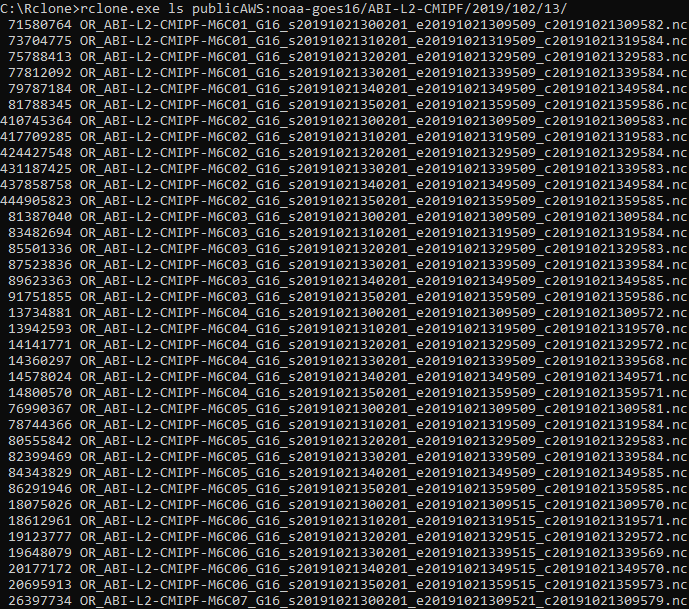
4 – Let’s see how we can list the available files inside this directory, using the ls Rclone command (not lsd!):

 rclone.exe ls publicAWS:BUCKET/PRODUCT/YEAR/JULIANDAY/HOUR/

rclone.exe ls publicAWS:noaa-goes16/ABI-L2-CMIPF/2019/102/13/

This was the output (the image doesn’t show not all files listed):
rclone_tut_4.png

The list shows the file sizes in bytes and the file names. All GOES-16 channels are listed togheter.

Downloading Files

5 – Now that we have the files listed, let’s download one of them with the copy Rclone command, using the following command structure:

rclone.exe copy publicAWS:BUCKET/PRODUCT/YEAR/JULIANDAY/HOUR/FILE OUTDIR

Where:

  • FILE: NetCDF file to download
  • OUTDIR: Directory in your local machine where the file will be stored

Let’s download the following file:

rclone_tut_5

And copy it the the same directory where we have the RClone executable (C:\Rclone\)

rclone.exe copy publicAWS:noaa-goes16/ABI-L2-CMIPF/2019/102/13/OR_ABI-L2-CMIPF-M6C16_G16_s20191021350201_e20191021359521_c20191021359598.nc C:\Rclone\

rclone_tut_6

After a while, you should see the downloaded file in the selected directory:

rclone_tut_7.png

Now that we have learned the basics of the Rclone tool, let’s see how we can use it with Python.

USING RCLONE WITH PYTHON – A FIRST APPROACH

Listing Directories With Python

1 – For this example, we created a rclone_tutorial_1.py script in the same directory where we have the rclone tool:

rclone_tut_8.png

First of all, let’s see how we can list the available products again, now with Python:

rclone.exe lsd publicAWS:BUCKET/

As seen on the tutorial from Brian, let’s use the following Python code:

# Required Modules
import subprocess
# The subprocess module allows you to spawn new processes, connect to their input/output/error pipes, and obtain their return codes.
# Get output from rclone command
files = subprocess.check_output('rclone.exe lsd publicAWS:noaa-goes16/', shell=True)
# Change type from 'bytes' to 'string'
files = files.decode()
# Split files based on the new line and remove the empty item at the end.
files = files.split('\n')
files.remove('')
# Print the list of directories
for i in files:
    print(i)

When executing the script (python rclone_tutorial_1.py), this shoud be the output:

rclone_tut_9

Listing Files With Python

2 – Let’s see how we can list the available files inside this directory, using the ls Rclone command (not lsd!) again, now with Python:

 rclone.exe ls publicAWS:BUCKET/PRODUCT/YEAR/JULIANDAY/HOUR/

rclone.exe ls publicAWS:noaa-goes16/ABI-L2-CMIPF/2019/102/13/

Let’s change our script in the following line:

# Get output from rclone command
files = subprocess.check_output('rclone.exe ls publicAWS:noaa-goes16/ABI-L2-CMIPF/2019/102/13/', shell=True)

When executing the script, this shoud be the output:

rclone_tut_10

Ok, so let’s download a file now.

Downloading Files With Python

3 – Let’s download one of them with the copy Rclone command, now using Python, with the following command:

rclone.exe copy publicAWS:noaa-goes16/ABI-L2-CMIPF/2019/102/13/OR_ABI-L2-CMIPF- M6C13_G16_s20191021350201_e20191021359521_c20191021359599.nc C:\Rclone\

Note: We have changed the example file to Band13 now.

To download the example file, let’s use the following Python code:

# Required Modules
import os # Miscellaneous operating system interfaces
# Download the most recent file to the specified directory
os.system('rclone.exe copy publicAWS:noaa-goes16/ABI-L2-CMIPF/2019/102/13/OR_ABI-L2-CMIPF-M6C13_G16_s20191021350201_e20191021359521_c20191021359599.nc C:\\Rclone\\')

After executing the script, this shoud see the new file downloaded in the directory:

rclone_tut_11.png

Now that we have seen the basic commands with Python, let’s change our code a little bit.

USING RCLONE WITH PYTHON – A SECOND APPROACH

In the previous script examples, we manually indicated the full Rclone command in the Python code:

files = subprocess.check_output('rclone.exe ls publicAWS:noaa-goes16/ABI-L2-CMIPF/2019/102/13/', shell=True)
os.system('rclone.exe copy publicAWS:noaa-goes16/ABI-L2-CMIPF/2019/102/13/OR_ABI-L2-CMIPF-M6C13_G16_s20191021350201_e20191021359521_c20191021359599.nc C:\\Rclone\\')


Let’s make the code more useful, little by little:

Adding variables

Considering that our Rclone command is:

 rclone.exe COMMAND publicAWS:BUCKET/PRODUCT/YEAR/JULIANDAY/HOUR/FILE OUTDIR

Let’s create variables for BUCKETPRODUCT, YEAR, JULIANDAY and HOUR, and list the available files for a random year, day and hour, using the following code:

# Required Modules
import os           # Miscellaneous operating system interfaces
import subprocess   # The subprocess module allows you to spawn new processes, connect to their input/output/error pipes, and obtain their return codes.

# Desired Data
BUCKET = 'noaa-goes16'    # For GOES-R the buckets are: ['noaa-goes16', 'noaa-goes17']
PRODUCT = 'ABI-L2-CMIPF'  # Choose from ['ABI-L1b-RadC', 'ABI-L1b-RadF', 'ABI-L1b-RadM', 'ABI-L2-CMIPC', 'ABI-L2-CMIPF', 'ABI-L2-CMIPM', 'ABI-L2-MCMIPC', 'ABI-L2-MCMIPF', 'ABI-L2-MCMIPM']
YEAR = '2018'             # Choose from ['2017', '2018', '2019']
JULIAN_DAY = '102'        # Data available after julian day 283, 2017 (October 10, 2017)
HOUR = '12'               # Choose from 00 to 23 

# Get output from rclone command, based on the desired data
files = subprocess.check_output('rclone.exe' + " " + 'ls publicAWS:' + BUCKET + "/" + PRODUCT + "/" + YEAR + "/" + JULIAN_DAY + "/" + HOUR + "/", shell=True)
# Change type from 'bytes' to 'string'
files = files.decode()
# Split files based on the new line and remove the empty item at the end.
files = files.split('\n')
files.remove('')
# Print the file names list
for i in files:
    print(i)

The output should show the files for 2018, julian day 102 and 12 UTC (not all files are shown in the image below):

rclone_tut_12.png

Listing only a given channel and making the code work on both Windows and Linux

Remeber in the beggining of the tutorial we saying that when using rclone in other operational systems, the “.exe” is not needed? Let’s add that to the code:

import platform           # Access to underlying platform’s identifying data
osystem = platform.system()    # Get the O.S.
if osystem == "Windows": extension = '.exe'

# Get output from rclone command, based on the desired data
files = subprocess.check_output('rclone' + extension + " " + 'ls publicAWS:' + BUCKET + "/" + PRODUCT + "/" + YEAR + "/" + JULIAN_DAY + "/" + HOUR + "/", shell=True)

Also, let’s create a CHANNEL variable:

CHANNEL = 'C13'           # Choose from ['C01 C02 C03 C04 C05 C06 C07 C08 C09 C10 C11 C12 C13 C14 C15 C16']

And list only the available files for a given channel:

# Get only the file names for an specific channel
files = [x for x in files if CHANNEL in x ]

Now our full script is:

# Required Modules
import os           # Miscellaneous operating system interfaces
import subprocess   # The subprocess module allows you to spawn new processes, connect to their input/output/error pipes, and obtain their return codes.
import platform     # Access to underlying platform’s identifying data
osystem = platform.system()
if osystem == "Windows": extension = '.exe'

# Desired Data
BUCKET = 'noaa-goes16'    # For GOES-R the buckets are: ['noaa-goes16', 'noaa-goes17']
PRODUCT = 'ABI-L2-CMIPF'  # Choose from ['ABI-L1b-RadC', 'ABI-L1b-RadF', 'ABI-L1b-RadM', 'ABI-L2-CMIPC', 'ABI-L2-CMIPF', 'ABI-L2-CMIPM', 'ABI-L2-MCMIPC', 'ABI-L2-MCMIPF', 'ABI-L2-MCMIPM']
YEAR = '2018'             # Choose from ['2017', '2018', '2019']
JULIAN_DAY = '102'        # Data available after julian day 283, 2017 (October 10, 2017)
HOUR = '12'               # Choose from 00 to 23
CHANNEL = 'C13'           # Choose from ['C01', 'C02', 'C03', 'C04', 'C05', 'C06', 'C07', 'C08', 'C09', 'C10', 'C11', 'C12', 'C13', 'C14', 'C15', 'C16']

# Get output from rclone command, based on the desired data
files = subprocess.check_output('rclone' + extension + " " + 'ls publicAWS:' + BUCKET + "/" + PRODUCT + "/" + YEAR + "/" + JULIAN_DAY + "/" + HOUR + "/", shell=True)
# Change type from 'bytes' to 'string'
files = files.decode()
# Split files based on the new line and remove the empty item at the end.
files = files.split('\n')
files.remove('')
# Get only the file names for an specific channel
files = [x for x in files if CHANNEL in x ]
# Print the file names list
for i in files:
    print(i)

The output should show the files for 2018, julian day 102 and 12 UTC, only for Channel 13:

rclone_tut_13.png

Downloading the most recent file for a given band and hour

In the image above, you may see that the file sizes are listed with the file names. In order to download a file, we need to have only the file names. Let’s get rid of the file sizes with the following Python command:

# Get only the file names, without the file sizes
files = [i.split(" ")[-1] for i in files]

Also, let’s create an OUTDIR variable to specify where we want the data to be stored:

OUTDIR = "C:\\Rclone\\"    # Choose the output directory

Now our download command should be:

# Download the most recent file for this particular hour
os.system('rclone' + extension + " " + 'copy publicAWS:' + BUCKET + "/" + PRODUCT + "/" + YEAR + "/" + JULIAN_DAY + "/" + HOUR + "/" + files[-1] + " " + OUTDIR)

Now our full script is:

# Required Modules
import os           # Miscellaneous operating system interfaces
import subprocess   # The subprocess module allows you to spawn new processes, connect to their input/output/error pipes, and obtain their return codes.
import platform     # Access to underlying platform’s identifying data
osystem = platform.system()
if osystem == "Windows": extension = '.exe'

# Desired Data
BUCKET = 'noaa-goes16'     # For GOES-R the buckets are: ['noaa-goes16', 'noaa-goes17']
PRODUCT = 'ABI-L2-CMIPF'   # Choose from ['ABI-L1b-RadC', 'ABI-L1b-RadF', 'ABI-L1b-RadM', 'ABI-L2-CMIPC', 'ABI-L2-CMIPF', 'ABI-L2-CMIPM', 'ABI-L2-MCMIPC', 'ABI-L2-MCMIPF', 'ABI-L2-MCMIPM']
YEAR = '2018'              # Choose from ['2017', '2018', '2019']
JULIAN_DAY = '102'         # Data available after julian day 283, 2017 (October 10, 2017)
HOUR = '12'                # Choose from 00 to 23
CHANNEL = 'C13'            # Choose from ['C01', 'C02', 'C03', 'C04', 'C05', 'C06', 'C07', 'C08', 'C09', 'C10', 'C11', 'C12', 'C13', 'C14', 'C15', 'C16']
OUTDIR = "C:\\Rclone\\"    # Choose the output directory

# Get output from rclone command, based on the desired data
files = subprocess.check_output('rclone' + extension + " " + 'ls publicAWS:' + BUCKET + "/" + PRODUCT + "/" + YEAR + "/" + JULIAN_DAY + "/" + HOUR + "/", shell=True)
# Change type from 'bytes' to 'string'
files = files.decode()
# Split files based on the new line and remove the empty item at the end.
files = files.split('\n')
files.remove('')
# Get only the file names for an specific channel
files = [x for x in files if CHANNEL in x ]
# Get only the file names, without the file sizes
files = [i.split(" ")[-1] for i in files]
# Print the file names list
for i in files:
    print(i)

# Download the most recent file for this particular hour
os.system('rclone' + extension + " " + 'copy publicAWS:' + BUCKET + "/" + PRODUCT + "/" + YEAR + "/" + JULIAN_DAY + "/" + HOUR + "/" + files[-1] + " " + OUTDIR)

After executing the script, this shoud see the new file downloaded in the directory:

rclone_tut_14.png

Let’s upgrade our script a little bit more.

Downloading the most recent file, considering our local machine time and date

Let’s suppose we want to use this script routinely, and we want to download the most recent file available in the AWS for a particular channel.

There are many ways to do it. Let’s see an eady one, using our local machine time and date to set the variables YEAR, JULIAN_DAY and HOUR.

Like this:

import datetime     # Basic date and time types

YEAR = str(datetime.datetime.now().year)                      # Year got from local machine
JULIAN_DAY = str(datetime.datetime.now().timetuple().tm_yday) # Julian day got from local machine
UTC_DIFF = +3                                                 # How many hours UTC is ahead (+) or behind you (-)
HOUR = str(datetime.datetime.now().hour + UTC_DIFF).zfill(2)  # Hour got from local machine corrected for UTC

print("YEAR: ", YEAR)
print("JULIAN DAY: ", JULIAN_DAY)
print("HOUR (UTC): ", HOUR)

UTC is three hours ahead of me, so the UTC_DIFF = +3. I know, it is not that clever but it works (that are specific modules for this but we’ll not cover here).

Now our full script is:

# Required Modules
import os           # Miscellaneous operating system interfaces
import subprocess   # The subprocess module allows you to spawn new processes, connect to their input/output/error pipes, and obtain their return codes.
import datetime     # Basic date and time types
import sys          # System-specific parameters and functions
import platform # Access to underlying platform’s identifying data
osystem = platform.system()
if osystem == "Windows": extension = '.exe'

print ("GOES-R Cloud Data Downloader")

# Desired Data
BUCKET = 'noaa-goes16' # For GOES-R the buckets are: ['noaa-goes16', 'noaa-goes17']
PRODUCT = 'ABI-L2-CMIPF' # Choose from ['ABI-L1b-RadC', 'ABI-L1b-RadF', 'ABI-L1b-RadM', 'ABI-L2-CMIPC', 'ABI-L2-CMIPF', 'ABI-L2-CMIPM', 'ABI-L2-MCMIPC', 'ABI-L2-MCMIPF', 'ABI-L2-MCMIPM'] 

YEAR = str(datetime.datetime.now().year) # Year got from local machine
JULIAN_DAY = str(datetime.datetime.now().timetuple().tm_yday) # Julian day got from local machine
UTC_DIFF = +3 # How many hours UTC is ahead (+) or behind you (-)
HOUR = str(datetime.datetime.now().hour + UTC_DIFF).zfill(2) # Hour got from local machine corrected for UTC

print ("Current year, julian day and hour based on your local machine:")
print("YEAR: ", YEAR)
print("JULIAN DAY: ", JULIAN_DAY)
print("HOUR (UTC): ", HOUR)

CHANNEL = 'C13' # Choose from ['C01', 'C02', 'C03', 'C04', 'C05', 'C06', 'C07', 'C08', 'C09', 'C10', 'C11', 'C12', 'C13', 'C14', 'C15', 'C16']
OUTDIR = "C:\\Rclone\\" # Choose the output directory

# Get output from rclone command, based on the desired data
files = subprocess.check_output('rclone' + extension + " " + 'ls publicAWS:' + BUCKET + "/" + PRODUCT + "/" + YEAR + "/" + JULIAN_DAY + "/" + HOUR + "/", shell=True)
# Change type from 'bytes' to 'string'
files = files.decode()
# Split files based on the new line and remove the empty item at the end.
files = files.split('\n')
files.remove('')
# Get only the file names for an specific channel
files = [x for x in files if CHANNEL in x ]
# Get only the file names, without the file sizes
files = [i.split(" ")[-1] for i in files]
# Print the file names list
print ("File list for this particular time, date and channel:")
for i in files:
print(i)

if not files:
    print("No files available yet... Exiting script")
    sys.exit()

print ("Downloading the most recent file...")
# Download the most recent file for this particular hour
print(files[-1])
os.system('rclone' + extension + " " + 'copy publicAWS:' + BUCKET + "/" + PRODUCT + "/" + YEAR + "/" + JULIAN_DAY + "/" + HOUR + "/" + files[-1] + " " + OUTDIR)
print ("Download finished!")

When executing the script, the output should be like this:

rclone_tut_15.png

If you call this script routinely (using cron or thw windows task scheduler), it will always download the most recent file for this particular product and channel.

Downloading multiple channels

What if I want to download more than one channel at once? Easy!

For example, in GNC-A we have channels 02, 07, 8, 9, 13, 14 and 15. Let’s suppose we want to download channels 01, 03, 04, 05, 06, 10, 11, 12 and 16 to have all the bands.

Let’s indicate the desired channels on the CHANNEL variable:

CHANNEL = ['C01', 'C03', 'C04', 'C05', 'C06', 'C10', 'C11', 'C12', 'C16']

And then, put the download scheme in a for loop:

for CHANNEL in CHANNEL:
    # Get output from rclone command, based on the desired data
    files = subprocess.check_output('rclone' + extension + " " + 'ls publicAWS:' + BUCKET + "/" + PRODUCT + "/" + YEAR + "/" + JULIAN_DAY + "/" + HOUR + "/", shell=True)
    # Change type from 'bytes' to 'string'
    files = files.decode()
    # Split files based on the new line and remove the empty item at the end.
    files = files.split('\n')
    files.remove('')
    # Get only the file names for an specific channel
    files = [x for x in files if CHANNEL in x ]
    # Get only the file names, without the file sizes
    files = [i.split(" ")[-1] for i in files]
    # Print the file names list
    #print ("File list for this particular time, date and channel:")
    #for i in files:
    #    print(i)
    if not files:
        print("No files available yet... Exiting script")
        sys.exit()
    print ("Downloading the most recent file for channel: ", CHANNEL)
    # Download the most recent file for this particular hour
    print(files[-1])
    os.system('rclone' + extension + " " + 'copy publicAWS:' + BUCKET + "/" + PRODUCT + "/" + YEAR + "/" + JULIAN_DAY + "/" + HOUR + "/" + files[-1] + " " + OUTDIR)
    print ("Download finished!")

Now our full script is:

# Required Modules
import os           # Miscellaneous operating system interfaces
import subprocess   # The subprocess module allows you to spawn new processes, connect to their input/output/error pipes, and obtain their return codes.
import datetime     # Basic date and time types
import sys          # System-specific parameters and functions
import platform     # Access to underlying platform’s identifying data
osystem = platform.system()
if osystem == "Windows": extension = '.exe'

print ("GOES-R Cloud Data Downloader")

# Desired Data
BUCKET = 'noaa-goes16'     # For GOES-R the buckets are: ['noaa-goes16', 'noaa-goes17']
PRODUCT = 'ABI-L2-CMIPF'   # Choose from ['ABI-L1b-RadC', 'ABI-L1b-RadF', 'ABI-L1b-RadM', 'ABI-L2-CMIPC', 'ABI-L2-CMIPF', 'ABI-L2-CMIPM', 'ABI-L2-MCMIPC', 'ABI-L2-MCMIPF', 'ABI-L2-MCMIPM']      

YEAR = str(datetime.datetime.now().year)                      # Year got from local machine
JULIAN_DAY = str(datetime.datetime.now().timetuple().tm_yday) # Julian day got from local machine
UTC_DIFF = +3                                                 # How many hours UTC is ahead (+) or behind you (-)
HOUR = str(datetime.datetime.now().hour + UTC_DIFF).zfill(2)  # Hour got from local machine corrected for UTC

print ("Current year, julian day and hour based on your local machine:")
print("YEAR: ", YEAR)
print("JULIAN DAY: ", JULIAN_DAY)
print("HOUR (UTC): ", HOUR)

CHANNEL = ['C01', 'C03', 'C04', 'C05', 'C06', 'C10', 'C11', 'C12', 'C16']           # Choose from ['C01', 'C02', 'C03', 'C04', 'C05', 'C06', 'C07', 'C08', 'C09', 'C10', 'C11', 'C12', 'C13', 'C14', 'C15', 'C16']
OUTDIR = "C:\\Rclone\\"    # Choose the output directory

for CHANNEL in CHANNEL:
    # Get output from rclone command, based on the desired data
    files = subprocess.check_output('rclone' + extension + " " + 'ls publicAWS:' + BUCKET + "/" + PRODUCT + "/" + YEAR + "/" + JULIAN_DAY + "/" + HOUR + "/", shell=True)
    # Change type from 'bytes' to 'string'
    files = files.decode()
    # Split files based on the new line and remove the empty item at the end.
    files = files.split('\n')
    files.remove('')
    # Get only the file names for an specific channel
    files = [x for x in files if CHANNEL in x ]
    # Get only the file names, without the file sizes
    files = [i.split(" ")[-1] for i in files]
    # Print the file names list
    #print ("File list for this particular time, date and channel:")
    #for i in files:
    #    print(i)
    if not files:
        print("No files available yet... Exiting loop")
        break
    print ("Downloading the most recent file for channel: ", CHANNEL)
    # Download the most recent file for this particular hour
    print(files[-1])
    os.system('rclone' + extension + " " + 'copy publicAWS:' + BUCKET + "/" + PRODUCT + "/" + YEAR + "/" + JULIAN_DAY + "/" + HOUR + "/" + files[-1] + " " + OUTDIR)
    print ("Download finished!")

When executing the script, the output should be like this:

rclone_tut_16.png

And all the files should be on your test folder:

rclone_tut_17.png

Putting a log what you have already downloaded

When calling this script routinely, you don’t want to download what you have already downloaded. So let’s create a log file, and put everything we downloaded there:

print ("Putting the file name on the daily log...")
# Put the processed file on the log
import datetime   # Basic Date and Time types
with open('goes16_aws_log_' + str(datetime.datetime.now())[0:10] + '.txt', 'a') as log:
    log.write(str(datetime.datetime.now()))
    log.write('\n')
    log.write(files[-1] + '\n')
    log.write('\n')

And if the file is already on the log, do not download it:

print ("Checking if the file is on the daily log...")
# If the log file doesn't exist yet, create one
file = open('goes16_aws_log_' + str(datetime.datetime.now())[0:10] + '.txt', 'a')
file.close()
# Put all file names on the log in a list
log = []
with open('goes16_aws_log_' + str(datetime.datetime.now())[0:10] + '.txt') as f:
    log = f.readlines()
# Remove the line feeds
log = [x.strip() for x in log]

if files[-1] not in log:
    print ("Downloading the most recent file for channel: ", CHANNEL)
    # Download the most recent file for this particular hour
    print(files[-1])
    os.system('rclone' + extension + " " + 'copy publicAWS:' + BUCKET + "/" + PRODUCT + "/" + YEAR + "/" + JULIAN_DAY + "/" + HOUR + "/" + files[-1] + " " + OUTDIR)
    print ("Download finished!")

    print ("Putting the file name on the daily log...")
    # Put the processed file on the log
    import datetime   # Basic Date and Time types
    with open('goes16_aws_log_' + str(datetime.datetime.now())[0:10] + '.txt', 'a') as log:
        log.write(str(datetime.datetime.now()))
        log.write('\n')
        log.write(files[-1] + '\n')
        log.write('\n')
else:
    print("This file was already downloaded.")
    print(files[-1])

Now our full script is:

# Required Modules
import os           # Miscellaneous operating system interfaces
import subprocess   # The subprocess module allows you to spawn new processes, connect to their input/output/error pipes, and obtain their return codes.
import datetime     # Basic date and time types
import sys          # System-specific parameters and functions
import platform     # Access to underlying platform’s identifying data
osystem = platform.system()
if osystem == "Windows": extension = '.exe'

print ("GOES-R Cloud Data Downloader")

# Desired Data
BUCKET = 'noaa-goes16'     # For GOES-R the buckets are: ['noaa-goes16', 'noaa-goes17']
PRODUCT = 'ABI-L2-CMIPF'   # Choose from ['ABI-L1b-RadC', 'ABI-L1b-RadF', 'ABI-L1b-RadM', 'ABI-L2-CMIPC', 'ABI-L2-CMIPF', 'ABI-L2-CMIPM', 'ABI-L2-MCMIPC', 'ABI-L2-MCMIPF', 'ABI-L2-MCMIPM']          

YEAR = str(datetime.datetime.now().year)                      # Year got from local machine
JULIAN_DAY = str(datetime.datetime.now().timetuple().tm_yday) # Julian day got from local machine
UTC_DIFF = +3                                                 # How many hours UTC is ahead (+) or behind you (-)
HOUR = str(datetime.datetime.now().hour + UTC_DIFF).zfill(2)  # Hour got from local machine corrected for UTC

print ("Current year, julian day and hour based on your local machine:")
print("YEAR: ", YEAR)
print("JULIAN DAY: ", JULIAN_DAY)
print("HOUR (UTC): ", HOUR)

CHANNEL = ['C01', 'C03', 'C04', 'C05', 'C06', 'C10', 'C11', 'C12', 'C16']           # Choose from ['C01', 'C02', 'C03', 'C04', 'C05', 'C06', 'C07', 'C08', 'C09', 'C10', 'C11', 'C12', 'C13', 'C14', 'C15', 'C16']
OUTDIR = "C:\\Rclone\\"    # Choose the output directory

for CHANNEL in CHANNEL:
    # Get output from rclone command, based on the desired data
    files = subprocess.check_output('rclone' + extension + " " + 'ls publicAWS:' + BUCKET + "/" + PRODUCT + "/" + YEAR + "/" + JULIAN_DAY + "/" + HOUR + "/", shell=True)
    # Change type from 'bytes' to 'string'
    files = files.decode()
    # Split files based on the new line and remove the empty item at the end.
    files = files.split('\n')
    files.remove('')
    # Get only the file names for an specific channel
    files = [x for x in files if CHANNEL in x ]
    # Get only the file names, without the file sizes
    files = [i.split(" ")[-1] for i in files]
    # Print the file names list
    #print ("File list for this particular time, date and channel:")
    #for i in files:
    #    print(i)
    if not files:
        print("No files available yet... Exiting loop")
        break
    print ("Checking if the file is on the daily log...")
    # If the log file doesn't exist yet, create one
    file = open('goes16_aws_log_' + str(datetime.datetime.now())[0:10] + '.txt', 'a')
    file.close()
    # Put all file names on the log in a list
    log = []
    with open('goes16_aws_log_' + str(datetime.datetime.now())[0:10] + '.txt') as f:
        log = f.readlines()
    # Remove the line feeds
    log = [x.strip() for x in log]

    if files[-1] not in log:
        print ("Downloading the most recent file for channel: ", CHANNEL)
        # Download the most recent file for this particular hour
        print(files[-1])
        os.system('rclone' + extension + " " + 'copy publicAWS:' + BUCKET + "/" + PRODUCT + "/" + YEAR + "/" + JULIAN_DAY + "/" + HOUR + "/" + files[-1] + " " + OUTDIR)
        print ("Download finished!")

        print ("Putting the file name on the daily log...")
	    # Put the processed file on the log
        import datetime   # Basic Date and Time types
        with open('goes16_aws_log_' + str(datetime.datetime.now())[0:10] + '.txt', 'a') as log:
            log.write(str(datetime.datetime.now()))
            log.write('\n')
            log.write(files[-1] + '\n')
            log.write('\n')
    else:
        print("This file was already downloaded.")
        print(files[-1])

When executing the script, the output should be like this:

rclone_tut_18.png

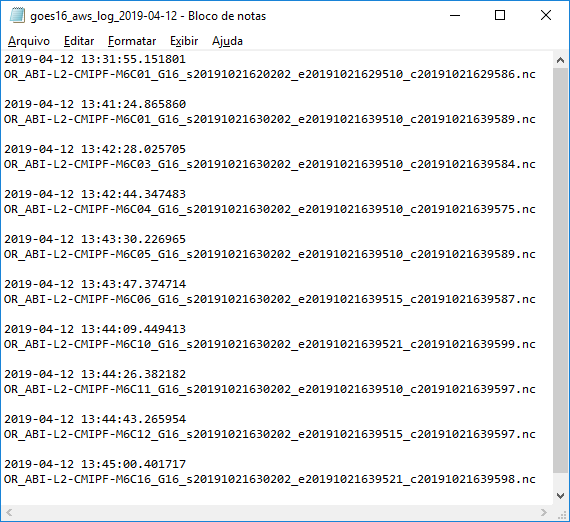
And the daily log will be created:

rclone_tut_19

Containing all the files that have been downloaded:
rclone_tut_20.png

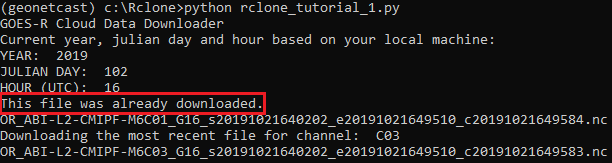
If the script is called again, and the file is already on the log, you should see this message:
rclone_tut_21

All right! Calling this script every “x” minutes will download the most recent GOES-16 Level 2 CMI (Full-Disk), for the selected channels! Just call the example script using the Linux “Cron” or the Windows “Task Scheduler”!

Simulating a “Cron” / “Task Scheduler” with Python

If you do not want to use the Cron or Task Scheduler, here’s a simple way to simulate a scheduler with Python:

import sched, time # Scheduler library
import os          # Miscellaneous operating system interfaces

# Interval in seconds
seconds = 60

# Call the function for the first time without the interval
print("\n")
print("------------- Calling Monitor Script --------------")
script = 'python rclone_tutorial_1.py'
os.system(script)
print("------------- Monitor Script Executed -------------")
print("Waiting for next call. The interval is", seconds, "seconds.")

# Scheduler function
s = sched.scheduler(time.time, time.sleep)

def call_monitor(sc):
print("\n")
print("------------- Calling Monitor Script --------------")
script = 'python rclone_tutorial_1.py'
os.system(script)
print("------------- Monitor Script Executed -------------")
print("Waiting for next call. The interval is", seconds, "seconds.")
s.enter(seconds, 1, call_monitor, (sc,))
# Keep calling the monitor

# Call the monitor
s.enter(seconds, 1, call_monitor, (s,))
s.run()

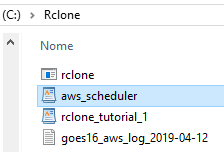
Let’s call it “aws_scheduler.py”:
rclone_tut_22.png

When activating this script, the “rclone_tutorial_1.py” will be called every 60 seconds (you may change the interval on the “seconds” variable).

Here is an example of output when calling the “aws_scheduler.py” script:

rclone_tut_23.png

And that’s it for Part I! Stay tuned for news!

Friday Tweet

Planned GNC-A System Outage (April 15, 2019 – 13:30 ~ 13:45 UTC) and PDA System Outage (April 15, 2019 – 13:00 ~ 16:00 UTC)

Topic: Planned GNC-A system outage
Date/Time Issued:  April 11, 2019 1640 UTC
Product(s) or Data Impacted:  All products being disseminated through GEONETCast Americas (GNC-A)
Date/Time of Initial Impact: April 15, 2019 1330 UTC
Date/Time of Expected End: April 15, 2019 1345 UTC
Length of Event:  15 minutes
Details/Specifics of Change:  On April 15, 2019, our commercial vendor will install a software patch on a dissemination server for GEONETCast Americas.
Contact Information for Further Information: [email protected] for information on GNC-A Program
Web Site(s) for applicable information:
https://www.geonetcastamericas.noaa.gov/
https://geonetcast.wordpress.com

Tópico: Interrupção planejada do sistema GNC-A
Data / Hora da Emissão: 11 de abril de 2019, 1640 UTC
Produto(s) ou Dados Impactados: Todos os produtos sendo disseminados pelo GEONETCast Americas (GNC-A)
Data / Hora do Impacto Inicial: 15 de abril de 2019 13:30 UTC
Data / Hora Esperada para Término: 15 de abril de 2019 13:45 UTC
Duração do Evento: 15 minutos
Detalhes / Mudanças Específicas: No dia 15 de abril de 2019, nosso fornecedor comercial irá instalar uma atualização de software no servidor de disseminação do GEONETCast Americas
Contato para mais informações: [email protected] para informações sobre o programa GNC-A.
Web site(s) para demais informações:
https://www.geonetcastamericas.noaa.gov/
https://geonetcast.wordpress.com

Tema: Interrupción planificada del sistema GNC-A
Fecha / hora de emisión: 11 de abril de 2019, 1640 UTC
Producto(s) o Datos Afectados: Todos los productos transmitidos por GEONETCast Americas (GNC-A)
Fecha / hora del impacto inicial: 15 de abril de 2019 13:30 UTC
Fecha / Hora de finalización prevista: 15 de abril de 2019 13:45 UTC
Duración del evento: 15 minutos
Detalles / Cambios Específicos: En el 15 de abril de 2019, nuestro proveedor comercial instalará una actualización de software en el servidor de transmisión de GEONETCast Americas
Contacto para más informaciones:
[email protected] para información sobre el programa GNC-A
Sitio(s) web para otras informaciones:
https://www.geonetcastamericas.noaa.gov/
https://geonetcast.wordpress.com

=============

Topic:  Planned Product, Distribution, and Access (PDA) system outage affecting products on GEONETCast Americas (GNC-A)
Date/Time Issued:   April 11, 2019 1632 UTC
Product(s) or Data Impacted: Products on GEONETCast Americas (GNC-A)
Date/Time of Initial Impact:  April 15, 2019 1300 UTC
Date/Time of Expected End:  April 15, 2019 1600 UTC
Length of Event:  3 hours
Details/Specifics of Change:  On Monday, April 15, 2019, the NOAA Product, Distribution, and Access (PDA) system will be undergoing critical storage maintenance.  During this activity there will be a complete outage of service for an estimated three hours.  NOAA products, including GOES imagery, SNPP and GOES-16 level-2 products will not be available on GNC-A broadcast.
Information for Further Information: [email protected] for information on GNC-A Program
Web Site(s) for applicable information:
https://www.geonetcastamericas.noaa.gov/
https://geonetcast.wordpress.com

Tópico: Interrupção planejada no sistema de Produtos, Distribuição e Acesso (PDA) que afetará produtos do GEONETCast Americas (GNC-A)
Data / Hora da Emissão: 11 de abril de 2019, 1632 UTC
Produto(s) ou Dados Impactados: Produtos do GEONETCast Americas (GNC-A)
Data / Hora do Impacto Inicial: 15 de abril de 2019 13:00 UTC
Data / Hora Esperada para Término: 15 de abril de 2019 16:00 UTC
Duração do Evento: 3 horas
Detalhes / Mudanças Específicas: Na segunda feira, 15 de abril de 2019, o sistema de Produtos, Distribuição e Acesso (PDA) da NOAA passará por uma manutenção crítica de armazenamento. Durante esta atividade haverá uma interrupção completa do serviço por um período estimado de três horas. Os produtos da NOAA, incluindo imagens GOES, SNPP e produtos derivados do GOES-16 não estarão disponíveis na transmissão do sistema GNC-A.
Contato para mais informações: [email protected] para informações sobre o programa GNC-A.
Web site(s) para demais informações:
https://www.geonetcastamericas.noaa.gov/
https://geonetcast.wordpress.com

Tema: Interrupción planificada en el sistema de Productos, Distribución y acceso (PDA) que afectará a los productos de GEONETCast Americas (GNC-A)
Fecha / hora de emisión: 11 de abril de 2019, 1632 UTC
Producto(s) o Datos Afectados: Productos de GEONETCast Americas (GNC-A)
Fecha / hora del impacto inicial: 15 de abril de 2019 13:00 UTC
Fecha / Hora de finalización prevista: 15 de abril de 2019 16:00 UTC
Duración del evento: 3 horas
Detalles / Cambios Específicos: El el lunes, 15 de abril de 2019, el sistema de Productos, Distribución y Acceso (PDA) de la NOAA pasará por un mantenimiento crítico de almacenamiento. Durante esta actividad habrá una interrupción completa del servicio por un período estimado de tres horas. Los productos de NOAA, incluyendo imágenes GOES, SNPP y productos derivados del GOES-16 no estarán disponibles en la transmisión del sistema GNC-A.
Contacto para más información: [email protected] para información sobre el programa GNC-A
Sitio(s) web para otras informaciones:
https://www.geonetcastamericas.noaa.gov/
https://geonetcast.wordpress.com

Journey to Create a Nice Image Using Only Bands 02 and 13 from GNC-A [4]

G16_GNCOLOR_201904100840_Low_Res.jpgG16_GNCOLOR_201904101630_Low_res.jpg

Hi community,

An additional nice feature to the script from the first part:

  • Insert city names based on their lat / longs

This is achieved using the following code:

print("Inserting City Names...")
# Cities latitutes
city_lons = [-46.6252, -43.1971, -49.2733, -48.5482, -51.2287, -54.6478, -43.9542, -40.2958, -45.0093]
# Cities latitutes
city_lats = [-23.5337, -22.9083, -25.4284, -27.5950, -30.0277, -20.4435, -19.8157, -20.2976, -22.6650]
x,y = bmap(city_lons, city_lats)
# Plot the city markers (circles)
bmap.plot(x, y, 'bo', marker = '.', markersize=10, color = 'gold', zorder=8)
# Choose the city labels
labels = ['São Paulo', 'Rio de Janeiro', 'Curitiba', 'Florianópolis', 'Porto Alegre', 'Campo Grande', 'Belo Horizonte', 'Vitória', 'Cachoeira\n Paulista']
# Offset the labels so they do not overlap the markers
x_offsets = [10000,10000,10000,10000,10000,10000,10000,10000,0]
y_offsets = [0,0,0,0,0,0,0,0,10000]
# Plot hte labels
for label, xpt, ypt, x_offset, y_offset in zip(labels, x, y, x_offsets, y_offsets):
plt.text(xpt+x_offset, ypt+y_offset, label, fontsize=12, fontweight='bold', zorder=8, color='white')

Please find below the full example script to generate these plots:

############################################################
# LICENSE
# Copyright (C) 2019 - INPE - NATIONAL INSTITUTE FOR SPACE RESEARCH
# This program is free software: you can redistribute it and/or modify it under the terms of the GNU General Public License as published by the Free Software Foundation, either version 3 of the License, or (at your option) any later version.
# This program is distributed in the hope that it will be useful, but WITHOUT ANY WARRANTY; without even the implied warranty of MERCHANTABILITY or FITNESS FOR A PARTICULAR PURPOSE. See the GNU General Public License for more details.
# You should have received a copy of the GNU General Public License along with this program. If not, see http://www.gnu.org/licenses/.
############################################################

# Required Libraries
import matplotlib.pyplot as plt
from netCDF4 import Dataset
import numpy as np
from datetime import datetime, timedelta
import time as t
from mpl_toolkits.basemap import Basemap
from pyproj import Proj
from pyorbital import astronomy
from cpt_convert import loadCPT
from matplotlib.colors import LinearSegmentedColormap
from osgeo import gdal
from PIL import Image

# Start the time counter to measure the total processing time
start = t.time()

# Load the Channel 02 contrast curve
contrast_curve = [0.00000, 0.02576, 0.05148, 0.07712, 0.10264, 0.12799, 0.15313, 0.17803, 0.20264, 0.22692, 0.25083, 0.27432, 0.29737, 0.31991, 0.34193, 0.36336,
0.38418, 0.40433, 0.42379, 0.44250, 0.46043, 0.47754, 0.49378, 0.50911, 0.52350, 0.53690, 0.54926, 0.56055, 0.57073, 0.57976, 0.58984, 0.59659,
0.60321, 0.60969, 0.61604, 0.62226, 0.62835, 0.63432, 0.64016, 0.64588, 0.65147, 0.65694, 0.66230, 0.66754, 0.67267, 0.67768, 0.68258, 0.68738,
0.69206, 0.69664, 0.70112, 0.70549, 0.70976, 0.71394, 0.71802, 0.72200, 0.72589, 0.72968, 0.73339, 0.73701, 0.74055, 0.74399, 0.74736, 0.75065,
0.75385, 0.75698, 0.76003, 0.76301, 0.76592, 0.76875, 0.77152, 0.77422, 0.77686, 0.77943, 0.78194, 0.78439, 0.78679, 0.78912, 0.79140, 0.79363,
0.79581, 0.79794, 0.80002, 0.80206, 0.80405, 0.80600, 0.80791, 0.80978, 0.81162, 0.81342, 0.81518, 0.81692, 0.81862, 0.82030, 0.82195, 0.82358,
0.82518, 0.82676, 0.82833, 0.82987, 0.83140, 0.83292, 0.83442, 0.83592, 0.83740, 0.83888, 0.84036, 0.84183, 0.84329, 0.84476, 0.84623, 0.84771,
0.84919, 0.85068, 0.85217, 0.85368, 0.85520, 0.85674, 0.85829, 0.85986, 0.86145, 0.86306, 0.86469, 0.86635, 0.86803, 0.86974, 0.87149, 0.87326,
0.87500, 0.87681, 0.87861, 0.88038, 0.88214, 0.88388, 0.88560, 0.88730, 0.88898, 0.89064, 0.89228, 0.89391, 0.89552, 0.89711, 0.89868, 0.90023,
0.90177, 0.90329, 0.90479, 0.90627, 0.90774, 0.90919, 0.91063, 0.91205, 0.91345, 0.91483, 0.91620, 0.91756, 0.91890, 0.92022, 0.92153, 0.92282,
0.92410, 0.92536, 0.92661, 0.92784, 0.92906, 0.93027, 0.93146, 0.93263, 0.93380, 0.93495, 0.93608, 0.93720, 0.93831, 0.93941, 0.94050, 0.94157,
0.94263, 0.94367, 0.94471, 0.94573, 0.94674, 0.94774, 0.94872, 0.94970, 0.95066, 0.95162, 0.95256, 0.95349, 0.95441, 0.95532, 0.95622, 0.95711,
0.95799, 0.95886, 0.95973, 0.96058, 0.96142, 0.96225, 0.96307, 0.96389, 0.96469, 0.96549, 0.96628, 0.96706, 0.96783, 0.96860, 0.96936, 0.97010,
0.97085, 0.97158, 0.97231, 0.97303, 0.97374, 0.97445, 0.97515, 0.97584, 0.97653, 0.97721, 0.97789, 0.97856, 0.97922, 0.97988, 0.98053, 0.98118,
0.98182, 0.98246, 0.98309, 0.98372, 0.98435, 0.98497, 0.98559, 0.98620, 0.98681, 0.98741, 0.98802, 0.98862, 0.98921, 0.98980, 0.99039, 0.99098,
0.99157, 0.99215, 0.99273, 0.99331, 0.99389, 0.99446, 0.99503, 0.99561, 0.99618, 0.99675, 0.99732, 0.99788, 0.99845, 0.99902, 0.99959, 1.000000]

# Convert the contrast curve to a numpy array
curve = np.array(contrast_curve)

# Visualization extent [min_lon, min_lat, max_lon, max_lat]
extent = [-55, -28.0, -40.0, -18.0]

print("Converting G16 coordinates to lons and lats...")

# Band 02 file to read (Note: using 1 km Band 02 from GNC-A. If using 500 m, you should read every 2 pixels)
image1 = "FalseColor\OR_ABI-L2-CMIPF-M6C13_G16_s20190931000228_e20190931009547_c20190931010017.nc"
# Read the Band 02 file using the NetCDF library
file1 = Dataset(image1)
# Satellite height
sat_h = file1.variables['goes_imager_projection'].perspective_point_height
# Satellite longitude
sat_lon = file1.variables['goes_imager_projection'].longitude_of_projection_origin
# Satellite sweep
sat_sweep = file1.variables['goes_imager_projection'].sweep_angle_axis
# The projection x and y coordinates equals
# the scanning angle (in radians) multiplied by the satellite height (http://proj4.org/projections/geos.html)
X = file1.variables['x'][:][::1] * sat_h
Y = file1.variables['y'][:][::1] * sat_h
# map object with pyproj
p = Proj(proj='geos', h=sat_h, lon_0=sat_lon, sweep=sat_sweep, a=6378137.0)
# Convert map points to latitude and longitude with the magic provided by Pyproj
XX, YY = np.meshgrid(X, Y)
lons, lats = p(XX, YY, inverse=True)

print("Converting min lon to G16 coordinates...")
value = extent[0]
X = np.abs( lons - value)
idx_min_lon = np.where( X == X.min() )
min_lon = np.round(idx_min_lon[1]/2.)*2
#print(idx_min_lon[1])
#print(min_lon)

print("Converting max lon to G16 coordinates...")
value = value = extent[2]
X = np.abs( lons - value)
idx_max_lon = np.where( X == X.min() )
max_lon = np.round(idx_max_lon[1]/2.)*2
#print(idx_max_lon[1])
#print(max_lon)

print("Converting min lat to G16 coordinates...")
value = extent[3]
X = np.abs( lats - value)
idx_min_lat = np.where( X == X.min() )
min_lat = np.round(idx_min_lat[0]/2.)*2
#print(idx_min_lat[0])
#print(min_lat)

print("Converting max lat to G16 coordinates...")
value = extent[1]
X = np.abs( lats - value)
idx_max_lat = np.where( X == X.min() )
max_lat = np.round(idx_max_lat[0]/2.)*2

#print(idx_max_lat[0])
#print(max_lat)

XX = XX[int(min_lat):int(max_lat),int(min_lon):int(max_lon)][::1,::1]
YY = YY[int(min_lat):int(max_lat),int(min_lon):int(max_lon)][::1,::1]

#print(XX[0,0])
#print(XX[-1,-1])
#print(YY[0,0])
#print(YY[-1,-1])

print("Reading Band 02...")

# Band 02 file to read (Note: using 1 km Band 02 from GNC-A. If using 500 m, you should read every 2 pixels)
image1 = "FalseColor\OR_ABI-L2-CMIPF-M6C02_G16_s20190931000228_e20190931009536_c20190931010012-114300_0.nc"
# Read the Band 02 file using the NetCDF library
file1 = Dataset(image1)
# Extract the reflactance factor, every two pixels
data1 = file1.variables['CMI'][int(min_lat):int(max_lat),int(min_lon):int(max_lon)][::1,::1]
# Minimum and maximum reflectances
VISmin = 0.0
VISmax = 1.0
# Anything that is below the min or greater than max, keep min and max
data1[data1VISmax] = VISmax
# Convert to 0 - 255
data1 = ((data1 - VISmin) / (VISmax - VISmin)) * 255
# Convert to int
data1 = data1.astype(int)
# Apply the contrast curve
data1 = curve[data1] * 255
# Convert to int
data1 = data1.astype(int)
#print(data1)
#print(np.shape(data1))

print("Reading Band 13...")

# Band 13 file to read
image2 = "FalseColor\OR_ABI-L2-CMIPF-M6C13_G16_s20190931000228_e20190931009547_c20190931010017.nc"
# Read the Band 13 file using the NetCDF library
file2 = Dataset(image2)
# Extract the brightness temperatures, every pixel
data2 = file2.variables['CMI'][int(min_lat/2):int(max_lat/2),int(min_lon/2):int(max_lon/2)][::1,::1]
# Double the size of the Band 13 array, so it may be used with an 1 km image
data3 = np.repeat(data2, 2, axis=0)
data3 = np.repeat(data3, 2, axis=1)
# Convert Kelvin to Celsius (will be used later in the code)
data2a = data3
data2b = data3 - 273.15
# Minimum and maximum brightness temperatures
IRmin = 89.62
IRmax = 341.27
# Anything that is below the min or greater than max, keep min and max
data3[data3IRmax] = IRmax
# Convert to 0 - 255
data3 = ((data3 - IRmin) / (IRmax - IRmin)) * 255
# Convert to int
data2 = data3.astype(int)
#print(np.shape(data2))

print("Reading the Time and Date...")
# Getting the file date
add_seconds = int(file2.variables['time_bounds'][0])
date = datetime(2000,1,1,12) + timedelta(seconds=add_seconds)
date_format = date.strftime('%Y%m%d%H%M')
year = date.strftime('%Y')
month = date.strftime('%m')
day = date.strftime('%d')
hour = date.strftime('%H')
minutes = date.strftime('%M')

print("Reading the False Color Look Up Table...")

import matplotlib.image as mpimg
# Open the False Color Look Up Table
img = mpimg.imread('wx-star.com_GOES-R_ABI_False-Color-LUT_sat20.png')
# Flip the array (for some reason, is necessary to flip the LUT horizontally)
img = np.fliplr(img)
# Apply the look up table based on the Band 02 reflectances and Band 13 Brightness Temperatures
final_image = img[data1,data2,0:3]

print("Calculating the sun zenith angle...")
utc_time = datetime(int(year), int(month), int(day), int(hour), int(minutes))
sun_zenith = np.zeros((data1.shape[0], data1.shape[1]))
sun_zenith = astronomy.sun_zenith_angle(utc_time, lons[int(min_lat):int(max_lat),int(min_lon):int(max_lon)][::1,::1], lats[int(min_lat):int(max_lat),int(min_lon):int(max_lon)][::1,::1])
#print(np.shape(sun_zenith))

print("Putting zeroes in the areas without sunlight")
final_image[sun_zenith > 80] = 0
mask = (final_image == [0.0,0.0,0.0]).all(axis=2)
#apply the mask to overwrite the pixels
final_image[mask] = [0,0,0]
alpha = ~np.all(final_image == 0, axis=2)
final_image_alpha = np.dstack((final_image, alpha))
#print(np.shape(final_image))
#print(np.shape(final_image_alpha))

print("Reading the night lights...")

raster = gdal.Open('BlackMarble_2016_6km_geo.tif')
ulx, xres, xskew, uly, yskew, yres = raster.GetGeoTransform()
lrx = ulx + (raster.RasterXSize * xres)
lry = uly + (raster.RasterYSize * yres)
corners = [ulx, lry, lrx, uly]
min_lon = extent[0]; max_lon = extent[2]; min_lat = extent[1]; max_lat = extent[3]
raster = gdal.Translate('teste.tif', raster, projWin = [min_lon, max_lat, max_lon, min_lat])
array2 = raster.ReadAsArray()
r = array2[0,:,:].astype(float)
g = array2[1,:,:].astype(float)
b = array2[2,:,:].astype(float)
r[r==4] = 0
g[g==5] = 0
b[b==15] = 0
geo = raster.GetGeoTransform()
xres = geo[1]
yres = geo[5]
xmin = geo[0]
xmax = geo[0] + (xres * raster.RasterXSize)
ymin = geo[3] + (yres * raster.RasterYSize)
ymax = geo[3]
lons_n = np.arange(xmin,xmax,xres)
lats_n = np.arange(ymax,ymin,yres)
lons_n, lats_n = np.meshgrid(lons_n,lats_n)
color_tuples = (np.array([r[:-1,:-1].flatten(), g[:-1,:-1].flatten(), b[:-1,:-1].flatten()]).transpose())/255
#print(np.shape(color_tuples))

print("Creating the plot...")

# Define the size of the saved picture=========================================
DPI = 150
fig = plt.figure(figsize=(data1.shape[1]/float(DPI), data1.shape[0]/float(DPI)), frameon=False, dpi=DPI)
ax = plt.Axes(fig, [0., 0., 1., 1.])
ax.set_axis_off()
fig.add_axes(ax)
ax = plt.axis('off')
#==============================================================================

# Create the basemap for geostationary view
bmap = Basemap(projection='geos', rsphere=(6378140.0,6356750.0), resolution='c', area_thresh=0, lon_0=-75.0, satellite_height=35786000, llcrnrx= XX[0,0], llcrnry= YY[-1,-1] , urcrnrx= XX[-1,-1], urcrnry= YY[0,0])

print("First layer...")
# FIRST LAYER
# Converts a CPT file to be used in Python
cpt = loadCPT('IR4AVHRR6.cpt')
IR4AVHRR6 = LinearSegmentedColormap('cpt', cpt)
# Everything under 88° is a nan
data2a[sun_zenith < 80] = np.nan
# Apply range limits for clean IR channel
data2a = np.maximum(data2a, 90)
data2a = np.minimum(data2a, 313)
# Normalize the channel between a range
data2a = (data2a-90)/(313-90)
# Invert colors
data2a = 1 - data2a
bmap.imshow(data2a, cmap='gray', vmin=0.1, vmax=0.25, alpha = 0.4, origin='upper', zorder=4)

print("Second layer...")
# SECOND LAYER
data2a[data2a < 0.20] = np.nan
bmap.imshow(data2a, cmap='gray', vmin=0.15, vmax=0.30, alpha = 1.0, origin='upper', zorder=6)

print("Third layer...")
# THIRD LAYER
data2b[sun_zenith < 80] = np.nan
data2b[np.logical_or(data2b  -28)] = np.nan
bmap.imshow(data2b, cmap=IR4AVHRR6, vmin=-103, vmax=84, alpha=1.0, origin='upper', zorder=7)

print("Fourth layer...")
# FOURTH LAYER
# Show th night lights
bmap.pcolormesh(lons_n, lats_n, r, latlon=True, color=color_tuples, zorder=1)

print("Fifth layer...")
# FIFTH LAYER
# Show the image
bmap.imshow(final_image_alpha, origin='upper', zorder=2)

print("Configuring the map...")
# Insert shapefiles
bmap.readshapefile('BRMUE250GC_SIR', 'BRMUE250GC_SIR', linewidth=0.1, color='white', zorder=6)
bmap.readshapefile('estados_2010', 'estados_2010', linewidth=1.0, color='yellow', zorder=6)
bmap.readshapefile('Americas', 'Americas', linewidth=2.0, color='orange', zorder=6)
bmap.drawparallels(np.arange(-90.0, 90.0, 5), dashes = [4 ,4], linewidth=0.5, color='white', zorder=7)
bmap.drawmeridians(np.arange(0.0, 360.0, 5), dashes = [4,4], linewidth=0.5, color='white', zorder=7)

print("Inserting Title...")
plt.annotate('GOES-16 RGB ' + date.strftime('%B %d %Y - %H:%M UTC (INPE/CPTEC)'), xy=(20, 20), xycoords='figure pixels', fontsize=13, fontweight='bold', zorder=8, color='whitesmoke')

print("Inserting City Names...")
# Cities latitutes
city_lons = [-46.6252, -43.1971, -49.2733, -48.5482, -51.2287, -54.6478, -43.9542, -40.2958, -45.0093]
# Cities latitutes
city_lats = [-23.5337, -22.9083, -25.4284, -27.5950, -30.0277, -20.4435, -19.8157, -20.2976, -22.6650]
x,y = bmap(city_lons, city_lats)
# Plot the city markers (circles)
bmap.plot(x, y, 'bo', marker = '.', markersize=10, color = 'gold', zorder=8)
# Choose the city labels
labels = ['São Paulo', 'Rio de Janeiro', 'Curitiba', 'Florianópolis', 'Porto Alegre', 'Campo Grande', 'Belo Horizonte', 'Vitória', 'Cachoeira\n Paulista']
# Offset the labels so they do not overlap the markers

x_offsets = [10000,10000,10000,10000,10000,10000,10000,10000,0]
y_offsets = [0,0,0,0,0,0,0,0,10000]
# Plot hte labels
for label, xpt, ypt, x_offset, y_offset in zip(labels, x, y, x_offsets, y_offsets):
plt.text(xpt+x_offset, ypt+y_offset, label, fontsize=12, fontweight='bold', zorder=8, color='white')

print("Saving Image...")
# Save the image
plt.savefig('G16_GNCOLOR_' + date_format + '.png', dpi=DPI, facecolor="black", pad_inches=0)

print ('- finished! Time:', t.time() - start, 'seconds')

Please download at this link, the additional files required to tun this example script (shapefiles, night lights GeoTIFF, color tables). You should extract the zip in the script’s directory. Stay tuned for news.

Homebrew GOES-16 HRIT/EMWIN Receive Station For Less Than $200

IMG-20190402-WA0036

A Brazilian homebrew GOES-16 HRIT reception antenna. Thanks for sharing, Renato! (PU2RAS)

Hi community! Here’s an interesting example of low cost satellite receving solution.

The HRIT/EMWIN (High Rate Information Transmission / Emergency Managers Weather Information Network) service broadcasted by the GOES-R series provides imagery data and selected products to remotely located user HRIT terminals with a data relay capacity of 400Kbps. Receiving this signal can be done with relatively inexpensive equipment. A VERY detailed e-book describing the process written by Lucas Teske, also from Brazil (we are everywhere 🙂 ) may be found on this link.

IMG-20190402-WA0033.jpg

2 km GOES-16 false color image processed with Bands 02 and 13 received via HRIT/EMWIM every 30 minutes

The basic setup consists on the following equipment:

  • Antenna
  • LNA + Filter
  • RTL-SDR Dongle
  • Computer
  • Cables / Connectors / Adapters

There are examples on the web of successful setups costing around $185 and $200. (excluding tax and shipping). Great isn’t it?

Renato (PU2RAS), from Brazil, kindly shared photos of his homebrew setup. He already had an antenna lying around, so he didn’t need to buy one. He also had an available computer. In the end, he spent less than $100 to get everything running.

The image below shows his homemade “Can Antenna”, or “Cantenna” (a wave guide feed that is attached to the antenna dish).

IMG-20190402-WA0037.jpg

He used the following information on an online Cantenna Calculator:

IMG-20190402-WA0038.jpg

So he could properly assembly the wave guide feed:

IMG-20190402-WA0039.jpg

The output of the Canantenna was connected to the $35 NooElec SAWBird + GOES (LNA + Filter), put inside an improvised hermetic box:

SAWBIRD.png

Renato is from Ilha Solteira, São Paulo. He found the pointing parameters for his location using online tools, like Dishpointer. The image below shows the parameters for GOES-16:

Ilha_Solteira_G16b.png

And then, with a $25 RTL-SDR dongle, he could lock the 1694.1 MHz HRIT signal from GOES-16:

IMG-20190220-WA0006.jpg

A suite of freely available software utilities installed in an Ubuntu 18.04 machine did the rest. Renato didn’t had an available Raspberry Pi (a tiny $35 computer suitable for this purpose), so he used his i5 notebook instead:

IMG-20190402-WA0035.jpg

And… voilà!

abibands.png

2 km ABI imagery received via HRIT/EMWIN every 30 minutes (credits)

20180708T090700Z_2018071890907514-USA_latest.gif

Product example received via HRIT/EMWIN (credits)

This is great! For more information on the HRIT/EMWIN service, please access the following link.

UGHRIT.png

FC_example.png

Journey to Create a Nice Image Using Only Bands 02 and 13 from GNC-A [3]

G16_SAM_TEST_100msG16_SP_TEST_100ms

Hi GEONETCasters!

Some additional nice enhancements to the script from the first part:

  • 1 km res plot!
  • Ability to select the region to visualize (min lat, min lon, max lat, max lon) without changing the projection (thanks to Pyproj), thus making full resolution processing much faster for sub regions
  • Adition of shapefiles (in the example, Brazilian states and cities [in gray])

Stay tuned for news!

Journey to Create a Nice Image Using Only Bands 02 and 13 from GNC-A [2]

G16_14UTC_0204_0404.gif

Hi GEONETCasters,

Check out this nice 48 h animation, produced with the Python example script shown on the previous blog post. The images are from April 02 2019 14:00 UTC to April 04 2019 14:00 UTC, received in our GNC-A station (using Bands 02 and 13 only).

Great!

G16_14UTC_0204_0404_SA_80ms.gif

Next step: Add the city names in the composite. Stay tuned for news!

The Journey to Create a Nice Image Using Only Bands 02 and 13 from GNC-A

Geonetcolor_1.png

GOES-16 “False Color” composite, from April 02 2019, 19:00 UTC – Created with Python, using Bands 02 and 13 only, received via GNC-A. Huge thanks to Lucas Teske and the Open Satellite Project!

In GEONETCast-Americas, as it happens in HRIT/EMWIN, we only have 07 of the 16 GOES-East and GOES-West Bands, including Bands 02, 07, 08, 09, 13, 14 and 15, for each satellite. This limitates the creation of RGB’s in the user side.

But all is not lost!

Lucas Teske, from Brazil, creator of the “Let’s Hack Blog”, has written a VERY detailed e-book about his “GOES Satellite Hunt” which lead to the creation of the Open Satellite Project.

He managed to get the HRIT signal from GOES satellites using a homebrew setup. How nice is that? Other people managed to do the same following his tutorials.

Among the repositories from the Open Satellite Project, there’s goesdump, the “GOES xRIT Data Dumper for xRIT Demodulator”. From the imagery created using this scheme, one called my attention, the “False Color” composite, using only Bands 02 and 13. An animation for GOES-17 is seen on the following tweet from USA Satcom (the goesdump is used on their XView app):

But how is this false color composite created? And how this could be replicated in Python? Fortunatelly, the process is well documented at this link.

After struggling a little but to create a Python code to do the same, here is a summary of the steps followed:

  • Read the Band 02 NetCDF CMI Reflectance and normalize it to 0 ~ 255.
  • Apply a contrast curve in Band 02 to make land as bright as possible without blowing out the brightest cloud tops.
  • Read the Band 13 NetCDF CMI Brightness Temperature and normalize it to 0 ~ 255.
  • Read the False Color Look Up Table (LUT).
  • Build the RGB (Channel 13 Brightness temperatures as the LUT x axis and the Channel 02 Reflectances as the LUT y axis)

wx-star.com_GOES-R_ABI_False-Color-LUT_sat20.png

  • Smile!

Geonetcolor_2.png

Let’s see how the composite looks when the globe is not fully illuminated:

Geonetcolor_3.png

Can we make it even prettier? For sure!

Let’s show Enhanced Band 13 + Static City Lights from VIIRS Day Night Band (a static GeoTIFF downloaded from the web) only where the globe is not illuminated:

Geonetcolor_4.png

Great, isn’t it? Let’s zoom to the São Paulo state city lights, from where I’m writing this blog post now 🙂

Geonetcolor_5.png

Now, the Northeast South America:

Geonetcolor_6.png

Now, let’s see the Full Globe with the sunrise in South America:

Geonetcolor_7.png

How cool is that?

Geonetcolor_8.png

Now we have GEONETColor, the poor man’s CIRA Geocolor 🙂

GeoColor x Geonetcolor.png

Let’s adjust it until we have a final version. Stay tuned for news!

Please find below the prototype script used to start playing with this:

############################################################
# LICENSE
# Copyright (C) 2019 - INPE - NATIONAL INSTITUTE FOR SPACE RESEARCH
# This program is free software: you can redistribute it and/or modify it under the terms of the GNU General Public License as published by the Free Software Foundation, either version 3 of the License, or (at your option) any later version.
# This program is distributed in the hope that it will be useful, but WITHOUT ANY WARRANTY; without even the implied warranty of MERCHANTABILITY or FITNESS FOR A PARTICULAR PURPOSE. See the GNU General Public License for more details.
# You should have received a copy of the GNU General Public License along with this program. If not, see http://www.gnu.org/licenses/.
############################################################
# Required Libraries
import matplotlib.pyplot as plt
from netCDF4 import Dataset
import numpy as np
from datetime import datetime, timedelta
import time as t
from mpl_toolkits.basemap import Basemap
from pyproj import Proj
from pyorbital import astronomy
from cpt_convert import loadCPT
from matplotlib.colors import LinearSegmentedColormap
from osgeo import gdal
from PIL import Image

# Start the time counter to measure the total processing time
start = t.time()

# Load the Channel 02 contrast curve
contrast_curve = [0.00000, 0.02576, 0.05148, 0.07712, 0.10264, 0.12799, 0.15313, 0.17803, 0.20264, 0.22692, 0.25083, 0.27432, 0.29737, 0.31991, 0.34193, 0.36336,
0.38418, 0.40433, 0.42379, 0.44250, 0.46043, 0.47754, 0.49378, 0.50911, 0.52350, 0.53690, 0.54926, 0.56055, 0.57073, 0.57976, 0.58984, 0.59659,
0.60321, 0.60969, 0.61604, 0.62226, 0.62835, 0.63432, 0.64016, 0.64588, 0.65147, 0.65694, 0.66230, 0.66754, 0.67267, 0.67768, 0.68258, 0.68738,
0.69206, 0.69664, 0.70112, 0.70549, 0.70976, 0.71394, 0.71802, 0.72200, 0.72589, 0.72968, 0.73339, 0.73701, 0.74055, 0.74399, 0.74736, 0.75065,
0.75385, 0.75698, 0.76003, 0.76301, 0.76592, 0.76875, 0.77152, 0.77422, 0.77686, 0.77943, 0.78194, 0.78439, 0.78679, 0.78912, 0.79140, 0.79363,
0.79581, 0.79794, 0.80002, 0.80206, 0.80405, 0.80600, 0.80791, 0.80978, 0.81162, 0.81342, 0.81518, 0.81692, 0.81862, 0.82030, 0.82195, 0.82358,
0.82518, 0.82676, 0.82833, 0.82987, 0.83140, 0.83292, 0.83442, 0.83592, 0.83740, 0.83888, 0.84036, 0.84183, 0.84329, 0.84476, 0.84623, 0.84771,
0.84919, 0.85068, 0.85217, 0.85368, 0.85520, 0.85674, 0.85829, 0.85986, 0.86145, 0.86306, 0.86469, 0.86635, 0.86803, 0.86974, 0.87149, 0.87326,
0.87500, 0.87681, 0.87861, 0.88038, 0.88214, 0.88388, 0.88560, 0.88730, 0.88898, 0.89064, 0.89228, 0.89391, 0.89552, 0.89711, 0.89868, 0.90023,
0.90177, 0.90329, 0.90479, 0.90627, 0.90774, 0.90919, 0.91063, 0.91205, 0.91345, 0.91483, 0.91620, 0.91756, 0.91890, 0.92022, 0.92153, 0.92282,
0.92410, 0.92536, 0.92661, 0.92784, 0.92906, 0.93027, 0.93146, 0.93263, 0.93380, 0.93495, 0.93608, 0.93720, 0.93831, 0.93941, 0.94050, 0.94157,
0.94263, 0.94367, 0.94471, 0.94573, 0.94674, 0.94774, 0.94872, 0.94970, 0.95066, 0.95162, 0.95256, 0.95349, 0.95441, 0.95532, 0.95622, 0.95711,
0.95799, 0.95886, 0.95973, 0.96058, 0.96142, 0.96225, 0.96307, 0.96389, 0.96469, 0.96549, 0.96628, 0.96706, 0.96783, 0.96860, 0.96936, 0.97010,
0.97085, 0.97158, 0.97231, 0.97303, 0.97374, 0.97445, 0.97515, 0.97584, 0.97653, 0.97721, 0.97789, 0.97856, 0.97922, 0.97988, 0.98053, 0.98118,
0.98182, 0.98246, 0.98309, 0.98372, 0.98435, 0.98497, 0.98559, 0.98620, 0.98681, 0.98741, 0.98802, 0.98862, 0.98921, 0.98980, 0.99039, 0.99098,
0.99157, 0.99215, 0.99273, 0.99331, 0.99389, 0.99446, 0.99503, 0.99561, 0.99618, 0.99675, 0.99732, 0.99788, 0.99845, 0.99902, 0.99959, 1.000000]

# Convert the contrast curve to a numpy array
curve = np.array(contrast_curve)
#print(np.shape(contrast_curve))

print("Reading Band 02...")

# Band 02 file to read
image1 = "FalseColor\OR_ABI-L2-CMIPF-M6C02_G16_s20190931000228_e20190931009536_c20190931010012-114300_0.nc"
# Read the Band 02 file using the NetCDF library
file1 = Dataset(image1)
# Extract the reflactance factor, every two pixels
data1 = file1.variables['CMI'][:][::2,::2]
#data1 = file1.variables['CMI'][1000:10000,1000:10000][::2,::2]

# Minimum and maximum reflectances
VISmin = 0.0
VISmax = 1.0
# Anything that is below the min or greater than max, keep min and max
data1[data1VISmax] = VISmax
# Convert to 0 - 255
data1 = ((data1 - VISmin) / (VISmax - VISmin)) * 255
# Convert to int
data1 = data1.astype(int)
# Apply the contrast curve
data1 = curve[data1] * 255
# Convert to int
data1 = data1.astype(int)
#print(data1)

print("Reading Band 13...")

# Band 13 file to read
image2 = "FalseColor\OR_ABI-L2-CMIPF-M6C13_G16_s20190931000228_e20190931009547_c20190931010017.nc"
# Read the Band 13 file using the NetCDF library
file2 = Dataset(image2)
# Extract the brightness temperatures, every pixel
data2 = file2.variables['CMI'][:][::1,::1]
# Convert Kelvin to Celsius (will be used later in the code)
data2a = data2
data2b = data2 - 273.15

# Minimum and maximum brightness temperatures
IRmin = 89.62
IRmax = 341.27
# Anything that is below the min or greater than max, keep min and max
data2[data2IRmax] = IRmax
# Convert to 0 - 255
data2 = ((data2 - IRmin) / (IRmax - IRmin)) * 255
# Convert to int
data2 = data2.astype(int)
#print(data2)

print("Reading the False Color Look Up Table...")

import matplotlib.image as mpimg
# Open the False Color Look Up Table
img = mpimg.imread('wx-star.com_GOES-R_ABI_False-Color-LUT_sat20.png')
# Flip the array (for some reason, is necessary to flip the LUT horizontally)
img = np.fliplr(img)

# Apply the look up table based on the Band 02 reflectances and Band 13 Brightness Temperatures
final_image = img[data1,data2,0:3]

print("Calculating the lons and lats...")
# Satellite height
sat_h = file2.variables['goes_imager_projection'].perspective_point_height
# Satellite longitude
sat_lon = file2.variables['goes_imager_projection'].longitude_of_projection_origin
# Satellite sweep
sat_sweep = file2.variables['goes_imager_projection'].sweep_angle_axis
# The projection x and y coordinates equals
# the scanning angle (in radians) multiplied by the satellite height (http://proj4.org/projections/geos.html)
X = file2.variables['x'][:][::1] * sat_h
Y = file2.variables['y'][:][::1] * sat_h
# map object with pyproj
p = Proj(proj='geos', h=sat_h, lon_0=sat_lon, sweep=sat_sweep, a=6378137.0)
# Convert map points to latitude and longitude with the magic provided by Pyproj
XX, YY = np.meshgrid(X, Y)
lons, lats = p(XX, YY, inverse=True)

print("Calculating the sun zenith angle...")
utc_time = datetime(2019, 4, 3, 10, 00)
sun_zenith = np.zeros((data1.shape[0], data1.shape[1]))
sun_zenith = astronomy.sun_zenith_angle(utc_time, lons, lats)

print("Putting zeroes in the areas without sunlight")
final_image[sun_zenith > 80] = 0
mask = (final_image == [0.0,0.0,0.0]).all(axis=2)
#apply the mask to overwrite the pixels
final_image[mask] = [0,0,0]
alpha = ~np.all(final_image == 0, axis=2)
final_image_alpha = np.dstack((final_image, alpha))
print(np.shape(final_image))
print(np.shape(final_image_alpha))

print("Reading the night lights...")
raster = gdal.Open('BlackMarble_2016_6km_geo.tif')
ulx, xres, xskew, uly, yskew, yres = raster.GetGeoTransform()
lrx = ulx + (raster.RasterXSize * xres)
lry = uly + (raster.RasterYSize * yres)
corners = [ulx, lry, lrx, uly]
#extent = [-135.0, -72.0, -14.0, 72.0]
extent = [-135.0, -72.0, -17.0, 72.0]
min_lon = extent[0]; max_lon = extent[2]; min_lat = extent[1]; max_lat = extent[3]
raster = gdal.Translate('teste.tif', raster, projWin = [min_lon, max_lat, max_lon, min_lat])
array2 = raster.ReadAsArray()
r = array2[0,:,:].astype(float)
g = array2[1,:,:].astype(float)
b = array2[2,:,:].astype(float)
#r[r==4] = 1
#g[g==5] = 4
#b[b==15] = 30
r[r==4] = 0
g[g==5] = 0
b[b==15] = 0
geo = raster.GetGeoTransform()
xres = geo[1]
yres = geo[5]
xmin = geo[0]
xmax = geo[0] + (xres * raster.RasterXSize)
ymin = geo[3] + (yres * raster.RasterYSize)
ymax = geo[3]
lons_n = np.arange(xmin,xmax,xres)
lats_n = np.arange(ymax,ymin,yres)
lons_n, lats_n = np.meshgrid(lons_n,lats_n)
color_tuples = (np.array([r[:-1,:-1].flatten(), g[:-1,:-1].flatten(), b[:-1,:-1].flatten()]).transpose())/255

print("Creating the plot...")

# Define the size of the saved picture=========================================
DPI = 150
fig = plt.figure(figsize=(data1.shape[1]/float(DPI), data1.shape[0]/float(DPI)), frameon=False, dpi=DPI)
#fig = plt.figure(figsize=(10,6), frameon=False, dpi=DPI)
ax = plt.Axes(fig, [0., 0., 1., 1.])
ax.set_axis_off()
fig.add_axes(ax)
ax = plt.axis('off')
#==============================================================================

# Create the basemap for geostationary view
bmap = Basemap(projection='geos', rsphere=(6378140.0,6356750.0), resolution='l', area_thresh=0, lon_0=-75.0, satellite_height=35786000, llcrnrx=-5434644.5, llcrnry=-5434644.5, urcrnrx=5434644.5, urcrnry=5434644.5)

print("First layer...")
# FIRST LAYER
# Converts a CPT file to be used in Python
cpt = loadCPT('IR4AVHRR6.cpt')
IR4AVHRR6 = LinearSegmentedColormap('cpt', cpt)
# Everything under 88° is a nan
data2a[sun_zenith < 80] = np.nan
# Apply range limits for clean IR channel
data2a = np.maximum(data2a, 90)
data2a = np.minimum(data2a, 313)
# Normalize the channel between a range
data2a = (data2a-90)/(313-90)
# Invert colors
data2a = 1 - data2a
bmap.imshow(data2a, cmap='gray', vmin=0.1, vmax=0.25, alpha = 0.4, origin='upper', zorder=4)

print("Second layer...")
# SECOND LAYER
data2a[data2a < 0.20] = np.nan
bmap.imshow(data2a, cmap='gray', vmin=0.15, vmax=0.30, alpha = 1.0, origin='upper', zorder=6)

print("Third layer...")
# THIRD LAYER
data2b[sun_zenith < 80] = np.nan
data2b[np.logical_or(data2b  -28)] = np.nan
bmap.imshow(data2b, cmap=IR4AVHRR6, vmin=-103, vmax=84, alpha=1.0, origin='upper', zorder=7)

print("Fourth layer...")
# FOURTH LAYER
# Show th night lights
bmap.pcolormesh(lons_n, lats_n, r, latlon=True, color=color_tuples, zorder=1)

print("Fifth layer...")
# FIFTH LAYER
# Show the image
bmap.imshow(final_image_alpha, origin='upper', zorder=2)

print("Configuring the map...")
# Configure the map
bmap.drawcoastlines(linewidth=0.4, linestyle='solid', color='gold', zorder=5)
bmap.drawcountries(linewidth=0.4, linestyle='solid', color='orange', zorder=5)
bmap.drawparallels(np.arange(-90.0, 90.0, 10), dashes = [4 ,4], linewidth=0.5, color='white', zorder=7)
bmap.drawmeridians(np.arange(0.0, 360.0, 10), dashes = [4,4], linewidth=0.5, color='white', zorder=7)

print("Saving Image...")
# Save the image
plt.savefig('final_image_2.png', dpi=DPI, facecolor="black", pad_inches=0)

print ('- finished! Time:', t.time() - start, 'seconds')


80,000 GEONETClicks!

Views1.png

The Blog reched 80,000 views! The most viewed pages this year are:

Python-NetCDF.png

Result_Tut_II_b.png

Python GNC.png

R Tutorial Banner.png

Python-GRIB-0.png

download

Sentinel 2

Amazon-GOES-R.png

Channel_13_real_shape_color_Amazom.png

Pressure MSL - SAM - small.png

GOES-16 Plot - Full Disk 1.png

Start_End_Print_2

The top 10 visitor countries are:

  • 01 – USA
  • 02 – Brazil
  • 03 – Peru
  • 04 – Canada
  • 05 – Mexico
  • 06 – Argentina
  • 07 – Ecuador
  • 08 – Colombia
  • 09 – Germany
  • 10 – Cuba
