GEONETClass: Manipulating GOES-16 Data With Python – Part X

Python-NetCDF-10.png

This is the tenth part of the GOES-16 / Python tutorial series. You may find the other parts by clicking at the links below:

In this part, we’ll learn:

  • How to automate the generation of products

-THE PROBLEM-

We received several e-mails from Blog readers asking how to use the scripts shown in the other parts operationally.

As seen in the script from PART IX for example, in the “path” variable, we select a single GOES-16 NetCDF file:

# Load the Data
# Path to the GOES-16 image file
path = 'E:\\VLAB\\Python\\GOES-16 Samples\\OR_ABI-L2-CMIPF-M3C13_G16_s20180571300407_e20180571311185_c20180571311263.nc'

And in the end, we save a single PNG file:

# Save the result
plt.savefig('E:\\VLAB\\Python\\Output\\G16_C' + str(Band) + '_' + date_save + '_' + time_save + '.png', dpi=DPI, pad_inches=0)
plt.close()

The question is, how to generate products automatically using this script, processing different NetCDF’s arriving at your ingestion folder, without your intervention.

-THE HUGE PROBLEM-

There are LOTS of ways to do it, using lots of different programming languages and procedures. In this Blog post we’ll show a simple approach, using Python.

-ONE OF MANY SOLUTIONS-

Basically, we’ll  follow the procedure described on the flowchart below:

FlowChart

Before trying to follow the procedure above, let’s see some basic concepts:

1 – Calling a python script from terminal / command prompt:

Let’s suppose our script from the tutorial Part IX is called “process_goes-16.py”.

If we are using Linux, we just need to type “python” and the name of our script (“.py” file):

python /home/VLAB/Scripts/process_goes-16.py

… or, if you’re already on your script directory:

/home/VLAB/Scripts# python process_goes-16.py

Process Linux

If we are using Windows, and want to use the “python” command anywhere, first we have to add our “python.exe” dilrectory to the “Path” system variable. On Windows 10, go to “Control Panel” > “All Control Panel Items” > “System”, choose “Advanced system settings”, on the “Advanced” tab, choose “Environment Variables”. On “System Variables”, click on the “Path” variable and choose “Edit…”. Add the directory where you have your “python.exe”, as the example below:

Add path

Now we can use the “python” command anywhere:

Process Windows

However, if we take a look at our code from Part IX for example, we are specifying the GOES-16 file to process:

If you’re using Linux, we could have for example:

# Load the Data =======================================================================================
# Path to the GOES-16 image file
path = '//home//VLAB//GOES-16 Samples//OR_ABI-L2-CMIPF-M3C13_G16_s20180571300407_e20180571311185_c20180571311263.nc'

If you’re using Windows, we could have for example:

# Load the Data =======================================================================================
# Path to the GOES-16 image file
path = 'E:\\VLAB\\GOES-16 Samples\\OR_ABI-L2-CMIPF-M3C13_G16_s20180571300407_e20180571311185_c20180571311263.nc'

So, when you execute your script using python process_goes-16.py it will always execute that single image.

We want to process a different image everytime we call the script process_goes-16.py, and to do that, we need to pass the NetCDF file name as an argument, the second concept we’ll cover before trying the flowchart procedure.

2 – Passing arguments to your python script

There is more than a single way to do it. In this Blog post we’ll see how to do it using the python “sys” (system specific parameters and functions) module.

First of all, import the “sys” module in your code:

import sys # Import the "system specific parameters and functions" module

Then, we may retrieve the following within the code:

  • Name of the script: sys.argv[0]
  • Argument n° 1: sys.argv[1]
  • Argument n° 2: sys.argv[2]
  • Argument n° 3: sys.argv[3]
  • Argument n° “x”: sys.argv[“x”]

and so on…

We can also retrieve:

  • Number of arguments: len(sys.argv)
  • The arguments names as strings: str(sys.argv)

So, let’s think on how this can be useful.

Supposing I would like to pass a NetCDF file to be processed to my script. If I use the following command:

/home/VLAB/Scripts# python process_goes-16.py "E:\\VLAB\\Python\\GOES-16 Samples\\OR_ABI-L2-CMIPF-M3C13_G16_s20180571300407_e20180571311185_c20180571311263.nc"

I would have the following in my code:

  • sys.argv[0] = process_goes-16.py
  • sys.argv[1] = “E:\\VLAB\\Python\\GOES-16 Samples\\OR_ABI-L2-CMIPF-M3C13_G16_s20180571300407_e20180571311185_c20180571311263.nc”

Then, in the “path” variable, I could use:

# Load the Data =======================================================================================
# Path to the GOES-16 image file
path = sys.argv[1]

Let’s suppose I would like to pass, apart from the file name, the desired resolution. I could use the following command:

/home/VLAB/Scripts# python process_goes-16.py "E:\\VLAB\\Python\\GOES-16 Samples\\OR_ABI-L2-CMIPF-M3C13_G16_s20180571300407_e20180571311185_c20180571311263.nc" 2

Then, I would have the following in my code:

  • sys.argv[0] = process_goes-16.py
  • sys.argv[1] = “E:\\VLAB\\Python\\GOES-16 Samples\\OR_ABI-L2-CMIPF-M3C13_G16_s20180571300407_e20180571311185_c20180571311263.nc”
  • sys.argv[2] = 2

Then, in the “resolution” variable, I could use:

resolution = int(sys.argv[2])

And this is it. You may pass the arguments you want to your script (like, the extent, name of the resulting file, colors, etc)

3 – Creating a log file with the file names of the NetCDF’s you already processed

Another important aspect of our automation process is that we need to create a log file, containing the file names that we have already processed.

In the end of your script, we could use the following code:

# Save the result as a PNG
plt.savefig('E:\\VLAB\\Python\\Output\\G16_C' + str(Band) + '_' + date_save + '_' + time_save + '.png', dpi=DPI, pad_inches=0, transparent=True)
plt.close()

# Add to the log file (called "G16_Log.txt") the NetCDF file name that I just processed.
# If the file doesn't exists, it will create one.
with open('E:\\VLAB\\Python\\Output\\G16_Log.txt', 'a') as log:
 log.write(path.replace('\\\\', '\\') + '\n')
#======================================================================================================

This will create a log file called “G16_Log.txt”. After each script execution a new line will be created with the file name that was just processed.

4 – Generate images without having a window appear,

Remember that each time we execute our scripts a plot window appears with the result preview? We will automate the PNG’s generation, so we don’t need that anymore. Also, this could result the error “Invalid Display Variable” when calling the scripts via the Linux Cron. Let’s disable this previsualization, adding the following to our code, before anything else in the code:

import matplotlib
matplotlib.use('Agg') # use a non-interactive backend

All right, we know the basics in order to begin implementing our flowchart. Let’s see how to do it, step by step:

A – Creating the “monitor” script

Now we need a script to monitor a given folder (e.g. your GNC-A folder for GOES-16 Band 13, for example). Let’s call this script “monitor.py”.

VERY IMPORTANT: This Blog post will be a “living blog post”. The example monitor script below is very very basic. We will post more advanced ones in the future. If you have any suggestions, feel free to use the comments section!

This script will perform the following tasks:

  • Put all file names on the directory in a Python list
  • Put all file names on the log created in Step 3 in a Python list
  • Compare the directory list with the file list
  • For each file in the directory that is not on the log, execute the script process_goes-16.py, passing the file as the argument

Please find below a suggestion for the monitoring script:

import glob # Unix style pathname pattern expansion
import os # Miscellaneous operating system interfaces

# Directory where you have the GOES-16 Files
dirname = 'E:\\VLAB\\Python\\GOES-16 Samples\\'

# Put all file names on the directory in a list
G16_images = []
for filename in sorted(glob.glob(dirname+'OR_ABI-L2-CMIPF-M3C13_G16*.nc')):
 G16_images.append(filename)

# If the log file doesn't exist yet, create one
file = open('E:\\VLAB\\Python\\Output\\G16_Log.txt', 'a')
file.close()

# Put all file names on the log in a list
log = []
with open('E:\\VLAB\\Python\\Output\\G16_Log.txt') as f:
 log = f.readlines()

# Remove the line feed
log = [x.strip() for x in log]

# Compare the directory list with the file list
# Loop through all files in the directory
for x in G16_images:
 # If a file is not on the log, process it
 if x not in log:
  os.system("python " + "\"E:\\VLAB\\Python\\Scripts\\process_goes-16.py\"" + " " + "\"" + x.replace('\\','\\\\') + "\"")

Note: If you’re using linux, you should specify in the “os.system” command instruction the full path for your python interface. If you don’t know it, you may use the python –version command to check which version you’re using and the python -v command to check the full path.

for x in G16_images:
 # If a file is not on the log, process it
 if x not in log:
 os.system("//root//anaconda3//bin//python " + "\"//home//VLAB//Scripts//process_goes-16.py\"" + " " + "\"" + x.replace('\\','\\\\') + "\"")

Now we have everything we need: A log file, an script that monitor a folder and a script that generate the plots. We just need one more thing, the periodic execution of the monitor script.

B – Put your script in the Linux Cron or in the Windows Task Scheduler 

If you’re using Linux, the process is pretty straightforward:

Edit your crontab using the crontab -e command. Choose your editor of preference. If you want to edit it with GEDIT, use the following command:

env EDITOR=gedit crontab -e

The GOES-16 images are received every 15 minutes, so let’s put the monitor.py script to run every 15 minutes. You also have to use the full path for your python interface.

*/15 * * * * /root/anaconda3/bin/python /home/VLAB/Scripts/monitor.py > /home/VLAB/Output/python.log 2>&1

Note: Any errors will be reported on the python.log file. Check this if you do not get your files processed after a cron activation.

If you’re using Windows, the process is a little bit longer:

Create a “.bat” file with the following command (adapt it according to your monitor.py script location):

python “E:\\VLAB\\Python\\Scripts\\monitor.py”

Note: To create a “.bat” file, just open a new Notepad document and save it with the “.bat” extension.

This is what this will look like:

Monitor Bat File

Access the Windows Task Scheduler. In Windows 10, it is located at “Control Panel” > “Administrative Tools” > “Task Scheduler”.

Task Scheduler Location

In the upper menu, go to “Action” > “Create Basic Task…” or just click at “Create Basic Task…” on the right side of the window.

Create Task1

Follow the instructions below:

  • In “Name”, put “Process GOES-16” for example. Click “Next”.
  • In “When do you want the task to start?”, choose “Daily”. Click “Next”.
  • In “Start”, change the time to “00:00:00” of the current day. Click “Next”.
  • In “Action”, choose “Start a program”. Click “Next”.
  • In “Program/script:” choose the “monitor.bat” we just created. Click “Next”.

Create Task2

  • In the next window, where it shows the task summary, click “Finish”.

The task was created. Now we have to change it’s properties so it is executed every 15 minutes.

Back to the Task Scheduler main window, in “Active Tasks”, find the “Process GOES-16” task and double click it:

Finding the process.png

At the right side, chosse “Properties”, go to the “Triggers” tab, click on the Trigger and choose “Edit”.

Enable the “Repeat task every:” option, choosing “15 minutes”.

In the “for a duration of:” option, choose “Indefinitely”. Click “OK” and “OK” again.

Editing the process

This is what you should have in the “Active Tasks”:

Editing the process 2

For the “Process GOES-16” task, the “Trigger” message will say “At 00:00 every day – After treiggered, repeat every 15 minutes indefinitely”.

-FINISHED!-

And this is it! In both Windows and Linux, the monitor.py script will be called every 15 minutes and the process_goes-16.py script will be activated for every unprocessed GOES-16 NetCDF file on the target directory.

IMPORTANT: Please be aware that, when running the monitor script for the first time, it may take a while to process all the files, depending on the number of files you have in your directory. We suggest running this once before adding it to cron / task scheduler.

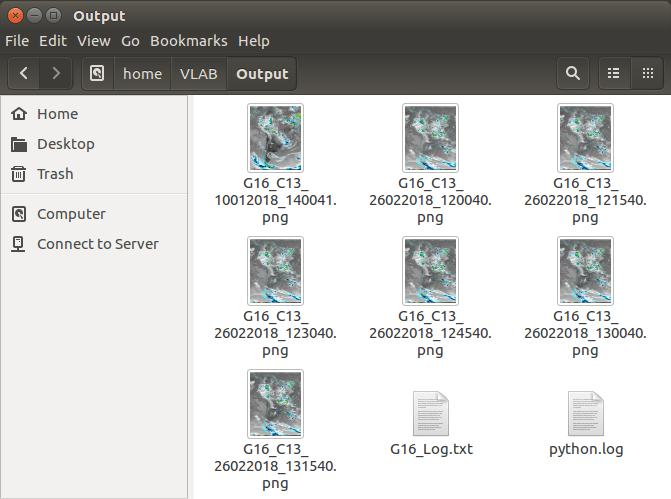
The image below shows a sequence on PNG’s created automatically:

GOES-16 Files processed.png

And the same for Linux:

GOES-16 Files processed - Linux.png

GOES-16 Files processed - Linux Log

Stay tuned for the next tutorial part, where we’ll show how to create georeference files for your processed images, so they can be opened with SIGMACast (and other software also!)

GEONETClass: Manipulating GOES-16 Data With Python – Part IX

Python-NetCDF-9.png

This is the ninth part of the GOES-16 / Python tutorial series. You may find the other parts by clicking at the links below:

IMPORTANT: Since the last tutorial part (from Oct 10 2017), GOES-16 changed it’s position from 89.5 W to 75 W as the operational GOES East. We should use a new remap .py file, available for download at this link.

In this part, we’ll learn:

  • How to make REALLY full resolution plots, independent of the selected extent (making some corrections on the previous code) and remove the saved image border completely.

-THE PROBLEM-

We received some e-mails from Blog readers reporting that the resolution of the generated image, depending on the image extent, wasn’t faithfull to the full NetCDF resolution, even if they choose the maximum resolution on the “resolution” variable.

Let’s check that.

Download the image from this link (channel 13 from Feb 26 2018, 13:00 UTC), and plot it using the script from Part VIII, with full extent:

extent = [min_lon, min_lat, max_lon, max_lat]

To check the full reprojected resolution, add the following piece of code when you get the “data” variable.

print(“The total number of pixels is:”)
print(data.shape)

Like this:

# Read the data returned by the function
if Band <= 6:
data = grid.ReadAsArray()
else:
# If it is an IR channel subtract 273.15 to convert to ° Celsius
data = grid.ReadAsArray() - 273.15

# Check the pixels for full resolution
print("The total number of pixels is:")
print(data.shape)

This is the output you should get:

Total Pixels

So, the reprojected data has 9050 x 9053 pixels (it is printed reverse).

OK, let’s analyze the resulting image. If you used the nomenclature from the script from Part VIII, the image should be called “G16_C13_26022018_130040.png”. If you changed that, no problem.

G16_C13_26022018_130040b.png

Let’s check the resulting image dimensions. In Windows for example, just right click on the image file, choose “Properties” and the “Details” tab:

Total Pixels 2

The PNG image has only 1556 x 1557 pixels, almost 6 times less than the original reprojected data. the image size is approximately 2.60 MB.

If you zoom in, the image quality will be BAAAAD:

Total Pixels 3.png

This is happening because when we defined the final png size, we used a fixed number in the “figsize=(width in inches,height in inches)” parameter.

# Define the size of the saved picture=================================================================
DPI = 150
ax = plt.figure(figsize=(2000/float(DPI), 2000/float(DPI)), frameon=True, dpi=DPI)
#======================================================================================================

So, the resulting png would have the same size, independent of the selected region. In this case, the smaller the region, the greater the resolution, which is not good. The only advantage is that the PNG size would be similar, independent of the region.

-THE SOLUTION-

Let’s change that. In order to have a PNG with the same number of pixels of the original reprojected data, we have to change the following:

# Define the size of the saved picture=================================================================
DPI = 150
fig = plt.figure(figsize=(data.shape[1]/float(DPI), data.shape[0]/float(DPI)), frameon=False, dpi=DPI)
ax = plt.Axes(fig, [0., 0., 1., 1.])
ax.set_axis_off()
fig.add_axes(ax)
ax = plt.axis('off')
#======================================================================================================

Now we use the reprojected data size as reference to define the final PNG image size.

Please note that we also changed the frameon=True to frameon=False. That will be important later.

Also, to avoid errors due to the changes, on the end of the script where we add the logos, change ax.figimage to plt.figimage, like this:

# Add logos / images to the plot
logo_INPE = plt.imread('E:\\VLAB\\Python\\Logos\\INPE Logo.png')
logo_NOAA = plt.imread('E:\\VLAB\\Python\\Logos\\NOAA Logo.png')
logo_GOES = plt.imread('E:\\VLAB\\Python\\Logos\\GOES Logo.png')
plt.figimage(logo_INPE, 10, 40, zorder=3, alpha = 1, origin = 'upper')
plt.figimage(logo_NOAA, 110, 40, zorder=3, alpha = 1, origin = 'upper')
plt.figimage(logo_GOES, 195, 40, zorder=3, alpha = 1, origin = 'upper')

Execute the script again. Be aware that this will take much more time to process! 

The image below should be the result. At first, we can note the following:

  • The shapefile looks thinner. This is normal, for the image has much more resolution now. We have to adjust the linewidth on the following line:
bmap.readshapefile('E:\\VLAB\Python\\Shapefiles\\ne_10m_admin_0_countries','ne_10m_admin_0_countries',linewidth=0.50,color='black')
  • The logos, legend, rectangle with text are out of place. That is also normal, we have to readjust those on the code also. At this point, you should be able to adjust those.

Image with full res.png

Zoom in at any region. You’ll see that now we have the full resolution independent of the zoom. Let’s compare the same region we choose before:

Total Pixels 4

Previously, we had a PNG image with 1556 x 1557 pixels and a filesize of 2.60 MB. Now you should have an image with almost 37 MB! Let’s see the image dimensions:

Total Pixels 5

Now we have an image with 9060 x 9057 pixels. Remember that our original reprojected data had 9053 x 9050.

Total Pixels

We have 7 pixels more in both width and height! Why is this happening? Let’s see…

Please zoom in in the lower left corner. You’ll see that we have a small white border:

Total Pixels 6

To remove this border, in the plt.savefig instruction, remove the bbox_inches=’tight’ parameter, as this:

# Save the result
plt.savefig('E:\\VLAB\\Python\\Output\\G16_C' + str(Band) + '_' + date_save + '_' + time_save + '.png', dpi=DPI, pad_inches=0)
# Close the plot window
plt.close()

Note: We also added the plt.close() instruction in the end of the script to avoid closing the plot window manually later.

Run the script again. This should be the PNG size now:

Total Pixels 7

Now we get 9050 x 9053 pixels, exact size of our reprojected data.

-TESTING THE SOLUTION-

Let’s test the solution for the South American extent.

# South America
extent = [-90.0, -60.0, -30.0, 15.0]

These are the configuration for the legends and text:

if Band <= 6:
# Insert the colorbar at the bottom
# Plot the GOES-16 channel with the converted CPT colors (you may alter the min and max to match your preference)
cb = bmap.colorbar(location='bottom', size = '0.5%', pad = '-1.2%', ticks=[20, 40, 60, 80])
cb.ax.set_xticklabels(['20', '40', '60', '80'])
else:
# Insert the colorbar at the bottom
cb = bmap.colorbar(location='bottom', size = '0.5%', pad = '-1.2%')

cb.outline.set_visible(False) # Remove the colorbar outline
cb.ax.tick_params(width = 0) # Remove the colorbar ticks
cb.ax.xaxis.set_tick_params(pad=-11.5) # Put the colobar labels inside the colorbar
cb.ax.tick_params(axis='x', colors='yellow', labelsize=6) # Change the color and size of the colorbar labels

# Add a black rectangle in the bottom to insert the image description
lon_difference = (extent[2] - extent[0]) # Max Lon - Min Lon
currentAxis = plt.gca()
currentAxis.add_patch(Rectangle((extent[0], extent[1]), lon_difference, lon_difference * 0.010, alpha=1, zorder=3, facecolor='black'))

# Add the image description inside the black rectangle
lat_difference = (extent[3] - extent[1]) # Max lat - Min lat
plt.text(extent[0], extent[1] + lat_difference * 0.0037,Title,horizontalalignment='left', color = 'white', size=7)
plt.text(extent[2], extent[1] + lat_difference * 0.0037,Institution, horizontalalignment='right', color = 'yellow', size=7)

You should get a 3339 x 4174 pixels PNG with approximately 9 MB.

SA Full.png

Zoom in Colombia:

SA Full - Colombia

Zoom in Brazil:

SA Full - Brazil.png

Zoom in the Legend:

SA Full - Legend.png

-A FINAL QUESTION-

Q: The file sizes now are much greater than before, and my equipment is not being able to process it in time. What should I do?

A: Change the “resolution” variable to a higher number.

# Choose the image resolution (the higher the number the faster the processing is)
resolution = 2

If you change to “4” for example, this South American plot PNG will have 3.30 MB instead of 9.00 MB and it will have 1669 x 2087 pixels instead of 3339 x 4174, exactly the half.

Stay tuned for the next tutorial part, where we’ll show how to automate the product generation.

Click on the image below to view and download the script:

GNC_Script_Download

Products Generated by the Community [16]

IMG_20180215_190719_true_color_1km.png

Beautiful True Color composite made using GOES-16 NetCDF’s and Pytroll

Jorge H. Bravo Méndez, from Mexico, kindly shared with us the GOES-16 RGB’s he’s producing using Pytroll, the free and open source Python framework for the processing of earth observation satellite data.

pytroll_light_big

As for the GOES-16 NetCDF’s, he downloaded the Level 1B NetCDF’s, at least once, from one of the following free sources:

We covered how to download data from Amazon S3 at the following Blog Posts:

Also, we showed a script to create RGB’s with Pytroll (using METEOSAT data) and how to make basic plots at the following Blog Posts:

We should continue / update this Pytroll series in the future.

Check out at the gallery below the other GOES-16 RGB’s generated by Jorge with Pytroll (click to enlarge):

Apart from Pytroll, Jorge is also using the freely available, open source McIDAS-V software to generate RGB’s (using the McIDAS-V ADDE-Server). Below are some examples sent by Jorge:

McV_2018055150220_Cloud_Phase_Distinction.png

mcidasv_500x250

Thanks Jorge!

This Blog series shows the products developed by the community in the Americas. Most of them refers to data received from GNC-A, however, we also post the development with data received from other means (Amazon S3, FTP, etc). Please find below the other posts from this series:

Community Development.png

GEONETClass: Manipulating GOES-16 Data With “R” – A Contribution From UNALM

R Tutorial Banner.png

UNALM, the National Agrarian University from La Molina, Peru, one of the GEONETCast-Americas users, kindly shared with us how they are manipulating the GOES-16 NetCDF’s received through GNC-A with the “R” Programming Language with their students.

download.png

You may see their progress in this Blog post.

Let’s see how to do it, step by step.

1 – Download and Installation

Download the R Programming Language interface at the following link and install it according to your system:

https://cloud.r-project.org/

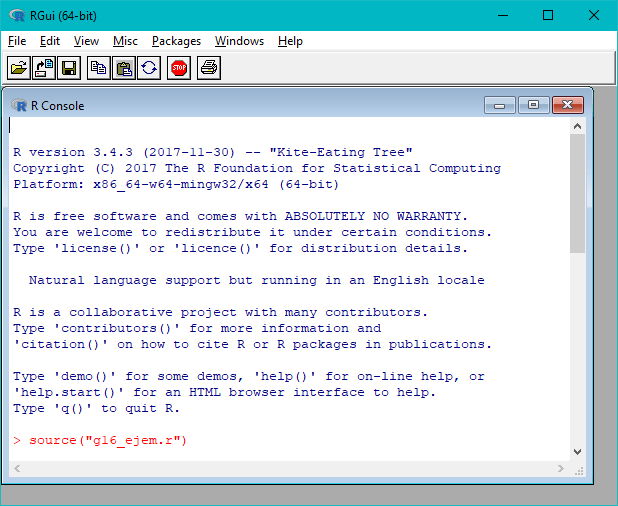
Execute the “RGui” interface. The image below shows the “RGui” main window and the “R Console” (where you insert commands, after the “>” symbol), that should be opened automatically:

RGui 1

2 – Download the example scripts from UNALM

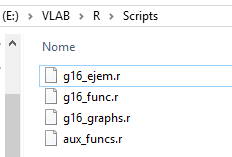
Download the R scripts provided by UNAL at this link. Unzip the “R Tutorial – UNALM.zip” at the folder of your preference. For your reference, we put the scripts at “E:/VLAB/R/Scripts”. This is what you should have:

R-Tutorial-Folder

Back to the “RGui”, indicate the scripting folder you just created at “File” > “Change dir…”. This will allow you to refer your scripts in your code without having to  include the full directory path.

RGui 2

3 – Download a Shapefile for countries

For this example, you should have a shapefile for countries. In our example, we downloaded the countries shapefile from this link (click on “Download”). In our example, we unziped the “ne_10m_admin_0_countries.zip” at “E:/VLAB/R/Shapefiles”. This is how it is seen in our computer:

R-Tutorial-Shapefiles

4 – Download some GOES-16 NetCDF’s samples for this tutorial

You may use the GOES-16 Full-Disk NetCDF’s received from GEONETCast-Americas or from other mechanisms. For this example, we’ll use some samples downloaded from Amazon, from February 19th, 2018, 12:00 UTC. Please find below the download links:

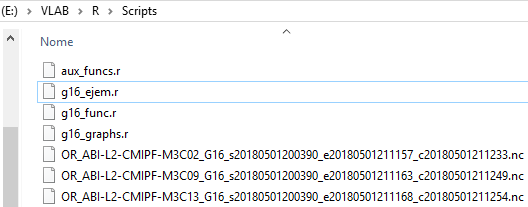
In this example, we put these samples on the same folder we have our scripts, at “E:/VLAB/R/Scripts”.

R-Tutorial-Folder-2

5 – Install the required libraries to manipulate the GOES-16 NetCDF’s

In order to run the provided scripts, you should install the following “R” libraries:

  • ncdf4
  • RColorBrewer
  • fields
  • maps
  • gdalUtils
  • rgdal

To install these libraries, in the “RGui”, you should insert the command:

install.packages(“name of the library“)

So, you should insert the commands below, clicking enter after each command, and choosing one of the CRAN mirros, as seen at the picture below:

install.packages("ncdf4")
install.packages("RColorBrewer")
install.packages("fields")
install.packages("maps")
install.packages("gdalUtils")
install.packages("rgdal")

RGui 3

6 – Download and install GDAL, open the “g16_func.r”, and at line 45, choose your GDAL installation directory

To open a script on the RGui, choose “File” > “Open script…” and choose the script of interest. To save it, choose “File” > “Save” or “Ctrl+S”Note: You may change the scripts with any text editor you want:

RGui 4

In our case, we’ll open the “g16_func.r”:

RGui 5.png

As we did in Python, the “R” scripts use GDAL to reproject GOES-16 data. You should install GDAL and refer the installation directory in the “g16_func.r”, at line 45.

RGui 6

There are multiple ways to install GDAL and configure it. One of the easiest ways is to install “QGIS” and refer to the directory:

gdal_setInstallation(search_path = ‘C:/Program Files/QGIS 2.18/bin’)

Or, you may download the GDAL installer at this link, and a bat file to configure the environmental variables at this link.

Also, you may see a Blog tutorial on how to install GDAL at this link (pages 89 to 96).

7 – Open the “g16_ejem.r” script and change the input file, the output subsect file, the region to subsect and the shapefile to read

Open the “g16_ejem.r” and the change the following according to your needs:

  • Line 38: The input GOES-16 NetCDF file
  • Line 39: The output subsected file (it is recommended to keep a similar name, because some information is extracted from the file name)

RGui 7

  • Line 40 and Lines 56 to 59: Region to subsect. The original region in the script is set for Peru

RGui 8.png

  • Line 72: Shapefile to read, in dsn put the path, in layer, the name of the  shapefile.
  • Line 76: Name of the resulting file

RGui 9

8 – Execute the script “g16_ejem.r” 

To execute a script at the “RGui”, insert the following command at the “R Console”:

source(“name of the script.r“)

So, to execute the “g16_ejem.r” script, insert the following command and click enter:

source("g16_ejem.r")

RGui 10.png

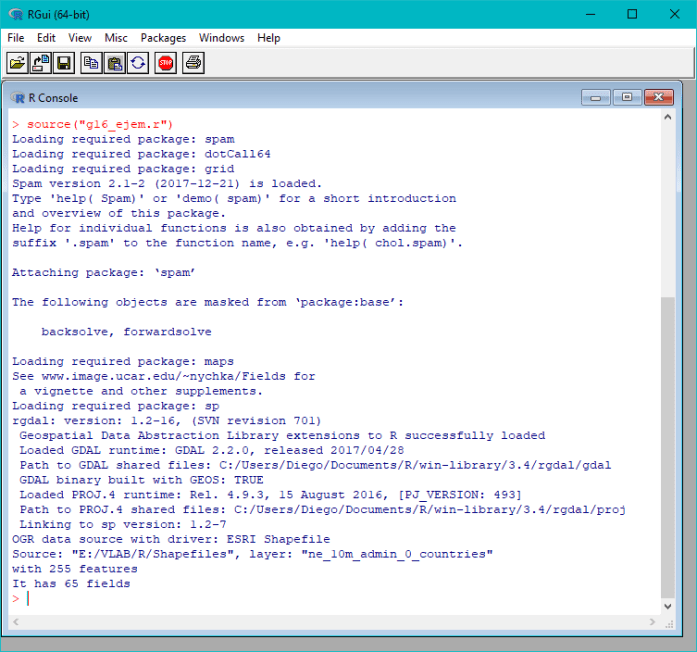
If everything goes well, this should be the output:

RGui 11.png

You should see the “Band13.png” image created at your scripting folder.

R-Tutorial-Folder-3.png

Band13.png

You may change the input file at lines 38, 39 and the file output name at line 76 and plot other bands:

Band09.png

Band02.png

Thanks for your contribution UNALM!

Check out the other tutorials from this blog at this link.

Products Generated by the Community [15]

LAPIG, the Laboratory of Image Processing and Geoprocessing from the Brazilian Federal Institute of Goiás (UFG), the GNC-A user n° 69, shared with us their progress with their GEONETCast-Americas station. They are developing an NDVI (Normalized Difference Vegetation Index) product with METEOSAT data received via GNC-A. The plot below shows the NDVI for February 14th 2018. The shapefile used is the Brazilian Biomes.

NDVI_MSG_BR_2018045.png

They are using GDAL to manipulate data from METEOSAT. They are also making some progress with the GOES-16 NetCDF’s:

RED_GOES16_BR_2018045.png

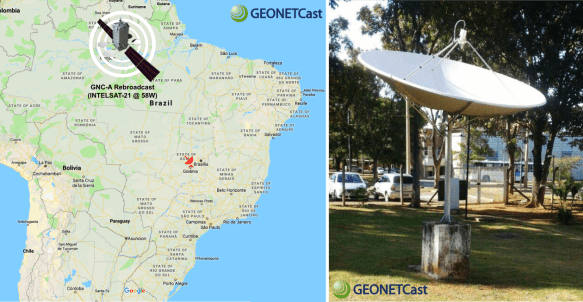
Below, the location of their GNC-A station and a photo of their antenna:

LAPIG Station Map.png

Thanks LAPIG!

This Blog series shows the products developed by the community in the Americas. Most of them refers to data received from GNC-A, however, we also post the development with data received from other means (Amazon S3, FTP, etc). Please find below the other posts from this series:

Community Development.png

Products Generated by the Community [14]

FUNCEME,  the Foundation of Water Resources and Meteorology in Ceará, Brazil, shared with us their progress with their GEONETCast-Americas station. Their station is one of the 25 GNC-A stations installed in the SIGMACast Project.

zcit201712p3.png

FUNCEME is using METEOSAT imagery in HRIT format received through GNC-A to generate a product to monitor the Intertropical Convergence Zone (ITCZ). They use 4 daily images of one of the MSG infrared channels (8.7 um) at the synoptic hours, calculating the temperatures and processing a composite image based on the minimum temperatures, every 5 days.

zcit201801p4

They are using custom C and Shell codes developed by them, along with a user-friendly  interface developed for their Meteorologists.

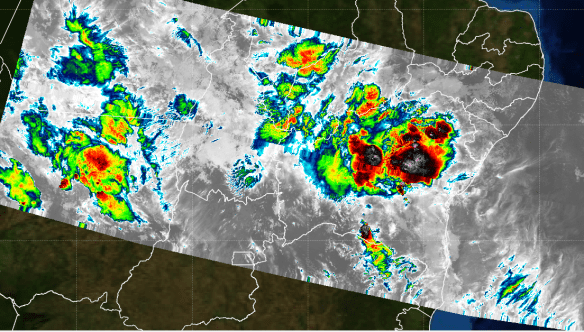
They are also developing some GOES-16 plots (work in progress) following the Python Tutorial Series from this Blog.

GOES16_C13_09-Feb-2018_130038UTC.pngGOES16_C02_09-Feb-2018_180038UTC.png

Below, the location of their GNC-A station and a photo of their antenna:

FUNCEME - MAP.pngBrazil - FUNCEME.jpg

And below, their station computer and the S300D receiver:

20160930_135421_Richtone(HDR).jpg

And a nice video of the installation of their system:

Thanks FUNCEME!

This Blog series shows the products developed by the community in the Americas. Most of them refers to data received from GNC-A, however, we also post the development with data received from other means (Amazon S3, FTP, etc). Please find below the other posts from this series:

Community Development.png

JPSS, GEONETCast And Python

Polar-Satellite-GNC-A-Low.gif

Great animation with the VIIRS I5 Band made with Python. We used 155 NetCDF files to produce this animation, the same ones you’ll receive in your GNC-A station soon. You may find the script used to produce this animation in the end of this post.

Hi GEONETCasters! As seen at this Blog post, the JPSS channels in GNC-A are already set up, and the broadcast of the Suomi NPP NetCDF’s (that will preceed the JPSS ones) shall start on the next days.

The first set of data that will be broadcasted is the I5 Band (10.5 ~ 12.4 µm / 0.371 x 0.387 km resolution at Nadir), the Day Night Band (DNB), the hourly Blended Total Precipitable Water (TPW) and TPW Anomaly products.

The I5 band and the DNB will be found at the “BANDS” folder, and the TPW and TPW anomaly will be found at the “PRODUCTS” folder.

JPSS FAZZT Folders

The naming convention for these initial files are found below:

For the I5 Band:

  • VIIRS_I5_IMG_EDR_npp_sYYYYJJJHHMMSSs_eYYYYJJJHHMMSSs_
  • cYYYYJJJHHMMSSs.nc
  • VIIRS_IMG_GTM_EDR_GEO_subsample_npp_sYYYYJJJHHMMSSs_
  • eYYYYJJJHHMMSSs_cYYYYJJJHHMMSSs.nc
I5-Band-Plot1.png

VIIRS I5 Band granules over Brazil, plot made with Python

For the Day-Night-Band:

  • VIIRS_NCC_EDR_npp__sYYYYJJJHHMMSSs_eYYYYJJJHHMMSSs_
  • cYYYYJJJHHMMSSs.nc
  • VIIRS_NCC_EDR_GEO_subsample_npp_sYYYYJJJHHMMSSs_
  • eYYYYJJJHHMMSSs_cYYYYJJJHHMMSSs.nc
201802070418409.png

Day Night Band image from February 07 showing the city lights over Brazil, plot made with Python

201802070726272.png

Day Night Band image from February 07 showing the city lights over the US, plot made with Python

201802070730417.png

Day Night Band image from February 07 showing the city lights over the region, plot made with Python

Where:

  • VIIRS_I5_IMG_EDR: I5 Band Image File
  • VIIRS_IMG_GTM_EDR_GEO_subsampleI5 Band Condensed Geolocation File
  • VIIRS_NCC_EDR: Day Night Band Image File
  • VIIRS_NCC_EDR_GEO_subsample: Day Night Band Condensed Geolocation File
  • sYYYYJJJHHMMSSsObservation Start
  • eYYYYJJJHHMMSSsObservation End
  • cYYYYJJJHHMMSSsFile Creation

Note: YYYY = Year, JJJ = Julian Day, HH = Hour, MM = Minutes, SS = Seconds, s = Miliseconds

For the Blended TPW and TPW Anomaly, the file naming convention are:

  • NPR.COMP.TPW.SYYdddhhmm.EYYdddhhmm.Thhmmss.he4
  • NPR.COMP.PCT.SYYdddhhmm.EYYdddhhmm.Thhmmss.he4
TPW Plot.png

Global hourly Blended TPW Plot made with Python. We’re still working on the code!

Where:

  • NPR.COMP.TPW: Total Precipitable Water File
  • NPR.COMP.PCTPercentage of TPW Normal (or TPW Anomaly) File

Note: YY = Year, ddd = Julian Day, hh = Hour, mm = Minutes

Please find below an example script that was used to generate the animation in the beggining of this blog post:

###############################################################################
# LICENSE
#Copyright (C) 2018 - INPE - NATIONAL INSTITUTE FOR SPACE RESEARCH
#This program is free software: you can redistribute it and/or modify it under the terms of the GNU General Public License as published by the Free Software Foundation, either version 3 of the License, or (at your option) any later version.
#This program is distributed in the hope that it will be useful, but WITHOUT ANY WARRANTY; without even the implied warranty of MERCHANTABILITY or FITNESS FOR A PARTICULAR PURPOSE. See the GNU General Public License for more details.
#You should have received a copy of the GNU General Public License along with this program. If not, see http://www.gnu.org/licenses/.
###############################################################################

###############################################################################
# AUTHOR
# This program was created at the Brazilian National Institute for Space Research - INPE
# It is intended to be used as a tool for GNC-A users to be able to plot polar data from NPP / JPSS
# It can be used by operational and research meteorology.
###############################################################################

# Required libraries ==================================================================================
import matplotlib.pyplot as plt # Import the Matplotlib package
import numpy as np # Import the Numpy package
from matplotlib.colors import LinearSegmentedColormap # Linear interpolation for color maps
from netCDF4 import Dataset # Import the NetCDF Python interface
import pyresample as pr # Geospatial image resampling
from pyresample import geometry
from pyresample.kd_tree import resample_nearest #
import glob # Unix style pathname pattern expansion
from cpt_convert import loadCPT # Import the CPT convert function
import time as t # Time access and conversion

# You need to install the pyresample package!
# conda install -c conda-forge pyresample
#======================================================================================================

# Directory where you have the VIIRS Files
dirname = 'E:\\VLAB\\Python\\NPP Samples\\Sequence\\'

# Get all I5 files in the directory
I5_images = []
for filename in sorted(glob.glob(dirname+'/VIIRS_I5_IMG_EDR_npp*.nc')):
 I5_images.append(filename) 

# Get all GEO files in the directory
I5_geo = []
for filename in sorted(glob.glob(dirname+'/VIIRS_IMG_GTM_EDR_GEO*.nc')):
 I5_geo.append(filename)

# Convert user lat lons to bounding box with pyproj
import pyproj
prj = pyproj.Proj('+proj=eqc')
# The extent below only works with the Equidistant Projection
#extent = [-85.0, -51.0, -30.0, 13.0]
extent = [-170.79949951171875, -81.32820129394531, -8.200499534606934, 81.32820129394531]
lon_bbox = (extent[0], extent[2])
lat_bbox = (extent[1], extent[3])
x, y = prj(lon_bbox, lat_bbox)

# Final image size (you have to play with these to get the maximum res)
x_size = 3712 #464 #928 #7424 #3712
y_size = 3712 #464 #928 #7424 #3712

# Define the type of plot (satellite projection or rectangular, you have to choose only one)
area_def = geometry.AreaDefinition('Orthographic', 'Ortho Globe', 'Orthographic', {'a': '6370998.0', 'units': 'm', 'lat_0': '0','lon_0': '-75', 'proj': 'ortho'}, x_size, y_size, [-6370998.0, -6370998.0, 6370998.0, 6370998.0])
#area_def = geometry.AreaDefinition('Equidistant Cylindrical ', 'Plate Carree world map', 'Equidistant Cylindrical ', {'proj': 'eqc'}, x_size, y_size, [x[0], y[0], x[1], y[1]])

print("Plotting the Background")
start = t.time()

# Define the final image resolution
DPI = 150
ax = plt.figure(figsize=(2000/float(DPI), 2000/float(DPI)), frameon=False, dpi=DPI)
ax = plt.axis('off')

# Create a basemap based on the area definition
bmap = pr.plot.area_def2basemap(area_def, resolution='i')

# Add shapefiles
# https://tapiquen-sig.jimdo.com/app/download/5497292959/Americas.rar?t=1431462733
bmap.readshapefile('E:\\VLAB\Python\\Shapefiles\\Americas','Americas',linewidth=0.50,color='white')
# https://docs.google.com/file/d/0B__Rg9h09RtfQU9jbEpxcW9xREk/edit?pli=1
bmap.readshapefile('E:\\VLAB\Python\\Shapefiles\\estados_2010','estados_2010',linewidth=0.50,color='white')

# Add a background
#bmap.shadedrelief()
bmap.bluemarble() 

# Add parallels and meridians
bmap.drawparallels(np.arange(-90.0, 90.0, 5.0), linewidth=0.2, dashes=[4, 4], color='white')
bmap.drawmeridians(np.arange(0.0, 360.0, 5.0), linewidth=0.2, dashes=[4, 4], color='white')

print("Backgound Plot finished.")
print ('Time:', t.time() - start, 'seconds')

# Start the plot loop with the files in the directory (you have to insert the index range you want)
for x in range (0,1):
 # Get the image
 path = I5_images[x]

 # Get the start of scan from the file name
 Start = (path[path.find("_s")+2:path.find("_e")])

 # Seek for a GEO file in the directory
 matching = [s for s in I5_geo if Start in s]

 # If the GEO file is not found, exit the loop
 if not matching:
 print("GEO File Not Found! Exiting Loop.")
 break
 else: # If the GEO file is found, continue
 print("GEO File OK!")
 matching = matching[0].replace("\\\\", "\\")
 index = I5_geo.index(matching)
 path2 = I5_geo[index]

 print("Processing file " + Start)
 start = t.time()

 # Open both image file and GEO file using the NetCDF4 library
 nc = Dataset(path)
 nc2 = Dataset(path2)

# Store the NetCDF file key variables in the "variable" variable
 variables = nc.variables.keys()

 # Get the lats and lons from the GEO file
 lats = nc2.variables['Latitude@VIIRS-IMG-GTM-EDR-GEO'][:]
 lons = nc2.variables['Longitude@VIIRS-IMG-GTM-EDR-GEO'][:]

 # Disable the auto scale (for some reason the automatic scale is giving errors)
 nc.set_auto_maskandscale(False)
 data = nc.variables['BrightnessTemperature@VIIRS-I5-IMG-EDR'][:]
 scale = nc.variables['BrightnessTemperature@VIIRS-I5-IMG-EDR'].scale_factor
 offset = nc.variables['BrightnessTemperature@VIIRS-I5-IMG-EDR'].add_offset
 # Apply the scale and offset
 data = (data * scale) + offset 

 # Get rid of the bad values
 data[data >= 380] = np.nan

 # We have a condensed GEO file (only 3 columns). We need to interpolate.
 # This is using linear interpolation only! We are working to make this
 # more efficient.
 lons_interp = np.zeros((1541,8241))
 lats_interp = np.zeros((1541,8241))

 factor = 1.013
 for x in range (0,1541):
 if np.isnan(lons[x,0]) == False:
 lons_interp[x,0:2060] = (np.array([np.linspace(lons[x,0],(lons[x,0]+lons[x,1])/2, 2060)]))
 lons_interp[x,2061:4121] = (np.array([np.linspace((lons[x,0]+lons[x,1])/2,lons[x,1], 2060)]))
 lons_interp[x,4122:6182] = (np.array([np.linspace(lons[x,1],(lons[x,1]+lons[x,2])/2, 2060)]))
 lons_interp[x,6181:8241] = (np.array([np.linspace((lons[x,1]+lons[x,2])/2,lons[x,2], 2060)]))
 if np.isnan(lats[x,0]) == False:
 lats_interp[x,0:2060] = (np.array([np.linspace(lats[x,0],((lats[x,0]+lats[x,1])/2)*factor, 2060)]))
 lats_interp[x,2061:4121] = (np.array([np.linspace(((lats[x,0]+lats[x,1])/2)*factor,lats[x,1], 2060)]))
 lats_interp[x,4122:6182] = (np.array([np.linspace(lats[x,1],((lats[x,1]+lats[x,2])/2)*factor, 2060)]))
 lats_interp[x,6181:8241] = (np.array([np.linspace(((lats[x,1]+lats[x,2])/2)*factor,lats[x,2], 2060)]))

 # Define the swath
 swath_def = pr.geometry.SwathDefinition(lons_interp, lats_interp)

# Get a result with the pyresample magic
 result = resample_nearest(swath_def, data, area_def, radius_of_influence=20000, fill_value=None)

 # Converts a CPT file to be used in Python
 cpt = loadCPT('E:\\VLAB\\Python\\NPP Samples\\Colortables\\IR4AVHRR6.cpt')
 # Makes a linear interpolation
 cpt_convert = LinearSegmentedColormap('cpt', cpt)

 # Plot the final image
 col = bmap.imshow(result, origin='upper', vmin=170.15, vmax=357.15, cmap=cpt_convert)

# Save the result
 ax = plt.savefig('E:\\VLAB\\Python\\NPP Samples\\Output\\' + Start, dpi=DPI, bbox_inches='tight', pad_inches=0)

print("Processing finished.")
 print ('Time:', t.time() - start, 'seconds')

print("Program finished.")

Stay tuned for news!

Products Generated by the Community [13]

Loop_G16_B9.gif

UNALM, the National Agrarian University from La Molina, Peru, shared with us their progress with their GEONETCast-Americas station. Their students are developing images from GOES-16 NetCDF’s with the “R” programming language. The Python tutorial series from the Blog was adapted, so the routines could be used with R.

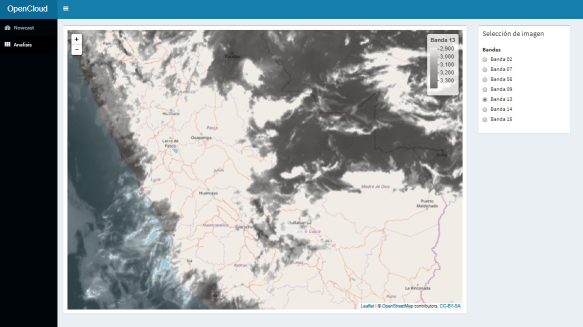
They are also developing an app called “OpenCloud” withe the R language to allow real time monitoring using data from GNC-A! Some screenshots below:

App_now.pngApp_ana1.png

The antenna from La Molina GNC-A station is seen at the picture below, along with the S75+ DVB-S receiver and the visualization screen:

La Molina_Antenna.png

Thanks UNALM!

This Blog series shows the products developed by the community in the Americas. Most of them refers to data received from GNC-A, however, we also post the development with data received from other means (Amazon S3, FTP, etc). Please find below the other posts from this series:

Community Development.png

New Operational GNC-A Station: FURNAS (Station n° 77!)

We have a new GNC-A operational station! It was installed at FURNAS, one of the main power companies in Brazil. The antenna is shown at the picture below:

Brazil - FURNAS 2.pngBrazil - FURNAS 1

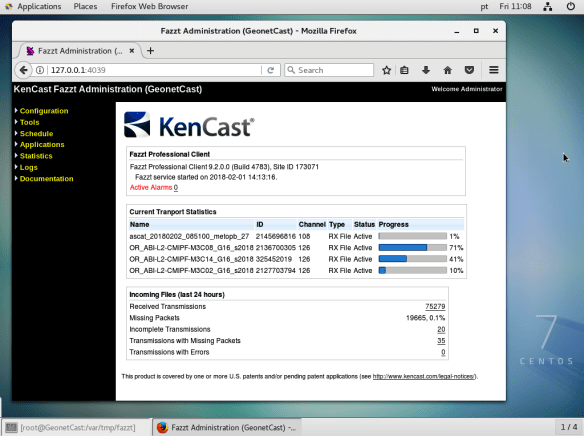
The GNC-A Station from FURNAS is the first to use the new FAZZT PROFESSIONAL CLIENT version 9.2, compatible with CentOS 7!

FAZZT CentOS 7 - FURNAS.png

They are using the following hardware:

Antenna:

  • Manufacturer: EMBRASAT
  • Model: RTM-2200STD
  • Webpage: Link
  • Manual: Link 1 and Link 2

LNB:

  • Manufacturer: GREATEK
  • Model: SPL3703AX
  • Web: Link

DVB-S Receiver:

  • Manufacturer: NOVRA
  • Model: S300D
  • Supported technology: DVB-S and DVB-S2
  • Webpage: Link

Do you have any questions about GNC-A hardware or software? Please send an e-mail to [email protected].

Configuring the AYECKA SR1 Receiver

Ayecka SR1 - Receiver.png

The AYECKA SR1 is one of the DVB-S/S2 receivers used by the GNC-A community. In this blog post we’re going to show how to configure it. The example below shows the configuration made with a Windows client (PuTTY), but it may be done with any client with serial interface in any Operational System. Once the configuration is done, you may use the SR1 with the FAZZT Client on both Windows or Linux (CentOS / Ubuntu).

1-) The SR1 has a “Control” USB Port, that should be used for the configuration, as seen below.

Ayecka Command Port.jpg

Before connecting it to your PC with a USB cable, you need to install the “USB to UART” driver found at this link. After the installation, connect the SR1 Control Port to the PC and you should see a new COM Port in the Device Manager (in our case, “COM5”):

Tut_Ayecka_1

2-) Make a serial connection (115200, 8, N, 1, N) to the COM Port using a client, like PuTTY.
Tut_Ayecka_1c

3-) Open the connection and enter zero “0” to see the SR1 main menu (whenever you want to go back to this first menu, you should click “Esc”):

Tut_Ayecka_4

4-) Insert “1” (Configuration), then “1” (Config RX Channel 1). In “Configuration Set 1”, for GEONETCast-Americas, you have to change the following:

1. Tuner Frequency
1310

3. Standard
1. DVB-S

5. Symbol Rate
27.69

F. LNB Power
2. 13V (Vertical)

J. Profile Name (Optional)
GEONETCast-Americas

After the setting these options, the configuration should be like this:

Tut_Ayecka_7

5-) Then, choose the option “E” (Filters Table), and choose the following:

Slot
1.

1. PID
4201
3. Status
Enabled
4. IP Multicast
Pass

For all other blocks, you should disable and block:

3. Status
Disabled
4. IP Multicast
Block

After the setting these options, the Filters Table should be like this:

Tut_Ayecka_10

6-) If you have your antenna properly pointed and the right LNB Skew, back to the first screen, in option “2” (Status), and “1” (RX Channel 1)…

Tut_Ayecka_11

…you should see the “Tuner Status”, “Demodulator Status” and “Transport Status” as “Locked”.

Tut_Ayecka_12

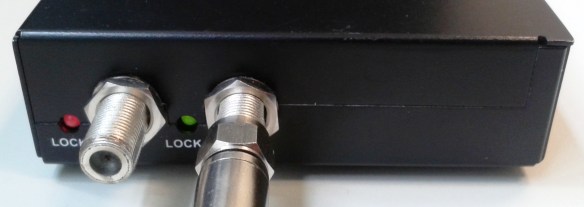
This means that the GNC-A signal is locked! The “LOCK” LED should be green:

Ayecka Lock LED Green.jpg

7-) Back to the main menu (ESC), choose option “3” (Network), and configure the LAN according to your needs (in our case, 192.168.0.11):

Tut_Ayecka_13

And thats it! Your SR1 is ready to communicate with the FAZZT Professional Client! Just connect the “TRAFFIC” port with an Ethernet cable to your Network card.

20160913_153809

You may remove the USB Cable from the “CONTROL” Port if you want!

Please check our other posts about GNC-A Ingestion Hardware / Software: