Search the Community
Showing results for tags 'wii'.
-
 Hi Folks, We’re thrilled to announce that our friends over at RetroAchievements have just added another major new console to their supported platforms. And this one is bound to get a few arms swinging... The Nintendo Wii! For those not familiar, RetroAchievements is a service that lets you earn community-made achievements in retro games. We integrate their service directly into LaunchBox and Big Box, allowing you to filter, sort, and create playlists based on RetroAchievements data. You can also log into RetroAchievements right inside LaunchBox, and for emulators where we offer integrations, LaunchBox can pass those credentials through for you. We want to congratulate everyone involved in making this happen. It’s a huge milestone, and one plenty of people have been waiting for. The RetroAchievements team are also kicking things off with their Wii launch event, which runs for 4 months through July 19th. Along the way, players can earn points for beats, masters, and bounties, with exclusive event badges available at Bronze, Silver, Gold, and Grandmaster tiers. They’ve also put together a helpful Wii setup guide for getting Dolphin configured for the best Wii experience, and we’d definitely recommend giving that a read alongside this post. If this is your first time diving into Nintendo’s motion-control wonder machine, or you’re looking for a reason to revisit some Wii classics, LaunchBox is the perfect companion for organizing your collection. Let’s look at a few things you can do to build the perfect nostalgic setup. Setup your RetroAchievements account in LaunchBox 🎖️ If this is your first time using RetroAchievements, you’ll first need to create a free account. Then, in LaunchBox, go to `Tools > Options > Integrations > RetroAchievements` and enter your credentials. This allows LaunchBox to see which of your games have existing achievement sets. Make sure Dolphin is up to date 🧰 Next, you’ll need to make sure you’re using a version of Dolphin that supports RetroAchievements for Wii. At the time of writing, a minimum version of `2603a` is required for Hardcore unlocks, or `2603-81` or higher if you’re using the Nightly/Dev branch. You can update Dolphin directly through LaunchBox by going to `Tools > Manage > Emulators`, just make LaunchBox's displayed Dolphin version is higher than the required version. You can also review Dolphin’s RetroAchievements integration options in LaunchBox by going to `Tools > Manage > Emulators`, editing Dolphin, and opening the `RetroAchievements` section. This is where you can see whether the emulator supports RetroAchievements setup through LaunchBox and review the available integration options, such as using your LaunchBox RetroAchievements credentials and applying emulator-specific achievement settings where supported. Scan your library for achievement data 🏅 With all these new Wii sets available, the next thing we’ll want to know is which games in our LaunchBox library support achievements. To do that, head to `Tools > Achievements > Scan for all games / current platform`. If your game uses a supported file format such as .iso or .rvz, and you have badges enabled, you’ll start seeing achievement badges next to supported Wii titles in your library. Badges in Wii games 🤯 I never thought I'd see this day Note: At launch, .rvz and .iso files will correctly pick up achievement badges, but .wad (which are used for WiiWare games) do not. We already have a fix for this and will update this article once that is avaliable Follow our known issue post here below to get notified when this goes live: 🔗 https://feedback.launchbox.gg/p/retroachievements-not-detected-for-wiiware-wad-files Put Game Progress Tracking to work 📈 With over 100 sets ready to go at launch, this is also a great time to put LaunchBox’s Game Progress Tracking features to good use. If you already know which Wii games you want to tackle first, you can start by marking them as Want To Play and building out a little achievement-hunting backlog. From there, LaunchBox can help automate the rest. If you head to `Tools > Options > Game Progress Automation`, you can configure how those status updates behave and choose which progress values LaunchBox should assign as you spend more time with a game and start earning achievements. It’s a great way to keep a big launch like this from turning into total choice paralysis. A fine looking `Want To Play` list if I do say so myself (Donkey Kong Barrel Blast haters come at me) 🤣 Organize your library by control style 🎮 One of the best things about the Wii is how many different ways there were to play, which makes it a perfect platform for controller-based playlists. LaunchBox can pull controller support information down from the LaunchBox Games Database as part of your metadata. To view it, open a game’s edit window and check the Controller Support section. From there, you can create playlists for different control types, such as Wii Remote and Nunchuk games, Classic Controller-supported titles, or pointer-heavy party games. If you just want to browse on the fly, you can also use the Filter button next to the search bar to narrow your Wii library by control type. For example, you could quickly filter down to games with Wii Zapper support or Classic Controller support without needing to build a playlist first. See which of your games require what controls Create controller-based playlists 📂 As one example, why not build a playlist for games that support the Wii Zapper? It’s a fun way to group together rail shooters and pointer-heavy titles into their own little collection. To create it: 1. Create a new playlist in LaunchBox and choose the option to auto-populate it. 2. Add a filter for controller support. 3. Set the rule so that Controller Support (Wii Zapper) is equal to Full Support. 4. Save the playlist and let LaunchBox populate it automatically. From there, any Wii games in your library that have Wii Zapper support marked as Full Support will be added to the playlist for you. Ready to start zapping my way to victory 🔫 Choose the control setup that suits you best 🕹️ One of the nice things about playing Wii games on modern hardware is that you have a few different options. Depending on the game and the experience you want, you might prefer a keyboard and mouse setup, a modern controller with gyro support, or original Wii Remote hardware with a sensor bar for the most authentic feel. If you want help deciding which route to take, or you need help configuring a specific control method, we’d recommend giving the RetroAchievements team’s Wii setup guide a read. It goes into much more detail on getting Dolphin configured for the best Wii experience, including the different control options and how to get them working smoothly. I'm going with the OG Wii-mote/Nunchuck combo, with the gloriously plastic-y Wii-Zapper, combined with the Mayflash Dolphin Bar 🐬 Pay a quick visit to the Wii Menu 👤 Some games will require you to have a Mii, so this is a good time to make sure your virtual living room is properly inhabited. In Dolphin, you can install the Wii System Menu by going to `Tools > Online System Updater`, then boot into it via `Tools > Load Wii System Menu 4.3U`. Once you’re in, head to the Mii Channel and create your masterpiece, whether that’s a lovingly crafted lookalike or the usual wonderfully cursed Wii-era gremlin. It only takes a minute, and it can save you from running into game-specific requirements later on. I remember sitting on this menu for hours 🥰 Grab yourself a Wii-inspired Big Box theme 🎞️ Now that we’re leaning all the way into the nostalgia, why not give Big Box a little Wii-inspired flair? If you really want to replicate some of that Wii Menu magic, a custom Big Box theme can go a long way toward making your setup feel like you’ve stepped back into 2006. One great example is Mini Consoles It features distinct console-inspired views across a huge range of platforms, including Nintendo Wii, and is all about recreating the look, feel, and atmosphere of the original hardware and dashboards. Enhance those visuals with texture packs 🖌️ We’re not done yet! While Wii games were originally built with much lower resolutions in mind, Dolphin lets us upscale them to glorious 1080p and beyond. To complement those visuals, we can also use custom texture packs to enhance the detail and breathe new life into classic games. The Dolphin Custom Texture Projects forum is a great place to start if you’re looking for texture packs, though there are plenty of fantastic community recreations floating around online as well. If you’ve never installed them before, Putachi’s guide is a great walkthrough for getting everything set up. Title screens have never looked this good! 🎨 A little tease: Wii save management is on the way 💾 And we’re not quite done with Wii support yet. In an upcoming update to LaunchBox’s Game Save Management feature set, we’ll be adding full support for managing Wii saves as well. That means you’ll be able to display save badges in LaunchBox for Wii games with save data, and manage those saves directly from LaunchBox by backing them up or deleting them as needed. It’s not part of this rollout just yet, but it’s coming soon. Remember this interface? Soon you'll be able to replicate nuking your Wii saves one-by-one directly from LaunchBox 😉 So, what Wii set will you tackle first? A huge congrats again to the RetroAchievements team for another massive rollout. With so many Wii games to choose from, what will you be playing first? For me personally, my go-to will probably be the Mario Galaxy games. They’re some of my favorite memories on the system, and they feel like the perfect sets to dive into ahead of the Super Mario Galaxy movie arriving next month. What are some of your favorite Wii memories, and what sets will you be tackling first? Let us know down below. Happy gaming! AstroBob
- 10 replies
-
- 4
-

-
- retroacheivements
- wii
- (and 2 more)
-

Version (8 Platforms)
1,253 downloads
Some theme videos for platforms that didn't had one with this cool style created by a Hyperspin user known as Nlash. To add them to you setup, download and extract the zip files in your LaunchBox folder (overwrite if needed). Platforms: Microsoft Xbox Microsoft Xbox 360 Nintendo Switch Nintendo Wii Nintendo Wii U Sony Playstation 3 Sony Playstation 4 Windows You can download the rest of the available platform theme videos here:- 5 comments
-
- 10
-
-

-
Nintendo Wii Sound Pack View File A sound pack I have created using sounds from the Nintendo Wii. Does not include a startup sound, as I made this intended for a playlist. Back.wav Move.wav Select.wav Submitter drmalouf Submitted 05/09/2024 Category Sound Packs
-
Version 1.3
456 downloads
Theme Videos for every main title of the series and some spinoff games, also includes the video snaps and/or trailers used on them. How to add them to your LaunchBox and BigBox: Download the zip file. Extract it to LaunchBox's root folder. Content will be extracted into its proper folders. Done! Video snaps and theme videos will show up on LaunchBox's details panel and BigBox's views depending on your preferences. Previews: List of Games: The Legend of Zelda Zelda II: The Adventure of LInk The Legend of Zelda: A Link to the Past The Legend of Zelda: Link's Awakening (Regular, DX and Switch version) The Legend of Zelda: Ocarina of Time (Original and 3D Version) The Legend of Zelda: Majora's Mask The Legend of Zelda: Oracle of Ages The Legend of Zelda: Oracle of Seasons The Legend of Zelda: A link to the Past and Four Swords The Legend of Zelda: The Wind Waker (Regular and HD) The Legend of Zelda: Four Swords Adventures The Legend of Zelda: The Minish Cap The Legend of Zelda: Twilight Princess (Original and HD version) The Legend of Zelda: Phantom Hourglass The Legend of Zelda: Spirit Tracks The Legend of Zelda: Skyward Sword (Regular and HD) The Legend of Zelda: A Link Between Worlds The Legend of Zelda: Tri-Force Heroes The Legend of Zelda: Breath of the Wild (Both versions) The Legend of Zelda: Tears of the Kingdom The Legend of Zelda: Echoes of Wisdom NEW -
Version 1.0.0
241 downloads
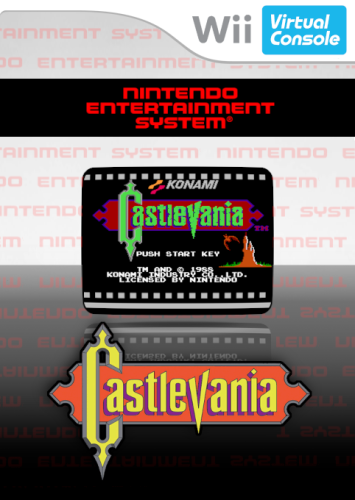
I wanted to have art for Wii Virtual Console that reminded me of the experience you'd have on a Wii when selecting a game; the CRT screens, title screens, and reflections. Along with the system themed back drops. This cover art set was created with that idea in mind, though I took a few liberties here and there; like using the games text logos instead of a plain font, and having a band across the top with the System name. With this the VC collection will closely match Wii retail release box cover art, and also the Wii Ware covers that LB/EmuMovies downloads. Make em all look like a similar template/format. I've also included all the GIMP project files in case someone wants to make their own version. Thanks and enjoy! -
Hi Im new to setting up light gun games for my desk setup but i am not new to emulation gaming. I recently purchased some Wiimotes through Ebay, light gun holders for Wii, and the Dolphin Bar through Amazon and I was very excited to play some all time favorites from the Arcade Era. Came across some tutorials and downloaded Touchmote for PCSX2 and other emulators. im having trouble with the software as it disappears as soon as I start the application. Looking for solutions and other possible tutorials. Any ideas??
-
Hello ! Is there a way to start my wi / gamecube roms in fullscreen?
-
Version 1.0.0
152 downloads
A sound pack I have created using sounds from the Nintendo Wii. Does not include a startup sound, as I made this intended for a playlist. Back.wav Move.wav Select.wav -
Version 021124
279 downloads
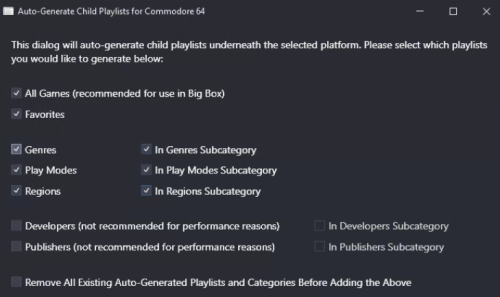
A few automated child playlists I made today, over 1600. I'm debating whether or not to include these with my main build, I'm thinking it might be too much. Anyways, here they are, all zipped up if you want 'em. -
Auto Generated Playlists for the bigger systems, all zipped up View File A few automated child playlists I made today, over 1600. I'm debating whether or not to include these with my main build, I'm thinking it might be too much. Anyways, here they are, all zipped up if you want 'em. Submitter -McFly- Submitted 02/11/2024 Category Playlists
-
 Hello! I'm going to tell the story to give some context of my problem. I'm setting my Wii library for using joycons as a replacement to wiimotes. Everything works just fine. The problem is that I was playing Wii Sports, when the game asked me to unplug the nunchuk, the thing is I can't do it. I don't have any settings bar at the game window (left image) so I have to close the game, open Dolphin, change the controller settings, close it and launch the game again. The "solution" is opening Dolphin directly and executing the game from there (that way the settings are avaliable directly. Right image), but that misses the whole point of using LaunchBox to start with. I really don't want to do that many things everytime I want to play. Anybody know someway to do the thing I want to do? Thanks a lot for reading!
-
Here's my 'full' pack of music for wii games. 🙂 I tried to prioritize title screen/main menu music. For music based games, I used a random song from the song list (for most sports games too) For some movie based games, I used the soundtrack from the movie. For some TV show based games, I used the TV show's theme. All song cut off at 5 minutes. I made sure to name the files according to the Launchbox DB but i'd like to get feedback on that. Is everything working fine on your end? I'm also open to requests if there's a game you would like me to add Here's the link to download : https://emumovies.com/files/file/5307-wii-music-pack-1150-songs/ Enjoy!
-
.thumb.png.2092a25a473b4f24058ef67f1c678585.png)
Version 1.0.0
291 downloads
A lot of the front covers that these use are not mine they were on my hard drives that I downloaded ages ago, don't know who they belong to, I created the 3D Boxes and missing covers. If there are any mistakes or missing covers let me know at [email protected] and I will try to fix them, thanks. -
Theme Videos for Some Platforms Copying Nlash's Style View File Some theme videos for platforms that didn't had one with this cool style created by a Hyperspin user known as Nlash. To add them to you setup, download and extract the zip files in your LaunchBox folder (overwrite if needed). You can download the rest of the available theme videos here: Submitter Suhrvivor Submitted 12/17/2022 Category Platform Theme Videos
-
Version 1.0.0
67 downloads
This script was born to resolve this issues: you want to save disk space you are a rom/iso collector that uses dat file to check your collection with rom manager tool. Actually you cannot find any DAT that support CHD files, so to save disk space you are forced to compress all your isos or cue/bin images in .zip or .7z format you want to play with compressed iso, bin/cue games without extract files you don't want specify cd image extension in command line, but only zip file extension. This script automatically will search for chd, iso, cue, bin (in this order) contained in compressed file. This script can use one of the following tools to mount compressed cd image files: WinArchiver => recommended tool with the best performance. It supports .zip, .7z and rar format. It is a commercial software with a trial period. Prismo File Mount => good tool, totally free, it supports only .zip files. Bad performance with large compressed file, so I don't recommended it for PS2, PS3, PS4 and Wii emulation Daemon Tools => really bad performance, it is free with lite version. It supports only .zip files. Futhermore the script supports these emulators: 1) Retroarch with all cores Command line structure: ZipMountAndRun nameOfCoreOfRetroarchWithoutExtension zipfileWithExtension Real example for Dreamcast emulation: ZipMountAndRun flycast_libretro "4 Wheel Thunder (Europe) (En,Fr).zip" 2) PCSX2 in standalone mode Command line structure: ZipMountAndRun pcsx2 zipfileWithExtension Real example for PS2 emulation: ZipMountAndRun pcsx2 "Ace Combat - Squadron Leader (Europe, Australia) (En,Fr,De,Es,It).zip" 3) Dolphin in standalone mode Command line structure: ZipMountAndRun dolphin zipfileWithExtension Real example for Gamecube emulation: ZipMountAndRun dolphin "Casper - Spirit Dimensions (Europe) (En,Fr,De,Es,It).zip" 4) Mednafen in standalone mode Command line structure: ZipMountAndRun mednafen zipfileWithExtension Real example for Saturn emulation: ZipMountAndRun mednafen "2Tax Gold (Japan).zip" How install the tool for mounting Search setup on google Download and install the tool Create a virtual drive and remember the letter that you should set in my script How to install my script in Launchbox 1) Copy the downloaded file in Launchbox Emulators folder assuring that my script was saved inside own folder: LaunchBox root folder -> Emulators -> ZipMountAndRun -> ZipMountAndRun.cmd See the image below 2) Set variables in my script for setting the tool for mounting files and its directory and the directories of emulators. Please open my script with a text editor and fill " Variables to set" section Variable name => Descrition mountTool => define the tool used for mounting. Value accepted are winarchiver, pfm, daemon daemonPath => path of Daemon Tools Lite, if you install it in default folder it is not necessary to change it winarchiverPath => path of WinArchiver, if you install it in default folder it is not necessary to change it letterForMounting => it is the letter used from virtual drive. This letter must be equals to virtual drive letter that you have created in previous phase. retroArchPath => retroarch path. if your retroarch folder is called "RetroArch" in your Emulators folder don't change the setting. pcsx2Path => PCSX2 path. if you have saved the PCSX2 emulator in RetroArch system folder then don't change the setting. If you have PCSX2 installed in the folder LaunchBox root\Emulators\PCSX2 then you can change this variable to "..\PCSX2" (without quotes) dolphinPath => path for dolphin standalone emulator. if your dolphing folder is called "Dolphin" in your Emulators folder don't change the setting. mednafenPath => path for Mednafen standalone emulator. if your Mednafen folder is called "Mednafen" in your Emulators folder don't change the setting. All the paths that you can set can be absolute or relative. By default the paths of emulators in my script use relative paths. 3) Add ZipMountAndRun like emulators in Launchbox Click on Tools -> Manage -> Emulators Click Add button Insert "ZipMountAndRun" in emulator name textfield Select ZipMountAndRun in Emulators\ZipMountAndRun folder Copy other settings in image below 4) Edit linked platform for ZipMountAndRun emulator Click on Tools -> Manage -> Emulators Select ZipMountAndRun and click on Edit button Select linked platform on the left bar Fill rows like image below including your preferred platforms I hope you can apprecciate my sharing and enjoy your games!! -
 Mount compressed cd images and play View File This script was born to resolve this issues: you want to save disk space you are a rom/iso collector that uses dat file to check your collection with rom manager tool. Actually you cannot find any DAT that support CHD files, so to save disk space you are forced to compress all your isos or cue/bin images in .zip or .7z format you want to play with compressed iso, bin/cue games without extract files This script supports 3 different tools that can mount compressed files: WinArchiver => recommended tool with the best performance. It supports .zip, .7z and rar format. It is a commercial software with a trial period. Prismo File Mount => good tool, totally free, it supports only .zip files. Bad performance with large compressed file, so I don't recommended it for PS2, PS3, PS4 and Wii emulation Daemon Tools => really bad performance, it is free with lite version. It supports only .zip files. Futhermore the script supports these emulators: 1) Retroarch with all cores Command line structure: ZipMountAndRun nameOfCoreOfRetroarchWithoutExtension zipfileWithExtension Real example for Dreamcast emulation: ZipMountAndRun flycast_libretro "4 Wheel Thunder (Europe) (En,Fr).zip" 2) PCSX2 in standalone mode Command line structure: ZipMountAndRun pcsx2 zipfileWithExtension Real example for PS2 emulation: ZipMountAndRun pcsx2 "Ace Combat - Squadron Leader (Europe, Australia) (En,Fr,De,Es,It).zip" 3) Dolphin in standalone mode Command line structure: ZipMountAndRun dolphin zipfileWithExtension Real example for Gamecube emulation: ZipMountAndRun dolphin "Casper - Spirit Dimensions (Europe) (En,Fr,De,Es,It).zip" 4) Mednafen in standalone mode Command line structure: ZipMountAndRun mednafen zipfileWithExtension Real example for Saturn emulation: ZipMountAndRun mednafen "2Tax Gold (Japan).zip" How install the tool for mounting Search setup on google Download and install the tool Create a virtual drive and remember the letter that you should set in my script How to install my script in Launchbox 1) Copy the downloaded file in Launchbox Emulators folder assuring that my script was saved inside own folder: LaunchBox root folder -> Emulators -> ZipMountAndRun -> ZipMountAndRun.cmd See the image below 2) Set variables in my script for setting the tool for mounting files and its directory and the directories of emulators. Please open my script with a text editor and fill " Variables to set" section Variable name => Descrition mountTool => define the tool used for mounting. Value accepted are winarchiver, pfm, daemon daemonPath => path of Daemon Tools Lite, if you install it in default folder it is not necessary to change it winarchiverPath => path of WinArchiver, if you install it in default folder it is not necessary to change it letterForMounting => it is the letter used from virtual drive. This letter must be equals to virtual drive letter that you have created in previous phase. retroArchPath => retroarch path. if your retroarch folder is called "RetroArch" in your Emulators folder don't change the setting. pcsx2Path => PCSX2 path. if you have saved the PCSX2 emulator in RetroArch system folder then don't change the setting. If you have PCSX2 installed in the folder LaunchBox root\Emulators\PCSX2 then you can change this variable to "..\PCSX2" (without quotes) dolphinPath => path for dolphin standalone emulator. if your dolphing folder is called "Dolphin" in your Emulators folder don't change the setting. mednafenPath => path for Mednafen standalone emulator. if your Mednafen folder is called "Mednafen" in your Emulators folder don't change the setting. All the paths that you can set can be absolute or relative. By default the paths of emulators in my script use relative paths. 3) Add ZipMountAndRun like emulators in Launchbox Click on Tools -> Manage -> Emulators Click Add button Insert "ZipMountAndRun" in emulator name textfield Select ZipMountAndRun in Emulators\ZipMountAndRun folder Copy other settings in image below 4) Edit linked platform for ZipMountAndRun emulator Click on Tools -> Manage -> Emulators Select ZipMountAndRun and click on Edit button Select linked platform on the left bar Fill rows like image below including your preferred platforms I hope you can apprecciate my sharing and enjoy your games!! Submitter Anthes Submitted 09/01/2022 Category Third-party Apps and Plugins
-
Hello! First of, sorry if I am posting in the wrong forum, but I saw the thread "noob" so I automatically thought this was the best place for me. Anyways.. I have just got from using Steam as my front-end to play my emulators. Works fine, but not much fun to look at. So I did buy LaunchBox/BigBox. It looks so great for my setup, and works fine.. But I don't own an Xbox controller of any kind. Right now I am using my PS4 controller through DS4Windows just to navigate in BigBox because I cant get any other controllers to work. I have turned on the option "Enable Game Controllers" and "Use All Attached Controllers" in L-Box's options, but only my emulated Xbox360 (PS4) controller works. I got a ton of other controllers I use for different emulators because I love the feeling of using generic controllers with the advantage of better graphics. I just want to be able to use the controller I am going to play with to navigate in BigBox and get around the annoying step of being forced to navigate with my PS4 controller and then pick up my controller generic controllers after starting my game. A loooot of headaches, head scratching, time and effort has already been implemented when getting all the controllers I have to work with all of the emulators I have, so I really would like to get at least my GameCube controllers to work in BigBox My setup and controllers I use: In PCSX2 I am able to use PS5, PS4 and 3 controllers without any struggle as I use LilyPad plugin which supports Dinput (But it interferes with DS4Windows so I re-mapped it to Xinput with DS4) In CEMU I use my Switch pro controller with some downloaded drivers to get gyro support and full controller functionality (also works with my PS4 and PS5 controller, but gyro does not work if I got DS4 running,So I made an exception in DS4 Auto Profiles that turns DS4 off when using CEMU only because I was forced to use my PS4 controller instead of Switch Pro in BigBox, But with DS4 off, my mappings to return to BigBox doesn't work... In Dolphin I use the "GameCube adapters for WIIU" in all the ports for GC controllers, and "Real Wiimotes" for Wii games. Both of the controllers needed drivers from the intraweb to work correctly, and only the GC controllers worked without too much hazzle.But the problem here is that I cant use controller mappings from LaunchBox to get back into BigBox.. N64 controllers is using mappings from steam at the time which is Xinput, But the controllers doesn't work in either BigBox or in the Project64 by themselves. So my questions is: Is there a software like DS4Windows that will work with the majority of my controllers to get them to Xinput? Is there some drivers or plugins to download just for LaunchBox/BigBox that unlocks my controllers? (That isn't to shady, unreliable or too time consuming to get working that is) Or is there just a step in LaunchBox's options I have haven't found to make the "Use All Attached Controllers" option to work with none Xinput controllers? Many thanks in advance to the people that has taken their time to read this and for you'r guidance, If you know anything, or if there is a tutorial video from Unbroken software/ETA Prime or someone else for that matter that I still haven't watched, please point me in the right direction! And I am sorry for a really long story before the actual question, but I wanted to explain why I want this to work so badly, At least with the GC controllers, as it is the emulated system that I play the most. I know I could just map my ps4 controller for the majority of he systems and then be done with it, but that kills the feeling and the fun in playing these nostalgic titles.. Peace!!
-
Version 1.0.0
214 downloads
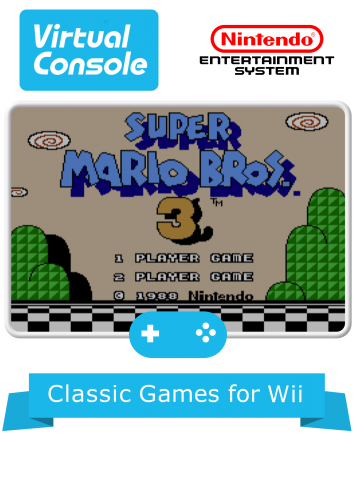
I noticed that a lot of Wii Virtual Console games aren't in the database or don't have separate artwork to distinguish them from the original. I made this template mostly for myself, but decided to give it to anyone else interested in using it. It's very loosely based on the cover art found on Nintendo's website. The templates for each system are included as well as 30 pre-made images. The hi-res TurboGrafx-16 logo was created by RingoStarr39 and reused under the terms on his DeviantArt page: http://ringostarr39.deviantart.com You don't need to credit me to use these, just don't claim them as your own. Other than that go nuts! -
Wallpaper for console games
-
Nintendo Wii Platform Video View File Nintendo Wii.MP4 Couldn't find a Wii Platform video that I liked so I made this. Enjoy! Submitter Jaseguges Submitted 06/23/2020 Category Platform Theme Videos
-

Version 1.0.0
452 downloads
Video themes for the Medal of Honor Series Medal of Honor: Pacific Assault Medal of Honor: Allied Assault Medal of Honor (2010) Medal of Honor: Warfighter Medal of Honor: Airborne Medal of Honor: Underground (PS1) Medal of Honor: European Assault (PS2/Xbox/Gamecube) Medal of Honor: Frontline (PS2/Xbox/Gamecube) Medal of Honor: Rising Sun (PS2/Xbox/Gamecube) Medal of Honor: Vanguard (PS2/Wii) Medal of Honor (PS1) Medal of Honor Collection -
So I've been doing a lot of fooling around in Retroarch lately, and I've finally been able to figure out how bezels work (for platforms and individual games), along with auto save states for some games I don't have time to do in one play through (Sonic on Genesis for example). I'm really loving that I can have overlays for 4:3 games on my 16:9 monitor. I have Dolphin configured per game, so some games are 4:3 while others are 16:9, all depending on how the extra space gets drawn (or doesn't in some cases). I wanted to see if anyone knew of a way to configure overlays in Dolphin. For the life of me, I can't figure it out. So any help would be fantastic.
-
 Hello all, Just spent a couple days setting up LB/BB and I think I have found an obscure yet annoying bug. I am using a genuine Wii bluetooth module wired up to usb and connected using dolphins bluetooth passsthrough feature (more info here). The module allows basically perfect Wiimote behavior, no dropped connections or "re-syncing" required. My ideal set up is using an 8bitdo Xinput controller to navigate and launch, (as well as play Gamecube games) then pick up a Wiimote to play Wii games. When it is time to quit or switch games i use the Xinput controller to close the active window. The problem is when using Launchbox or BigBox, if i try to quit a game using the "Close active window" controller mapped button it kills the bluetooth, and it does such a number on it that reinstalling the libusbk driver is required to get it working again. One thing to note is that hitting ESC on the keyboard or using the mouse to "X" out the window does not kill the bluetooth, it only happens when using the controller to close the active window. So is "Close the active window" essentially mapped to Alt+F4? Anyway to change that to ESC? Any reason to not do that? I bought Bigbox mostly for playing Wii games and it is quite annoying to have another peripheral on the couch with me (Controller, Wiimote, and now wireless keyboard to hit ESC) so hopefully there is an easy fix. Thanks in advance.
 -
Medal of Honor Series View File Video themes for the Medal of Honor Series Medal of Honor: Pacific Assault Medal of Honor: Allied Assault Medal of Honor (2010) Medal of Honor: Warfighter Medal of Honor: Airborne Medal of Honor: Underground (PS1) Medal of Honor: European Assault (PS2/Xbox/Gamecube) Medal of Honor: Frontline (PS2/Xbox/Gamecube) Medal of Honor: Rising Sun (PS2/Xbox/Gamecube) Medal of Honor: Vanguard (PS2/Wii) Medal of Honor (PS1) Medal of Honor Collection Submitter Obsidian74 Submitted 11/06/2019 Category Game Theme Videos
-
 There's a not very well known program called nNASOS that can compress GameCube and Wii games lossless. Not only is it lossless, it also saves a ton of space and a ton of time compared to zip or 7z. Depending on the amount of games you have, you can save tens or hundreds of gigabytes. And decompression takes only about 10 seconds per game instead of the minutes a 7z takes on my cpu. That's all great, but the drawback is that Dolphin doesn't natively support the compressed file format that nNASOS creates. I opened a feature request for Launchbox to support nNASOS (which I think is super simple yet has great benefits). However, so far nothing has been done in that regard. Not even sure if @Jason Carr has read it Not that I blame the guy, he's probably working on a ton of other cool stuff. Nevertheless, I wanted to (try to) make use of the space savings now. So, I got the idea to create some kind of proxy. A program in between Launchbox and Dolphin that decompresses the rom file. Thus, I made a really simple (and probably crappy, first time using PowerShell) PowerShell script and added it as an 'Emulator' in Launchbox. I wasn't really expecting it to work, and... it didn't. It just opened the PowerShell script in notepad instead of running it . I was like 'Damn it! The one time I decide to use Powershell instead of batch, it doesn't launch '. But I was to lazy to rewrite it in another language (a batch file for example) so I found a little tool that converts a powershell script into an .exe. I added that to Launchbox and low and behold: it actually worked and launched the game in Dolphin. So many places where something could go wrong, but it worked. So, this is the chain it creates: Launchbox -> Proxy -> nNASOS -> Dolphin But it works like a charm. I can add compressed roms to Launchbox and actually launch them with the click of a button. There's only 1 major drawback: it doesn't remove the decompressed file after Dolphin has been closed (just like Launchbox removes an decompressed 7z file after exit). And I'm not sure if that's even possible without adding this functionality directly in Launchbox. If anyone has any idea if that's possible and how, please let me know. If anyone wants the powershell script, let me know and I'll upload it somewhere. Honestly not sure if there would be any interest it, at least not with that big drawback.







.thumb.png.2092a25a473b4f24058ef67f1c678585.png)


