Search the Community
Showing results for tags 'video'.
-
I have not used the ps2 emulation in some time (5-6 months) but when I last used it, everything was working as it should. I remembered an old game I was fond of so I downloaded it but when I came to play it, I can hear the game's sound but not see the image. Funny enough, If I speed the game up, I can now see it? I tested the other ps2 games and sure enough they all do the same thing. Any obvious ideas? So strange that this happened for what seems like no reason. Thank you SO much!

-
Version 1.0.1
350 downloads
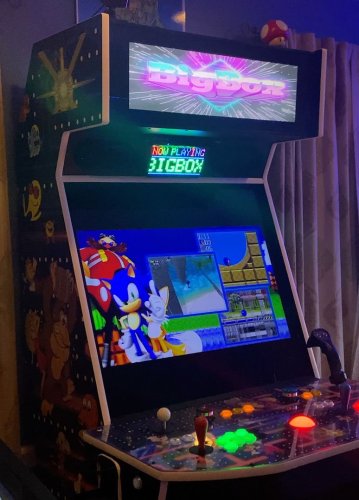
*** Edit: Note that you can use this plugin to add startup marquee video support if you are using BigBox's native marquee handling. However, I recommend you switch to my new plugIn, ThirdScreen, for startup marquee video support because it also adds support for platform marquee videos and unlimited screens. *** Plugin that adds Marquee Intro video support. After installing the plugin you can simply place your Marquee intro videos into the LaunchBox/Videos/StartupMarquee folder. One will be chosen randomly at startup. Static images (jpg or png) will work as well. The marquee video will always automatically end at the same time as the main screen intro video. If the marquee video is shorter than the main screen video, it will loop until the main screen video ends (or until you hit a button to skip the intro). See demo: Installation: Unzip the file and drop the contents into your LaunchBox folder. Place your marquee startup video(s) into LaunchBox/Videos/StartupMarquee. You of course have to make sure your marquee screen is set up first in your BigBox settings: Set your marquee screen number in Options->General->Marquee Screen If you want the intro video to stretch fill the entire marquee, then set Options->Marquee Screen->Set Marquee Images to Fill the Screen If you have a cut-off type marquee, then make sure your screen compatibility mode is set correctly in Options->Marquee Screen->Screen Hardware Compatibility Mode. Currently this plugin does not support the squeeze 1/2 or squeeze 1/3 modes, but all of the following screen compatibility modes are supported: - None - Monitor Cuts Off Bottom 1/2 - Monitor Cuts Off Top 1/2 - Monitor Cuts Off Bottom 2/3 - Monitor Cuts Off Top 2/3 - Monitor Cuts Off 1/3 Top and Bottom -
 Playlist Video Renderer Plugin 📽️ Hi everyone! 👋 I've created a new plugin that automatically generates 60-second video trailers for your playlists. It grabs short clips from the games in your playlist, stitches them together with random transitions (wipes, slides, fades), and overlays a custom music track. It's nothing flash, but better than nothing. Features ✨ One-Click Rendering: Accessible directly from the Tools menu. 🖱️ Smart Stitching: Grabs 5-second highlights from your existing Game Videos. 🎬 Dynamic Transitions: Uses FFmpeg xfade to apply random transitions (wipes, slides, circles, etc.) between clips. 🔄 Custom Music: Automatically detects and uses background music from: 🎵 Progress Tracking: Includes a progress bar so you know exactly how far along the render is. 📊 Open Folder: Quick access button appears once the render is finished. 📂 Looping Logic: If your playlist is small, it loops through games intelligently, offsetting the start time so you don't see the exact same clip twice. 🔁 Updates Video File Path: Automatically adds the video file path to your playlist .xml file. Installation 💾 Download the attached Open the zip file and drag the Plugins folder directly into your main LaunchBox folder. (This will automatically place the plugin here): Navigate to that folder, right-click PlaylistVideoRenderer.dll, select Properties, and check "Unblock" (if Windows blocked it). 🔒 Restart LaunchBox. How to Use ▶️ Optional Music: Place an MP3/WAV/FLAC file in your music folder named exactly like your playlist. Example: In LaunchBox, go to Tools > Render Playlist Video. Select your playlist and click Start. Wait for the progress bar to finish. ⏳ Click Open Folder to see your new video! Requirements ✅ LaunchBox (Latest Version) .NET 9.0 Runtime (Included with modern LaunchBox) Existing video snaps for your games. 🎞️ Happy Gaming! 🎮 README.md PlaylistVideoRenderer_EXTRACT_TO_ROOT.zip
 -
 These custom console themed overlays were edited and assembled by me to play your retro console games with a unique nostalgic bezel on Retroarch. Please enjoy and have fun. Please give me credit and the others involved if you use it on your Youtube channel. Thanks. The Mega Bezel Reflection Shader is by Hyperspacemadness Some of the original artwork came from ReignStumble Credit is given to RetroKenesis for the bezel frames Here's a Tutorial on how to add them to Retroarch. Older versions...
- 179 replies
-
- 13
-

-

-

-
- video
- orionsangel
- (and 14 more)
-
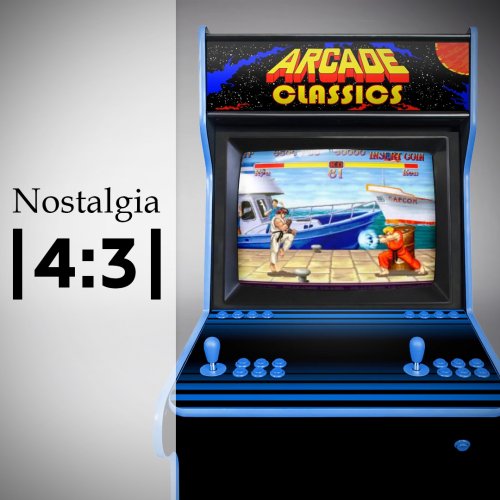
Nostalgia |4:3| video Set View File The idea of this set is to place the gameplay video in context, with the hardware of its time. A touch of nostalgia to better understand an unknown material especially for the youngest. Most of the montages use the EmuMovie gameplay videos. The others are mine. This video set is also available in 16:9 ratio here I also share the gameplay videos I create with the help of the community. On EmuMovie FTP : "Upload here > _Video Snap Submissions > Viking (Platform Video)" /!\ IMPORTANT NEWS /!\ Dad of 2 young children, I dont have enough time to make another video. Thanks to him, @dragon57 are nicely create new video for this set. You can find additional videos here. If other people are interested in creating video for this set, here is a Mega link to download a 7zip archive with some source files that will help you stay in the graphical lines. Thank you for your help and your understanding! // VIDEO // Platform = 253 videos Category = 5 videos // INFORMATION // 4:3 format HD resolution : 1440x1080px MP4 format - H264 Codec - AAC audio - most with 30fps EmuMovie or community video integration, unless not available, I created myself the games loop. // INSTRUCTION // There is 2 way to download my videos : Way 1 : The easy one In LaunchBox, go to "tools > Download platform video theme" Select "Viking's Nostalgia (4x3)" Clic "OK" Way 2 : By hand Download files here one by one and copy into : ... / LauchBox / Themes / <theme name> / Videos / Platforms / ... Rename the videos exactly as the name of the desired platform in LaunchBox. Launch BigBox Submitter viking Submitted 10/24/2016 Category Platform Theme Videos
-
Version 1.0.1
498 downloads
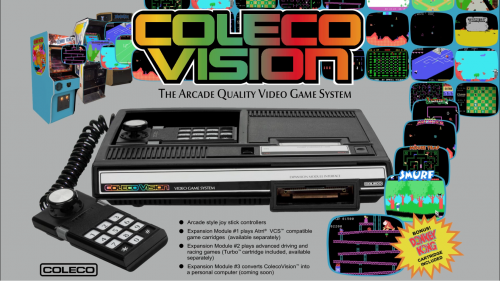
This is my first platform theme that I am making available to the community. My work blends a few influences relevant to the platform while showcasing the machine itself along with the games the platform ran: 1) Music made using sounds available on the platform 2) The platform's boot screen if available 3) Commercial influences usually in the form of the platform's marketing jingle. 4) The platform's packaging. In this way, the platform video itself gives an accurate interpretation of what the platform is, was marketed as, and what it looked and sounded like. The version available on Launchbox-app.com has no watermark.- 3 comments
-
- 15
-
-
-
- colecovision
- platform
- (and 2 more)
-
Version 1.0.0
2,436 downloads
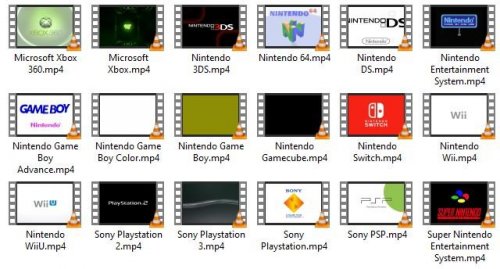
Inspiration: When I found out you could play custom platform boot videos in launchbox, my first thought was to make these the console boot videos. However, I ran into some problems that this theme tries to solve. It might not be done in the best way, but it's working really well for me, so I thought I would share. The first problem is that my videos would loop unless I set an emulator specific timeout for the video. This doesn't work well though as the video often partially loops anyway. If there was a way to stop this, I couldn't figure it out. The second problem is that I use retroarch, and as far as I can tell, there was no way to override the timeout parameter on a platform level (not an emulator level). I could do this on the game level, but that's not ideal as I'd have to keep updating games when I'd add them. There were various other oddities that made cutting off this loop quite impractical. My solution was to create minute long videos where the majority of the video is black. This has solved my looping problem. About the theme: This theme will play the boot videos of these platforms (all others will play a default black video): Sony: PS1, PS2, PS3, PSP Nintendo: NES (video from the Famicom), SNES, N64, GC, Wii, WiiU, Switch, GB, GBC, GBA, DS, 3DS Microsoft: Xbox, Xbox 360 If you'd like to add your own, put them in the videos folder with the console name. You'll likely have to do as I did and extend the video though. The majority of the videos play in 1080p at 60fps. Some are lower fps (NES, SNES, N64, Switch, PSP). The SNES video is also 720p, but it's the highest quality version I've found. The goal was not to favor accuracy over graphics, so most of the lower definition boots were created from scratch so they'd look good at a higher definition (by various people on youtube, not me). In the case where a console didn't have a boot (the boot basically went straight to a menu or game), I improvised to make one that I think will be satisfying to most people. The audio has been roughly equalized so no console boot should be too loud or too quiet. Contributing: If anyone would like a system added, but they don't have access to a sufficient video editing program, they can send any clips they find my way. I'd prefer any old boots to be high quality remakes to keep with the theme. Other than that, try to stick to 1080p (preferably 60fps). Most of these remakes don't exist in 4K, but I might make a 4K version of them using waifu2x to attempt an upscale once I update my system with a 4K screen.- 14 comments
- 2 reviews
-
- 13
-
-
-
- startup theme
- platform boot
- (and 1 more)
-
Hope you like it! Sega Triforce.mp4
-
- 1
-
-
- sega
- sega triforce
- (and 4 more)
-

Version 2.1.0
278 downloads
Visual Pinball X VideoSnap Creator (Playfield Recorder) Use this plugin to create videosnaps of the Visual Pinball X tables on your PC/Cab. This will record any VPX table at any orientation and from any monitor. Why record your own? There already exists a lot of video snaps of most every Visual Pinball Table. You can even find vertically oriented (portrait) ones for your pincab. The issue is they may not be recordings of the actual version of the table you use. Or you simply can’t find one for a particular Original. Or you just don’t like the one(s) you found. Features: This will automatically ‘find’ your table’s playfield view so there’s no need to set up which monitor to look at or set any scale, resolution or aspect ratio. Your VPX default monitor settings will be displayed for your reference. (new v2.0) Record the backglass at the same time as the playfield. (optional) (new v2.0) Record the DMD (3rd screen) at the same time as the playfield. (optional) (new v2.0) Record the tables gameplay sounds along with the playfield video. (optional) (new v2.1) Add the tables Clear Logo to the end of the video. (optional) Included is an AutoHotkey script that the plugin uses to quickly bypass the VPinMAME window when loading a table. (Should reduce loading time by approximately 4 seconds per table) (This also works well if added to your Running AutoHotkey Script tab for your VPX emulator ) Record durations can be set between 5 seconds and 3 minutes. If your playfield is in portrait mode, the saved output video can be rotated for proper viewing. (Options are 0º (default), 90º, 180º, -90º) You can set the video to record at 60 FPS (Depreciated v2.1) All video will be recorded at 30 FPS Videos are automatically saved to the default folder (/Plugins/VPXVideoCreator/CreatedVideos/) or you can change it to be placed directly into your /LaunchBox/Videos/Visual Pinball/ folder. Installing: Download and unblock the zip file. (right click the file, select properties and check the Unblock check box and click OK) Copy the VPXVideoCreator folder (from inside the zip) into your /LaunchBox/Plugins/ folder. If updating to 2.0, overwrite the existing file. Quick Start: Start LaunchBox (always a good place to start) Right click one of the tables in your Visual Pinball platform and select Create VPX video. Set how long you want your final recording to be. Click Capture Video. The default save location is in the plugins’ subfolder, “CreatedVideos”. Setting up to record audio: (new v2.0) (optional) You will need to register “audio_sniffer-x64.dll”** (included with the plugin) with Windows. Basically what this does is makes all your audio output accessible in one place. Think of it as a Frontend for all your audio output devices. This “frontend” will be labeled “virtual-audio-capturer”. 2 ways to register/unregister audio_sniffer are: The easy way: Run the included batch file (located in the plugins AudioSniffer subfolder). You need to run this as administrator. The batch file can also be used to unregister it. Follow the prompts. Old school: Open the command prompt [as administrator] in the “AudioSniffer” subfolder. To Register: type in then press enter: regsvr32 audio_sniffer-x64.dll.1 To Unregister: type in then press enter: regsvr32 /u audio_sniffer-x64.dll.1 **NOTE: The file is named "audio_sniffer-x64.dll.1" (with a “.1” at the end). Otherwise LaunchBox will try to load it as a plugin, which will cause errors. Source code for audio_sniffer can be found here: https://github.com/rdp/virtual-audio-capture-grabber-device Using the plugin: Set Delay: This is the delay time between clicking Capture Video and the video actually starting to record. Set to bypass (in the recording) the VPX editor loading the table. Default is 12 seconds. Options are from 5 to 30 seconds. Record Duration: Set to how long you want your video snaps to be. Default is 30 seconds. Options are from 5 to 180 seconds (3 minutes). Video Rotation: If you play on a rotated monitor (or TV), you will want to set this to the direction your monitor/TV is rotated. Default is 0º. Options are 0º, 90º, 180º and -90º. Include Audio: (new v2.0) Check this box to include the tables playfield sounds with the recording (needs to be configured). Record Backglass: (new v2.0) Check this box to record the Backglass at the same time as recording the Playfield. This will be saved to a separate file that is saved in the “/VPXVideoCreator/CreatedVideos/Backglass/” folder. The backglass is typically on a 2nd monitor, but (if setup) will get recorded separately no matter which monitor it’s on (single or otherwise). The file will be saved as [the-games_Title]_BG.mp4 Record DMD: (new v2.0) Check this box to record the Dot Matrix Display (DMD) at the same time as recording the Playfield. This will be saved to a separate file that is saved in the “/VPXVideoCreator/CreatedVideos/Backglass/” folder alongside the backglass video. The DMD is typically on a 3nd monitor, but (if setup) will get recorded separately no matter which monitor it’s on (single or otherwise). The file will be saved as [the-games_Title]_DMD.mp4 Add Clear Logo to the end of the video: (new v2.1) Check this box to add the tables Clear Logo (if one exists) to the end of the video. The logo will fade in as the video fades out during the last 2 seconds of the recording. This feature is automatically disabled if no Clear Logo for that table exists. 60 FPS Option removed (v2.1) Experimental. Check this box to record at 60 frames per second. Default is 30 FPS (un-checked). Depending on your video card (and probably some other factors too), this may or may not even be worthwhile. Change Save Location: The default save location is in /LaunchBox/Plugins/VPXVideoCreator/CreatedVideos/. The video filename will be saved as the ‘games’ Title in LaunchBox with .mp4 file extension. You can save them anywhere you want. Reset to Default: This will reset the Save Location, Delay, Duration and Rotation to their default values. Save Settings: This will save the Save Location, Delay, Duration and Rotation values you set and will load these next time you run the plugin. Save settings before video capture This is checked by default and will save any changes made when you click Capture Video and before launching VPX. Capture Video: This will launch the table you selected to open the plugin with. At the same time, the AutoHotkey script “vpxBypassPinMAME.ahk” will start. This runs in the background and waits for the VPinMAME popup window to appear and then ‘hits the spacebar’ to make it go away (sooner). The script will exit after it see the popup, or 15 seconds. Whichever comes first. After the amount of Delay time has passed, recording will begin and will continue for the set Duration. When done, VPX closes and the video gets converted. The video is saved to “_tempVideo.mkv” (in the CreatedVideos subfolder) and then gets converted to an mp4 file. After conversion, _tempVideo.mkv will be deleted. Keep temp video when done: By default, “_tempVideo.mkv” will be deleted after the video has been converted. If you want to see what the video looks like before converting, check this box. After your video is complete, go to the CreatedVideos folder to view it. Note: this file gets overwritten each time you click Create Video if you have the checkbox checked. View Saved Video Click this to view the converted video. This is the video file shown in Saved Video Location. VPX Playfield This shows the default playfield monitor settings you have setup for your Visual Pinball installation. These get read from your Registry settings: HKEY_CURRENT_USER\SOFTWARE\Visual Pinball\VP10\Player\Display The Monitor # listed may not be the same as what your Windows Display Settings says. So if it’s “wrong”, ignore it. The Image Scale (W and H) shown will be correct. If the VPX display settings cannot be retrieved from the registry, monitor #1’s information will be displayed with an asterisk (*) after the monitor number. (Monitor #: 1*) Some notes: When you click Capture Video, probably don’t click anything else until recording is complete. However once the table is loaded, feel free to drop in a coin, hit start and play until ‘your time is up’. Just don’t click on another window. Backglass and DMD recordings only work with B2S Backglass Server (which is what most of them are). PinUPPlayer windows are not supported. Designed for LaunchBox v11.3 and higher. Special Thanks! Special thanks to gtxjoe’s PBX Recorder on VPForums and Carny_Priest’s post on GameEx Forum for paving the way to figuring out an excellent approach to creating your own Visual Pinball table videosnaps. Huge thanks to @sundogak for convincing me (though it didn't take much once I saw it in action) and showing me how to add video fade and attaching Clear Logos to the videos. Also for all the testing done and invaluable insight! Future releases and enhancements: If there’s enough interest in this plugin (as in, it’s actually useful and would get used), I will look at adding: Option to record the table’s audio in with the video. (added v2.0) Ability to select multiple tables for ‘bulk recording’. Record backglass videos??? (added v2.0) Any REASONABLE request. As always, any and all feedback is welcome! -
 This is a re-recording and re-upload to YouTube of my current build as the last one had a few errors I missed. Link to new Video - Launchbox | Bigbox | 500+ Platforms | 400+ Playlists | 500,000+ Games | The ridiculous collection. I'm having issues where some videos stick. I've closed / disabled everything I can but it only helps a little. My specs are pretty good (32GB RAM, Octocore, 8GB Video) so I don't think it's that...? If you'd like a video of the playlists, let me know. As always, comments and criticisms welcome. 🎮
 -
In LaunchBox BigBox, i’m having graphical issues with the "platform / category / playlist" videos. They are glitchy, and look like this: Image 0145 . The Nahimic program is uninstalled from my PC and disabled using windows service. As per the following forums link: BigBox Graphics issue! I tried manually adding both LaunchBox and BigBox using the Nvidia Control Panel, but that didn’t help. Any other suggestions?
-
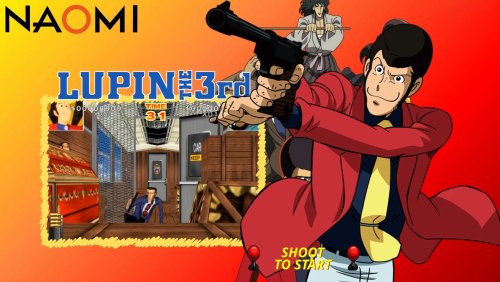
Version 1.0.0
22 downloads
Lupin the shooting sega naomi custom video theme by sosuke91 Credits to original creators for artworks and music theme Lupin3ENG.mp4 -
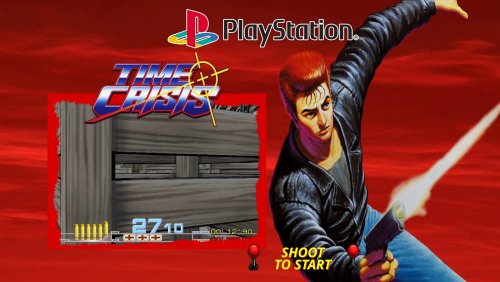
Version 1.0.0
10 downloads
Custom theme for Pòaystation 1 Time Crisis by sosuke91 Player artwork found online, credit to the original creator Time Crisis ENG.mp4 -
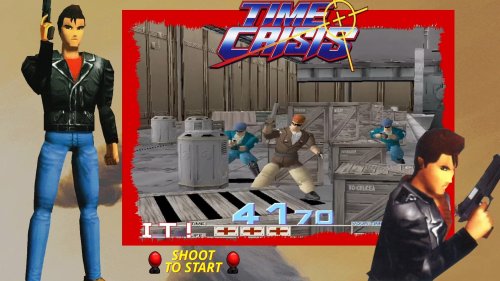
Version 1.0.0
8 downloads
Time crisis video theme 2nd version Playstation 1 by sosuke91 Credits to original artworks creators, i just fixed and made images better looking Timecrisis2ndverENG.mp4 -
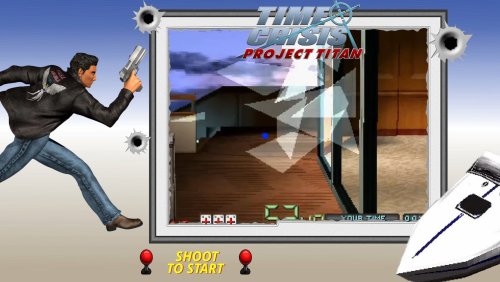
Version 1.0.0
9 downloads
Time Crisis Project Titan video theme Playstation 1 by sosuke91 Credits to original artworks creators, i just edited images and animated them TimeCrisisProjectTitanENG.mp4 -
I'm having issues getting the Platform theme videos to play in Launchbox on my Pixel 8 Pro running Android the QPR2 Beta update. This is the guide I was following: Launchbox Tutorial And these are the steps I followed: From platforms view, click the three dots in the top right and change view to Wheel with details (Also should work with text with details view.) Download Theme Videos from the same three dots menu Select to prioritize 'Colourful HD by Viking', Do you want to replace existing videos as well? 'Download All' Wait a few seconds for all to download In landscape you should see videos for each platform playing in the background After doing all this, no background image shows, and no videos. I'm not sure if this is because of the Android Beta software I'm running, or if this is a bug with Launchbox.
-
Version 1.3.2
62,861 downloads
The idea of this set is to place the gameplay video in context, with the hardware of its time. A touch of nostalgia to better understand an unknown material especially for the youngest. Most of the montages use the EmuMovie gameplay videos. The others are mine. This video set is also available in 16:9 ratio here I also share the gameplay videos I create with the help of the community. On EmuMovie FTP : "Upload here > _Video Snap Submissions > Viking (Platform Video)" /!\ IMPORTANT NEWS /!\ Dad of 2 young children, I dont have enough time to make another video. Thanks to him, @dragon57 are nicely create new video for this set. You can find additional videos here. If other people are interested in creating video for this set, here is a Mega link to download a 7zip archive with some source files that will help you stay in the graphical lines. Thank you for your help and your understanding! // VIDEO // Platform = 253 videos Category = 5 videos // INFORMATION // 4:3 format HD resolution : 1440x1080px MP4 format - H264 Codec - AAC audio - most with 30fps EmuMovie or community video integration, unless not available, I created myself the games loop. // INSTRUCTION // There is 2 way to download my videos : Way 1 : The easy one In LaunchBox, go to "tools > Download platform video theme" Select "Viking's Nostalgia (4x3)" Clic "OK" Way 2 : By hand Download files here one by one and copy into : ... / LauchBox / Themes / <theme name> / Videos / Platforms / ... Rename the videos exactly as the name of the desired platform in LaunchBox. Launch BigBox -
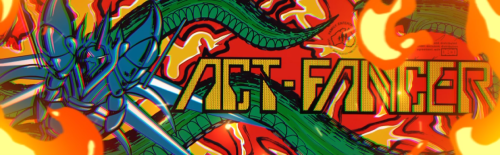
Version 1.0.1
361 downloads
I tried out a little bit of video editing and made my 3 first Arcade marquees. They are all in the resolution of 1280 x 390 since that is the native resolution of my marquee display. I hope some of you will be able to use it. Preview Videos: Act Fancer Mortal Kombat 3 Terminator 2 - Judgment Day I am using the ThirdScreen Plugin by superrob3000 to make them run: -
 'Recently Played' Playlist Video and Clear Logo (2 versions) View File Hey guys! In the last few days I added the 'Recently Played' auto-populating playlist to my set, and I was bummed to realize that there is no media for this category (that I could find), so I went ahead and created two simple videos and a clear logo to go with them. I am nowhere near the great video creators from this forum (I would have loved to make a video with a synced equalizer, and graphics flying all over the place hehe), so be easy on me. Option 1 Disclaimer; the video source clips and song are from Polygon.com by Reverse Enginears featuring P Sus. I edited stuff in and out, changed resolutions, times, blurs, fades, etc. Recently Played.mp4 Option 2 (ALT) Disclaimer; the video source is a fan-video made by Kriskappashox and FreankExpo's Staff. The song used is "Donkey Kong REMIX [Super Bass Boosted]" by San Holo. Recently Played ALT.mp4 Option 3 (ALT 2) Disclaimer; the video source is from YT user 4096 called "Evolution of Game Cartridge". The song used is "Donkey Kong REMIX [Super Bass Boosted]" by San Holo. Recently Played ALT 2.mp4 You can also grab the logo I made that goes along with the videos. The bitten gamepad is based on an idea from designevo. If somebody wants to improve or create a video/logo for this category, please be my guest; the more options the merrier Enjoy! Submitter Kondorito Submitted 06/13/2018 Category Playlist Theme Videos
 -
Welcome to the Unified Widescreen Platform Video Theme Project! This video project is based on the Unified Megatheme project which was originally created for HyperSpin by Gibbawho and eventually continued and expanded by various other users as well. The themes of this project are designed for widescreen displays and share all the same basic structure to give all themes a simple and unified look. My goal is to recreate all Unified Megathemes as video files so that they can be used within other Front End’s like LaunchBox as well. I’m using Adobe After Effects to create the videos with their original source files (when they were available) and try to stay as accurate as possible to the HyperSpin originals. So far I’ve done 124 platforms (including some region variants and compilations) + 84 alternative versions! Preview: List of all videos (206 videos; 6GB in size total): You can download these videos only on EmuMovies as I’m using their gameplay videos for most of them and don’t want to rip off the guys over there in any way. I won't upload these videos anywhere else and neither should you! Download: Platforms A-C Platforms D-M Platforms N Platforms O - S (Part 1) Platforms S (Part 2) Platforms S (Part 3) Platforms S (Part 4) - Z If you need a nice theme which is optimized for using these kind of videos than I would suggest to check out my BigBox theme CriticalZone: To everyone who has a request: The structure of the unified themes is pretty simple, so with the right images I could create some new ones for you. I will do all your requests BUT you have to provide me all of the following source files: - Neutral Background image (no characters, consoles or controller). If possible in 1920x1080. - Gameplay video (NO trailer / features at least 3 or more games) - Clear Logo (transparent background / high resolution) - Picture of the system (transparent background / high resolution) [I don't need that for arcade systems] - Picture of a gamepad for this system (transparent background / high resolution) [I don't need that for arcade, handheld and computer systems] - Character of a popular game which can be played on this system (transparent background / high resolution) I have zero Photoshop skills, so all images already have to be properly edited to fit the requirements or I have to refuse your request Also be aware that most of the themes were just recreated and slightly modified by me. Similar goes for the platform videos which I mostly just took from EmuMovies. So full credits go to their original creators. Thanks guys! Credits: Circo and the whole EmuMovies team Gibbawho CriticalCid Styphelus Unknown50862 Klopjero Knewlife Creloce Viking Rkh Rondar Neonrage Scooter1974 Zinger19 aloner187 guyverjay MetalThrix SophT Ledgerewskie
- 68 replies
-
- 17
-
-
-
- criticalzone
- hyperspin
- (and 4 more)
-
Hi guys, I just bought Launchbox yesterday, It was a bit problematic setting it up to work with my retroarch installation (problem was that I had checked to unpack zipped files first, wasn't necessary and gave me lot of crashes). My Problem now: I have snaps video files in a directory for the roms (they have same name as the zipped roms), now I want to associate these files to corresponding Roms now catalogued by Launchbox. When I do a Mass Editing and choose video path, I cannot mass change that, it actually let me choose the directory and single files not just the directory and let it find the file by itself. Any help to solve this would be useful. Thanks.
-
 I was working with video snaps for my Windows PC games and noticed that certain BigBox themes, "like WoodPanels" use a 16:9 monitor view for video snaps for games while other consoles like PS1, N64, SNES, etc use the 4:3 CRT style TVs in the views to display the video snap. This is fine, but I noticed that when I record Windows game snaps for games that only run in 4:3 resolutions, they will be stretched across the displaying area. I've attached a snap-shot of POD Gold in the video snap view for WoodPanels for Windows Games. Would it be possible to specify the theme to adjust pillar/letterboxing for the video snaps based on the aspect ratio of the video file? Or would my best bet be to re-record video snaps with pillar/letterboxing in the video so that it displays properly in BigBox? Just asking because I have many games for Windows such as Populus 3, POD Gold, Classic PC NFS games, etc that only run in 4:3 aspect ratios so I have to letterbox these no matter what.
-
Platform Boot Videos Theme View File Inspiration: When I found out you could play custom platform boot videos in launchbox, my first thought was to make these the console boot videos. However, I ran into some problems that this theme tries to solve. It might not be done in the best way, but it's working really well for me, so I thought I would share. The first problem is that my videos would loop unless I set an emulator specific timeout for the video. This doesn't work well though as the video often partially loops anyway. If there was a way to stop this, I couldn't figure it out. The second problem is that I use retroarch, and as far as I can tell, there was no way to override the timeout parameter on a platform level (not an emulator level). I could do this on the game level, but that's not ideal as I'd have to keep updating games when I'd add them. There were various other oddities that made cutting off this loop quite impractical. My solution was to create minute long videos where the majority of the video is black. This has solved my looping problem. About the theme: This theme will play the boot videos of these platforms (all others will play a default black video): Sony: PS1, PS2, PS3, PSP Nintendo: NES (video from the Famicom), SNES, N64, GC, Wii, WiiU, Switch, GB, GBC, GBA, DS, 3DS Microsoft: Xbox, Xbox 360 If you'd like to add your own, put them in the videos folder with the console name. You'll likely have to do as I did and extend the video though. The majority of the videos play in 1080p at 60fps. Some are lower fps (NES, SNES, N64, Switch, PSP). The SNES video is also 720p, but it's the highest quality version I've found. The goal was not to favor accuracy over graphics, so most of the lower definition boots were created from scratch so they'd look good at a higher definition (by various people on youtube, not me). In the case where a console didn't have a boot (the boot basically went straight to a menu or game), I improvised to make one that I think will be satisfying to most people. The audio has been roughly equalized so no console boot should be too loud or too quiet. Contributing: If anyone would like a system added, but they don't have access to a sufficient video editing program, they can send any clips they find my way. I'd prefer any old boots to be high quality remakes to keep with the theme. Other than that, try to stick to 1080p (preferably 60fps). Most of these remakes don't exist in 4K, but I might make a 4K version of them using waifu2x to attempt an upscale once I update my system with a 4K screen. Submitter ground7 Submitted 05/13/2020 Category Startup Themes
-
Hi, lately I've been thinking about adding a jukebox with categories like the ones in the images I posted. Short story, great thinking minds at Launchbox, how can I achieve this? Greetings
-
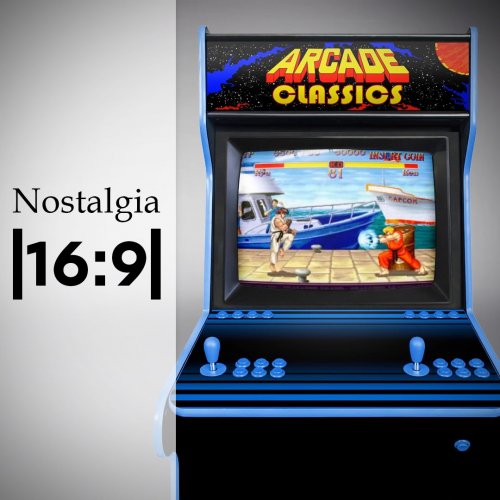
Version 1.3.2
164,478 downloads
The idea of this set is to place the gameplay video in context, with the hardware of its time. A touch of nostalgia to better understand an unknown material especially for the youngest. Most of the montages use the EmuMovie gameplay videos. The others are mine. This video set is also available in 4:3 ratio here I also share the gameplay videos I create with the help of the community. On EmuMovie FTP : "Upload here > _Video Snap Submissions > Viking (Platform Video)" /!\ IMPORTANT NEWS /!\ Dad of 2 young children, I dont have enough time to make another video. Thanks to him, @dragon57 are nicely create new video for this set. You can find additional videos here. If other people are interested in creating video for this set, here is a Mega link to download a 7zip archive with some source files that will help you stay in the graphical lines. Thank you for your help and your understanding! // VIDEO // Platform = 253 videos Category = 5 videos // INFORMATION // 16:9 format HD resolution : 1920x1080px MP4 format - H264 Codec - AAC audio - most with 30fps EmuMovie or community video integration, unless not available, I created myself the games loop. // INSTRUCTION // There is 2 way to download my videos : Way 1 : The easy one In LaunchBox, go to "tools > Download platform video theme" Select "Viking's Nostalgia (16x9)" Clic "OK" Way 2 : By hand Download files here one by one and copy into : ... / LauchBox / Themes / <theme name> / Videos / Platforms / ... Rename the videos exactly as the name of the desired platform in LaunchBox. Launch BigBox // PREVIEW //








.thumb.png.c9faf450e4d2b690a819048b18173f61.png)









.jpg.bfccbeb594e17bc9c73192fd40cf58b4.jpg)


