Search the Community
Showing results for tags 'taito'.
Found 14 results
-

Version 1.0.0
52 downloads
A sound pack I have created using sounds from Puzzle Bobble. Does not include a startup sound, as I made this intended for a playlist. Back.wav Move.wav Select.wav-
- 1
-

-
- puzzle bobble
- taito
- (and 3 more)
-
Puzzle Bobble Sound Pack View File A sound pack I have created using sounds from Puzzle Bobble. Does not include a startup sound, as I made this intended for a playlist. Back.wav Move.wav Select.wav Submitter drmalouf Submitted 05/09/2024 Category Sound Packs
-
 The OrionsAngel ULTIMATE 5 Pack Arcade Bezel Collection featuring the Mega Bezel Reflection Shader View File Here you can more conveniently download all 5 packs of my Realistic Arcade Bezel Collection featuring the Mega Bezel Reflection Shader. Thank you to everyone who helped me along the way. The ones who scanned official bezels and created original bezels. Also the ones who compiled all my work and made it easier for everyone to use. I couldn't have done this without you guys. Thank you! I would like to give shout outs to the following people, ArsInvictus MrRetroLust MQC Raspbear hgoda90 Thechonv2 UDb23 Dreamstate 303george Mr. Do If I forgot anyone let me know. I also want to thank everyone who has given me love and support for all the bezels that I have made over the years. It's kept me going. I appreciate all of you. Now enjoy the bezels and always have fun! Check out and subscribe to my YouTube channel for new updates - https://www.youtube.com/orionsangel You can also find me at, https://twitter.com/0rionsangel https://www.facebook.com/0rionsangel https://www.twitch.tv/orionsangel https://www.instagram.com/orionsangels Submitter Orionsangel Submitted 11/30/2023 Category Platform Bezels/Overlays
 -
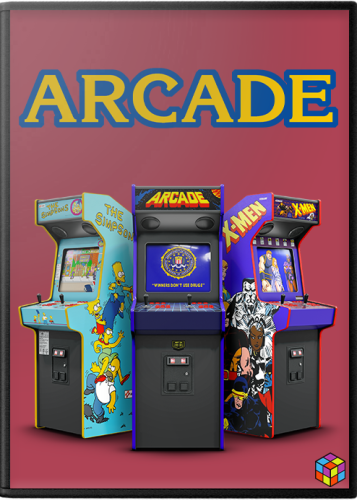
Version 1.0.0
460 downloads
# What is it? This is a pack of 2D boxes intended to be used as Default media in LB/BB. I wanted to create something that would be cohesive with the Arcade box art currently available by default from the LB Media Downloader. # Credit & Thanks This pack is based on work by @Robin55 that I believe was later redone by @Mr. RetroLust - Thank you both for your contributions to LB! Art assets provided to the community by @viking, @Cnells2000, @Dan Patrick and @Antny were also used - Thanks! WIP feedback provided by @X1pheR and @UKPenguins - much appreciated! # Arcade Machines The initial release of this pack covers 29 unique platforms (listed below). I may add more in the future if I happen to come across more high quality cabinet images. -
Arcade Platforms Default Media (Box - Front) View File # What is it? This is a pack of 2D boxes intended to be used as Default media in LB/BB. I wanted to create something that would be cohesive with the Arcade box art currently available by default from the LB Media Downloader. # Credit & Thanks This pack is based on work by @Robin55 that I believe was later redone by @Mr. RetroLust - Thank you both for your contributions to LB! Art assets provided to the community by @viking, @Cnells2000 and @Antny were also used - Thanks! WIP feedback provided by @X1pheR and @UKPenguins - much appreciated! # Arcade Machines The initial release of this pack covers 29 unique platforms (listed below). I may add more in the future if I happen to come across more high quality cabinet images. Submitter machjas Submitted 08/09/2022 Category Platform Default Image Packs
-
NESiCAxLive Theme View File Click to view video of theme Introduction This theme was originally requested by @Evilmaster and is designed to mirror the interface of the NESiCAxLive system Taito use in their TypeX2 mutli-game cabinets. The theme has been completely rebuilt from the ground up in version 2.0 and should now scale correctly for all resolutions. The theme does include the ability to display publisher logos as well as game specific control layouts within the interface. The theme is also built around using steam-style banners - I have detailed the simplest way to set this up currently in Launchbox below as the wheel does not support steam banners as a games view currently without some tweaking of your library. It will however, now also work with standard game boxes but I highly recommend that you set the option to remember different views per platform so that you can use the view that works best for the given platform cover art / banners you are using. Installation Unzip the NESiCAxLive folder to your Launchbox /Themes directory into a subfolder called NESiCAxLive. Setting up Steam Banners In order to setup the steam banners you will need to download steam banners for your games manually as unfortunately Launchbox does not yet automatically download these particular files for anything other than Steam games. Some good resources I have used to get these images from are: http://consolegrid.com/ http://steambanners.booru.org/index.php http://www.steamgriddb.com/ (Thanks to @Evilmaster for pointing me in the direction of these) When you download the images and add them to your games make sure you set them as Steam Banners within the game options in Launchbox. Then for them to be used in the theme correctly set the priority of the boxes view to prioritise Steam Banners first - if you ever want to revert this it is then simply a case of lowering the priority of the steam banners in the boxes list rather than having to remove or reorganise images. To do this open Launchbox and go to Tools --> Options and in the window that appear select Box Front Properties in the Images section and use the Up button to move the Steam Banners to the top of the list. Setting up Control Layouts Open the theme directory and browse to Images/Controls - in here you will find a folder for most systems, if the system you want to add control layouts for is not listed create a new Folder in this directory ensuring the folder name matches the platform name in Launchbox exactly. In each platform directory you will find a minimum of two files; controller.png and buttons.png. Using your preferred PNG image editing program (Photoshop or GIMP are recommended) open both files as layers. You can then position the buttons over the controller image as you want. When done you can hide the controller layer and just save the new button layout into the directory to replace buttons.png. This file will then be loaded by the theme and the animation applied automatically to fade it in and out. Setting up Developer Logos By default Launchbox/BigBox does not grab Developer/Publisher logos. I have downloaded many of the most common ones already and included in the theme. If you find that the view you are using needs developer logos and the one you need is missing you can simply download from the internet - ensuring it is a PNG file with transparent background - and place the file in the images/company logos subfolder of the theme directory ensuring the file is named exactly the same as the developer of the game/system is listed in LaunchBox. The Platform Views There are 4 Platform Views to select from shown below: Platform View 1 - Banner View with Recently Played Items Bar Platform View 2 - Banner View with Favorites Items Bar Platform View 3 - Banner View with no Bar There is also the Text Only Platform View The Game Views Horizontal Banner View * Horizontal Boxes View Horizontal Carts/CD/DVD View Horizontal Screenshots View Vertical Logos View Vertical Banners View * Text List View Small Banner View * * Requires Front Images configured with Steam Banner as the top priority and for Steam Banner images to be present in your library to display correctly. Submitter shro2016 Submitted 02/15/2017 Category Big Box Custom Themes
-
NESiCAxLive Theme View File Introduction This theme was requested by @Evilmaster and is designed to mirror the interface of the NESiCAxLive system Taito use in their TypeX2 mutli-game cabinets. This is my first attempt at creating a theme so please be kind. The theme has been built for 1920x1080 resolution and is likely to look wrong in other resolutions currently. I may update the theme for other resolutions if there is sufficient interest for me to do so, The theme does include the ability to display publisher logos as well as game specific control layouts within the interface. The theme is also built around using steam-style banners - I have detailed the simplest way to set this up currently in Launchbox below as the wheel does not support steam banners as a games view currently without some tweaking of your library. The Views Platform Wheel 1 - Horizontal Banner View Platform Wheel 2 - Horizontal Logo View Submitter shro2016 Submitted 02/15/2017 Category Big Box Custom Themes
- 1 reply
-
- 1
-
-
- nesicaxlive
- theme
- (and 2 more)
-
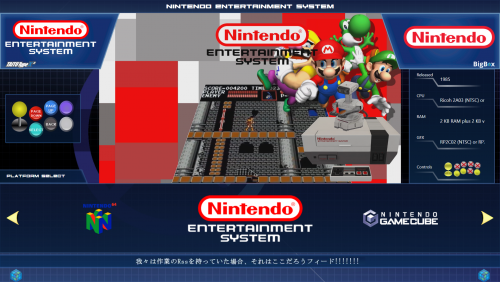
Version 1.0.0
875 downloads
Introduction This theme was requested by @Evilmaster and is designed to mirror the interface of the NESiCAxLive system Taito use in their TypeX2 mutli-game cabinets. This is my first attempt at creating a theme so please be kind. The theme has been built for 1920x1080 resolution and is likely to look wrong in other resolutions currently. I may update the theme for other resolutions if there is sufficient interest for me to do so, The theme does include the ability to display publisher logos as well as game specific control layouts within the interface. The theme is also built around using steam-style banners - I have detailed the simplest way to set this up currently in Launchbox below as the wheel does not support steam banners as a games view currently without some tweaking of your library. The Views Platform Wheel 1 - Horizontal Banner View Platform Wheel 2 - Horizontal Logo View- 1 comment
-
- 4
-
-
- nesicaxlive
- theme
- (and 2 more)
-
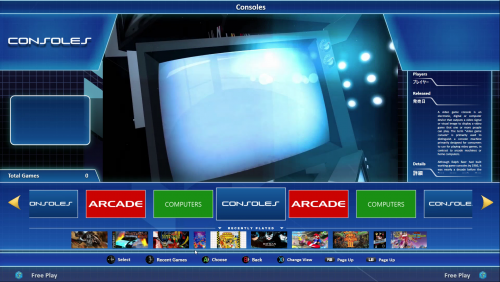
Version 2.0.0
2,305 downloads
Click to view video of theme Introduction This theme was originally requested by @Evilmaster and is designed to mirror the interface of the NESiCAxLive system Taito use in their TypeX2 mutli-game cabinets. The theme has been completely rebuilt from the ground up in version 2.0 and should now scale correctly for all resolutions. The theme does include the ability to display publisher logos as well as game specific control layouts within the interface. The theme is also built around using steam-style banners - I have detailed the simplest way to set this up currently in Launchbox below as the wheel does not support steam banners as a games view currently without some tweaking of your library. It will however, now also work with standard game boxes but I highly recommend that you set the option to remember different views per platform so that you can use the view that works best for the given platform cover art / banners you are using. Installation Unzip the NESiCAxLive folder to your Launchbox /Themes directory into a subfolder called NESiCAxLive. Setting up Steam Banners In order to setup the steam banners you will need to download steam banners for your games manually as unfortunately Launchbox does not yet automatically download these particular files for anything other than Steam games. Some good resources I have used to get these images from are: http://consolegrid.com/ http://steambanners.booru.org/index.php http://www.steamgriddb.com/ (Thanks to @Evilmaster for pointing me in the direction of these) When you download the images and add them to your games make sure you set them as Steam Banners within the game options in Launchbox. Then for them to be used in the theme correctly set the priority of the boxes view to prioritise Steam Banners first - if you ever want to revert this it is then simply a case of lowering the priority of the steam banners in the boxes list rather than having to remove or reorganise images. To do this open Launchbox and go to Tools --> Options and in the window that appear select Box Front Properties in the Images section and use the Up button to move the Steam Banners to the top of the list. Setting up Control Layouts Open the theme directory and browse to Images/Controls - in here you will find a folder for most systems, if the system you want to add control layouts for is not listed create a new Folder in this directory ensuring the folder name matches the platform name in Launchbox exactly. In each platform directory you will find a minimum of two files; controller.png and buttons.png. Using your preferred PNG image editing program (Photoshop or GIMP are recommended) open both files as layers. You can then position the buttons over the controller image as you want. When done you can hide the controller layer and just save the new button layout into the directory to replace buttons.png. This file will then be loaded by the theme and the animation applied automatically to fade it in and out. Setting up Developer Logos By default Launchbox/BigBox does not grab Developer/Publisher logos. I have downloaded many of the most common ones already and included in the theme. If you find that the view you are using needs developer logos and the one you need is missing you can simply download from the internet - ensuring it is a PNG file with transparent background - and place the file in the images/company logos subfolder of the theme directory ensuring the file is named exactly the same as the developer of the game/system is listed in LaunchBox. The Platform Views There are 4 Platform Views to select from shown below: Platform View 1 - Banner View with Recently Played Items Bar Platform View 2 - Banner View with Favorites Items Bar Platform View 3 - Banner View with no Bar There is also the Text Only Platform View The Game Views Horizontal Banner View * Horizontal Boxes View Horizontal Carts/CD/DVD View Horizontal Screenshots View Vertical Logos View Vertical Banners View * Text List View Small Banner View * * Requires Front Images configured with Steam Banner as the top priority and for Steam Banner images to be present in your library to display correctly. -
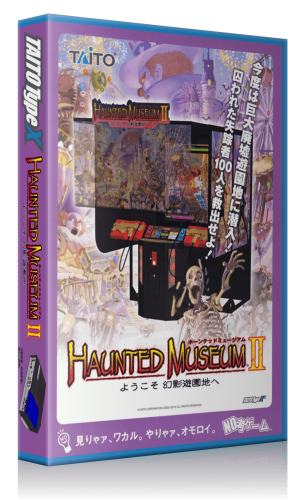
Version 1.1
855 downloads
Set of Boxes for the Taito Type X Hope you all enjoy. Any i missed just leave me a message with which title, i will make it asap.- 2 comments
-
- 11
-
-

-
Taito Type X 3D Cover Cases, Single Cover Only. View File Set of Boxes for the Taito Type X Hope you all enjoy. Any i missed just leave me a message with which title, i will make it asap. Submitter MadK9 Submitted 08/15/2018 Category Game Box Art
-
Sounds I converted for the NesicaXLive theme NesicaXlive Sounds.zip
-
Hey guys, Just wondering if any of you gave got the taito game Samurai Shodown - Edge of Destiny to work and remap the control's. Im currently just loading it through launchbox using a bat file. So no external emulator or program. Side question is there a decent emulator running tatio games that I can easily remap buttons and use through launchbox. Cheers
-
Taito Type X Arcade Cabinets (Custom) View File These are custom arcade cabinets for Taito Type X games. I know the controls are backward, I'll make an updated back as soon as I can. Submitter OmenBoy Submitted 02/01/2017 Category Arcade Cabinets
-
- 1
-
-
- taito
- nesicaxlive
- (and 3 more)